Alibaba Cloud Elasticsearch is fully compatible with open-source Elasticsearch and its commercial features, such as Security, Machine Learning, Graph, and Application Performance Management (APM). It provides services for data analytics and data search scenarios and supports features such as enterprise-level access control, security monitoring and alerts, and automatic report generation. You can use Data Transmission Service (DTS) to synchronize data from a PolarDB for MySQL cluster to an Elasticsearch cluster to quickly build your data analytics and search applications.
Prerequisites
You have created a destination Elasticsearch instance of version 5.5, 5.6, 6.3, 6.7, or 7.x. For more information, see Create an Alibaba Cloud Elasticsearch instance.
You have enabled binary logging for the PolarDB for MySQL cluster. For more information, see Enable binary logging.
Precautions
DTS uses read and write resources of the source and destination RDS instances during initial full data synchronization. This may increase the loads of the RDS instances. If the instance performance is unfavorable, the specification is low, or the data volume is large, database services may become unavailable. For example, DTS occupies a large amount of read and write resources in the following cases: a large number of slow SQL queries are performed on the source RDS instance, the tables have no primary keys, or a deadlock occurs in the destination RDS instance. Before data synchronization, evaluate the impact of data synchronization on the performance of the source and destination RDS instances. We recommend that you synchronize data during off-peak hours. For example, you can synchronize data when the CPU utilization of the source and destination RDS instances is less than 30%.
DTS does not synchronize Data Definition Language (DDL) operations. If a DDL operation is performed on a table in the source database during data synchronization, you must remove the table from the synchronization objects, delete the index for the table from the Elasticsearch instance, and then add the table back to the synchronization objects. For more information, see Remove synchronization objects and Add synchronization objects.
To add columns to a table that you want to synchronize, you must first modify the table's mapping in the Elasticsearch instance. Then, perform the corresponding DDL operations in the PolarDB for MySQL cluster. Finally, pause and then resume the DTS synchronization instance.
Billing
| Synchronization type | Task configuration fee |
| Schema synchronization and full data synchronization | Free of charge. |
| Incremental data synchronization | Charged. For more information, see Billing overview. |
Supported SQL operations
INSERT, DELETE, UPDATE
Data type mappings
A direct mapping of data types is not always possible because source databases and Elasticsearch instances support different types. During initial schema synchronization, DTS maps data types based on the types supported by the Elasticsearch instance. For more information, see Data type mappings for initial schema synchronization.
NoteDTS does not set the
mappingfor thedynamicparameter during schema migration. The behavior of the parameter depends on your Elasticsearch instance settings. If your source data is in JSON format, ensure that values for the same key have the same data type across all rows in a table. Otherwise, synchronization errors may occur in DTS. For more information, see dynamic.The following table shows the mapping between Elasticsearch and relational databases.
Elasticsearch
Relational database
Index
Database
Type
Table
Document
Row
Field
Column
Mapping
Schema
Procedure
Purchase a data synchronization job. For more information, see Purchase a DTS synchronization instance.
NoteWhen you purchase the instance, select PolarDB as the source instance, Elasticsearch as the destination instance, and One-way Synchronization as the synchronization topology.
Log on to the DTS console.
NoteIf you are redirected to the Data Management (DMS) console, you can click the
 icon in the
  to go to the previous version of the DTS console.
In the left-side navigation pane, click Data Synchronization.
In the upper part of the Synchronization Tasks page, select the region in which the destination instance resides.
Find the data synchronization instance and click Configure Task in the Actions column.
Configure the source and destination instances for the synchronization job.
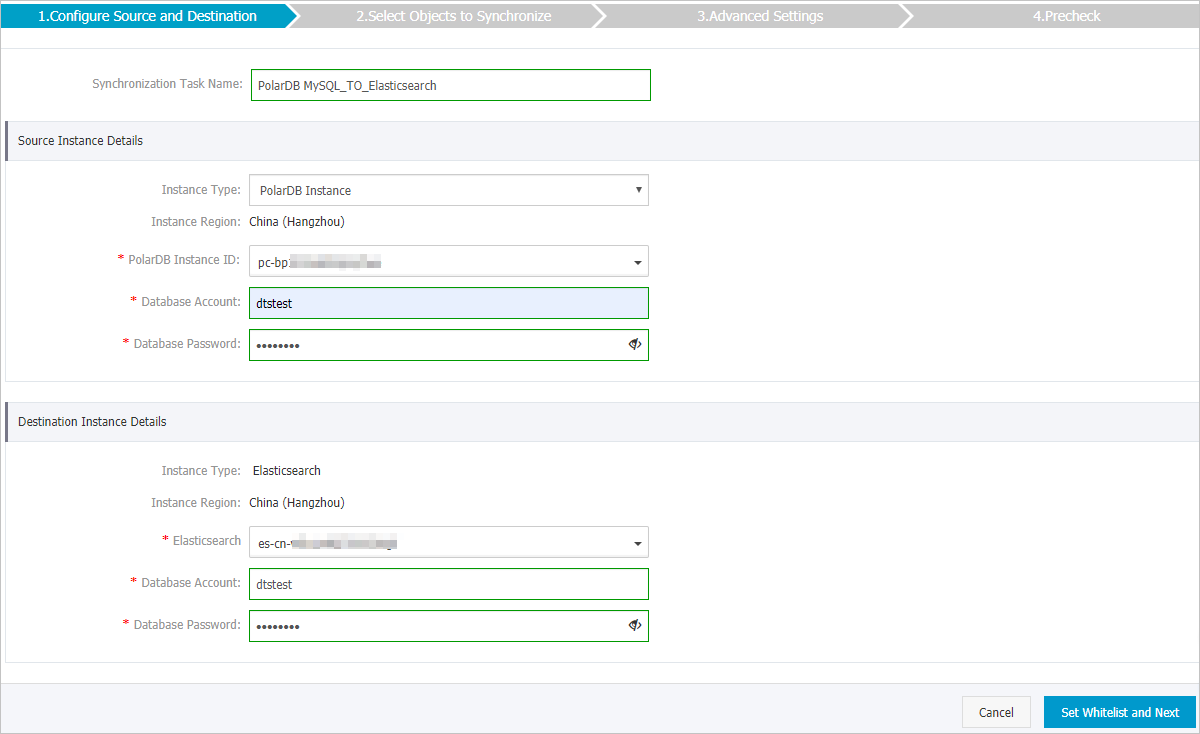
Section
Configuration
Description
N/A
Synchronization Task Name
DTS automatically generates a name for the synchronization job. We recommend that you specify a descriptive name for easy identification. The name does not need to be unique.
Source Instance Information
Instance Type
The value is fixed to PolarDB Instance and cannot be changed.
Instance Region
The region of the source instance that you selected when you purchased the data synchronization instance. This parameter cannot be changed.
PolarDB Instance ID
Select the cluster ID of the source PolarDB for MySQL cluster.
Database Account
Enter the database account of the PolarDB for MySQL cluster.
NoteThe account must have read permissions on the databases that contain the objects to be synchronized.
Database Password
Enter the password that corresponds to the database account.
Destination Instance Information
Instance Type
The value is fixed to Elasticsearch and cannot be changed.
Instance Region
The region of the destination instance that you selected when you purchased the data synchronization instance. This parameter cannot be changed.
Elasticsearch
Select the ID of the destination Elasticsearch instance.
Database Account
Enter the account used to connect to the Elasticsearch instance. The default account is elastic.
Database Password
Enter the password that corresponds to the account.
In the lower-right corner of the page, click Set Whitelist and Next.
If the source or destination database is an Alibaba Cloud database instance, such as an ApsaraDB RDS for MySQL or ApsaraDB for MongoDB instance, DTS automatically adds the CIDR blocks of DTS servers to the IP address whitelist of the instance. If the source or destination database is a self-managed database hosted on an Elastic Compute Service (ECS) instance, DTS automatically adds the CIDR blocks of DTS servers to the security group rules of the ECS instance, and you must make sure that the ECS instance can access the database. If the self-managed database is hosted on multiple ECS instances, you must manually add the CIDR blocks of DTS servers to the security group rules of each ECS instance. If the source or destination database is a self-managed database that is deployed in a data center or provided by a third-party cloud service provider, you must manually add the CIDR blocks of DTS servers to the IP address whitelist of the database to allow DTS to access the database. For more information, see Add DTS server IP addresses to a whitelist.
WarningIf the CIDR blocks of DTS servers are automatically or manually added to the whitelist of the database or instance, or to the ECS security group rules, security risks may arise. Therefore, before you use DTS to synchronize data, you must understand and acknowledge the potential risks and take preventive measures, including but not limited to the following measures: enhancing the security of your username and password, limiting the ports that are exposed, authenticating API calls, regularly checking the whitelist or ECS security group rules and forbidding unauthorized CIDR blocks, or connecting the database to DTS by using Express Connect, VPN Gateway, or Smart Access Gateway.
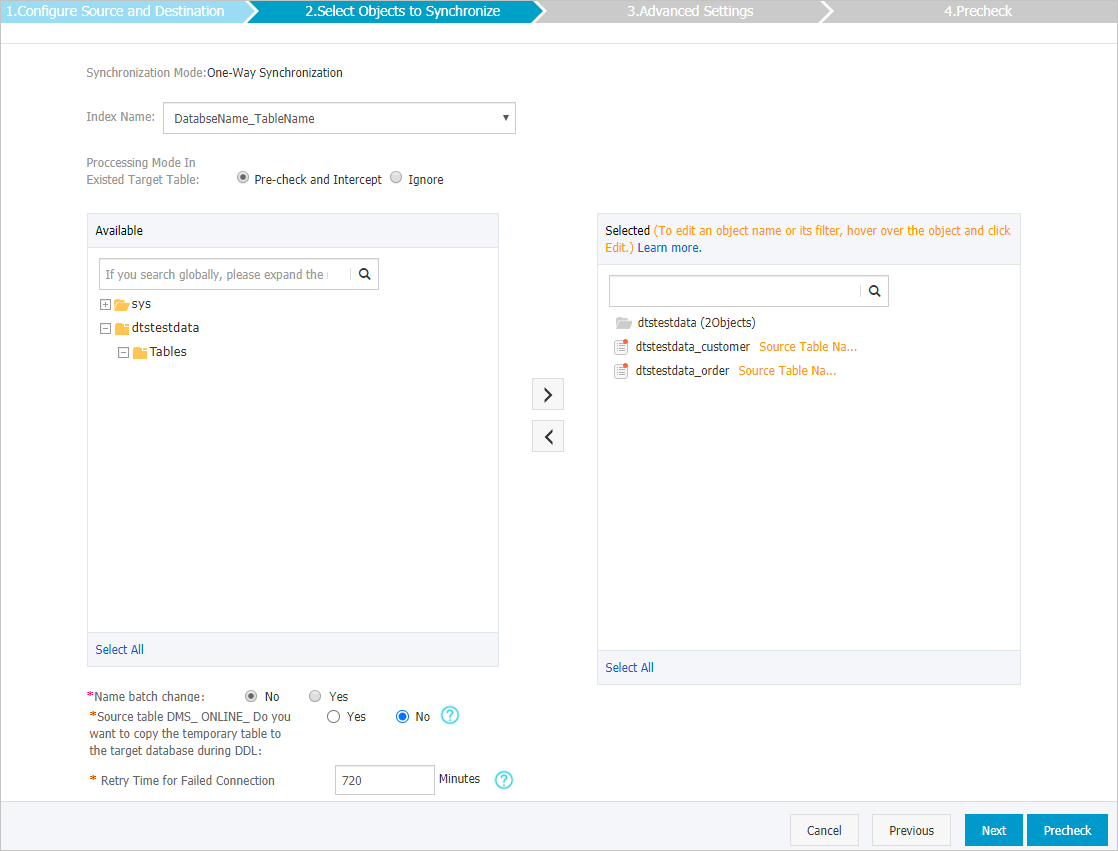
Configure the index name, the processing mode for existing tables, and the synchronization objects.
Configuration
Description
Index Name
Table Name
If you select Table Name, the name of the index created in the destination Elasticsearch instance is the same as the table name. In this example, the index name is customer.
DatabaseName_TableName
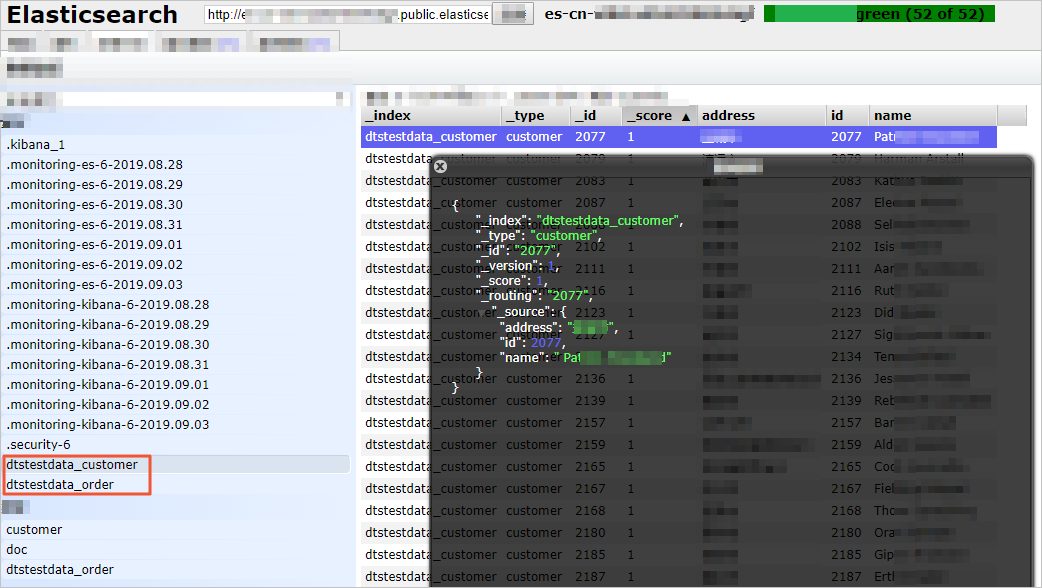
If you select DatabaseName_TableName, the name of the index created in the destination Elasticsearch instance is in the format of DatabaseName_TableName. In this example, the index name is dtstestdata_customer.
Processing Mode for Existing Tables
Precheck And Report An Error: Checks whether the destination database contains an index with the same name. If no index with the same name exists, the check item is passed. If an index with the same name exists, an error is reported during the precheck and the data synchronization task does not start.
NoteIf you cannot delete or rename the index with the same name in the destination database, you can specify a new name for the synchronization object in the destination instance to avoid name conflicts.
Ignore And Continue: Skips the check for indexes with the same name in the destination database.
WarningIf you select Ignore And Continue, data inconsistency may occur and expose your business to risks. For example:
If the mappings are consistent and a record in the destination database has the same primary key value as a record in the source database, the record in the destination database is retained during initial data synchronization. During incremental data synchronization, the record is overwritten.
If the mappings are inconsistent, initial data synchronization may fail, only some columns of data can be synchronized, or the synchronization may fail.
Select Synchronization Objects
In the Source Objects box, click the object that you want to synchronize, and then click the
 icon to move it to the Selected Objects box.
You can select databases and tables as synchronization objects.
Changing a mapping name
You can use the object name mapping feature to rename the objects that are synchronized to the destination instance. For more information, see Object name mapping.
Replicate Temporary Tables During DMS Online DDL
If you use DMS to perform online DDL operations on the source database, you can specify whether to synchronize temporary tables generated by online DDL operations.
Yes: DTS synchronizes the data of temporary tables generated by online DDL operations.
NoteIf online DDL operations generate a large amount of data, the data synchronization task may be delayed.
No: DTS does not synchronize the data of temporary tables generated by online DDL operations. Only the original DDL data of the source database is synchronized.
NoteIf you select No, the tables in the destination database may be locked.
Retry Duration for Network Instability
By default, if DTS fails to connect to the source or destination database, DTS retries within the next 720 minutes (12 hours). You can specify the retry time based on your needs. If DTS reconnects to the source and destination databases within the specified time, DTS resumes the data synchronization task. Otherwise, the data synchronization task fails.
NoteWhen DTS retries a connection, you are charged for the DTS instance. We recommend that you specify the retry time based on your business needs. You can also release the DTS instance at your earliest opportunity after the source and destination instances are released.
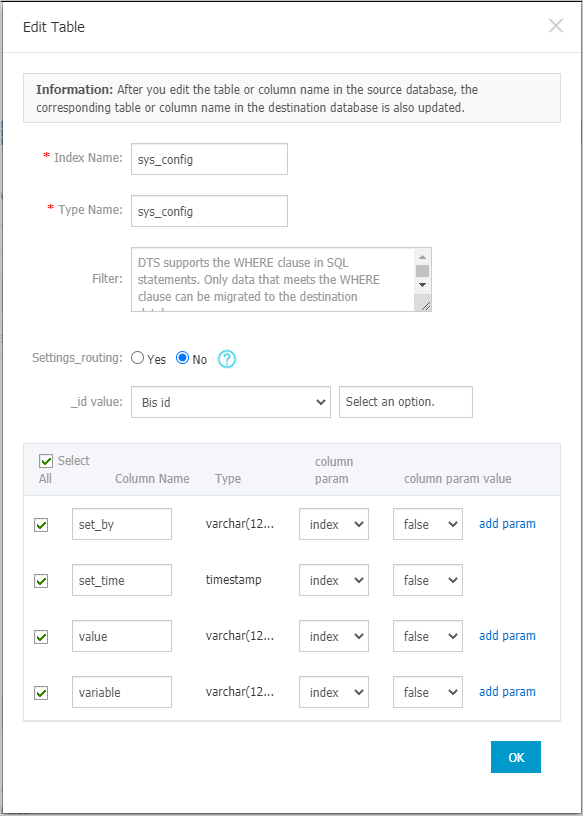
In the Selected Objects box, move the pointer over the table that you want to synchronize and click Edit. Set the index name, type name, and other information for the table in the destination Elasticsearch instance.
Configuration
Description
Index Name
For more information, see Terms.
WarningIndex names and type names can contain only underscores (_) as special characters.
To synchronize multiple source tables with the same structure to a single destination object, you must repeat this step to set the same index name and type name for these tables. Otherwise, the task may fail or data may be lost.
Type Name
Filter Condition
You can set SQL filter conditions to filter the data to be synchronized. Only data that meets the filter conditions is synchronized to the destination instance. For more information, see Filter data using SQL conditions.
Partition
Select whether to set a partition. If you select Yes, you must also set Partition Key Column and Number Of Partitions.
Set _routing
The _routing setting can route a document to be stored on a specific shard of the destination Elasticsearch instance. For more information, see _routing.
Select Yes to use custom columns for routing.
Select No to use the _id for routing.
NoteIf the destination Elasticsearch instance is of version 7.x, you must select No.
_id Value
Primary Key Column Of Table
A composite primary key is merged into a single column.
Business Key
If you select Business Key, you must also set the corresponding Business Key Column.
Add Parameter
Select the required Field Parameter and Field Parameter Value. For more information about the field parameters and their values, see the official Elasticsearch documentation.
NoteDTS supports only the parameters that can be selected.
In the lower-right corner of the page, click Precheck.
NoteBefore you can start the data synchronization task, DTS performs a precheck. You can start the data synchronization task only after the task passes the precheck.
If the task fails to pass the precheck, you can click the
 icon next to each failed item to view details.
 After you troubleshoot the issues based on the details, initiate a new precheck.
If you do not need to troubleshoot the issues, ignore the failed items and initiate a new precheck.
Close the Precheck dialog box after the following message is displayed: Precheck Passed. Then, the data synchronization task starts.
Wait until initial synchronization is complete and the data synchronization task enters the Synchronizing state.
You can view the status of the data synchronization task on the Synchronization Tasks page.

View the synchronized index and data
After the data synchronization task enters the Synchronizing state, connect to the Elasticsearch instance. In this example, the Elasticsearch-Head plug-in is used. Then, confirm that the created index and synchronized data meet your requirements.
If the results do not meet your requirements, you can delete the index and its data, and then reconfigure the data synchronization task.