Data Security Guard helps you discover, classify, and protect sensitive data across your DataWorks workspaces. It provides data discovery, data masking, watermarking, Fraud Detection, and data lineage capabilities so you can manage sensitive data end to end.
This guide walks you through a complete setup: classifying data assets, detecting phone numbers as sensitive data in the xc_dpe_e2_dev workspace, masking query results, and alerting on high-risk export operations.
Prerequisites
Before you begin, make sure you have:
A DataWorks workspace with data assets to protect
An Alibaba Cloud account with permissions to access Data Security Guard
If your Alibaba Cloud account is granted the required permissions, you can directly access the homepage of Data Security Guard.
If your Alibaba Cloud account is not granted the required permissions, you are redirected to the authorization page of Data Security Guard. You can use the features of Data Security Guard only after your Alibaba Cloud account is granted the required permissions.
Open Data Security Guard
Log in to the DataWorks console. In the top navigation bar, select your region. In the left navigation pane, choose Data Development and O&M > Data Development. Select your workspace from the drop-down list and click Go to Data Development.
Click the
 icon in the upper-left corner, then choose All Products > Data Governance > Data Security Guard.
On the page that appears, click Try Now.
Step 1: Configure data classification and grading
Data classification assigns sensitivity levels to your data assets based on their value, sensitivity, scope of impact, and distribution. Each sensitivity level can have different management and development requirements.
DataWorks includes built-in classification templates. To review or customize them, go to Rule Configuration > Data Category and Sensitivity Level in the left navigation pane.
This guide uses the default DataWorks classification and grading. For details on customizing classifications, see Configure sensitive data classification and grading.
Step 2: Configure sensitive data detection rules
Sensitive data detection rules define what counts as sensitive data in your workspace. DataWorks matches data against these rules and flags fields that meet the criteria.
This step creates a phone sensitive field type using a built-in rule to detect mobile phone numbers in the xc_dpe_e2_dev workspace.
In Data Security Guard, go to Rule Configuration > Sensitive Data Identification.
In the classification and categorization section, select an existing data category or create a new one. This example uses the default
Basic Informationcategory.Click + Sensitive field type.
Configure the basic information:
Parameter Description Example value Sensitive field type Name for this sensitive field type phoneData category The data category this field type belongs to Basic InformationSensitivity level The sensitivity level assigned to this field type 3Click Next.
Configure the detection rule:
Parameter Description Example value Hit rules Whether the rule triggers when any condition is met or when all conditions are met Satisfy any rule Data content identification The rule type and content pattern to match against Built-in Detection Rule > Mobile Phone Number Hit Ratio Configuration The minimum percentage of non-empty column values that must match for the field to be flagged as sensitive 50% 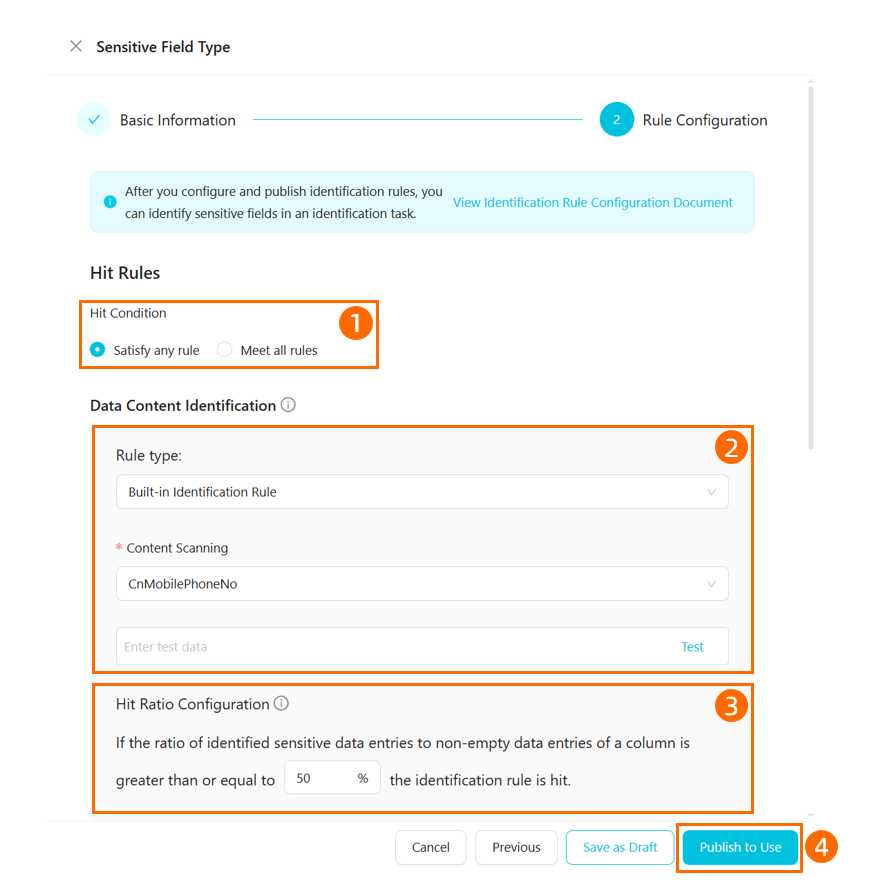
Click Publish to Use to enable the rule.
Detection tasks start based on their type:
Real-time task: Starts immediately.
Scheduled task: Click the task execution button to enable it. Detection runs at the configured scan time.
New detection task: Starts immediately after creation. A progress bar tracks completion. Progress is calculated as: (number of tables scanned / total tables to scan) x 100%.
For more details, see Configure data detection rules and run detection tasks.
Step 3: Configure data masking rules
Data masking controls how sensitive data appears when users query it. DataWorks supports dynamic data masking and static data masking. For more information about data masking, see Create a data masking rule.
This step creates a masking rule for the phone field type detected in Step 2. The rule hides the middle digits of phone numbers, showing only the first three and last two digits.
In Data Security Guard, go to Rule Configuration > Data Masking Management.
Click the
 icon to create a masking rule.
Configure the rule: For more information, see Create a data masking rule.
Configuration Description Example value Sensitive field type The field type to apply masking to phoneData masking rule name Name for this masking rule phoneData masking scenario The scenarios where this rule applies Default scenario from Step 1 Masking mode How the data is masked Masking out > Show first three and last two digits 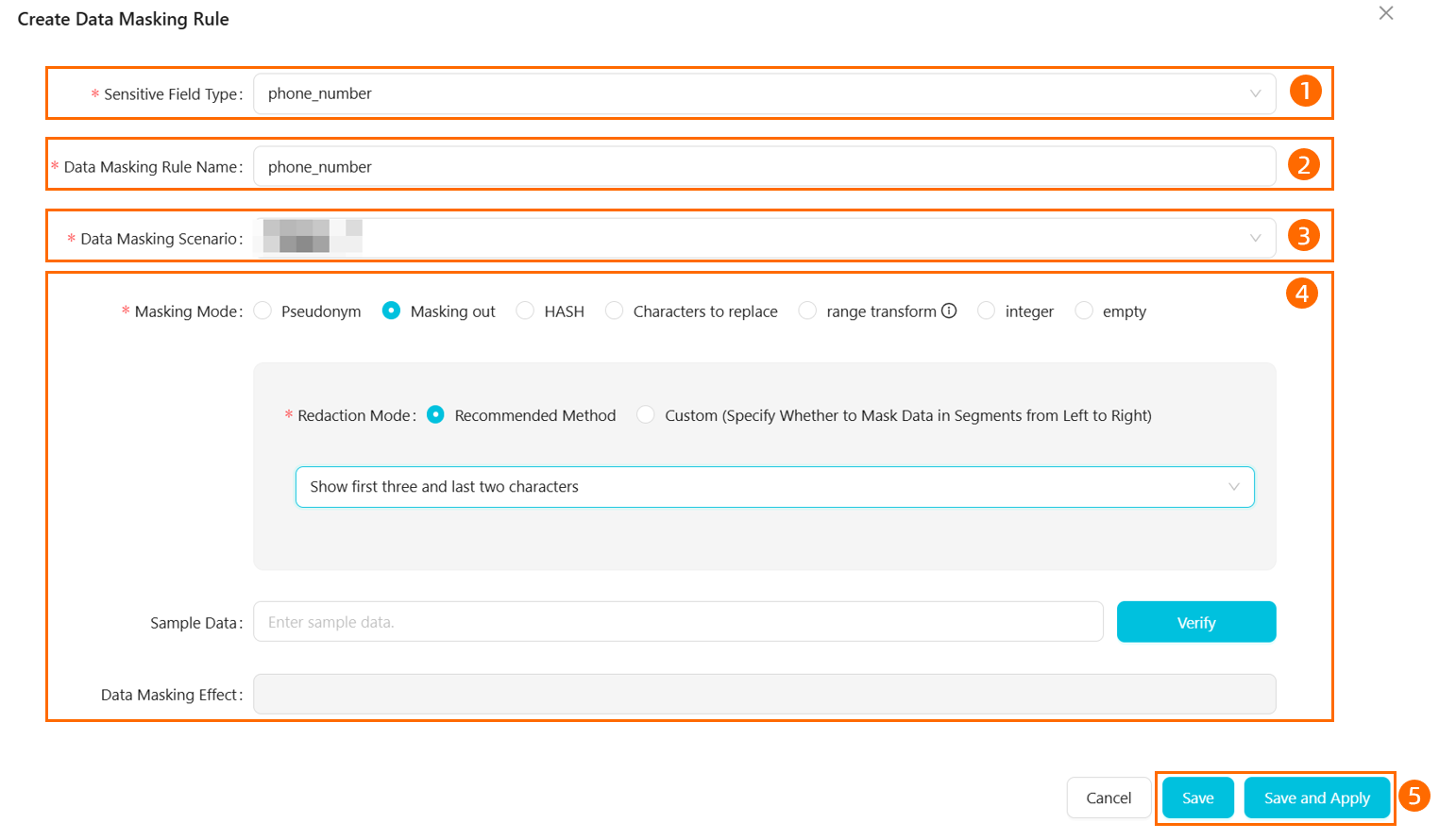
Enable query result masking for your workspace:
In the lower-left corner, click the
 icon to open Settings.
On the Security Settings and Others tab, find the Data Security section and enable Page Query Result Masking.
Verify the masking rule. In DataStudio, create an ad hoc query that returns phone number data. Confirm that query results show masked values — only the first three and last two digits of each phone number, with the rest replaced by asterisks (*).

Step 4: Configure risk detection rules
Risk detection rules flag operations that match suspicious patterns — such as exporting large volumes of sensitive data in a short window. When a rule triggers, DataWorks sends an alert through your configured notification channel.
DataWorks includes built-in risk detection rules for common scenarios. You can also create custom rules for your specific requirements.
This step creates a custom rule that flags high-risk export behavior: if phone type data from the xc_dpe_e2_dev project is exported 10 or more times within 10 minutes, the rule triggers a high-risk alert delivered via webhook.
In Data Security Guard, go to Rule Configuration > Risk Identification Rules.
Click the
 icon to create a rule.
Configure the rule: To configure a DingTalk Robot webhook for alert delivery, see Send alert messages to a DingTalk group. For more details on risk detection configuration, see Risk Detection Management.
Section Parameter Description Example value Basic information Rule name Name for this risk detection rule Phone Data Export RiskBasic information Rule type The category of risk this rule detects Data Export Risk Basic information Rule level The severity level assigned when this rule triggers High risk Define rule Condition The condition that triggers the rule phonetype sensitive data exported >= 10 times within 10 minutesAlert settings Alert notification method How alerts are delivered when the rule triggers Webhook 
Enable the rule. Custom rules are disabled by default. On the Risk Identification Rules page, find the
Phone Data Export Riskrule and click Re-validate to activate it.
Step 5: View security data
After completing the configuration, security and risk data becomes available in the Data Security Guard modules listed below. Risk data is generated the next day (T+1).
| Module | What you can see |
|---|---|
| Sensitive data overview | Total number and percentage of fields and tables that match detection rules, broken down by grade and project |
| Sensitive data access and export | Access volume, access trends, export volume, and export details for sensitive data detected by your rules |
| Data risks | Risk events matched by your detection rules, with details on the user, time, operation, and affected project — plus risk trends and project risk rankings |
| Data tracing | Identifies potential data leak sources by extracting watermark information from breach files |
What's next
Now that you have a working data security configuration, you can extend and refine it:
Expand coverage: Create additional sensitive field types for other data categories such as ID numbers, email addresses, or financial data.
Tune masking rules: Explore other masking modes or add masking rules for more sensitivity levels.
Add more risk rules: Use built-in risk rules or create custom rules to cover additional risk scenarios beyond data export.
Monitor regularly: Check the Sensitive data access and export and Data risks dashboards to identify emerging risk patterns.