Data Map is an enterprise data catalog that helps you search, preview, and trace data across your organization. It provides global metadata retrieval, metadata details, data lineage analysis, and category management.
Limitations
-
Code search and data lineage analysis are available only in DataWorks Standard Edition and higher.
-
Data albums are available only in DataWorks Professional Edition and higher.
Collect metadata
-
MaxCompute metadata & DLF metadata: Data Map automatically collects MaxCompute and DLF metadata through built-in collectors.
-
Other types of metadata: Use custom metadata collection to import metadata from other data sources, including Hologres, E-MapReduce, CDH Hive, StarRocks, AnalyticDB for MySQL, AnalyticDB for PostgreSQL, MySQL, PostgreSQL, Oracle, SQL Server, ClickHouse, Elasticsearch, Tablestore, Lindorm, and OSS. Collect metadata.
Network connectivity
To import metadata, ensure that the Data Map metadata collector can access your database. If your database uses a whitelist for access control, add the CIDR blocks for your DataWorks workspace region to the whitelist. Whitelist configurations required for metadata collection from data sources with access control.
Overview
-
The Overview page shows MaxCompute resource metrics for the current region: project count, table count, storage usage, API count, storage trends, top projects by storage, top tables by storage, and popular tables.
-
View database, table, and API counts for data sources such as AnalyticDB for MySQL 3.0, MySQL, Hologres, AnalyticDB for PostgreSQL, and OTS after metadata collection completes.
Metadata retrieval
Data Map aggregates metadata for tables, code, indexes, APIs, datasets, AI models, algorithm tasks, model services, and workspaces. Search within the current region by type, workspace, owner, environment, tag, and category. Metadata retrieval.
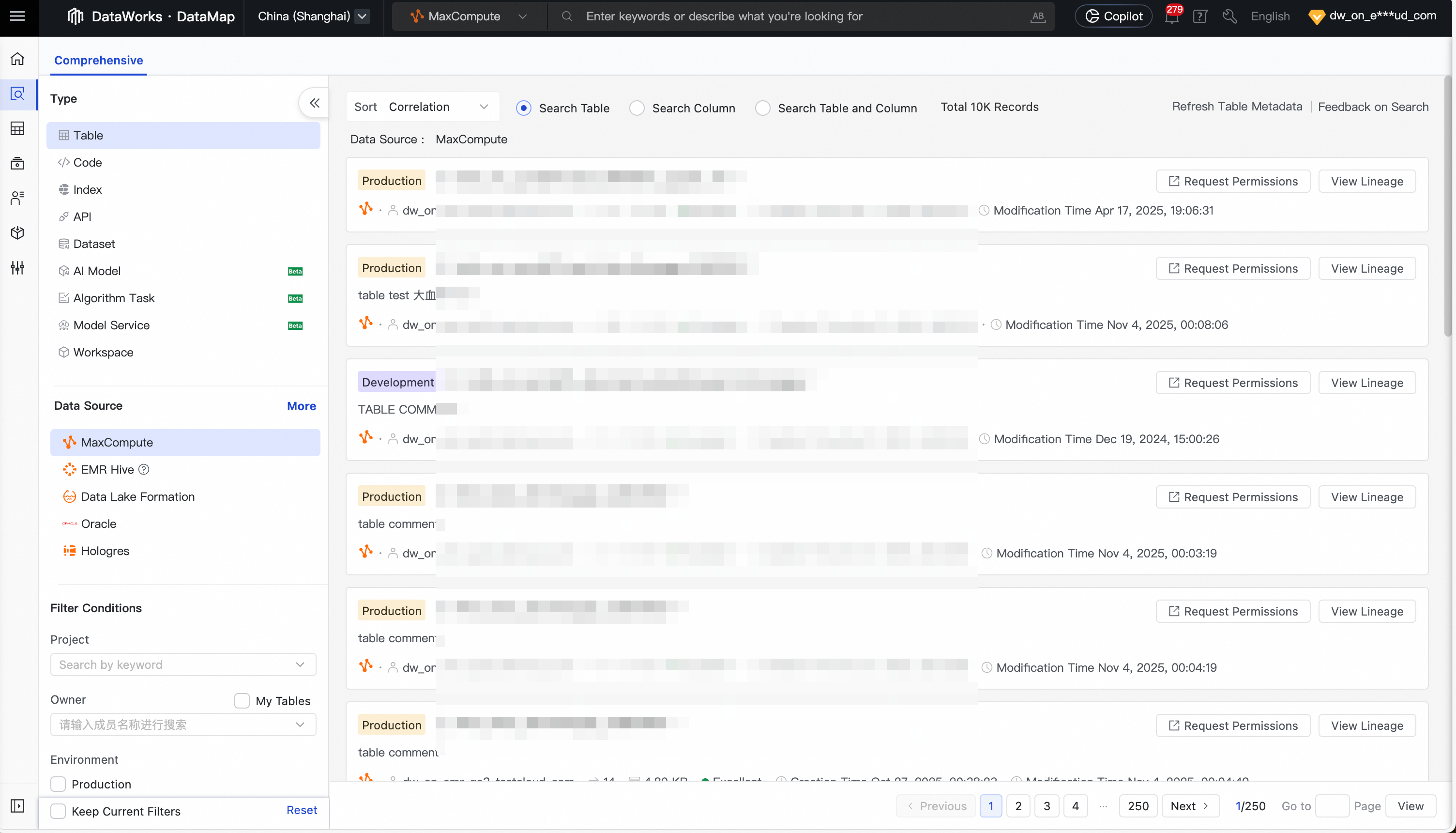
You can also browse tables and datasets in a data directory format.
Metadata details
Click an object name to open its details page.
-
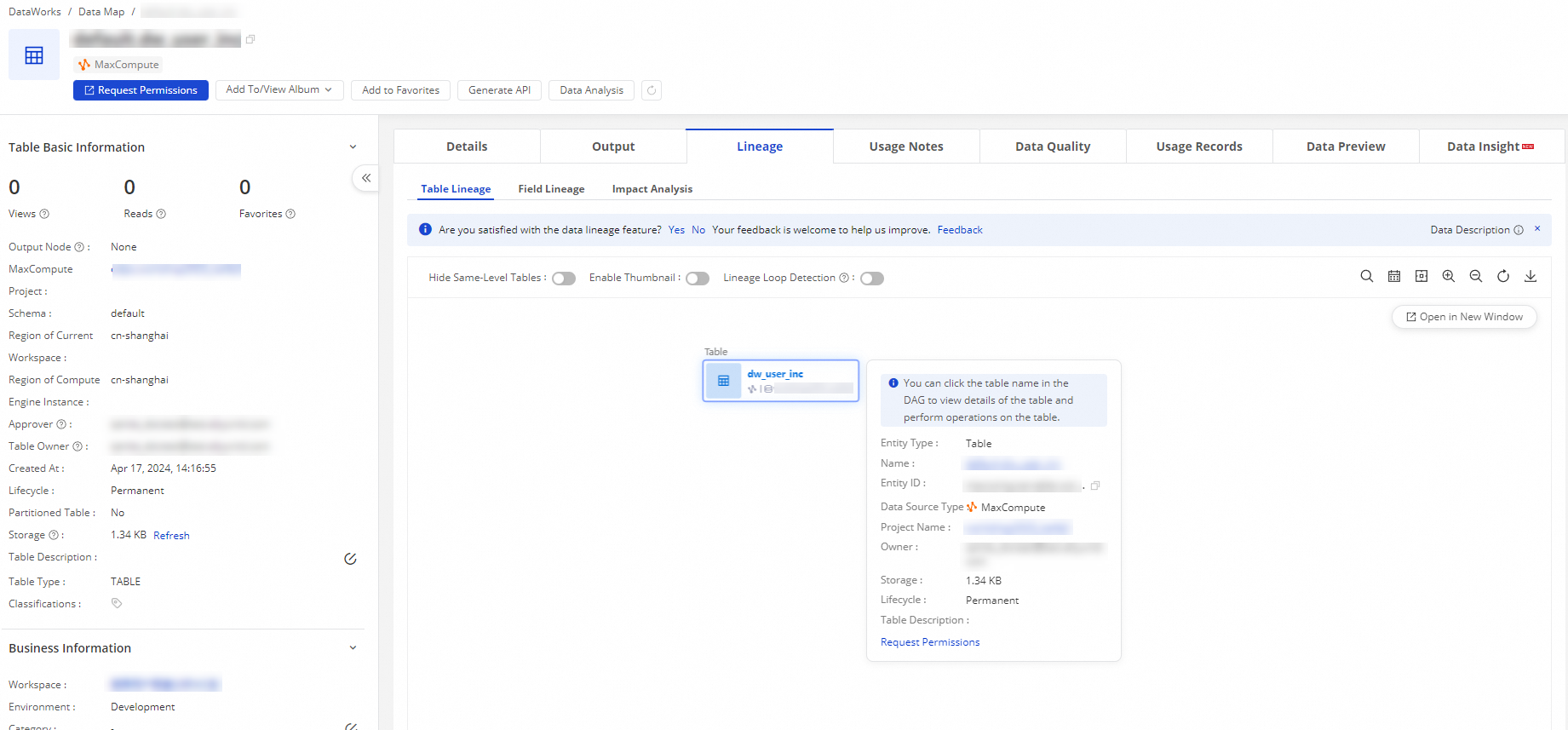
For tables, view Basic Information, Output information, and Lineage Information. View table details.
 Note
NoteOn the Data Lineage page, view the internal data lineage of engine nodes. Supported engine node types depend on the product page. MaxCompute also supports end-to-end lineage based on offline synchronization, letting you expand the lineage hierarchy to trace a table's upstream and downstream lineage to its original sources and final destinations.
-
For an API, view Parameter Information, Sample Response, Lineage Information, and Usage Instructions. View API details.

-
For a dataset, view its Attribute Information, Lineage, and Usage Instructions.

You can also search for code. Clicking a result redirects you to its source node or resource. metadata details.
Organize and manage tables
Use categories to organize tables and filter by category during search. Manage Configurations.
An Alibaba Cloud account or a RAM user with the AliyunDataWorksFullAccess policy can edit the category tree.
-
Data album: Organize related data into a data album managed from a business perspective for easier viewing and management.
-
Categories
-
Batch add tables to a specified category from the page.
After configuring category navigation, select a last-level category to batch-add tables from a specific project. Manage Configurations.
-
Batch add tables to a specified category from the My Data page.
Batch-add tables to a category from the My Data page (Owned by Me and Managed by Me). My Data.
-
-
Table management: For MaxCompute tables, batch-modify display names, set lifecycles, delete development or production tables, or transfer ownership. My Data.
-
Favorites: Add frequently accessed tables to Favorites. On the My Data page, view favorited tables in the My Favorites group. My Data.
-
Add a table to My Favorites: On the table details page, click Favorite to add the table to My Favorites. View table details. View the table on the My Data page under the My Favorites group. Add a table to favorites.
-
Remove a table from the My Favorites list:
-
On the My Data page, go to the My Favorites group and remove tables from favorites.
-
On the details page of a favorited table, use the Remove from Favorites entry to remove it.

-
-
Manage table permissions
-
Request permissions to operate on tables
In standard mode workspaces, RAM users cannot run SQL commands on production tables by default. To access production tables or query across accounts, click Apply for Permissions . This redirects you to Security Center . Request permissions on tables.
 Note
NoteBy default, RAM users without table query permissions cannot use data preview on the table details page.
-
Control data preview permissions for MaxCompute tables
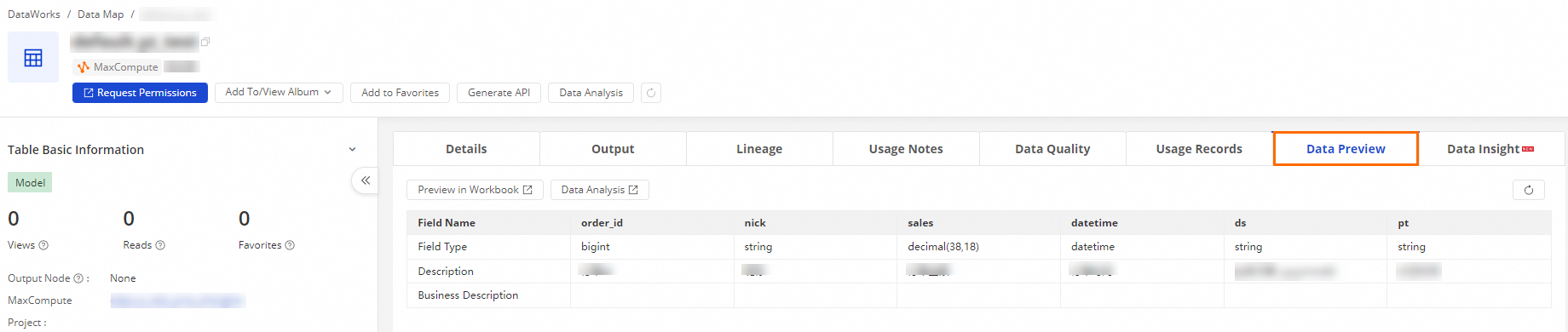
On the Manage Configurations > Manage Workspaces page, enable preview permissions for MaxCompute development or production tables in a specific workspace. All workspace members can then preview tables without requesting access. Manage Workspaces.
Note-
This operation may expose sensitive data. Evaluate the risks carefully before you proceed.
-
The project owner or workspace administrator of the workspace can perform this operation.
-
This permission controls only the Data Preview feature on the table details page in Data Map.
-
-
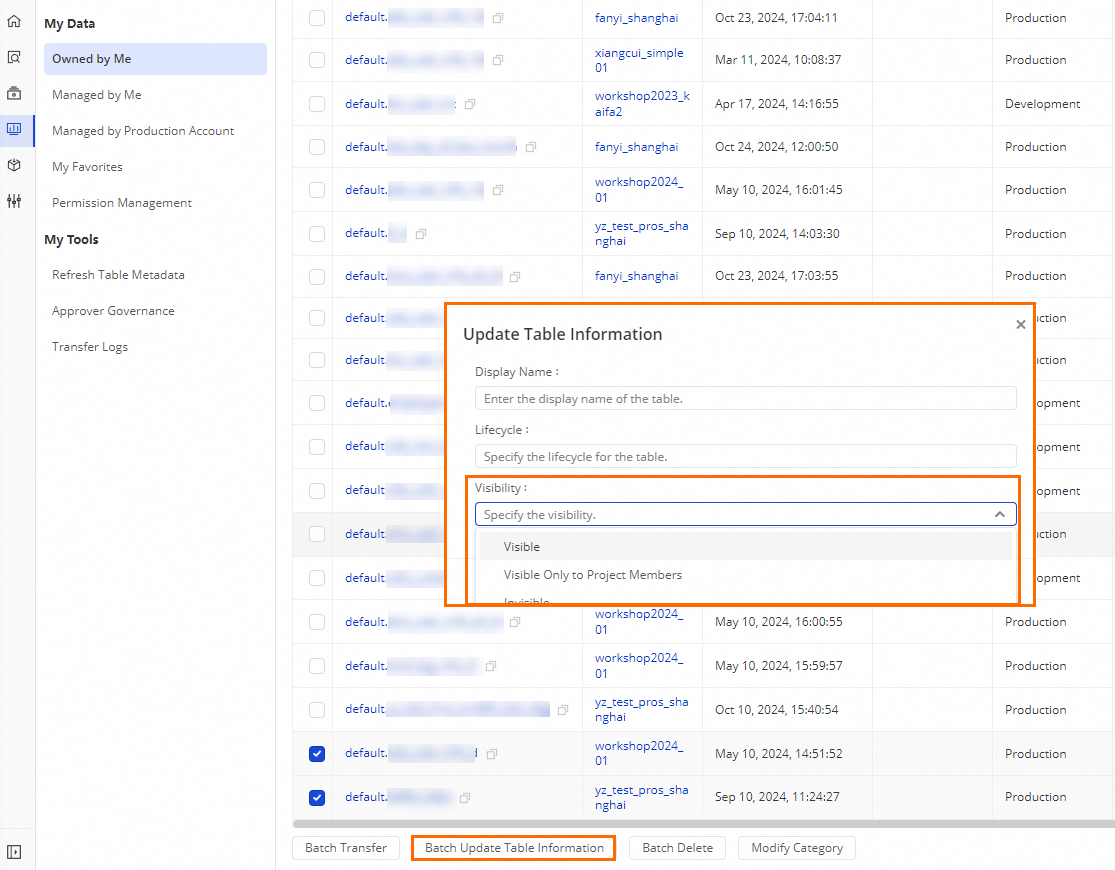
Hide table: Hidden tables are excluded from search results. Hide a table from all users or restrict visibility to workspace members. My Data.
-
Hide a single table: On the My Data > Owned by Me page, update the table's visibility settings.
NoteBy default, the table owner and workspace administrator are not subject to these permission controls.
-
Bulk hiding at the project level: In Manage Configurations > Manage Workspaces, select Workspace, and configure the hiding properties for all tables in the project.

-
Refresh table metadata
Refresh a table's metadata when it does not appear in search results or recent changes are not reflected.

-
On the search results page, click Refresh Table Metadata.
-
Go to the page in Data Map:

After refreshing, search for the table again in Data Map.