The DataV-Board console provides modules for building, managing, and publishing visualization dashboards.
Visualization Workbench
Workbench
The Workbench is the main entry point for creating visualization dashboards. From here, you can prepare data, develop widgets, manage resources, and create and view dashboards.
|
No. |
Area Name |
Description |
|
1 |
Menu bar |
Contains links to the Workbench, Design Center, Visualization Academy, Help and Tutorials, Visualization Application Center, Account Management, User Center, and theme switching. |
|
2 |
Workspace |
Manages workspace groups and workspace quotas for the Visualization Workbench. For more information, see Workspace Management. |
|
3 |
Project group |
Displays your project groups in the Visualization Workbench. You can add, delete, modify, and search for project groups, and access a recycle bin. For more information, see Project Group Management. |
|
4 |
Feature navigation |
Provides centralized access to special features in the Visualization Workbench, including dataset, data source, and filter management; widget package development; block design and management; favorite widget management; and design resource management.
|
|
5 |
Create dashboard |
Create PC dashboards in the Visualization Workbench. |
|
6 |
Visualization Dashboard |
Manage visualization dashboards in the Visualization Workbench. Operations include preview, publish, edit, copy, copy and transfer, copy and transfer to a workspace, move to a project group, rename, and delete. For more information, see Manage visualization dashboards. |
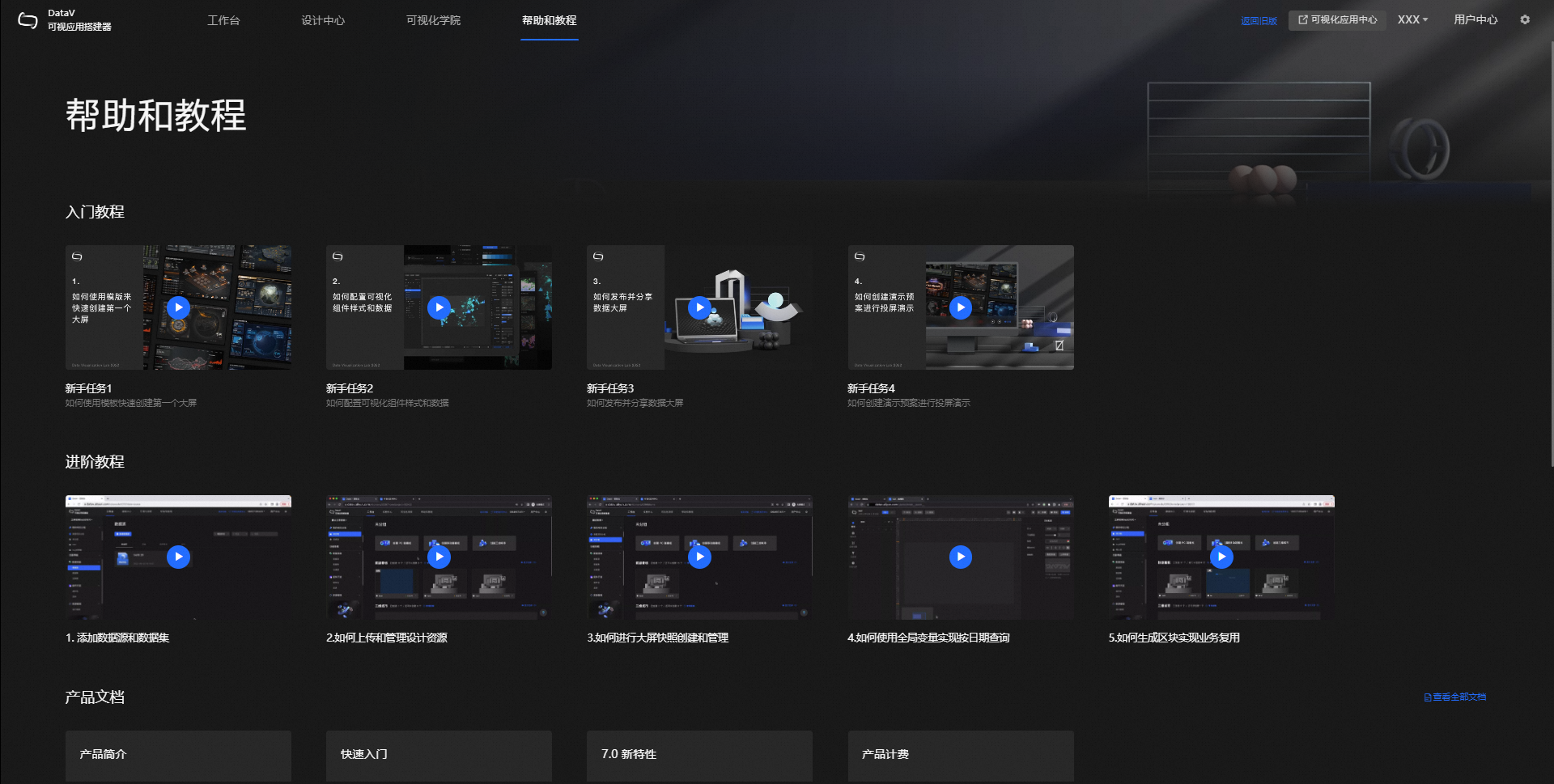
Help and Tutorials
View video tutorials, Help Center links, and product feature release records.
Visualization Application Center
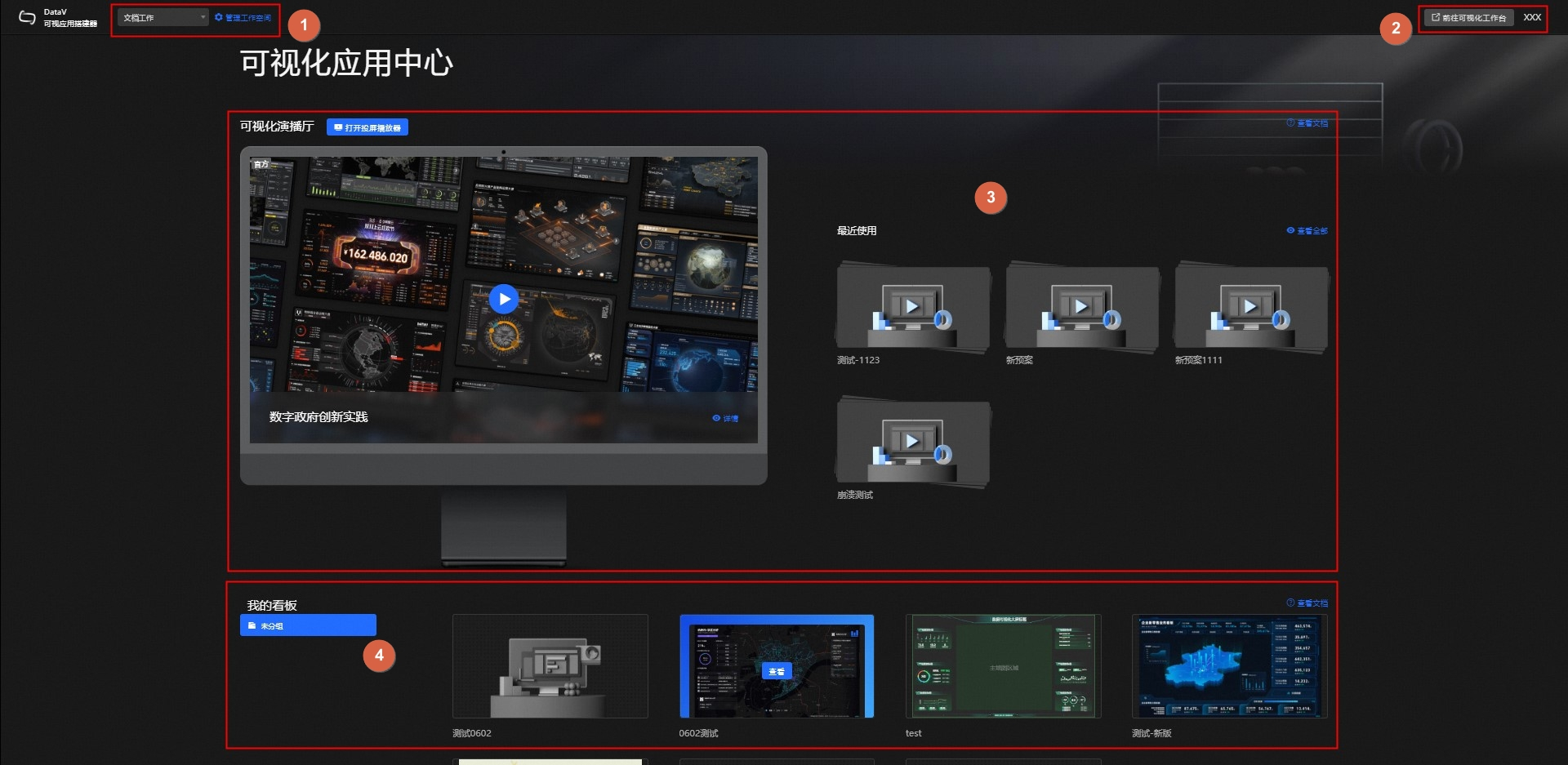
The Visualization Application Center lets you customize demo sequences for your visualization dashboards and screen cast them on web pages and clients.
|
No. |
Area Name |
Description |
|
1 |
Workspace |
Switch workspaces to access different Visualization Application Centers and view different demo plans. Click Manage Workspace to go to the Workspace Management page. For more information, see Workspace Management. |
|
2 |
Menu bar |
Provides a link to the Visualization Workbench and an option to view your account. |
|
3 |
Plan Overview |
Displays demo plans and provides options for screen casting and viewing all plans. |
|
4 |
My dashboards |
Displays visualization dashboards published from the Visualization Workbench. |
Visualization Studio
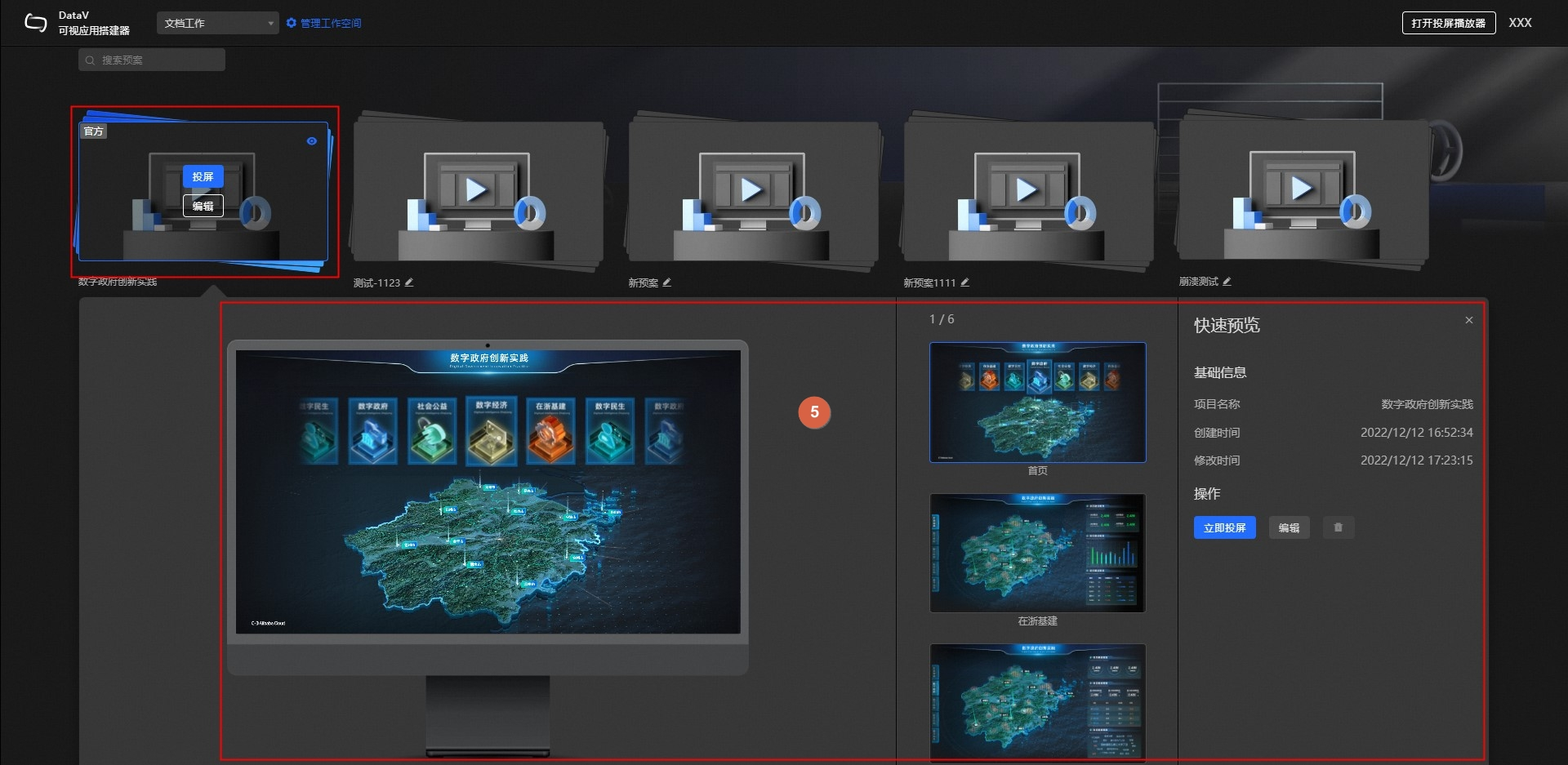
In the Visualization Application Center, click View All under Recently Used to enter the Visualization Studio, where you can create and manage all your demo plans.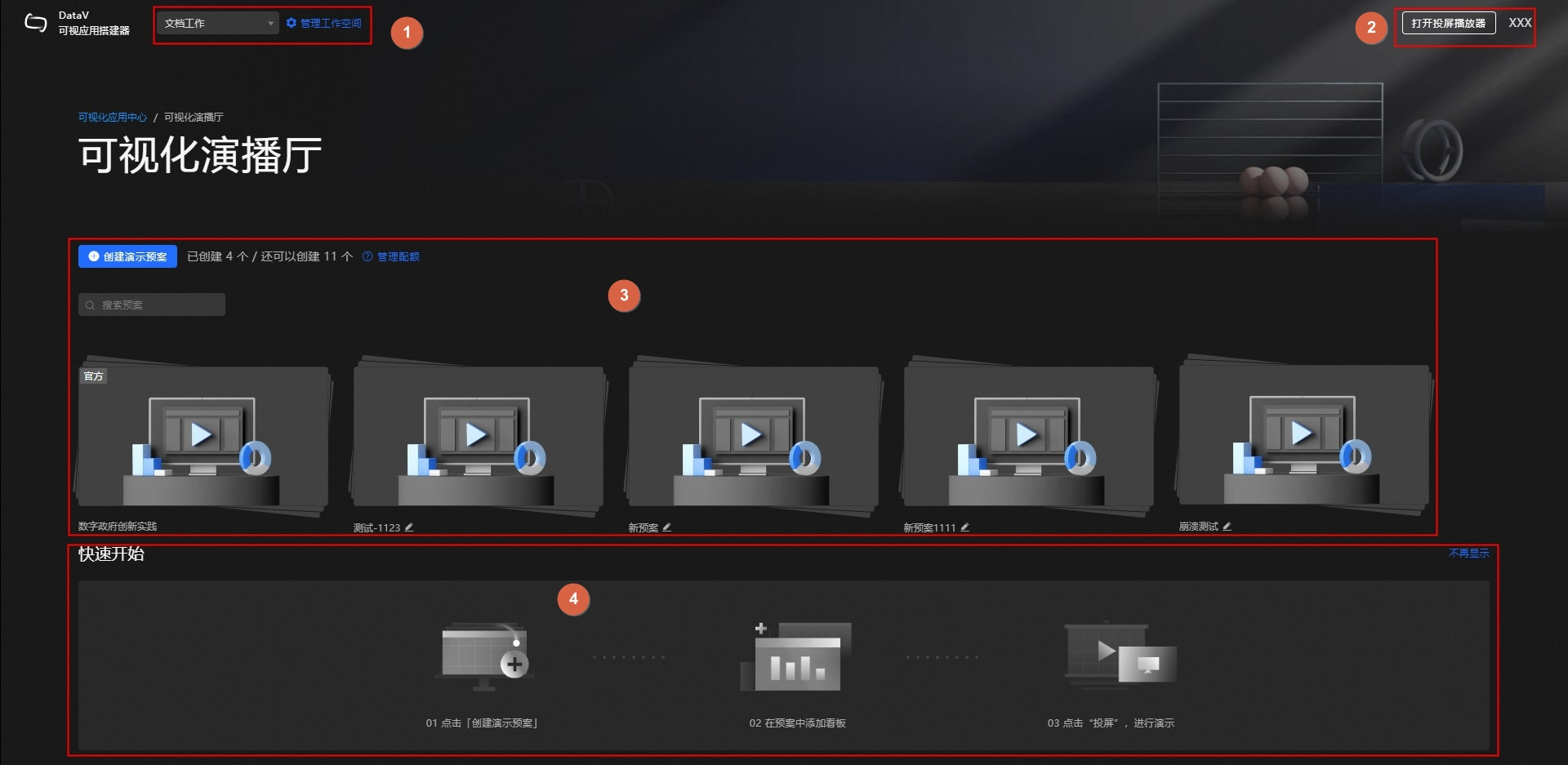
|
No. |
Area Name |
Description |
|
1 |
Workspace |
Switch workspaces to access different Visualization Application Centers and view different demo plans. Click Manage Workspace to go to the Workspace Management page. For more information, see Workspace Management. |
|
2 |
Menu bar |
Provides options such as opening the screen casting player and viewing your account. |
|
3 |
Manage plans |
Create, screen cast, preview, edit, and delete demo plans, and manage quotas. For more information, see Manage demo plans. |
|
4 |
Quick Start |
Follow the steps to get started with the demo plan feature. For more information, see Screen cast a demo plan. |
|
5 |
Quick preview |
View the basic information of the current plan, and screen cast, edit, or delete it. |