The digital ticker board is widely used to display information such as numbers, counts, or time, and can interact with other widgets to present real-time data changes in visualization applications. This topic outlines the use of the digital ticker board.
Widget overview
Scenarios
The digital ticker board is frequently employed in devices such as clocks, timers, and counters, along with in the financial sector to display amounts, and in businesses to exhibit key metrics. For instance, it can reveal a company's operational metrics to swiftly identify any unusual activity through metric fluctuations.
Effect display
The digital ticker board typically includes a title, prefix/suffix, and ticker content. Below is an example of the digital ticker board displaying the daily sales figures for a specific region.

Limits
The ticker content only supports displaying Number types. If your data is not of the Number type, the platform will treat the content as an abnormal character and automatically replace it with specified content. For more information, see Abnormal Character Handling.
Prerequisites
A data dashboard is available that supports creation using a template, a blank canvas.
Business data is ready for use. For more information, see Data Source.
Add Digital Ticker Board
Log on to the DataV console.
Navigate to and select the desired dashboard to access the canvas editing page.
From the list in the left-side navigation pane, add the Digital Ticker Board widget to the canvas by clicking on it.
You can also use global search to find and add related widgets.
Integrate business data
Once the widget is added, integrate your prepared business data for display. Click the digital ticker board and, on the right-side Data Source tab, select the data for the widget to render. 
The data fields accepted by the ticker board are as follows.
Field
Description
name(Optional) The title content of the digital ticker board. If not empty, it will overwrite the configuration in the style. If empty, it will use the content in the configuration item.
valueThe specific value of the digital ticker board.
prefix(Optional) The prefix content of the digital ticker board. If not empty, it will overwrite the configuration in the style. If empty, it will use the content in the configuration item.
suffix(Optional) The suffix content of the digital ticker board. If not empty, it will overwrite the configuration in the style. If empty, it will use the content in the configuration item.
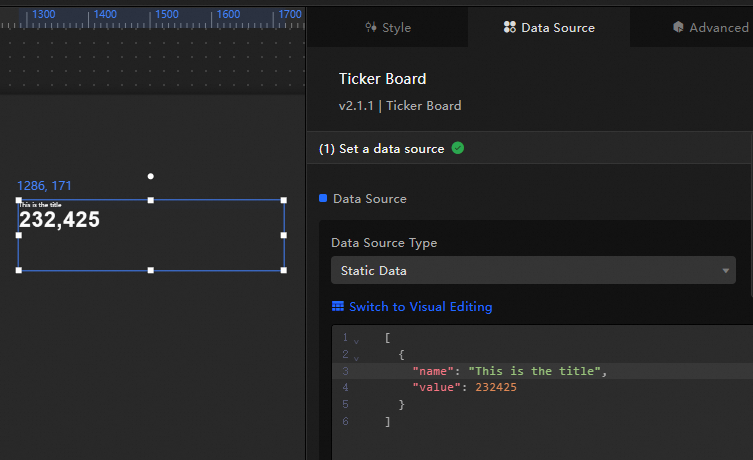
Here's the data structure and effect display of an example ticker board.
[
 {
 "name": "This is the title",
 "value": 232425
 }
]
The key configuration items for the data source are as follows.
Configuration Item
Description
Select Data Source
Supports integrating various types of data such as CSV files, APIs, and various databases. For more information, see Data Source. You can edit data fields using a visual table or code.
Configure Filter (Optional)
Used to customize filter code to achieve data structure transformation, filtering, display, and simple calculations. For more information, see Manage Data Filters.
Configure Data Mapping
Used to map fields from the selected data source to the corresponding fields of the widget to achieve real-time data matching. Click the
 icon to configure field styles.
View Response Results
Used to display the data integrated into the widget in real-time. When the widget data source changes, the latest data will be displayed here.
Click the data response result to view the code of the data fields written.
Click to view the example to see the array type and code example received by the data source. You can refer to the example to write related fields.
Other data request configurations:
Disable Loading State: When selected, the loading content during widget initialization will not be displayed when updating or previewing the data dashboard.
Controlled Mode: When selected, the widget will not request data in the initialization state. At this time, data requests can only be initiated through the blueprint editor or global variable events.
Automatic Update Request: When selected, the platform will dynamically poll and update data according to the polling time you set. If not selected, you need to manually refresh the page or trigger a request to update data through the blueprint editor and global variable events.
Configure Digital Ticker Board
Style Configuration
The digital ticker board's style can be adjusted through basic and full configuration options, which are switchable at the top of the style tab. Basic configuration covers color and text settings, while full configuration includes a wider range of options. This topic demonstrates using the full configuration to detail related settings.
Use the
 icon for quick access to configuration items via keyword search, which supports fuzzy match. For more information, see Search Configuration Items.
Title, prefix, and suffix content can be sourced from the data source, with platform configurations taking precedence. If the data source lacks related content, the style settings will be applied.
The configuration items are detailed below.
Configuration Item | Description | Illustration |
Global Configuration | Defines the position distribution, transparency, and interaction penetration of the widget in the data dashboard.
|
|
Basic Style Configuration | Defines the size, color, shadow effect, relative position, and spacing of the title text and ticker board, along with the font size automatic rotation effect of the ticker board. It also supports customizing the display content when the widget is initialized or when abnormal characters appear.
|
|
Ticker Board Configuration | Defines the overall layout of the ticker board content (including numbers, prefixes, and suffixes), the style and layout of the numbers, and the font style and shadow effect of the prefixes and suffixes. The number configuration instructions are as follows:
|
|
Interaction Configuration | Sets the animation effect of the ticker board (such as animation duration and data jitter correction) and gesture cursor.
|
|
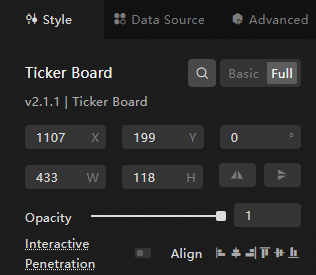
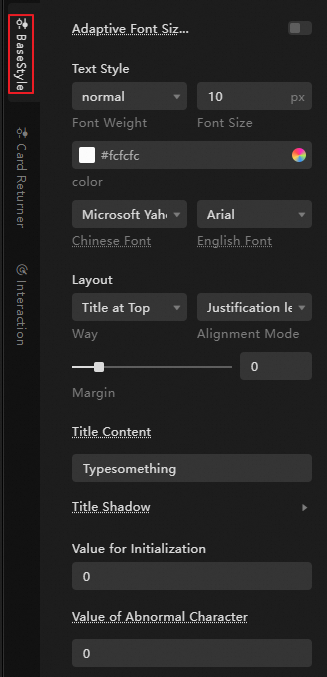

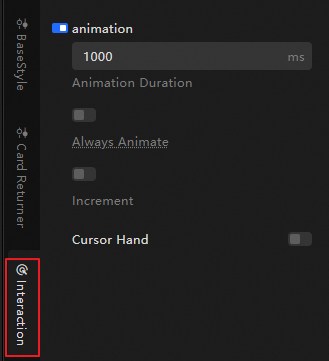
Advanced Configuration
This defines the interactions and data flow between the ticker board and other widgets. The configuration items are detailed below.
Configuration Item | Description | Illustration |
Interaction Occurrence | Defines the interaction behavior with other widgets to achieve widget filter interaction. For example, the ticker board can integrate sales data tables of multiple stores in the current area. When the store sales data changes, the ticker board will display the daily total sales amount of the current area in real-time. Click the |
|
Associate Global Variable | Global parameters can be associated in the widget to achieve parameter transmission between widgets and widget interaction. Click the |
 icon to define related interaction occurrences and interaction actions.
 icon to enable the corresponding instruction and associate the required
 Blueprint Interaction
Use the blueprint editor to visually define widget interactions and behavior logic.
Procedure
On the canvas editing page, click the
 icon in the top menu bar's left side to access the blueprint editor.
Hover over the digital ticker board widget in the layer node list and click the
 to add it to the main canvas.
Configure the blueprint interaction effects for related widgets as needed.
Here's an example.

Configuration Item Introduction
Demo
For a demonstration of the digital ticker board in action, see Implement Dynamic Data Summation.