This topic provides an overview of the fonts supported by DataV-Board 7.0, including the configuration operations for these fonts.
Font introduction
DataV-Board 7.0 offers a variety of text display styles for widgets, including official fonts such as Alibaba PuHuiTi and DingTalk JinBuTi, along with locally installed fonts like KaiTi and Microsoft YaHei. Local fonts must be installed to be effective; otherwise, they will appear as an invalid status, indicated by an  icon. Selecting an uninstalled font will cause the widget text to default to the system's default font style.
Font-related configuration
Using the "General Title" widget as an example, this section outlines the steps for font configuration. Configuration steps may vary between widgets; consult the actual interface for specific details.
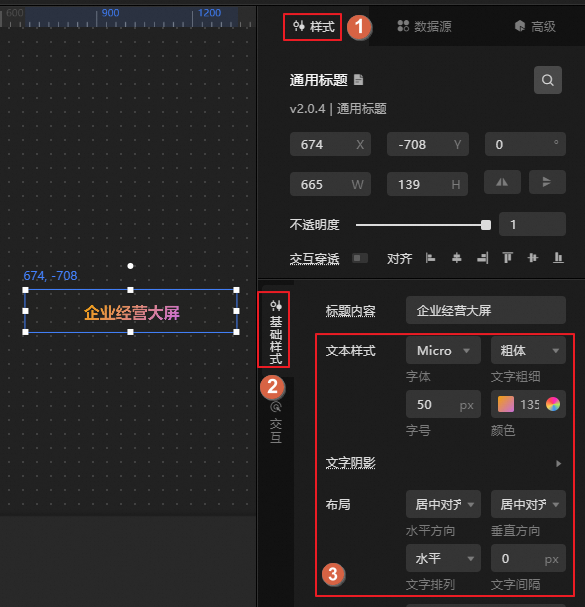
Key parameters for font configuration are described in the table below.
Configuration Item | Description |
Font | Select the desired text display style from the font dropdown box or search for a specific font as needed.
|
Weight | Adjust the text thickness with options such as standard, bold, bolder, and lighter, or set a specific value between |
Font Size | Configure the text size, with a maximum setting of |
Color | Customize the text color as required. |
Shade | Add a shadow effect to the text to create a three-dimensional appearance and enhance visual depth. Customize the shadow color, blur radius, and offset as desired. |
Layout | Manage the distribution, alignment, and spacing of text within the widget. |
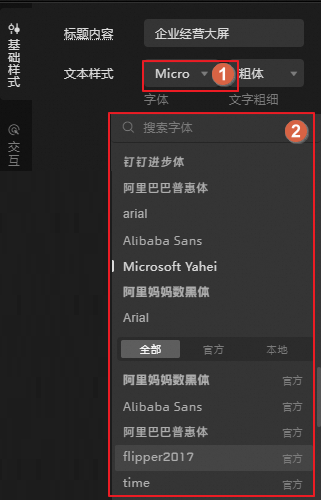
Font configuration entry
Configure the font for individual widgets or apply a uniform font style to multiple widgets across the dashboard.
Configure a single widget font
-
Access the DataV console.
Access the canvas editing page of the desired dashboard.
Select the widget and adjust the font settings on the Style tab to the right.
NoteOn the Style tab, the location for font settings can differ across various widgets. Consult the actual interface or the configuration page of the respective widget for precise instructions.
Batch modify widget fonts
Batch modifications can be performed using either of the following methods:
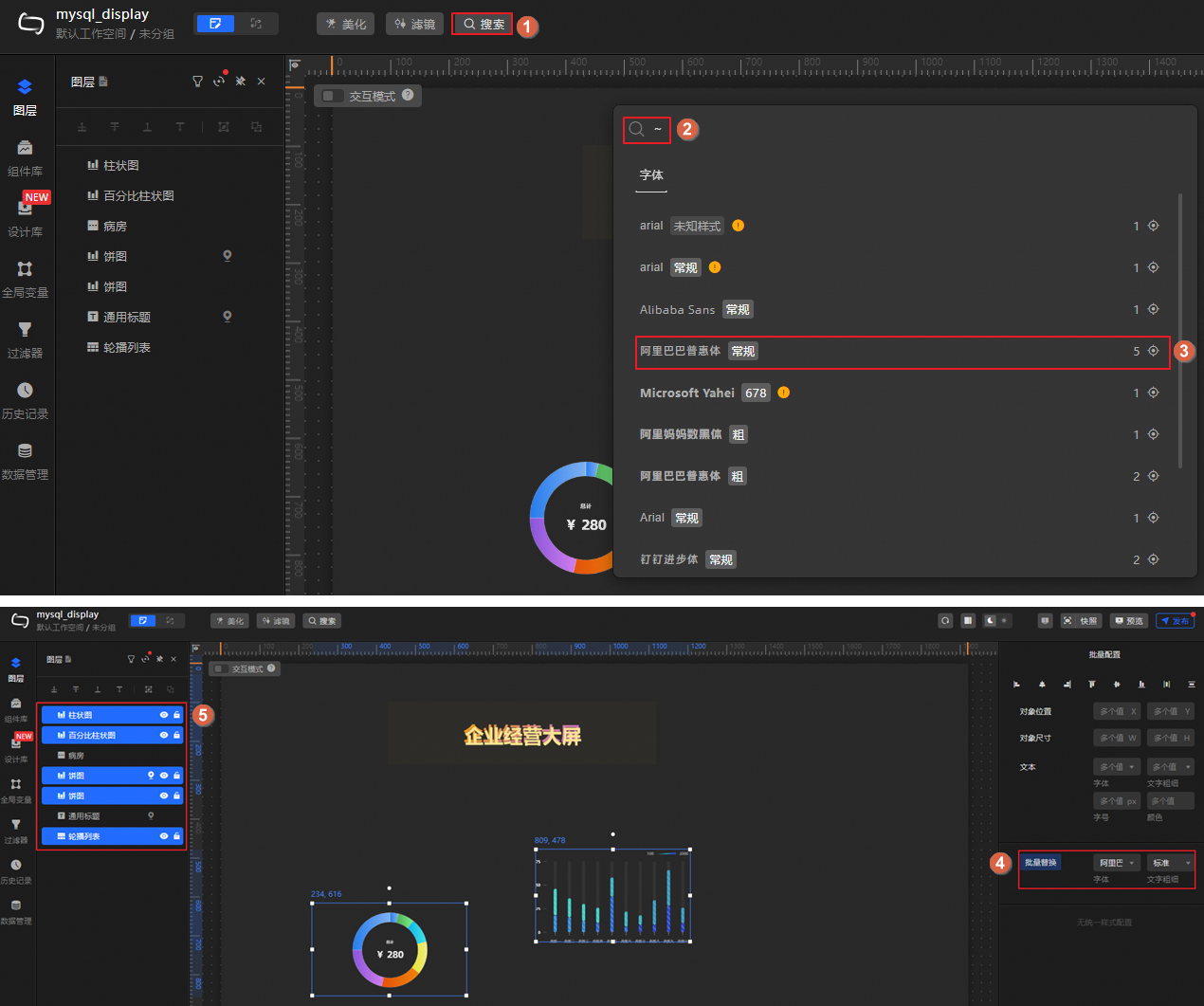
Modify fonts using the global search feature, as illustrated below.
NoteThis method is limited to changing the font style and text weight of widgets.
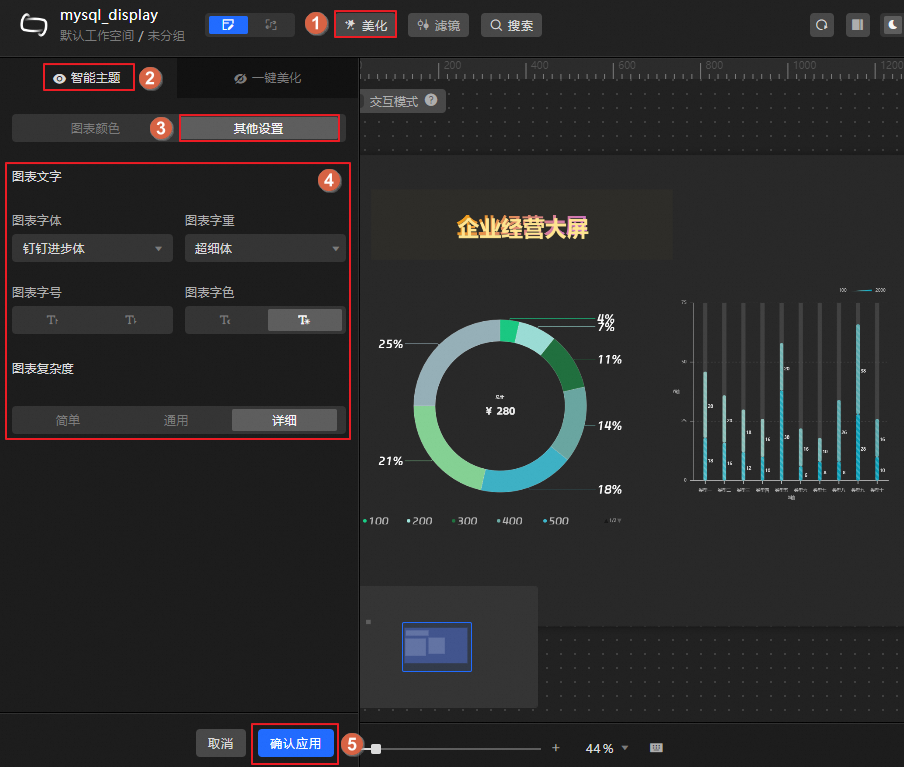
Alter fonts using the beautification tool, as demonstrated below.
NoteThe beautification tool may not support this feature for some widgets. For accurate information, please consult the actual interface.