The DataV component panel provides configuration items for common properties, quick configuration, and batch configuration. For component-specific properties, see the corresponding component documentation.
Configuration panel
Select a data dashboard in DataV, and then click a component on the canvas. The configuration panel appears on the right side with three tabs: Style, Data Source, and Advanced.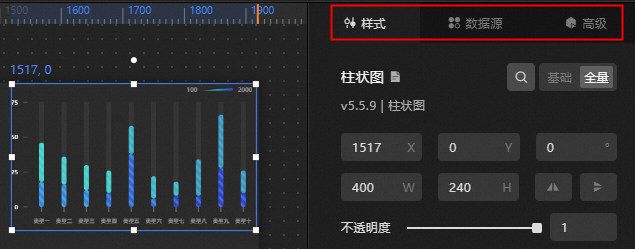
-
The Style tab lets you configure Common Properties such as Size, Position, Rotation, and Opacity. For details, see Common Properties below. Component-specific styles vary and are detailed in each component's documentation.
Note-
For non-data visual mapping-related color configurations, refer to Color Picker.
-
For data visual mapping-related color configurations, refer to Color Mapper Instructions.
-
-
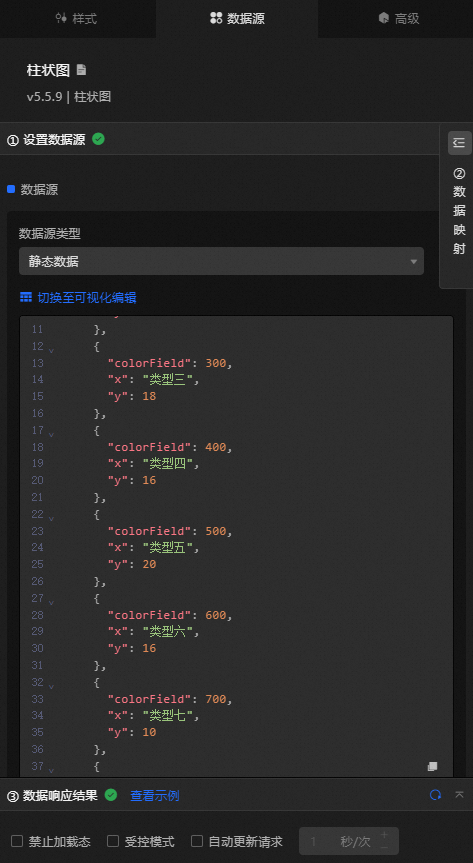
In the Data Source panel, you can switch data source types, toggle between Visual Editor and Code Editor, set data mapping, copy data, and edit data in full screen. Switch Edit Style, Copy Data, and Edit Data In Full Screen are available for all components. For details, see Copy Data and Edit Data in Full Screen.
-
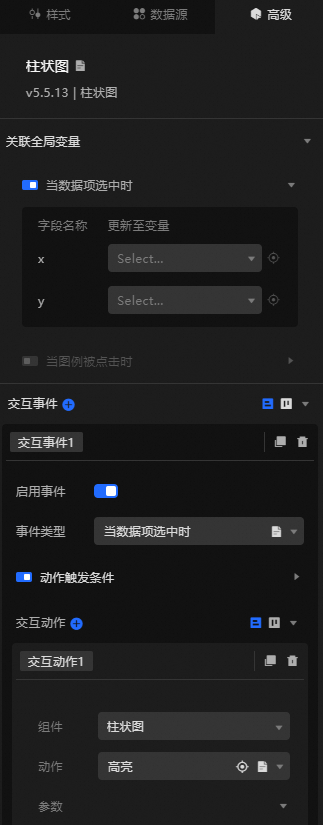
The Advanced tab lets you configure interactions between components and with global variables. For details, see Component Interaction Configuration.
Basic properties
Selecting Style and then Basic displays the basic property configuration items for the current component. The following example uses a column chart.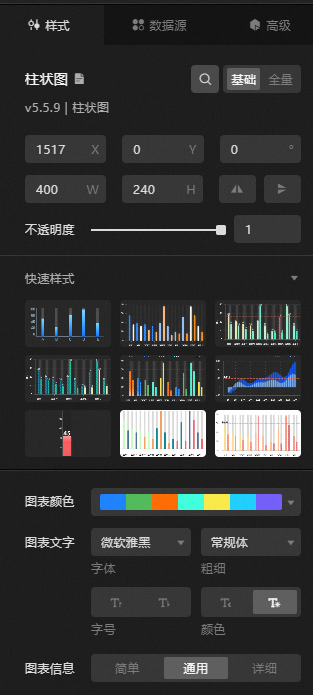
Basic property configuration items vary across different components.
Quick style
When a component's Basic properties are selected, Quick Style configuration items appear. The following example uses a column chart.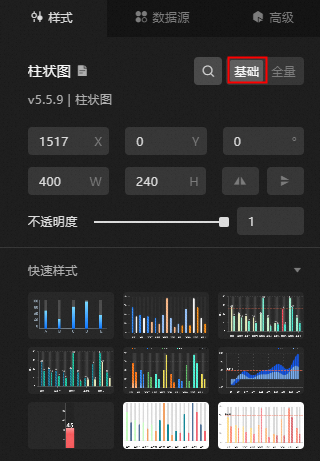
More components will be updated to support quick style configuration items in the future. Stay tuned.
Quick configuration
The quick configuration feature is available starting from version 7.0 in the new console environment.
Selecting Basic Properties displays the quick configuration feature for Chart Components.
-
Chart Color: Select a chart color scheme to quickly change the display color of the current chart.
-
Chart Text: Set the font, font size, font weight, and text color (dark or light) for chart text.
-
Chart Information: Select Simple, General, or Detailed to set the display style for the current chart. The configuration items below update dynamically based on your selection.
Full properties
Selecting Style and then Full displays all configuration items for the current component. The following example uses a column chart.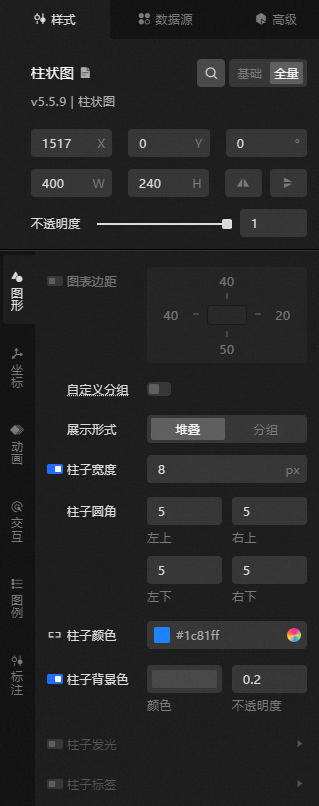
Full property configuration items differ among components.
Search configuration items
The search feature lets you quickly locate and modify a component's configuration items, adjust styles directly on the search page, or reuse similar configuration styles.
Access the DataV console.
-
On the Workbench page, select any data dashboard, click Edit, and enter the Canvas Editor page.
-
Click the Component Library tab in the left-side navigation pane, and add any component to the canvas.
-
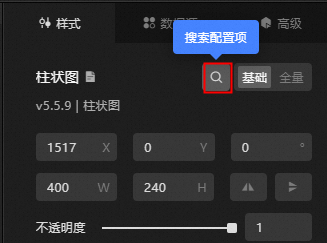
Click Search Configuration Items in the right configuration panel.
-
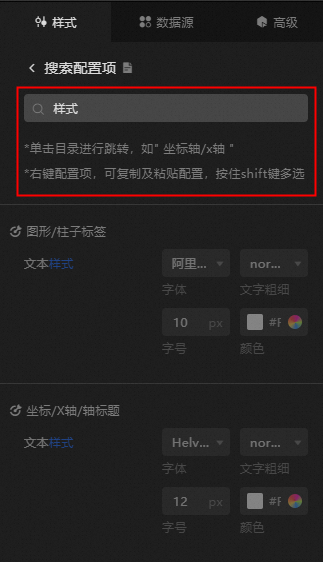
In the search input box, type the name of the configuration item. Press Enter to search for matching configuration items (fuzzy match is supported) and display them on the page.
-
In the search results, you can modify and copy configuration styles, and locate specific configuration items.
-
Select a configuration item to modify its style.
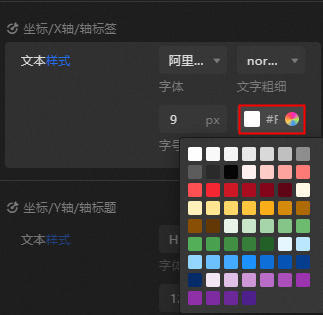
The updated configuration will be directly applied to the corresponding component on the data dashboard.
-
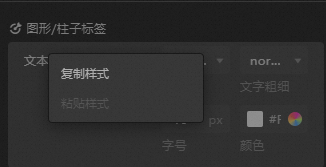
Right-click a configuration to copy its style. Right-click one or hold the shift key to select multiple configuration items of the same type, then select Paste Style to apply the copied style.
-
Click the directory bar of a configuration item or the
 icon on the left to jump to the specific location of the configuration item in the configuration panel.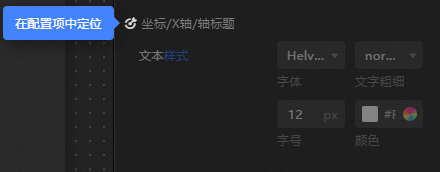
-
Common properties
The Common Properties module lets you adjust the size, position, rotation angle, and opacity of a component.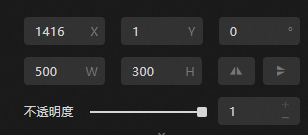
-
Size: Includes the width and height of the component, in pixels.
-
Position: Includes the X-coordinate and Y-coordinate of the component, in pixels. The X-coordinate is the distance from the left edge of the canvas to the component's upper left corner. The Y-coordinate is the distance from the top edge of the canvas to the component's upper left corner.
-
Rotation: Rotate around the component's center, in degrees (°).
-
Enter the angle value manually to control the component's rotation angle.
-
Click the
 icon to flip the component horizontally.
 -
Click the
 icon to flip the component vertically.
-
-
Opacity: The opacity value ranges from 0 to 1. At 0, the component is invisible, while at 1, it is fully opaque. The default setting is 1.
Color picker
The color picker lets you set various component colors, such as font, axis lines, gridlines, and borders. For example, to adjust the canvas color, use one of the following methods:
-
Click the Common Color Block icon to choose a color. This provides quick access to standard colors for efficient modifications.
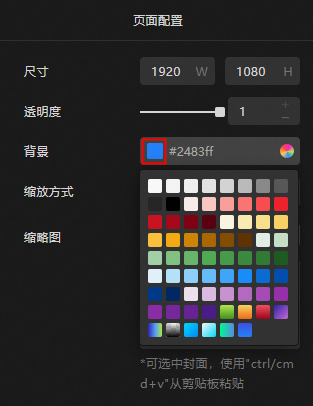
The common color block provides a quick selection of system-provided colors for efficient color modification.
-
Click the Color Picker icon to access three fill styles:
-
Solid Fill: Choose a color, adjust transparency, add or delete from the global palette, and select from recently used colors.
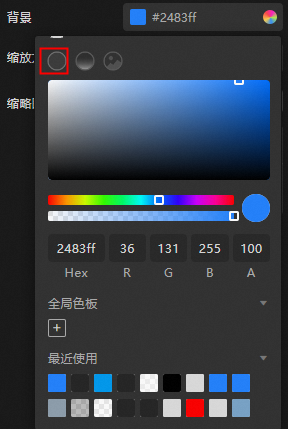
-
Gradient Fill: Select gradient colors, adjust transparency, add or delete global palette colors, and choose from recently used colors.
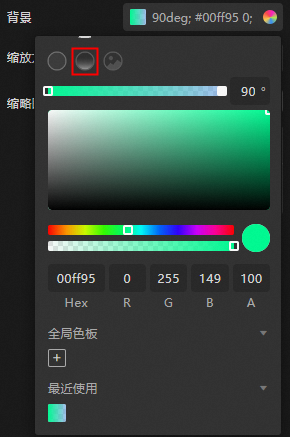
-
Pattern Fill: Enter a pattern URL, upload local patterns, adjust the pattern display, save to My Pattern, or use recommended patterns.
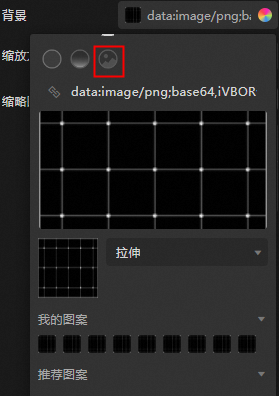
-
-
For general color settings:
-
To adjust font color transparency, drag the slider or modify the A value.
-
To add or delete global colors, select a color in the picker and click the Global Palette icon below the
 icon. To remove a global color, drag it out of the Global Palette area.Note
-
Colors in the Global Palette apply across the entire dashboard and appear in the Recently Used section for each dashboard and component.
-
A maximum of 27 global palettes can be created.
-
-
To select recently used colors, click a color block in the Recently Used section to apply it to the component.
-
To save a pattern, store the current background pattern in My Pattern. Click a pattern under My Pattern to apply it as the current pattern.
-
Copy data
In the Data Source tab, switch to code edit mode and click the  icon in the lower right corner to copy all data in the current data edit box.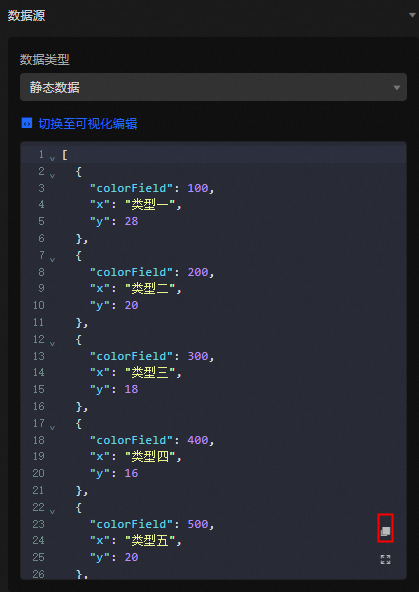
Edit data in full screen
In the Data Source tab, switch to code edit mode and click the  icon in the lower right corner to edit data in full screen mode.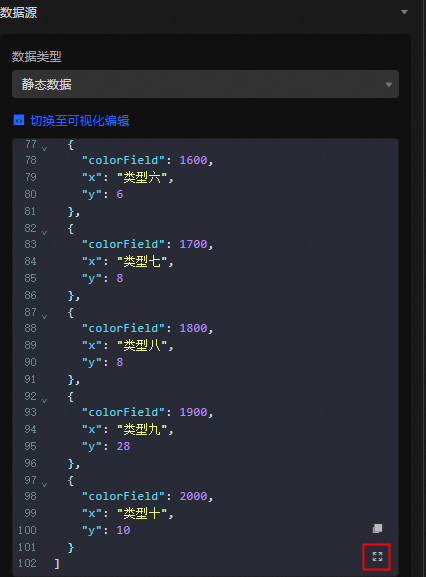
Batch configuration
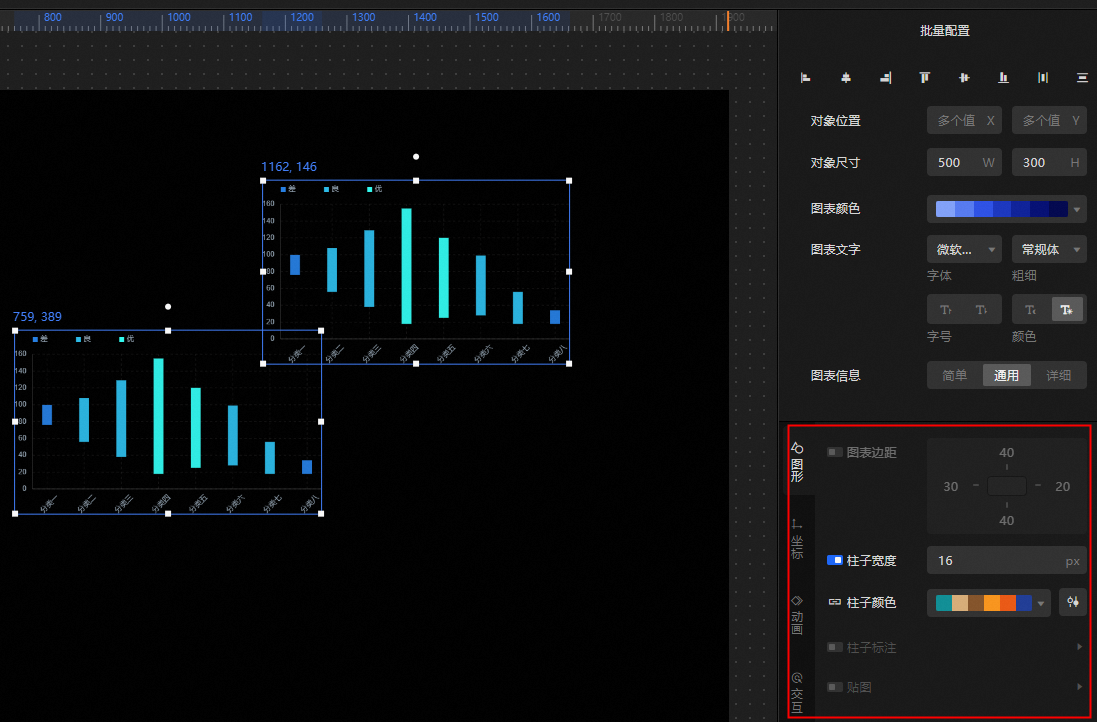
After selecting multiple components, you can configure them in batch from the right panel.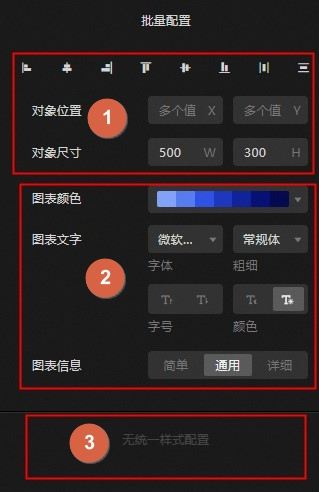
-
Ordinal number 1: Appears when any component is selected.
-
Alignment: Align multiple components, including options to align left, center, right, top, horizontally, and bottom.
-
Distribution: Distribute multiple components evenly, either horizontally or vertically.
-
Object Position: Set the position of the top-left vertex of multiple components relative to the canvas.
-
Object Size: Define the width and height values for multiple components.
-
-
Ordinal number 2: Displayed when all selected components support quick configuration. Refer to Quick Configuration Component List for specific components.
-
Chart Color: Set the chart color for multiple components.
-
Chart Text: Configure the font, font weight, font size, and color of the chart text for multiple components.
-
Chart Information: Choose the level of detail for the chart information of multiple components, with options including simple, general, and detailed.
-
-
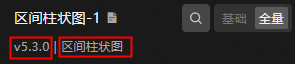
Ordinal number 3: The Unified Style option appears when all selected components are of the same type and share the same major version number. For example, if all selected components are interval column charts of version 5.x, they can be configured in batch.
References
For more information on common questions about configuration items, see Configuration Item FAQ.