Create a Blink SQL task based on the Alibaba Blink real-time compute engine.
Prerequisites
Make sure that you have enabled the real-time compute engine and configured an Alibaba Blink compute source for the project. For more information, see Create a general project.
Permissions
Only super administrators, project administrators, and developers can create Blink SQL tasks.
Step 1: Create a Blink SQL task
-
On the Dataphin home page, click Develop in the top menu bar.
-
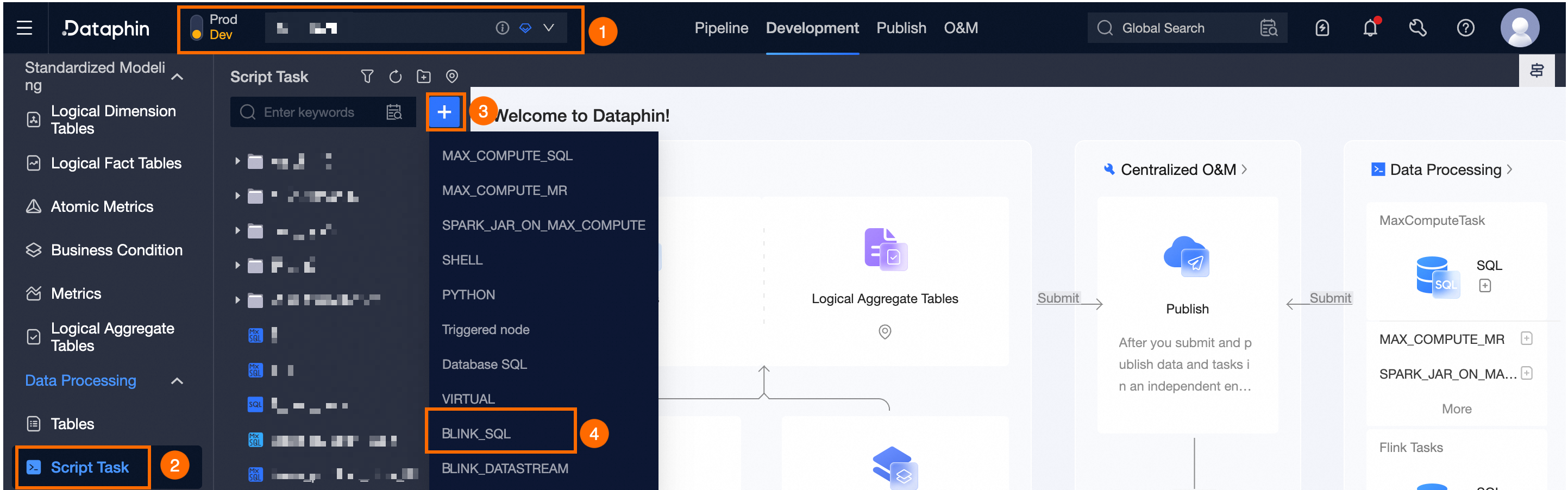
Follow the instructions in the following figure to open the Create Blink SQL dialog box.
-
In the Create Blink SQL dialog box, configure the parameters.
Parameter
Description
Task Name
The task name must follow these conventions:
-
Can contain only lowercase letters, digits, and underscores (_).
-
Must be 3 to 62 characters in length.
-
Must be unique within the project.
-
Must start with a letter.
Resource Queue
Select a resource queue from the real-time compute source attached to the project.
Engine Version
Select a version supported by the current resource queue.
Storage Directory
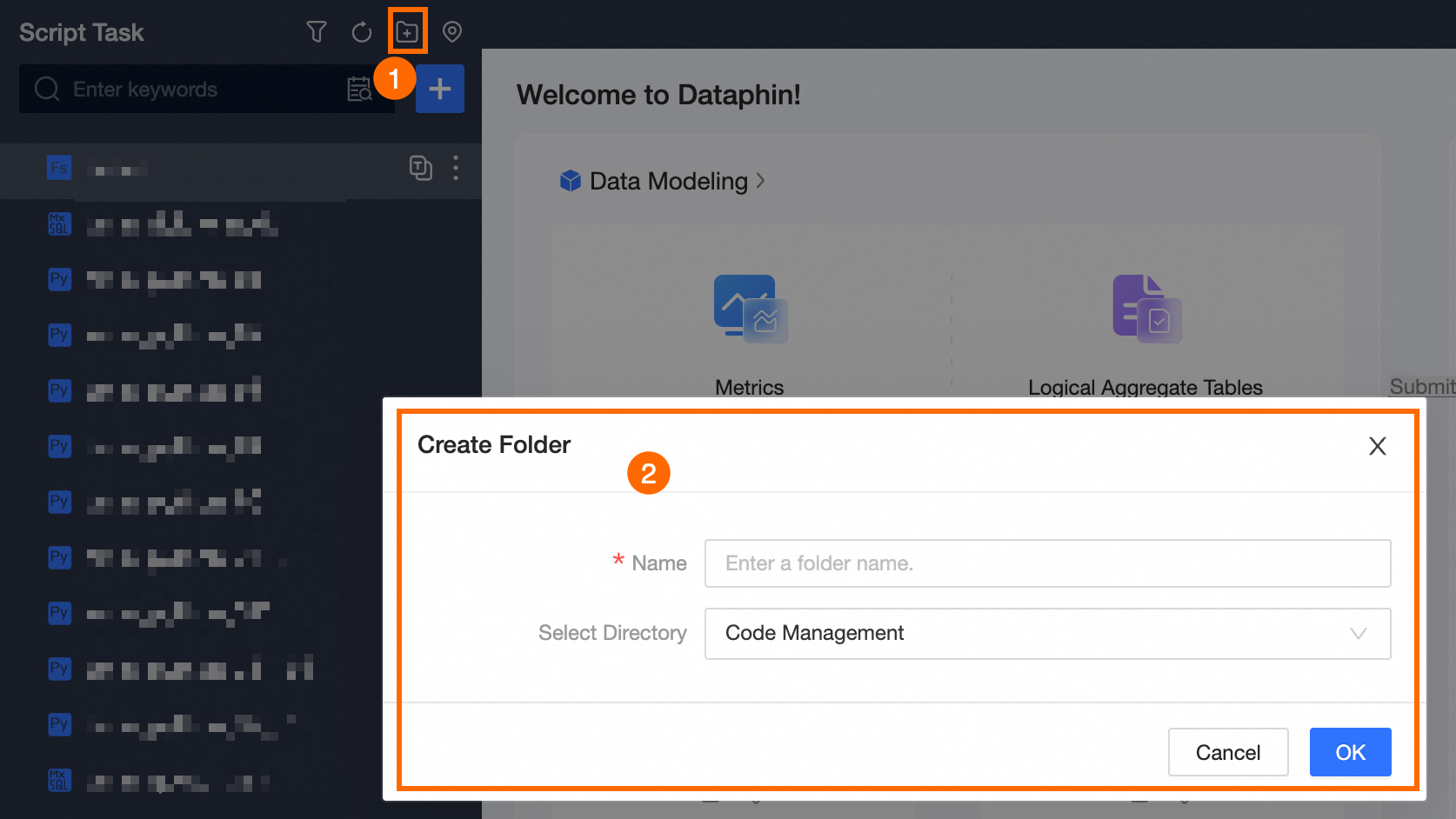
The default directory is Code Management. You can also create a storage directory.
Creation Method
You can select Create from Scratch or Use Template.
-
Create from Scratch: Create a blank Blink SQL task.
-
Use Template: Create a task from a real-time compute task template.
Description
Enter a description of the task, up to 1,000 characters.
-
Step 2: Develop the Blink SQL task code
-
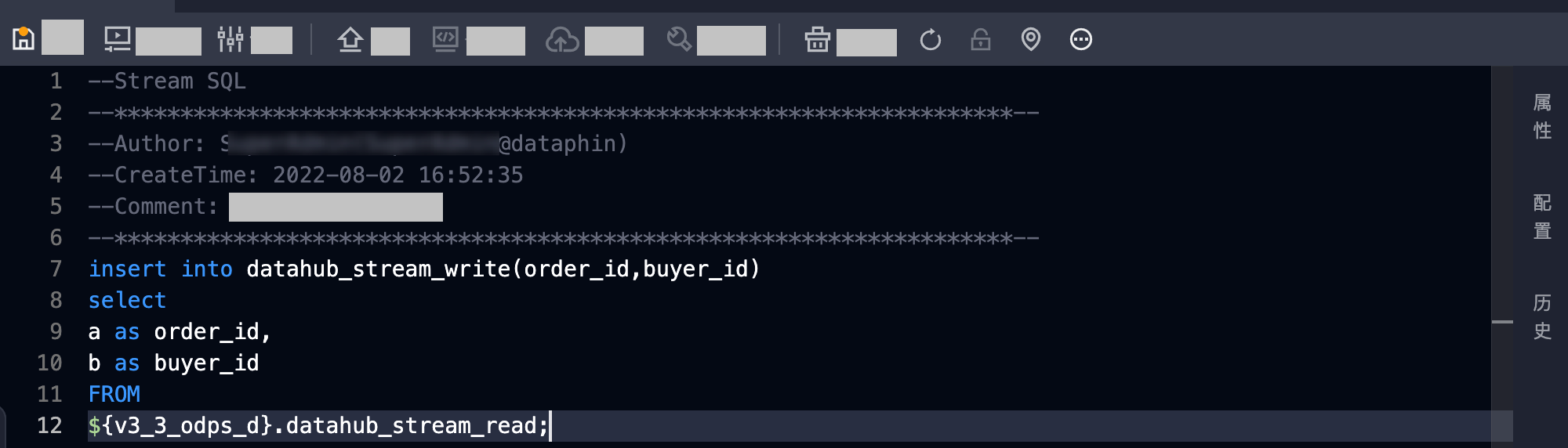
On the code page for the Blink SQL task, write the task code.
 Note
Note-
Click the
 icon in the upper-right corner of the page to automatically format the SQL code.
 -
Dataphin supports using native DDL statements to quickly create metatables. When Dataphin detects a native
create table/create temporary tablestatement, you can click the icon in the editor to quickly create a metatable. For more information, see Flink SQL task development methods.
-
-
Click Precompile in the upper-left corner of the page to check the code syntax and permissions.
Note-
When precompilation succeeds, a pop-up message with the
 icon appears at the top of the page.
 -
If precompilation fails, a
 message appears. Click Console at the bottom of the page to view the failure log.
-
Step 3: Configure the Blink SQL task
-
In the editor's sidebar, click Configuration.
-
In the Configuration dialog box, configure the parameters for Real-time Mode and Offline Mode.
NoteDataphin real-time computing supports unified stream and batch processing. You can use a unified compute engine to configure both Stream + Batch (Real-time Mode + Offline Mode) settings for a single piece of code, generating instances for different modes from the same code. To enable batch processing, enable offline mode on the task configuration page and configure resources, scheduling dependencies, and other settings.
-
Real-time Mode
-
Resource Configuration (Required): Configure the resource queue, engine version, degree of parallelism, number of TaskManagers, JobManager memory, and TaskManager memory. For more information, see Configure Alibaba Blink real-time mode resources.
-
Variable Configuration: You do not need to declare variables in advance. Define them directly in the code as needed. The system automatically parses the variables and adds them to the parameter list, where you can modify the data type and assign a value for each variable. For more information, see Real-time mode variable configuration.
-
Checkpoint Configuration: Configure checkpoints for the task. If the program stops unexpectedly, checkpoints allow it to recover to its state before the crash. For more information, see Real-time mode Checkpoint configuration.
-
State Configuration: Configure the automatic cleanup period for state data. For more information, see Real-time mode State configuration.
-
Runtime Parameters: Configure runtime parameters to control the execution behavior and performance of the Flink application. For more information, see Real-time mode runtime parameter configuration.
-
Dependency Files: Configure the resource files that the task depends on. For more information, see Real-time mode dependency file configuration.
-
Dependencies: Configure dependencies to identify upstream and downstream tasks during debugging. For more information, see Real-time mode dependency configuration.
-
-
Offline Mode (Beta)
-
Scheduling Configuration (Required): Define the recurring schedule for the node in the production environment. Use the scheduling properties to configure the scheduling cycle and effective date of the task. For more information, see Offline mode scheduling configuration.
-
Resource Configuration (Required): Configure the resource queue and engine version. For more information, see Configure Alibaba Blink offline mode resources.
-
Runtime Parameters: Configure runtime parameters to control the execution behavior and performance of the Flink application. For more information, see Offline mode runtime parameter configuration.
-
Dependency Files: Configure the resource files that the Flink SQL task depends on. For more information, see Offline mode dependency file configuration.
-
Dependencies (Required): Configure dependencies to quickly identify upstream and downstream tasks during debugging. For more information, see Offline mode dependency configuration.
-
-
-
Click OK.
Step 4: Debug the Blink SQL task code (Optional)
Dataphin lets you debug your Blink SQL code. Click the  debug icon in the upper-right corner of the page to sample data and perform local debugging. You can debug in real-time mode or offline mode.
Currently, you can debug in only one mode at a time. After you select a mode, the system samples data from the corresponding table for debugging.
-
Real-time mode debugging: Samples data from the corresponding real-time physical table, then performs local debugging in Flink Stream mode. For more information, see Real-time mode debugging.
-
Offline mode debugging: Samples data from the corresponding offline physical table, then performs local debugging in Flink Batch mode. For more information, see Offline mode debugging.
Step 5: Submit the Blink SQL task
-
Click the
 icon in the upper-left corner of the page and enter comments in the Submit Comments dialog box.
 -
Click OK and Submit.
NoteIf the project is in Dev-Prod mode, you must publish the Flink SQL task to the production environment. For more information, see Manage published tasks.
What to do next
Go to the Operation Center to view and manage the Blink SQL task and ensure that it runs as expected. For more information, see View and manage real-time tasks.