The cross-account backup feature enables a designated management account to centrally back up and restore data from cloud resources in other accounts. This approach isolates backup data from source data at the account level, enabling centralized data protection that meets compliance and auditing requirements. It also simplifies operations and reduces costs, as the management account handles all backup tasks, so users in other accounts do not need to learn how to use the backup system.
How it works
Cloud Backup supports two authorization mechanisms based on Resource Directory and RAM role assumption to add accounts to be backed up for cross-account backup. The working principles and applicable scenarios of the two authorization mechanisms are as follows:
Configure cross-account backup by using Resource Directory: This method is ideal when the management account and the accounts to be backed up belong to the same resource directory. The management account must be either the management account of the resource directory or a delegated administrator account for Cloud Backup. This allows the management account to centrally manage and back up data from all accounts within the resource directory through a simple, visual interface. This method is suitable for enterprises with an existing multi-account architecture in Resource Directory and for industries like finance or government that require strong compliance and centralized control.
Configure cross-account backup by using RAM role assumption: This method involves creating a RAM role in the source account and granting permissions to the management account. Cloud Backup then uses the
AliyunServiceRoleForHbrCrossAccountBackupservice-linked role in the management account to assume the RAM role in the source account to temporarily access its resources. This approach is suitable for scenarios where Resource Directory is not used or when you need to grant temporary, phased authorization for cross-account backups.
Both methods enable the management account to provide unified data protection for all member accounts. You can use a single backup policy to protect data across multiple accounts and restore data to any managed account as needed. All backup jobs and data management are handled within the management account. The accounts being backed up do not need to enable or use Cloud Backup. Only the management account can access or delete the backup data, ensuring strict data isolation at the account level.

In a cross-account backup scenario, the management account and the managed accounts to be backed up can perform the following operations:
Resource type | Management account actions | Member account actions |
ECS instance |
|
|
Other resource types |
|
|
Limitations
Cross-account backup is supported for ECS instance backup, ECS file backup (Standard Edition), NAS backup, OSS backup, Tablestore backup, Database Backup, and SAP HANA backup. For an ECS instance, you can restore its backup point only to the source account. Cross-account restore is not supported. For supported scenarios, see the Cloud Backup console.
Backup points for an ECS instance belong to the management account, but the generated snapshots are stored in the account to be backed up. The snapshot fees are billed to the account to be backed up. For more information, see Billing.
Cross-account backup does not affect backup performance, data deduplication efficiency, or network transfer speeds.
When you configure cross-account backup by using Resource Directory, the management account must be the management account of the resource directory or a delegated administrator account for Cloud Backup. You can add up to three delegated administrator accounts for Cloud Backup.
For a list of supported regions, see Features available in each region.
Prerequisites
Prepare a management account and one or more accounts to be backed up.
If you plan to use Resource Directory for configuration, ensure that the management account and the accounts to be backed up are in the same resource directory. For more information, see Enable a resource directory and Invite an Alibaba Cloud account to join a resource directory.
Decide whether to configure cross-account backup by using Resource Directory or RAM role assumption based on your requirements.
Add an account by using Resource Directory
(Optional) Step 1: Set a delegated administrator account
If you are using the management account of the resource directory as your management account, skip this step.
If you want to use a member account from a resource directory as the management account, you must first designate it as a delegated administrator account for Cloud Backup. You can do this from the Trusted Service page of the Resource Management console. For more information, see Manage delegated administrator accounts.
Log on to the Resource Management console by using the management account of your resource directory.
In the left-side navigation pane, choose Resource Directory > Trusted Services.
On the Trusted Services page, find Cloud Backup and click Manage in the Actions column.
In the Delegated Administrator Account section, click Add.
In the Add Delegated Administrator Account panel, select the member account that you want to set as the management account.
Click OK.
After the account is added, Cloud Backup appears as a trusted service when you log on to the Resource Management console with the delegated administrator account.
Step 2: Add the account to be backed up
Log on to the Cloud Backup console by using the management account.
In the left-side navigation pane, choose Backup > Cross-Account Backup.
On the Cross-Account Backup page, switch to the region where the resources of the account to be backed up are located.
Click Add the account to be backed up.
In the Add the account to be backed up panel, configure the following parameters and then click OK.
Parameter
Description
Cross-account type
Select Based on Resource Directory.
Select an account to be backed up
Select an account from the resource directory.
Select one account at a time. You can search by keyword.
NoteFor accounts that are already in a resource directory, we recommend using the Resource Directory-based method. However, you can also use the RAM role-based method if needed. For more information, see Add an account by using RAM role assumption.
After the account is added, it appears in the account list. When an account is managed for the first time, Cloud Backup automatically creates the
AliyunServiceRoleForHbrRdservice-linked role:Role name: AliyunServiceRoleForHbrRd
Permission policy: AliyunServiceRolePolicyForHbrRd
Permission description: Allows the backup service to access resources in other authorized accounts for cross-account backup and restore.
The following actions can disrupt cross-account authorization and cause backup jobs to fail. Proceed with caution.
Removing the account to be backed up from the account list on the Cross-Account Backup page.
The management account losing its role as the management account of the resource directory or a delegated administrator account for Cloud Backup.
Removing the account to be backed up from the resource directory managed by the management account.
Deleting the
AliyunServiceRoleForHbrRdservice-linked role from the account to be backed up.
Existing backup data is not affected. If you want to cancel the cross-account backup configuration, see Cancel a cross-account backup.
Add an account by using RAM role assumption
Step 1: Create a service-linked role
You need to authorize the management account by creating the AliyunServiceRoleForHbrCrossAccountBackup service-linked role.
Role Name: AliyunServiceRoleForHbrCrossAccountBackup
Permission Policy: AliyunServiceRolePolicyForHbrCrossAccountBackup
Permission Description: Allows the backup service to access resources in other authorized accounts for cross-account backup and restore.
This authorization is a one-time step. If you have already authorized this role, skip to Step 2.
Log on to the Cloud Backup console by using the management account.
In the left-side navigation pane, choose Backup>Cross-Account Backup.
On the Cross-Account Backup page, select the region where the resources to be backed up are located.
Click Add the account to be backed up. In the Add the account to be backed up panel, select RAM Role Assumption for the Cross Account Type.
In the Cloud Backup Authorization dialog box, click OK.
For more information, see Service-linked roles for Cloud Backup.
Step 2: Create a RAM role
Log on to the RAM console by using the account to be backed up.
In the left-side navigation pane, choose Identity Management > Roles.
On the Roles page, click Create Role.
On the Create Role page, for Principal Type, select Cloud Account. For Principal Name, select Other Account, enter the management account ID, and then click OK.
NoteYou can go to the Security Settings page to view your Alibaba Cloud account ID.
In the Create Role dialog box, enter a name for the RAM role, such as hbrcrossrole, and then click OK.
Step 3: Grant permissions to the RAM role
After you create the RAM role, you must grant it a system policy or a custom policy. On the Precise Permission page, RAM provides two default system policies. Select one of them.
AdministratorAccess: Grants permissions to manage all cloud resources in the account.
AliyunHBRRolePolicy: (Recommended) Grants the system permissions required by Cloud Backup.
The
AliyunHBRRolePolicysystem policy includes the following permissions:{ "Version": "1", "Statement": [ { "Action": [ "nas:DescribeFileSystems", "nas:CreateMountTargetSpecial", "nas:DeleteMountTargetSpecial", "nas:DescribeMountTargets", "nas:DescribeAccessGroups" ], "Resource": "*", "Effect": "Allow" }, { "Action": [ "ecs:RunCommand", "ecs:CreateCommand", "ecs:InvokeCommand", "ecs:DeleteCommand", "ecs:DescribeCommands", "ecs:StopInvocation", "ecs:DescribeInvocationResults", "ecs:DescribeCloudAssistantStatus", "ecs:DescribeInstances", "ecs:DescribeInstanceRamRole", "ecs:DescribeInvocations", "ecs:CreateSnapshotGroup", "ecs:DescribeSnapshotGroups", "ecs:DeleteSnapshotGroup", "ecs:CopySnapshot" ], "Resource": "*", "Effect": "Allow" }, { "Action": "bssapi:QueryAvailableInstances", "Resource": "*", "Effect": "Allow" }, { "Action": [ "ecs:AttachInstanceRamRole", "ecs:DetachInstanceRamRole" ], "Resource": [ "acs:ecs:*:*:instance/*", "acs:ram:*:*:role/aliyunecsaccessinghbrrole" ], "Effect": "Allow" }, { "Action": [ "ram:PassRole", "ram:GetRole", "ram:GetPolicy", "ram:ListPoliciesForRole" ], "Resource": "*", "Effect": "Allow" }, { "Action": [ "hcs-sgw:DescribeGateways" ], "Resource": "*", "Effect": "Allow" }, { "Action": [ "oss:ListBuckets", "oss:GetBucketInventory", "oss:ListObjects", "oss:HeadBucket", "oss:GetBucket", "oss:GetBucketAcl", "oss:GetBucketLocation", "oss:GetBucketInfo", "oss:PutObject", "oss:CopyObject", "oss:GetObject", "oss:AppendObject", "oss:GetObjectMeta", "oss:PutObjectACL", "oss:GetObjectACL", "oss:PutObjectTagging", "oss:GetObjectTagging", "oss:InitiateMultipartUpload", "oss:UploadPart", "oss:UploadPartCopy", "oss:CompleteMultipartUpload", "oss:AbortMultipartUpload", "oss:ListMultipartUploads", "oss:ListParts" ], "Resource": "*", "Effect": "Allow" }, { "Effect": "Allow", "Action": [ "ots:ListInstance", "ots:GetInstance", "ots:ListTable", "ots:CreateTable", "ots:UpdateTable", "ots:DescribeTable", "ots:BatchWriteRow", "ots:CreateTunnel", "ots:DeleteTunnel", "ots:ListTunnel", "ots:DescribeTunnel", "ots:ConsumeTunnel", "ots:GetRange", "ots:ListStream", "ots:DescribeStream", "ots:CreateIndex", "ots:CreateSearchIndex", "ots:DescribeSearchIndex", "ots:ListSearchIndex" ], "Resource": "*" }, { "Effect": "Allow", "Action": [ "cms:QueryMetricList" ], "Resource": "*" }, { "Action": [ "ecs:DescribeSecurityGroups", "ecs:DescribeImages", "ecs:CreateImage", "ecs:DeleteImage", "ecs:DescribeSnapshots", "ecs:CreateSnapshot", "ecs:DeleteSnapshot", "ecs:DescribeSnapshotLinks", "ecs:DescribeAvailableResource", "ecs:ModifyInstanceAttribute", "ecs:CreateInstance", "ecs:DeleteInstance", "ecs:AllocatePublicIpAddress", "ecs:CreateDisk", "ecs:DescribeDisks", "ecs:AttachDisk", "ecs:DetachDisk", "ecs:DeleteDisk", "ecs:ResetDisk", "ecs:StartInstance", "ecs:StopInstance", "ecs:ReplaceSystemDisk", "ecs:ModifyResourceMeta" ], "Resource": "*", "Effect": "Allow" }, { "Action": [ "vpc:DescribeVpcs", "vpc:DescribeVSwitches" ], "Resource": "*", "Effect": "Allow" }, { "Action": [ "kms:ListKeys", "kms:ListAliases" ], "Resource": "*", "Effect": "Allow" } ] }
The following steps show how to grant the AliyunHBRRolePolicy policy to the hbrcrossrole RAM role:
Log on to the RAM console by using the account to be backed up.
In the left-side navigation pane, choose Identity Management > Roles.
Find the target RAM role hbrcrossrole and go to its details page.
On the Permissions tab, click Precise Permission.
In the Precise Permission panel, select System Policy as the permission type. Enter AliyunHBRRolePolicy in the search box, select the policy, and then click OK.
After the authorization is successful, click Close.
Modify the trust policy of the RAM role.
On the role details page, click the Trust Policy tab.
Click Edit Trust Policy.
Click the JSON Editor tab and replace the existing policy with the following code. Replace management_account_id with the ID of your management account.
This policy allows the management account to obtain a temporary token through Cloud Backup to access the resources of the account to be backed up.
{
 "Statement": [
     {
         "Action": "sts:AssumeRole",
         "Effect": "Allow",
         "Principal": {
             "RAM": [
                 "acs:ram::management_account_id:role/AliyunServiceRoleForHbrCrossAccountBackup"
             ]
         }
     }
 ],
 "Version": "1"
}
Click OK.
Step 4: Add the account to be backed up
Log on to the Cloud Backup console by using the management account.
In the left-side navigation pane, choose Backup>Cross-Account Backup.
On the Cross-Account Backup page, select the region where the resources to be backed up are located.
ImportantYou must add the account in the same region as its resources (ECS files, NAS, OSS, Tablestore, ECS databases, or ECS instances). Otherwise, Cloud Backup cannot find the resources, and backup plans or jobs will fail.
Click Add the account to be backed up. In the Add the account to be backed up panel, set Cross-account Type to RAM Role Assumption, configure the following parameters, and then click OK.
Parameter
Description
Cross-account type
Select RAM Role Based. If your management account is a delegated administrator for Cloud Backup in Resource Directory, we recommend that you see Add an account by using Resource Directory.
Alibaba Cloud Account ID
Enter the ID of the account to be backed up.
Role Name
Enter the name of the RAM role created by the account to be backed up, such as hbrcrossrole.
ImportantClick Check Permissions to verify your authorization settings. If an error is reported, review your configuration and try again. If the check is successful, the message You are authorized to access the resources of this role. is displayed.
Account Alias
Enter an alias for the account to help you identify it easily. We recommend using the name of the Alibaba Cloud account to be backed up.
After the account is added, it appears in the account list.
The account list shows the account to be backed up that you added, with the following columns: Alibaba Cloud account ID, Cross-account Type (such as RAM role assumption), Alias, Creation Time, and the Delete action.
The following actions can disrupt cross-account authorization and cause backup jobs to fail. Proceed with caution:
Removing the account to be backed up from the account list on the Cross-Account Backup page.
Deleting the
AliyunServiceRoleForHbrCrossAccountBackupservice-linked role from the management account.In the account to be backed up, delete the RAM role for cross-account backup.
Revoking the necessary permissions from the RAM role in the account to be backed up.
Existing backup data is not affected. If you want to cancel the cross-account backup configuration, see Cancel a cross-account backup.
Configure a cross-account backup
After adding an account, log on to the console with your management account, select the account from the account switcher, and then configure cross-account backups for its resources.
Log on to the Cloud Backup console by using your management account.
In the top menu bar, select the region where the resources to be backed up are located.
Click This Account and select the added account.
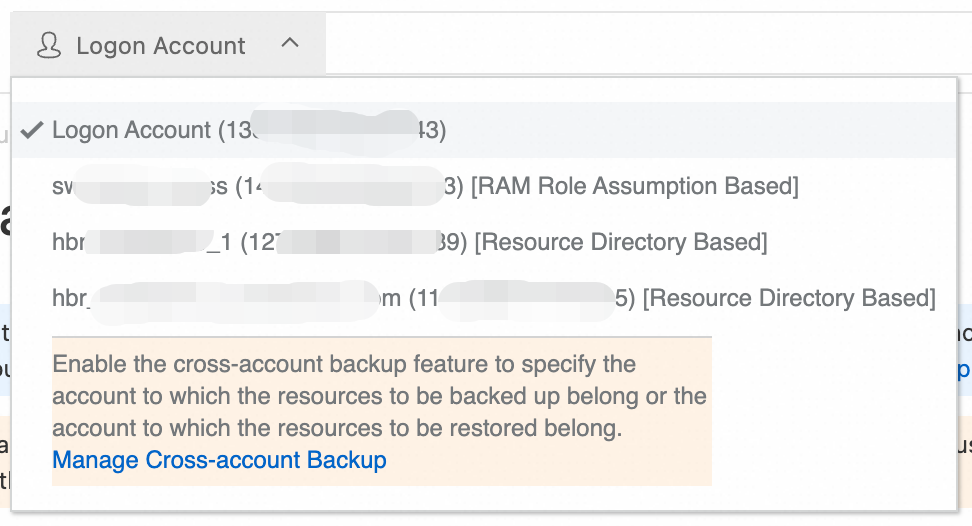
In the left-side navigation pane, select a backup feature to start configuring your cross-account backup.
ImportantCross-account backup is supported for ECS file backup (Standard Edition), ECS instance backup, NAS backup, OSS backup, Tablestore backup, Database Backup, and SAP HANA backup. After you perform a cross-account backup of an ECS instance, you can restore the backup point only to the source Alibaba Cloud account. For specific supported scenarios, refer to the information provided in the Cloud Backup console.
For example, to back up files on an ECS instance, switch to the account that owns the instance, select the instance, and apply a backup policy to create the backup plan. After the backup job runs successfully, the file data from the ECS instance is backed up to a backup vault in the management account.
ImportantA backup vault can store backup data from multiple accounts, and a single backup policy can be applied to data sources from different accounts. This enables unified data protection across your entire multi-account environment. Before you configure a cross-account backup plan, ensure all prerequisites are met.
Cross-account restore
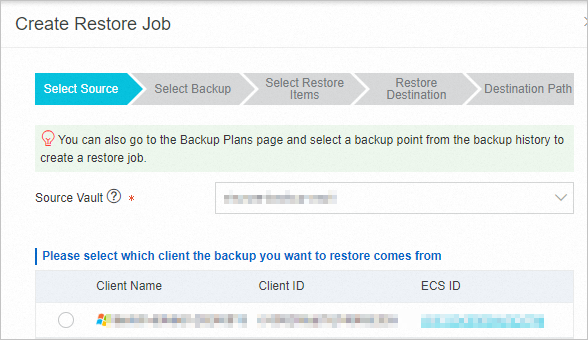
A backup vault in the management account stores backup data from both the management account and any managed accounts. You can restore data from any backup point to either the management account or any other managed account. The following example shows how to restore data to an account that was backed up:
Switch to the destination account where you want to restore the data.
Create a restore job. The procedure is the same as for restoring any other data source.
Restore a database on an ECS instance (Restore MySQL, Restore Oracle, Restore SQL Server)
Best practices
Select a cross-account method: Choose the configuration method that best fits your organization's account structure. Use RAM role-based configuration for multi-account scenarios outside of a resource directory or for cross-organizational collaboration. Use Resource Directory-based configuration for enterprises that already have a multi-account structure to simplify management and permissions.
Follow the principle of least privilege: Use the
AliyunHBRRolePolicysystem policy instead ofAdministratorAccessto avoid the security risks of excessive permissions. Grant only the minimum permissions required for backup and restore operations. Regularly review your cross-account backup permissions and revoke unneeded access.Plan your regions: Configure cross-account settings in the same region as your resources to optimize backup performance and data transfer efficiency. Prioritize setting up cross-account backup capabilities in regions with high resource concentration.
Control costs: The cross-account backup feature is free, but related services incur charges. For details, see Billing. Plan your backup policies and retention periods carefully to manage storage costs.
Cancel a cross-account backup
After canceling the configuration, the management account can no longer back up data from that account. Evaluate the impact before you proceed.
If you only add an account but do not perform any backup or restore operations, no fees are incurred.
After you cancel the configuration, the backed-up data remains in the backup vaults of the management account and can still be restored. This data continues to consume storage, for which you will be billed. To stop billing, see How do I stop being billed for Cloud Backup? Note that data cannot be recovered after its backup is deleted.
Switch to the account to be backed up. On the page for the relevant data source, delete backup plans, uninstall backup clients (if any), unregister instances, and delete backup vaults. For more information, see How do I stop being billed for Cloud Backup?
Switch to the management account. On the Cross-Account Backup page of the Cloud Backup console, delete the account.
If you used the Resource Directory-based method, delete the
AliyunServiceRoleForHbrRdservice-linked role from the account to be backed up.Log on to the RAM console by using the account to be backed up.
In the left-side navigation pane, choose Identity Management > Roles.
Find the
AliyunServiceRoleForHbrRdrole. In the Actions column, click Delete Role and confirm the deletion.
If you used the RAM role-based method, delete the RAM role that you created in the account to be backed up.
Log on to the RAM console by using the account to be backed up.
In the left-side navigation pane, choose Identity Management > Roles.
Find the RAM role that was created for the account to be backed up, such as hbrcrossrole. In the Actions column for the role, click Delete Role and confirm the deletion.
Billing
The cross-account backup feature of Cloud Backup is free of charge. However, fees are incurred for backup and restore operations, as described in the following table. For more information, see Billing methods and billable items.
Resource in member account | Management account billable items | Member account billable items |
ECS instance |
|
|
ECS file |
| Fees for resources such as disks that are used after a restore operation. |
NAS |
|
|
OSS |
|
|
Tablestore |
|
|
Database Backup |
| Fees for resources such as disks that are used after a restore operation. |
SAP HANA |
| Fees for resources such as disks that are used after a restore operation. |
FAQ
Is the cross-account backup feature free?
Yes, the feature itself is free. However, the management account is billed for backup and restore operations, while the account being backed up is billed for services like snapshot services (for ECS instance backups) and OSS requests. For more information, see Billing.
Cross-account replication vs. cross-account backup
Cross-account replication of backup vaults: This feature lets a source account replicate its existing backup data to another Alibaba Cloud account. Both accounts then hold a copy of the data, which is useful for data redundancy or sharing data across accounts.
Cross-account backup: This feature lets a management account centrally define backup policies and manage backup data for multiple accounts. The backup data is stored in the management account, and only the management account can view or manage it. This is used for centralized data governance.
Both methods are widely used for enterprise data security and compliance, and both support data isolation for accounts within or outside a resource directory. Choose the method that best fits your needs, or use them together to achieve both centralized management and data redundancy.