Enable Xtrace in AlbConfig to attach trace IDs at the ALB ingress and correlate access logs with distributed traces—without per-service instrumentation.
Prerequisites
Ensure you have:
-
ALB Ingress Controller (version 2.11.1 or later) installed on your cluster
-
New clusters: On the Component Configuration page during cluster creation, select ALB Ingress in the Ingress field. See Create an ACK managed cluster, Create an ACK dedicated cluster (new cluster creation is discontinued), or Create an ACK serverless cluster.
-
Existing clusters: Install or upgrade the component in Components.
-
-
(ACK dedicated clusters only) ALB Ingress Controller has required access permissions. Grant the ALB Ingress Controller access permissions to an ACK dedicated cluster.
-
Managed Service for OpenTelemetry activated. Activate Managed Service for OpenTelemetry if needed.
How it works
When a request hits the ALB listener, ALB generates a trace ID with the Zipkin sampling algorithm and injects it into request headers. ALB forwards the request to the backend with the trace ID attached. Access logs—including the trace ID—are written to a Simple Log Service (SLS) Logstore. Managed Service for OpenTelemetry reads these logs, reconstructs the trace, and displays it in the OpenTelemetry console.
Configure Xtrace at the listener level in AlbConfig. The sampling rate applies to all traffic on that listener.
Enable Xtrace for ALB Ingress
Step 1: Enable Simple Log Service for the cluster
Enable Simple Log Service for your cluster to auto-create an SLS project. See Collect logs from ACK cluster containers.
Step 2: Get the SLS project ID
-
Log on to the ACK console and click Clusters.
-
Click your cluster name, then click Cluster Information.
-
On the Basic Information tab, copy the Simple Log Service Project value for Step 3.
Step 3: Create an AlbConfig
The AlbConfig creates an ALB instance with Simple Log Service access logs and Xtrace enabled on the listener.
-
Create
alb-test.yaml:Modify Xtrace settings only after Simple Log Service access logs are enabled on the ALB instance. To reuse an existing ALB instance, set
forceOverride: trueunderspec.configto overwrite existing properties. See Reuse an existing ALB instance.See Create and manage vSwitches.
Xtrace parameters
Parameter
Description
Default
Range
tracingEnabledEnables Xtrace for the listener
falsetrue/falsetracingSampleSampling rate. 10000 = 100%, 5000 = 50%, 1 = 0.01%
—
1–10000
tracingTypeSampling algorithm
—
ZipkinapiVersion: alibabacloud.com/v1 kind: AlbConfig metadata: name: alb-demo spec: config: name: alb-test addressType: Intranet zoneMappings: # The vSwitch must be in an ALB-supported zone and the same VPC as the cluster. Select at least two vSwitches in different zones for high availability. - vSwitchId: vsw-2vc82nndnoo********** # Replace with your vSwitch ID. - vSwitchId: vsw-2vc30f5mlhs********** accessLogConfig: logProject: "k8s-log-xz92lvykqj1siwvif****" # Replace with your SLS project ID from Step 2. logStore: alb_xz92lvykqj1siwvif**** # Must start with "alb_". Created automatically if it does not exist. listeners: - port: 80 protocol: HTTP logConfig: accessLogRecordCustomizedHeadersEnabled: false accessLogTracingConfig: tracingEnabled: true # Set to true to enable Xtrace. Default: false. tracingSample: 9999 # Sampling rate. Range: 1-10000, where 10000 = 100%. Example: 9999 = 99.99%. tracingType: Zipkin # Sampling algorithm. Only takes effect when tracingEnabled is true. -
Apply the AlbConfig:
kubectl apply -f alb-test.yamlExpected output:
albconfig.alibabacloud.com/alb-demo created
Step 4: Create an IngressClass
-
Create
alb.yaml:apiVersion: networking.k8s.io/v1 kind: IngressClass metadata: name: alb spec: controller: ingress.k8s.alibabacloud/alb parameters: apiGroup: alibabacloud.com kind: AlbConfig name: alb-demo -
Apply the IngressClass:
kubectl apply -f alb.yamlExpected output:
ingressclass.networking.k8s.io/alb created
Step 5: Deploy a service and configure Ingress routing
-
Create
cafe-service.yamlto deploy acoffeeDeployment andcoffee-svcService:apiVersion: apps/v1 kind: Deployment metadata: name: coffee spec: replicas: 2 selector: matchLabels: app: coffee template: metadata: labels: app: coffee spec: containers: - name: coffee image: registry.cn-hangzhou.aliyuncs.com/acs-sample/nginxdemos:latest ports: - containerPort: 80 --- apiVersion: v1 kind: Service metadata: name: coffee-svc spec: ports: - port: 80 targetPort: 80 protocol: TCP selector: app: coffee type: NodePort -
Deploy the service:
kubectl apply -f cafe-service.yamlExpected output:
deployment.apps/coffee created service/coffee-svc created -
Create
cafe-ingress.yamlwith Ingress routing rules:apiVersion: networking.k8s.io/v1 kind: Ingress metadata: name: cafe-ingress spec: ingressClassName: alb rules: - host: demo.domain.ingress.top http: paths: - path: /coffee pathType: ImplementationSpecific backend: service: name: coffee-svc port: number: 80 -
Apply the Ingress:
kubectl apply -f cafe-ingress.yamlExpected output:
ingress.networking.k8s.io/cafe-ingress created
Step 6: Configure domain name resolution
If you set a custom domain in spec.rules.host, add a CNAME record pointing to the ALB DNS name. See Create and use an ALB Ingress to expose Services to external traffic.
Step 7: Send requests to generate trace data
-
Get the ALB address:
kubectl get ingExpected output:
NAME CLASS HOSTS ADDRESS PORTS AGE cafe-ingress alb demo.domain.ingress.top alb-u53i28ewt580*****.cn-<Region>.alb.aliyuncs.com 80 16m -
Send a request:
Traces appear in the console after enough requests are sampled. With
tracingSample: 9999(99.99%), one request is enough. With a lower rate—for example,tracingSample: 100(1%)—send at least 100 requests.curl -H Host:demo.domain.ingress.top http://alb-u53i28ewt580*****.cn-<Region>.alb.aliyuncs.com/coffeefor i in $(seq 1 100); do curl -s -o /dev/null -H Host:demo.domain.ingress.top http://alb-u53i28ewt580*****.cn-<Region>.alb.aliyuncs.com/coffee; doneThe response is an HTML page titled Hello World.
Verify tracing
Check SLS access logs
-
Log on to the ACK console and click Clusters.
-
Click your cluster name, then click Cluster Information.
-
On the Basic Information tab, click the Simple Log Service Project link to open the SLS console. Select the Logstore whose name starts with
alb_(for example,alb_xz92lvykqj1siwvif****). The xtrace search should matchslb_xtrace(trace ID) andxtrace_type(value zipkin), confirming access logs record tracing data.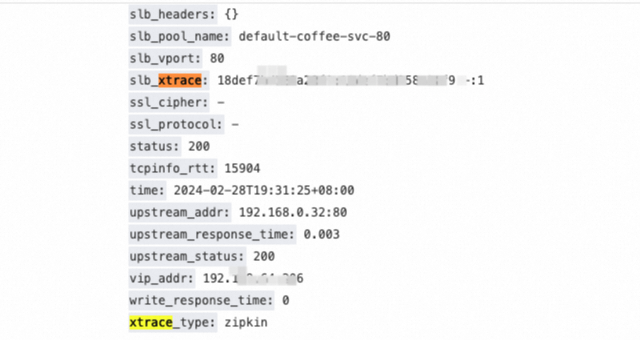
View traces in the OpenTelemetry console
-
Log on to the Managed Service for OpenTelemetry console.
-
On the Applications page, select your region and click your application name.
-
Click API Calls > Trace to view trace data. The tab shows up to 100 longest-duration traces. See Interface Calls.
Next steps
-
To use Nginx Ingress for distributed tracing instead, see Implement Tracing Analysis for the Nginx Ingress Controller add-on.
-
For issues, see Troubleshoot ALB Ingress issues and ALB Ingress FAQ.