Create, configure, and reuse ALB instances and listeners through AlbConfig CRDs, with support for IPv6, Simple Log Service (SLS) access logs, TLS policies, and network ACLs.
Prerequisites
The ALB Ingress Controller is installed in your cluster.
Two vSwitches in different, ALB-supported zones are created in the same VPC as your ACK cluster.
To use ALB Ingress with an ACK dedicated cluster, grant the cluster the required permissions first.
Usage notes
To modify resource configurations, use
kubectl edit. If you usekubectl apply, runkubectl difffirst to preview changes before applying.If your cluster uses the Flannel network plugin, backend services for the ALB Ingress must be of the NodePort or LoadBalancer type.
ALB instances created by AlbConfig are managed resources controlled by the ALB Ingress Controller. Do not modify these instances directly in the ALB console (for example, do not change tags, ACLs, access logs, or timeout settings in the console). Console changes are overwritten by the controller's reconciliation loop, or may cause errors. To update the configuration of a managed ALB instance, modify the AlbConfig resource in your cluster. The controller automatically synchronizes the changes to the ALB instance.
Key parameters at a glance
Commonly used AlbConfig parameters:
Parameter | Type | Default | Creation-only | Description |
| string | — | No | Name of the ALB instance |
| string |
| No | Sets the IP mode of the ALB instance. Valid values: |
| string |
| Yes |
|
| string | — | Yes | Set to |
| array | — | Yes | vSwitch IDs (at least two, in different zones) |
| string |
| No | ALB instance edition |
| string | — | No | ID of an existing ALB instance to reuse |
| boolean |
| No | Whether to overwrite attributes of a reused ALB instance |
| boolean |
| No | Whether to overwrite listener attributes of a reused instance |
| string | — | No | SLS log project |
| string | — | No | SLS Logstore (must start with |
| string | — | No | Internet Shared Bandwidth instance ID |
| integer | — | No | Listener port |
| string | — | No |
|
| integer |
| No | Request timeout in seconds (1–600) |
| boolean |
| No | Enable Gzip/Brotli compression |
ALB instance configurations
Create an AlbConfig
Each AlbConfig configures one ALB instance. To use multiple ALB instances, create one AlbConfig per instance.
When you install the ALB Ingress Controller and select Create or Select Existing for Gateway Source, the controller automatically creates an AlbConfig named alb and an IngressClass named alb.
Create
alb.yamlwith the following content:Parameter
Description
spec.config.nameThe name of the ALB instance. It must be unique within the cluster.
spec.config.addressTypeInternet(default): public IP.Intranet: VPC-internal only. Creation-only; cannot be changed later.spec.config.zoneMappingsAt least two vSwitches in different ALB-supported zones, in the same VPC as the cluster. Creation-only; cannot be changed later. Single-zone regions allow one vSwitch.
spec.config.zoneMappings[].allocationId(Optional) EIP ID to associate with the ALB instance. If omitted, a pay-as-you-go BGP (multi-ISP) EIP is created automatically. Only pay-as-you-go (pay-by-data-transfer) EIPs not in an Internet Shared Bandwidth instance are supported. EIPs for different zones must be of the same type.
apiVersion: alibabacloud.com/v1
kind: AlbConfig
metadata:
  name: alb
spec:
  config:
    name: alb
    addressType: Internet
    zoneMappings:
    - vSwitchId: vsw-uf6ccg2a9g71hx8go****  # Replace with your vSwitch ID.
      allocationId: eip-asdfas****            # Replace with your EIP ID. If omitted, an EIP is assigned automatically.
    - vSwitchId: vsw-uf6nun9tql5t8nh15****
      allocationId: eip-dpfmss****
  listeners:
    - port: 80
      protocol: HTTP
Default AlbConfig settings (except
vSwitchId):apiVersion: alibabacloud.com/v1 kind: AlbConfig metadata: name: alb spec: config: accessLogConfig: logProject: "" logStore: "" addressAllocatedMode: Dynamic addressType: Internet billingConfig: internetBandwidth: 0 internetChargeType: "" payType: PostPay deletionProtectionEnabled: true edition: Standard forceOverride: false zoneMappings: - vSwitchId: #... - vSwitchId: #... status: loadBalancer: dnsname: alb-s2em8fr9debkg5****.cn-shenzhen.alb.aliyuncs.com id: alb-s2em8fr9debkg5****Apply the configuration:
kubectl apply -f alb.yamlExpected output:
AlbConfig.alibabacloud.com/alb createdVerify the AlbConfig:
PORT&PROTOCOLandCERTIDare empty until you configure HTTPS listeners and certificates.kubectl get AlbConfigExpected output:
NAME   ALBID        DNSNAME                                  PORT&PROTOCOL   CERTID   AGE
alb    alb-******   alb-******.<regionID>.alb.aliyuncs.com                            28m
Update an AlbConfig
List your AlbConfigs:
kubectl get AlbConfigEdit the AlbConfig:
kubectl edit albconfig <ALBCONFIG_NAME>For example, to rename the ALB instance to
new_alb:spec: config: name: new_alb
Delete an AlbConfig
If an ALB instance was created with an AlbConfig, deleting the AlbConfig deletes the ALB instance.
Delete all Ingresses associated with the AlbConfig before deleting it.
kubectl delete AlbConfig <AlbConfig_NAME>Bind an Internet Shared Bandwidth instance
To bind an Internet Shared Bandwidth instance to the ALB instance, set billingConfig.bandWidthPackageId:
This only applies to internet-facing ALB instances. To purchase an Internet Shared Bandwidth instance, see Create an Internet Shared Bandwidth.
spec:
  config:
    name: alb
    addressType: Internet
    edition: Standard
    zoneMappings:
    - vSwitchId: vsw-2vcqeyvwsnd***
    - vSwitchId: vsw-2vcbhjlqu7y***
    billingConfig:
      bandWidthPackageId: cbwp-2vcjucp49otd8qolhm***
Create and use multiple ALB instances
To use multiple ALB instances, create a separate AlbConfig and IngressClass for each instance.
Create
alb-2.yaml:apiVersion: alibabacloud.com/v1 kind: AlbConfig metadata: name: alb-2 spec: config: name: alb-2 addressType: Internet zoneMappings: - vSwitchId: vsw-uf6ccg2a9g71hx8go**** - vSwitchId: vsw-uf6nun9tql5t8nh15****Apply it:
kubectl apply -f alb-2.yamlCreate
ingress_class2.yaml:Clusters v1.19 and later
apiVersion: networking.k8s.io/v1
kind: IngressClass
metadata:
  name: alb-2
spec:
  controller: ingress.k8s.alibabacloud/alb
  parameters:
    apiGroup: alibabacloud.com
    kind: AlbConfig
    name: alb-2
Clusters earlier than v1.19
apiVersion: networking.k8s.io/v1beta1
kind: IngressClass
metadata:
  name: alb-2
spec:
  controller: ingress.k8s.alibabacloud/alb
  parameters:
    apiGroup: alibabacloud.com
    kind: AlbConfig
    name: alb-2
Apply it:
kubectl apply -f ingress_class2.yamlCreate
ingress2.yaml. SetingressClassNameto the IngressClass for the target ALB instance:Clusters v1.19 and later
apiVersion: networking.k8s.io/v1
kind: Ingress
metadata:
  name: cafe-ingress2
spec:
  ingressClassName: alb-2
  rules:
  - http:
      paths:
      - path: /tea
        pathType: ImplementationSpecific
        backend:
          service:
            name: tea-svc
            port:
              number: 80
      - path: /coffee
        pathType: ImplementationSpecific
        backend:
          service:
            name: coffee-svc
            port:
              number: 80
Clusters earlier than v1.19
apiVersion: networking.k8s.io/v1beta1
kind: Ingress
metadata:
  name: cafe-ingress2
spec:
  ingressClassName: alb-2
  rules:
  - http:
      paths:
      - path: /tea
        backend:
          serviceName: tea-svc
          servicePort: 80
      - path: /coffee
        backend:
          serviceName: coffee-svc
          servicePort: 80
Apply it:
kubectl apply -f ingress2.yaml
Associate an AlbConfig with an Ingress using IngressClass
Use an IngressClass to bind an AlbConfig to an ALB Ingress.
Create an IngressClass
Create ingress_class.yaml:
Clusters v1.19 and later
apiVersion: networking.k8s.io/v1
kind: IngressClass
metadata:
  name: alb
spec:
  controller: ingress.k8s.alibabacloud/alb
  parameters:
    apiGroup: alibabacloud.com
    kind: AlbConfig
    name: alb
Clusters earlier than v1.19
apiVersion: networking.k8s.io/v1beta1
kind: IngressClass
metadata:
  name: alb
spec:
  controller: ingress.k8s.alibabacloud/alb
  parameters:
    apiGroup: alibabacloud.com
    kind: AlbConfig
    name: alb
Apply it:
kubectl apply -f ingress_class.yamlExpected output:
ingressclass.networking.k8s.io/alb createdCreate an Ingress that references the IngressClass
Create ingress.yaml and set ingressClassName to the IngressClass name:
Clusters v1.19 and later
apiVersion: networking.k8s.io/v1
kind: Ingress
metadata:
  name: cafe-ingress
spec:
  ingressClassName: alb
  rules:
  - http:
      paths:
      - path: /tea
        pathType: ImplementationSpecific
        backend:
          service:
            name: tea-svc
            port:
              number: 80
      - path: /coffee
        pathType: ImplementationSpecific
        backend:
          service:
            name: coffee-svc
            port:
              number: 80
Clusters earlier than v1.19
apiVersion: networking.k8s.io/v1beta1
kind: Ingress
metadata:
  name: cafe-ingress
spec:
  ingressClassName: alb
  rules:
  - http:
      paths:
      - path: /tea
        backend:
          serviceName: tea-svc
          servicePort: 80
      - path: /coffee
        backend:
          serviceName: coffee-svc
          servicePort: 80
Apply it:
kubectl apply -f ingress.yamlExpected output:
ingress.networking.k8s.io/cafe-ingress createdReused ALB instance management
Reuse an existing ALB instance
Set spec.config.id to reuse an existing ALB instance. Standard and WAF-enabled instances from the ALB console are supported; Basic instances cannot be reused. An ALB instance can be reused by only one cluster, and by only one AlbConfig within that cluster.
apiVersion: alibabacloud.com/v1
kind: AlbConfig
metadata:
  name: reuse-alb
spec:
  config:
    id: ****
    forceOverride: false
    listenerForceOverride: false
How id, forceOverride, and listenerForceOverride interact:
|
|
| Result |
Not set | — | — | ALB instance is not reused. |
Set |
| — | ALB instance and listener attributes are overwritten. |
Set |
|
| When listenerForceOverride is false, the ALB Ingress Controller only manages listeners automatically created by AlbConfig (named ingress-auto-listener-{port}). Manually created listeners are not managed by AlbConfig. |
Set |
|
| ALB instance attributes are not overwritten. The controller manages all listeners. Listener existence and configuration are determined by AlbConfig. |
Do not rename listeners on a reused ALB instance. Listeners named ingress-auto-listener-{port} are managed by ACK; listeners with other names are managed in the ALB console.
Delete the AlbConfig of a reused ALB instance
Deleting the AlbConfig of a reused ALB instance does not delete the ALB instance itself.
For ALB Ingress Controller 2.10.0-aliyun.1 or earlier: run
kubectl editto remove all entries fromspec.listeners, which deletes listeners configured through the AlbConfig. For versions later than 2.10.0-aliyun.1, skip this step.Delete all Ingresses associated with the AlbConfig, then delete the AlbConfig:
kubectl delete AlbConfig <AlbConfig_NAME>
Advanced configurations
Enable SLS to collect access logs
Set logProject and logStore in spec.config.accessLogConfig:
spec:
  config:
    accessLogConfig:
      logProject: "k8s-log-xz92lvykqj1siwvif****"
logStore: "alb_****"ThelogStorevalue must start withalb_. If the specified Logstore does not exist, a new one is created automatically.
Find the log project in the ACK console under your cluster's Cluster Information > Basic Information.
To enable SLS on a reused ALB instance, set forceOverride: true.After enabling, click the project name next to Log Service Project on Basic Information to view logs in SLS.
Enable IPv6
Set addressIpVersion: DualStack to enable IPv4/IPv6 dual stack:
addressIpVersion takes effect only at creation and cannot be changed later.
spec:
  config:
    addressIpVersion: DualStack
Listener configurations
Create listeners
Set port and protocol in spec.listeners to define how ALB receives traffic. Supported protocols: HTTP, HTTPS, and Quick UDP Internet Connections (QUIC).
Modifying the port, protocol, or other attributes of a listener deletes the existing listener and creates a new one. To configure multiple listeners with different protocols, add the required annotations to your Ingress.
HTTP listener
spec:
  listeners:
    - port: 80
      protocol: HTTP
HTTP natively supports WebSocket. No additional configuration is required.
HTTPS listener
spec:
  listeners:
    - port: 443
protocol: HTTPSHTTPS listeners require certificates.
QUIC listener
spec:
  listeners:
    - port: 443
protocol: QUICQUIC listeners receive HTTP/3 requests from clients.
Specify a certificate
To add a certificate to an HTTPS listener, run kubectl edit albconfig <Albconfig_Name> and set the certificates field:
spec:
  listeners:
  - caEnabled: false
    certificates:
    - CertificateId: 756****-cn-hangzhou
      IsDefault: true
    port: 443
    protocol: HTTPS
If no default certificate is specified, ALB Ingress uses the first certificate as the default.
If no certificate is specified, listener creation is deferred until an Ingress is associated and a certificate is automatically discovered based on the domain name.
See Configure HTTPS certificates for encrypted communication.
Delete a listener
Run kubectl edit albconfig <Albconfig_Name> and remove the listener entry from spec.listeners.
Disassociate all Ingresses from the listener before deleting it. Otherwise, deletion fails with errors.
For example, to delete the listener on port 8002:
# Before
listeners:
- port: 8001
  protocol: HTTP
- port: 8002
  protocol: HTTP

# After
listeners:
- port: 8001
  protocol: HTTP
How listener updates work
The listeners array is reconciled by comparing the new config against the live state and the last-applied-configuration annotation:
In new config | In live config | In | Result |
Yes | Yes | — | Listener is retained. |
Yes | No | — | Listener is added. |
No | — | Yes | Listener is deleted. Fields may reset to defaults. |
No | Yes | No | Listener is deleted. |
Example:
Given these three states:
# New configuration
listeners:
- port: 8001
  protocol: HTTP
- port: 8003
  protocol: HTTP
- port: 8005  # New
  protocol: HTTP

# Live configuration
listeners:
- port: 8001
  protocol: HTTP
- port: 8002
  protocol: HTTP
- port: 8003
  protocol: HTTP
- port: 8004
  protocol: HTTP

# last-applied-configuration
listeners:
- port: 8001
  protocol: HTTP
- port: 8002
  protocol: HTTP
- port: 8003
  protocol: HTTP
After applying the new configuration:
listeners:
- port: 8001  # Retained (in new config and live config)
  protocol: HTTP
- port: 8003  # Retained (in new config and live config)
  protocol: HTTP
- port: 8005  # Added (in new config, not in live config)
  protocol: HTTP
# Port 8002: deleted (not in new config, in last-applied-configuration)
# Port 8004: deleted (not in new config, in live config, not in last-applied-configuration)
Set the connection timeout period
Set requestTimeout to control how long ALB waits for a backend response before returning HTTP 504 to the client. Valid range: 1–600 seconds. Default: 60 seconds.
spec:
  listeners:
  - port: 80
    protocol: HTTP
    requestTimeout: 40
Advanced listener configurations
Configure data compression
Set gzipEnabled: true to enable compression. All file types support Brotli compression. The following file types also support Gzip compression: text/xml, text/plain, text/css, application/javascript, application/x-javascript, application/rss+xml, application/atom+xml, application/xml, and application/json.
Compression algorithm: If a client supports both Brotli and Gzip, ALB uses Brotli because it is more efficient.
Compression conditions: ALB compresses a response only when the
Content-Lengthresponse header exceeds 1,024 bytes and theAccept-Encodingrequest header from the client includes the corresponding compression algorithm.
spec:
  listeners:
  - port: 80
    protocol: HTTP
    gzipEnabled: true
Preserve client IP addresses
ALB adds the client IP address to the X-Forwarded-For header before forwarding the request to the backend.
Available for HTTP and HTTPS listeners only.
XForwardedForEnabledis enabled by default and cannot be disabled.
spec:
  listeners:
  - port: 80
    protocol: HTTP
    xForwardedForConfig:
      XForwardedForEnabled: true # This parameter cannot be set to false.
Best practice for environments with multiple proxy layers: Although XForwardedForEnabled: true propagates the X-Forwarded-For header by default, the IP value can be spoofed when requests pass through multiple proxies. In production environments with multiple proxy layers, use XForwardedForClientSourceIpsEnabled: true together with XForwardedForClientSourceIpsTrusted to retrieve the client IP address from a trusted proxy chain.
Retrieve client connection metadata
Use xForwardedForConfig to append client and listener metadata to request headers forwarded to the backend. All fields below are available for HTTP and HTTPS listeners.
Field | When set to |
| Adds the port the client used to connect to the ALB instance. |
| Adds the listener protocol used by the ALB instance. |
| Adds the ALB instance ID. |
| Adds the listening port of the ALB instance. |
Example — append all four headers:
spec:
  listeners:
  - port: 80
    protocol: HTTP
    xForwardedForConfig:
      XForwardedForClientSrcPortEnabled: true
      XForwardedForProtoEnabled: true
      XForwardedForSLBIdEnabled: true
      XForwardedForSLBPortEnabled: true
Retrieve the client IP address from a trusted proxy chain
Set XForwardedForClientSourceIpsEnabled: true to extract the real client IP from X-Forwarded-For when requests pass through multiple proxies. Use XForwardedForClientSourceIpsTrusted to list trusted proxy IPs or CIDR blocks. ALB traverses X-Forwarded-For right to left and treats the first non-trusted IP as the client IP.
For example, if X-Forwarded-For is <client IP, proxy-1, proxy-2>, add proxy-1 and proxy-2 to the trusted list.
Available for HTTP and HTTPS listeners only.
spec:
  listeners:
  - port: 80
    protocol: HTTP
    xForwardedForConfig:
      XForwardedForClientSourceIpsEnabled: true
      XForwardedForClientSourceIpsTrusted: 192.168.x.x;192.168.x.x/16
Configure a custom TLS security policy
Set securityPolicyId on an HTTPS listener to apply a default or custom TLS security policy.
spec:
  listeners:
  - port: 443
    protocol: HTTPS
    securityPolicyId: tls_cipher_policy_1_1
Configure a trusted proxy IP address
Configure network ACLs
Use aclConfig to allow or deny traffic from specific IP addresses or CIDR blocks at the listener level.
spec:
  listeners:
  - port: 80
    protocol: HTTP
    aclConfig:
      aclEntries:
      - 127.0.0.1/32
      aclType: White
Parameter | Description |
|
|
| IP addresses or CIDR blocks to include in the ACL rule. Example: |
See Configure ACLs.
Troubleshooting
Error when saving an AlbConfig YAML file: alb: listener port number must between [1:65535], or you should set listen port explicitly in listener config.
Cause
In an AlbConfig YAML file, the - symbol in the spec.listener section marks the start of a single listener configuration. In the incorrect example on the left, three - symbols are used, which defines three listeners. An error occurs because the certificates section for the last - entry is missing the port configuration.
Solution
Each listener configuration must start with a hyphen (-). In the corrected example on the right, the hyphen (-) before certificates is removed, which makes the certificate configuration part of the HTTPS: 443 listener.
Incorrect example: | Corrected example: |
Why do changes to the network type (addressType) or vSwitch (zoneMappings.vSwitchId) of an ALB instance not take effect when made through an AlbConfig YAML file?
Cause
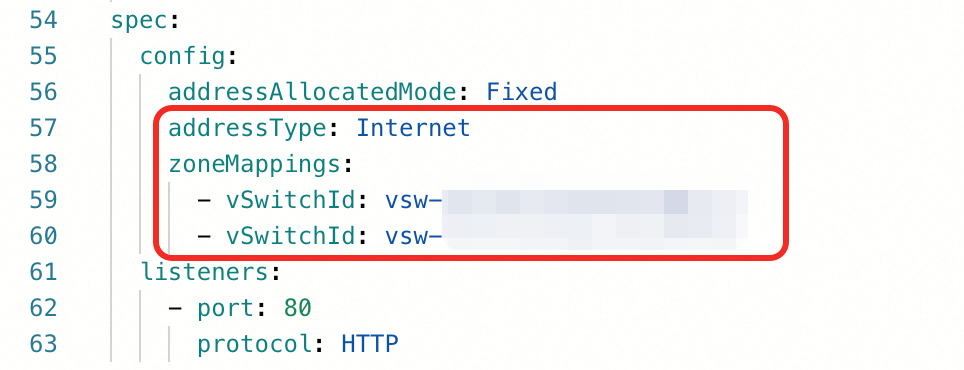
You cannot change the network type or vSwitch configuration of an Application Load Balancer (ALB) instance by modifying the addressType or zoneMappings.vSwitchId in its AlbConfig YAML file.
Solution
First, disable the configuration read-only mode for the instance in the ALB console. Then, manually change the network type or vSwitch configuration of the ALB instance. After you change the configuration, enable the configuration read-only mode again.
Log on to the ALB console. In the destination region, click the instance ID that corresponds to
status.loadBalancer.idin the AlbConfig file.On the Instance Details tab, in the Instance Information section, click Disable Configuration Read-only Mode and confirm.
Click Change Network Type or Modify Zone/Subnet to change the network type or vSwitch configuration of the ALB instance.
After you finish the changes, re-enable configuration read-only mode.
HTTPS listener error: empty https listener default certs
Cause
An HTTPS listener is configured in the AlbConfig, but no certificate ID is specified in the certificates field. The controller cannot create the listener because no associated Ingress exists to automatically discover a certificate based on the domain name.
Solutions
Method 1 (Recommended): Specify a certificate ID in the
certificatesfield for the HTTPS listener. For more information, see specify a certificate.listeners: - port: 443 protocol: HTTPS certificates: - CertificateId: <your-certificate-id> # Replace with your actual certificate ID. IsDefault: trueMethod 2: In the AlbConfig, configure an HTTP listener on port 80 and create an Ingress resource that is associated with the target domain name. After the Ingress is created, the ALB Ingress Controller automatically discovers the certificate from the Ingress based on the domain name and attaches it to the HTTPS listener.