Data Integration supports real-time synchronization of data from a single table in data sources such as DataHub, Hologres, Kafka, and LogHub to Hologres. The real-time synchronization task initializes the schema of a destination Hologres table based on the structure of a specified Kafka topic. The task then synchronizes full data from the specified Kafka topic to the destination Hologres table at once and synchronizes incremental data from the topic to the destination Hologres table in real time. This topic describes how to synchronize data from a Kafka topic to Hologres in real time.
Prerequisites
You have purchased a serverless resource group or an exclusive resource group for Data Integration.
You have created Kafka and Hologres data sources. For more information, see Create a data source for Data Integration.
You have established network connections between the resource group and data sources. For more information, see Network connectivity solutions.
Procedure
1. Select a synchronization task type
Go to the Data Integration page.
Log on to the DataWorks console. In the top navigation bar, select the desired region. In the left-side navigation pane, choose . On the page that appears, select the desired workspace from the drop-down list and click Go to Data Integration.
In the left-side navigation pane, click Synchronization Tasks, and then click Create Synchronization Task at the top of the page to go to the synchronization task creation page. Configure the following basic information:
Data Source And Destination:
Kafka→HologresNew Task Name: Customize the synchronization task name.
Synchronization Type:
Real-time synchronization of single table.
2. Configure network and resources
In the Network And Resource Configuration section, select the Resource Group for the synchronization task. You can allocate the number of compute units (CUs) for Task Resource Usage.
Select the added data source for Source Data Source
kafkaand the addedHologresdata source for Destination Data Source, and then click Test Connectivity.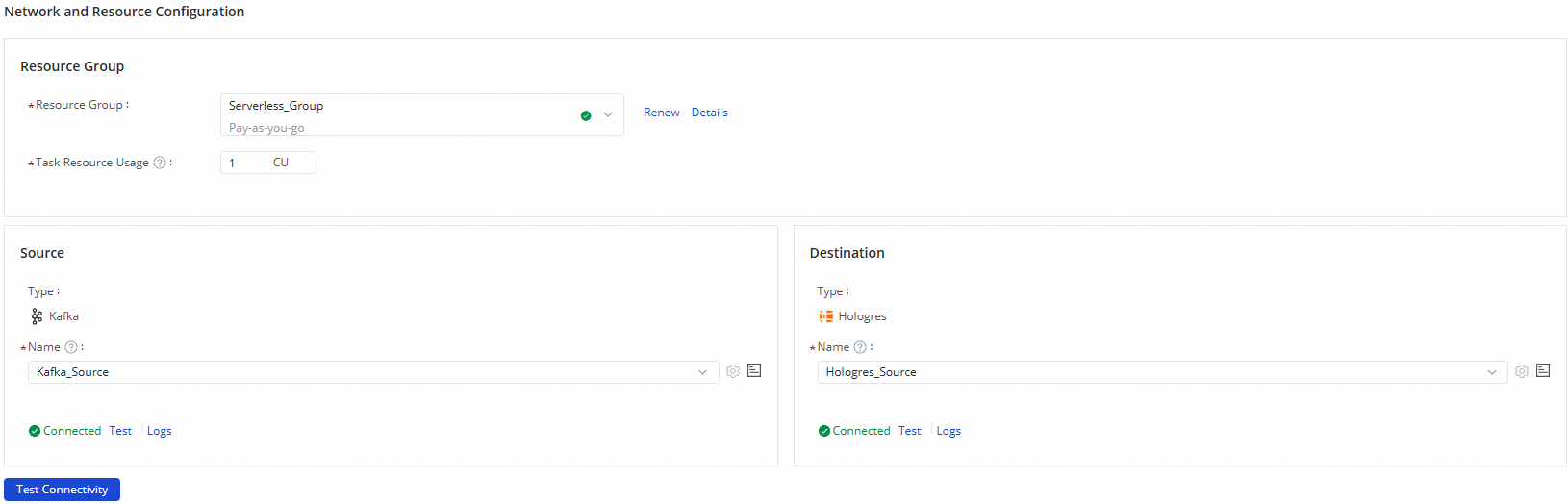
After you confirm that both the source and destination data sources are connected successfully, click Next.
3. Configure the synchronization link
1. Configure the Kafka source
Click the Kafka data source at the top of the page to edit the Kafka Source Information.

In the Kafka Source Information section, select the topic from which you want to synchronize data in the Kafka cluster.
Retain default values for other parameters, or modify their configurations based on your business requirements.
Click Data Sampling in the upper-right corner.
In the dialog box that appears, configure the Start Time and Sampled Data Records parameters and click Start Collection. The system samples data from the Kafka topic that you specified. You can preview the data in the Kafka topic. The data in the Kafka topic is used as input data for data preview and visualization configurations of a data processing node.
In the Output Field Configuration section, select the fields that you want to synchronize as needed.
2. Edit the data processing node
You can click the  icon to add data processing methods. The following data processing methods are supported: Data Masking, Replace String, Data filtering, JSON Parsing, and Edit Field and Assign Value. You can arrange the data processing methods based on your business requirements. When the synchronization task is run, data is processed based on the processing order that you specify.

After you configure a data processing node, you can click Preview Data Output in the upper-right corner. In the dialog box that appears, click Re-obtain Output Of Ancestor Node to enable the data processing node to process the data that is sampled from the specified Kafka topic and preview the processing result.
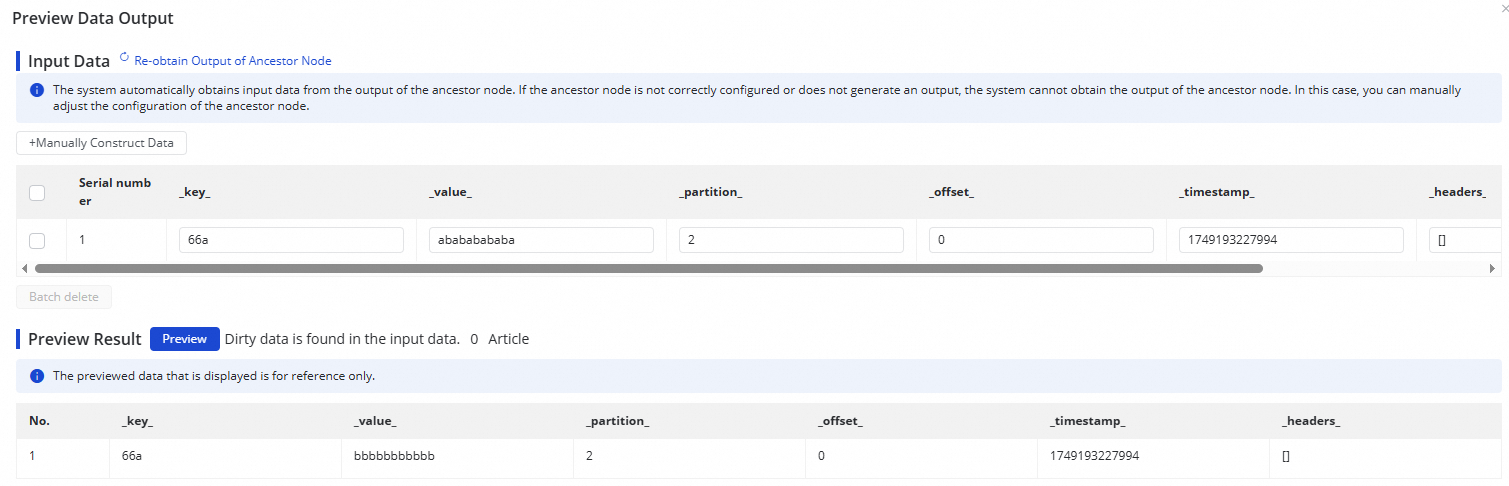
Before you preview the result generated after the input data is processed by a data processing node, you must configure Data Sampling settings for the Kafka data source.
3. Configure the Hologres destination
Click the Hologres data destination at the top of the page to edit the Hologres Destination Information.

In the Hologres Destination Information section, select the schema that contains the Hologres table to which you want to write data, and select Create Table or Use Existing Table for the destination table.
If you select Create Table, a table with the same name as the source table is created by default. You can manually modify the destination table name.
If you select Use Existing Table, select the destination table to which you want to synchronize data from the drop-down list.
(Optional) Modify the schema of a destination table.
If you select Create tables automatically for the Destination Table parameter, click Edit Table Schema. In the dialog box that appears, edit the schema of the destination table that will be automatically created. You can also click Re-generate Table Schema Based on Output Column of Ancestor Node to re-generate a schema based on the output columns of an ancestor node. You can select a column from the generated schema and configure the column as the primary key.
NoteThe destination table must have a primary key. Otherwise, the configurations cannot be saved.
Set the Job Type and Write Conflict Policy.
Job Type:
Replay: This option indicates the mirror feature. If a record is inserted at the source, the record is also inserted into Hologres. If a record is updated or deleted at the source, the record is also updated or deleted in Hologres.
Insert: This option indicates that Hologres is treated as a streaming storage. All data from the source is inserted into Hologres by using the INSERT statement.
Write Conflict Policy: The policy for handling write conflicts. Valid values: Overwrite and Ignore.
Configure mappings between fields in the source and fields in the destination.
After you complete the preceding configuration, the system automatically establishes mappings between fields in the source and fields in the destination based on the same-name mapping principle. You can modify the mappings based on your business requirements. One field in the source can map to multiple fields in the destination. Multiple fields in the source cannot map to the same field in the destination. If a field in the source has no mapped field in the destination, data in the field in the source is not synchronized to the destination.
4. Configure alert rules
To prevent the failure of the synchronization task from causing latency on business data synchronization, you can configure different alert rules for the synchronization task.
In the upper-right corner of the page, click Configure Alert Rule to go to the Configure Alert Rule panel.
In the Configure Alert Rule panel, click Add Alert Rule. In the Add Alert Rule dialog box, configure the parameters to configure an alert rule.
NoteThe alert rules that you configure in this step take effect for the real-time synchronization subtask that will be generated by the synchronization task. After the configuration of the synchronization task is complete, you can refer to Manage real-time synchronization tasks to go to the Real-time Synchronization Task page and modify alert rules configured for the real-time synchronization subtask.
Manage alert rules.
You can enable or disable alert rules that are created. You can also specify different alert recipients based on the severity levels of alerts.
5. Configure advanced parameters
DataWorks allows you to modify the configurations of specific parameters. You can change the values of these parameters based on your business requirements.
To prevent unexpected errors or data quality issues, we recommend that you understand the meanings of the parameters before you change the values of the parameters.
In the upper-right corner of the configuration page, click Configure Advanced Parameters.
In the Configure Advanced Parameters panel, change the values of the desired parameters.
6. Configure resource groups
You can click Configure Resource Group in the upper-right corner of the page to view and change the resource groups that are used to run the current synchronization task.
7. Perform a test on the synchronization task
After the preceding configuration is complete, you can click Perform Simulated Running in the upper-right corner of the configuration page to enable the synchronization task to synchronize the sampled data to the destination table. You can view the synchronization result in the destination table. If specific configurations of the synchronization task are invalid, an exception occurs during the test run, or dirty data is generated, the system reports an error in real time. This can help you check the configurations of the synchronization task and determine whether expected results can be obtained at the earliest opportunity.
In the dialog box that appears, configure the parameters for data sampling from the specified table, including the Start At and Sampled Data Records parameters.
Click Start Collection to enable the synchronization task to sample data from the source.
Click Preview to enable the synchronization task to synchronize the sampled data to the destination.
8. Run the synchronization task
After the configuration of the synchronization task is complete, click Complete in the lower part of the page.
In the Tasks section of the Synchronization Task page, find the created synchronization task and click Start in the Operation column.
Click the name or ID of the synchronization task in the Tasks section and view the detailed running process of the synchronization task.
Perform O&M operations on the synchronization task
View the running status of the synchronization task
After you complete the configuration of the synchronization task, you can view all synchronization tasks that are created and the basic information of each synchronization task on the Synchronization Tasks page.

You can click Start or Stop in the Actions column to start or stop a synchronization task. You can also click More to perform operations such as Edit and View on the synchronization task.
For a started task, you can view the basic running status in Running Details, or click the corresponding area to view the execution details.
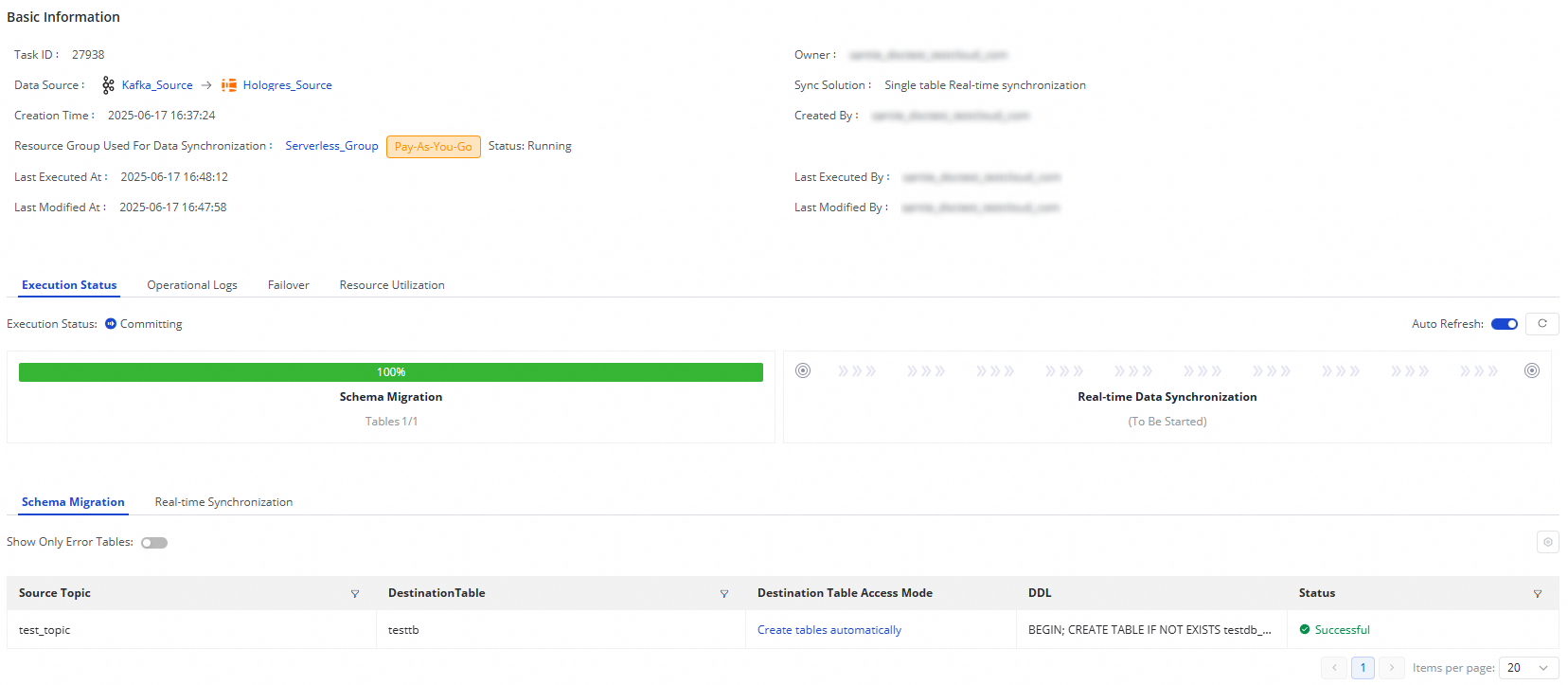
The real-time synchronization task from Kafka to Hologres consists of two steps:
Schema Migration: This tab displays information such as the generation methods of destination tables. The generation methods of destination tables include Use Existing Table and Create Table. If the generation method of a destination table is Create Table, the DDL statement that is used to create the table is displayed.
Real-time Data Synchronization: This tab displays statistics about real-time synchronization, including real-time read and write traffic, dirty data information, failovers, and operation logs.
Rerun the synchronization task
In some special cases, if you want to modify the fields to synchronize, the fields in a destination table, or table name information, you can also click Rerun in the Operation column of the desired synchronization task. This way, the system synchronizes the changes that are made to the destination. Data in the tables that are already synchronized and are not modified will not be synchronized again.
Directly click Rerun without modifying the configurations of the synchronization task to enable the system to rerun the synchronization task.
Modify the configurations of the synchronization task and then click Complete. Click Apply Updates that is displayed in the Operation column of the synchronization task to rerun the synchronization task for the latest configurations to take effect.