Some work shouldn't wait for you to remember it. QwenWork's scheduled agents run on a clock: every Monday at 8am, yours can read the week's notes and hand you a digest before your first coffee. Here's how to set one up, test it, and tune it.
Monday morning starts with archaeology: scrolling last week's notes, status messages, and half-finished docs to reconstruct what moved and what's on fire. You do it weekly, and you do it badly, because Monday you is in a hurry.
The fix isn't discipline. It's an agent that does the reconstruction on a schedule — reading your own notes folder, not anyone else's data — and delivers the digest in the format you actually scan.
QwenWork's scheduled tasks run whether you're at your desk or not. Set it once, tune it twice, and the Monday archaeology is gone.
Time to set up: about 6 minutes. Runs on your own local files — nothing external.
Create a folder called Weekly Notes with two or three plain-text or markdown notes in it (last week's standups, a project log, anything). This is the agent's source — your files, your machine. If a tool already exports your notes or tickets on a schedule, point that export at this folder and the pipe builds itself.
Every Monday at 8am, read the notes in my "Weekly Notes" folder and
write me a digest: what moved, what's blocked, top 3 risks.
QwenWork turns that into a scheduled task and shows you what it created — the schedule, the source, the output format.
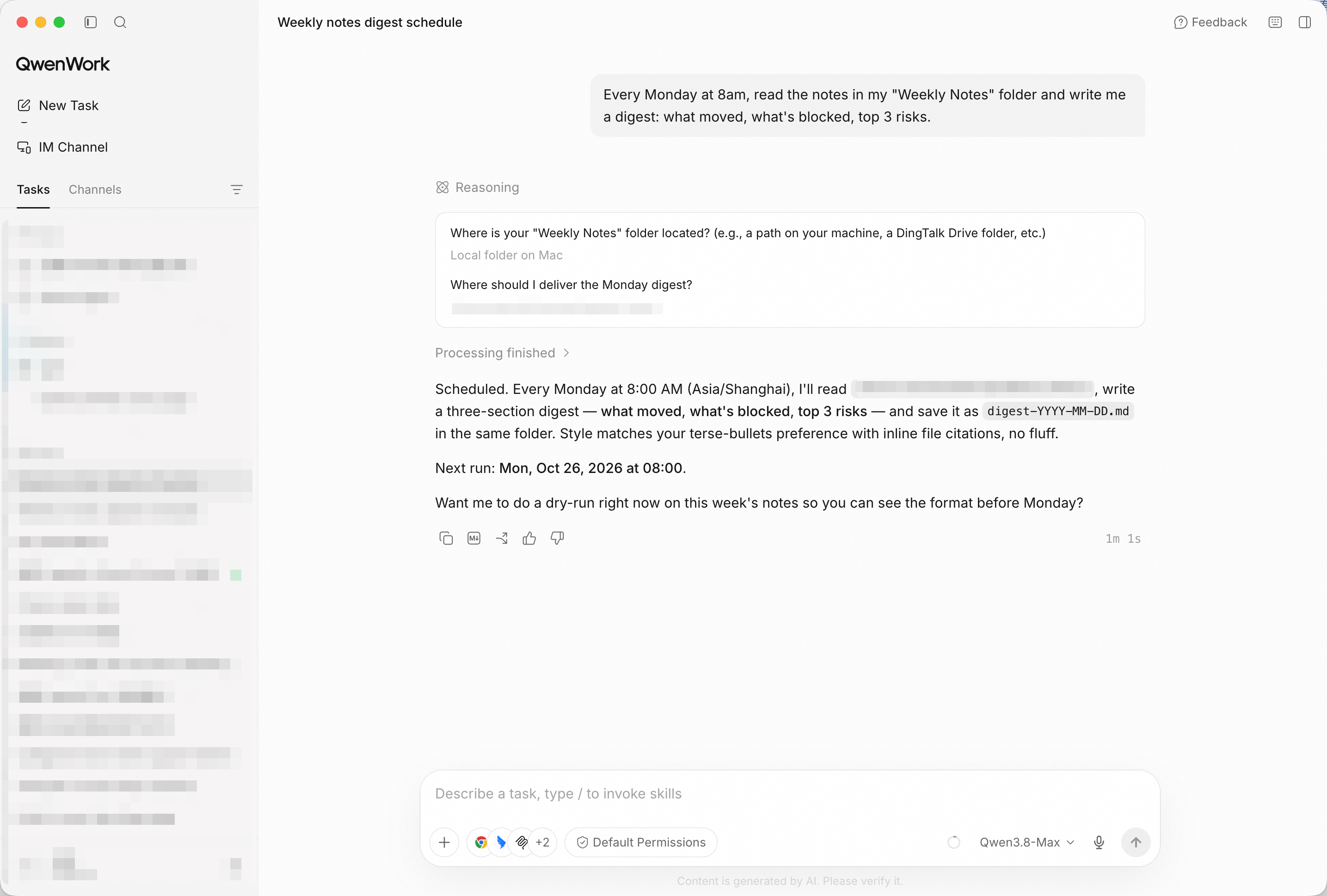
One sentence becomes a scheduled task — schedule and scope visible before it ever runs.
Run it once now so I can see the output.The test run produces a real digest from your real notes. Read it critically: this is the draft of every Monday you'll get from now on.
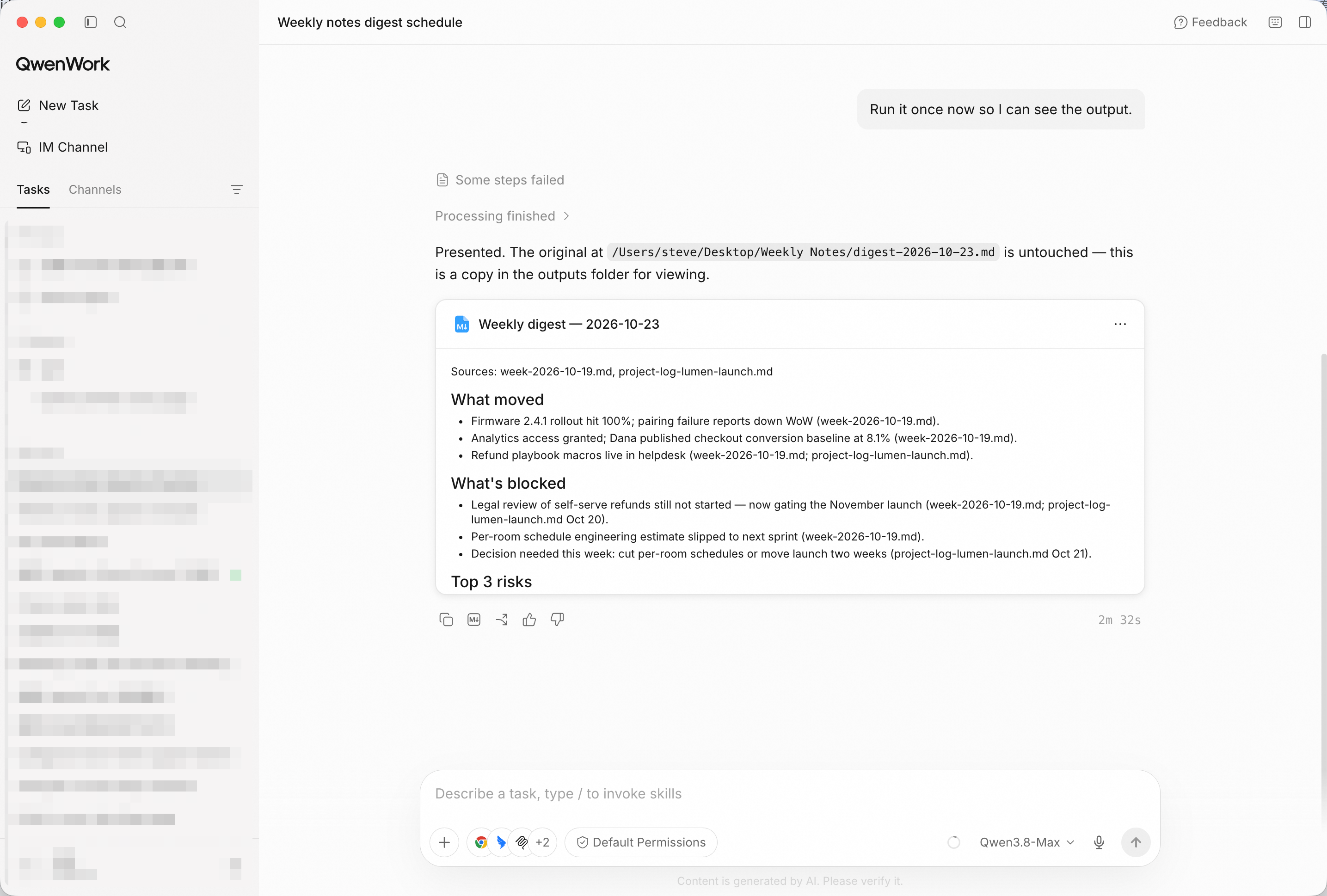
The test digest — what moved, what's blocked, the top risks, from your own notes.
Most first drafts are right in content and wrong in shape. Fix the shape:
Change the format: bullets only, and put the risks first.Then make the history accumulate instead of evaporating:
Save each digest as a dated markdown file in the same folder.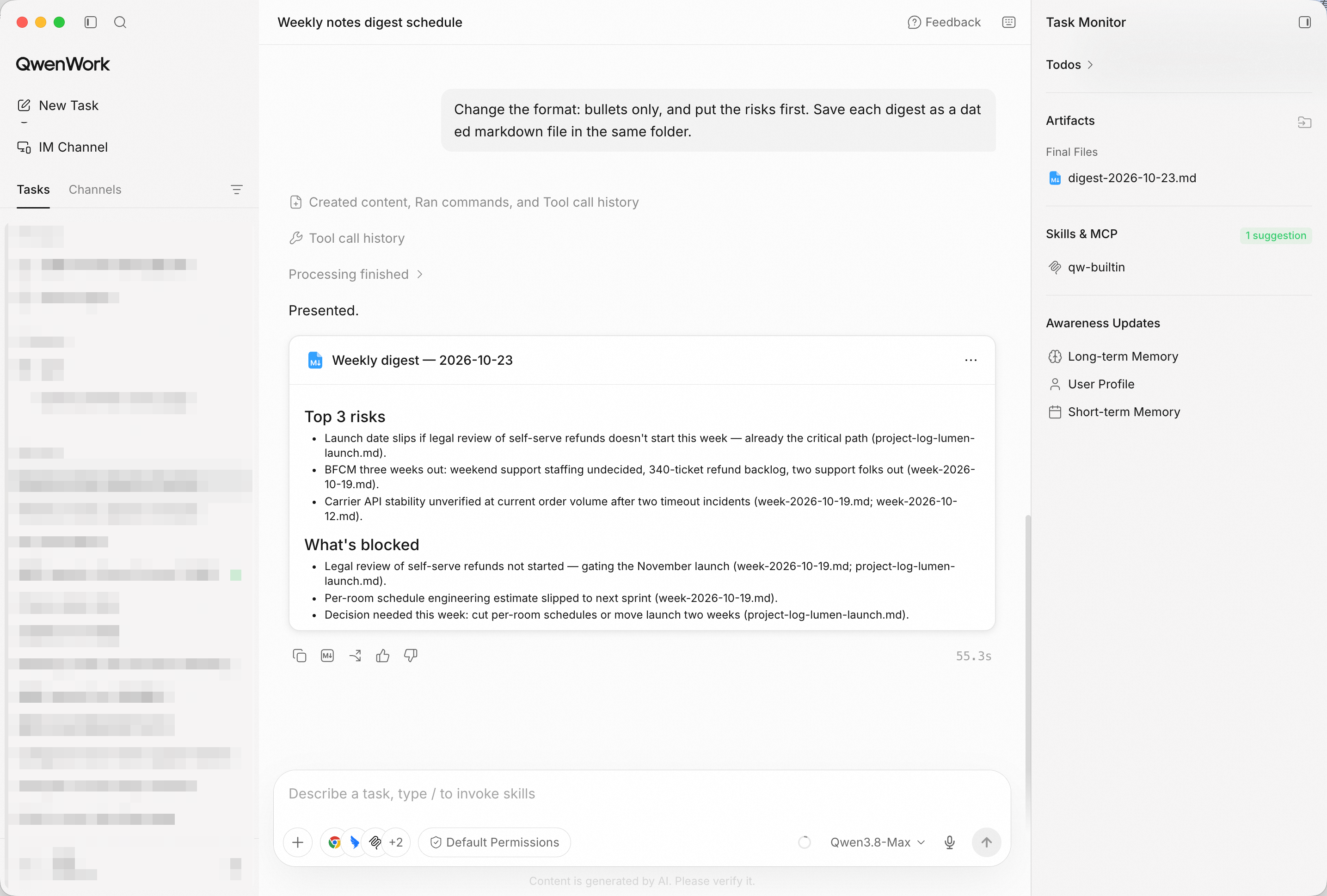
Risks first, bullets only — the format tuned in one instruction.
Show me the list of scheduled tasks so I can check it's on.You'll see the task with its schedule and status — and the control to pause it when you're on holiday and don't want a digest waiting.
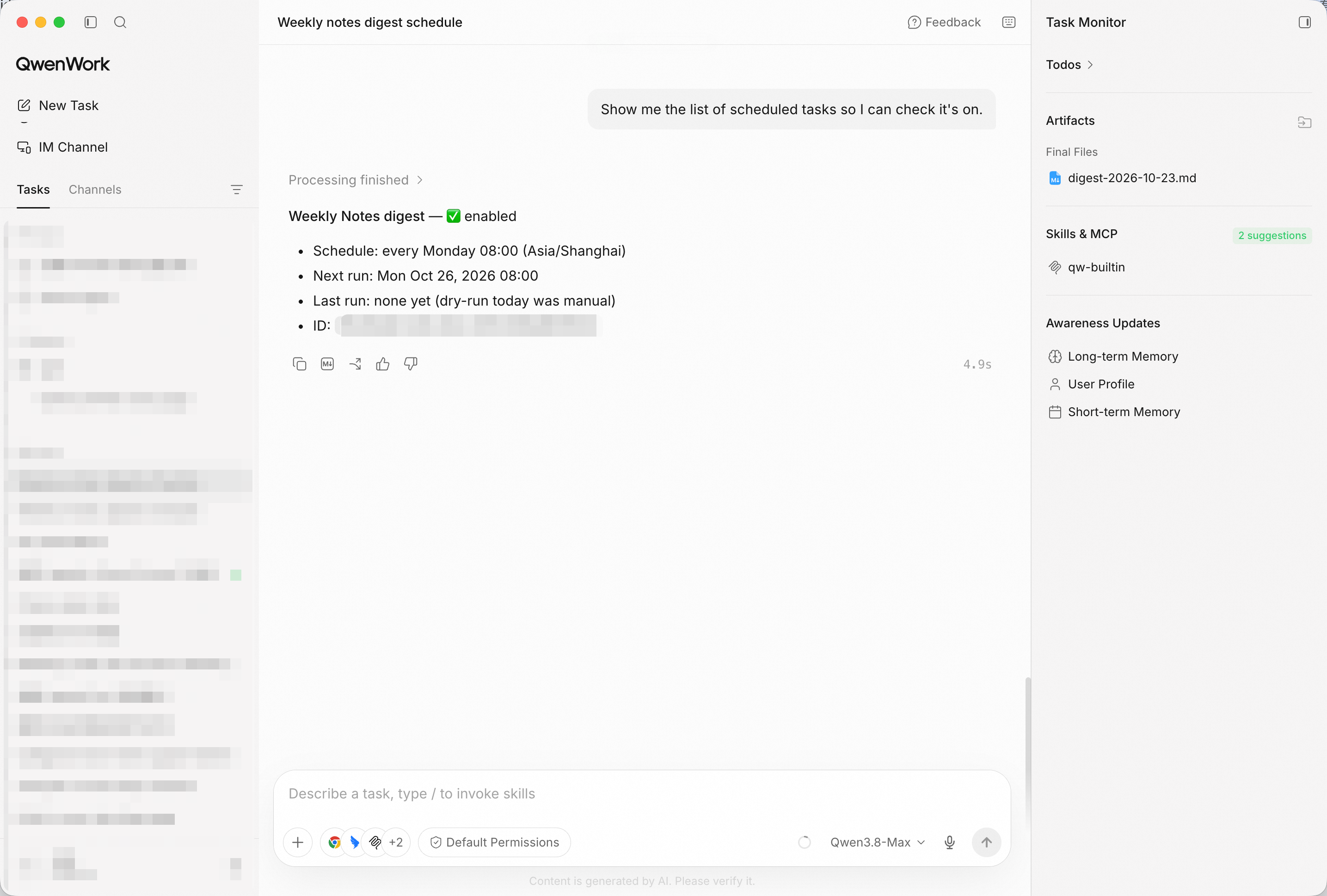
The task list: schedule, status, and a pause switch you control.
After two or three runs, open the saved digests side by side. The dated files are your project's weekly pulse — and a trail you can search when someone asks "when did the refund backlog first show up?"
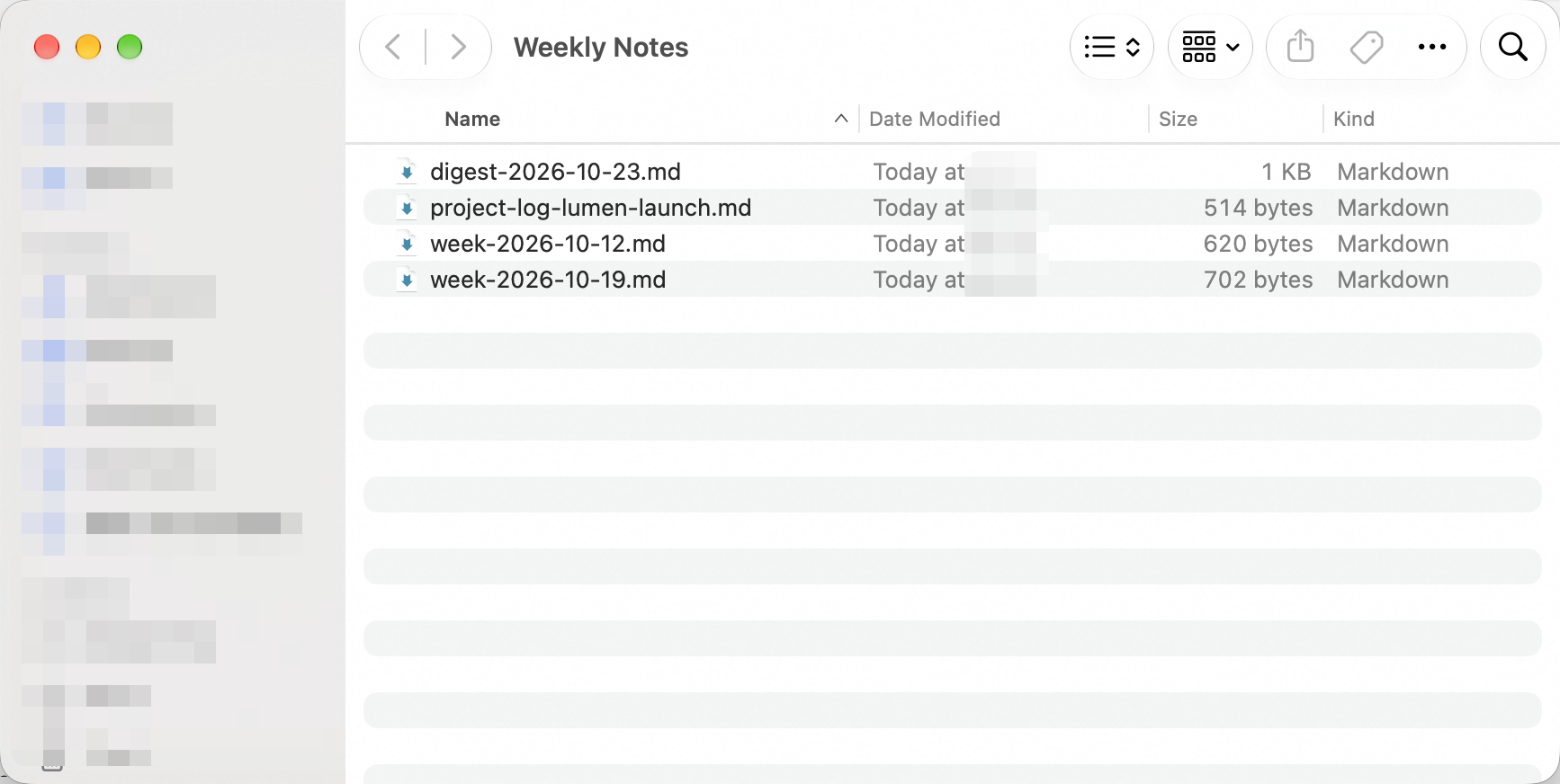
Dated digest files accumulating in the folder — a searchable history, for free.
You didn't build a cron job or buy a monitoring tool. You described a weekly job in one sentence, tested it, tuned it, and let QwenWork run it — on your own files, on your own schedule.
That's the pattern for a lot of the work that quietly eats your week: set it once, and let the clock do the remembering.

1,573 posts | 525 followers
FollowAlibaba Cloud Community - October 23, 2026
Alibaba Cloud Community - August 3, 2026
PM - C2C_Yuan - May 25, 2026
Alibaba Cloud Community - October 23, 2026
Alibaba Cloud Community - October 23, 2026
Alibaba Cloud Community - October 23, 2026
1,573 posts | 525 followers
Follow Qwen
Qwen
Full-range, open-source, multimodal, and multi-functional
Learn More Wan3.0
Unleash Your Creativity Try Wan 3.0 now — longer narratives, greater control, endless creativity.
Learn More Token Plan
Build more, spend less. One plan, every modality.
Learn More
Alibaba Cloud Model Studio
A one-stop generative AI platform to build intelligent applications that understand your business, based on Qwen model series such as Qwen-Max and other popular models
Learn MoreMore Posts by Alibaba Cloud Community

