This practical operation involves migrating self-built ClickHouse data to the cloud-based community-compatible version of ClickHouse.
• The self-built ClickHouse already has a database account and password.
• The self-built ClickHouse requires read permissions for databases and tables, and permission to execute SYSTEM commands.
• The self-built ClickHouse and cloud ClickHouse are network-interconnected.
Migration content:
Content supported for migration:
Before data migration, you need to modify and configure the config.xml file based on whether the system.part_log and system.query_log have been enabled in the self-built cluster to achieve incremental migration.
<part_log>
    <database>system</database>
    <table>part_log</table>
    <partition_by>event_date</partition_by>
    <order_by>event_time</order_by>
    <ttl>event_date + INTERVAL 15 DAY DELETE</ttl>
    <flush_interval_milliseconds>7500</flush_interval_milliseconds>
</part_log>
<query_log>
    <database>system</database>
    <table>query_log</table>
    <partition_by>event_date</partition_by>
    <order_by>event_time</order_by>
    <ttl>event_date + INTERVAL 15 DAY DELETE</ttl>
    <flush_interval_milliseconds>7500</flush_interval_milliseconds>
</query_log>
Check whether the version of the self-built ClickHouse is compatible with that of the ClickHouse on the cloud.
SELECT version();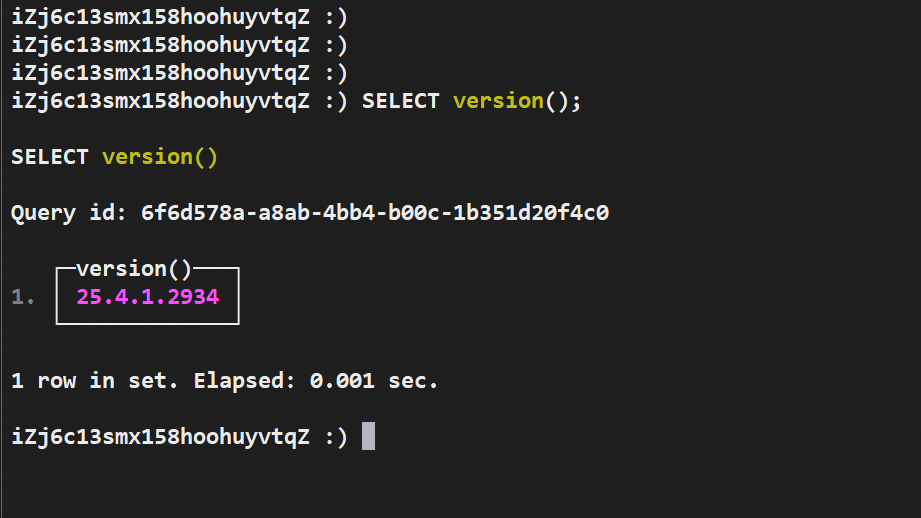
1. Log in to the Cloud Database ClickHouse console.
2. On the cluster list page, select the Community Edition instance list and click the ID of the target cluster.
3. In the left navigation bar, click Data Migration and Synchronization > Migrate from Self-built or Cloud ClickHouse.
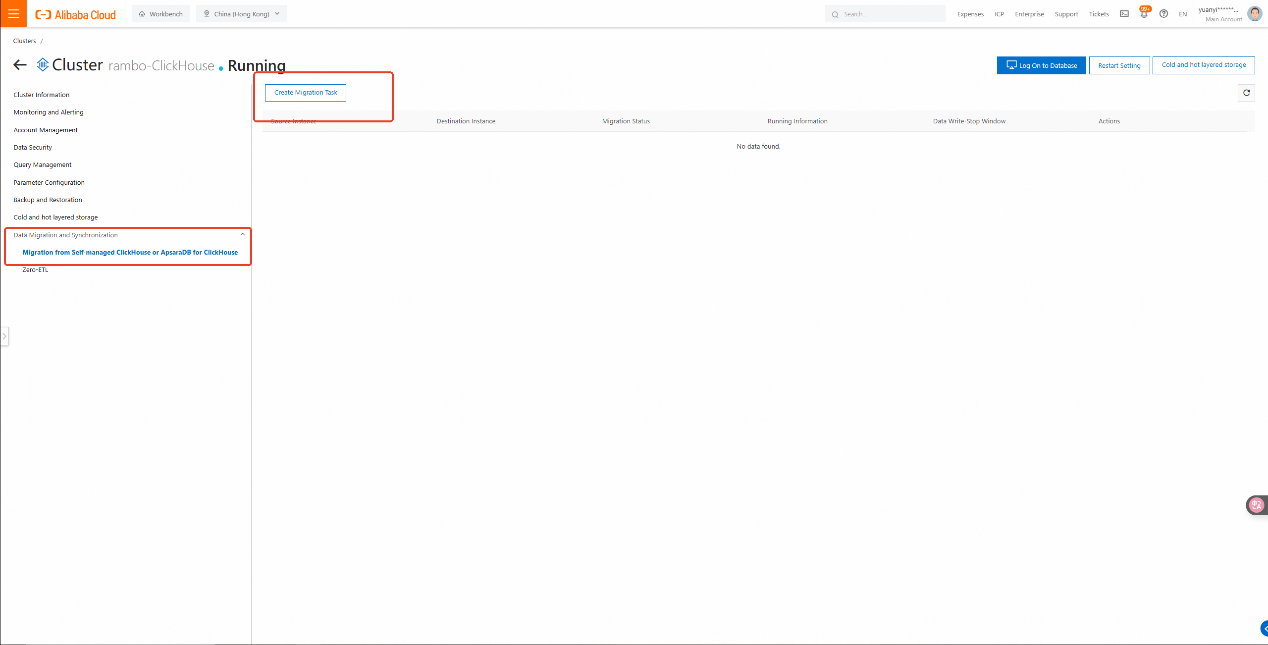
4. On the migration task page, click Create Migration Task.
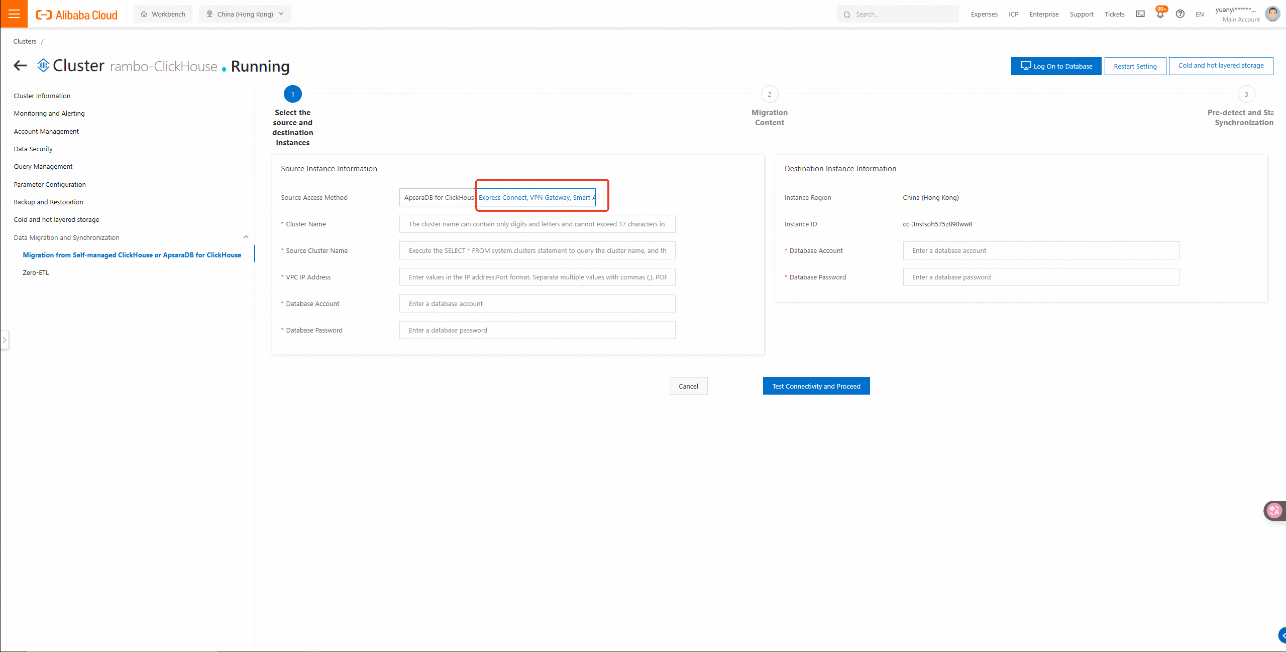
Obtain the instance cluster name.
SELECT * FROM system.clusters;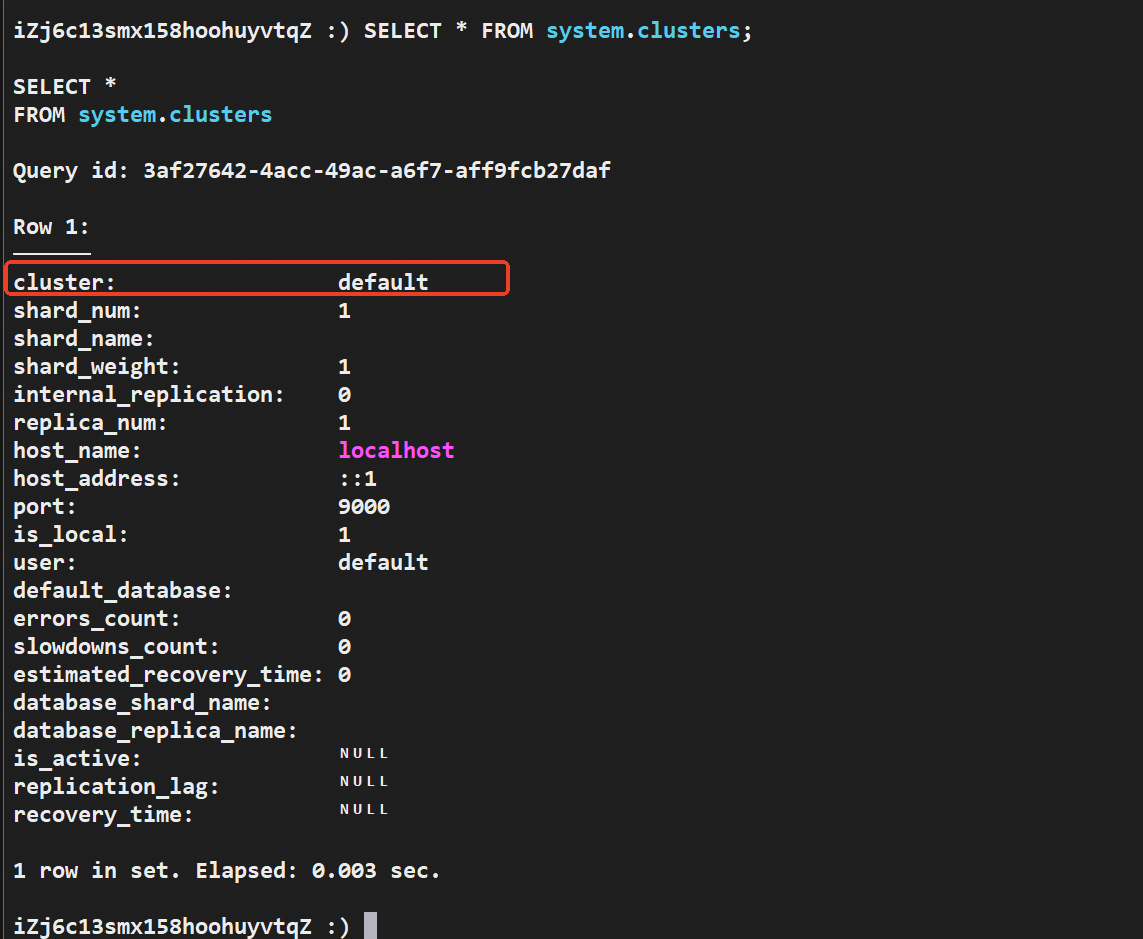
Obtain the IP and Port of the self-built ClickHouse.
SELECT shard_num, replica_num, host_address as ip, port FROM system.clusters WHERE cluster = 'default' and replica_num = 1;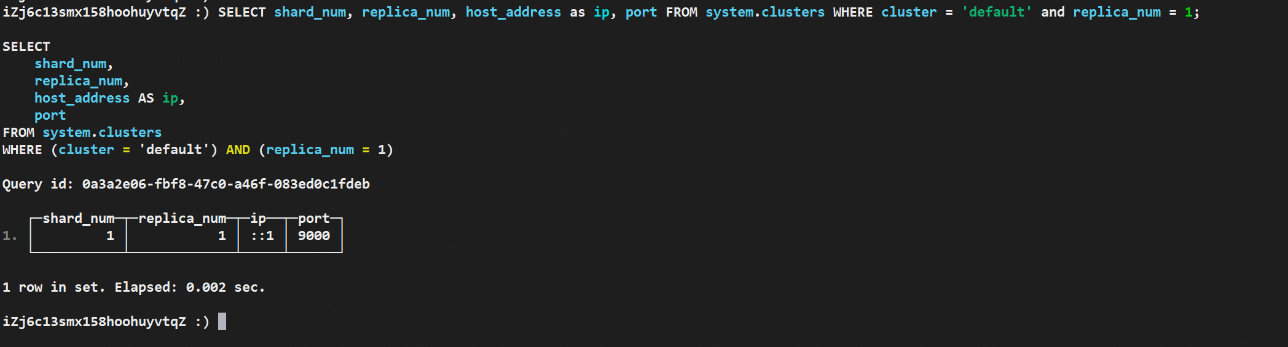
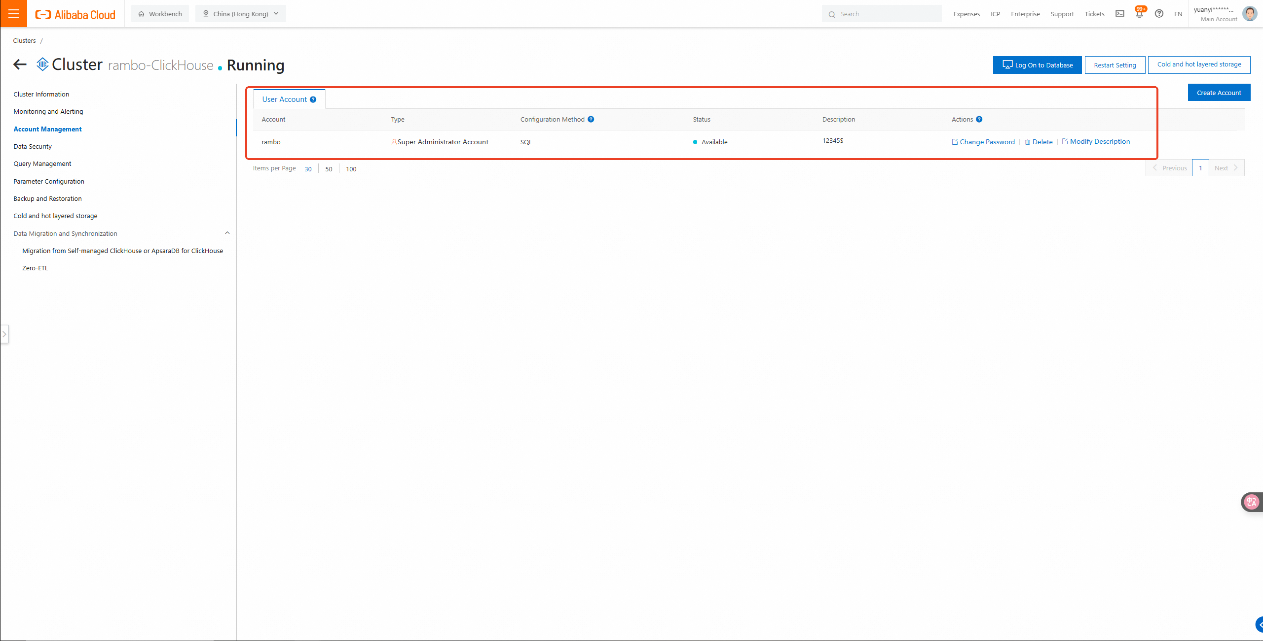
The account and password for the self-built database are the same as the machine's login credentials.

5. Test the connection and proceed to the next step.
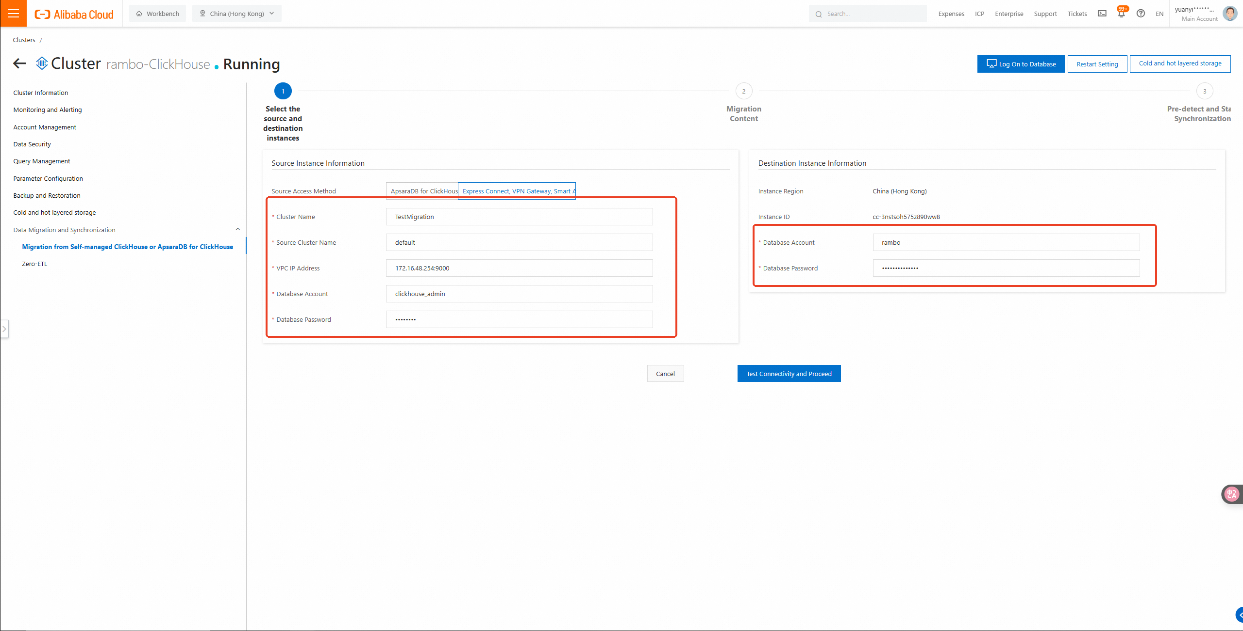
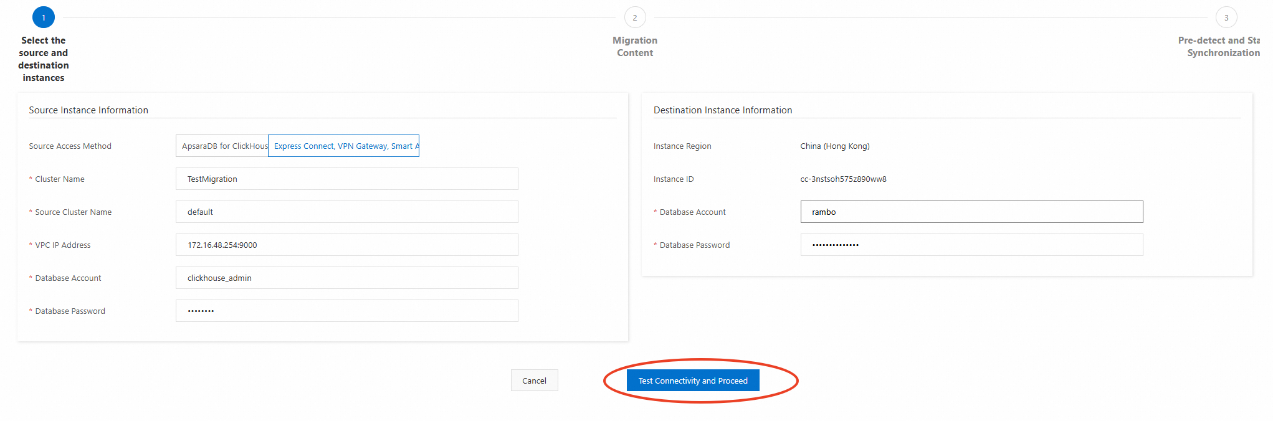
6. Click Next: Pre-detect and Start Synchronization.
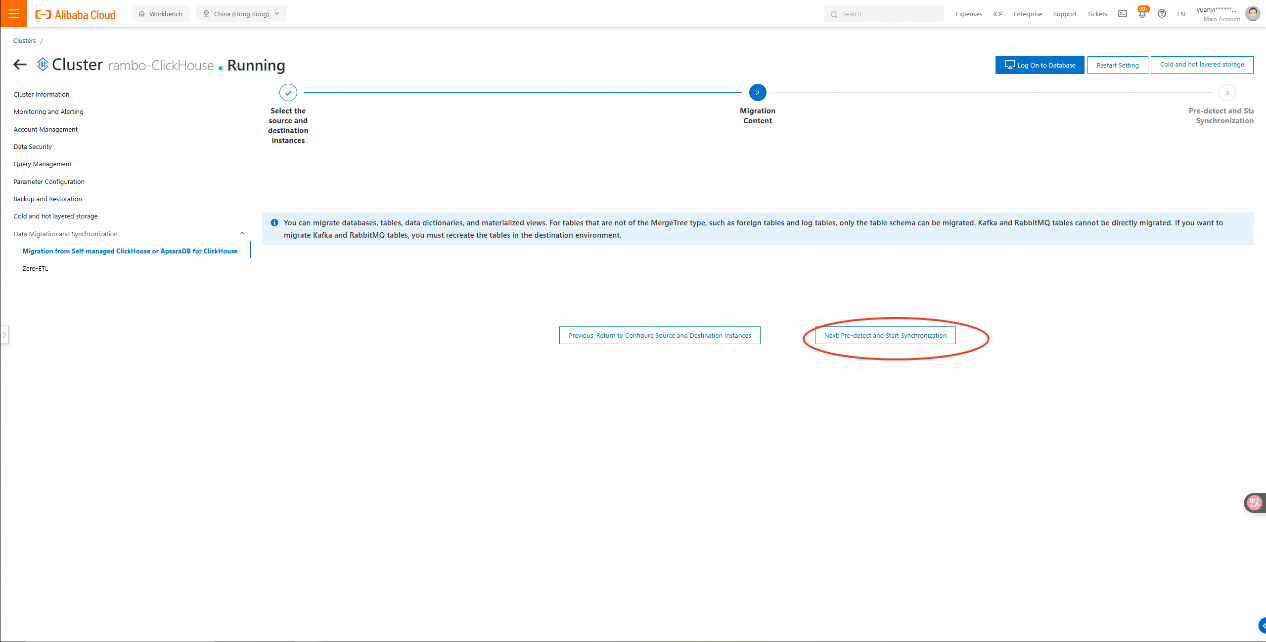
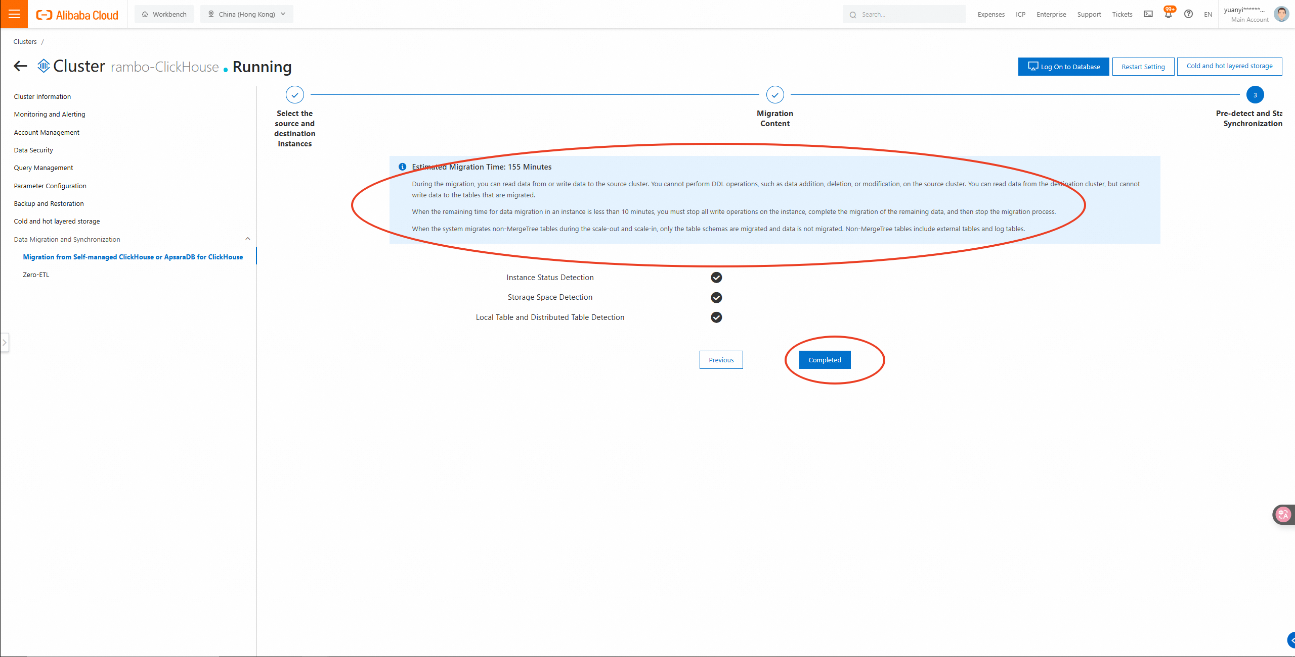
7. Click Complete.
• After clicking Complete, the task is created and started successfully, with its status shown as Running. You can view the task in the task list.
• After completing the task creation, you need to monitor the migration task. In the final stage of the migration, you should proactively stop writing to the self-built cluster and migrate the remaining database and table structures.
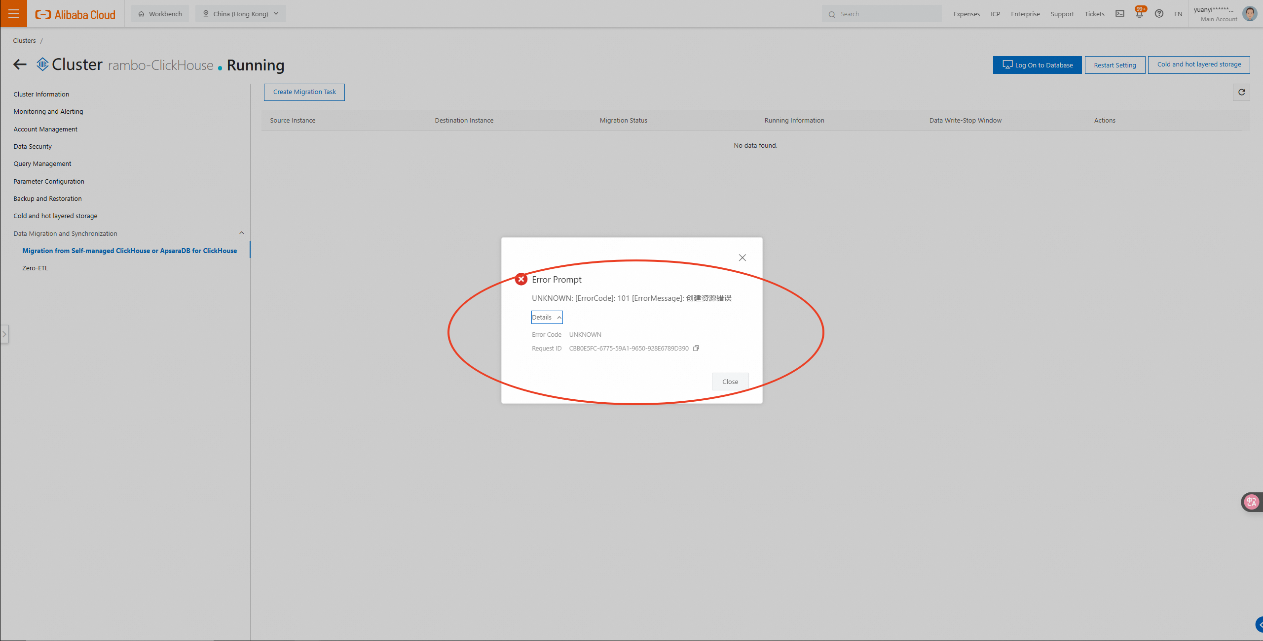
An error occurs here.
UNKNOWN: [ErrorCode]: 101 [ErrorMessage]: Error in creating resource.
Details
Error CodeUNKNOWN
Request IDCBB0E5FC-6775-59A1-9650-928E6789D390
Cause of the error: The source cluster name must consist of lowercase letters or numbers and cannot contain uppercase letters.
Modify the cluster name and then recreate the migration task.
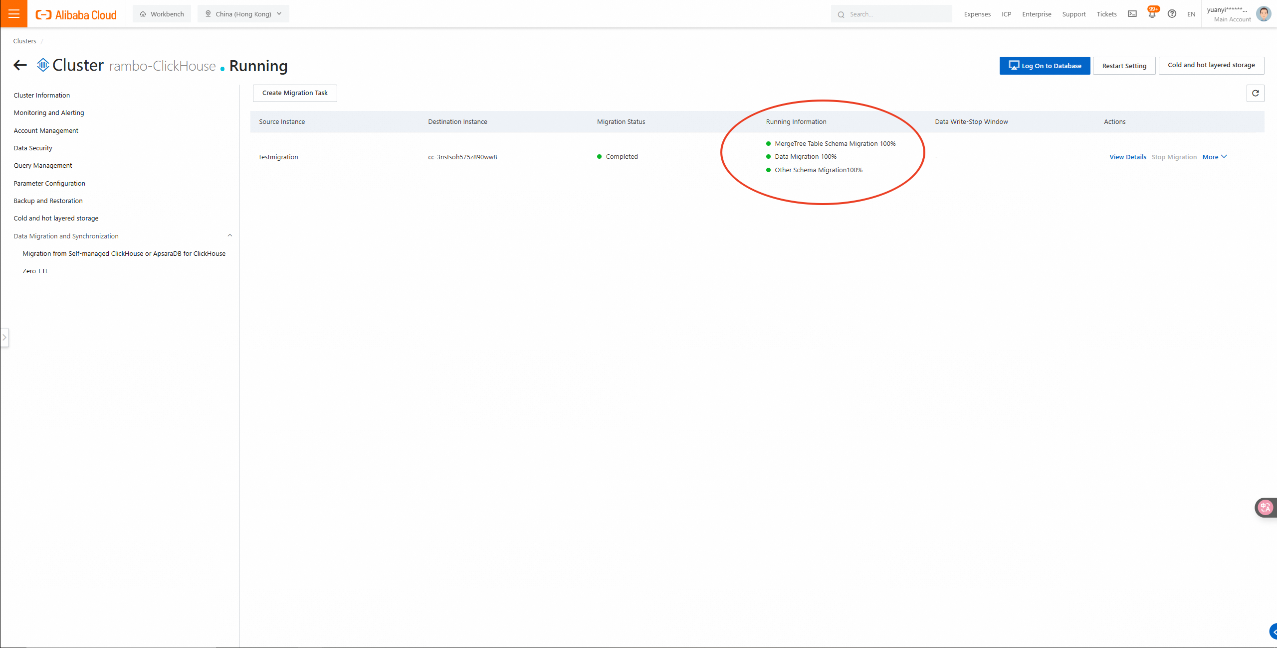
8. Check the running status after completion.
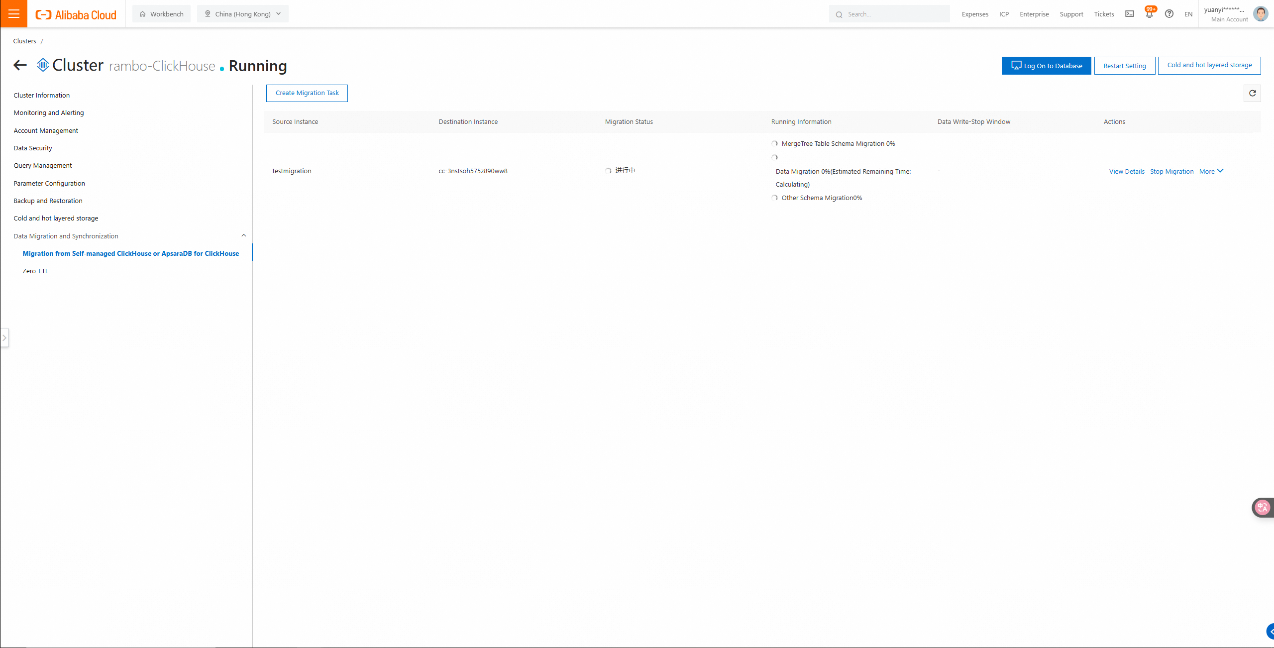
9. During the migration process, the migration time will be estimated.
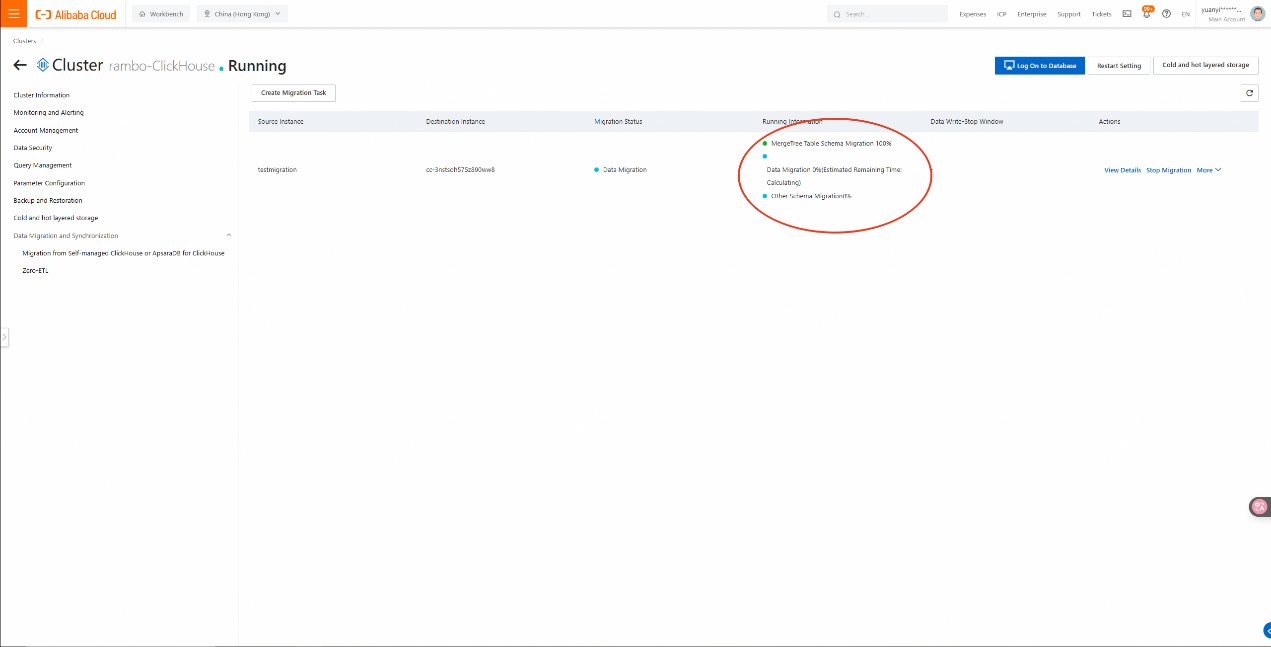
The migration status of the task will change to Completed, but the task list will not update immediately. It is recommended that you check the task status by refreshing it at intervals.
Introducing Intelligent Query Routing on AnalyticDB for Always Online Analytics - No Crash!
ApsaraDB - July 23, 2026
ApsaraDB - December 21, 2022
ApsaraDB - March 15, 2024
ApsaraDB - January 30, 2023
ApsaraDB - August 25, 2026
ApsaraDB - July 29, 2022
 Database Migration Solution
Migrating to fully managed cloud databases brings a host of benefits including scalability, reliability, and cost efficiency.
Learn More Database for FinTech Solution
Leverage cloud-native database solutions dedicated for FinTech.
Learn More Database Gateway
A tool product specially designed for remote access to private network databases
Learn More Oracle Database Migration Solution
Migrate your legacy Oracle databases to Alibaba Cloud to save on long-term costs and take advantage of improved scalability, reliability, robust security, high performance, and cloud-native features.
Learn MoreMore Posts by ApsaraDB


