Bagikan snapshot dengan akun Alibaba Cloud lain atau resource directory untuk pembuatan disk lintas akun dan penerapan batch.
Sebelum membagikan, pastikan snapshot tidak berisi data sensitif. Penerima mendapatkan akses baca penuh ke seluruh data snapshot.
Cara kerja
Pembagian snapshot menggunakan Resource Sharing dari Resource Management. Alur kerja terdiri dari tiga tahap:
-
Pemberi menambahkan snapshot ke resource share dan menentukan penerima.
-
Penerima menerima undangan pembagian.
-
Penerima membuat disk cloud dari atau menyalin snapshot yang dibagikan.
Metode pembagian
Pilih metode berdasarkan skenario Anda:
|
Method |
Scope |
Best for |
|
Share with specific accounts |
Any Alibaba Cloud account |
Cross-department sharing, partner collaboration |
|
Share within a resource directory |
Accounts in a resource directory |
Enterprise-wide sharing, automatic access for new members |
Saat Anda membagikan dalam resource directory, semua akun dalam directory atau folder tersebut mendapatkan akses secara otomatis. Akun baru mewarisi akses; akun yang dihapus kehilangan akses.
Prasyarat
Pastikan Anda telah memiliki:
-
Snapshot yang tidak berisi data sensitif
-
Informasi target yang siap:
-
To share with a specific account: ID akun Alibaba Cloud penerima. Arahkan kursor ke gambar profil di pojok kanan atas konsol. Jika jenis akun adalah Alibaba Cloud Account, ID yang ditampilkan adalah ID akun Alibaba Cloud.
-
To share within a resource directory: Akun Alibaba Cloud yang memenuhi salah satu kondisi berikut:
-
Akun belum mengaktifkan fitur resource directory tetapi termasuk dalam satu resource directory
-
Akun telah menjalani enterprise verification, mengaktifkan fitur resource directory, dan mengaktifkan resource sharing
-
-
-
(Untuk snapshot terenkripsi yang menggunakan CMK) Peran RAM
AliyunECSShareEncryptSnapshotDefaultRoletelah dibuat dengan izin yang diperlukan. Lihat Share encrypted resources across accounts.
Bagikan snapshot
Konsol
-
Buka halaman ECS console - Snapshots.
-
Pada bilah navigasi atas, pilih wilayah dan resource group.

-
Pada tab Disk Snapshots, temukan snapshot tersebut lalu pilih
 > Share Snapshot di kolom Actions.
 -
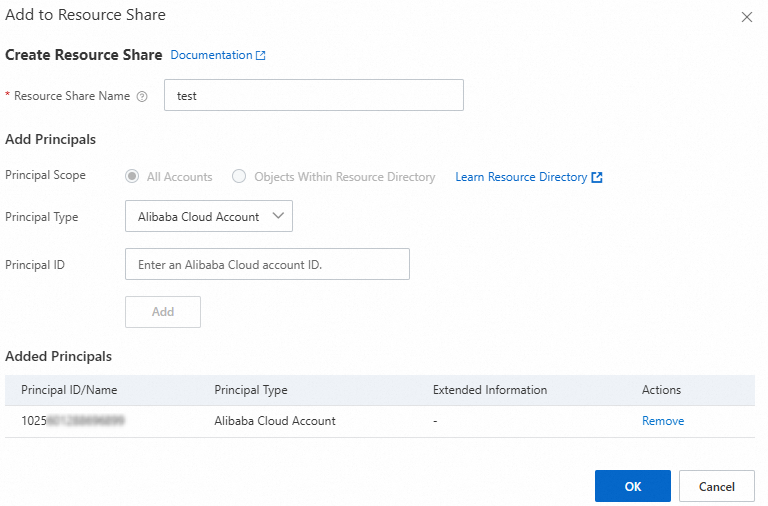
Pada kotak dialog Add to Resource Share, atur Method menjadi Existing Resource Share atau New Resource Share:
CatatanPembagian snapshot menggunakan Resource Sharing dari Resource Management. Resource share mengelompokkan resource dan principal bersama-sama.
-
(Hanya untuk New Resource Share) Atur Principal Scope:
-
All Accounts: Bagikan ke akun Alibaba Cloud mana pun.
-
Objects Within Resource Directory: Bagikan hanya dalam resource directory Anda. Akun manajemen atau anggota dapat membagikan ke directory, folder, dan anggotanya.
-
-
Klik Add Principals dan konfigurasikan penerima. Bagikan ke akun Alibaba Cloud tertentu: Atur Principal Type menjadi Alibaba Cloud Account dan masukkan ID akun Alibaba Cloud penerima di Principal ID. Share within a resource directory:
-
Jika pemberi belum mengaktifkan fitur resource directory tetapi termasuk dalam satu directory: Atur Principal Type menjadi Resource Directory atau Folder (Organizational Unit). Untuk folder, masukkan ID foldernya.
Setelah Anda memilih Resource Directory, Resource Directory ID secara otomatis menampilkan ID directory saat ini. Catatan: Resource dibagikan ke seluruh organisasi, termasuk semua folder dan akun anggota. Klik OK untuk menyelesaikan.
-
Jika pemberi telah mengaktifkan fitur resource directory: Pilih directory atau folder target dari daftar, atau tambahkan secara manual.
Catatan- Jika Principal Scope adalah Objects Within Resource Directory, hanya akun dalam directory tersebut yang tersedia. - Untuk membagikan ke beberapa akun, tambahkan satu per satu.
Catatan- Anda juga dapat membagikan snapshot dari Resource Management console. Lihat Manage shared resources as a resource owner. - Saat Anda membagikan ke seluruh resource directory atau folder, semua akun di dalamnya dapat mengakses snapshot tersebut. Akun baru secara otomatis menerima akses. Akun yang dihapus secara otomatis kehilangan akses.
-
-
Klik OK.
API
Proyek contoh SDK Java menunjukkan pembagian snapshot lintas akun dan pembuatan disk dari snapshot yang dibagikan.
-
Unduh proyek contoh pembagian snapshot. Proyek ini mencakup tiga contoh kode:
Sample
Description
CreateResourceSharePemberi membuat resource share dan memulai pembagian snapshot
ReceiveResourceSharePenerima menerima undangan pembagian
UseResourceSharePenerima membuat disk cloud dari snapshot yang dibagikan
-
Konfigurasikan dependensi SDK di
pom.xml. Lihat Java SDK call examples.CatatanPaket SDK sering diperbarui. Dapatkan versi terbaru dari tautan GitHub di SDK overview.
<!--Resource Sharing SDK--> <dependency> <groupId>com.aliyun</groupId> <artifactId>resourcesharing20200110</artifactId> <version>${lastVersion}</version> </dependency> <!--ECS SDK--> <dependency> <groupId>com.aliyun</groupId> <artifactId>alibabacloud-ecs20140526</artifactId> <version>${lastVersion}</version> </dependency> -
Atur variabel lingkungan
ALIBABA_CLOUD_ACCESS_KEY_IDdanALIBABA_CLOUD_ACCESS_KEY_SECRETke ID AccessKey dan Rahasia AccessKey Anda. -
Ganti variabel placeholder dengan nilai aktual Anda, seperti ID snapshot, UID akun penerima, dan tipe disk.
-
Kompilasi dan jalankan setiap contoh sesuai kebutuhan.
-
Verifikasi hasilnya. Pemberi dapat memeriksa Resource Management console untuk resource share baru, dan penerima dapat memeriksa ECS console untuk snapshot yang dibagikan dan disk yang dibuat.
Menerima dan menggunakan snapshot yang dibagikan
Setelah pemberi menyelesaikan pembagian, penerima harus menerima undangan sebelum menggunakan snapshot tersebut.
Menerima undangan pembagian
Diperlukan saat pertama kali menggunakan resource share baru atau yang sudah ada.
-
Pada panel navigasi kiri, pilih Resource Sharing > Resources Shared To Me.
-
Pada bilah navigasi atas, pilih wilayah snapshot yang dibagikan.
-
Pada halaman Shared To Me, temukan resource share tersebut lalu klik Accept di kolom Status.
-
Pada kotak dialog Accept Resource Sharing Invitation, klik OK.
Setelah Anda menerima, resource baru yang ditambahkan ke resource share ini akan diterima secara default.
Lihat snapshot yang dibagikan
-
Buka halaman ECS console - Snapshots.
-
Pada bilah navigasi atas, pilih wilayah snapshot yang dibagikan.
-
Temukan snapshot yang dibagikan. Identifikasi melalui indikator berikut, atau pilih
> View Shared Snapshot di kolom Actions untuk melihat detail di Resource Management console:-
Arahkan kursor ke ikon
 untuk melihat tag dalam format
 acs:ecs:sharedFrom:<UID pemberi>:<Wilayah>:<ID snapshot sumber>. -
Kolom Creation Method menampilkan Shared Snapshot.
-
Arahkan kursor ke ikon
 untuk melihat UID akun pemberi dan ID snapshot sumber.
-
Gunakan snapshot yang dibagikan
Buat data disk dari snapshot yang dibagikan atau salin snapshot tersebut.
Untuk snapshot terenkripsi yang dibagikan, ubah kunci enkripsi saat membuat disk atau menyalin snapshot.
Disk yang dibuat dari snapshot terenkripsi yang dibagikan hanya didukung untuk tipe ESSD, ESSD AutoPL, dan ESSD Entry. Untuk membuat tipe disk lain, salin snapshot tersebut terlebih dahulu lalu buat disk dari salinannya.
Berhenti membagikan snapshot
Saat snapshot tidak lagi dibagikan, penerima tidak dapat lagi mengkueri snapshot tersebut melalui Konsol ECS atau API, atau menginisialisasi ulang disk yang dibuat darinya. Snapshot yang telah disalin sebelumnya tidak terpengaruh.
-
Buka halaman ECS console - Snapshots.
-
Pada bilah navigasi atas, pilih wilayah dan resource group.
-
Pada tab Disk Snapshots, temukan snapshot tersebut. Pilih
> Share Snapshot di kolom Actions. -
Pada bagian Principals, klik Modify.
-
Pada bagian Principals, klik Remove di kolom Actions untuk penerima yang ingin dihapus.

-
Klik OK.
Batasan
Penagihan
-
Pembagian snapshot gratis.
-
Penerima dikenai biaya untuk resource yang dibuat dari snapshot yang dibagikan, seperti disk cloud atau salinan snapshot lintas wilayah.
-
Snapshot yang dibagikan yang telah kedaluwarsa tetapi tetap dibagikan tidak dilepas secara otomatis dan terus dikenai biaya penyimpanan.
Kuota
|
Resource |
Limit |
|
Maximum accounts per shared snapshot |
64 |
|
Maximum snapshots shared per account |
1.024 |
Batasan akun
Pembagian lintas situs (antara akun situs Tiongkok dan situs internasional) tidak didukung.
Pembatasan Pembagi
-
Tidak dapat menghapus snapshot yang dibagikan. Hentikan pembagian terlebih dahulu.
-
Tidak dapat membagikan snapshot yang dibuat dari gambar kustom yang diimpor.
-
Tidak dapat membagikan snapshot yang dienkripsi dengan kunci layanan. Untuk membagikan snapshot tersebut, salin snapshot untuk mengubah enkripsi menjadi CMK, lalu bagikan salinannya. Lihat Enkripsi Disk.
Batasan penerima
-
Tidak dapat membuat gambar kustom dari snapshot yang dibagikan.
-
Tidak dapat melakukan rollback disk menggunakan snapshot yang dibagikan karena ID snapshot yang dibagikan berbeda dari ID snapshot sumber.
-
Tidak dapat menghapus snapshot yang dibagikan. Pemberi harus menghentikan pembagian terlebih dahulu.
-
Tidak dapat mengarsipkan snapshot yang dibagikan.
-
Tidak dapat membagikan ulang snapshot yang dibagikan. Solusi alternatif:
-
Buat disk dari snapshot yang dibagikan, buat snapshot baru dari disk tersebut, lalu bagikan snapshot baru tersebut.
-
Salin snapshot yang dibagikan lalu bagikan salinannya.
-
-
Tidak dapat memperpanjang periode retensi snapshot yang dibagikan.
-
Jika snapshot asli memiliki retensi permanen, salinan yang dibagikan disimpan selama 1.096 hari.
-
Jika snapshot asli memiliki periode retensi kustom, salinan yang dibagikan mengikuti periode yang sama.
-