Buat kluster ACK Serverless di Konsol ACK, sebarkan aplikasi dari image, ekspos melalui titik akhir publik, dan lihat Pod.
Prasyarat
Lengkapi hal berikut:
-
ACK telah diaktifkan dan diberi otorisasi untuk mengakses layanan Alibaba Cloud.
-
Elastic Container Instance (ECI) telah diaktifkan.
Langkah 1: Buat kluster ACK Serverless
Hanya parameter utama yang dibahas. Lihat Buat kluster ACK Serverless untuk semua opsi.
Konfigurasi pengaturan kluster
-
Masuk ke Konsol ACK. Di panel navigasi kiri, klik Clusters.
-
Di halaman Clusters, klik Create Kubernetes Cluster.
-
Klik tab ACK Serverless dan konfigurasikan parameter berikut.
| Parameter | Deskripsi | Contoh |
|---|---|---|
| Cluster Name | Nama kluster. | ask-hangzhou |
| Cluster Specification | Edisi kluster. Pilih Pro, direkomendasikan untuk lingkungan produksi dan pengujian. | Standard edition |
| Region | Wilayah kluster. Pilih wilayah yang dekat dengan pengguna Anda untuk mengurangi latensi. | China (Hangzhou) |
| VPC | VPC kluster. Tentukan zona untuk membuat VPC secara otomatis, atau pilih VPC yang sudah ada. | Select Existing VPC |
| Configure SNAT for VPC | Mengizinkan instans dalam VPC mengakses internet. Jika dipilih, ACK akan mengonfigurasi SNAT secara otomatis. Lihat detail perilaku SNAT di bawah tabel ini. | Configure SNAT for VPC |
| vSwitch | Pilih vSwitch yang sudah ada atau klik Create vSwitch. Untuk ketersediaan tinggi, pilih vSwitch di zona berbeda. Digunakan oleh lapisan kontrol dan kelompok node default. | vsw-uf6x420ebylcwqclw\*\*\*\*,vsw-uf6qbh0tfvfuco0q7\*\*\*\* |
| Security Group | Opsi: Create Basic Security Group, Create Advanced Security Group, atau Select Existing Security Group. Opsi Select Existing Security Group hanya tersedia jika VPC diatur ke Select Existing VPC. Lihat detail grup keamanan di bawah tabel ini. | Create Advanced Security Group |
| Service CIDR | Blok CIDR untuk Service kluster. Tidak dapat diubah setelah pembuatan. Tidak boleh tumpang tindih dengan blok CIDR VPC, kluster, atau Pod. Lihat Perencanaan jaringan kluster ACK yang dikelola. | 172.21.0.0/20 |
| Access to API Server | Instans SLB internal dibuat secara default untuk server API. Ubah spesifikasinya di Specification. Pilih atau kosongkan Expose API Server with EIP. Lihat detail akses server API di bawah ini. | Expose API Server with EIP |
Perilaku SNAT saat opsi Configure SNAT for VPC dipilih:
-
Tidak ada NAT Gateway: ACK membuat satu dan mengonfigurasi aturan SNAT tingkat switch untuk semua switch kluster.
-
NAT Gateway ada tanpa aturan SNAT tingkat VPC: ACK mengonfigurasi aturan SNAT tingkat switch secara otomatis.
-
Aturan SNAT tingkat VPC sudah ada: Tidak ada tindakan yang dilakukan.
Jika tidak dipilih, buat gateway NAT dan konfigurasi aturan SNAT setelah pembuatan kluster.
Saat menggunakan berbagi VPC, jangan pilih opsi ini.
Detail grup keamanan:
-
Grup keamanan yang dibuat otomatis mengizinkan seluruh lalu lintas keluar. Lalu lintas ke
100.64.0.0/10harus diizinkan — CIDR ini digunakan untuk akses layanan Alibaba Cloud (pengambilan image, kueri ECS). -
Jika Anda memilih grup keamanan yang sudah ada, sistem tidak mengonfigurasi aturan secara otomatis. Konfigurasikan aturan grup keamanan secara manual.
Detail akses server API:
-
Expose API Server with EIP dipilih: EIP dibuat dan dikaitkan dengan instans SLB. Server API diekspos pada port 6443. Sambungkan ke kluster dan kelola melalui internet menggunakan file kubeconfig.
-
Expose API Server with EIP tidak dipilih: Tidak ada EIP yang dibuat. Sambungkan ke kluster hanya dalam VPC menggunakan file kubeconfig.
Jika Anda menghapus instans SLB internal, Anda kehilangan akses ke server API Kubernetes.
Konfigurasi komponen
-
Klik Next:Component Configurations.
| Parameter | Deskripsi | Contoh |
|---|---|---|
| Service Discovery | Opsi: Disable, PrivateZone, atau CoreDNS. PrivateZone menyelesaikan nama domain pribadi dalam VPC. CoreDNS adalah server DNS standar Kubernetes. | Disable |
| Ingress | Opsi: Do Not Install, Nginx Ingress, ALB Ingress, atau MSE Ingress. Nginx Ingress menyediakan routing berbasis Ingress. ALB Ingress mendukung routing kompleks, penemuan sertifikat otomatis, dan HTTP/HTTPS/QUIC. MSE Ingress mengintegrasikan gerbang MSE dengan ACK. | Do Not Install |
| Monitoring Service | Lihat dasbor dan metrik dengan Managed Service for Prometheus. Secara opsional instal komponen metrics-server. | Install metrics-server |
| Log Service | Aktifkan Log Service. Pilih proyek yang sudah ada atau buat proyek baru. | Create Project |
| Knative | Aktifkan Knative untuk penskalaan otomatis berbasis permintaan, scale-to-zero, manajemen versi, dan rilis canary. | Enable Knative |
Konfirmasi dan buat
-
Klik Next:Confirm.
-
Di halaman Confirm, baca Term of Service dan klik Create Cluster.
Setelah pembuatan, temukan kluster di halaman Clusters. Klik Details di kolom Actions, lalu lihat tab Basic Information dan Connection Information.
Langkah 2: Buat aplikasi dari image
Hanya parameter utama yang dibahas. Lihat Buat aplikasi tanpa status dari image untuk semua opsi.
Konfigurasi informasi dasar
-
Di panel navigasi kiri halaman detail kluster, pilih Workloads > Deployments.
-
Di halaman Deployments, klik Create from Image.
-
Di halaman Basic Information, konfigurasikan parameter berikut.
| Parameter | Deskripsi | Contoh |
|---|---|---|
| Name | Nama aplikasi. | serverless-app-deployment |
| Type | Jenis resource. Nilai yang valid: Deployment dan StatefulSet. | Deployment |
-
Klik Next.
Konfigurasi pengaturan kontainer
-
Di bagian General halaman Container, konfigurasikan parameter berikut.
| Parameter | Deskripsi | Contoh |
|---|---|---|
| Image Name | Klik Select Image, atau masukkan alamat registri pribadi dalam format domainname/namespace/imagename:tag. |
Image dari instans Container Registry Edisi Pribadi di China (Hangzhou). |
| Image Version | Klik Select Image Version. Default ke versi terbaru jika tidak ditentukan. | Tidak ada versi yang ditentukan. |
-
Di bagian Ports, klik Add untuk mengonfigurasi port kontainer.
| Parameter | Deskripsi | Contoh |
|---|---|---|
| Name | Nama port kontainer. | nginx |
| Container Port | Port kontainer yang diekspos. Nilai yang valid: 1 hingga 65535. | 80 |
| Protocol | Protokol. Nilai yang valid: TCP dan UDP. | TCP |
-
Klik Next.
Konfigurasi pengaturan lanjutan
-
Di bagian Access Control halaman Advanced, klik Create di samping Services. Di kotak dialog, konfigurasikan parameter berikut.
| Parameter | Deskripsi | Contoh |
|---|---|---|
| Name | Nama Service. | serverless-app-svc |
| Type | Jenis layanan. | Pilih Server Load Balancer. Lalu pilih Public Access dan Create SLB Instance. Klik Modify untuk mengubah spesifikasi. Default: Small I (slb.s1.small). |
| Port Mapping | Port Service dan port kontainer. Port kontainer harus sesuai dengan port Pod yang diekspos. | Port Service: 8080, Port kontainer: 80 |
Service muncul di bagian Access Control. Klik Update atau Delete untuk memodifikasinya.
-
Klik Create.
Akses aplikasi NGINX
-
Di halaman Complete, klik View Details. Temukan serverless-app-deployment di halaman Deployments.

-
Akses aplikasi NGINX:
-
Di panel navigasi kiri halaman detail kluster, pilih Network > Services. Temukan serverless-app-svc.

-
Klik alamat External Endpoint untuk mengakses aplikasi NGINX.

-
Anda juga dapat mengakses service dengan ALB Ingress.
Langkah 3: Lihat Pod
-
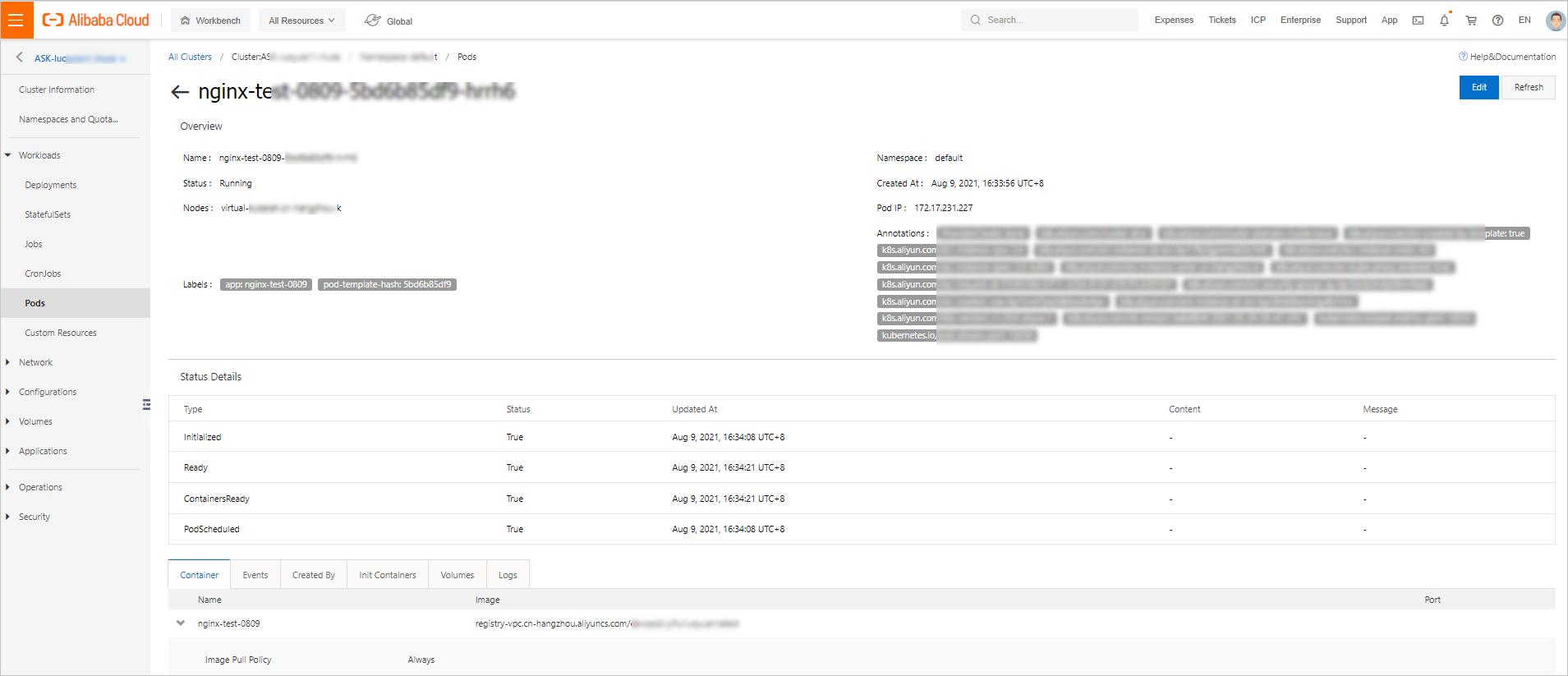
Di panel navigasi kiri halaman detail kluster, pilih Workloads > Pods.
-
Pilih Pod dan klik Details di kolom Actions.
Kelola Pod yang dibuat dari templat melalui templat. Jangan modifikasi atau hapus langsung.
-
Lihat detail Pod.
Langkah selanjutnya
-
Buat aplikasi tanpa status dari image untuk konfigurasi Deployment lanjutan.
-
Akses Service menggunakan ALB Ingress untuk routing berbasis Ingress.
-
Buat kluster ACK Serverless sebagai referensi lengkap semua parameter kluster.