This topic describes how to quickly deploy OpenClaw (Clawdbot) through Elastic Desktop Service (EDS) Enterprise.
Preparations
Accounts and permissions: Activate an Alibaba Cloud account, and complete your personal information.
Create and log on to a cloud computer
This section describes how to deploy a cloud computer with the OpenClaw (Clawdbot) service. For more configurations and parameter descriptions, see Create a Cloud Desktop.
Log on to the Elastic Desktop Service Enterprise console.
Click Create Cloud Computer and select Custom Purchase.
In the OS area, click the Community Image tab, then select the
Moltbot(Clawdbot)-AI ASSISTANTimage. Note
NoteThis image is currently supported in the China (Hangzhou), China (Beijing), China (Shanghai), China (Shenzhen), China (Hong Kong), Japan (Tokyo), Singapore, Thailand (Bangkok), Germany (Frankfurt), and US (Virginia) regions.
Select a 4 vCPU/8 GiB Memory or higher computing specification.
Complete other configurations. For related parameters and descriptions, see Create a Cloud Desktop.
After the cloud computer is created and is allocated to users, go to the client to log on to the cloud computer.
NoteIf you have not created a user, see Create a convenience account or Create and manage enterprise AD accounts to create an account for the user.
If you have not installed the client, go to the Alibaba Cloud Workspace client page to download the required client. macOS, Windows, Android, and iOS clients are all supported.
Configure the OpenClaw Environment
On the cloud computer, open the OpenClaw configuration panel.
Go to model settings and configure the API key. The default configurations are as follows:
Model:
qwen3-max-2026-01-23Base URL:
https://dashscope.aliyuncs.com/compatible-mode/v1To get an API key, do as follows:
Go to Alibaba Cloud Model Studio.
In the navigation pane on the left, select Key Management, and click Create API Key.
NoteThe API key starts with
sk-.After you configure the API key, using OpenClaw will incur model call fees. To avoid unexpected fees, promptly check the billing details of the models you use.
(Optional) Click Switch to General-Purpose Model in the upper-right corner to configure different models.
NoteYou can subscribe to the Alibaba Cloud Model Studio Coding Plan to enjoy a fixed monthly fee and a monthly call quota. After purchasing the plan, go to the Coding Plan API Key Management Page to generate and save your API key.
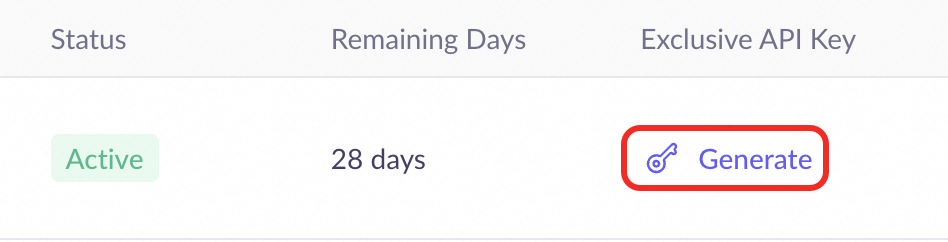
If you use an API key created with the Alibaba Cloud Model Studio Coding Plan, you must use the following base URL:
https://coding-intl.dashscope.aliyuncs.com/v1The Alibaba Cloud Model Studio Coding Plan supports both Qwen models (e.g., qwen3.5-plus, qwen3-max-2026-01-23, qwen3-coder-next, qwen3-coder-plus) and various third-party models (e.g., MiniMax-M2.5, glm-5, glm-4.7, kimi-k2.5). For a complete list, see Supported models for Coding Plan. You may specify any single model from this list; specifying multiple models is not supported.
Integrate IM software (Channel Settings)
In Channel Settings, select the desired IM software to integrate it. Because the image encapsulates the necessary integration features, you only need to configure the required keys without additional development or deployment work.
Integrate DingTalk
Through the DingTalk application and Chatbot, users can converse with the Chatbot to enable OpenClaw to complete tasks. Integration mainly includes the following steps:
Create a DingTalk application.
Get the DingTalk application's Client ID and Client Secret, and connect these security credentials with OpenClaw in the cloud computer.
Create and integrate a DingTalk Chatbot to enable real-time interaction with users.
For detailed steps, see Develop a DingTalk Enterprise Chatbot.
Integrate QQ
Through the QQ chatbot and QQ channels, users can converse with the chatbot via QQ to enable OpenClaw to complete tasks. Integration mainly includes the following steps:
Create a QQ chatbot.
Get the QQ chatbot's AppID, Token, and AppSecret, and connect these security credentials with the OpenClaw in the cloud computer.
Create a QQ channel and add the chatbot.
Configure network communication between the QQ chatbot sandbox environment and OpenClaw in the cloud computer.
For detailed steps, see QQ Chatbot Official Documentation
Integrate Lark
Through the Lark application and chatbot, users can converse with the chatbot via Lark to enable OpenClaw to complete tasks. Integration mainly includes the following steps:
Create a Lark application.
Get the Lark application's App ID and App Secret, and connect these security credentials with the OpenClaw in the cloud computer.
Create a chatbot, grant permissions, and configure the application visibility settings.
Get credentials and set event callbacks.
For detailed steps, see Lark Developer Documentation.
Skills provided by the image
For details about the skills provided in the image, see the Skills Provided by the Image document.