After you add your website to Web Application Firewall (WAF), you can configure a website whitelist to allow trusted requests to bypass all WAF security modules and access your origin server directly. Use this for traffic from trusted vulnerability scanners or authenticated third-party APIs.
Prerequisites
-
You have activated a Web Application Firewall instance.
-
Your website has been added to WAF. For more information, see Tutorials.
Background
WAF Website Protection consists of multiple security modules. By default, all inbound requests are inspected by every enabled security module. Create a website whitelist to let requests from fully trusted sources bypass all security modules and access the origin server directly.
You can also configure module-specific whitelists to bypass individual modules. WAF supports these module-specific whitelists:
-
Whitelist for web intrusion prevention: Bypasses the rule protection engine.
-
Whitelist for Data Security: Bypasses the sensitive data leak prevention, website tamper-proofing, and Account Security modules.
-
Whitelist for Bot Management: Bypasses the crawler threat intelligence, data risk control, intelligent algorithm, and app protection modules.
-
Whitelist for Access Control/Throttling: Bypasses the CC attack protection, IP address blacklist, scan protection, and custom protection policy modules.
Module-specific whitelists are more secure than a general website whitelist. Configure them as needed.
Procedure
-
Log on to the Web Application Firewall console.
-
In the top menu bar, select the resource group and region for your Web Application Firewall instance (Chinese Mainland or Outside Chinese Mainland).
-
In the left navigation pane, choose .
-
On the Website Protection page, switch to the domain name to configure.

-
Click Website Whitelist in the upper-right corner.
-
Create a website whitelist rule.
-
On the Website Whitelist page, click Create.
-
In the Create Rule dialog box, configure these parameters.
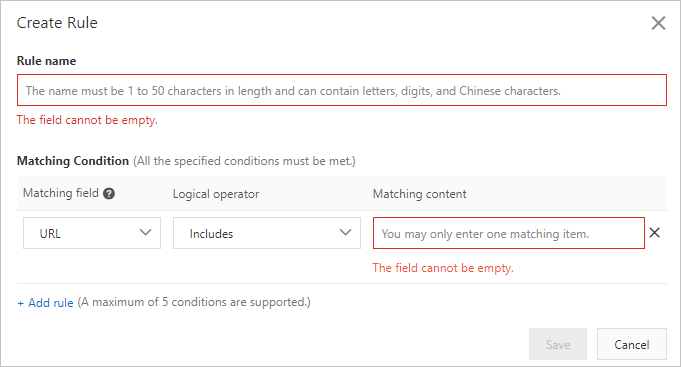
Parameter
Description
Rule Name
Enter a name for the rule.
Match Condition
Define conditions a request must meet. Click Add Condition to add up to five conditions. If you add multiple conditions, the request must match all of them.
Supported fields are listed in Descriptions of match condition fields.
-
Click Save.
The rule takes effect immediately and appears in the rule list. You can disable, edit, or delete it from there.
-