The production center of ApsaraVideo VOD provides the online editing feature. You can cut and merge videos, mix audio, add subtitles, overlay images, mask videos, and apply transition effects by using the ApsaraVideo VOD console or API.
Introduction
Video production is a key phase in the video lifecycle that connects collection with distribution and playback. The production center of ApsaraVideo VOD provides the online editing feature, which allows you to cut and merge videos, mix audio, add subtitles, overlay images, mask videos, and apply transition effects.
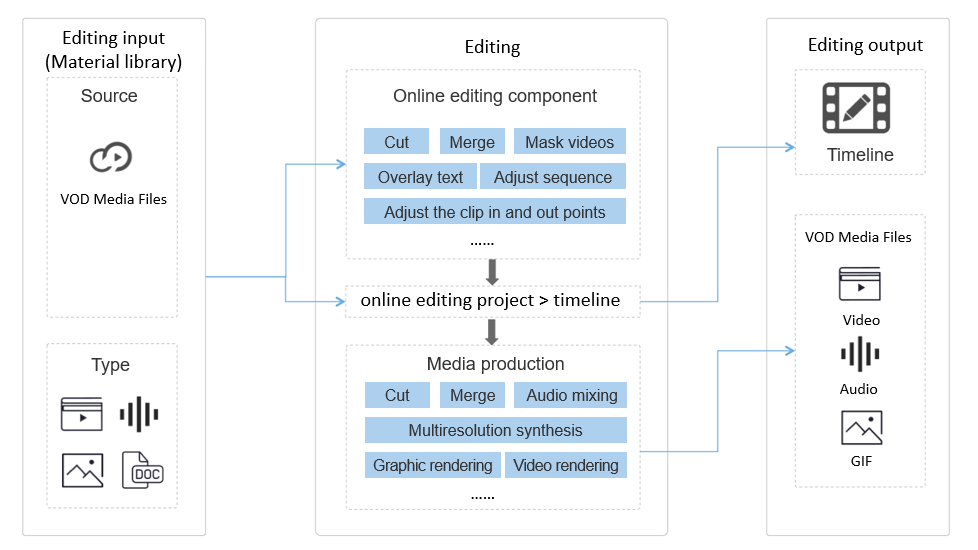
Online editing is a cloud-based feature that integrates frontend UI components with backend services.
-
Frontend UI components
You can cut and merge videos, mask videos, add text, and modify the sequence of clips on the UI. For more information, see Use online editing.
-
Backend services
Backend services include media production and online editing project management.
-
You can use online editing tools to edit the materials that are uploaded to the media asset library of ApsaraVideo VOD and submit the generated timeline for video production.
-
You can also arrange timeline data and submit the timeline for video production.
The generated videos are stored in the media asset library of ApsaraVideo VOD. You can distribute and play the videos directly without downloading or uploading them.
-
Architecture
Features
Basic editing
|
Feature |
Description |
|
Split and merge video clips in a track |
You can split and merge video clips in a track. For example, you can split a video and retain the start part, end part, or middle part, and merge clips. |
|
Add text or images on a single video track |
You can add banner text, images, static watermarks, or animated watermarks to a single video track. In addition, you can add such content to the entire video track, to specified areas of the video track, or along the timeline in specified intervals. |
|
Blur specified parts of a video |
You can blur specified parts of a video. |
|
Crop a video or add black bars to the video |
You can crop the video or add black bars to the video. |
|
Extract audio and mute or adjust the volume of the audio |
You can extract audio from a video and mute or adjust the volume of the audio. You can mute or adjust the volume of the entire video or specified parts of the video. |
|
Split and merge audio clips in a track |
You can split and merge multiple audio clips in a track. |
|
Mute or adjust the volume of an audio track |
You can mute or adjust the volume of the entire audio or specified parts of the audio track. |
|
Add an independent subtitle file |
You can add an independent subtitle file to a video. Subtitle files in the ASS and SRT formats are supported. |
Advanced editing
|
Feature |
Description |
|
Mix multiple audio or video clips |
If multiple audio or video tracks exist, you can mix audio clips, overlay video images, and add audio to video clips. This capability is generally used in scenarios such as dubbing and picture-in-picture (PiP). |
|
Add special effects |
ApsaraVideo VOD provides various special effects. For more information, see Special effect examples. |
|
Add transition effects |
ApsaraVideo VOD provides various transition effects. For more information, see Transition effects. |
|
Add filters |
ApsaraVideo VOD provides various filters. For more information, see Filter effect examples. |
|
Edit images and videos in the same track |
You can edit images and videos in the same track. |
|
Convert images into a video |
You can upload multiple images and convert them into a video. |
Billing
ApsaraVideo VOD supports basic and advanced editing. For more information about the unit prices, see Editing and production billing.
Limits
The online editing feature is not supported in specific regions. Make sure that the feature is supported in the region where ApsaraVideo VOD is activated before you use the feature. For more information, see Service regions.
Process
The online editing process consists of the following phases: input, processing, and output.
-
Input
Add the original materials you want to edit to the material library. These materials must be stored in the media asset library of ApsaraVideo VOD. You can upload materials or recordings of live streams.
Materials are classified into three types: video, audio, and image. The following table describes the supported formats for different types of materials.
Material type
Supported format
Video
Container formats: 3GP, AVI, FLV, MP4, M3U8, MPG, ASF, WMV, MKV, MOV, TS, WebM, and MXF
Encoding formats: H.264/AVC, H.263, H.263+, MPEG-1, MPEG-2, MPEG-4, MJPEG, VP8, VP9, Quicktime, RealVideo, and Windows Media Video
Audio
Container formats: 3GP, AVI, FLV, MP4, M3U8, MPG, ASF, WMV, MKV, MOV, TS, WebM, and MXF
Encoding formats: AAC, AC-3, ADPCM, AMR, DSD, MP1, MP2, MP3, PCM, RealAudio, and Windows Media Audio
Image
JPG, JPEG, PNG, GIF, and APNG
NoteMaterials in the material library come from the media asset library of ApsaraVideo VOD. Files in the media asset library are classified into source files and transcoded files. To ensure the quality of output resources, source files are used for online editing and production.
-
Processing
The timeline is the key object in online editing and production. A timeline consists of multiple tracks (layers) and each track consists of multiple clips. You can specify the start time, end time, and effect for each clip, and arrange the sequence of the clips.
You can obtain the timeline data by using one of the following methods:
-
Use the frontend components to edit media resources and save the data to generate a timeline.
-
Call API operations or use SDKs of the media editing component to directly submit a timeline.
The media production component is the key component of online editing and is used to generate output resources. The media editing component runs in asynchronous mode. After you call the ProduceEditingProjectVideo operation, the media editing component returns the ID of the generated resource and starts an asynchronous production task based on the specified parameters.
-
You can listen for the Video composition complete event to obtain the status of the production task. When you receive the callback, a new resource is generated based on the source files.
-
You can also query the status of a resource based on the resource ID. If a resource is in the Uploaded state, the resource is generated based on the source files.
NoteThe efficiency of manual queries is low. We recommend that you configure the callbacks to obtain the status of resources.
Online editing project management allows you to create, modify, delete, and query online editing projects and configure materials for the projects.
-
-
Output
All output resources are stored in the media asset library of ApsaraVideo VOD. The supported output types are video, audio, and GIF image.
Online editing uses source files for production and saves output resources as source files in the media asset library of ApsaraVideo VOD. The following rules apply when output resources are generated:
-
The resolution of the output resource is determined by the maximum width and height of the source files that are used to generate the output resource. For example, you use 3 materials to generate the output resource and the resolutions of the source files are 1280 × 720 pixels, 1920 × 1080 pixels, and 720 × 1280 pixels. In this case, the resolution of the output resource is 1920 × 1280 pixels.
-
The bitrate of the output resource is determined by the maximum bitrate of the source files that are used to generate the output resource.
-
By default, H.264 videos are generated as output resources. The container format of the videos is MP4. To change the type of output resources, specify the output parameters in the production template on the configuration page or in the API request. You can change the type of output resources to audio or GIF image.
The following table describes the supported formats for different types of output resources.
Resource type
Supported format
Video
Container format: FLV, MP4, TS, M3U8, and MPD
Encoding format: H.264/AVC and H.265/HEVC
Audio
Container format: FLV, MP4, TS, M3U8, and MPD
Encoding format: MP3, AAC, VORBIS, and FLAC
Image
GIF
After the output resources are generated, you can specify whether to automatically transcode the generated source files and capture snapshots based on your business requirements.
-
You can specify the
TemplateGroupIdparameter inProduceConfigto configure transcoding for output resources that are generated. If you do not configure this parameter, the system transcodes output resources based on the default transcoding template group after output resources are generated. For more information about how to configure a transcoding template group, see Configure regular transcoding template groups. -
You can initiate transcoding tasks and capture snapshots only after the output resource is generated.
-