Server Migration Center (SMC) migrates source servers, including system disks and data disks, from physical machines, on-premises virtual machines (VMware, Xen, KVM, Hyper-V, etc.), or other cloud providers (AWS, Azure, Google Cloud, Tencent Cloud, etc.) to Alibaba Cloud without downtime.
Migration scenarios
Migrate source servers to Alibaba Cloud ECS (as images or instances)
Migrate source servers to Alibaba Cloud Simple Application Server
To migrate to container images, see Containerized migration.
Prerequisites
-
One-click migration requires the source server to have public network access.
If your source server does not meet this requirement, see Server migration operations for other migration methods.
Migration procedure
Step 1: Import the migration source
Generate an activation code in the SMC console, log on to the source server, and run the activation command with administrative privileges to import the migration source.
-
Go to the Server Migration page in the SMC console.
-
On the Server Migration page, click General Quick Migration.
-
On the General Quick Migration page, click Generate.
In the Activation code section, select the Linux Shell tab, copy the wget command that includes parameters such as
--accesstokenid, run it on the source server with administrative privileges, and then click Next. -
Based on your source server operating system, click the Linux Shell or Windows PowerShell tab, then click Copy to copy the activation command.
Log on to the source server and run the copied command with administrator privileges to import it.
Linux source server
Log on to the Linux source server.
Paste and run the copied command with administrator privileges to import the migration source.

If a message similar to
Import Source Server [s-bp18x8751kgz2oyh****] Successfully!is displayed, it indicates a successful import.
Windows source server
Log on to the Windows source server.
Open Windows PowerShell with administrator privileges.
Paste and run the copied command to import the migration source.

If a message similar to
Import Source Server [s-bp19rlidl3mwuptc****] Successfully!is displayed, it indicates a successful import.If the command fails to run, see What do I do if a command fails to run when I import a Windows migration source by using the command line?.
-
Click Next Step.
NoteThe system automatically checks whether the migration source has been imported. You cannot proceed until the import is detected.
Step 2: Configure migration settings
After importing the migration source, configure the migration parameters and start the migration.
-
Configure basic and advanced parameters.
The following table describes the parameters.
Basic configuration
Parameter
Description
Migration Job Name (optional)
Enter a name for the migration task.
Job Description (optional)
Enter a description for the migration task.
Destination Type (required)
Select a target type based on your business needs.
ECS Image
Migrate the source server to a server image, then create an ECS instance from the image.
Configuration options:
Destination Region: Select the Alibaba Cloud region to which you want to migrate your Tencent Cloud Simple Application Server.
For more information about regions, see Regions and zones.
Image Name: Enter a name for the generated Alibaba Cloud server image.
ECS Instance
If you already have an Alibaba Cloud ECS instance, migrate the source server to it. The ECS instance must match the source server in storage and operating system.
Storage space: The ECS instance disk capacity (system and data disks) must be greater than or equal to the source server’s.
ImportantIf the target instance disk capacity is smaller, scale out the disk first. See Resize cloud disks.
If the target instance has fewer data disks than the source, extra source data disks will not be migrated.
Security group: Open the same ports as on the source server. See security groups.
Bandwidth: Set the highest possible bandwidth on both ends for faster migration. See Estimate migration time and test transfer speed.
Configuration options:
Destination Region: Select the Alibaba Cloud region for the migrated instance.
For more information about regions, see Regions and zones.
Destination Instance: Select an Alibaba Cloud ECS instance.
ImportantDo not stop, start, restart, or release the target instance during migration.
Simple Application Server
If you already have an Alibaba Cloud Simple Application Server, migrate a Tencent Cloud Simple Application Server to it. The Alibaba Cloud instance must match the Tencent Cloud instance in storage and operating system.
Storage space: The Alibaba Cloud instance disk capacity (system and data disks) must be greater than or equal to the Tencent Cloud instance’s.
ImportantIf the target instance disk capacity is smaller, upgrade its configuration first. See Upgrade configuration and Resize data disks.
If the target instance has fewer data disks than the source, extra source data disks will not be migrated.
Firewall: Open the same ports as on the Tencent Cloud instance. See Firewall settings.
Bandwidth: Set the highest possible bandwidth on both ends for faster migration. See Estimate migration time and test transfer speed.
Configuration options:
Destination Region: Select the Alibaba Cloud region for the migrated instance.
For more information about regions and network connectivity, see Regions and network connectivity.
Destination Instance: Select an Alibaba Cloud Simple Application Server.
ImportantDo not stop, start, restart, or release the target instance during migration.
Modify Disk Partition
Select whether to adjust the disk partition structure based on your requirements. Only SMC client versions 2.8.0 and later support this feature. SMC Client User Guide.
Disabled: The disk information of the source instance is not shown. SMC automatically reads the source disk information and generates a disk layout. After migration, the destination disk partition structure matches the automatically generated layout by default.
Enabled: The disk information of the source instance is displayed. SMC automatically reads the source disk information to generate a disk layout. You can adjust the destination disk partition structure, including the partition size and order, transfer method, and whether to enable LVM.
Configure disks
System Disk: The size of the destination system disk, in GiB. Valid values: 20 to 2,048.
The destination system disk size must exceed the used space on the source system disk. For example, if the source system disk is 400 GiB and 100 GiB of space is used, the destination system disk size must be greater than 100 GiB.
NoteThe default value is the size of the source system disk. Unless you need to reduce the system disk size, we recommend that you do not specify a value smaller than the default.
Data Disk<N>: The size of the destination data disk after migration, in GiB. Valid values: 1 to 32,768.
The
<N>variable represents the data disk number. If you are migrating to a destination instance, N is the data disk ID.The destination data disk size must exceed the used space on the source data disk. For example, if the source data disk is 500 GiB and 100 GiB of space is used, the destination data disk size must be greater than 100 GiB.
If a Data Disk has no mount target, or if all its mount targets are set to not be migrated, the data disk is not migrated.
LVM: Logical Volume Manager (LVM) is a disk partition management system for Linux. LVM offers more flexibility than standard disk partitions and allows for dynamic resizing of disk space.
You can enable LVM based on your requirements. If enabled, the destination disk is automatically rebuilt with an LVM structure.
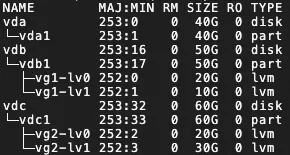
For each destination disk with LVM enabled, the system creates one physical volume (PV) and its corresponding volume group (VG). Within this VG, it creates one logical volume (LV) for each mount target. The VG is named vgX by default (where X is the disk sequence number), and the LVs are named lvX by default (where X is the LV sequence number), as shown in the following example:
 Important
LVM cannot be enabled in the following cases:
The source server runs Windows.
The system disk does not have a boot partition.
If you enable LVM, the feature does not take effect in the following scenarios:
The source server does not support lvm2, or the lvm2 package is not installed.
The source server runs a Debian system with a kernel version of 3.x or earlier and has a disk with an XFS file system mounted.
Configure mount targets
Migrate: Specifies whether to migrate the mount target based on your business requirements.
Enable Block Replication: This option is visible only for SMC client versions before 3.2.0. Block replication improves the stability of the transfer speed and ensures that the destination partition structure is identical to the source, but you cannot modify the partition size. SMC determines whether to support block replication based on the status of the source disk partitions.
If the source partition does not support Block Replication, this option cannot be enabled. File-level replication is used by default, which allows the partition size to be modified.
If the source partition supports Block Replication, this option is enabled by default to perform a partition-level disk migration.
NoteIf the source server runs a Windows operating system, block replication is enabled by default and cannot be disabled.
If LVM is enabled for the disk and the partition size is not a multiple of 4 MiB, block replication does not take effect. File-level replication is used instead.
Set Partition Size: If block replication is disabled, you can set the partition size. The sum of partition sizes cannot exceed the total size of the disk.
Windows operating systems: You cannot adjust the partition size.
Linux operating systems: You can set the partition size based on your requirements, but the sum of partition sizes cannot exceed the disk size.
For SMC client versions earlier than 3.2.0, ensure that block replication is disabled.
NoteIf the disk sizes of the destination instance do not match the source disks, you cannot create the job. In this case, the system automatically adjusts the mount target locations to meet the disk size requirements. If the requirements are still not met after the adjustment, resolve the issue as prompted on the UI.
You can also manually drag and drop mount targets to meet the disk size requirements. However, you cannot move boot or system partitions. To do this, perform the following steps:
Hover the pointer over the
 icon next to the mount target.
Drag the mount target to another disk.
Execution Method
This parameter appears only when Destination Type is ECS Image or ECS Instance.
The migration drill feature assesses the job's feasibility and risks before you start. It provides data volume, migration speed, and total time estimates, and suggests fixes to reduce potential migration issues. You are charged for pay-as-you-go resources used during the migration drill.
WarningIf the target type is an ECS Instance, a migration drill creates snapshots of all disks on the target ECS instance. The snapshots are automatically rolled back after the drill is complete if an exception occurs during the drill or if the execution mode is set to Test Only. The target ECS instance is unavailable during the migration drill, and its data will be lost. Ensure that the target ECS instance does not contain important data.
Test Only: Creates only a migration drill job. After the drill is complete, you must manually start the server migration job if you want to migrate the server.
Test and Migrate: After the migration drill is complete, the system automatically starts the server migration job if no drill items have a status of Critical. By default, Test and Migrate is selected.
Automatic Incremental Synchronization
This parameter appears only when Destination Type is ECS Image or ECS Instance.
Enables automatic, incremental data synchronization from the source server to Alibaba Cloud. By default, this feature is disabled.
If you enable this switch, you must configure the following parameters:
Synchronization Interval: The interval at which the incremental migration job automatically runs.
Maximum Reserved Images: The maximum number of images that the incremental migration job retains.
The migration job runs periodically to synchronize incremental data to Alibaba Cloud. Incremental server migration.
If you disable this switch, the migration job runs only once.
Enable a migration template
This parameter appears only when Destination Type is ECS Image.
Migration templates predefine task parameters, which are auto-filled when starting migration. For setup instructions, see Configure migration templates.
Advanced configuration
To configure network mode, transfer rate limits, and other settings, click Advanced Settings.
Parameter
Description
Network Type
Select the network for transferring migration data to the intermediate instance. By default, data is transferred over the public network. The intermediate instance is created in the selected Virtual Private Cloud (VPC) and vSwitch and is assigned a public IP address.
Public Network (Default)
Migration data is transferred to the intermediate instance over the public network. This mode requires the source server to have public internet access. You can choose whether to specify a Virtual Private Cloud (VPC) and vSwitch.
Specify a VPC and vSwitch: The migration job creates an intermediate instance in the VPC and vSwitch that you specify.
Do not specify a VPC and vSwitch: The migration job creates an intermediate instance in a new VPC and vSwitch that are automatically created by the system.
VPC
Migration data is transferred to the intermediate instance over a private connection within a VPC. This mode requires you to connect the source server to the Alibaba Cloud VPC and specify a VPC and vSwitch.
NoteIf you can directly access a VPC in an Alibaba Cloud region from an on-premises data center (IDC), virtual machine (VM) environment, or cloud host, we recommend that you use this method. Private network transfer is faster and more stable than public network transfer, improving migration efficiency. You can connect the source server to the cloud VPC by using a VPN gateway, an Express Connect circuit, or a Smart Access Gateway. For more information, see Connect a VPC to a data center or another cloud.
Transmission Speed Limit
Limits the data transfer speed, in Mbit/s. If Compression Ratio is set to a value greater than 0, the actual network transfer speed for the compressed data is lower than the speed displayed in Real-time Migration Status.
Compression Ratio
Sets the data compression level for migration.
In environments with limited bandwidth, a higher compression ratio can increase data transfer speed.
In environments with high bandwidth, we recommend that you do not compress data to reduce CPU usage on the source server.
Valid values: 0 to 10. The default value is 7. A value of 0 indicates that data is not compressed.
Checksum Verification
This feature is disabled by default. Enabling it enhances data consistency checks but may decrease transfer speed.
License Type
This parameter appears only when Destination Type is ECS Image or ECS Instance.
Select a license type.
Alibaba Cloud (Default): Only Microsoft Windows Server licenses are supported. After migration, you are charged a license fee when you create an ECS instance from the image in the China (Hong Kong) region or other regions outside the Chinese mainland. The instance is automatically activated. The actual fee is displayed when you create the instance.
BYOL: BYOL is supported for operating systems such as Microsoft Windows, Red Hat Enterprise Linux, and SUSE Linux Enterprise Server. After migration, no license fee is charged when you create an ECS instance from the image. You must activate the instance by using your own license.
NoteIf you have an existing ECS instance, you can purchase software licenses, such as for Red Hat Enterprise Linux and SUSE Linux Enterprise Server, for the instance. Purchase software licenses for an ECS instance.
Image Check
This parameter appears only when Destination Type is ECS Image.
The image check feature verifies whether an image is valid and can be used to create a fully functional ECS instance. You can use this feature when you create server migration and agentless VMware migration jobs.
The image check feature helps you quickly identify potential issues with the image or instance after migration and provides solutions to ensure compliance with Alibaba Cloud standards, which increases the instance startup success rate.
Tag
Attach tag keys and values to the migration task for easier querying and management.
Intermediate Instance Type
Select an instance type for the intermediate instance. This parameter appears only when Destination Type is ECS Image or Container Image.
Select an instance type: SMC uses this type to create the intermediate instance. If out of stock, task creation fails.
Do not select an instance type: SMC uses default types in sequence.
ImportantDuring migration, do not stop, start, restart, release, or change the billing method of the intermediate instance.
Report diagnostic logs
Automatically uploads SMC client logs to the SMC service for error diagnosis. Enabled by default.
SMC client logs are typically stored in /smc/go2aliyun_client*/Logs under the installation directory.
-
Click Start Migration.
In the dialog box that appears, carefully read the migration notes, and then click Got It.
-
In the General Quick Migration dialog box, click View Now to monitor migration progress.
SMC performs the drill first. The transfer time is affected by factors such as data volume and network bandwidth. Wait for the migration job to complete.
 Note
NoteSpeed: The amount of uncompressed migration data transferred per second. If the Compression Ratio for the migration job is greater than 0, the displayed speed is higher than the actual network transfer speed of the compressed data.
Time Remaining for Synchronization: Calculated as (Total Data Volume - Transferred Data Volume) / Speed.
If the transfer speed is too slow, consider temporarily increasing the fixed bandwidth of the source and destination servers. Estimate migration time and test transfer speed.
Verify migration results
-
Migrate to ECS Image
After a successful migration, Alibaba Cloud creates a custom image. You can scroll to the right and click View Report in the Migration Deliverables column to view image detection results. View image detection results.

Manual verification (Recommended)
In the Actions column, click Create Instance. You are redirected to the instance creation page in the ECS console, where the custom image is preselected. For more information about how to create an ECS instance, see Create an instance from a custom image or shared image.

Automatic verification
NoteTo use this feature, the instance must have Cloud Assistant installed, and its operating system must support the agent. For more information, see Install Cloud Assistant Agent.
This feature uses the OOS template
ACS-SMC-CreateAndVerifyInstanceprovided by Alibaba Cloud to automatically verify that the image generated by the migration job can be used to successfully create and start an ECS instance.In the Actions column, click Verify Migration Result.

In the dialog box that appears, review the verification process and click Verify Now.
You can also click Customize Verification Parameters to manually configure verification parameters.
In the Verify Migration Result column, view the verification result.
Verified: The migration was successful. You can click View Report to view the verification results.
Not Verified: The verification failed. You can click View Cause to view the error details and troubleshoot the issue.
You can also click the
 icon in the Actions column and then click View Verification Records in OOS Console to view the execution history of the OOS template.
Migrate to ECS instance and Simple Application Server
If you set Destination Type to ECS Instance, you can click View Destination Instance in the Actions column to view the destination ECS instance.
After the server is migrated, perform the following steps to ensure that your services run correctly:
Verify the data to ensure its integrity and correctness. How do I check the system after migrating a Linux server or How do I check the system after migrating a Windows server.
If applications and services on the source server are not configured to automatically start, you must manually start them after the migration.
The IP address changes after the migration. If your services depend on IP address configurations, you must modify settings such as domain name resolution and ICP filing after the migration.
If a domain name is mapped to the source server, remap it to the new public IP address. Add a website resolution.
To retain the original private IP address, you can modify the private IP address of the destination instance.
If the destination is an ECS Image: When you create an ECS instance, specify a private IP address. For more information, see Specify the primary private IPv4 address for the primary ENI when you create an ECS instance.
If the destination is an ECS Instance: If you did not modify the private IPv4 address in the advanced configuration of the migration settings step, you can modify it. For more information, see Modify the primary private IPv4 address of the primary ENI for an existing instance.
-
Clean up resources
Migrate to ECS image
During migration, SMC creates a temporary pay-as-you-go intermediate instance named No_Delete_SMC_Transition_Instance in your Alibaba Cloud destination account. Clean up based on the migration result:
-
Migration succeeded: The intermediate instance is automatically released. No manual cleanup is required.
-
Migration failed: The intermediate instance remains and incurs charges. To avoid unnecessary costs, release it in one of the following ways:
-
If you no longer need the migration task, click the migration source ID and, in the Actions column, click Clear Migration Job to delete the task and automatically release the intermediate instance.
-
Manually release the intermediate instance.
-
Migrate to destination instance
During migration, SMC creates a temporary pay-as-you-go intermediate cloud disk named SMC_Temp_Disk on the destination instance. Clean up based on the migration result:
-
Migration succeeded: The intermediate cloud disk is automatically released. No manual cleanup is required.
-
Migration failed: The intermediate cloud disk remains and incurs charges. To avoid unnecessary costs, release it in one of the following ways:
-
If you no longer need the migration task, click the migration source ID and, in the Actions column, click Clear Migration Job to delete the task and automatically release the intermediate cloud disk.
-
Manually release the intermediate cloud disk.
-
References
To migrate incremental data repeatedly, run incremental migrations at custom intervals after the initial full migration is complete. This process synchronizes incremental data from the source server to Alibaba Cloud, reducing business downtime and the final cutover time. For more information, see Incremental server migration.