Migrating from Tencent Cloud Lighthouse to Alibaba Cloud typically requires logging on to the source server and installing migration tools — steps that slow down the process. The quick migration feature of Server Migration Center (SMC) removes these barriers: you configure the migration directly from the Alibaba Cloud console without touching the source server. This guide covers the full migration workflow, from preparing your environment to verifying the result.
SMC is a migration platform provided by Alibaba Cloud. SMC provides migration services with universal capabilities, consistent user experience, and high efficiency to meet your migration requirements within Alibaba Cloud services. For more information, see What is SMC?
SMC also supports running this migration directly from the SMC console. For more information, see Migrate data from a lightweight server provided by a third party to an Alibaba Cloud simple application server.
Limitations
-
Only Windows and Linux servers can be migrated. Cross-OS migration (Windows to Linux, or vice versa) is not supported.
-
The source Tencent Cloud Lighthouse instance can have at most one data disk attached.
-
The source server must have internet access and reside in a virtual private cloud (VPC). Servers in the basic network cannot be migrated.
-
If the destination is an ECS instance rather than a simple application server, these additional constraints apply:
-
Both source and destination must use VPCs (classic networks are not supported).
-
Both must use the same OS architecture (for example, both x86).
-
Both must use the same OS type.
-
The ECS instance must not have a local disk attached.
-
The ECS instance must not be in a hibernated state.
-
Potential impacts
Review these impacts before starting the migration.
| Item | Impact |
|---|---|
| Destination simple application server | Do not stop, start, restart, or release the destination server during migration. Doing so causes the migration to fail. |
| IP address | The server's IP address changes after migration. Update any IP-dependent business configurations. If a domain name is bound to the source server, resolve it to the new public IP address. See Add an A record for a website domain name. |
| Underlying hardware | The underlying hardware may change after migration. Application licenses tied to hardware may become invalid — check them after migration. |
Prerequisites
Before you begin, ensure you have:
-
Completed the server migration preparations. See Before you begin and the Migration guide
-
A Tencent Cloud API key with the SecretId and SecretKey from the Cloud Access Management (CAM) console. See Access KeyAccess Key
-
The TencentCloud Automation Tools (TAT) agent installed on the source Lighthouse instance. See Installing TAT Agent
-
(If using a Tencent Cloud sub-account) Root account access to the CAM console with the following policies attached to the sub-account via Authorization Management:
-
QcloudTATFullAccess -
QcloudLighthouseReadOnlyAccessorQcloudLighthouseFullAccess
-
Run the migration
Step 1: Open the Migration Wizard
-
Go to the Servers page in the Simple Application Server console.
-
In the upper-left corner of the Servers page, click Migrate to Cloud.
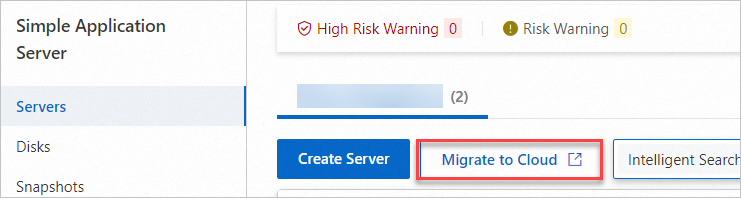
-
In the Migration Wizard, click Next.
Step 2: Configure the migration job
On the Quick Migration Across Cloud Platforms page, configure the following parameters.
Migration job details
| Parameter | Description |
|---|---|
| Migration Job Name | (Optional) A name for the migration job. |
| Job Description | (Optional) A description for the migration job. |
Migration source
| Parameter | Description |
|---|---|
| Service Provider | Select Tencent Cloud Lighthouse. |
| SecretId and SecretKey | Enter the SecretId and SecretKey of your Tencent Cloud API key, then click Verify. When verification passes, Verified appears below the fields. See Access KeyAccess Key. |
| Select Migration Source | Select the source Tencent Cloud Lighthouse instance and the region it resides in. |
Migration destination
| Parameter | Description |
|---|---|
| Destination Type | Automatically set to Simple Application Server. Not editable. |
| Destination Region | The Alibaba Cloud region to migrate to. See Regions and zones. |
| Destination Instance | The target simple application server. See compatibility requirements below. |
Destination instance compatibility requirements
| Requirement | Details |
|---|---|
| Storage | Total disk space (system disk + data disks) on the destination must be greater than or equal to that of the source. If the destination disk is smaller, upgrade the server or extend the data disk before creating the migration job. If the destination has fewer data disks than the source, not all source data disk data will be migrated. |
| Security group | The ports open on the destination's security group must match those of the source Tencent Cloud Lighthouse instance. See Manage a firewall. |
| Bandwidth | Increase the bandwidth of both the source and destination servers as much as possible to speed up the transfer. See Estimate the time required for migration and test the data transfer speed. |
Step 3: Start the migration
Select I have understood and accept the potential migration costs, then click Start Migration.
SMC is free. However, ECS resources consumed during migration are charged. See Billing for details.
Step 4: Monitor migration progress
In the Process of Quick Migration Job on Cloud Platform dialog box, watch the migration progress. The migration process takes about 3 to 10 minutes. Do not exit or refresh the browser during this time.
Verify the migration
Check the migration status
In the Real-time Migration Status column on the Server Migration page, confirm the job shows Completed.

Before proceeding, verify these indicators on the Server Migration page:
-
The Real-time Migration Status column shows Completed for the migration source.
-
No error notifications appear in the Actions column.
If the intermediate instance is released before migration completes, you must create a new migration job. See What do I do if I release an intermediate instance by accident?
For troubleshooting, see FAQ about Server Migration Center (SMC) and Errors occurred during a server migration.
Post-migration checklist
Complete the following steps after the migration status shows Completed:
-
Open the destination server. Click View Destination Instance in the Actions column to navigate to the Alibaba Cloud Simple Application Server console.
-
Log on to the server.
-
Linux: Connect to a Linux server
-
Windows: Connect to a Windows server
-
-
Verify data and application health. Check that data is complete and applications run as expected. See How do I check my system after I migrate a Linux server or How do I check my system after I migrate a Windows server?
-
Update the IP address. The server's IP address changes after migration. Update any configurations that reference the old IP address.
-
Re-resolve your domain name. If a domain name was bound to the source server, point it to the new public IP address. See Add an A record for a website domain name.
-
Check application licenses. If any licenses are tied to the underlying hardware, verify that they remain valid after the hardware change.
What's next
-
What is SMC? — Learn about SMC's full migration capabilities.
-
Migrate data from a lightweight server provided by a third party to an Alibaba Cloud simple application server — Use the SMC console directly as an alternative migration path.