Use the host account of an RDS SQL Server instance to log on to the host through WebShell, then configure SQL Server Reporting Services (SSRS) to generate reports from your SQL Server databases.
Creating a System Admin account or host account removes your RDS SQL Server instance from the SLA guarantee, because operations performed through these accounts are outside the control scope of RDS SQL Server. Normal instance use and after-sales service are not affected. Instances without these accounts remain under the complete SLA guarantee.
Prerequisites
Before you begin, ensure that you have:
-
An RDS SQL Server instance that meets the following requirements:
-
Edition: Basic Edition, High-availability Edition (SQL Server 2012 and later), or Cluster Edition
-
Type: General-purpose or Dedicated (the Shared type is not supported)
-
Billing method: Subscription or pay-as-you-go (not supported for Serverless ApsaraDB RDS for SQL Server instances)
-
Network type: Virtual private cloud (VPC). To change the network type, see Change the network type
-
Creation date: High-availability Edition and Cluster Edition on or after January 1, 2021; Basic Edition on or after September 2, 2022 > Note: To check the creation date, go to the Basic Information page and find Created At under Status.
-
-
An Alibaba Cloud account
-
A System Admin account created on the User Account tab
-
A host account with account type System Admin Account, created on the Host Account tab
Step 1: Log on to the RDS SQL Server host through WebShell
-
Go to the Instances page. In the top navigation bar, select the region where your RDS instance resides, then click the instance ID.
-
In the left navigation pane, click Accounts.
-
Click the Host Account tab, then click Remote Connection (Primary) in the Actions column for the target account.
-
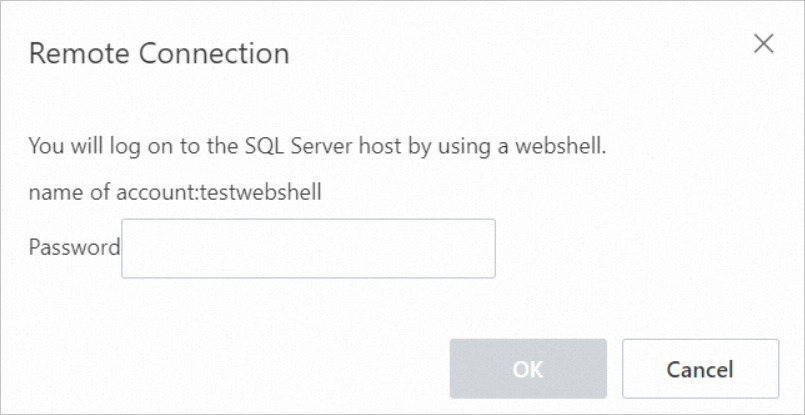
In the Remote Connection dialog box, enter the host account password.
-
Click OK.
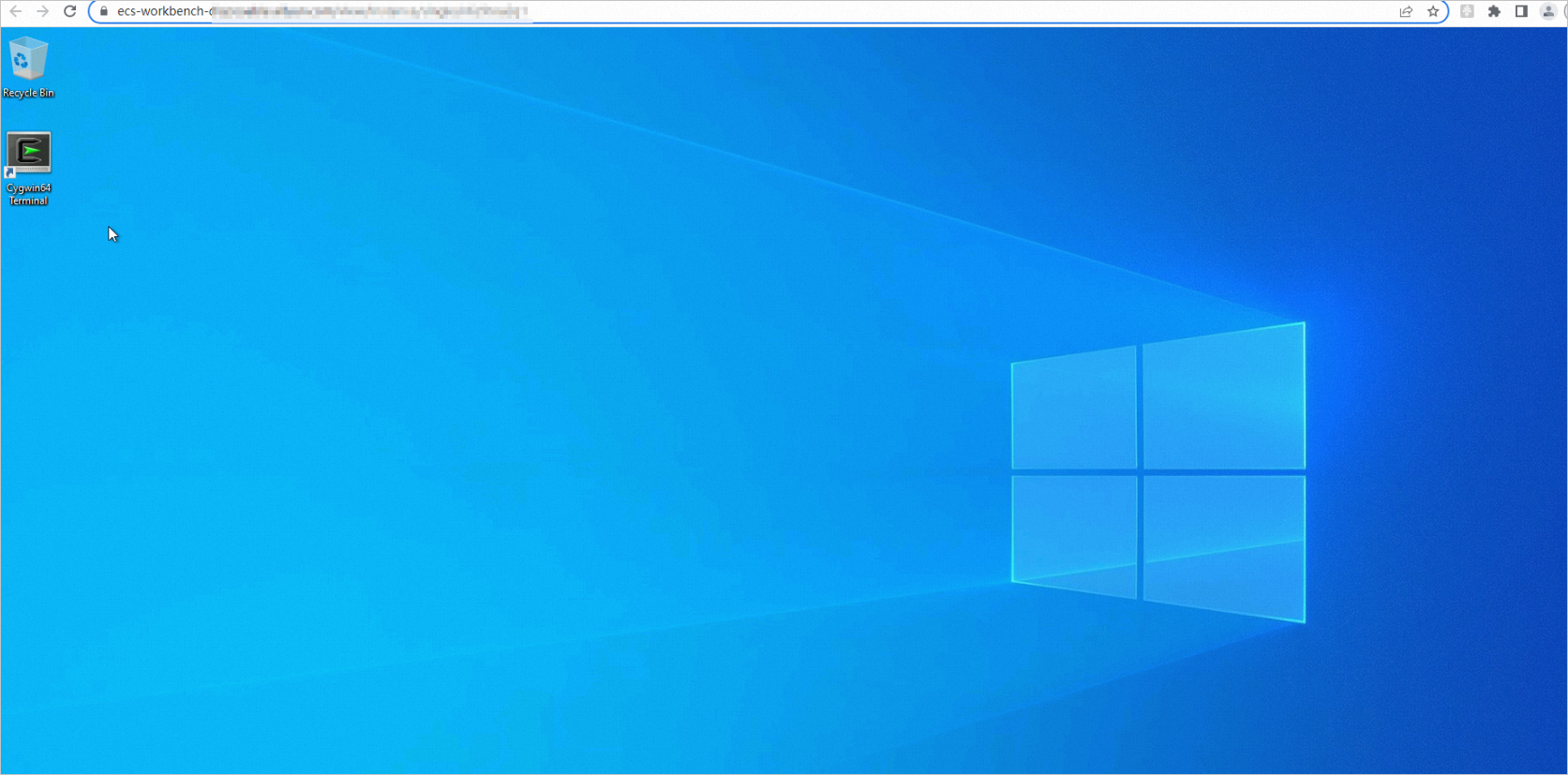
The system generates a WebShell logon URL and automatically opens a new WebShell page in a pop-up window. If your browser blocks the pop-up, configure it to always allow pop-ups from this site.
Step 2: Configure and use the SSRS service
Check the SSRS service status
Before configuring SSRS, verify that the SQL Server Reporting Services (MSSQLSERVER) service is enabled and running. For instructions, see View or modify the SSRS service status in this topic.

Handle configuration failures on High-availability and Cluster edition instances
For High-availability Edition and Cluster Edition instances, SSRS configuration may fail because the database is in a mirroring or Always On availability group state. If this happens, use a System Admin account to log on to the SQL Server instance and run the appropriate commands below before retrying.
Because RDS instances regularly set up mirroring or availability groups, you may encounter multiple configuration errors during SSRS setup. Each time an error occurs, run the appropriate commands below before retrying.
For High-availability Edition instances (disable database mirroring):
ALTER DATABASE [ReportServer] SET PARTNER OFF;
ALTER DATABASE [ReportServerTempDB] SET PARTNER OFF;
For Cluster Edition instances (remove databases from the availability group):
ALTER AVAILABILITY GROUP [ag-rds] REMOVE DATABASE [ReportServer];
ALTER AVAILABILITY GROUP [ag-rds] REMOVE DATABASE [ReportServerTempDB];
After SSRS configuration is complete on a Cluster Edition instance, add the databases back to the availability group to restore high availability:
ALTER AVAILABILITY GROUP [AG-RDS] ADD DATABASE [ReportServer]
ALTER AVAILABILITY GROUP [AG-RDS] ADD DATABASE [ReportServerTempDB]
Configure SSRS
-
Log on to the SQL Server instance using a System Admin account and run the following command.
For instructions on connecting to an SQL Server instance, see Connect to an SQL Server instance.
DISABLE TRIGGER [_$$_tr_$$_rds_alter_database] ON ALL SERVER; -
Click
 > Reporting Services Configuration Manager.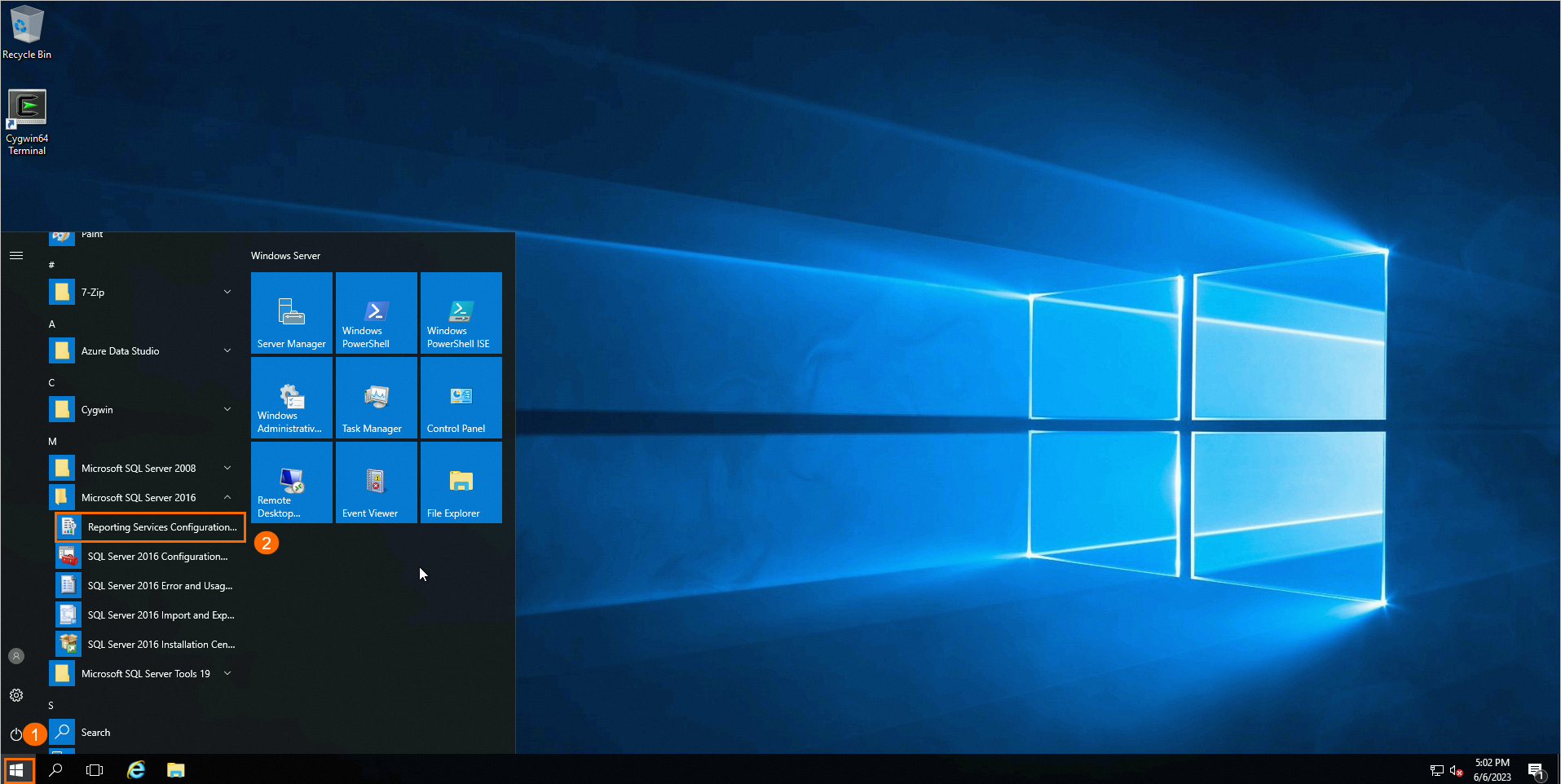
-
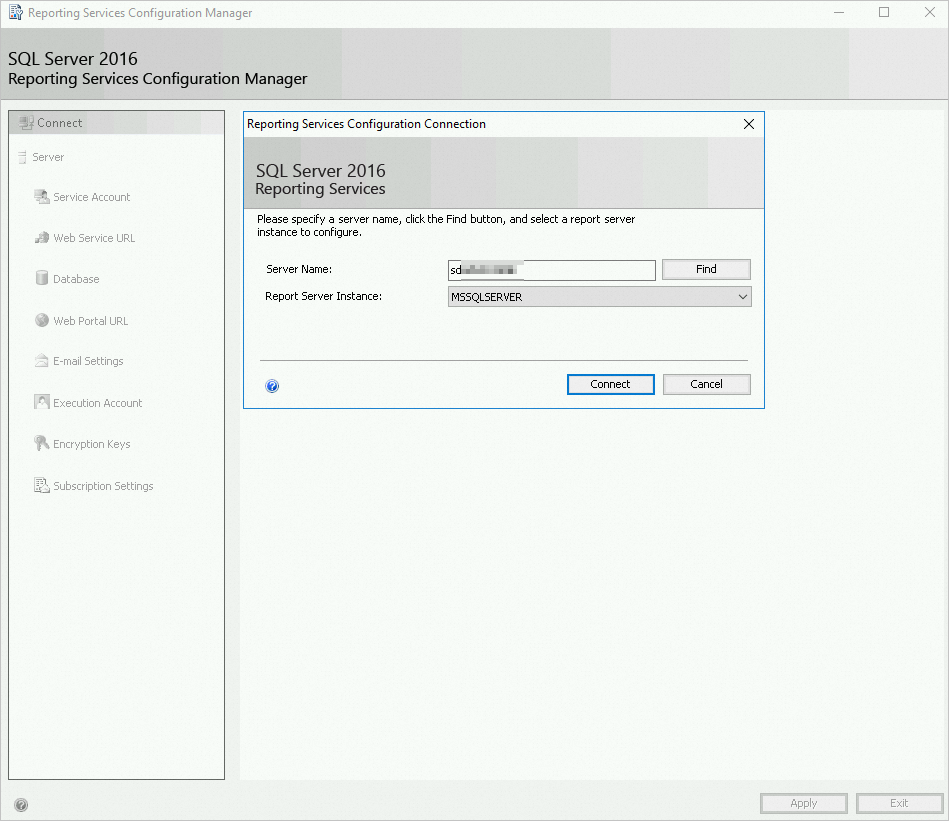
In the dialog box, confirm the report server name and click Connect.
If your instance is High-availability Edition or Cluster Edition, the connection to the report server may fail due to database mirroring or availability groups. See Handle configuration failures on High-availability and Cluster edition instances for the fix.
-
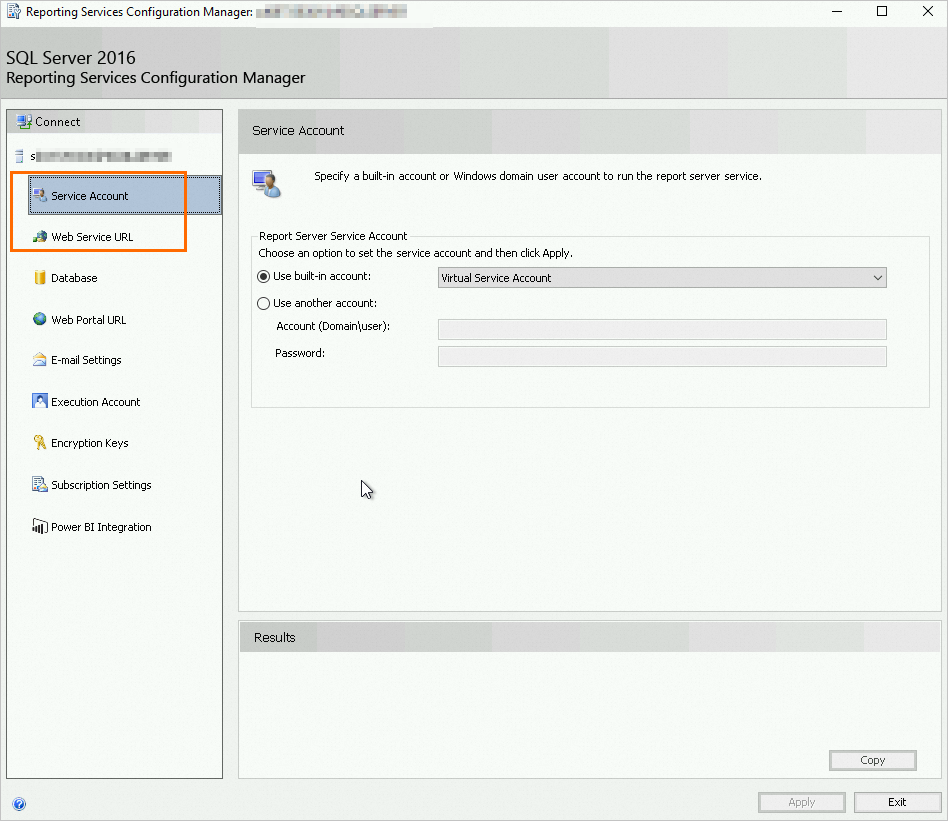
In the left navigation pane, configure Service Account and Web Service URL as needed.
For configuration details, see the Microsoft documentation.
-
In the left navigation pane, select Database, then click Change Database to create a new report server database.
-
Log on to the SQL Server instance using a System Admin account and run the following commands.
USE [master] GO -- Change the recovery model of the database to FULL, using the NO_WAIT parameter to make the change take effect immediately ALTER DATABASE [ReportServer] SET RECOVERY FULL WITH NO_WAIT GO ALTER DATABASE [ReportServerTempDB] SET RECOVERY FULL WITH NO_WAIT GO -- Enable a specific trigger on all databases on the server ENABLE TRIGGER [_$$_tr_$$_rds_alter_database] ON ALL SERVER; -
For subsequent operations such as creating data sources, see Steps 5 to 8 of the official SSRS documentation.
View or modify the SSRS service status
-
Log on to the SQL Server host and enter
services.mscin the search box to open the Services window.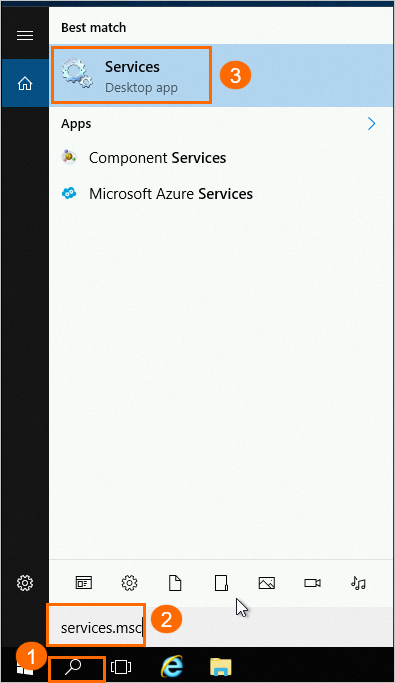
-
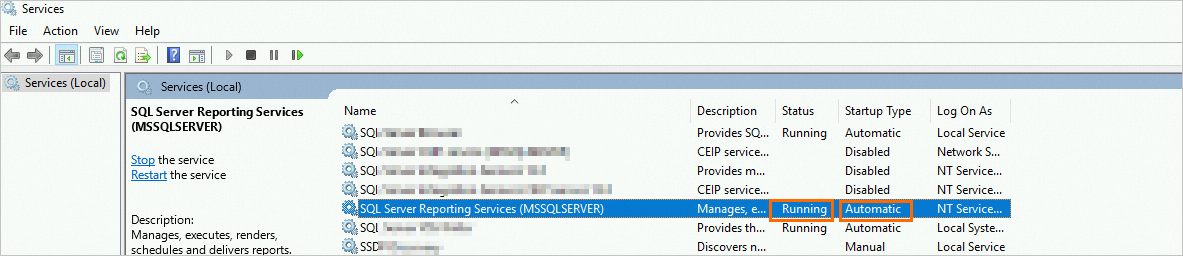
In the Services window, check the status of
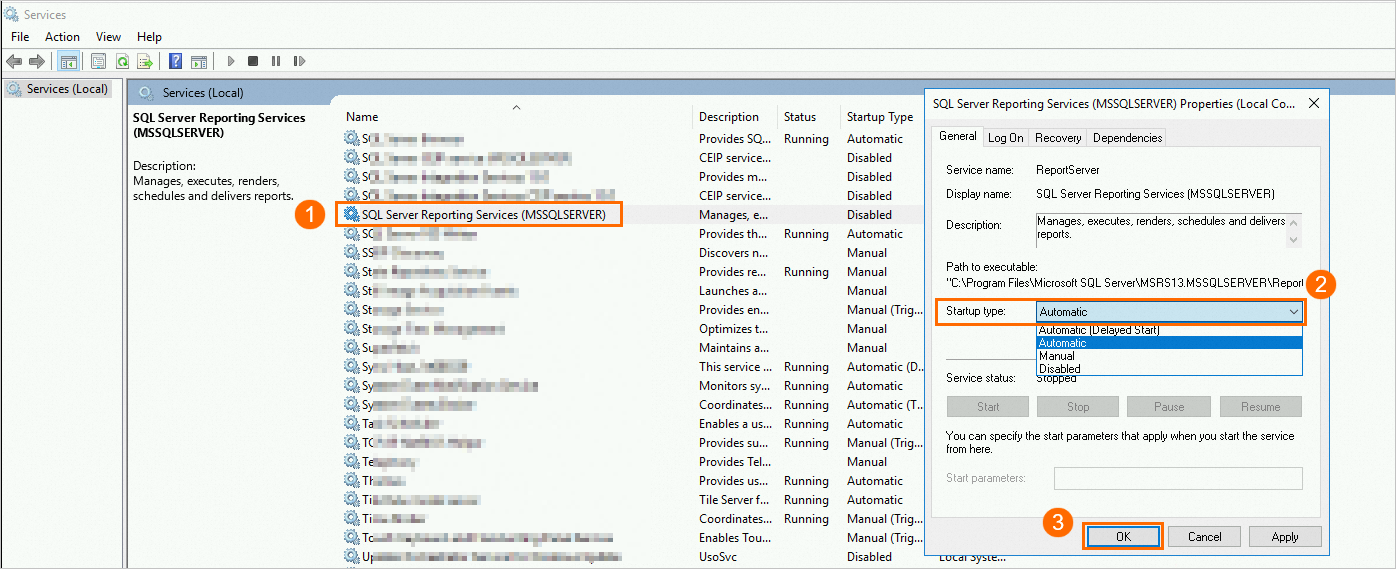
SQL Server Reporting Services (MSSQLSERVER).The startup types are: - Manual: The service must be started manually and does not start automatically when the system starts. - Automatic: The service starts automatically when the system starts. - Automatic (Delayed Start): The service starts automatically after the system has been running for a period of time. - Disabled: The service cannot be started.

-
(Optional) To modify the startup type and start the service:
-
Double-click the service and modify the Startup type property.
-
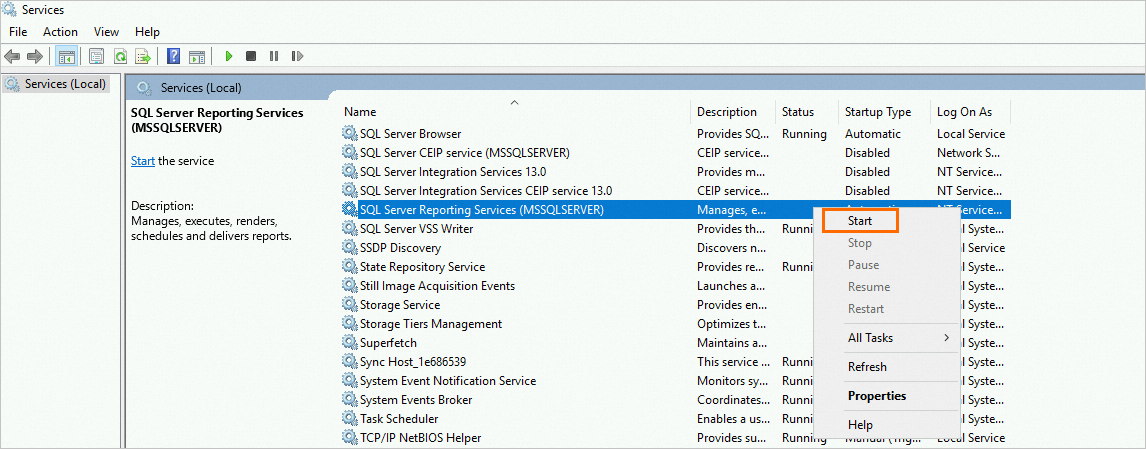
Right-click the service and click Start.
-
Verify the updated SSRS service status.
-
FAQ
Why does the error The specified host information does not exist. appear when I try to connect?
Host account passwords expire after 42 days by default. An expired password causes this error. In the Actions column for the host account, click Reset Password to set a new password, then try again.
To avoid future expirations, set a password expiration policy for the account. Once configured, it applies to the host account automatically.