After you complete the initial configuration for an ApsaraDB RDS for SQL Server instance, connect to it using Data Management (DMS), SQL Server Management Studio (SSMS), or Java Database Connectivity (JDBC). This topic covers all three methods.
Prerequisites
Before you begin, make sure you have:
A running RDS SQL Server instance. See Create an ApsaraDB RDS for SQL Server instance
A database and an account created in the instance. See Create accounts and databases
An IP address whitelist configured for the instance. See Configure an IP address whitelist
For internal network connections from an Elastic Compute Service (ECS) instance, the ECS instance and the RDS instance must be in the same virtual private cloud (VPC) in the same region, and the private IP address of the ECS instance must be in the whitelist. For connections from an on-premises device, add the public IP address of the device to the whitelist.
Before you connect
Verify the following before starting any connection method:
The IP address of your client (ECS instance or on-premises device) is added to the instance's IP address whitelist.
For SSMS or JDBC connections from outside Alibaba Cloud's internal network, a public endpoint is applied for the instance.
Find your endpoint
All connection methods require the instance endpoint and port. To find them:
Go to the Instances page. In the top navigation bar, select the region where the instance resides. Click the instance ID.
On the instance details page, locate the endpoint and port number. For detailed steps, see View and change the endpoints and port numbers.
Endpoint type | When to use |
Internal endpoint | Connecting from an ECS instance in the same VPC and region |
Public endpoint | Connecting from an on-premises device or from outside Alibaba Cloud's internal network. Apply for a public endpoint first if you haven't done so. See Apply for or release a public endpoint. |
Connect using DMS
DMS is a web-based database management platform. It requires no client installation and no manual whitelist configuration for the RDS instance itself.
Go to the Instances page. Select the region in the top navigation bar, then find the instance and click its ID.
Click Log On to Database.

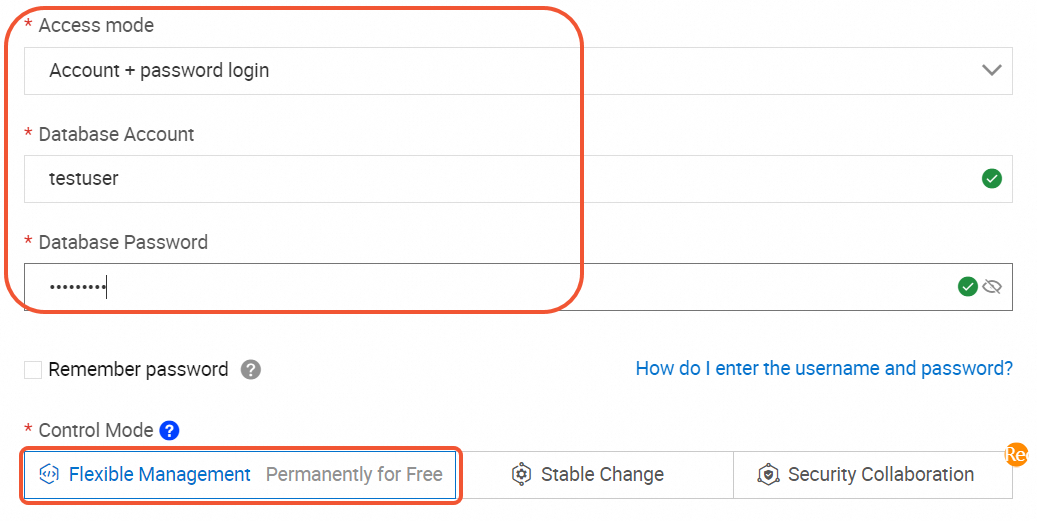
In the Log on to Database Instance dialog box, configure the login parameters and click Login.
Access Mode: Select Account + password login.
Database Account and Database Password: Enter your account credentials. This example uses the privileged account
testuser.Control Mode: Select Flexible Management for trial use. This mode is free of charge. Stable Change and Security Collaboration modes provide more features but generate fees.
In the left-side navigation pane of the DMS console, choose Database Instances > Instances Connected to view your databases. In this example, the database
dbtestis displayed. Double-click a database to open it.If the instance exists but the database is not listed under Instances Connected, check the following: - The login account lacks permissions for that database. Go to the Accounts page of the RDS instance, find the account, and click Change Permissions in the Actions column to grant the required permissions. - The database metadata is not synchronized. Hover over the RDS instance name and click the
 icon to the right to refresh.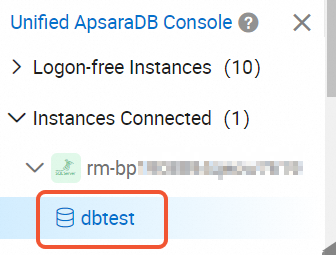
Run queries and manage data on the SQL Console tab.
Connect using SSMS
SSMS is a GUI client for managing SQL Server databases. It supports connections to RDS instances, on-premises SQL Server instances, and SQL Server instances in other clouds.
Before connecting with SSMS:
Download the latest version of SSMS to ensure compatibility with all SQL Server versions. See Download SQL Server Management Studio (SSMS).
Apply for a public endpoint and add your on-premises IP address to the whitelist.
This example uses SSMS 19.0.
Start SSMS.
Choose Connect > Database Engine.
In the Connect to Server dialog box, enter the following parameters:
Parameter
Example value
Description
Server name
rm-2ze****.rds.aliyuncs.com,1433The public endpoint and port, separated by a comma (,). See Find your endpoint.
Authentication
SQL Server Authentication
The authentication method.
Username
testuserThe RDS account username.
Password
Test_pw123The RDS account password.
Click Connect.
After a successful connection, the connected instance and its databases appear in the left pane of SSMS.
Connect using Java (JDBC)
Use JDBC to connect a Java application to the RDS instance programmatically.
Add the IP address of the environment where the application runs to the instance's IP address whitelist before connecting. See Configure an IP address whitelist.
Step 1: Add the JDBC driver
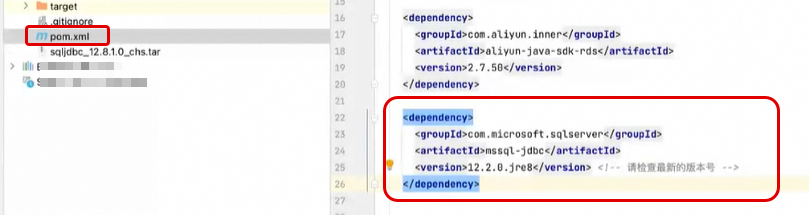
Add the following to the pom.xml file of your Maven project. Select the version that matches your Java version — for example, mssql-jdbc-12.2.0.jre8.jar works with Java 8 or later. For historical versions, see the official repository.
<dependency>
  <groupId>com.microsoft.sqlserver</groupId>
  <artifactId>mssql-jdbc</artifactId>
  <version>12.2.0.jre8</version>
</dependency>
After adding the dependency, click the Maven refresh icon to download it automatically.


Download the JDBC driver that matches your Java version from Download Microsoft JDBC Driver for SQL Server.
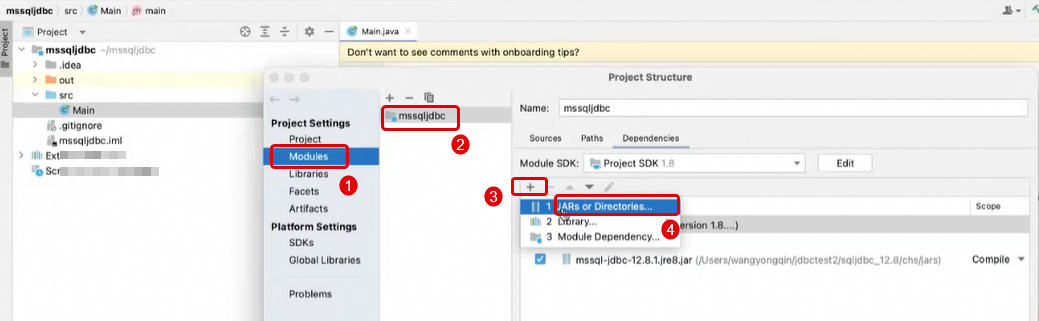
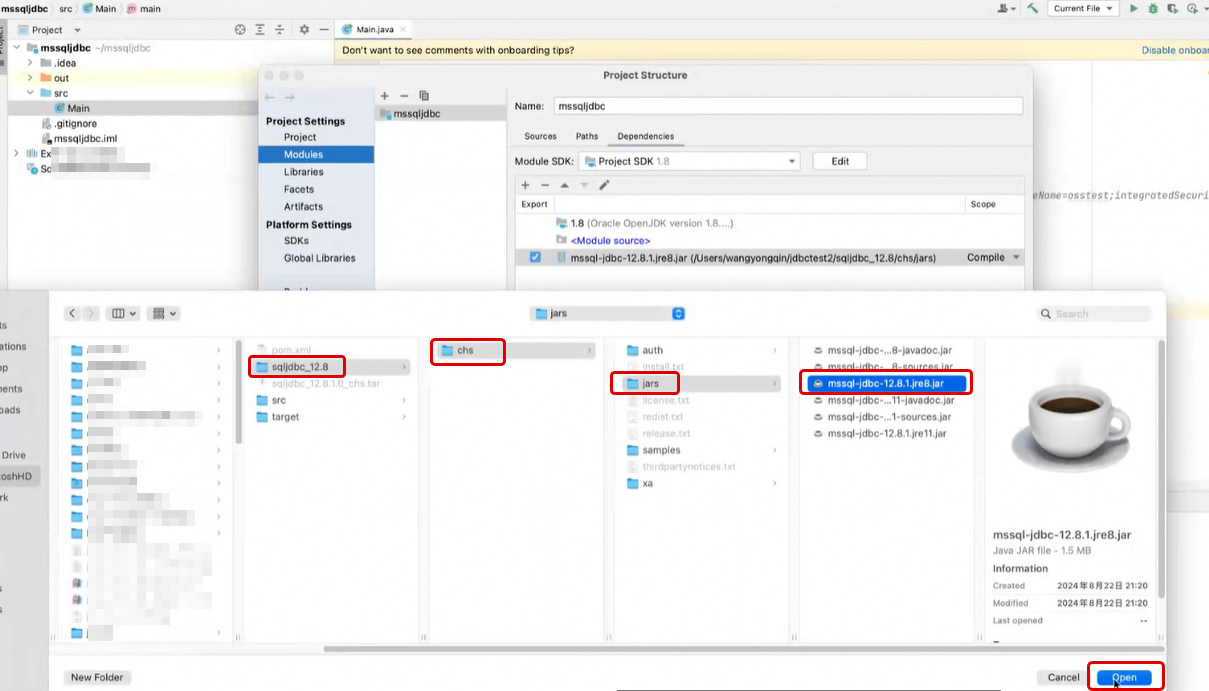
Extract the package and add the JAR file (such as
sqljdbc4.jarorsqljdbc.jar) to your project classpath. The following screenshots show how to add the JAR in IntelliJ IDEA.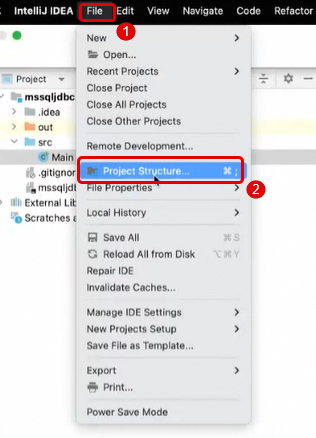
Step 2: Connect with sample code
Store credentials in environment variables rather than hardcoding them. Replace the placeholders in the connection URL with your actual values. For endpoint details, see View and change the endpoints and port numbers.
Use the internal endpoint if the application runs on an ECS instance in the same VPC as the RDS instance.
Use the public endpoint if the application runs on an on-premises device or in another environment.
import java.sql.Connection;
import java.sql.DriverManager;
import java.sql.SQLException;
import java.sql.Statement;
import java.sql.ResultSet;

public class SqlServerConnection {

    public static void main(String[] args) {
        // Replace <endpoint> and <port> with the internal or public endpoint of your RDS instance.
        // Replace <YourDatabaseName> with the target database name.
        String url = "jdbc:sqlserver://<endpoint>:<port>;"
                + "database=<YourDatabaseName>;"
                + "encrypt=true;"
                + "trustServerCertificate=true;"
                + "loginTimeout=30;";

        // Load credentials from environment variables to avoid hardcoding sensitive information.
        String username = System.getenv("RDS_USERNAME");
        String password = System.getenv("RDS_PASSWORD");

        Connection connection = null;

        try {
            // Load the JDBC driver.
            Class.forName("com.microsoft.sqlserver.jdbc.SQLServerDriver");
            // Establish the connection.
            connection = DriverManager.getConnection(url, username, password);
            System.out.println("Connection succeeded!");

            // Execute a sample query. Replace <YourTableName> and column names with actual values.
            Statement statement = connection.createStatement();
            String sql = "SELECT TOP 10 * FROM <YourTableName>";
            ResultSet resultSet = statement.executeQuery(sql);

            while (resultSet.next()) {
                System.out.println("Column 1: " + resultSet.getString("<YourColumnName1>"));
                System.out.println("Column 2: " + resultSet.getString("<YourColumnName2>"));
            }

            resultSet.close();
            statement.close();
        } catch (ClassNotFoundException e) {
            e.printStackTrace();
        } catch (SQLException e) {
            e.printStackTrace();
        } finally {
            if (connection != null) {
                try {
                    connection.close();
                } catch (SQLException e) {
                    e.printStackTrace();
                }
            }
        }
    }
}
Replace the following placeholders before running the code:
Placeholder | Description | Example |
| Internal or public endpoint of the RDS instance |
|
| Port number |
|
| Target database name |
|
| Table to query |
|
| Columns to retrieve |
|
Set the environment variables before running:
export RDS_USERNAME=<your-username>
export RDS_PASSWORD=<your-password>
Step 3: Verify the connection
Compile and run SqlServerConnection.java. If the configuration is correct, the output shows:
Connection succeeded!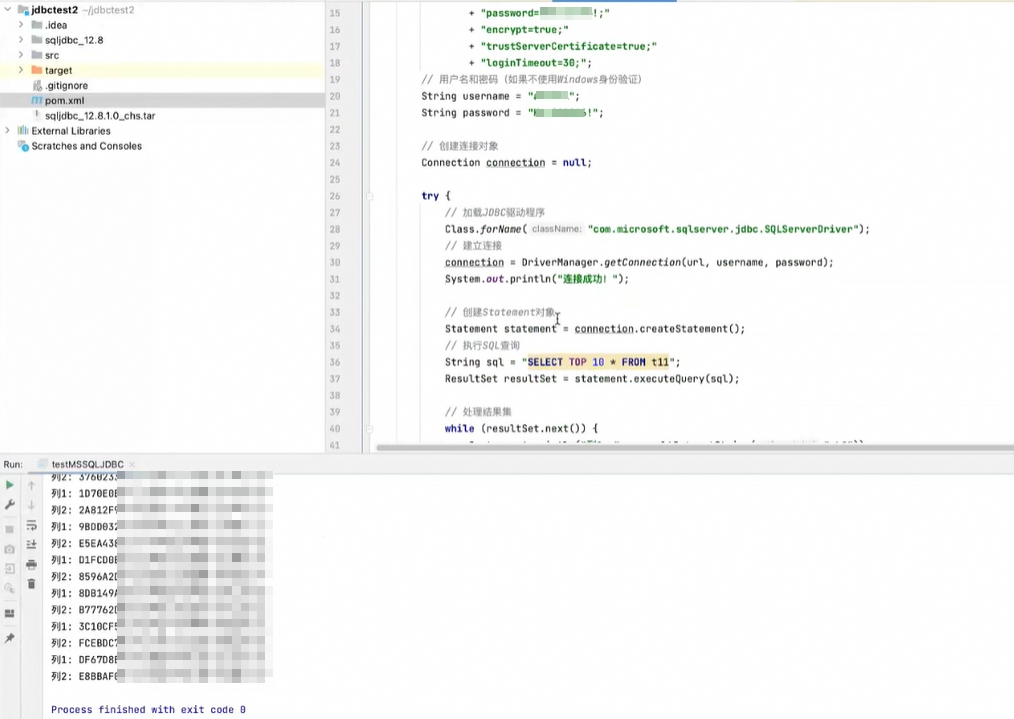
FAQ
Two things to check: the login account may lack permissions for that database, or the database metadata may not be synchronized. Go to the Accounts page of the RDS instance, find the account, and click Change Permissions in the Actions column to grant access. If permissions are correct, hover over the instance name and click the icon to refresh database metadata.
Make sure you have applied for a public endpoint for the instance — the internal endpoint is not reachable from outside Alibaba Cloud's internal network. You are not charged for the Internet traffic that is generated to apply for the public endpoint and for subsequent usage. See Apply for or release a public endpoint.
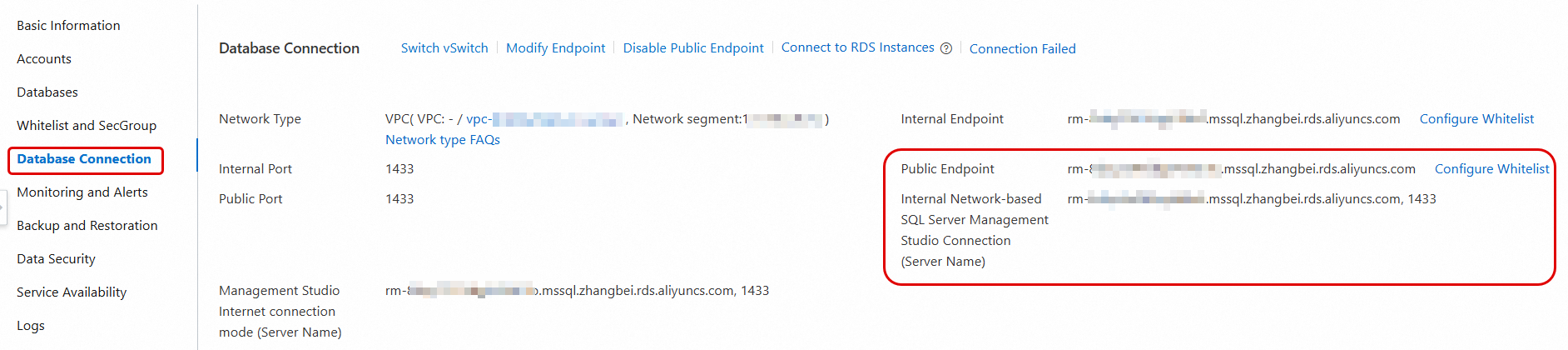
Also confirm that the public IP address of your computer is in the IP address whitelist. See Configure an IP address whitelist.
