RDS SQL Server supports the creation of host accounts. You can create a host account to log in to the host of your RDS SQL Server instance for easier database management. By default, a host account password is valid for only 42 days. An expired password will prevent you from logging in. We recommend that you set a password policy beforehand. This policy is automatically applied to all host accounts.
Prerequisites
-
The RDS for SQL Server instance must meet all of the following requirements:
Requirement Supported Not supported Instance edition Basic Edition, High-availability Edition (SQL Server 2012 and later), Cluster Edition -- Instance type General-purpose, Dedicated Shared Billing method Subscription, pay-as-you-go Serverless Network type Virtual private cloud (VPC) Classic network -
Log on to the console with an Alibaba Cloud account, not a RAM user.
Usage notes
You can create only one System Admin account per RDS instance.
A host account name cannot be any of the following reserved keywords:
root|admin|eagleye|master|aurora|sysadmin|administrator|mssqld|public|securityadmin|serveradmin|setupadmin|processadmin|diskadmin|dbcreator|bulkadmin|tempdb|msdb|model|distribution|mssqlsystemresource|guest|add|except|percent|all|exec|plan|alter|execute|precision|and|exists|primary|any|exit|print|as|fetch|proc|asc|file|procedure|authorization|fillfactor|public|backup|for|raiserror|begin|foreign|read|between|freetext|readtext|break|freetexttable|reconfigure|browse|from|references|bulk|full|replication|by|function|restore|cascade|goto|restrict|case|grant|return|check|group|revoke|checkpoint|having|right|close|holdlock|rollback|clustered|identity|rowcount|coalesce|identity_insert|rowguidcol|collate|identitycol|rule|column|if|save|commit|in|schema|compute|index|select|constraint|inner|session_user|contains|insert|set|containstable|intersect|setuser|continue|into|shutdown|convert|is|some|create|join|statistics|cross|key|system_user|current|kill|table|current_date|left|textsize|current_time|like|then|current_timestamp|lineno|to|current_user|load|top|cursor|national|tran|database|nocheck|transaction|dbcc|nonclustered|trigger|deallocate|not|truncate|declare|null|tsequal|union|delete|of|unique|deny|off|update|desc|offsets|updatetext|disk|on|use|distinct|open|user|distributed|opendatasource|values|double|openquery|varying|drop|openrowset|view|dummy|openxml|waitfor|dump|option|when|else|or|where|end|order|while|errlvl|outer|with|escape|over|writetext||dbo|login|sys|drc_rdsDuring a cross-host migration, such as an upgrade of the major database version, upgrade of the minor engine version, upgrade of the major version during a configuration change, or migration to a different availability zone, the host account and any programs or files (such as SSIS, SSAS, and SSRS) on the original host are deleted. You must migrate or back up your data beforehand.
ImportantApsaraDB RDS for SQL Server is built on the native Microsoft SQL Server engine and focuses on providing stable and efficient managed database services. If your business requires features such as SSIS, SSAS, or SSRS, you need strong operations expertise to ensure business continuity.
Impact on the SLA
A host account provides the highest level of permissions on the host. Operations performed by this account are outside the control of RDS SQL Server. Therefore, if a host account has been created for an RDS SQL Server instance, that instance is no longer covered by the SLA. The instance's operating environment becomes your responsibility. However, normal instance use and after-sales support are not affected. Instances without a host account remain fully covered by the SLA.
Recommendations
A host account has extensive permissions that are outside the control of RDS SQL Server. Follow these recommendations when using this account:
-
Do not operate the
rdscoredatabase on High-availability Edition or Cluster Edition instances. -
Do not operate system accounts. For details, see System account description.
-
Do not perform physical backup operations in the local environment. These operations affect the point-in-time recovery (PITR) capability of the instance. Use the built-in RDS backup feature instead. For details, see Back up SQL Server data.
-
Do not remove or modify high-availability objects on High-availability Edition or Cluster Edition instances, such as running
DROP AVAILABILITY GROUP. -
Do not store data on drive C (the system disk).
-
Do not modify existing server-level triggers in the instance, including:
-
[_$$_tr_$$_rds_alter_database] -
[_$$_tr_$$_rds_alter_login] -
[_$$_tr_$$_rds_create_database] -
[_$$_tr_$$_rds_create_login] -
[_$$_tr_$$_rds_drop_database] -
[_$$_tr_$$_rds_drop_login] -
[_$$_tr_$$_rds_server_role]
-
-
Do not modify core SQL Server configurations such as the startup account or port.
-
Do not modify the Windows Administrator password.
Procedure
Step 1: Create a host account
Go to the Instances page. In the top navigation bar, select the region in which the RDS instance resides. Then, find the RDS instance and click the ID of the instance.
In the left-side navigation pane, click Accounts.
Click the Host Account tab, click Create Account, and then configure the following parameters.
Parameter
Description
Host Account Name
The name must consist of lowercase letters, digits, and underscores (_). It must start with a letter and end with a letter or digit. The name can be up to 16 characters in length.
Account Type
Standard Account: Creates a host account with standard permissions.
System Admin Account: Creates a System Admin account. You can create only one account of this type per RDS instance. For more information, see Database accounts with SA permissions.
New Password
Set the password for the account. The password must meet the following requirements:
8 to 32 characters in length.
Contains at least three of the following character types: uppercase letters, lowercase letters, digits, and special characters.
The supported special characters are
!@#$%^&*()_+-=.
Confirm Password
Enter the password again to confirm it.
Remarks
Enter a description. The description can be up to 256 characters in length.
Select I have read and agree to the changes to the ApsaraDB RDS Service Level Agreement that result from creating a host account.
Click OK.
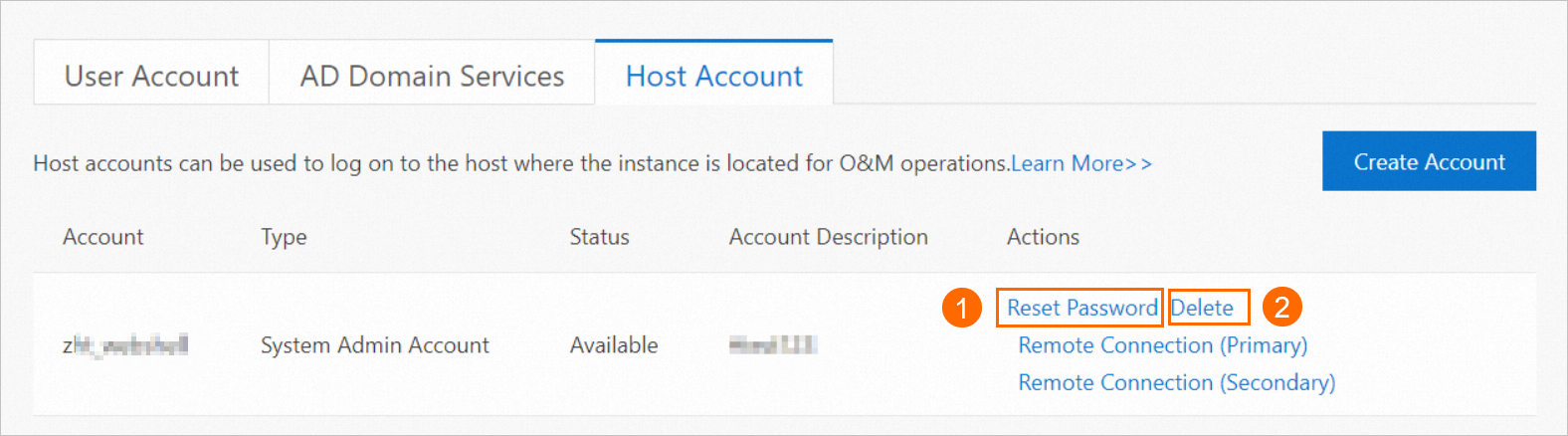
(Optional) Reset the password or delete the host account.
In the Actions column, click Reset Password or Delete to manage the account.
Step 2: Log in to the SQL Server host
Go to the Instances page. In the top navigation bar, select the region in which the RDS instance resides. Then, find the RDS instance and click the ID of the instance.
In the left-side navigation pane, click Accounts.
Click the Host Account tab. Find the target account and click Remote Connection (Primary) in the Actions column.
In the Remote Connection dialog box, enter the host account password.
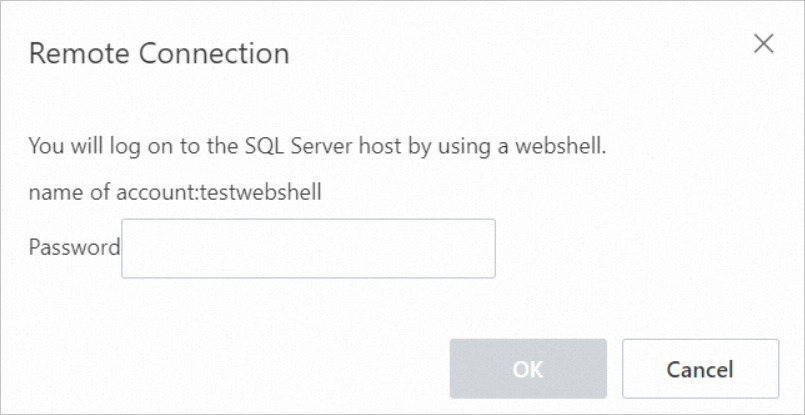
Click OK.
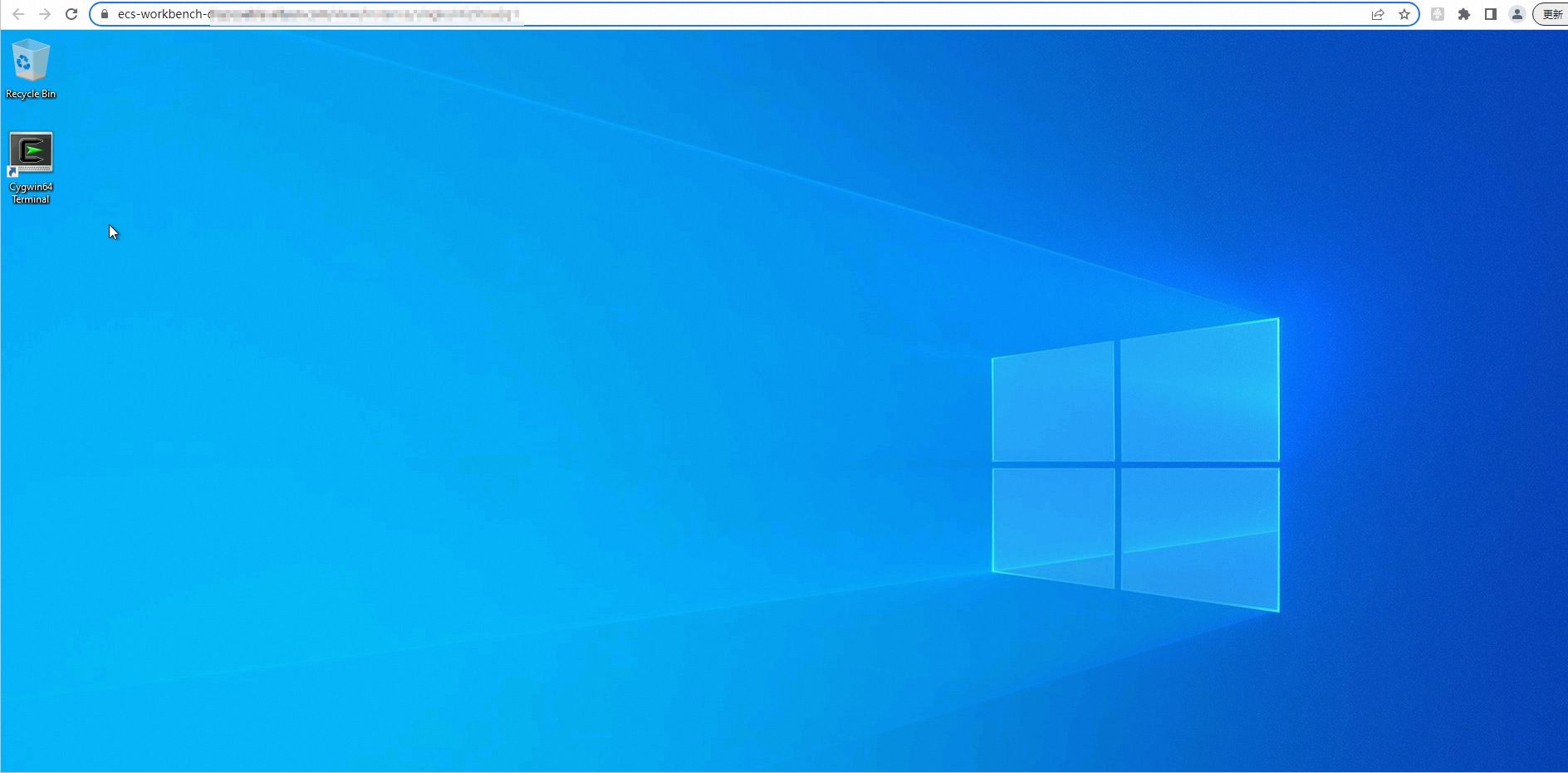
The system generates a WebShell login URL and automatically logs you in to the instance host. A new WebShell page opens in a pop-up window. Your browser may block the pop-up window. If this occurs, configure your browser to allow pop-ups to ensure the page displays correctly. The page appears as follows:
FAQ
When you remotely connect by using an RDS host account and receive the error messageThe specified host information does not exist., what should you do?
Hostname and WebShell URL
Related operations
Call the DescribeHostWebShell API operation to query the WebShell login information for an RDS SQL Server instance.
Call the DescribeDBInstanceIpHostname API operation to query the IpHostnameInfos for the underlying ECS instance of an RDS SQL Server instance.