After you create a Q Report, the report editing page appears. On this page, you can use the AI assistant to generate an analysis outline, ask XiaoQ questions, obtain smart insights, and create text visualizations. You can also add charts to the report and configure its style. After a report is generated with a single click, you can edit the document by adjusting the content and format. This lets you combine AI-generated output with manual refinements for practical use. This topic describes the main features of the report editor.
Prerequisites
You have created a Q Report.
Features
Document editing
After you create a Q Report, you can adjust the content and format of the document as needed. For example, you can change the font size, color, and display style, or work with content from referenced resources.
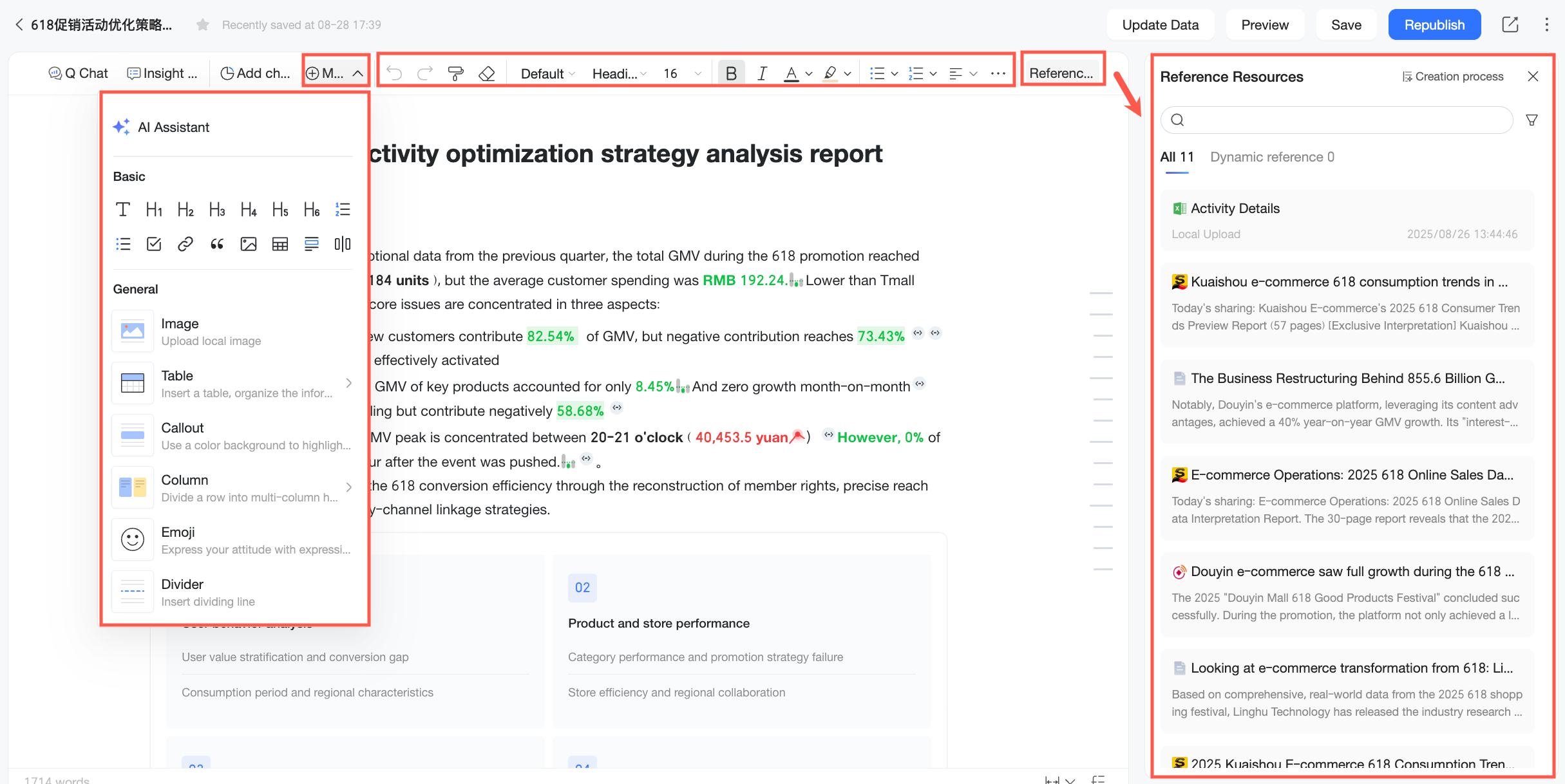
For more information, see Document editing.
AI assistant
Q Reports support AI capabilities such as XiaoQ Ask and Smart Insights. You can use the AI assistant to generate analysis outlines, ask XiaoQ questions, obtain smart insights, and create text visualizations directly in your report.
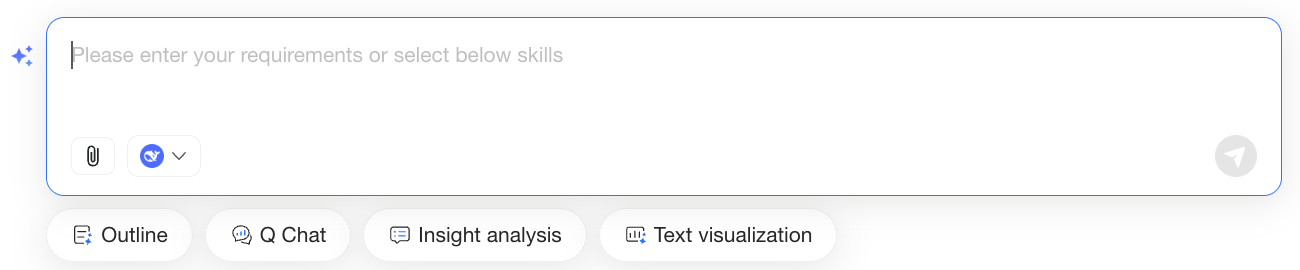
For more information, see AI assistant in reports.
Chart insertion
You can add charts from a dashboard to your Q Report. Inserting existing dashboard chart components directly into the report reduces redundant work and unifies data presentation for easier viewing and analysis.
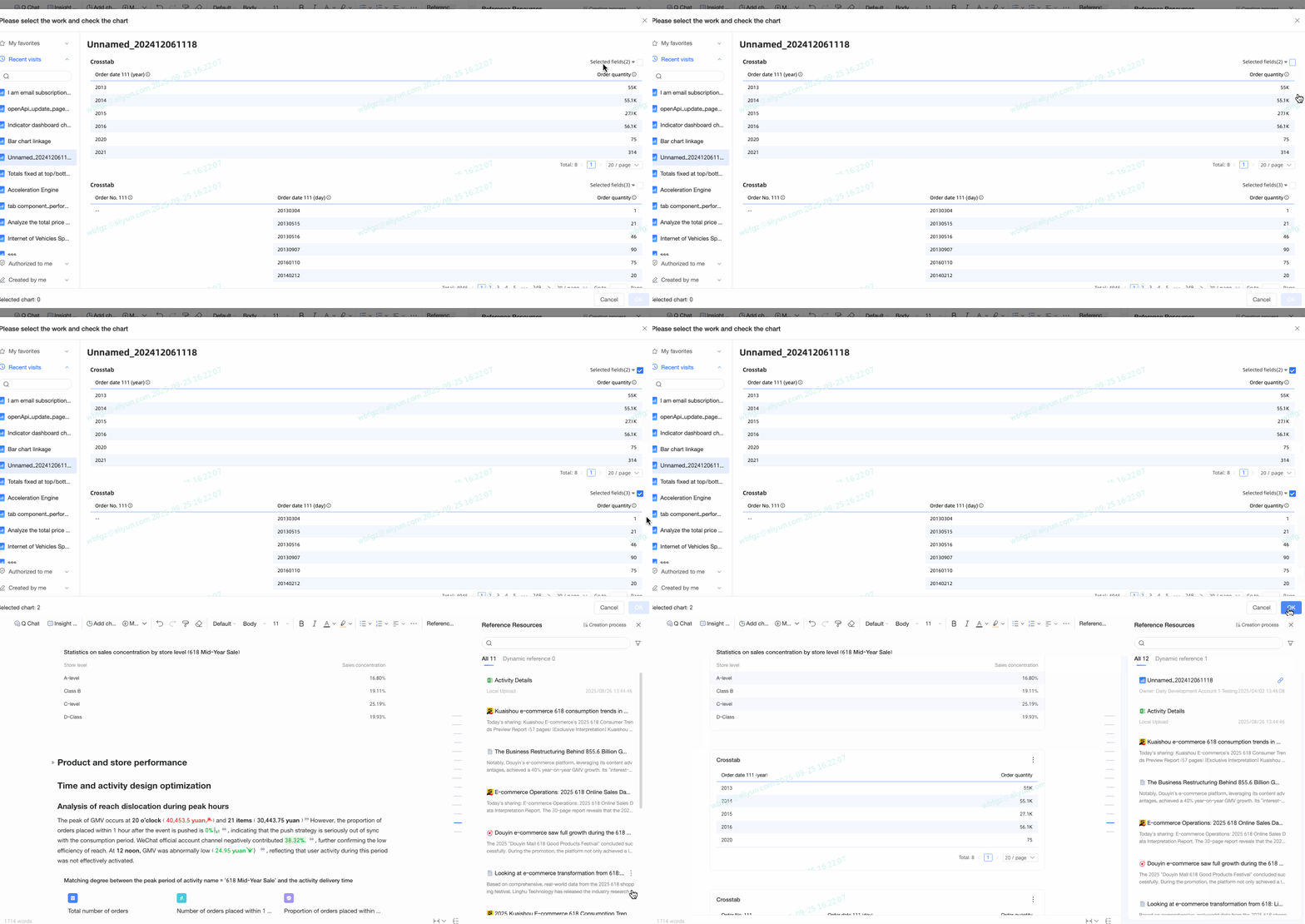
For more information, see Add dashboard charts.
Style configuration
After you edit the report content, you can configure the overall page style and text formatting to enhance its appearance.
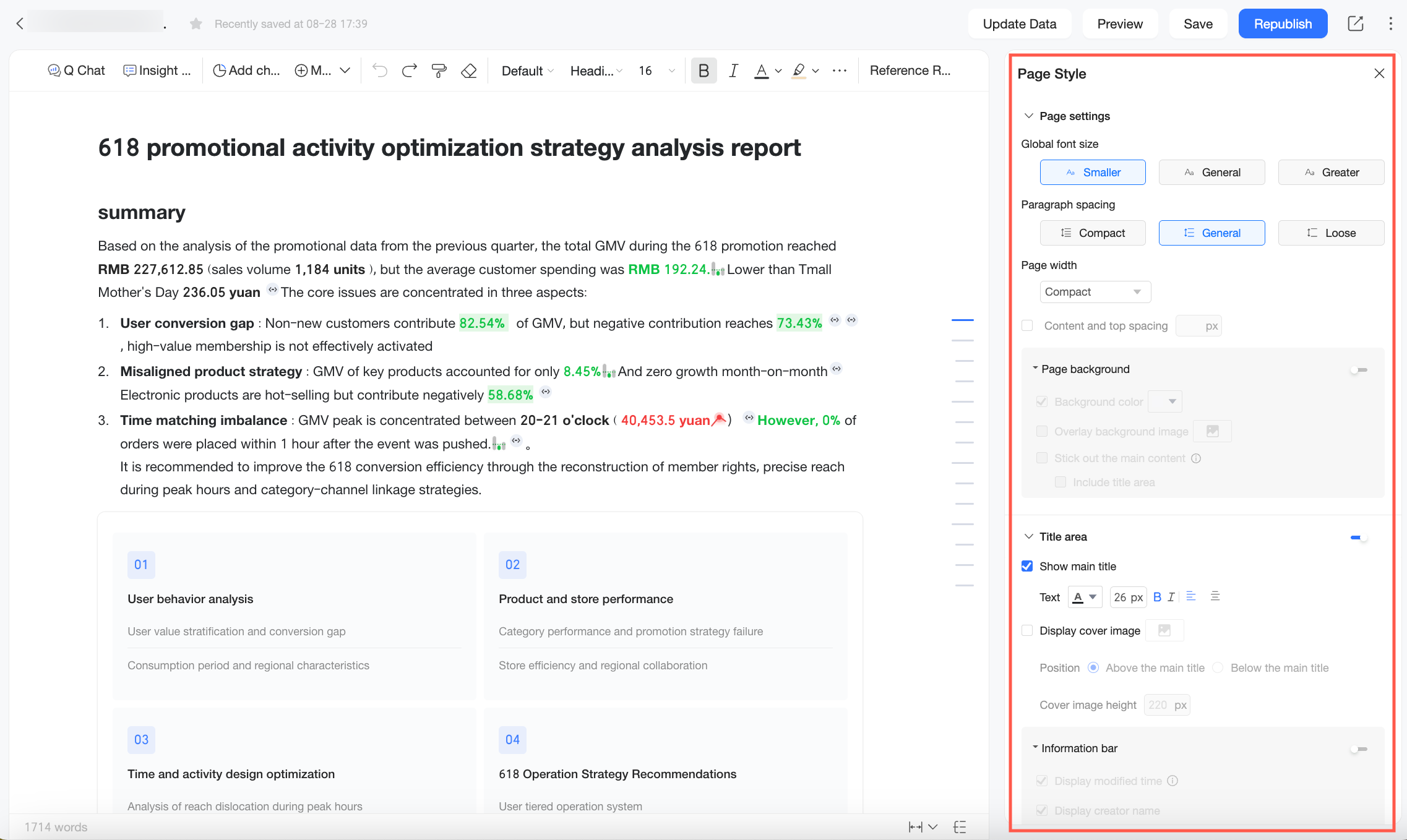
For more information, see Style configuration.
What to do next
After you edit your report, you can share it with others, set permissions, and manage existing reports. For more information, see Q Report management.