Q-Reporting combines intelligent data analysis with document editing, allowing you to create data reports by using intelligent generation or by starting with a blank report. This topic describes how to create a data report.
Entry Points
Log on to the Quick BI console. In the top navigation bar, click Intelligent Q to open the Intelligent Q feature page. Then, select an entry point based on how you want to create your report.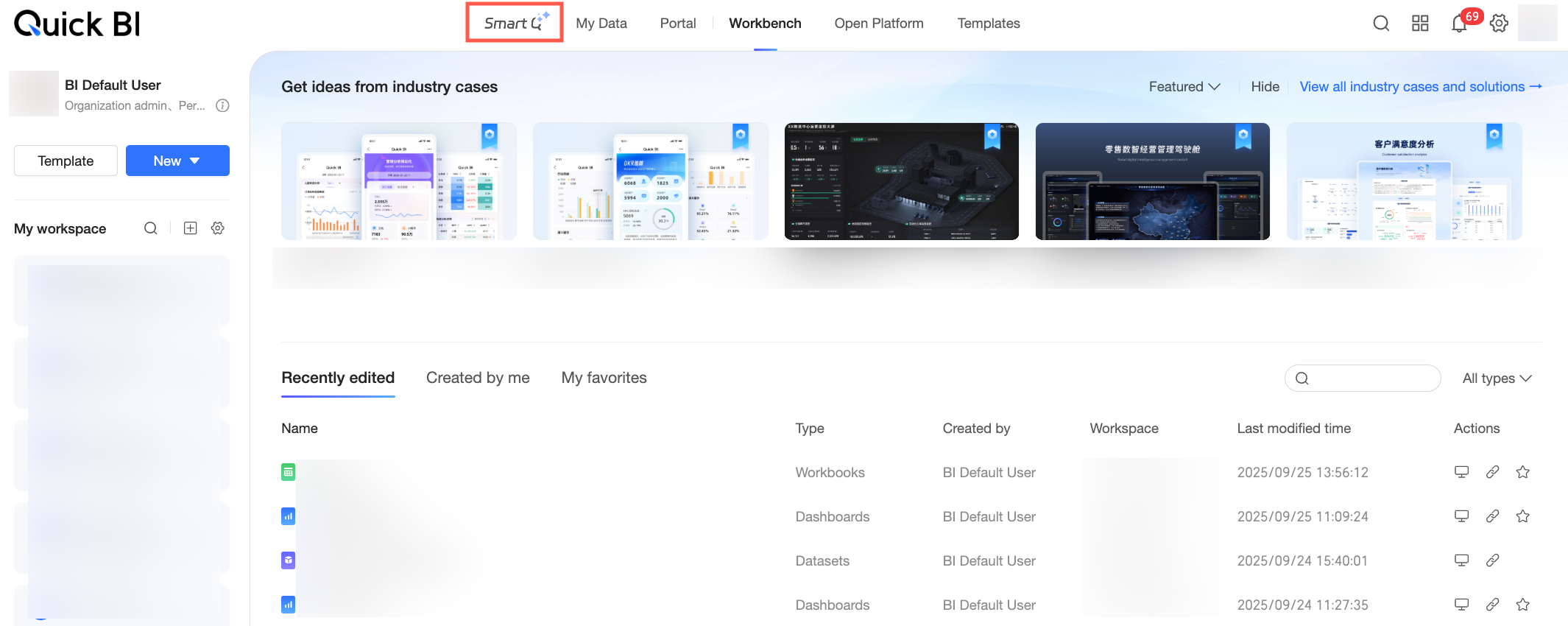
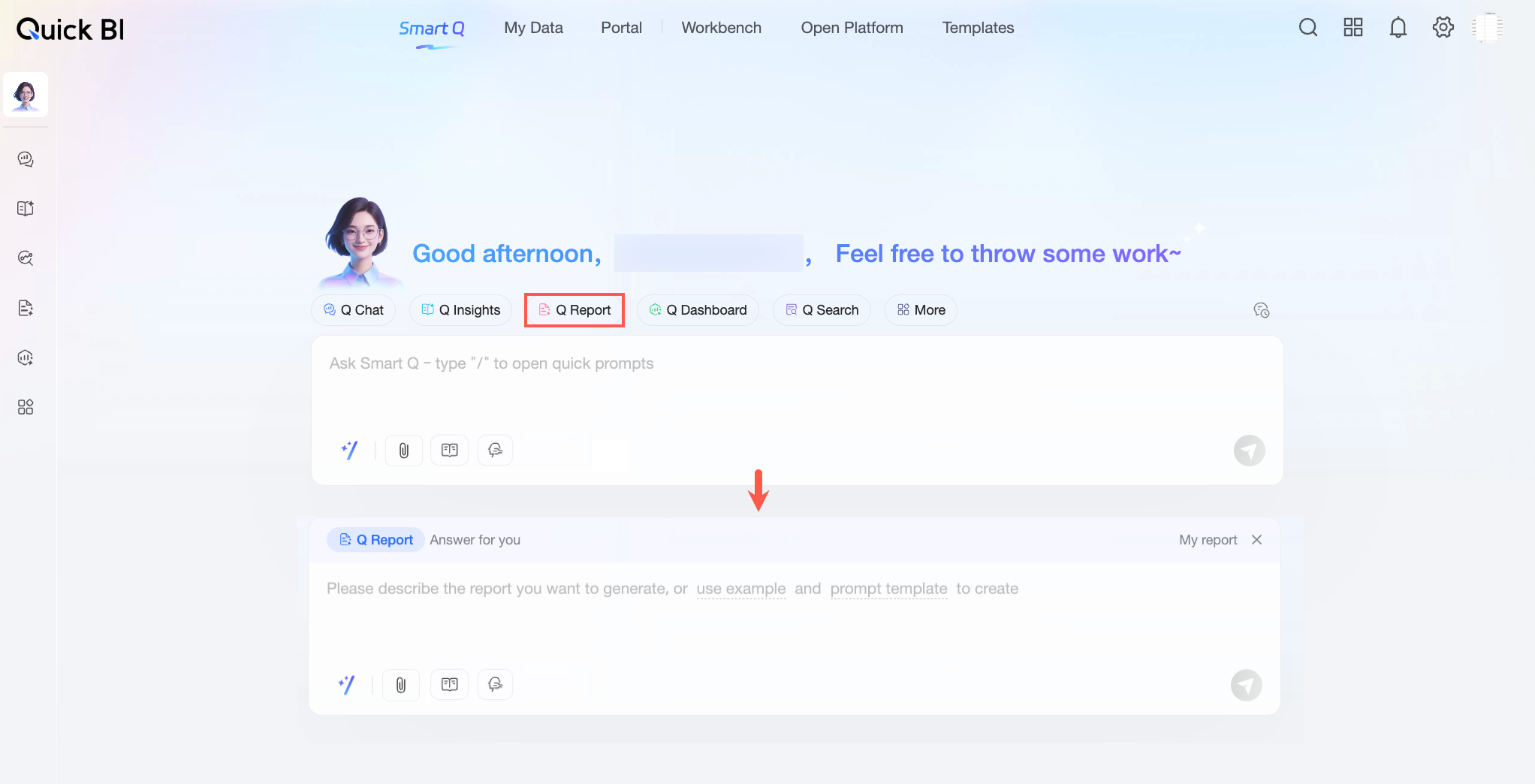
Intelligent report creation: To generate a data report by using a prompt in natural language, use one of the following entry points.
Entry point 1: On the Intelligent Q page, click the Q-Reporting button above the chat box. The current chat box switches to Q-Reporting mode.
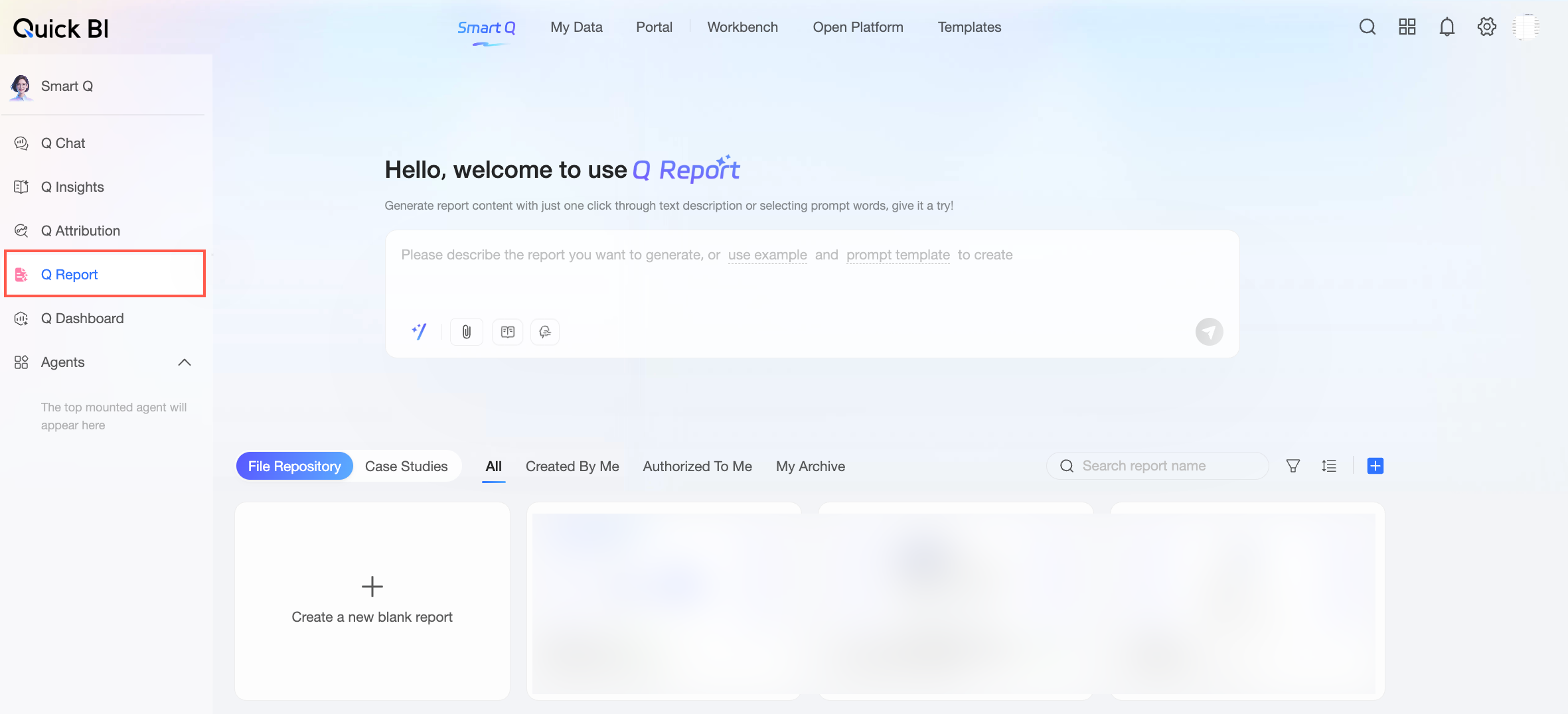
Entry point 2: On the Intelligent Q page, hover over the left-side menu bar to open the navigation panel. Then, click Q-Reporting to open the Q-Reporting feature page.
Blank report creation: To create a data report from scratch, use one of the following entry points on the Intelligent Q > Q-Reporting page.
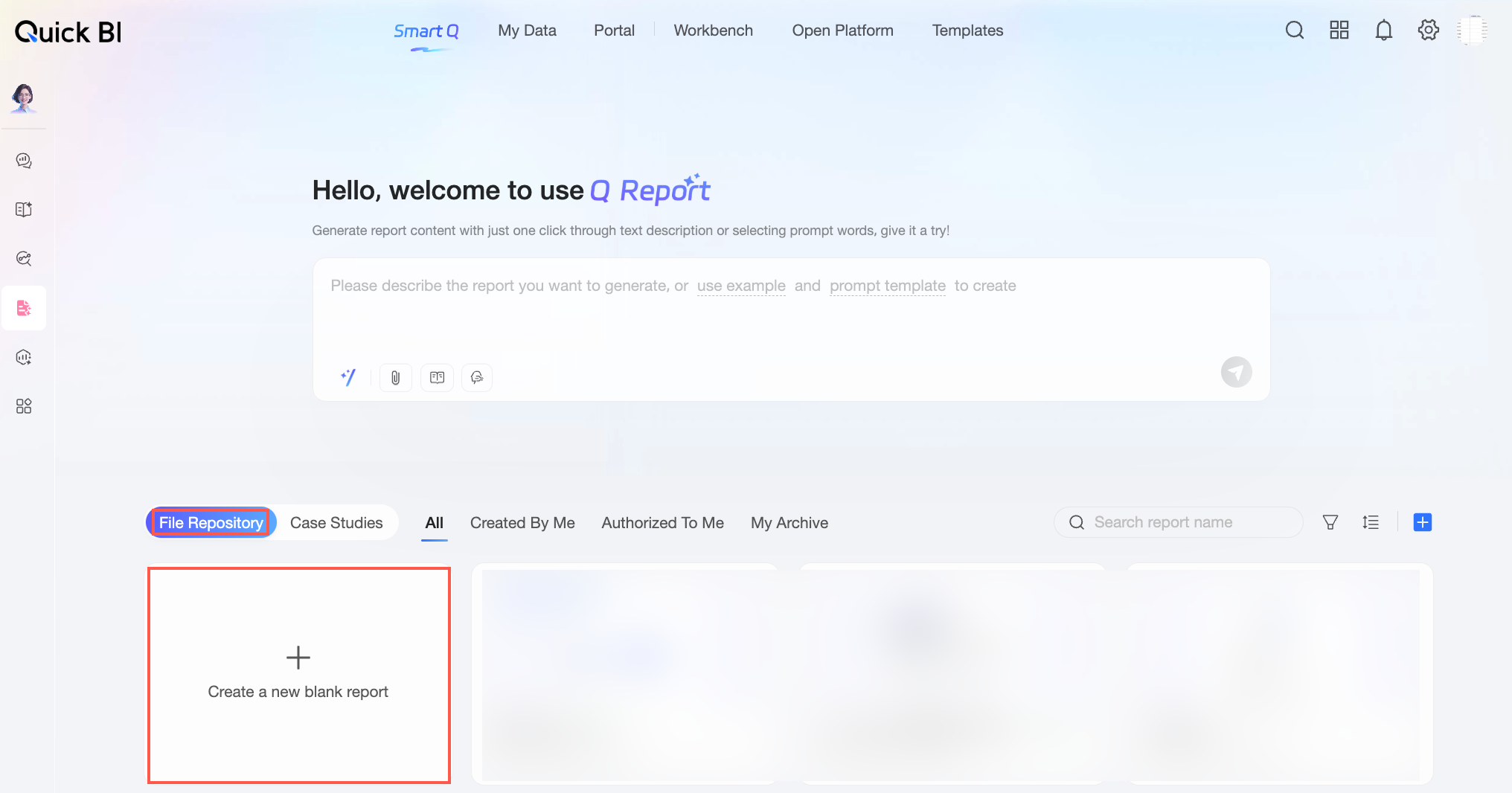
Entry point 1: For users new to creating reports, Quick BI provides sample cases based on real business scenarios. After you review the featured examples and understand the Q-Reporting feature, click New Blank Report to create your own report.
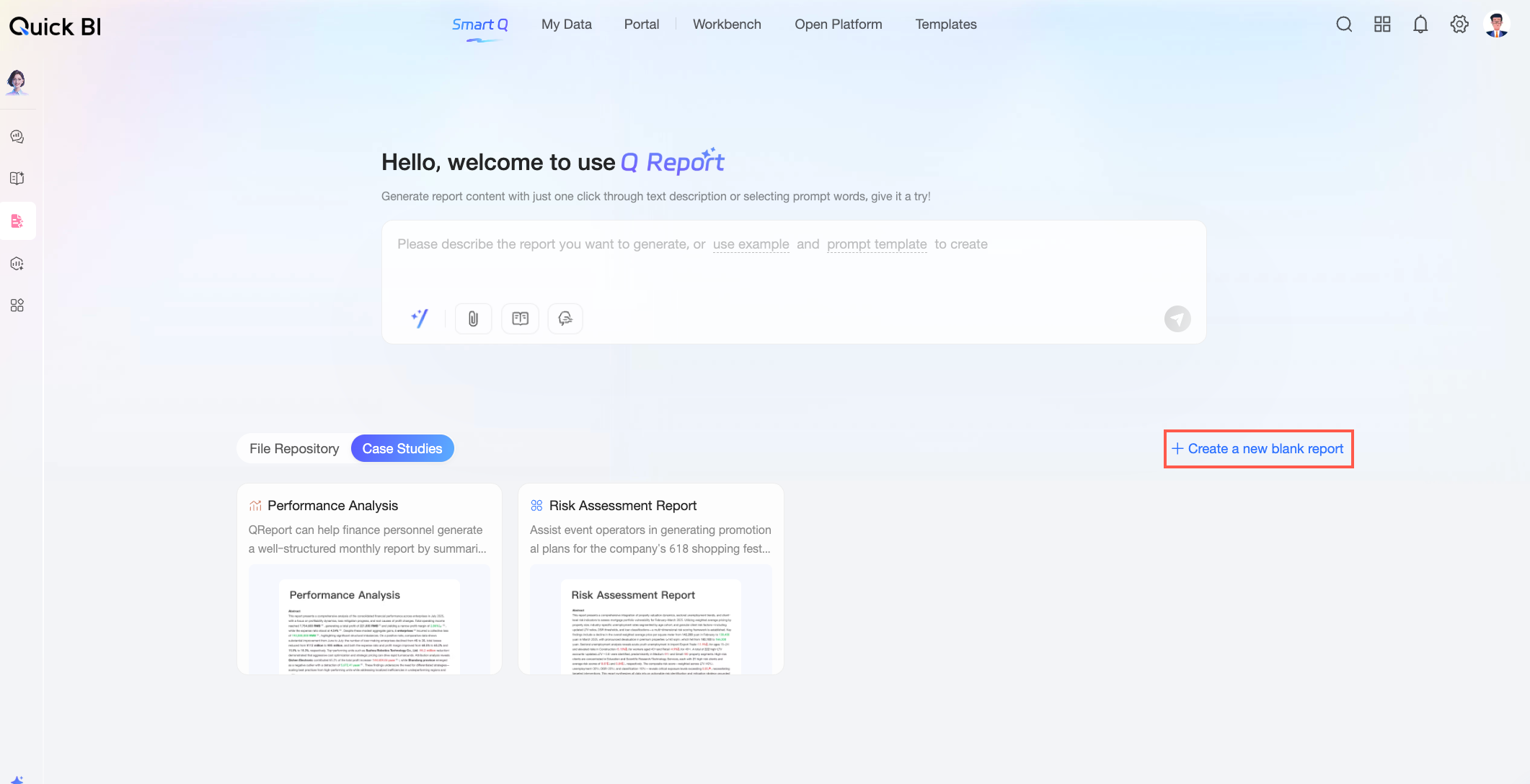
Entry point 2: For users who have created reports, go to the Existing Reports tab and click New Blank Report.
Featured Examples
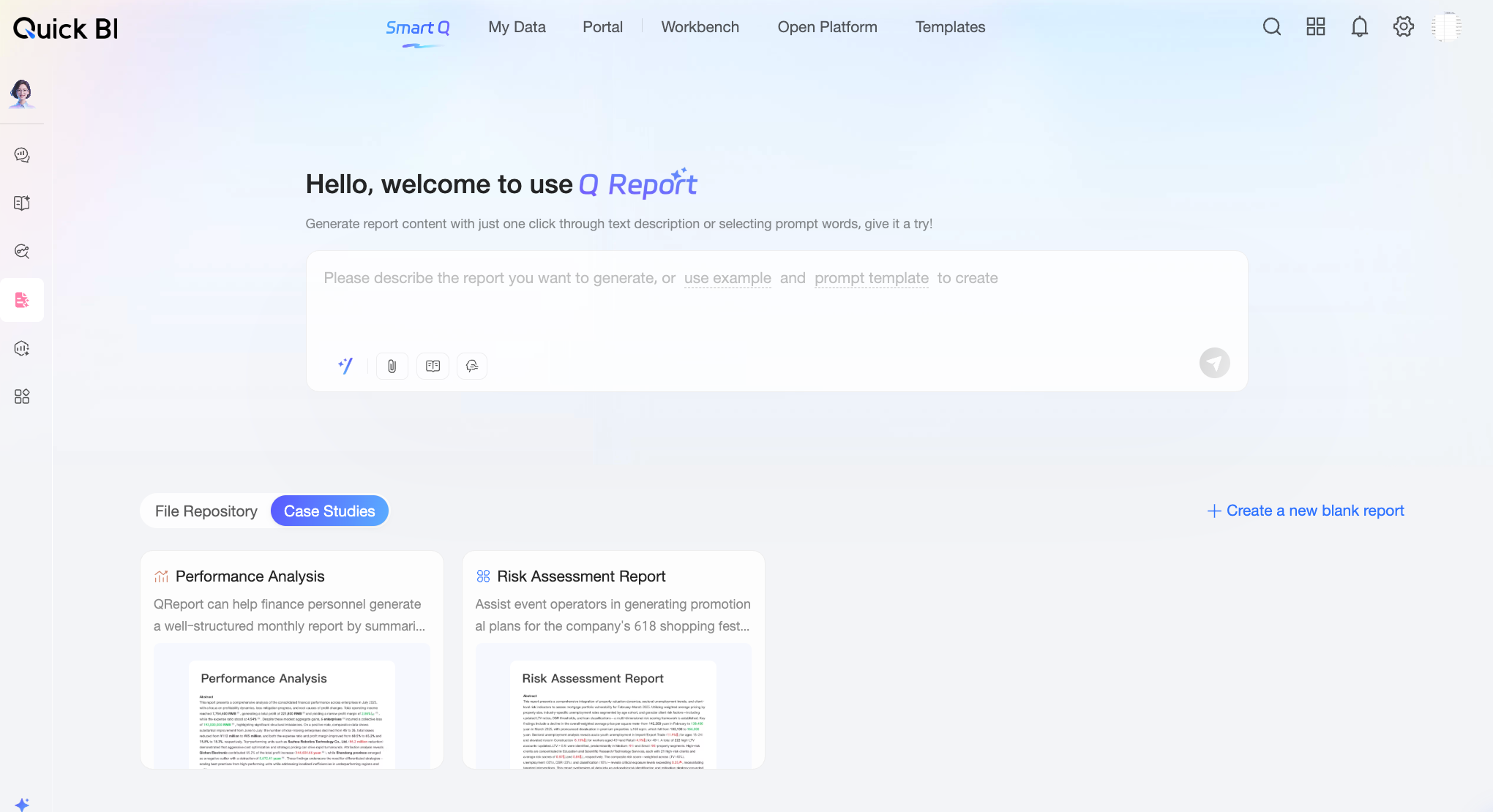
Before you start creating a Q-Reporting report, you can browse the examples in the Featured examples section. These examples, based on real business scenarios, provide an intuitive way to understand how Q-Reporting works and the results it produces. This helps you get started quickly and efficiently. Whether you are new to Q-Reporting or looking for inspiration to optimize your existing reports, the featured examples can help you better understand the feature's capabilities and spark new ideas.
Procedure
Choose a report creation method based on your needs.
Method 1: Intelligently Generate a Report
Use cases:
Processing large volumes of data: When you need to create a report from large amounts of data scattered across different sources, traditional methods require manual data discovery, analysis, and organization. Q-Reporting automates data retrieval and intelligent analysis based on your instructions, generating a structured data report with a single click.
In-depth domain analysis: When you need deep insights into enterprise data for a specific domain, such as finance and business, traditional analysis often falls short. It may only list data without business context, struggle to identify root causes, and fail to provide effective predictions. Q-Reporting can evaluate current business performance, predict future trends, identify potential risks, and suggest response strategies.
Rapid decision support: When management needs a quick overview of business conditions or project progress to make strategic decisions, or when business staff need to monitor risks in a timely manner, traditional reports that rely on manual summarization can be slow and outdated. Q-Reporting can rapidly generate reports from project data and automatically summarize key risks, providing timely support for decision-making.
Follow these steps:
In the instruction dialog box, configure the following information.

Input content
Usage recommendations
Try an example
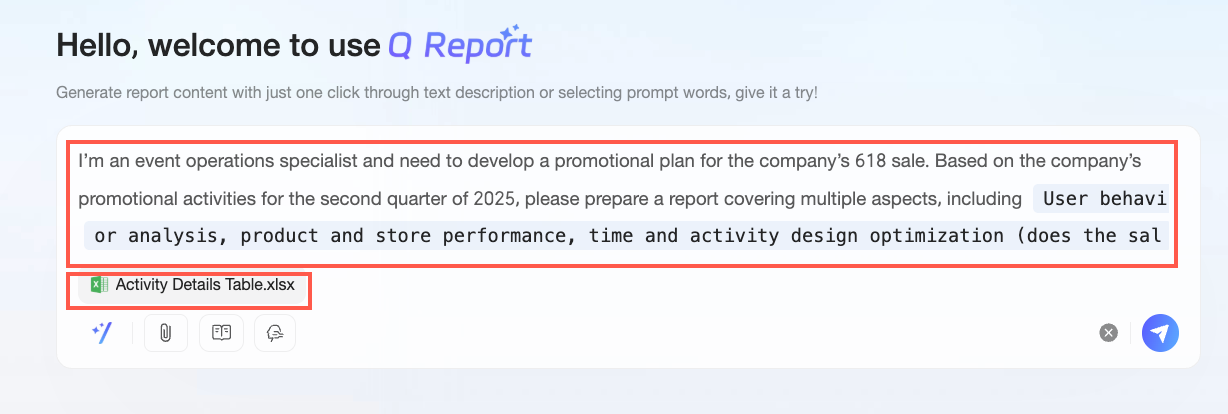
To quickly get started with Q-Reporting by using existing data, click Try an example in the dialog box to generate a report with one click.
This action uses the 618 Promotion Optimization Analysis Report as a sample topic and automatically populates the prompt and reference materials fields.
Prompt
Template input
Quick BI provides built-in prompt templates for various scenarios, such as business analysis and weekly or monthly reports, to help you quickly input instructions. You can also review multiple prompt templates to create a custom prompt that fits your business scenario and analysis needs.
In the dialog box, click Prompt Template, or click the
 icon to open and select a prompt template.
After you apply a template, replace the keywords based on your business context to ensure the generated execution plan meets your requirements. For example, in a business analysis template, you might change the time keyword to 2020 and add cost and profit analysis.
NoteYou can modify all content in the prompt template, not just the text in the blue boxes.
Custom input
If the built-in prompt templates do not fit your scenario, write your own. For best results, include the following information in your prompt to ensure professional content:
① Your role, for example, analyst or operations specialist.
② The analysis scenario and requirements, for example, analyzing this month's business data to support business and financial decisions.
③ The report type, for example, a monthly report or business analysis.
④ The desired report sections, for example, key metrics overview, root cause analysis, and improvement proposals.
⑤ Report requirements, for example, providing actionable guidance and an executable, trackable plan.
Reference materials
Click the
 icon to upload reference materials. Supported types include:
Dataset: You can select up to three successfully trained datasets that you have permission to use.
Dashboard: You can select a dashboard or a chart component within a dashboard as a data source for the report.
Local file: You can upload Word, Excel, CSV, and PDF files. Each file must be 10 MB or smaller. You can upload up to five files.
NoteWhen uploading a dataset, ensure that it meets the following two requirements. Otherwise, you cannot select the dataset in the Select Dataset dialog box.
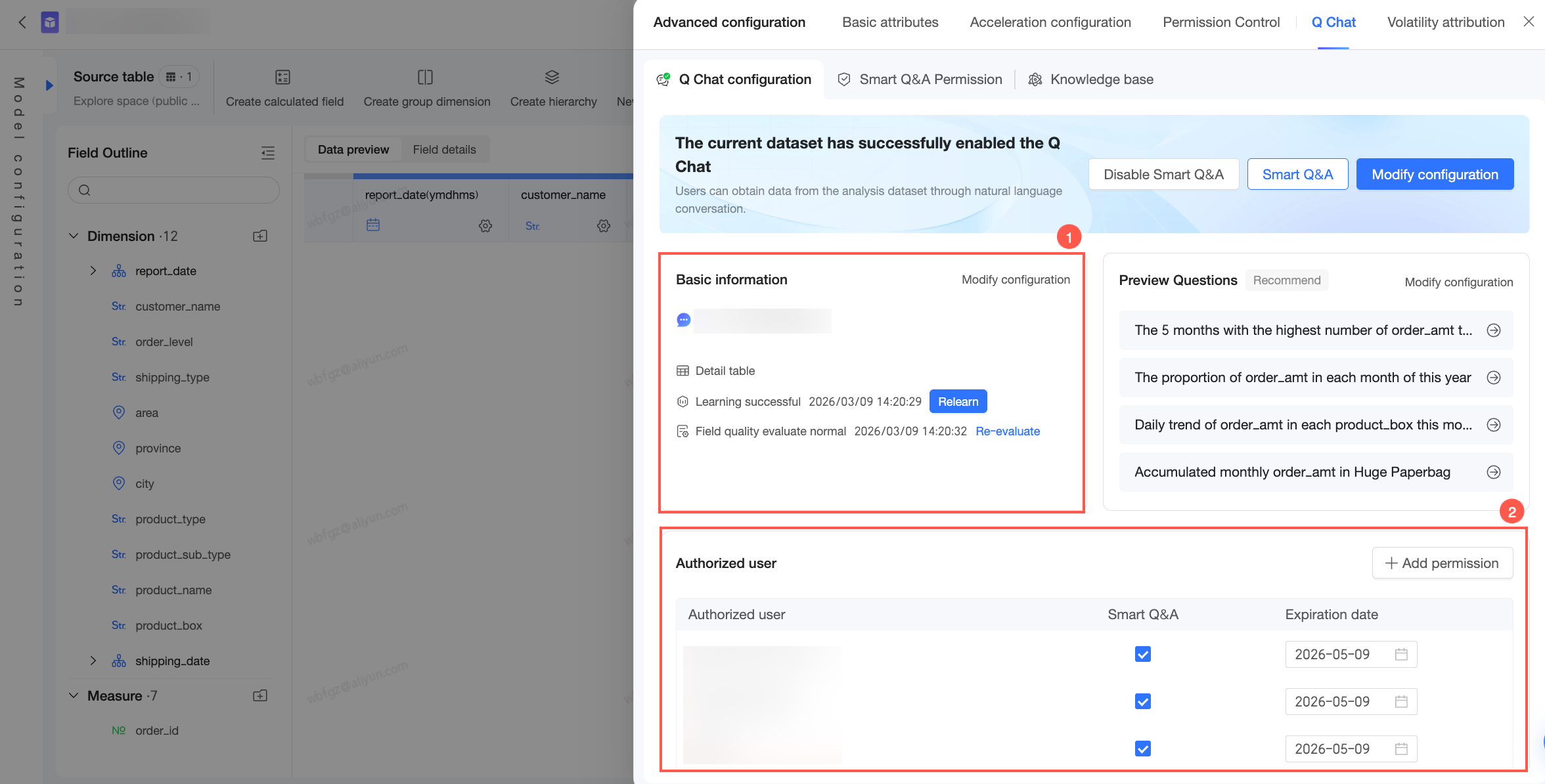
① The dataset has been trained in the Data Query configuration. For more information, see Data Query configuration.
② You have been granted Data Query permissions for the dataset. For more information, see Data Query permission configuration.
You can upload different types of reference materials at the same time. For example, you can add a business dataset as the main analysis data and upload a Word file as supplementary material for business logic.
If you add a dashboard as reference material and apply data filters to the selected chart components, the report is generated from the filtered data. For example, if you filter a sales details table for 2025 to show only data from January to June for a first-half sales analysis, the report is based on the first-half sales data.
For Excel files, a maximum of 10 sheets are supported. Data from sheets beyond the first 10 is ignored.
To ensure the system can better learn from your materials, consider the following recommendations:
In Excel, store business data, such as activity details or sales figures, in structured tables. This helps the system better recognize and retrieve data.
In Word, store business logic and calculation formulas, such as marketing campaign formulas or business analysis logic. This helps the system learn your business logic and generate more relevant reports.
Enable enterprise knowledge base search
Select whether to enable enterprise knowledge base search. If enabled, you can specify which knowledge base to associate with the report.
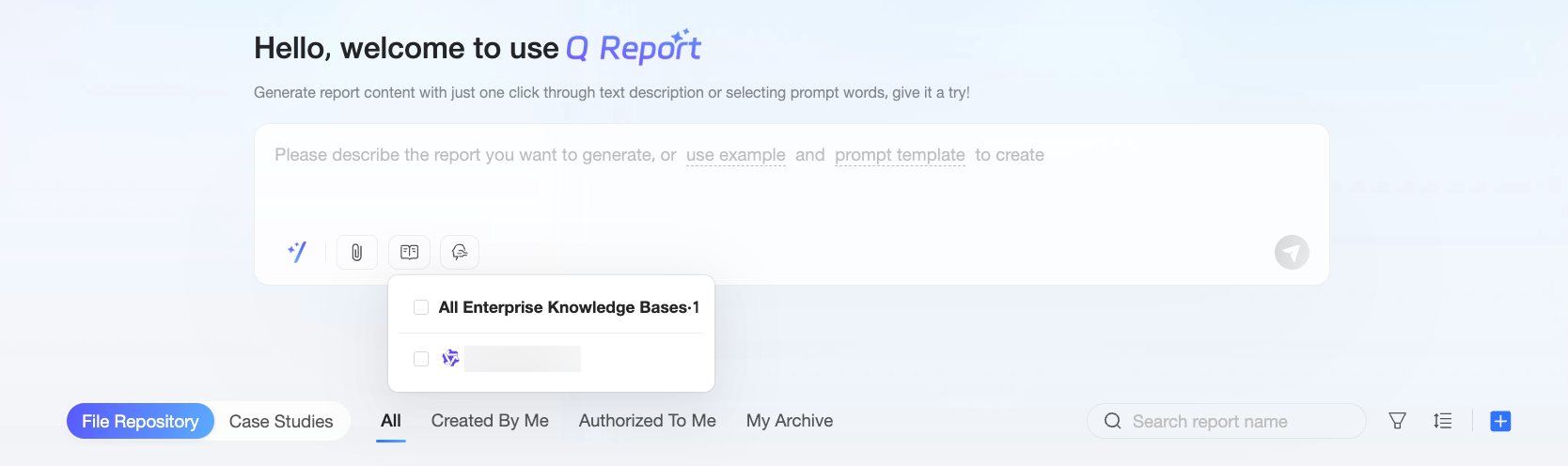
When this option is enabled, the large model can use the business information from the associated knowledge base to generate reports that better align with your company's context and logic.
NoteA knowledge base appears in the selection list only if an organization administrator has configured and enabled it in Organization Management. For more information about how to configure a knowledge base, see Knowledge Base Management.
Analysis logic
Select whether to specify an analysis logic.
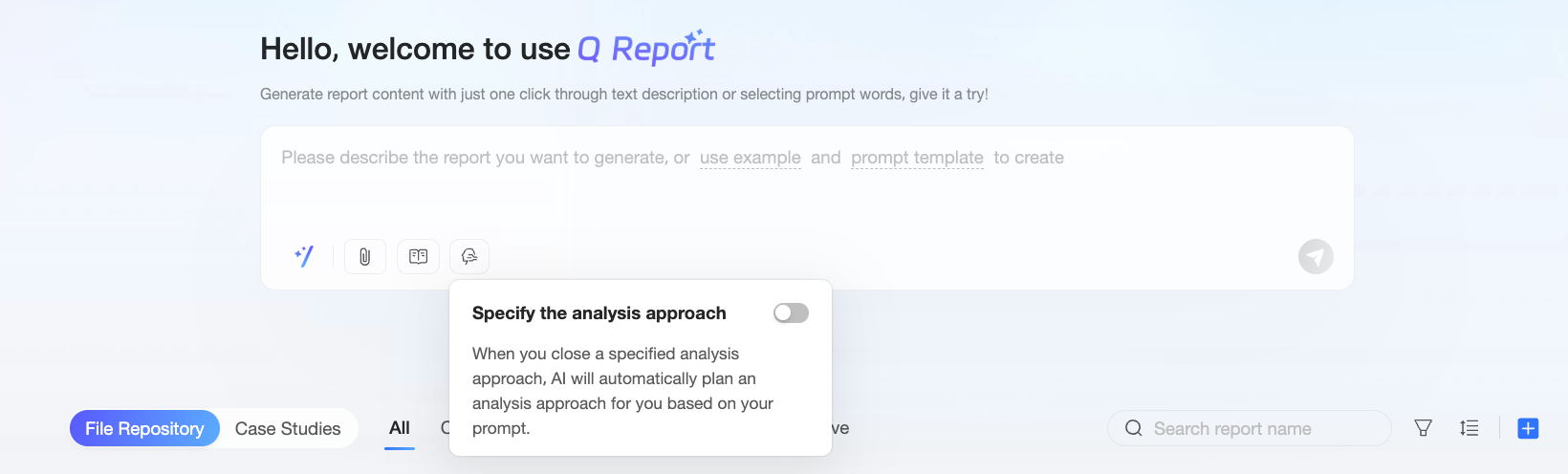
If you enable this option, you can select an analysis logic or a content template from the drop-down list.
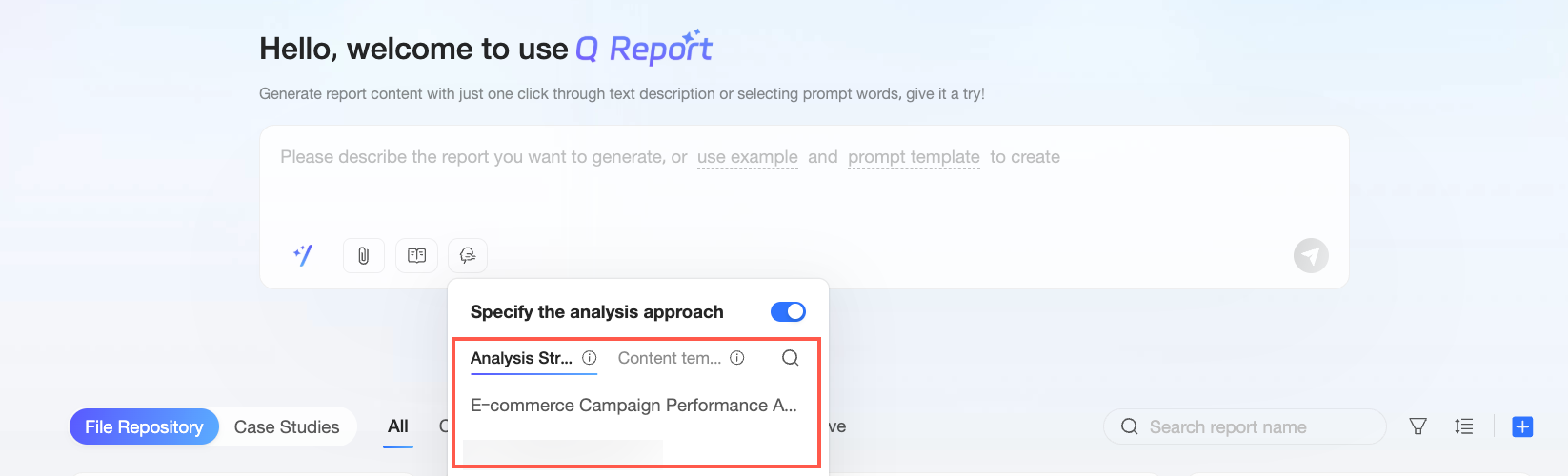
Analysis logic: Specify only the analysis logic. By configuring an analysis logic, you can guide the system to generate report content that aligns with your company's analysis approach, avoiding generic results that are disconnected from your business.
In this case, the large model generates the report's structure. If you have specific requirements for the presentation layer, switch to the content template tab and select a template, or define the structure by using a prompt or uploading an attachment.
Content template: Specify both the analysis logic and the output structure. By using a content template, you can preset your company's standard report framework in the system and ensure that the report's analysis logic meets your expectations.
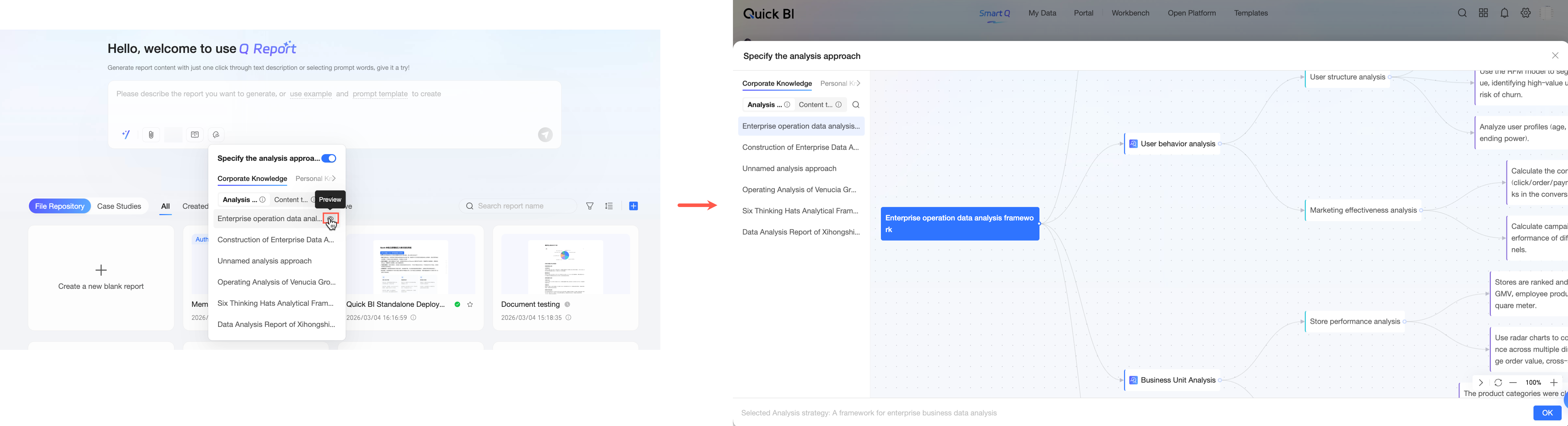
Click the
 icon next to an analysis logic or content template to preview its details in the Specify Analysis Logic dialog box.
 Note
NoteIf you do not specify an analysis logic, the large model plans the analysis logic automatically based on your prompt.
An analysis logic or content template appears in the selection list only if an organization administrator has configured and enabled it in Organization Management. For more information about how to configure an analysis logic or content template, see Knowledge Base Management.
Click the
 icon in the lower-right corner of the dialog box to send the instruction. The system automatically switches to the execution plan generation page. Wait for the plan to be generated. If you no longer need to generate an execution plan based on the current instruction, click the
  icon to stop the process.Note
Q-Reporting supports running generation tasks in the background. For more information, see Asynchronous generation in this topic.
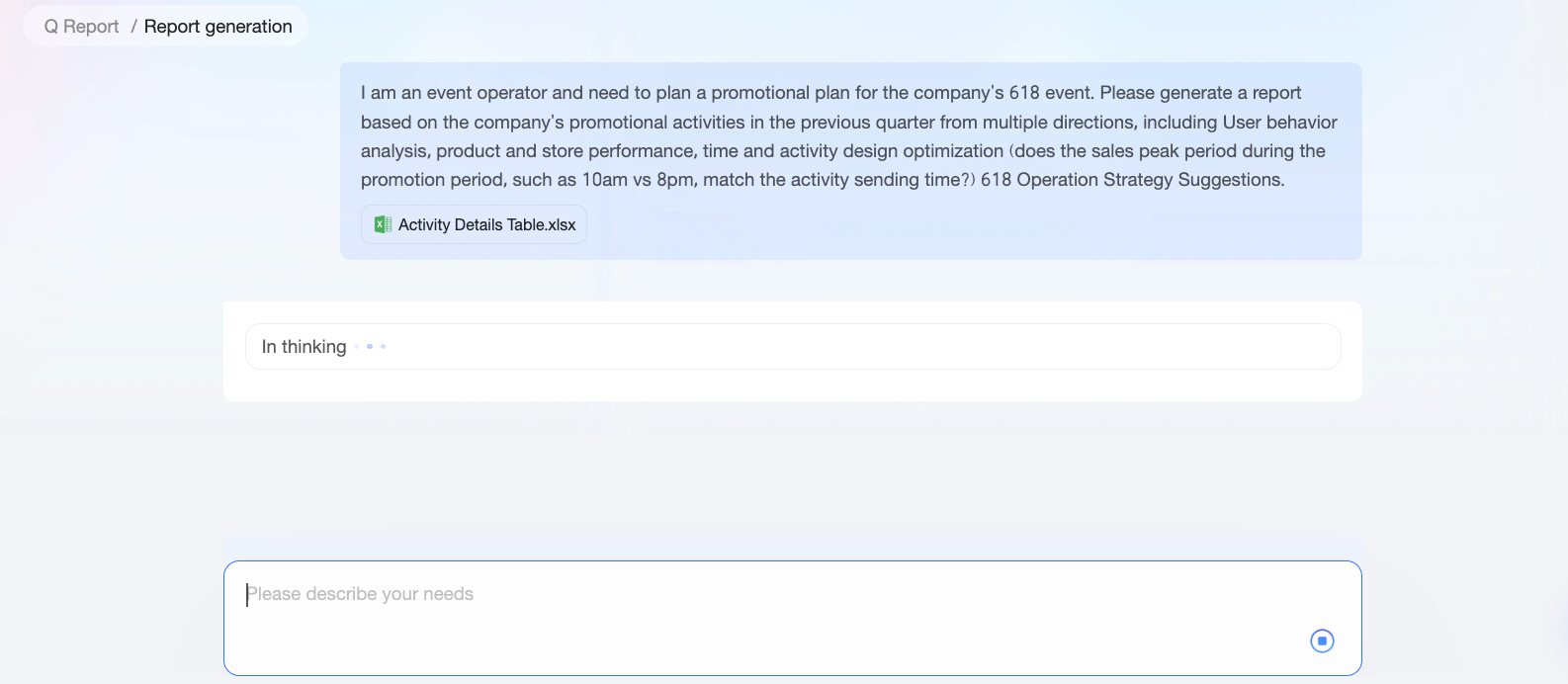
After the plan generates, it appears in sections on the page. You can perform the following actions:
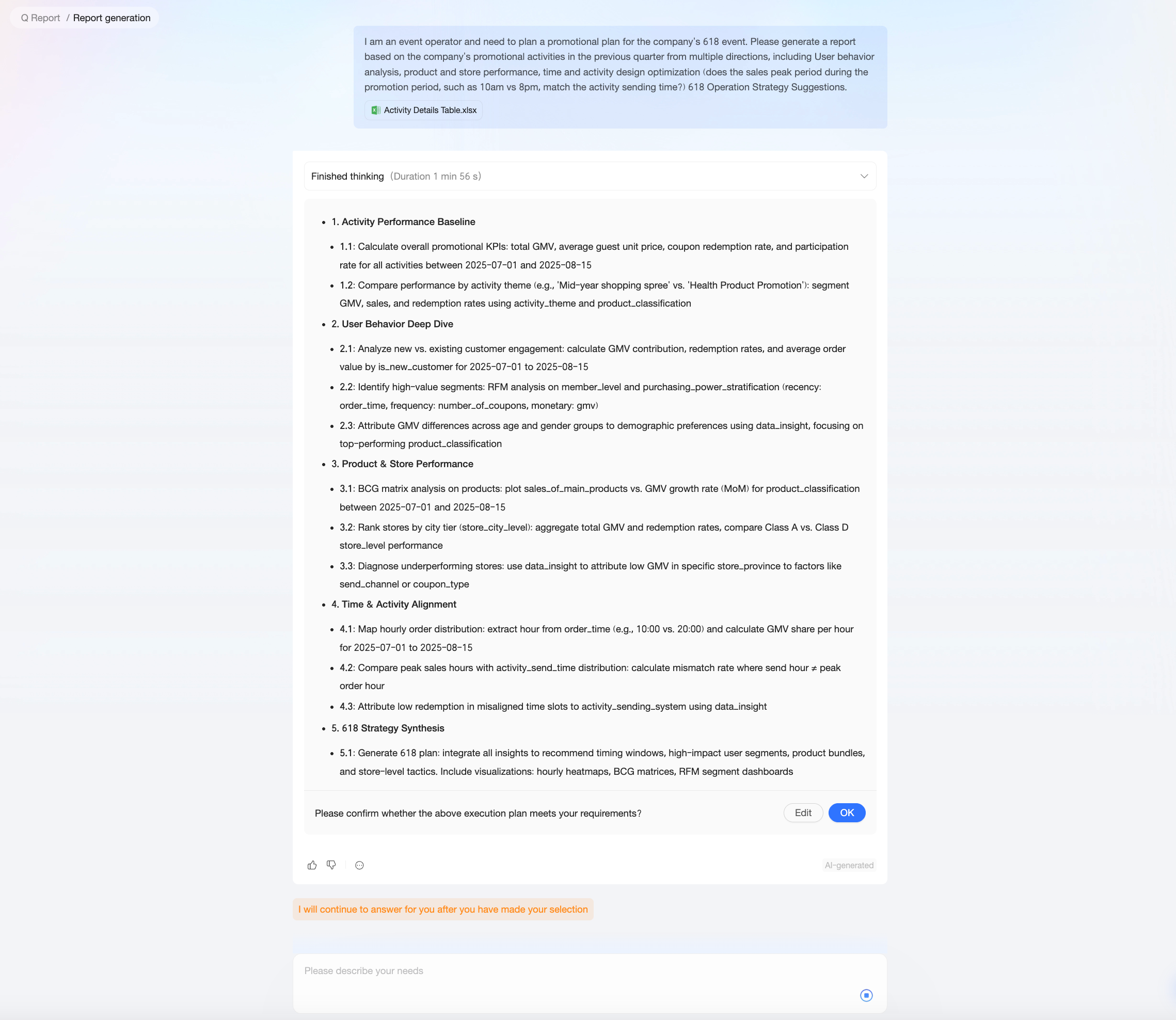
Click the
 icon next to Thinking completed to expand and view the large model's reasoning path. This helps you understand why the large model generated each part of the execution plan and identify its potential misunderstandings.
Click Modify to correct any unexpected results and optimize the execution plan. For example, you can delete unnecessary steps or merge several steps into one.
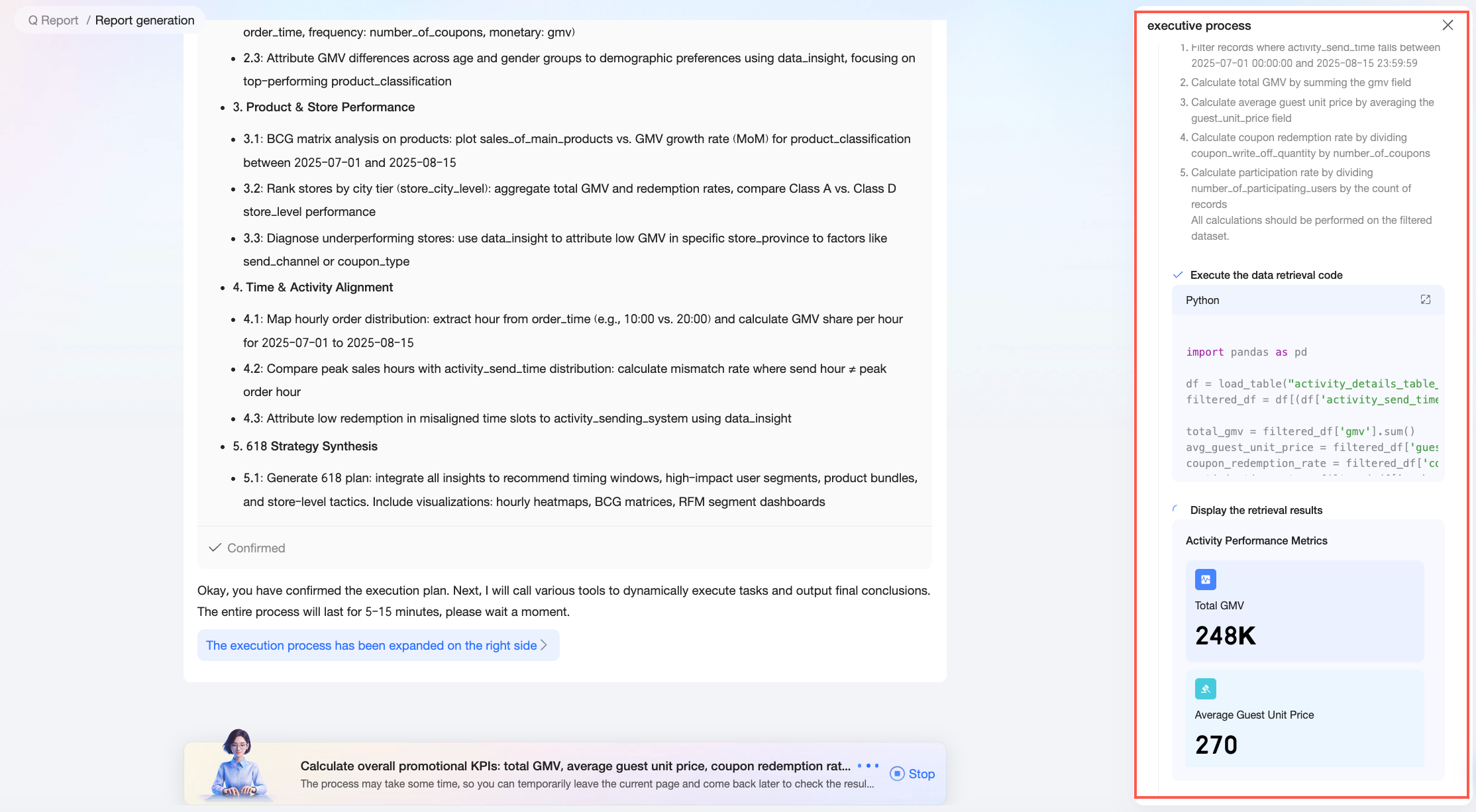
Click OK to confirm and execute the current plan. The system then automatically generates an intelligent data report based on the plan's steps and content.
During the plan's execution, you can view the progress and reasoning process on the right side of the page.
Generating reports can be time-consuming because the system needs to create an execution plan and infer content. To help you work more efficiently, Q-Reporting can run these generation tasks asynchronously in the background. If you accidentally close your browser or switch to other pages in Quick BI to perform other data analysis tasks, such as data processing or report building, the system continues to run the task in the background. You do not need to keep the generation page open.
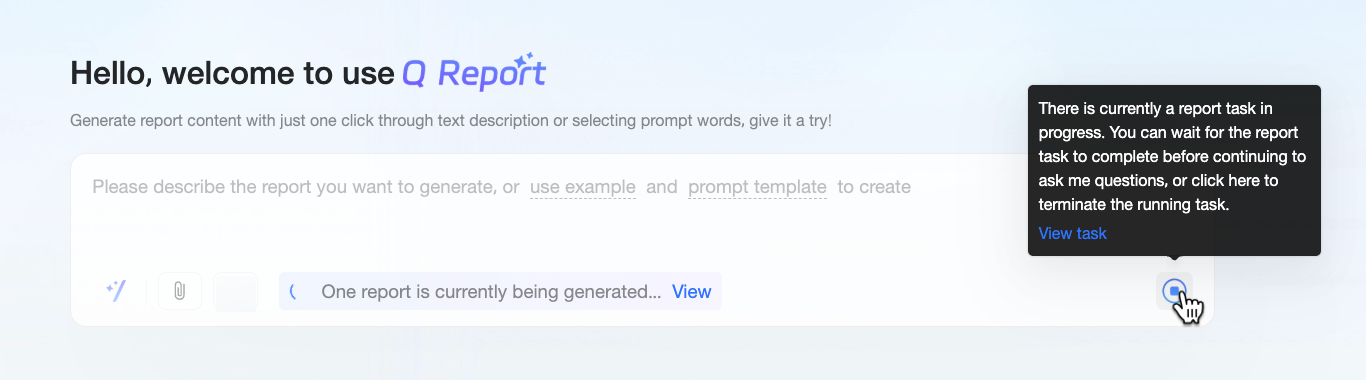
 You can check the execution status of the current generation task in the dialog box on the Q-Reporting page and perform the following operations as needed.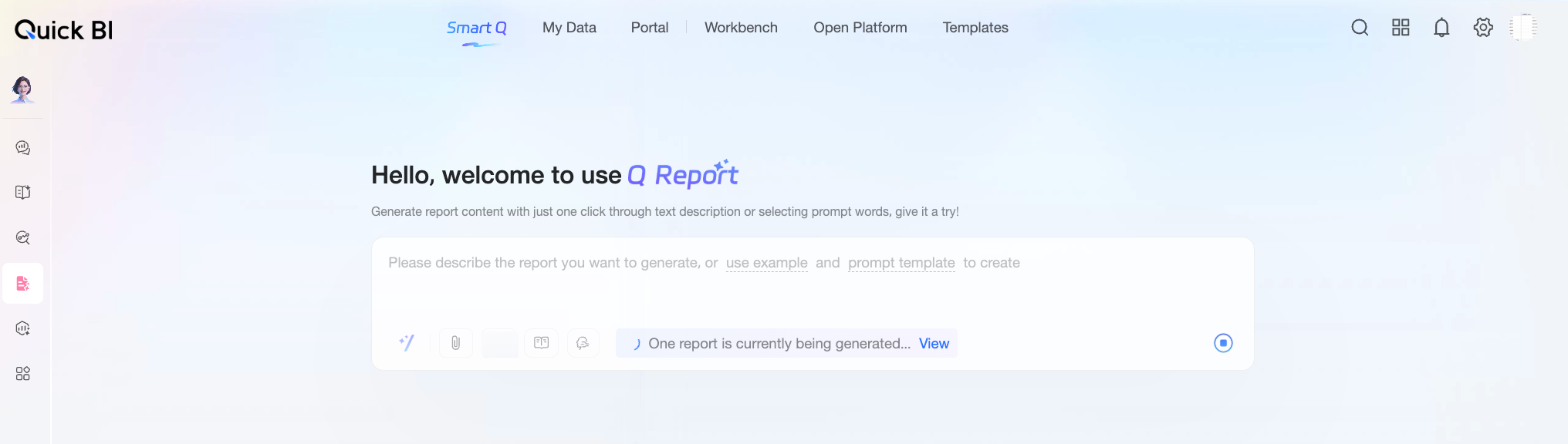
Execution status
Description
Available actions
Generating report

The system is generating the execution plan or report content.
View: Click View to go to the generation page and check the details.
Stop: If you no longer need the content, click the
icon to stop the task.
Report awaiting confirmation

The system has generated the initial execution plan.
View: Click View to go to the generation page to confirm or adjust the analysis logic.
Report generated

The system has successfully generated the report content.
View: Click View to go to the report preview page and see the details.
Report generation failed

The generation task failed, possibly due to a system error.
View: Click View to go to the generation page, check the reason for the failure, and choose to rerun or stop the task.
NoteCurrently, a single account cannot generate multiple reports at the same time. If a report generation task is already running for your account (including in the background), you cannot start a new one.
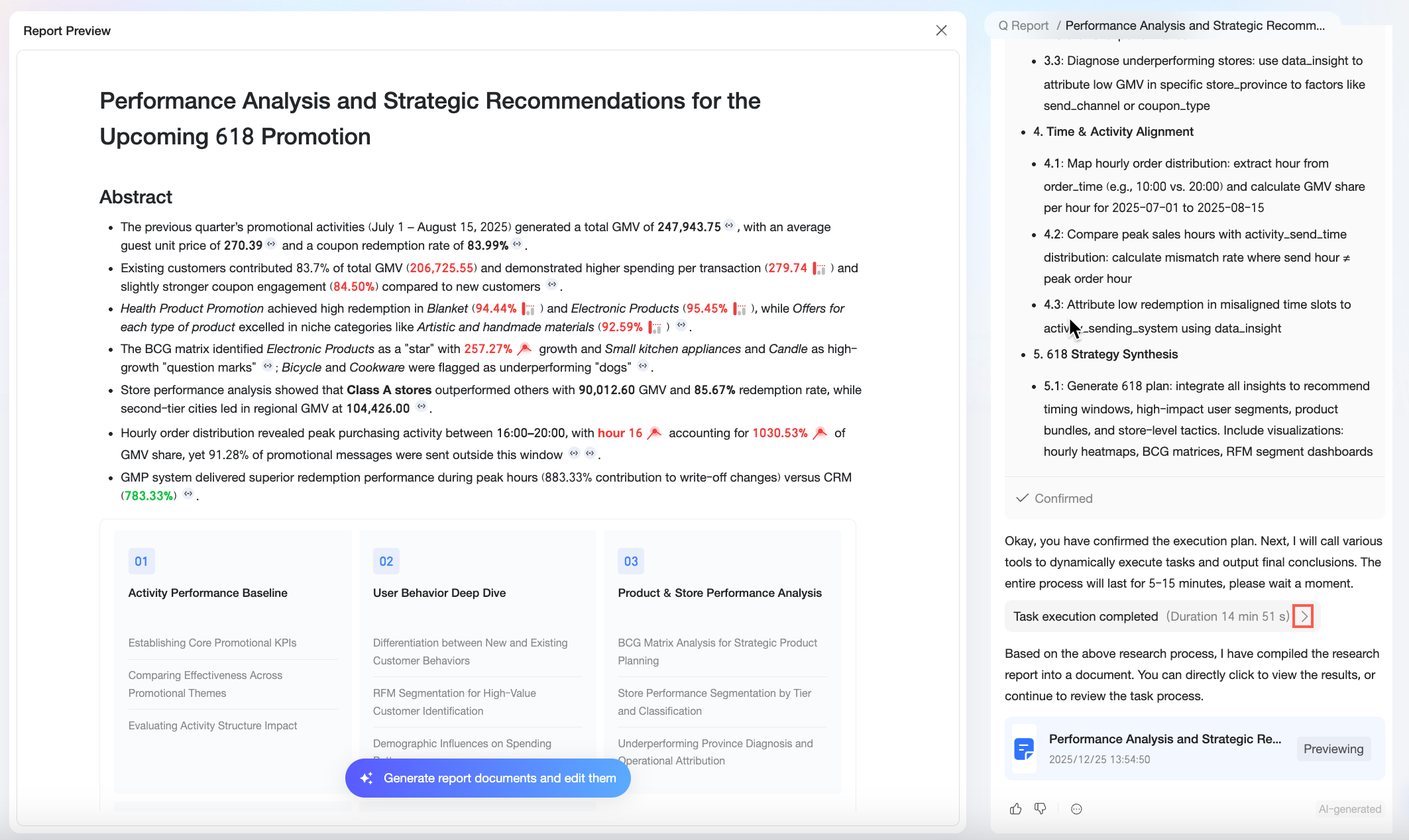
After the plan executes, the results automatically appear on the left side of the page. The execution process is collapsed into a panel on the right. To view the execution process alongside the results, click the
 icon next to Execution completed to expand it.
 If the report generation is completed while you are on another Quick BI page (such as Intelligent Q, My Dashboards, Enterprise Portal, Workbench, Open Platform, or Template Marketplace), a Report generated notification appears. Click Open Report to go directly to the report preview page.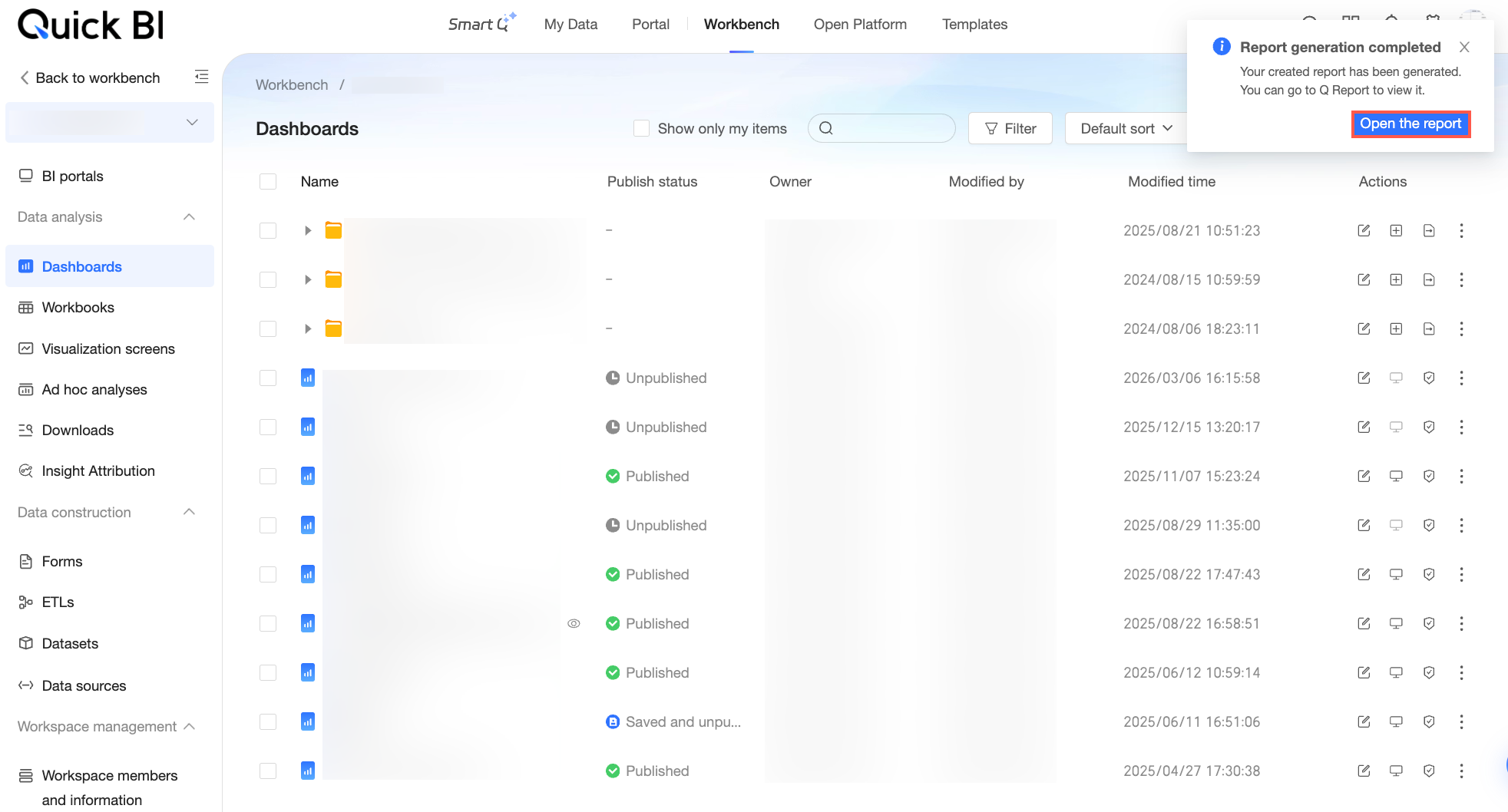
You can also perform the following actions on the report preview page.
Action
Description
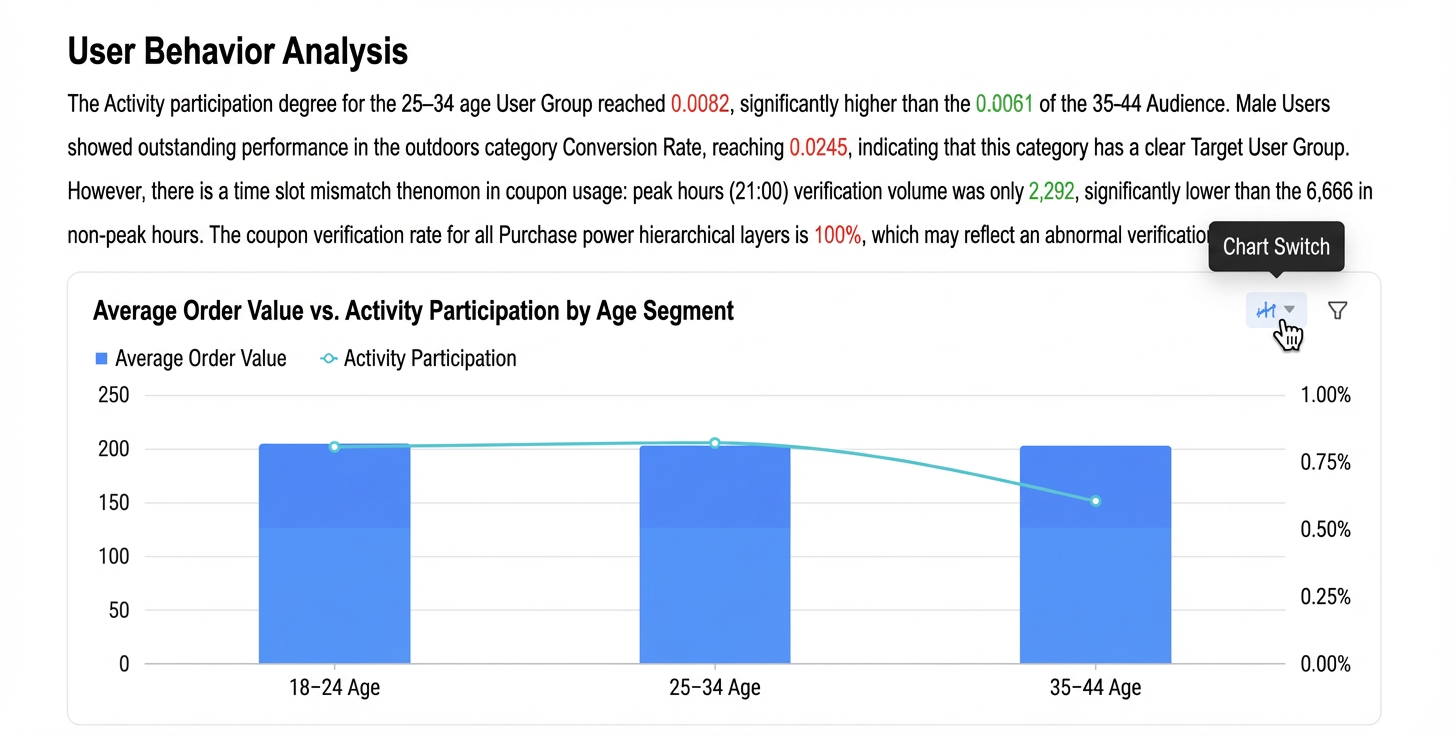
Switch chart type
During report generation, the system automatically creates charts based on the use case and data. If a generated chart does not meet your expectations, you can manually change the chart type to better suit your organization's viewing preferences.
View generation process
After the report generates, an
 icon appears next to key metrics and data conclusions. Click the icon to view the generation process for that specific data point in the Execution Process panel. This helps you trace and validate the data analysis process.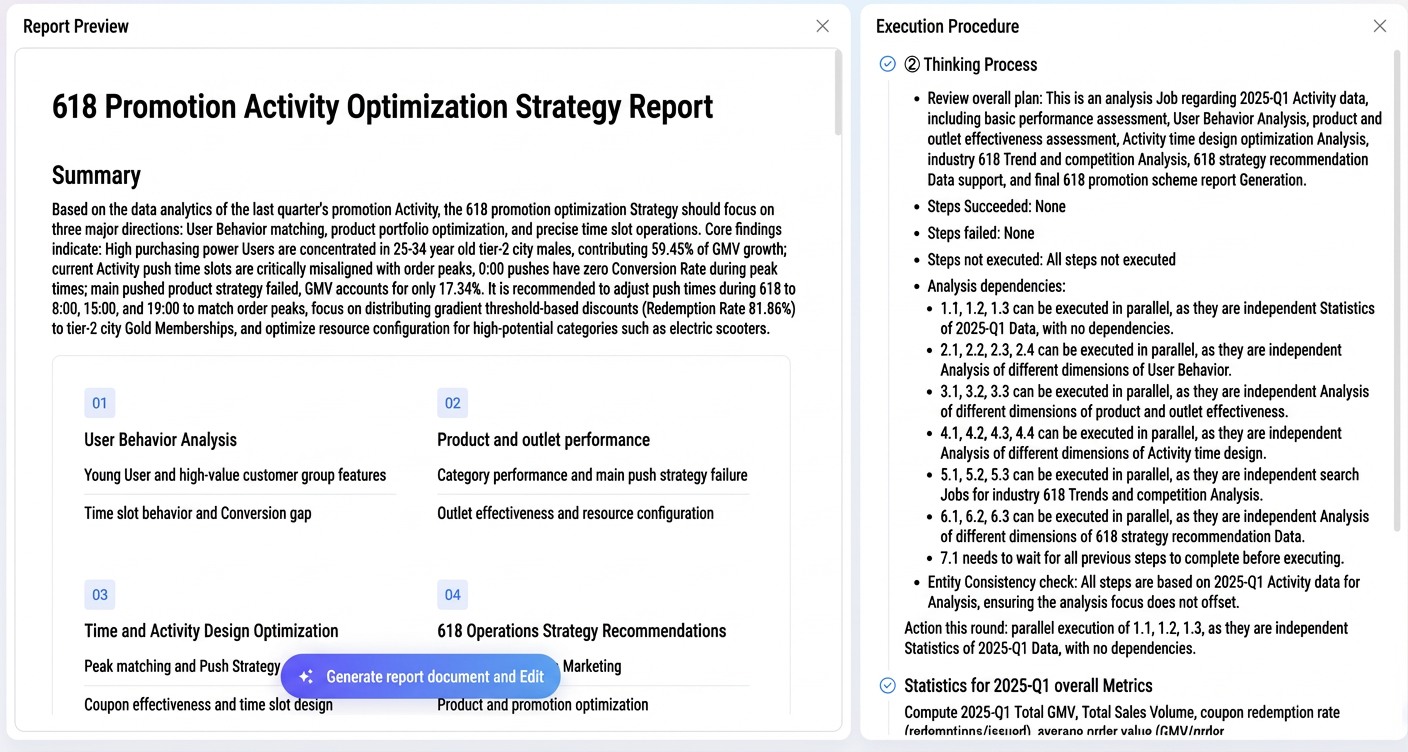
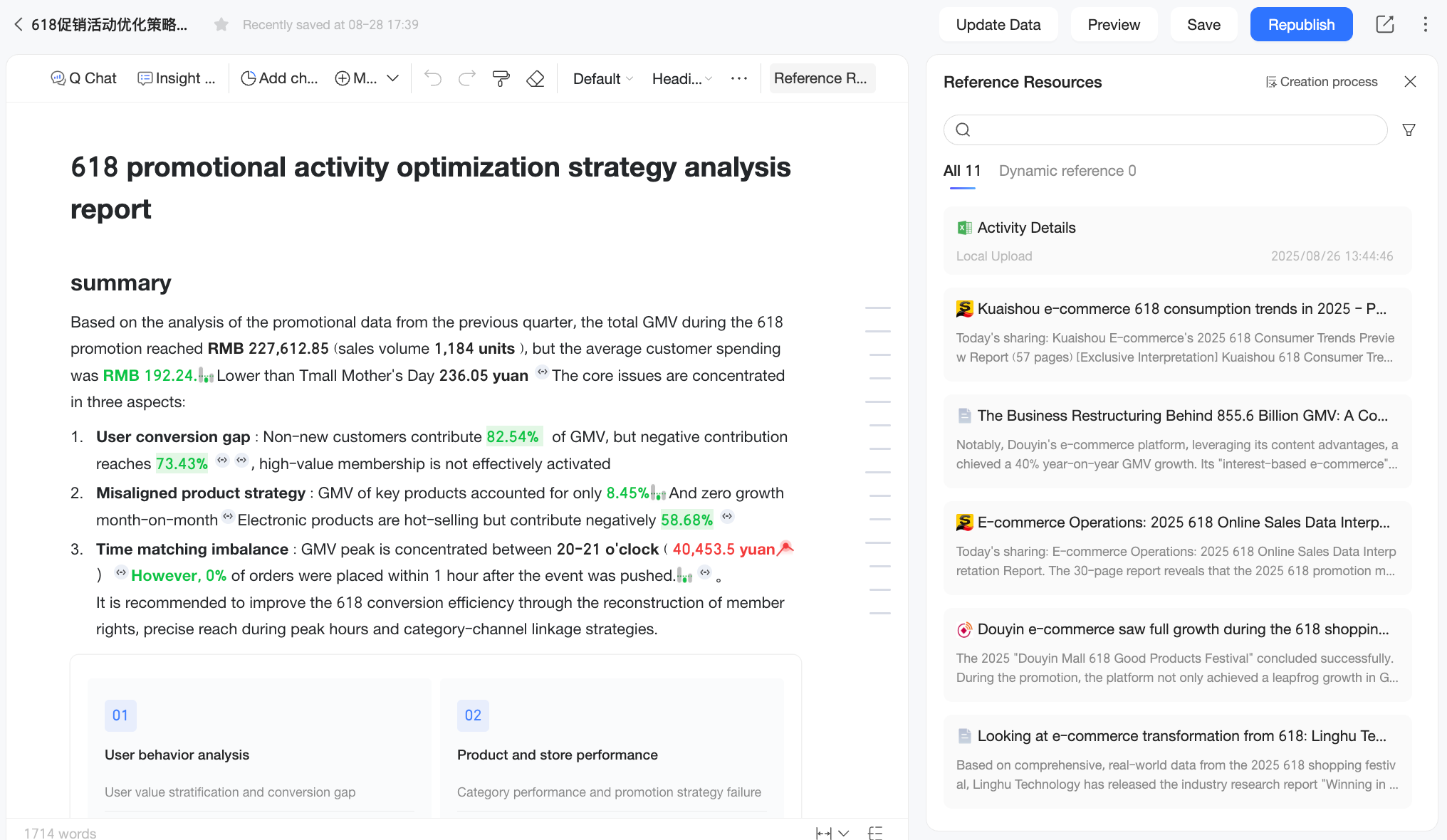
Click Generate and Edit Report Document to go to the report editing page. On this page, you can:
View the generation process and referenced resources: You can review the generation process for key data points in the report to validate the analysis.
NoteThe report preview page does not support viewing the generation process and referenced resources.
Adjust the execution panel width: You can drag to adjust the width of the execution panel to fit your preferred layout.
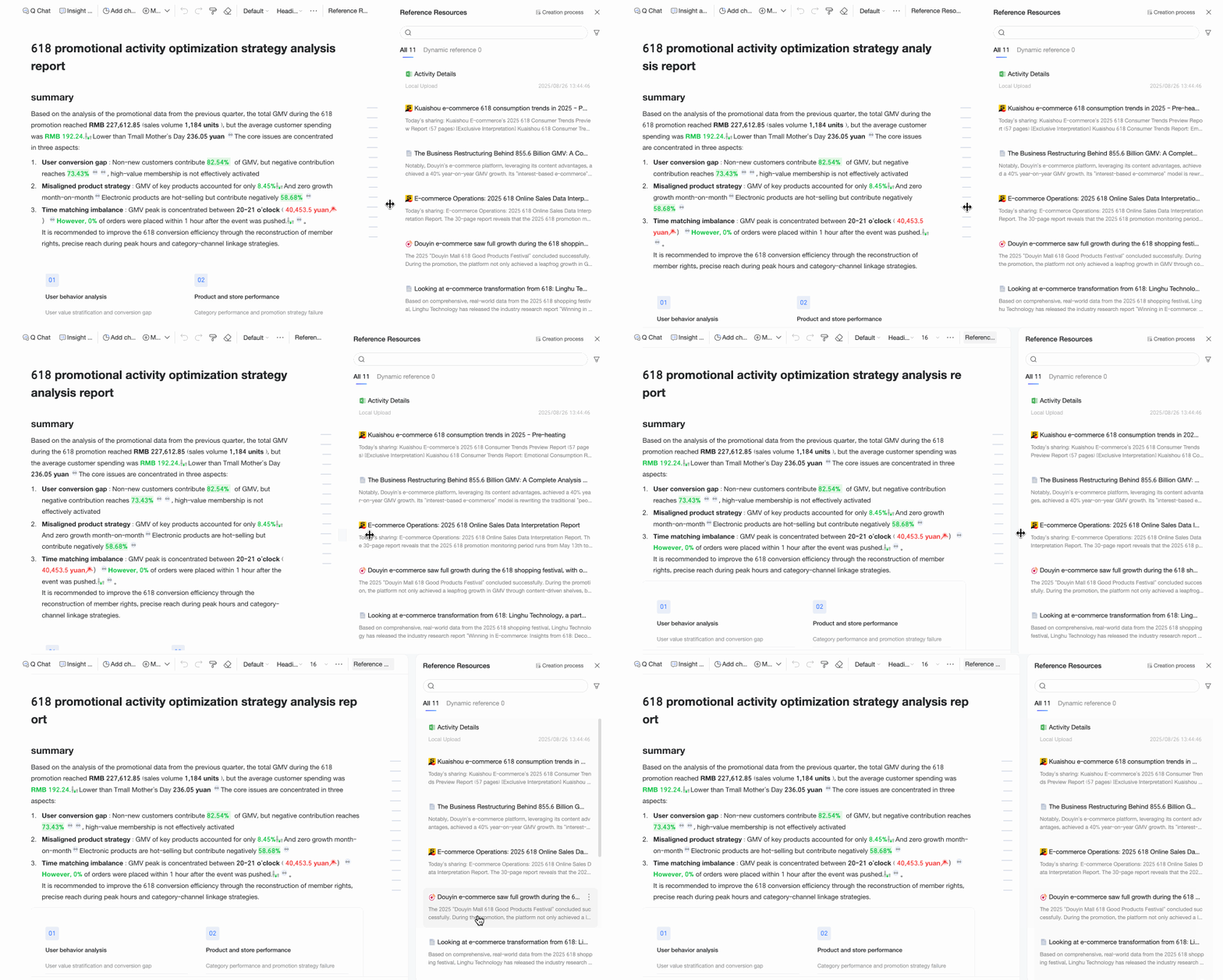
Edit the report content: You can adjust the report's style and visual formatting, or insert resources such as charts and Data Query results to enrich the content. This allows you to make manual adjustments to the generated report to better fit your specific analysis scenarios and organizational needs. For more information, see Edit a Q-Reporting report.
Method 2: Create a Blank Report
Use cases:
Full control over report content: If your report requires a high degree of creativity and personalized content, create a blank report. This gives you the flexibility to use Q-Reporting's document editing features and AI assistant to build a professional, customized report.
Follow these steps:
Click New Blank Report.
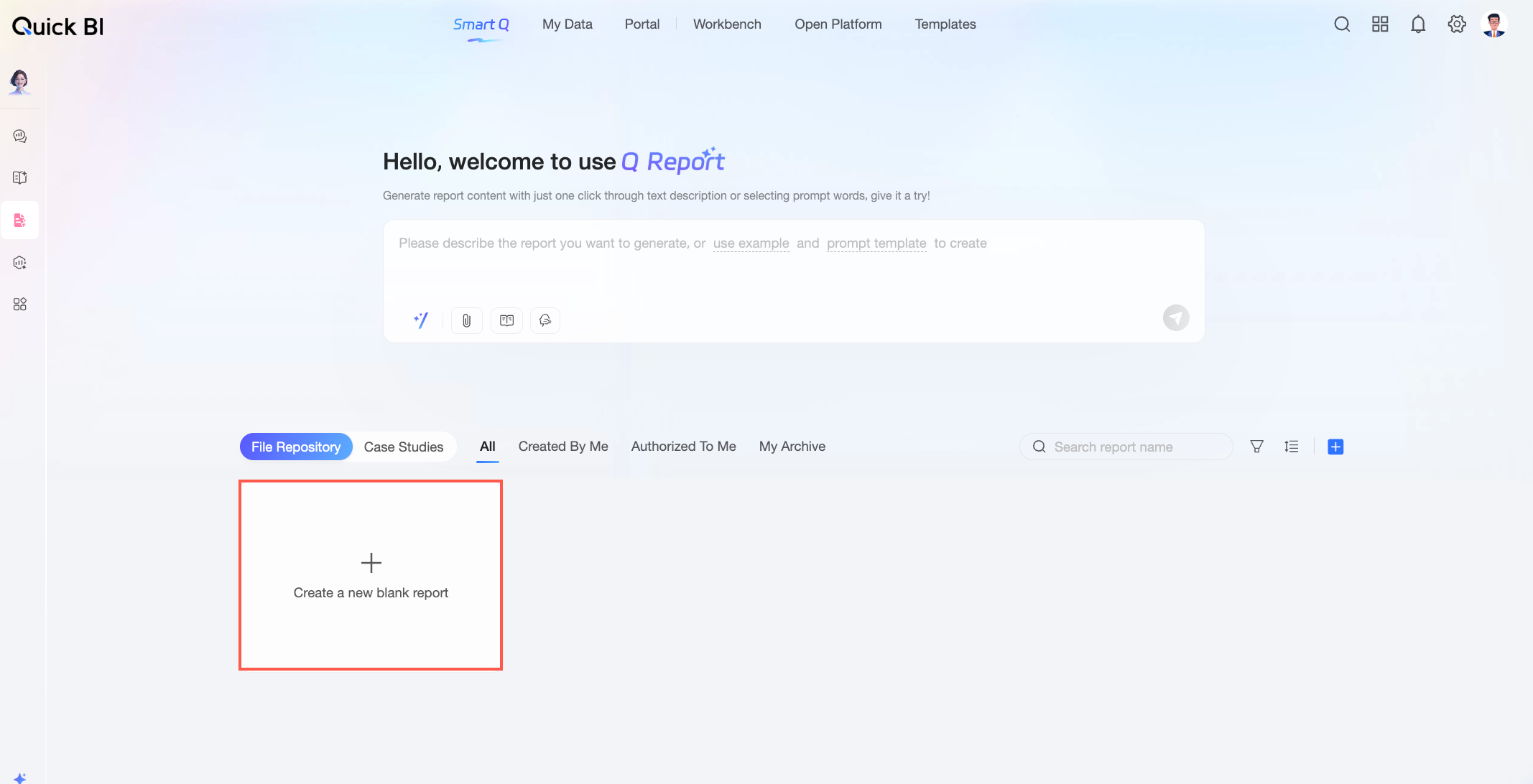
On the report editing page, you can (1) change the report name, (2) create and style the report content, and (3) add resources such as charts and Data Query results. For more information, see Edit a Q-Reporting report.
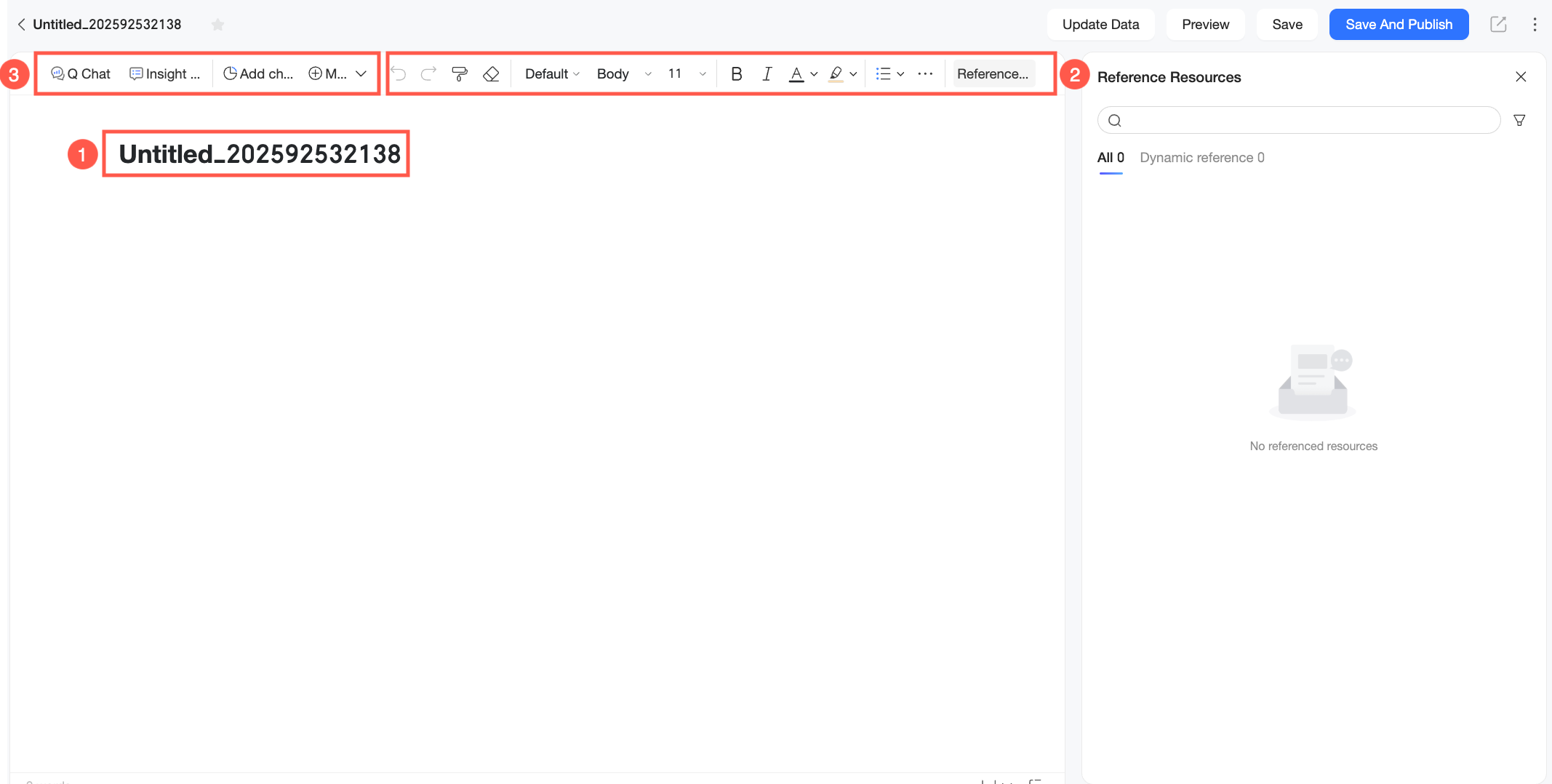
After you finish creating the report, click Save or Save and Publish as needed.
NoteYou can only share Published reports. Saved reports cannot be shared.
Next Steps
After creating a report, you can adjust its visual formatting, add resources like charts and Data Query results, and gain further data insights on the report editing page. For more information, see Edit a Q-Reporting report.
After you create a report, you can share it, configure its permissions, and manage your existing reports. For more information, see Manage Q-Reporting reports.