In addition to text formatting, configuring the visualization style of report pages is essential for achieving a cohesive and effective visual presentation. Use the comprehensive page styling features on the Xiao Q Report editing page to refine the overall layout and fine-tune detailed styling elements. This topic explains how to configure styles for Xiao Q reports.
Page Styles
Configure report page styles to ensure optimal display across different scenarios.
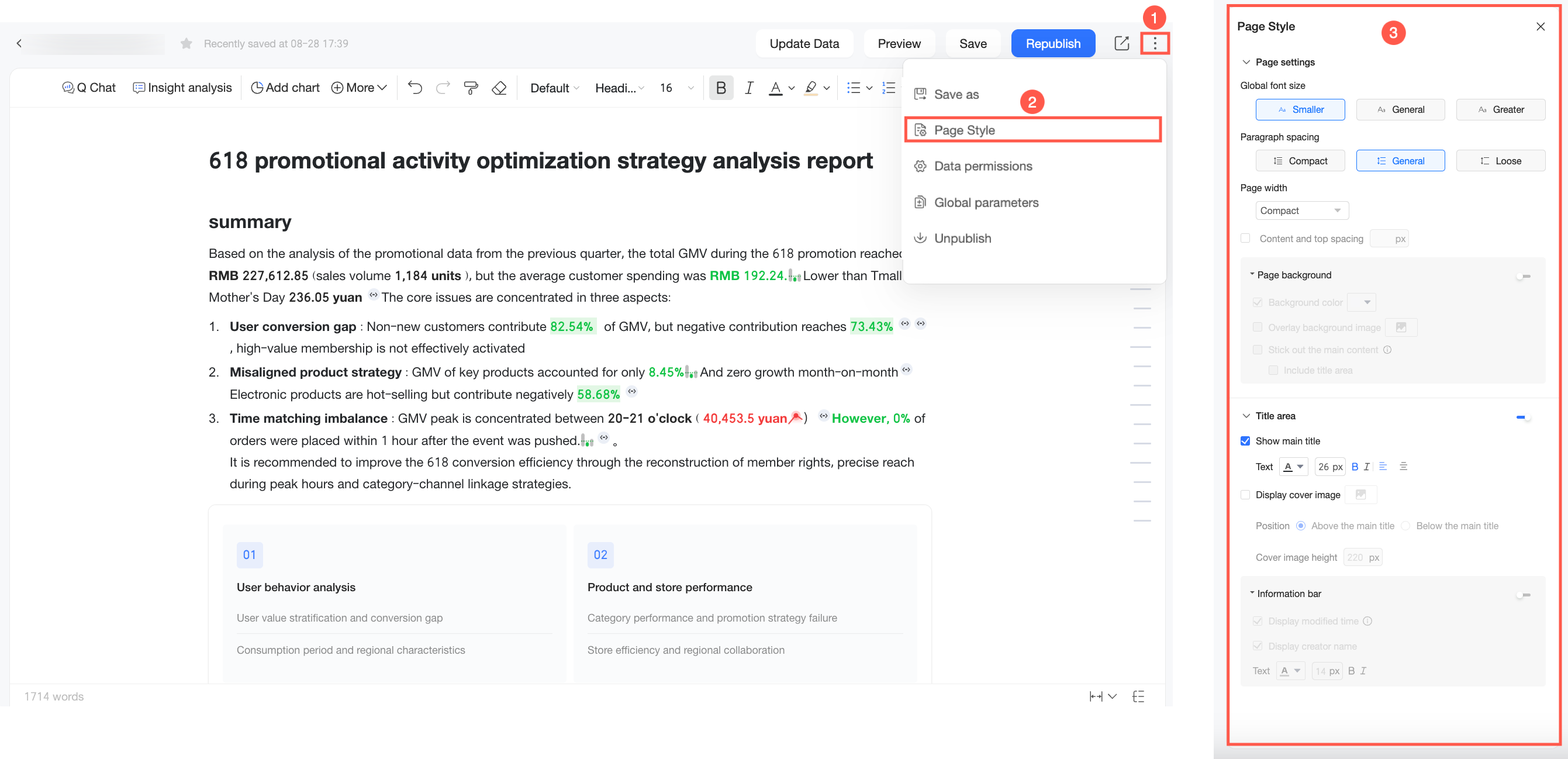
Click the  icon in the top-right corner of the page. From the drop-down list, select Page Styles. In the Page Styles panel, configure the current report’s Page Settings and Title Area.
Configuration Item | Description | |
Page Settings | Page Width | Select different page widths. Supports Compact, Regular, Ultra-wide, and Full-width to adapt to different display devices and reading habits. |
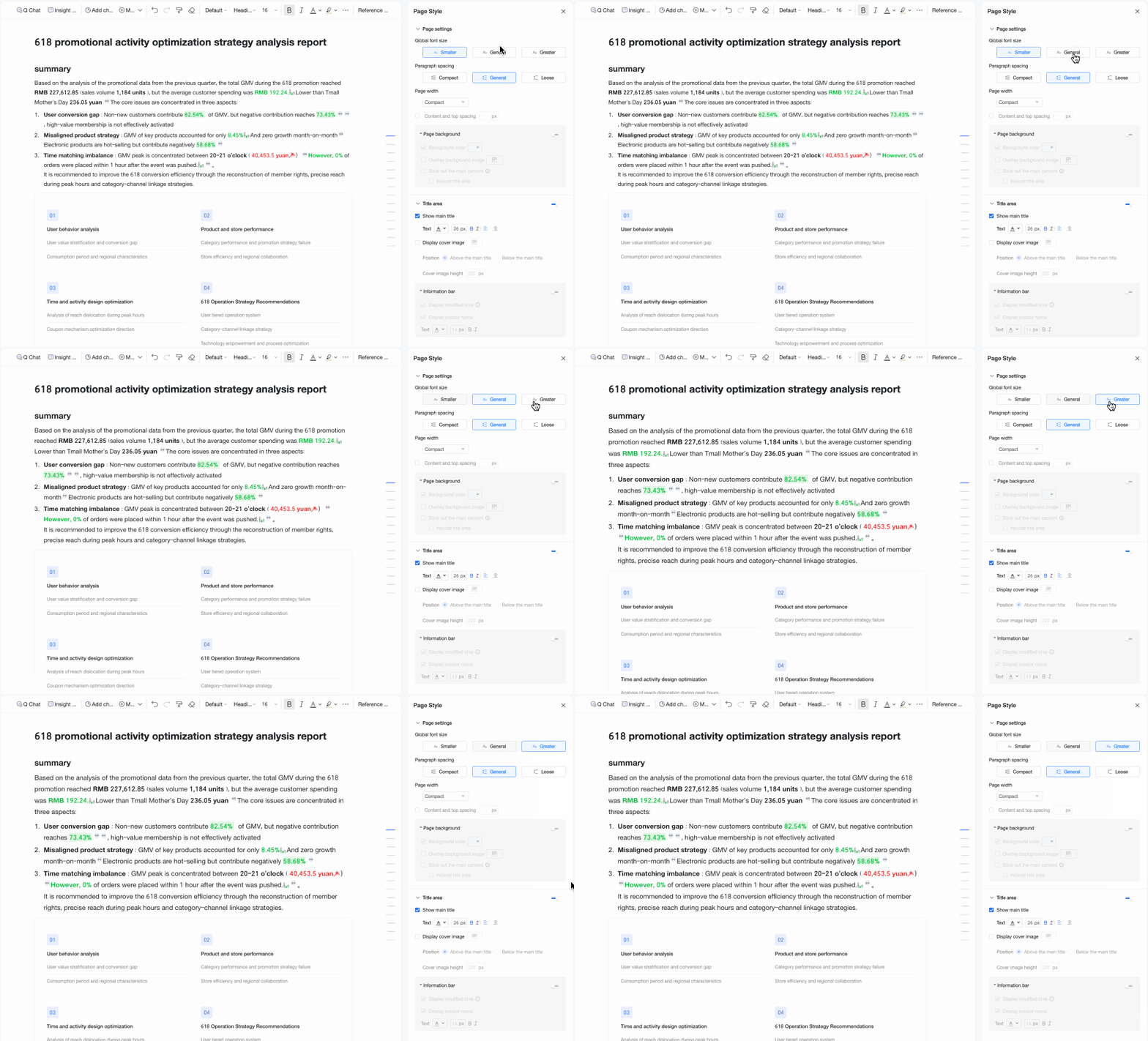
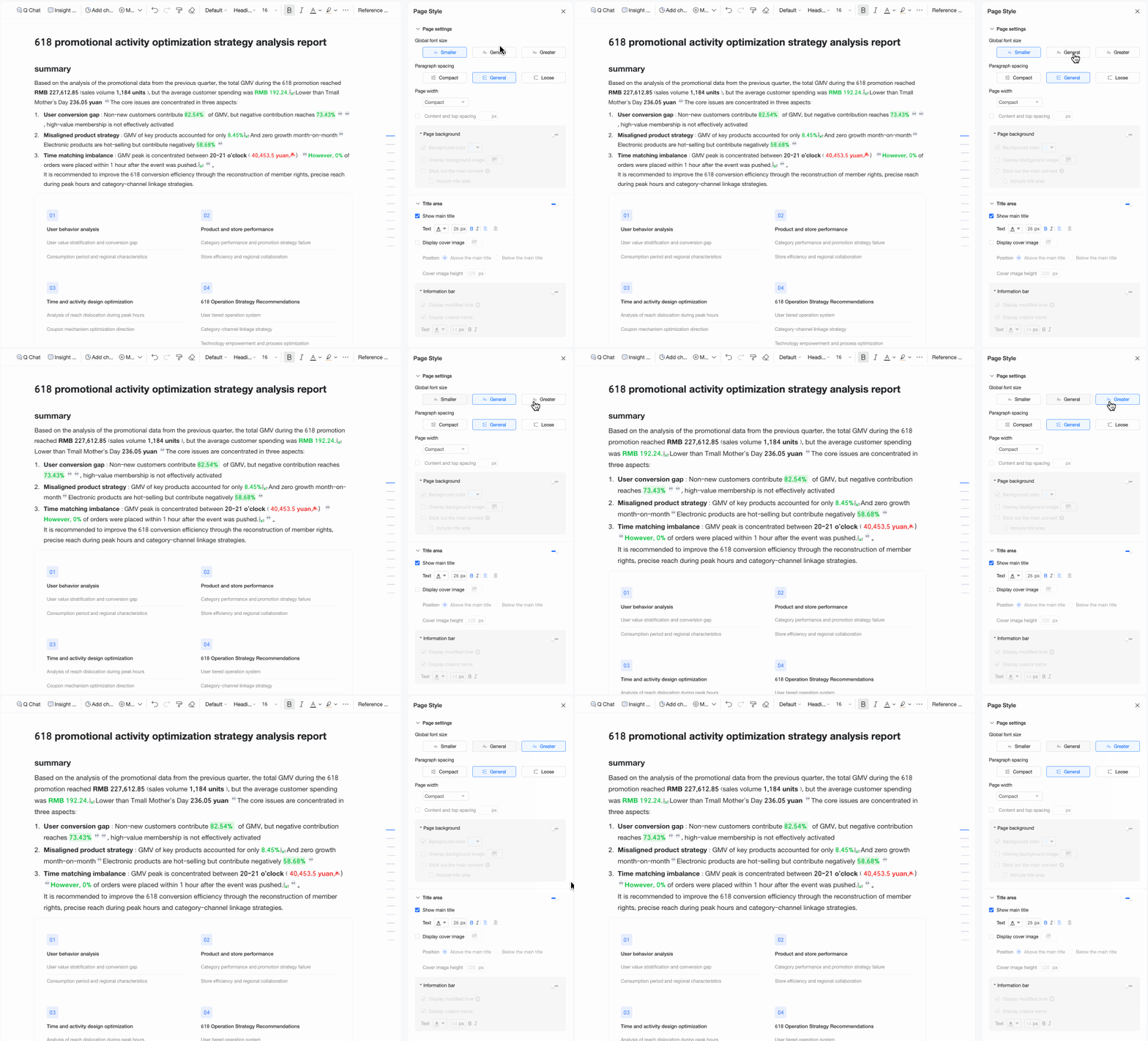
Global Font Size | Adjust the font size of the report body content here. The system defaults to Smaller mode, suitable for most reading scenarios. Adjust to Regular or Larger as needed. | |
Paragraph Spacing | Set the vertical distance between paragraphs to improve report readability and hierarchy. The system defaults to Regular mode for comfortable content density. Adjust to Compact or Loose as needed. | |
Content Top Margin | Set the margin between the report content and the top edge. The default and minimum is 40 px. | |
Page Background Click the | Click the icon to enable the page background, and set different colors, images, and other content for the background to enhance the report's visual effect and strengthen brand image.
| |
Title Area Click the | Display Main Title | Set whether to display the report's main title on the page, and the text style when the main title is displayed, including font color, font size, bold, italic, and alignment. |
Display Thumbnail | Set whether to display the thumbnail. When selected, choose a thumbnail from system-provided images or upload custom images with brand identity as the thumbnail. Also, set the thumbnail's position and height. Note Only supports uploading JPG, JPEG, PNG, GIF, and SVG format files, with a maximum size of 1 MB. | |
Information Bar | Click the
| |
 icon to enable the report's bottom background area.