Conditional cascading between fill-in controls dynamically generates options for a child control based on the value selected in a parent control. For example, when a user selects a specific region, the province control automatically updates to show only the provinces within that region, improving data entry efficiency and reducing errors.
Limitations
-
Conditional cascading is supported only for the following control types: drop-down single-select, drop-down multi-select, and tree-select.
-
Conditional cascading is supported only for controls whose options are sourced from a dataset.
-
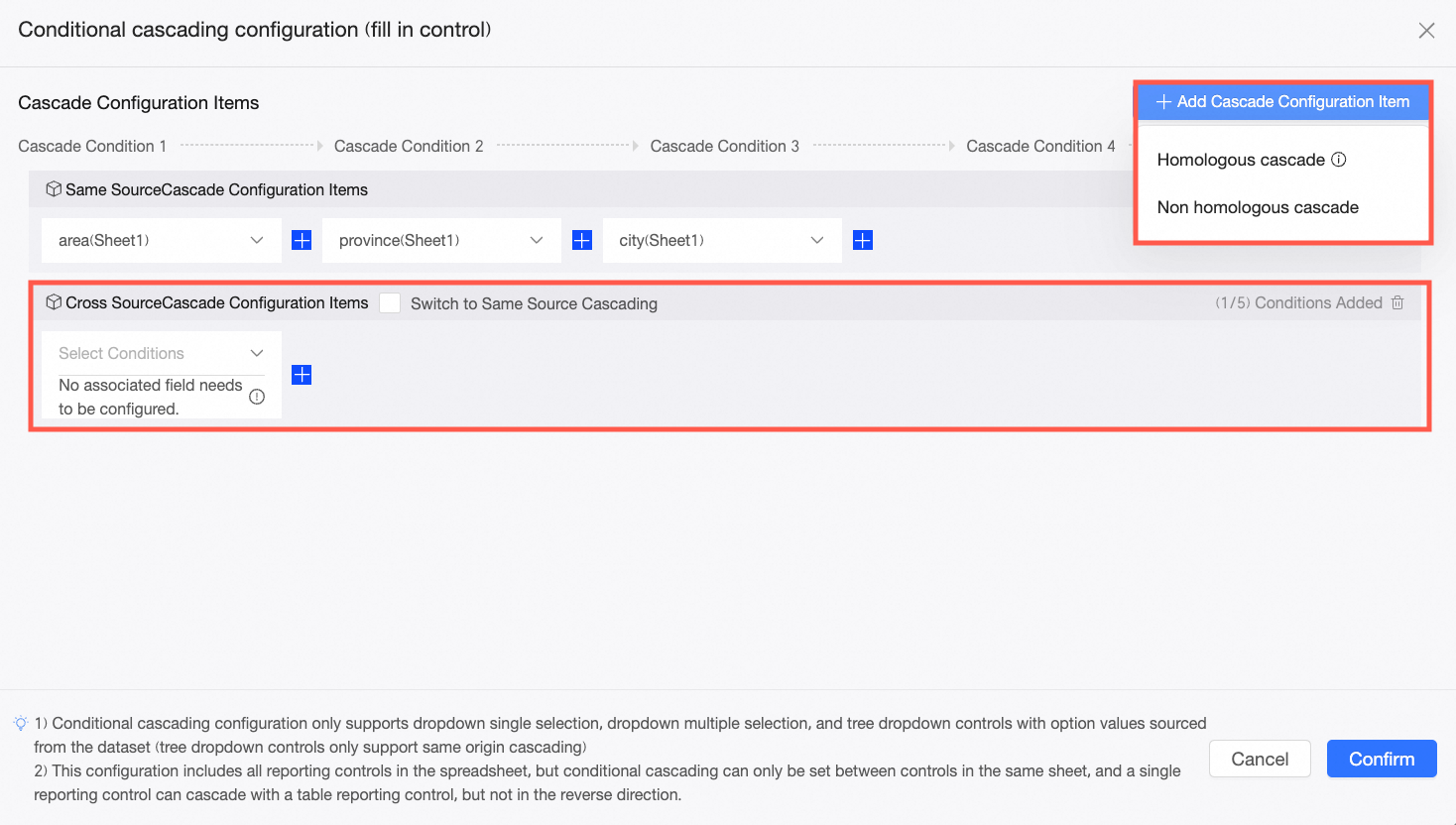
A single cascading configuration item can have a maximum of five cascading conditions. If you need more than five conditions, you can create multiple cascading configuration items.
Prerequisites
-
Add fill-in controls to a spreadsheet. The control types must be drop-down single-select, drop-down multi-select, or tree-select. For more information, see dataset fill-in, cell fill-in, table fill-in, and fill-in control.
Procedure
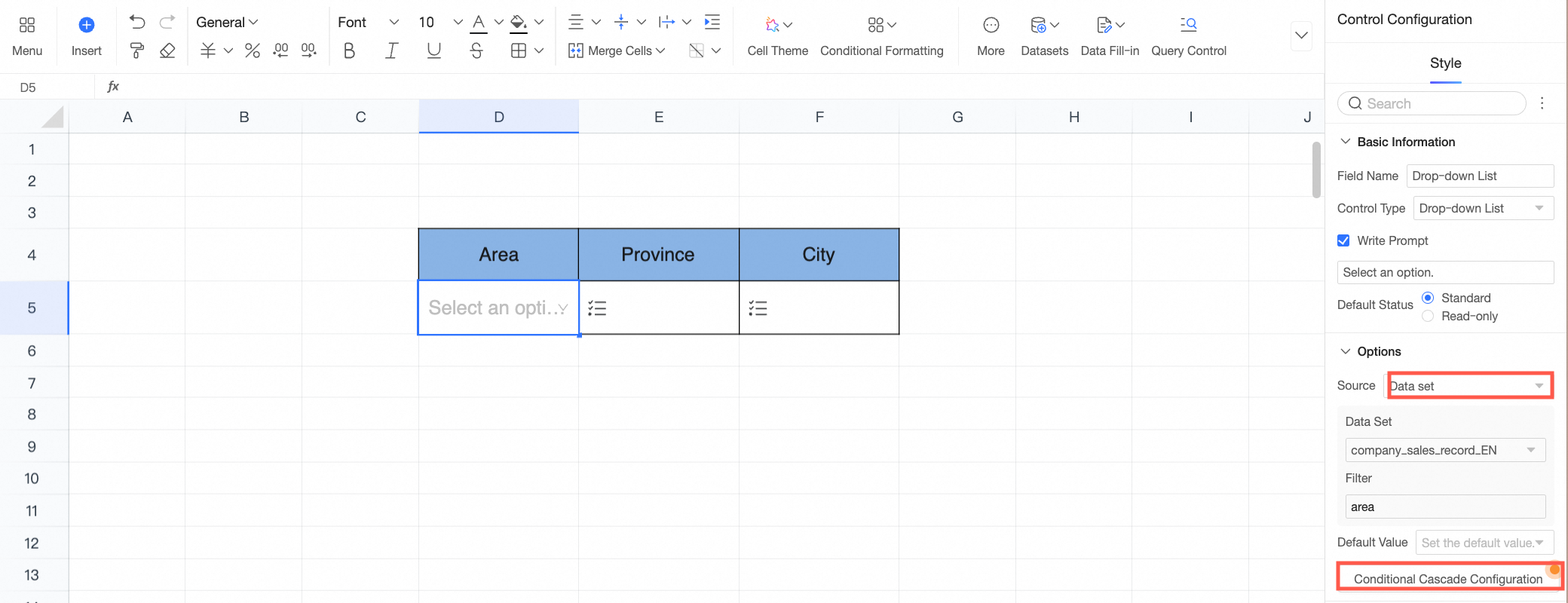
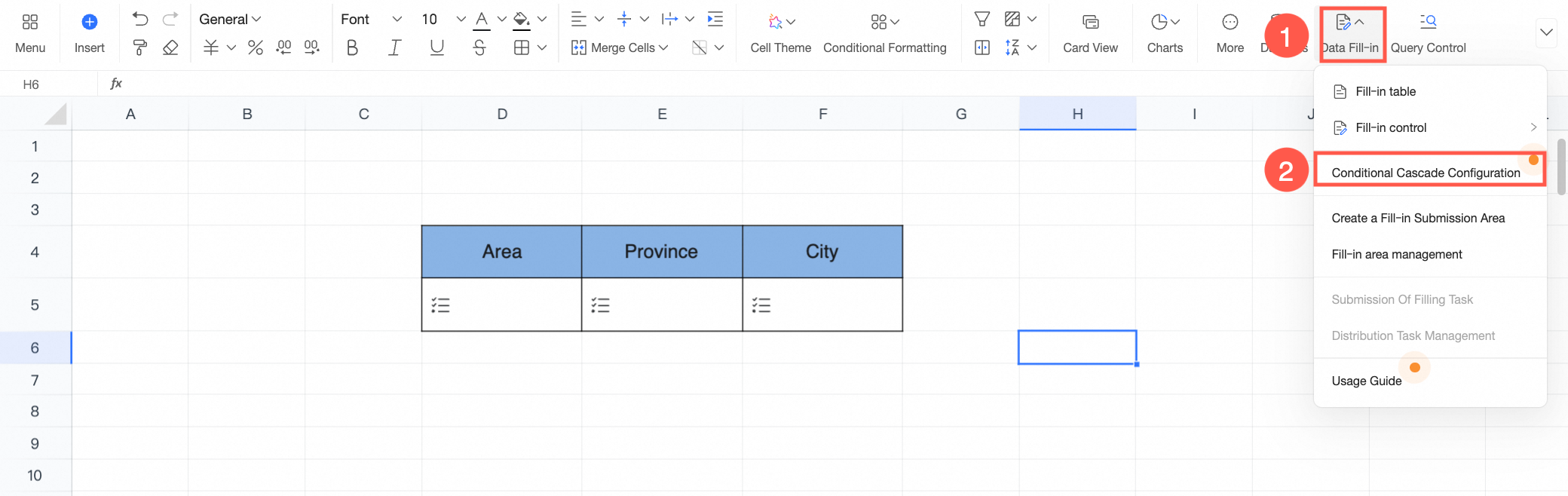
On the spreadsheet editing page, open the conditional cascading configuration panel in either of the following ways. Two types of cascading are available: same-source cascading and different-source cascading. This example uses drop-down single-select controls for geographic information.
-
On the toolbar, click Data Fill-in and select Conditional Cascading Configuration from the drop-down list.
-
Select the control that you want to configure, click the
 icon, and go to Control Configuration > Conditional Cascading Configuration.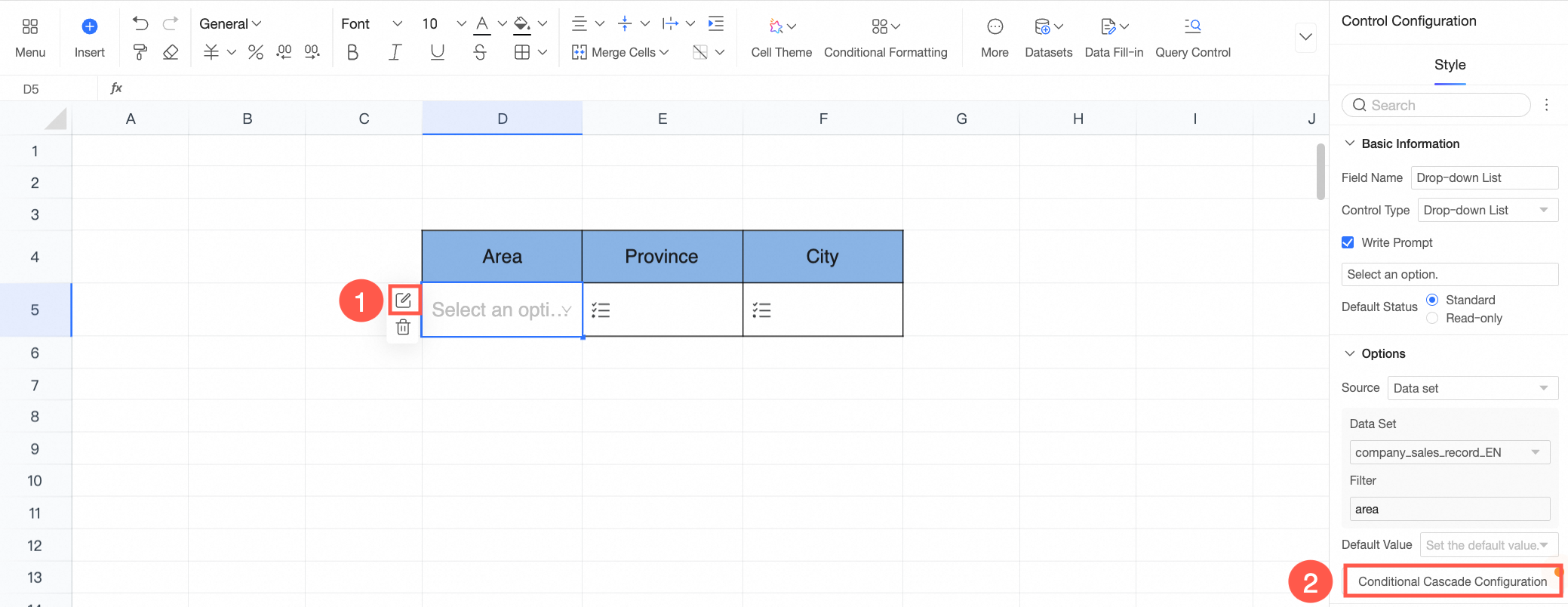
Different-source cascading
Different-source cascading links controls whose option values come from different datasets. By configuring an associated field, the options in a child control automatically filter based on the value selected in the parent control.
In this example, the Region control's options are from the Region field in the Annual Sales Data dataset. The Province control's options are from the Province field in the Sales Data dataset. The City control's options are from the City field in the Annual Sales Data dataset.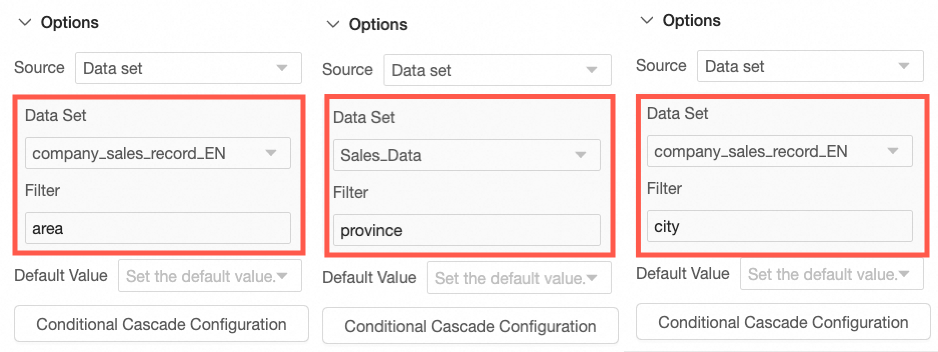
-
In the Cascading Configuration Item section of the Conditional Cascading Configuration panel, select the Region control as the parent control and click the
 icon on the right to add a new configuration box.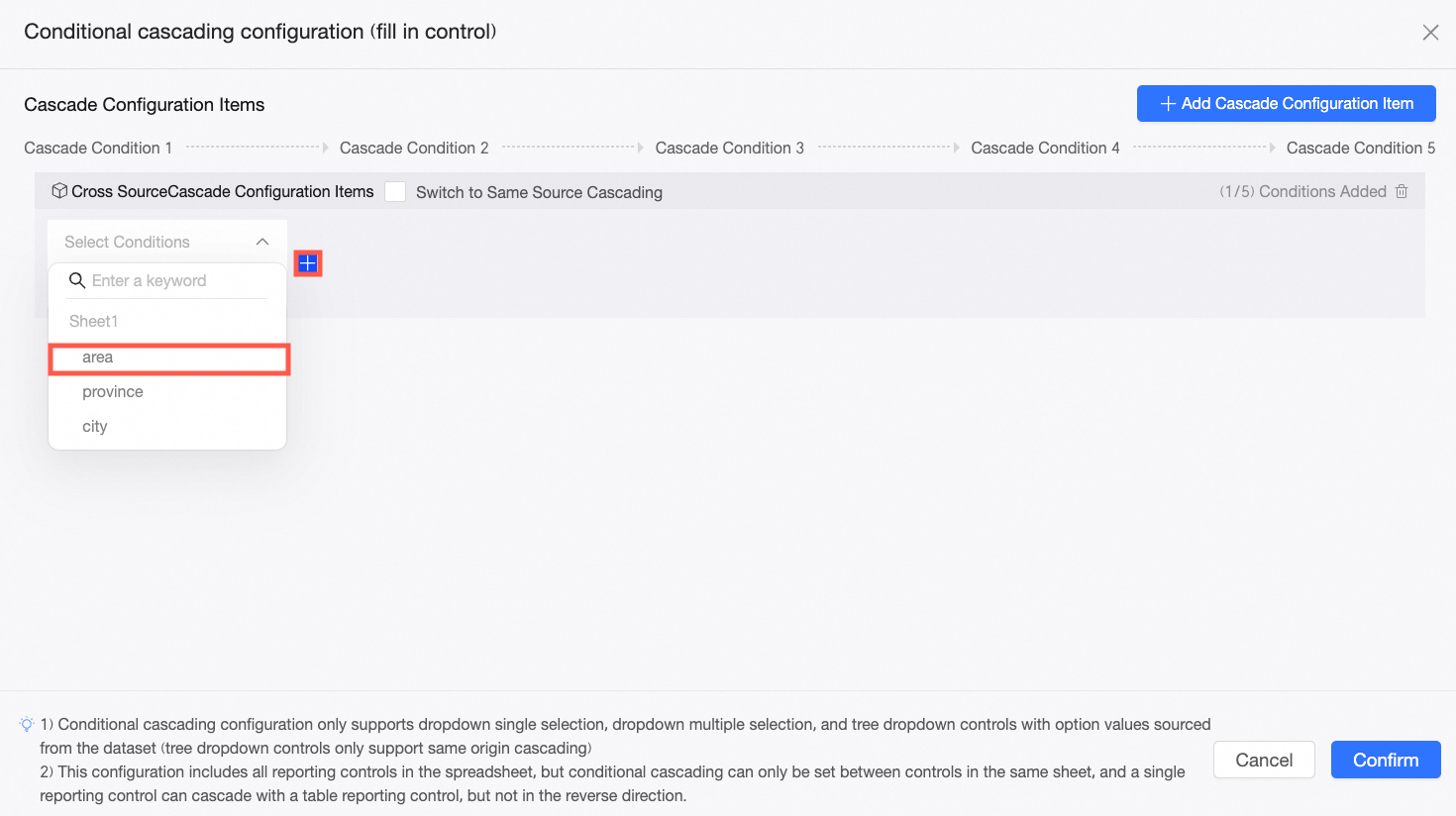
-
In the new configuration box, select the Province control as the child control, and then select Region as the associated field.
NoteThe associated field you select must be the parent field that passes its value to the current control's data source. For example, since the parent category of a province is region, selecting the Region field allows the Province control to receive values from the parent Region control.
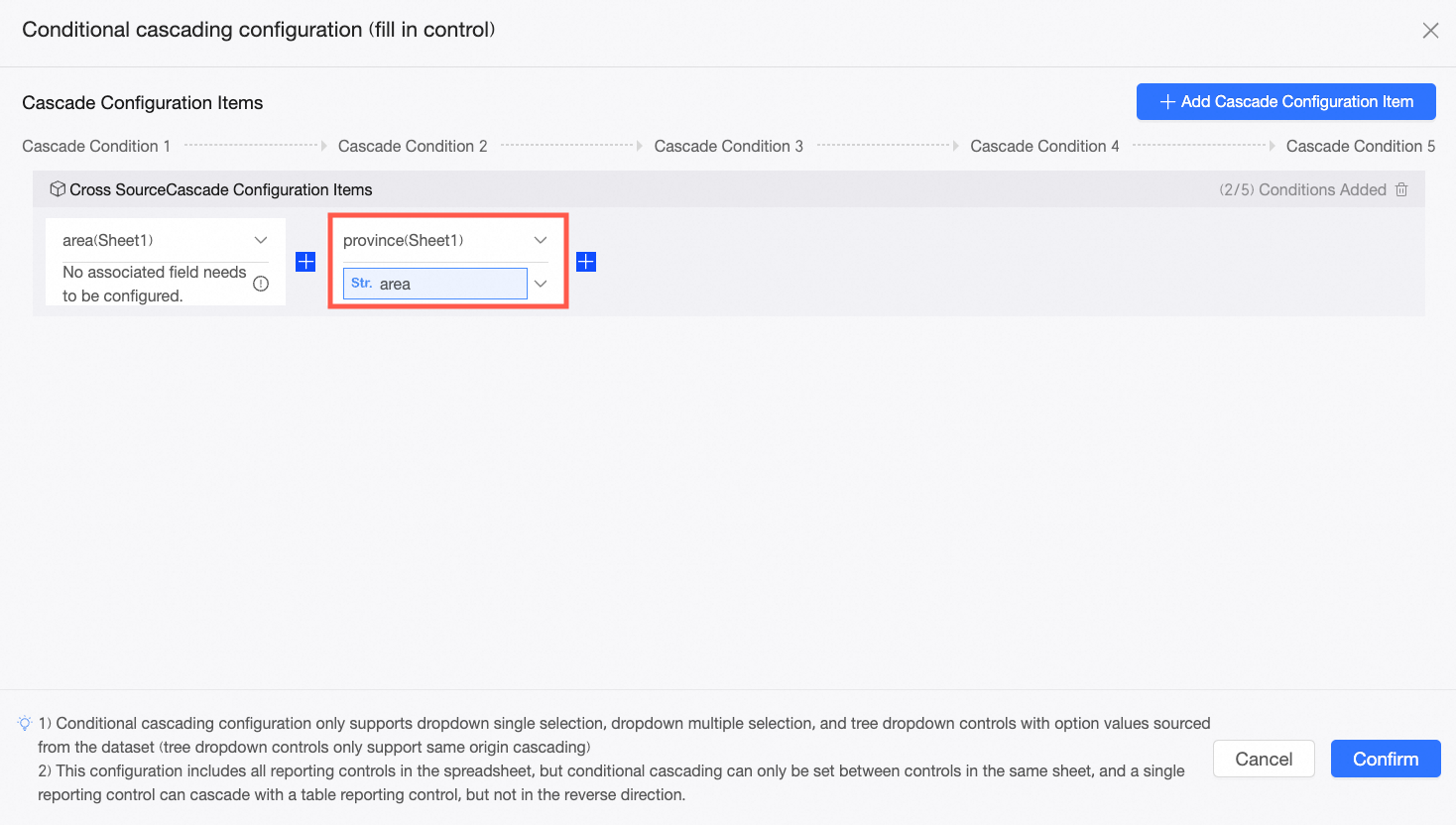
-
Repeat the previous two steps to configure the cascade for the City control.
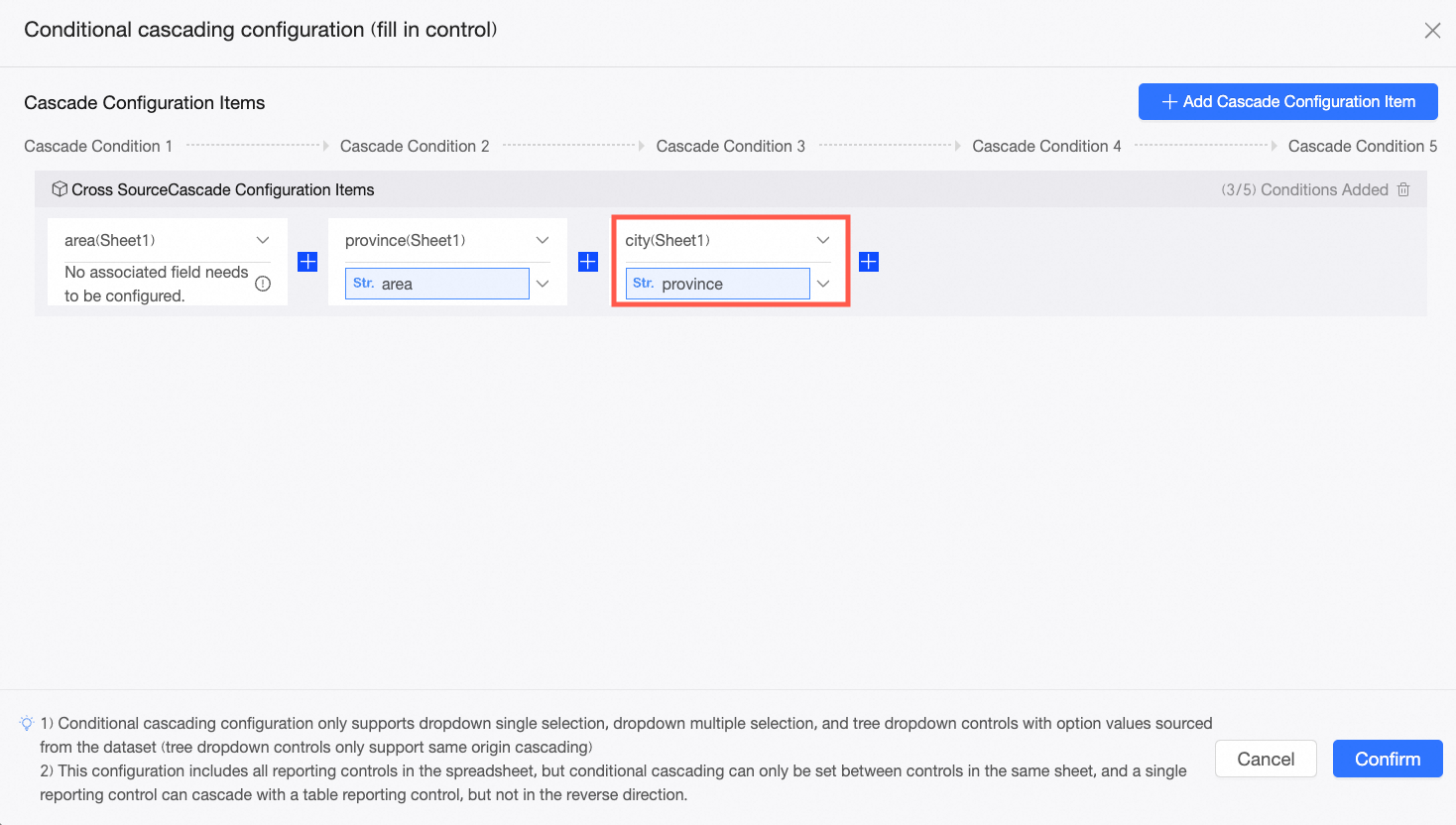
-
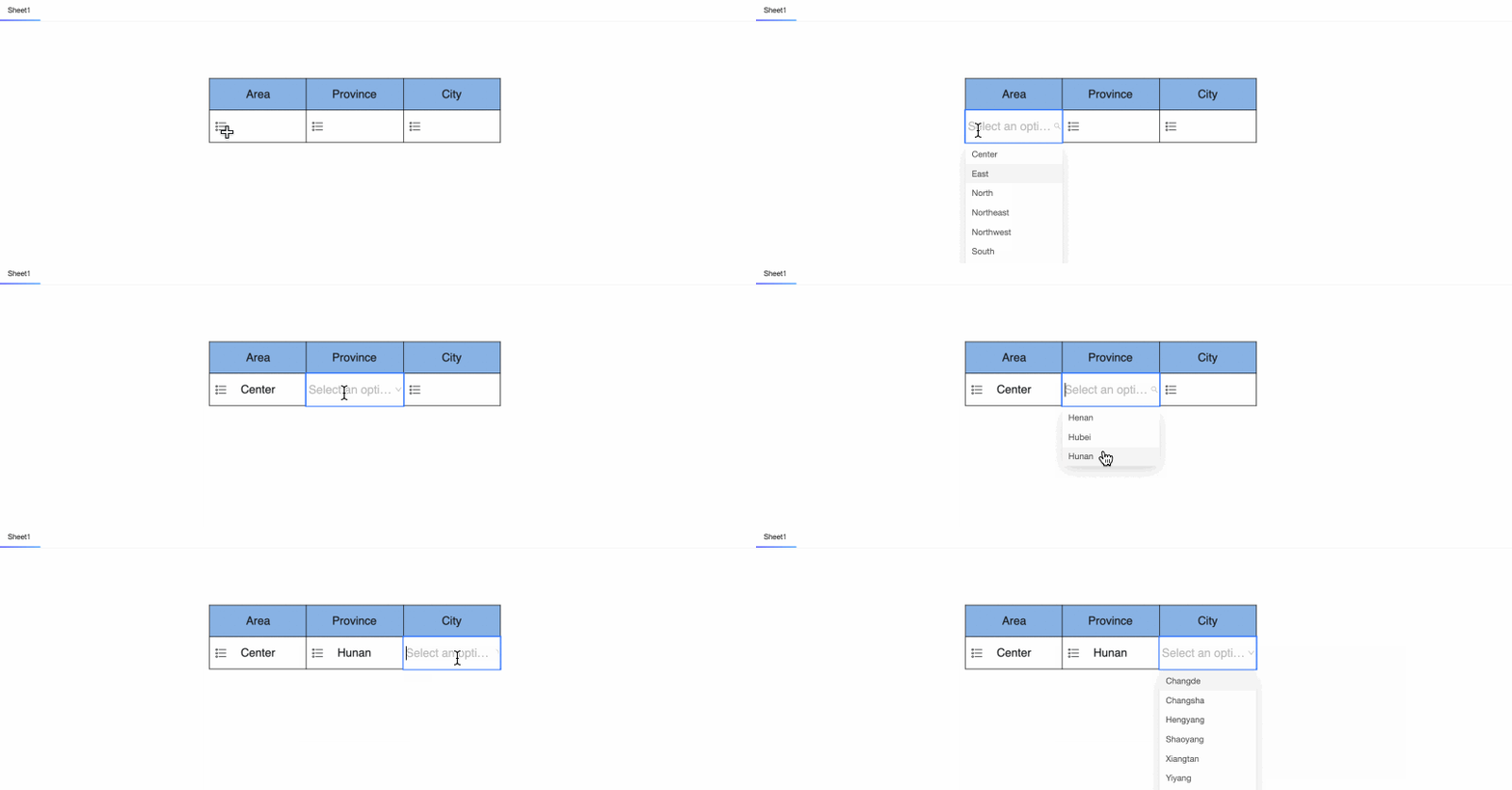
Click OK to save the configuration. Now, when you select 'Central China' in the Region control, the Province control shows only provinces in that region. Similarly, when you select 'Hunan' in the Province control, the City control shows only cities in Hunan province.
Same-source cascading
Same-source cascading quickly configures relationships between controls that get their option values from the same dataset, without requiring you to manually select an associated field.
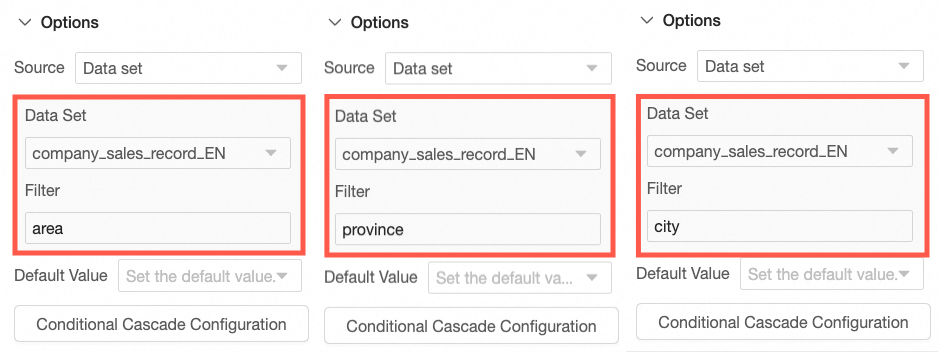
In this example, the option values for the Region, Province, and City controls all come from their corresponding fields in the Annual Sales Data dataset.
-
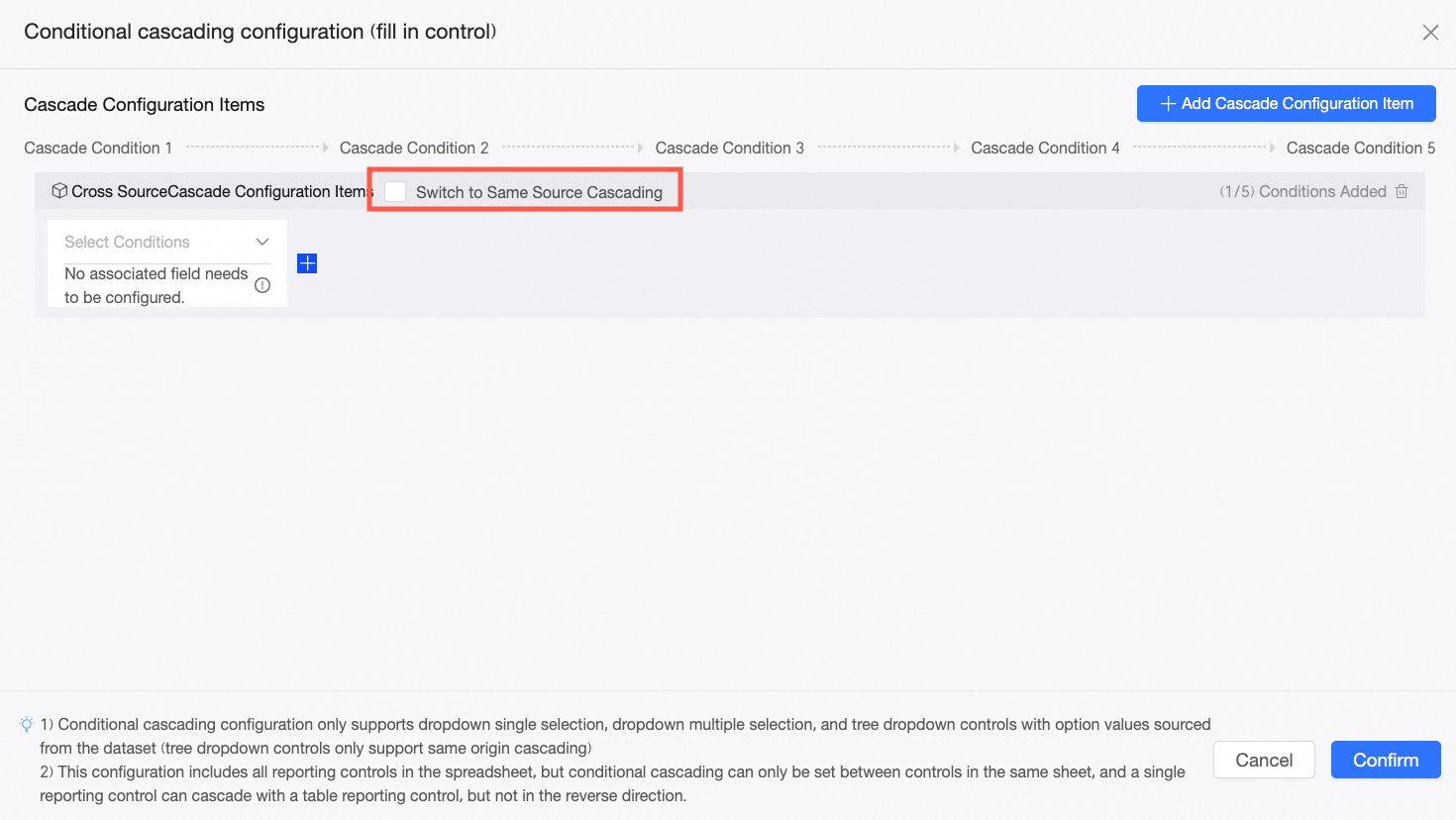
On the Conditional Cascading Configuration page, select Switch to Same-source Cascading.
NoteSwitching to same-source cascading is irreversible. Proceed with caution.
-
Select the Region control as the parent control and click the
icon on the right.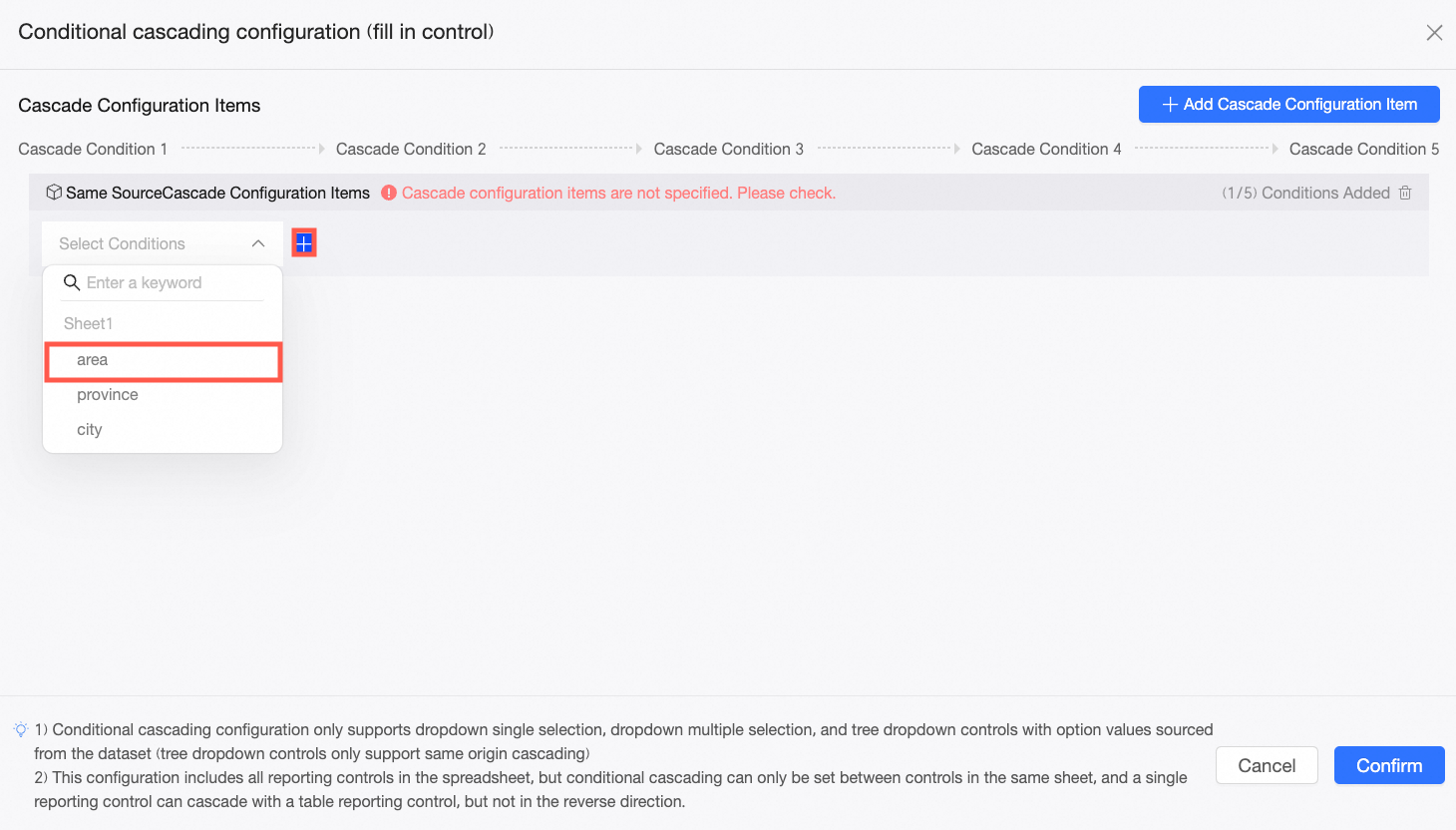
-
Add the Province control and the City control as the second- and third-level child controls, respectively.
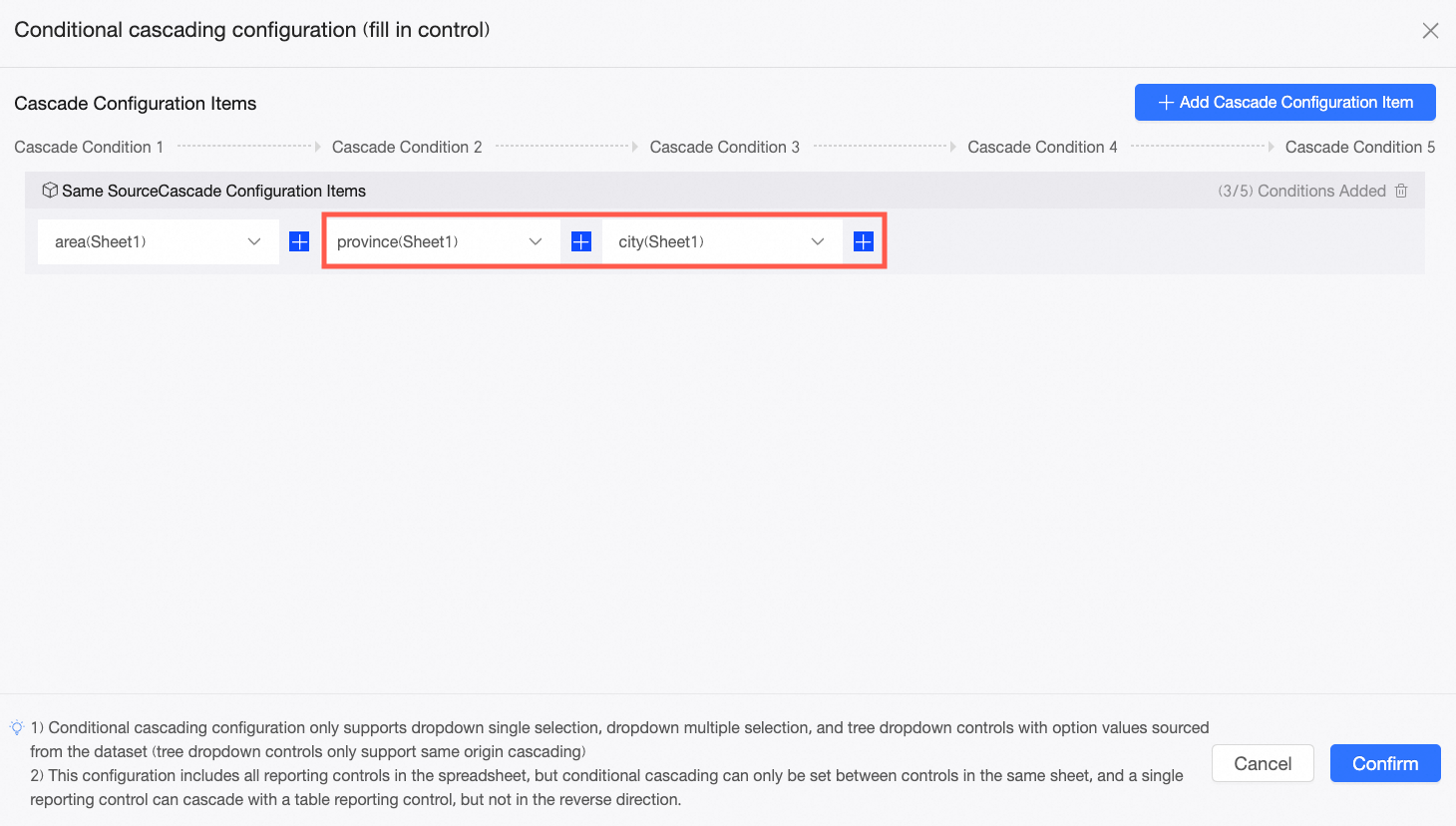
-
Click OK to save the configuration. Now, when you select 'Central China' in the Region control, the Province control shows only provinces in that region. Similarly, when you select 'Hunan' in the Province control, the City control shows only cities in Hunan province.
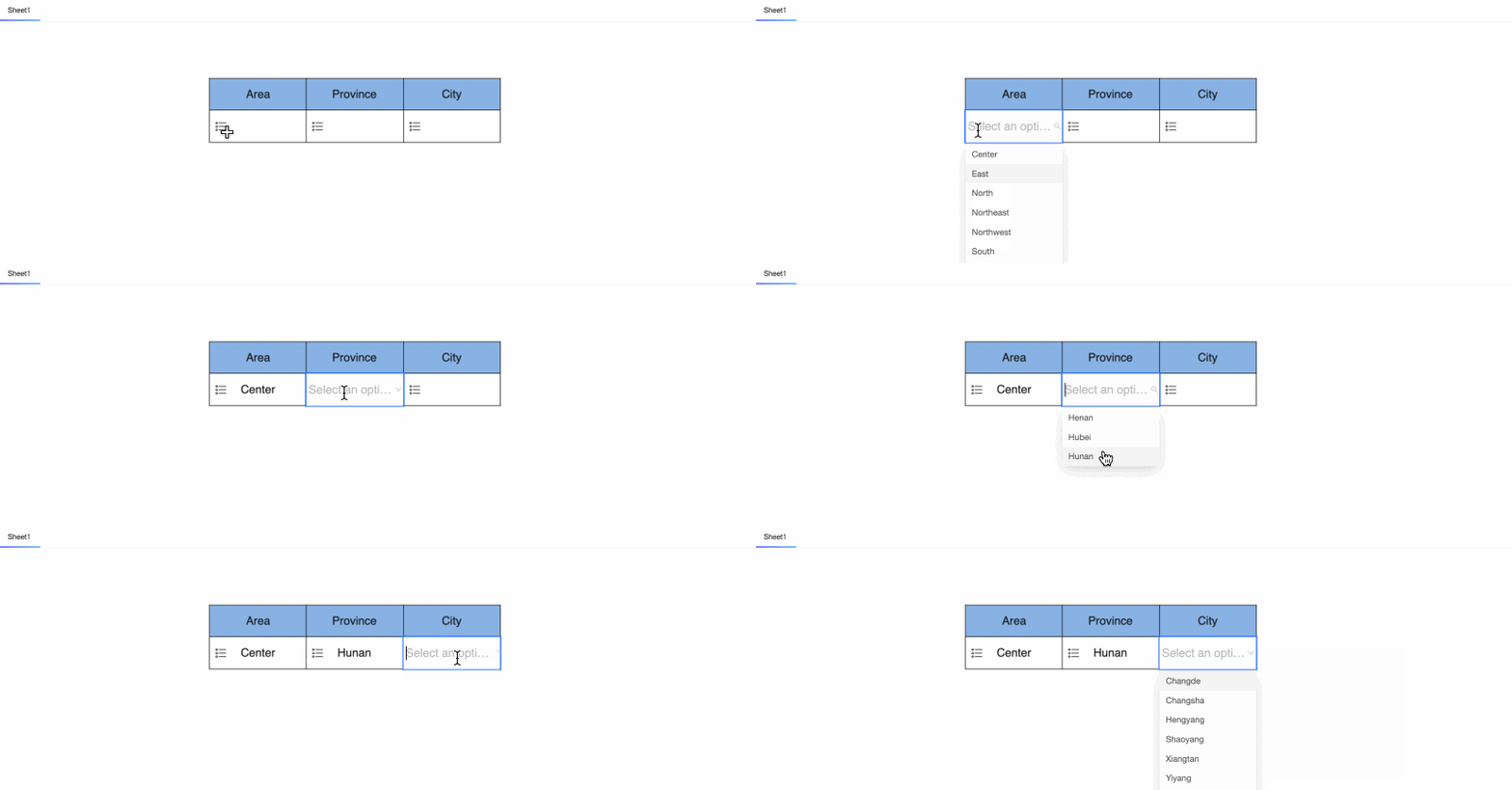
Related operations
After configuring conditional cascading, manage your configurations in the Conditional Cascading Configuration panel. You can rename or delete existing items, or add new ones.
-
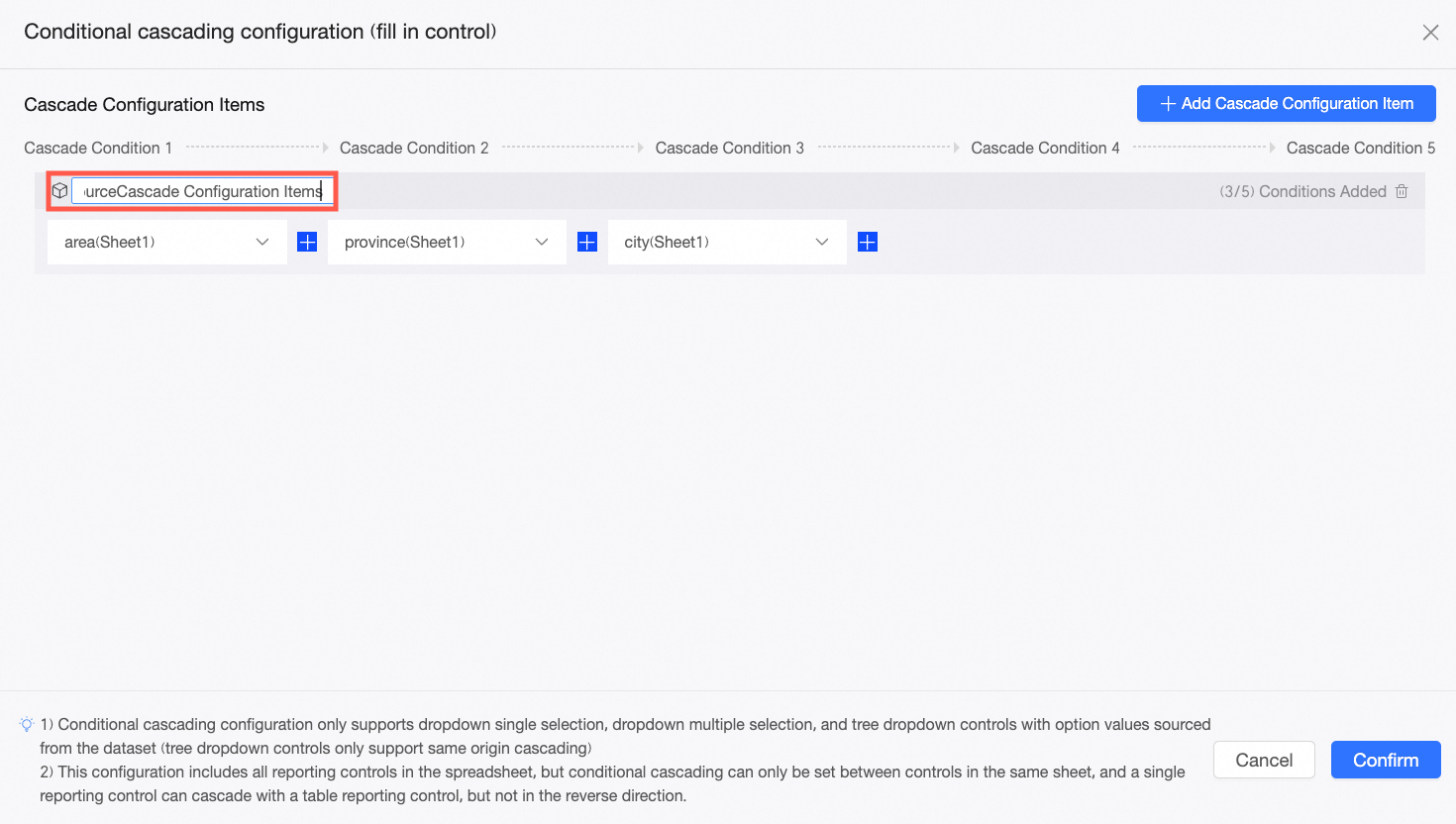
Rename: By default, a new cascading configuration is named 'Cascading Configuration Item'. Click the title area to rename it.
-
Delete: To delete a condition, click the delete icon above its configuration box. To delete an entire cascading configuration item, click the delete icon to the right of its name.
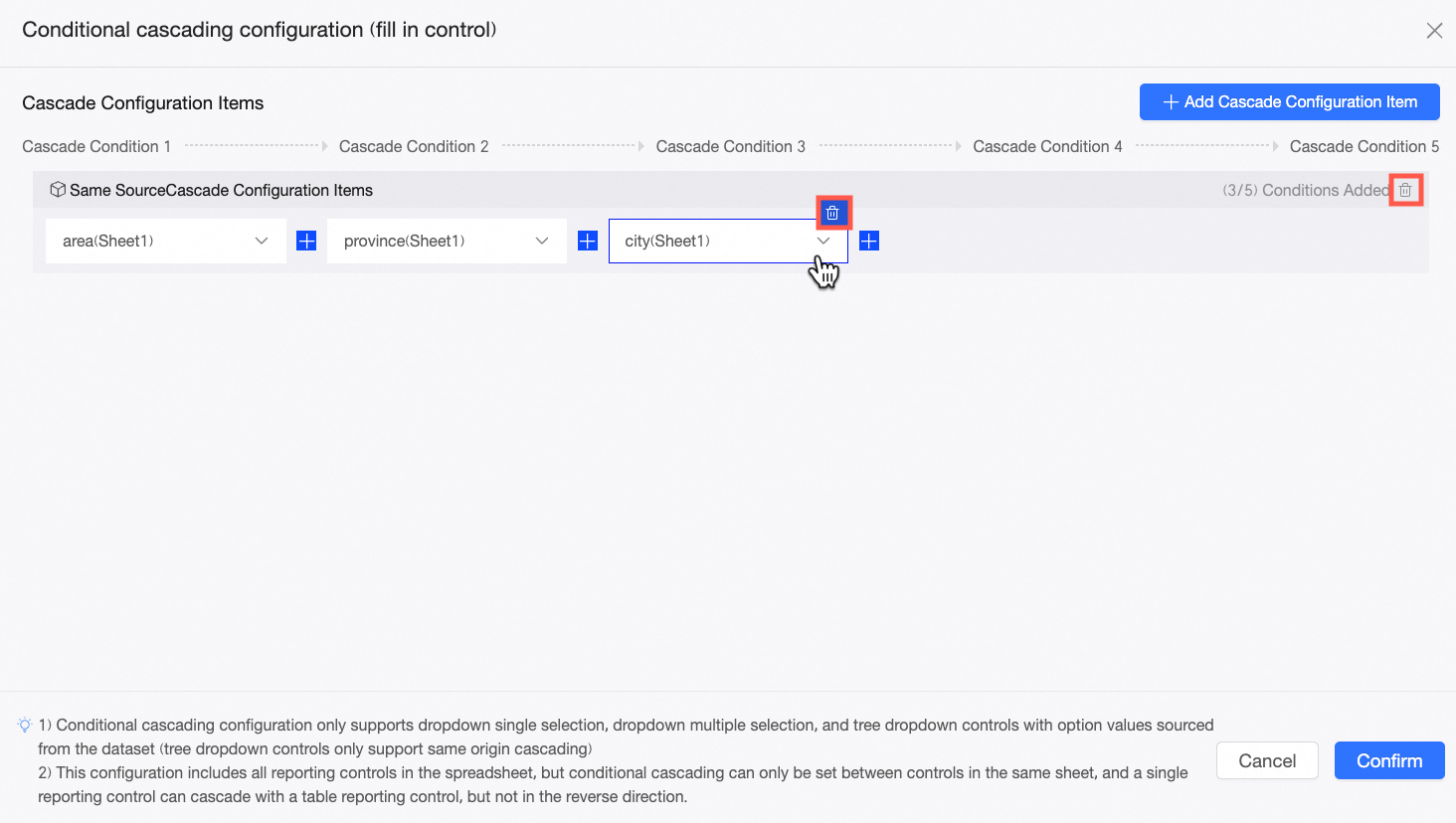
-
Add a Configuration Item: Click New Cascading Configuration and choose either same-source or different-source cascading based on your needs. This adds a new cascading configuration item without affecting existing ones.