Actions | Description |
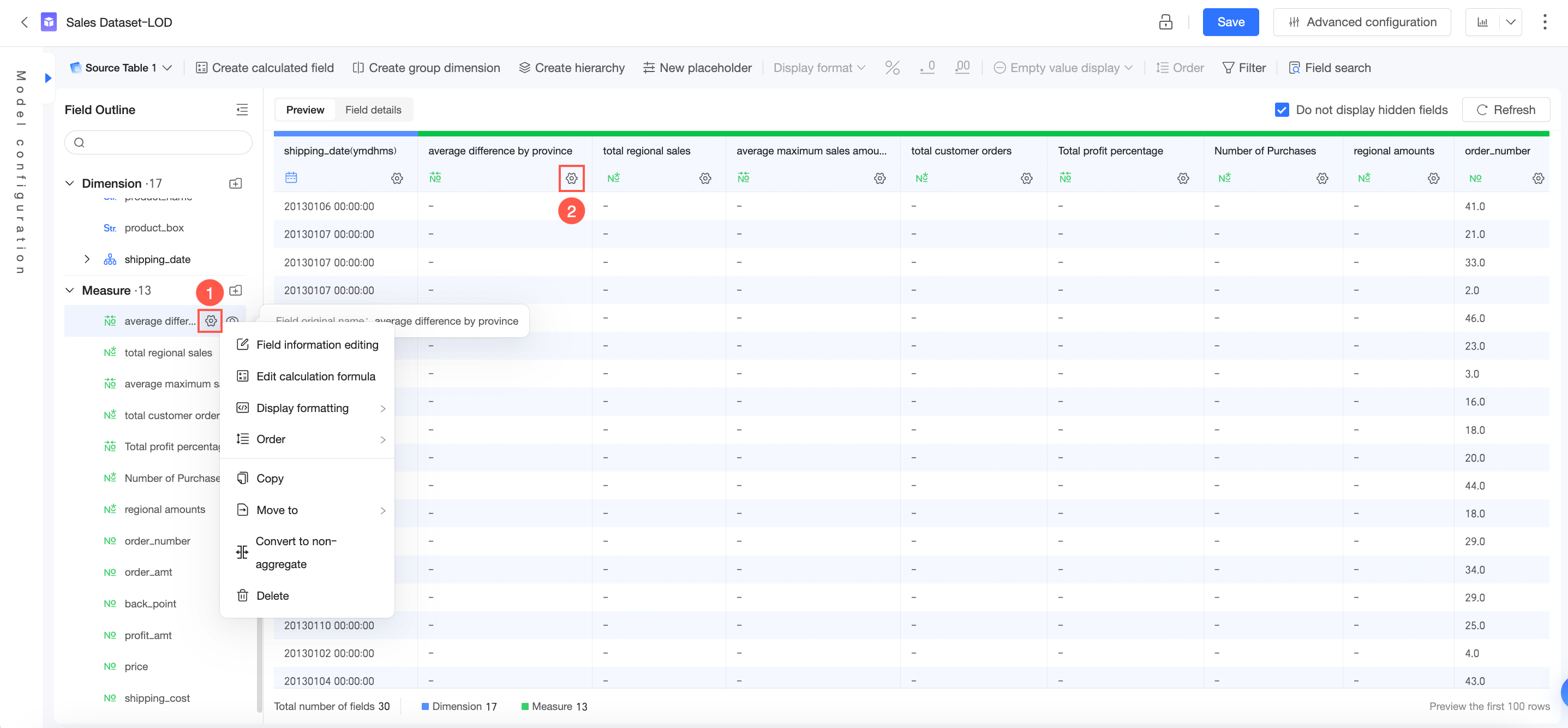
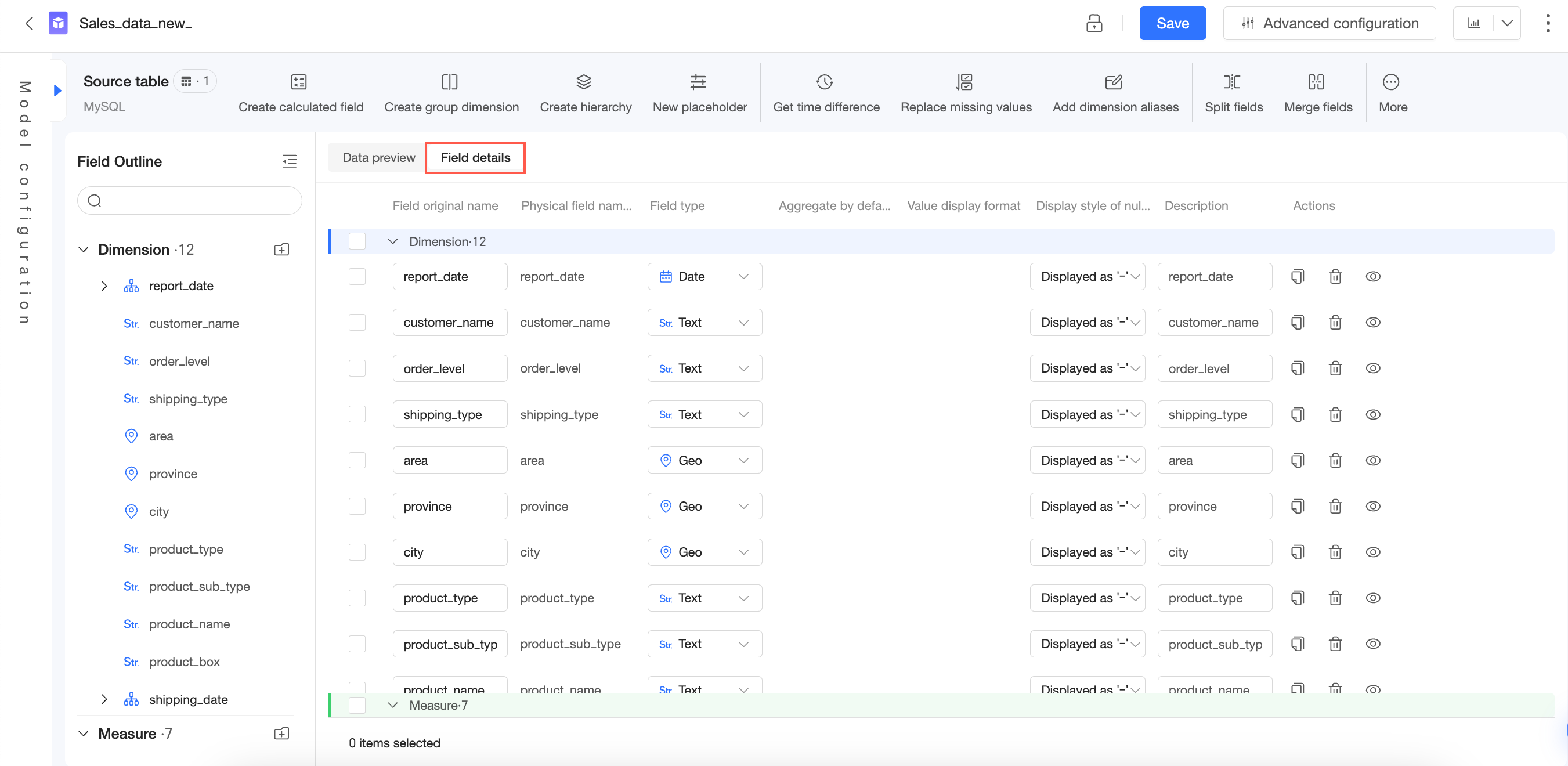
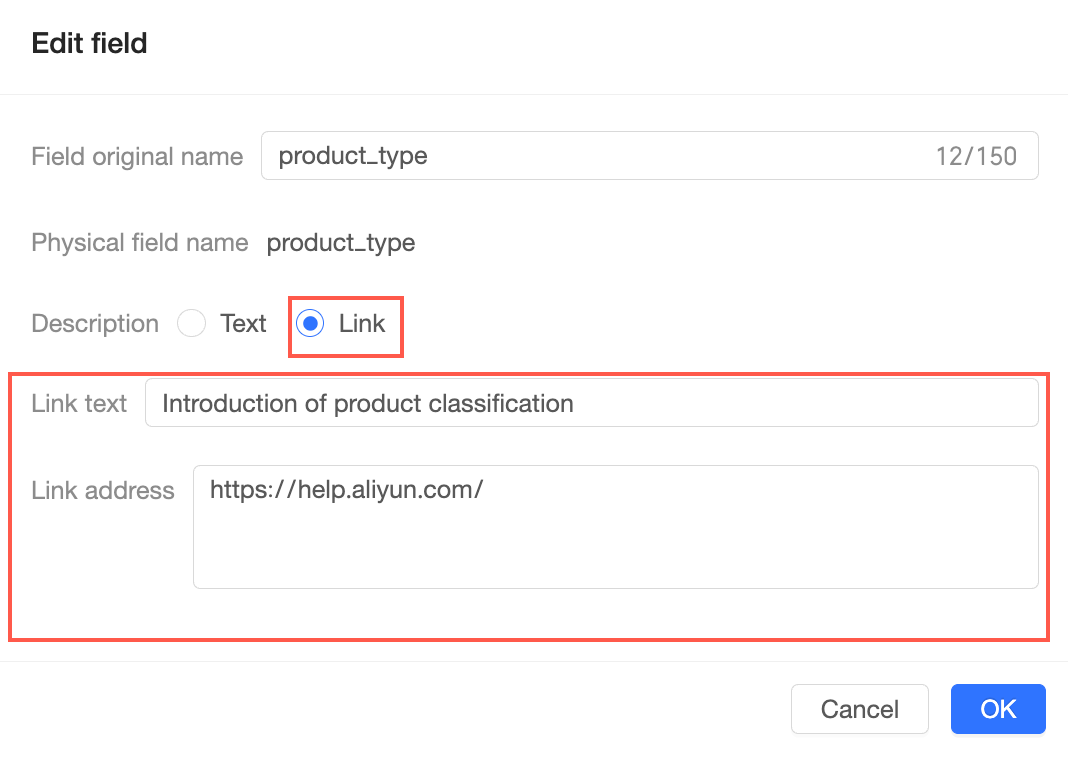
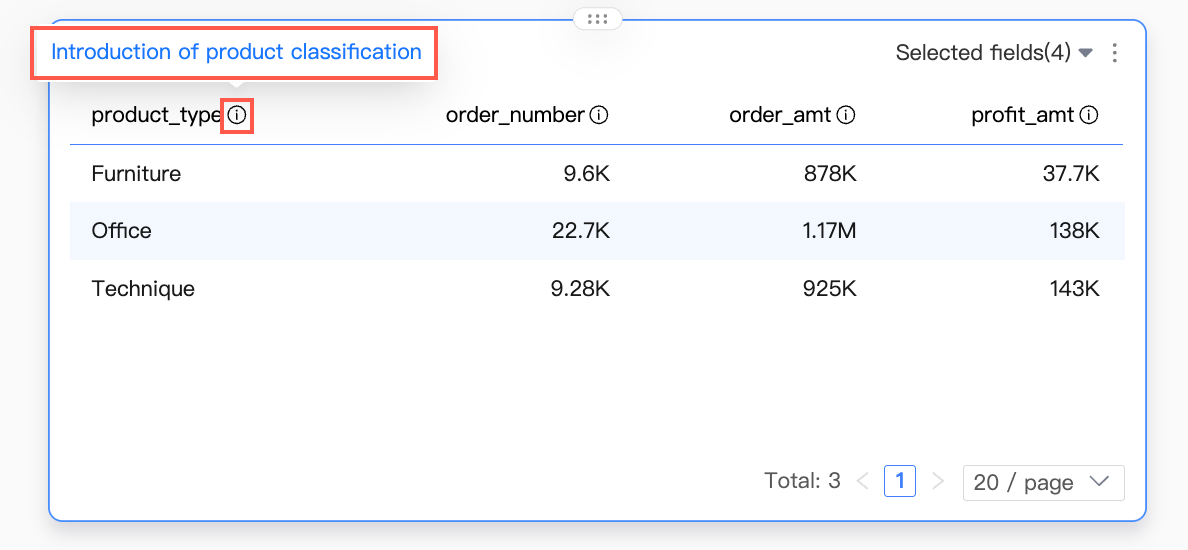
Edit field information | Modify the display names and descriptions for dimensions or measures. |
Edit calculation formula | You can edit the calculation formula for new calculated fields.
Note You can edit calculation formulas only for new calculated fields. |
Change field type | You can set the field type to Text, Date, Geographic, Number, or Image. You can also convert a dimension field to a measure field, and vice versa.
Note If a calculated field contains an LOD function: If the calculated field is a numeric type, you can switch it between a numeric measure and a numeric dimension. If the calculated field is a text type, you can switch it between a text measure and a text dimension. If the calculated field is a date type, you cannot change its type.
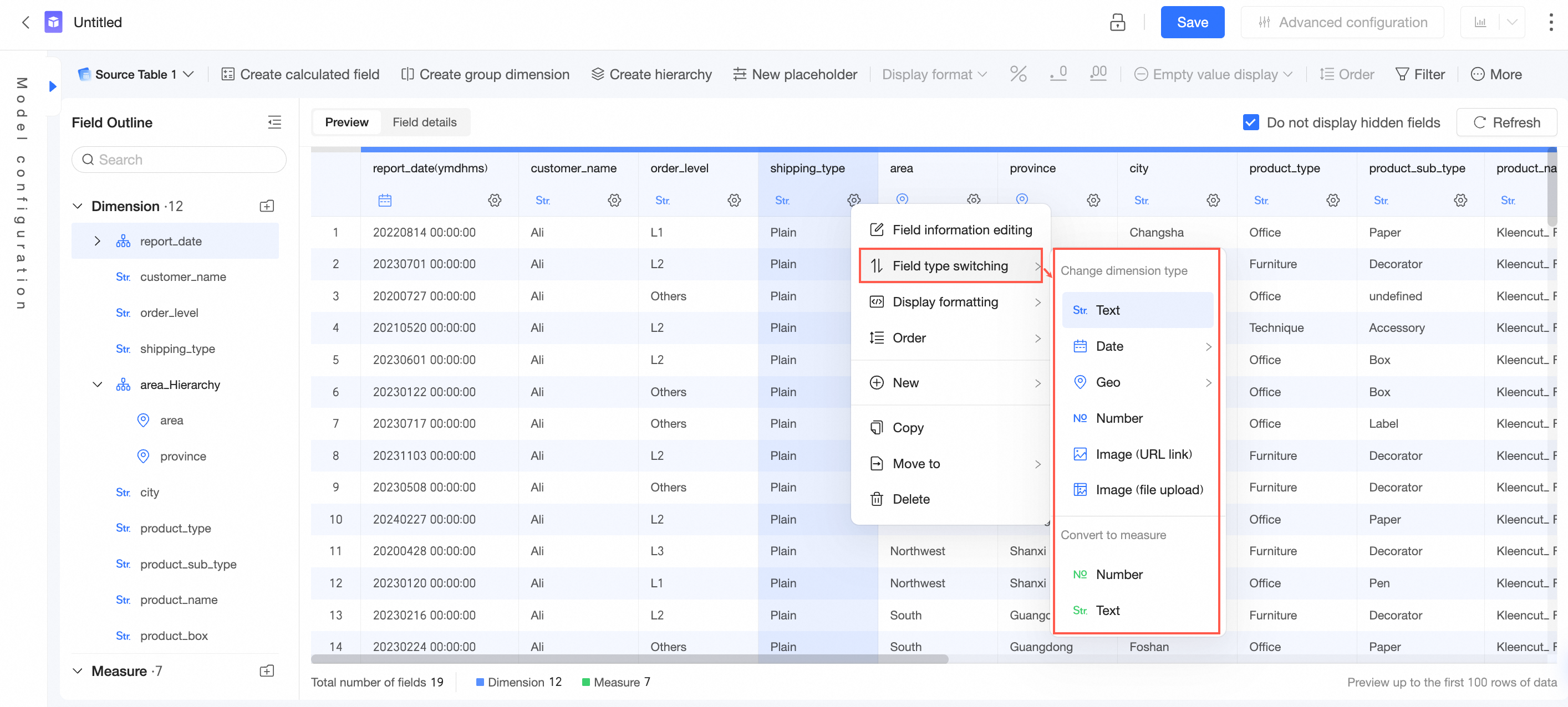
For Date fields, you can configure the source data format. For example, if your source data is in the format20210101, selectYYYYMMDD. This setting ensures the data is parsed correctly during field type conversion. To change the display format of a Date field, use the Display Format Settings. If a field contains geographic data (such as a province or city) that you plan to use for map charts, set the appropriate geographic granularity. Image Image (URL) If the target field contains image URLs and you want to display the images in a crosstab, leaderboard, or card on a dashboard, set the field type to Image.
Note Image URLs must start withhttps://.http:// is not supported. Image (File Upload) If the target field stores uploaded image files (for example, images uploaded through data entry), setting the type to Image (File Upload) converts the files into a displayable format for use in the dataset and reports. For more information, see Image Upload.
|
Default aggregation method | You can configure the default aggregation method only for measure fields. The aggregation method configured here becomes the default for this field in dashboards. 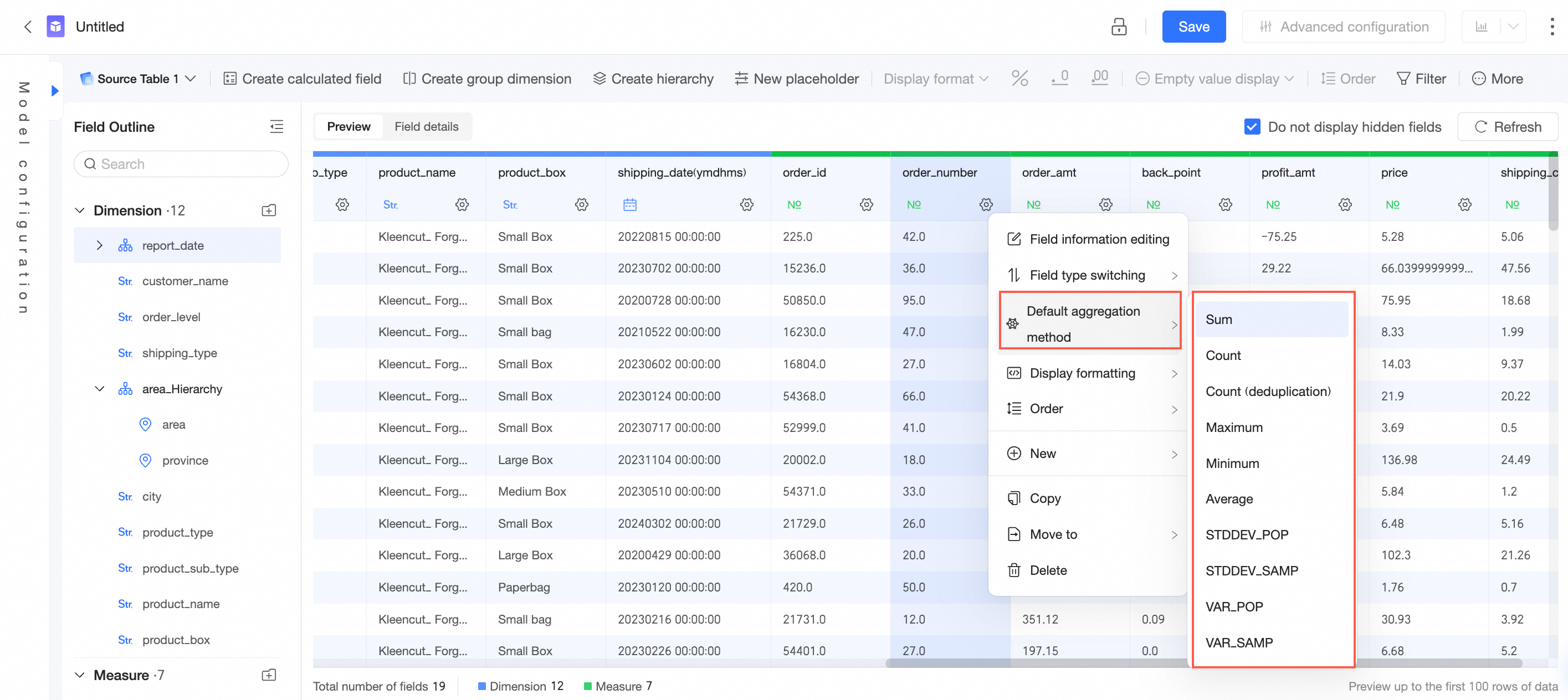
|
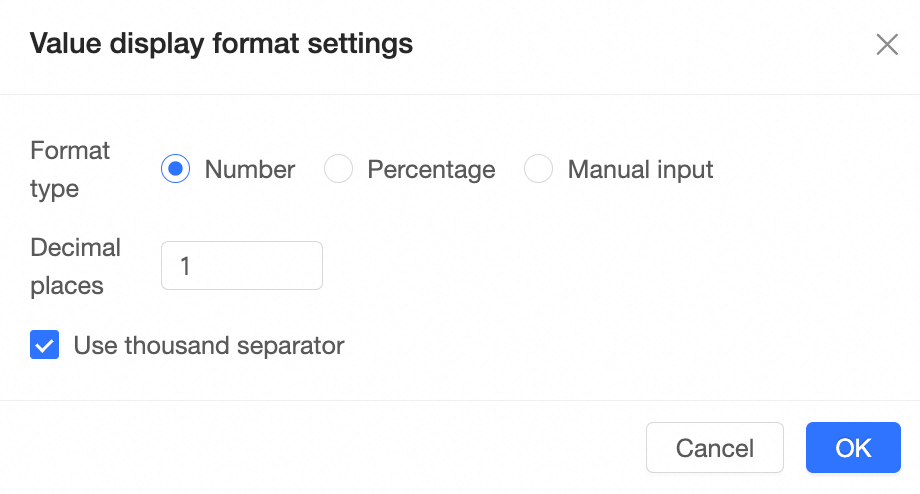
Display format settings | Date display format For Date fields, you can set a default date display format for each date granularity. Day granularity YYYY-MM-DD (e.g., 2020-01-06) YYYYMMDD (e.g., 20200106) YYYY/MM/DD (e.g., 2020/01/06) YYYY-MM-DD (Example: January 6, 2020) Chinese YYYY year M month D day (Example: January 6, 2020) MMDD (e.g., 0106) MM-DD (e.g., 01-06) MM/DD (e.g., 01/06) M/D (For example: 1/6) DDMMYY (e.g., 06012020) MM/DD/YY (e.g., 01/06/2020)
Week granularity YYYY-WW (For example: 2020-02) YYYYMMDD~YYYYMMDD (e.g., 20200106~20200112) YYYY/MM/DD~YYYY/MM/DD (e.g., 2020/01/06~2020/01/12) YYYY-Week W (MMDD~MMDD) (e.g., 2020-Week 02 (0106~0112)) Year YYYY, Week W (Chinese) (e.g., Year 2020, Week 2) MM/DD~MM/DD (e.g., 01/06~01/12) MMDD~MMDD (e.g., 0106~0112)
Month granularity Quarter granularity YYYY-Q Quarter (e.g., 2020-01) YYYYQ (e.g., 2020Q1) YYYY, Quarter Q (e.g., 2020, Quarter 1) Q<Quarter> YYYY (For example: Q1 2020) FYYYYY-Q (e.g., FY2020-Q1) YYYY fiscal year Q (e.g., 2020 fiscal year Q1) fiscal year YYYY, quarter Q (e.g., fiscal year 2020, quarter 1)
Year granularity YYYY (e.g., 2020) YYYY (Example: 2020) Chinese year in YYYY format (e.g., Year 2020) FYYYYY (e.g., FY2020) YYYY fiscal year (e.g., 2020 fiscal year)
Null value display style For dimension fields, you can set the display style for null values or empty strings.
Note Custom text for null values is limited to 150 characters and can only contain Chinese or English characters, digits, underscores, forward slashes, backslashes, vertical bars, parentheses, and brackets. |
Date properties | Date fields support both the calendar year and fiscal year. When you select fiscal year, you can specify which month the fiscal year starts in. Fiscal year starts in You can select the starting month of the fiscal year. 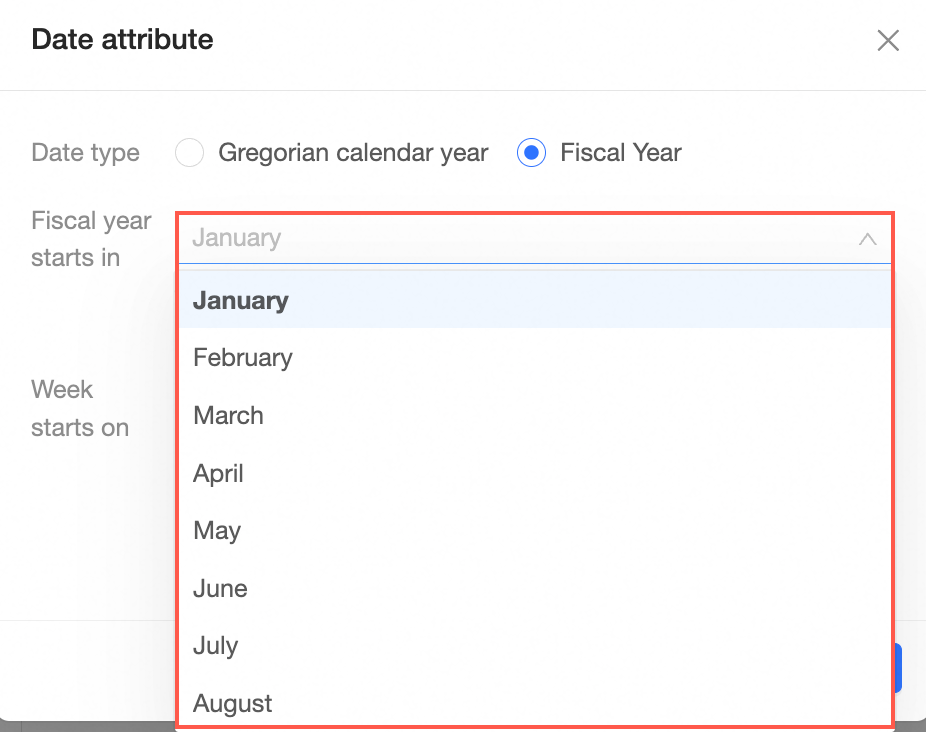
Note For example, if you set the Fiscal Year Starts In to April, the period from April 1, 2023, to March 31, 2024, is considered FY24. In this case, the calculation logic for year-over-year, quarter-over-quarter, and quarter-over-year comparisons differs from the calendar year. For more information, see Period-over-period comparisons. The fiscal year number corresponds to the calendar year in which it ends.
Week starts on You can select the starting day of the week. 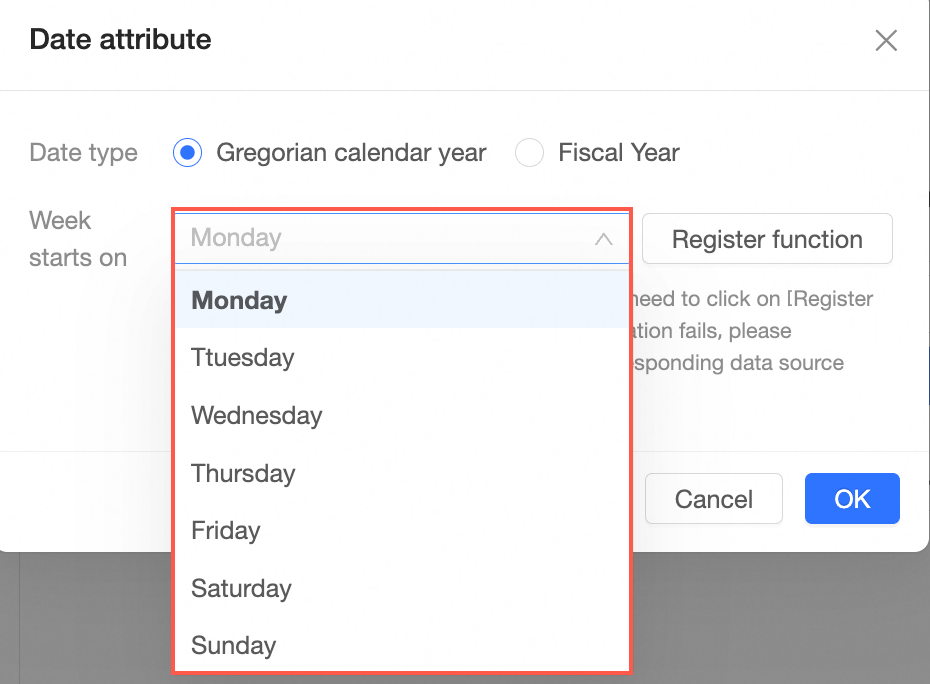 Click Register Function to automatically register the date functions. Click Register Function to automatically register the date functions.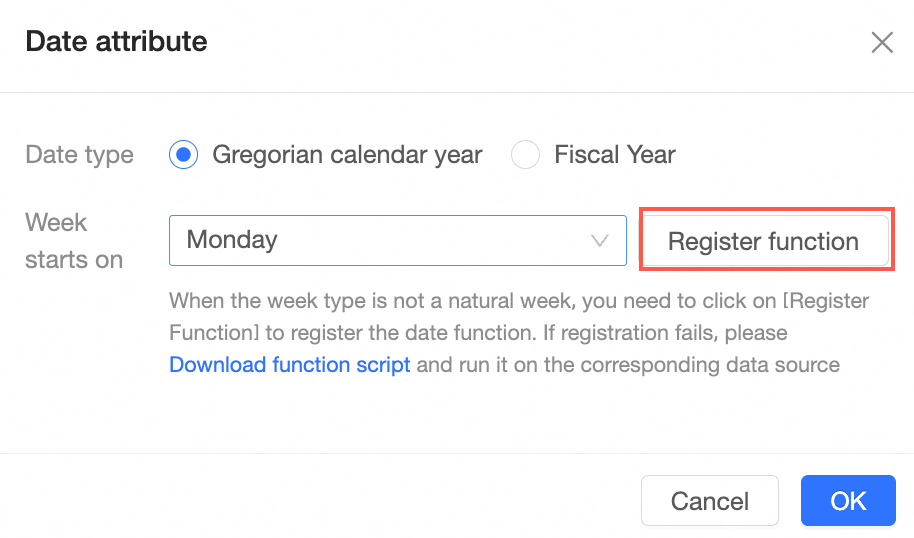
If you do not have write permissions for the database, you cannot use the automatic Register Function feature. Instead, you can Manually Download Function Script and run it on the corresponding data source. Data sources such as MaxCompute, Presto, Hive, and Apache Doris do not support automatic registration. You need to Manually Download Function Script and run it on the corresponding data source.
|
Sync date granularity | This feature only supports syncing Date fields. If you accidentally delete date granularity fields, click Sync Date Granularity to restore them from the source data. |
Sort | Set the default sort order to none, ascending, descending, or custom. The sort order configured here becomes the default for this field in dashboards. |
Geographic data matching | When the field type is a Geographic field and the granularity is continent, country, region, province / municipality, city, or district / county, you can configure Geographic Data Matching.
Note This feature matches geographic information fields in your dataset (such as city or country) with the system's standard geographic names for display on maps. Note: The system automatically matches standard geographic names. Manual configuration is only necessary if your data uses non-standard names or if automatic matching fails. 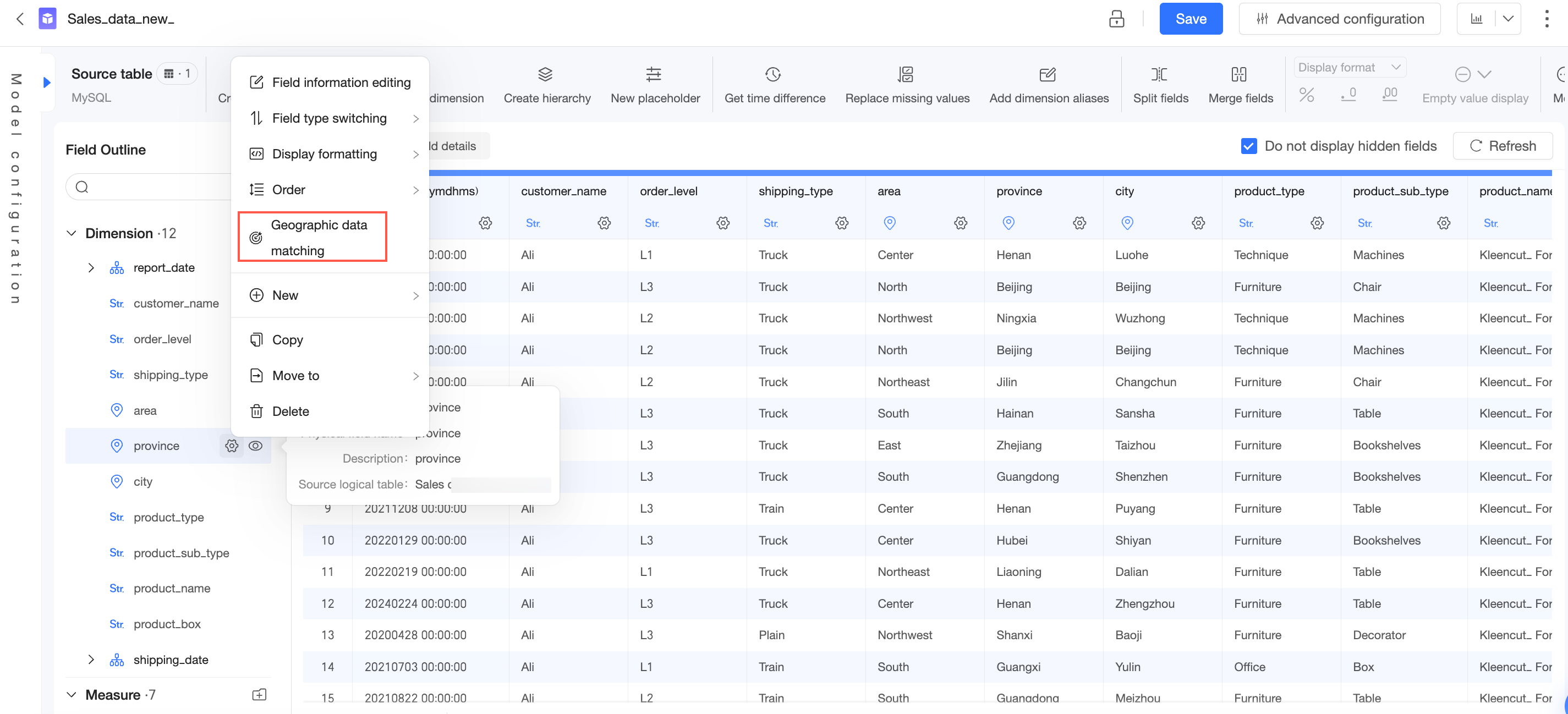
In the drop-down list for the original data column, select the geographic value you want to match and then select the target location.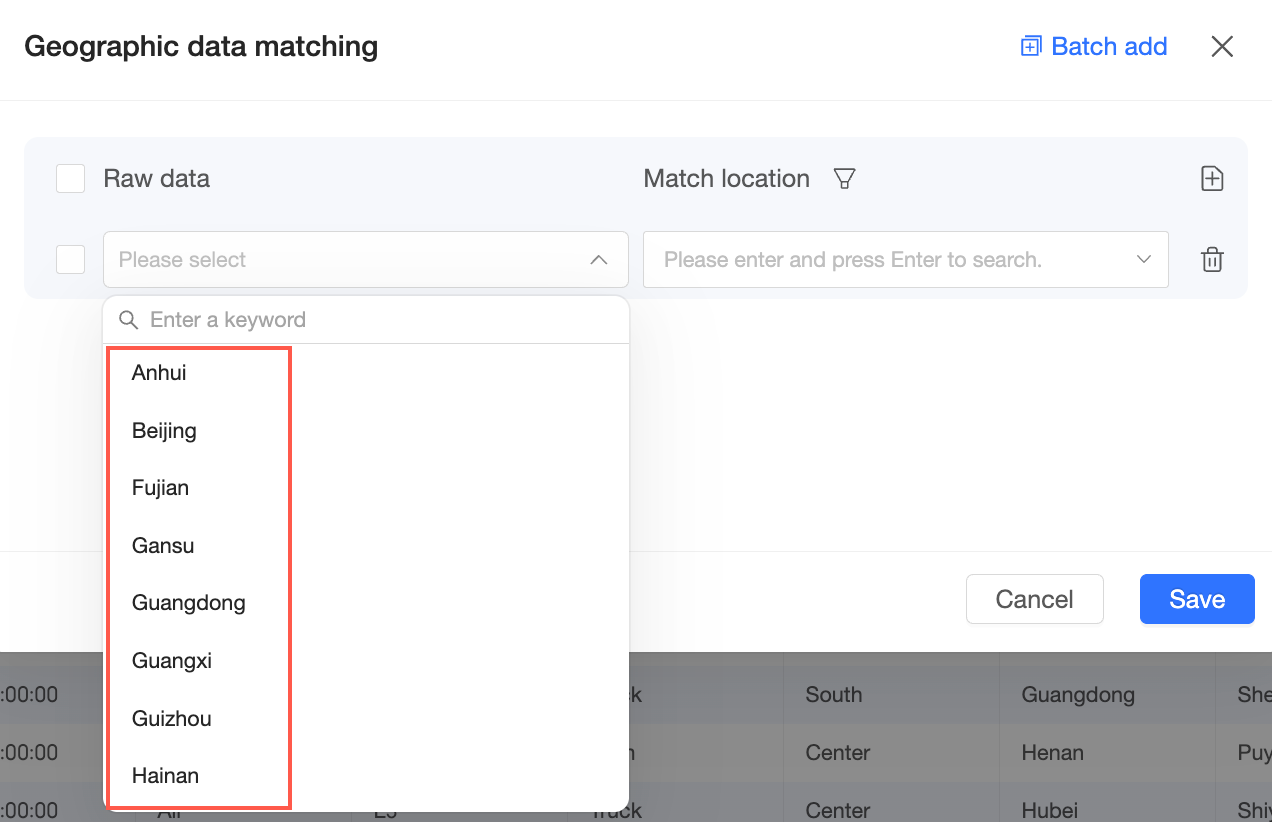 For example, match "Shanghai" to "Shanghai (Asia/China/East China)". For example, match "Shanghai" to "Shanghai (Asia/China/East China)".
Note You can only match to standard geographic names at the granularity selected for the current field. 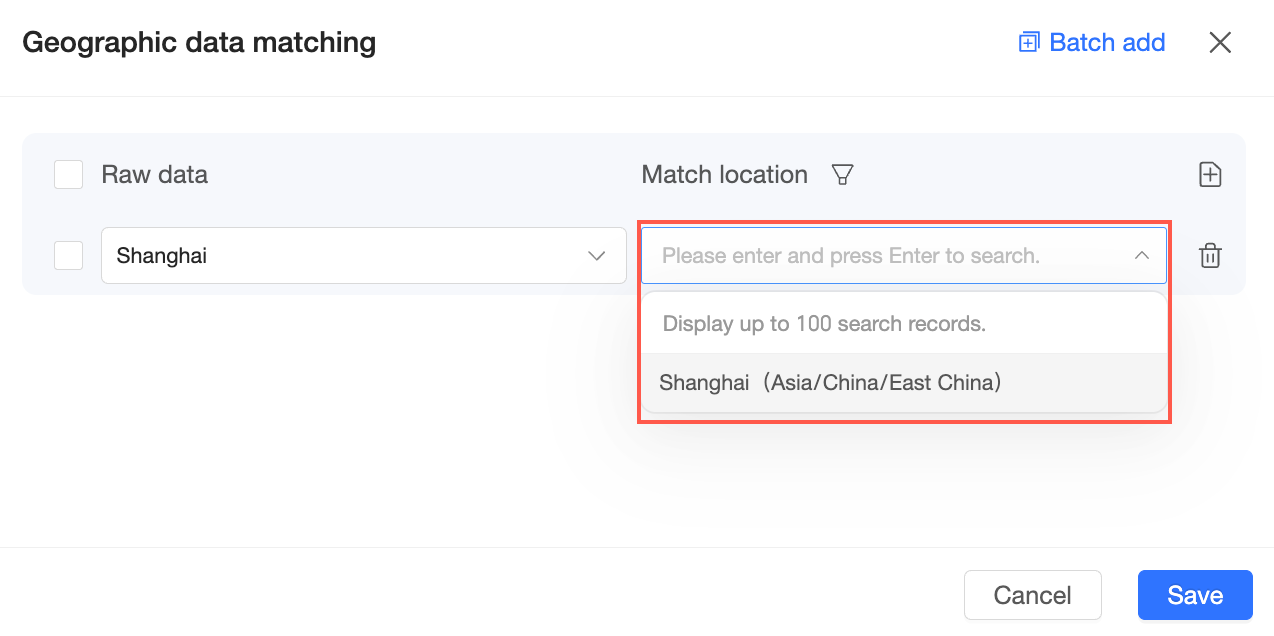
Click the  icon in the upper-right corner to continue to Add geographic data configurations. icon in the upper-right corner to continue to Add geographic data configurations.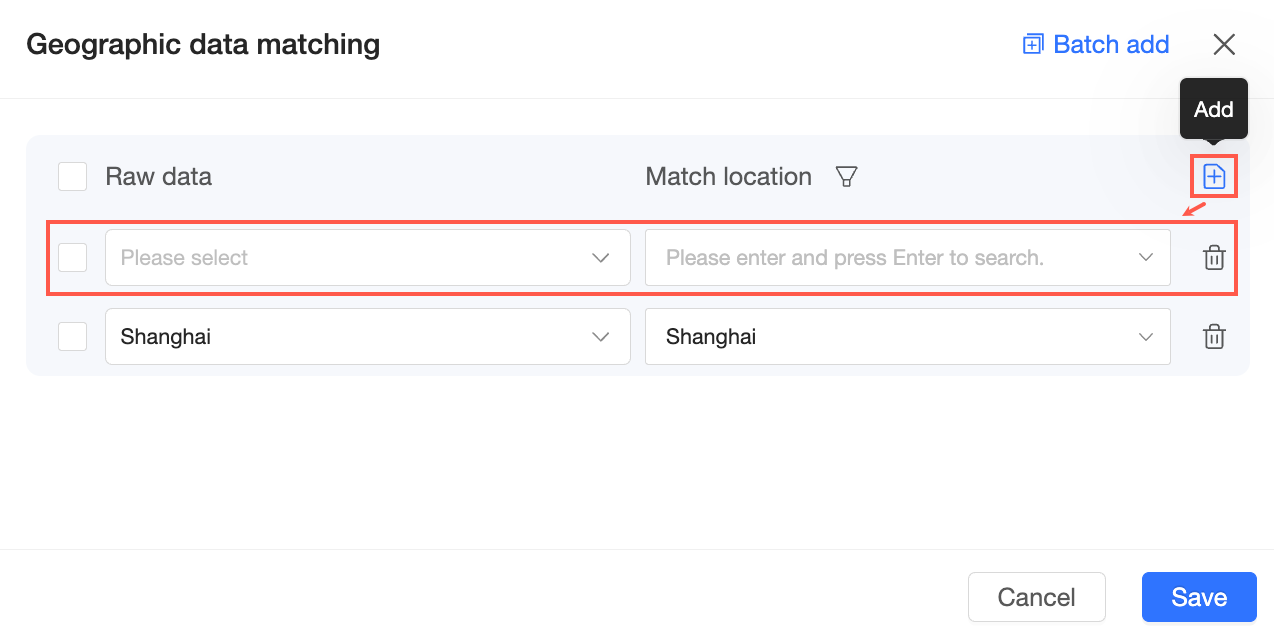 Click the Batch Add button, enter the geographic data, and then click Recognize and Add to batch add them.
Note Enter one item per line. You can add up to 200 items. Duplicates and already-added items are automatically filtered out during recognition. 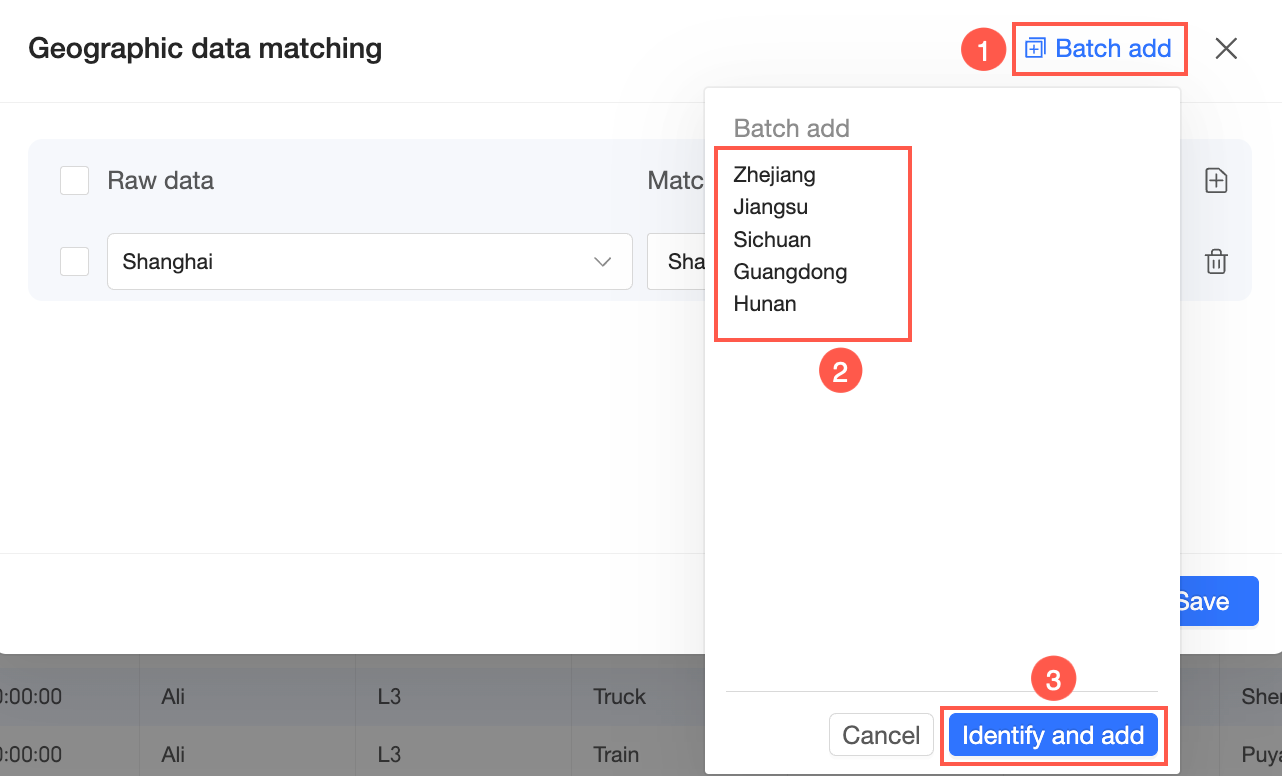
Click the  icon next to the matched location to filter by Unmatched Data and Matched Data. icon next to the matched location to filter by Unmatched Data and Matched Data. 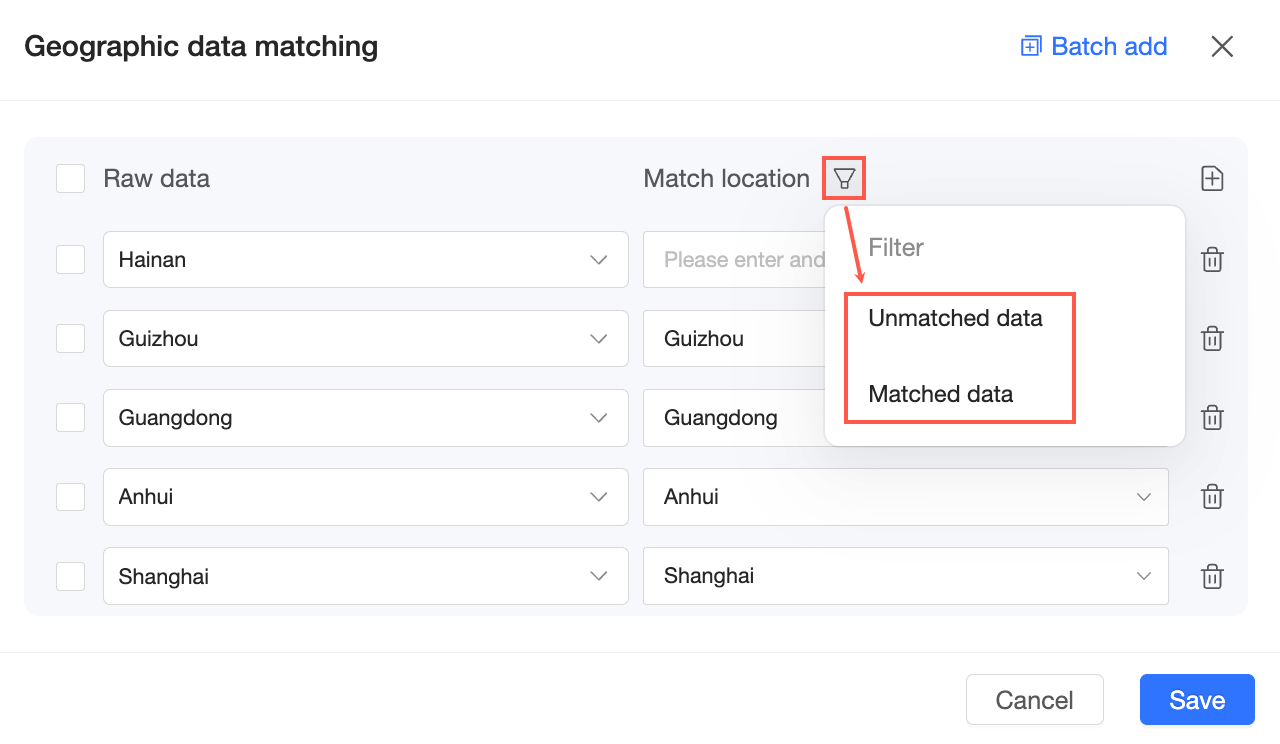
Click the  icon on the right to delete a specific match. icon on the right to delete a specific match.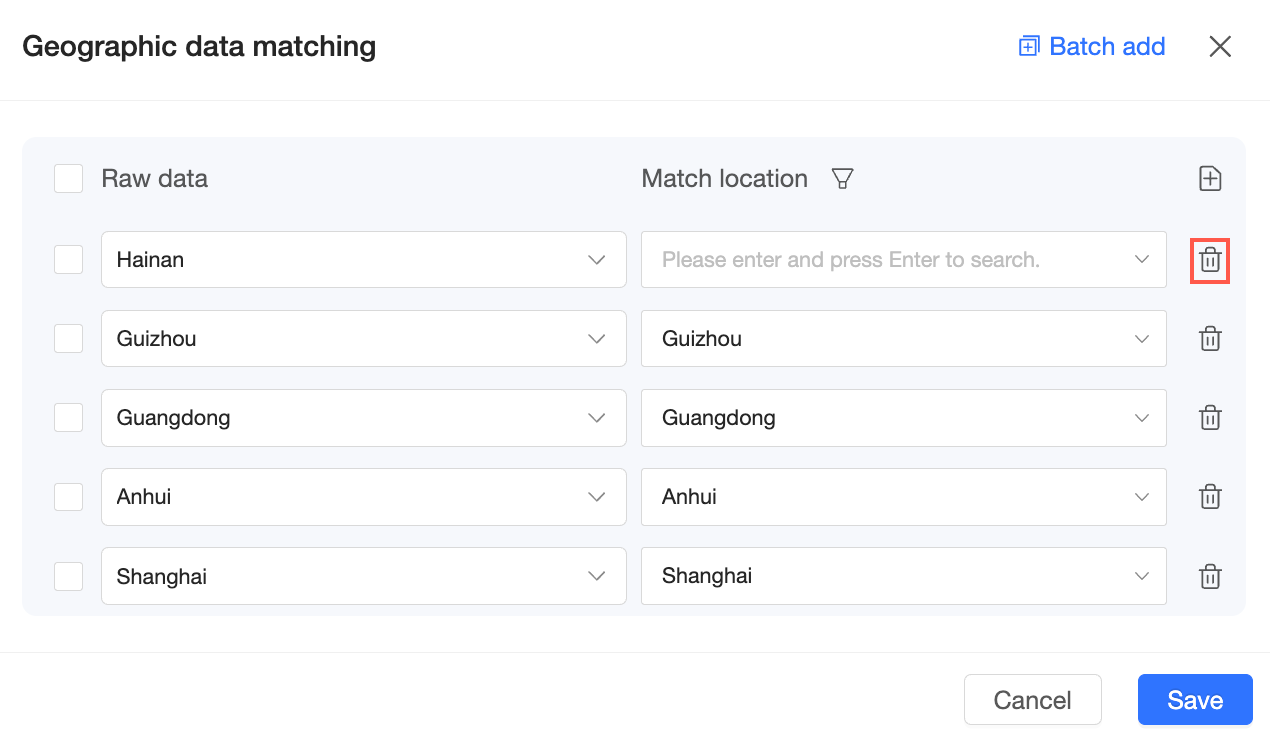 You can also select multiple matches to perform a batch delete. 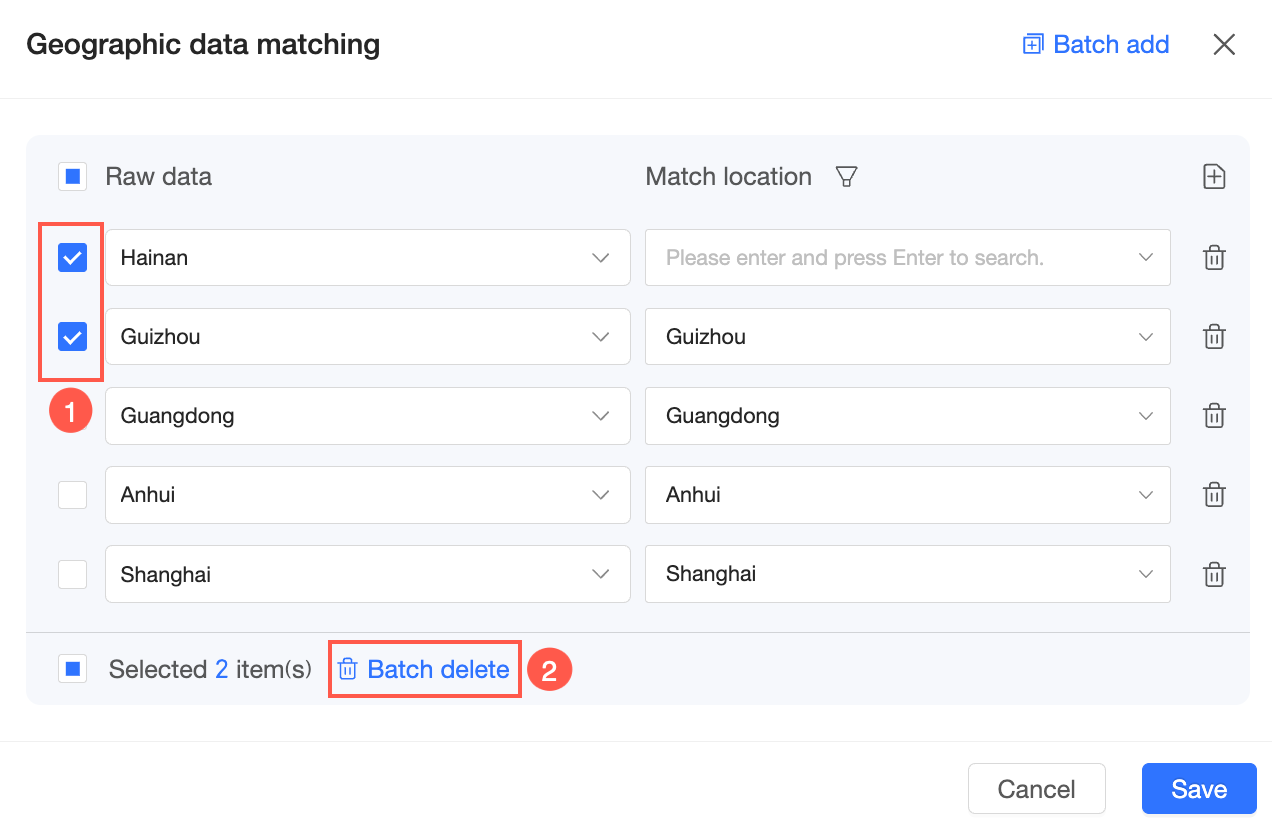
Click Save to complete the geographic data matching configuration.
Important Changing the field type discards all existing Geographic Data Matching configurations. Proceed with caution. The system does not merge different field values that map to the same geographic region. For example, if you manually match "Guangdong" to Guangdong Province, and your data also contains "Guangdong Province," these values are not merged. When displayed on a map, only one of the data points appears. To merge them, use the Add New Dimension Value Alias feature to unify the values.
|
New | New calculated field Create a calculated field when you need to process existing data to get the values required for your analysis. For more information, see Create a calculated field. New group dimension Use a group dimension to categorize dimension values. For example, you can group an age field into categories like minor, youth, middle-aged, and senior to view vaccination rates for each age group. For more information, see Group dimensions. New hierarchy You can create hierarchies only from dimension fields. A hierarchy consists of multiple levels. For example, you can set Province, City, and District as a hierarchy. When you configure drill down in a dashboard, the drill down will automatically follow the hierarchy. For more information about the drill down operation, see Drill.
|
Duplicate | Duplicates a field. The new field is automatically named with a "copy" suffix. |
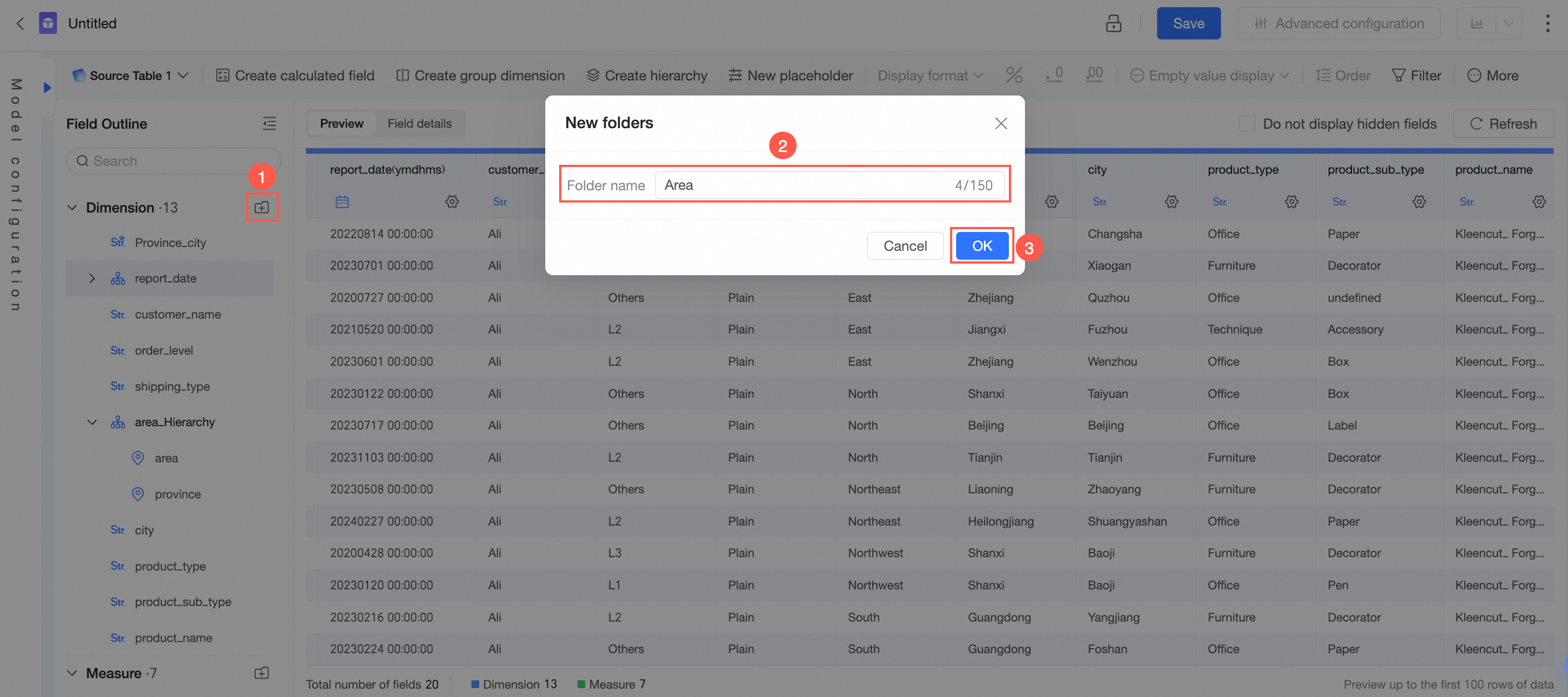
Move to | Moves a dimension into an existing hierarchy or folder. |
Convert to aggregated/non-aggregated | Newly created calculated fields of the measure type can be converted to aggregated or non-aggregated. Non-aggregated fields are automatically wrapped with a default aggregation function (such as the SUM function) in reports and calculated based on the dimensions specified in the report. For aggregated fields, the aggregation method is fixed and cannot be changed in reports.
Note This conversion is supported only for newly created calculated fields that are measures. |
Delete | Deletes the field. To restore a deleted field, you can click the table on the canvas and re-add it from the panel on the right. |
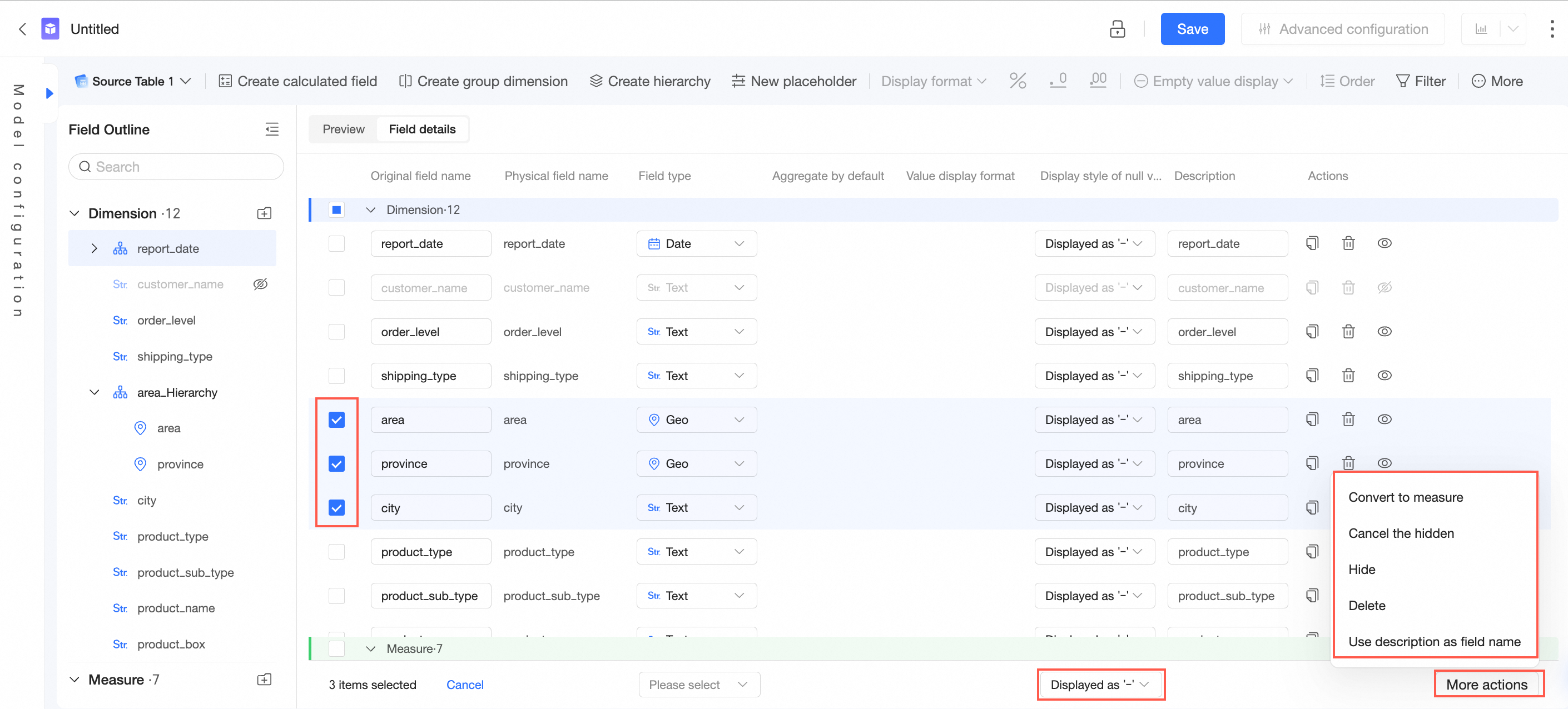
Hide | In the field list or data preview area, hover over the target field and click the  icon to hide the field. icon to hide the field. 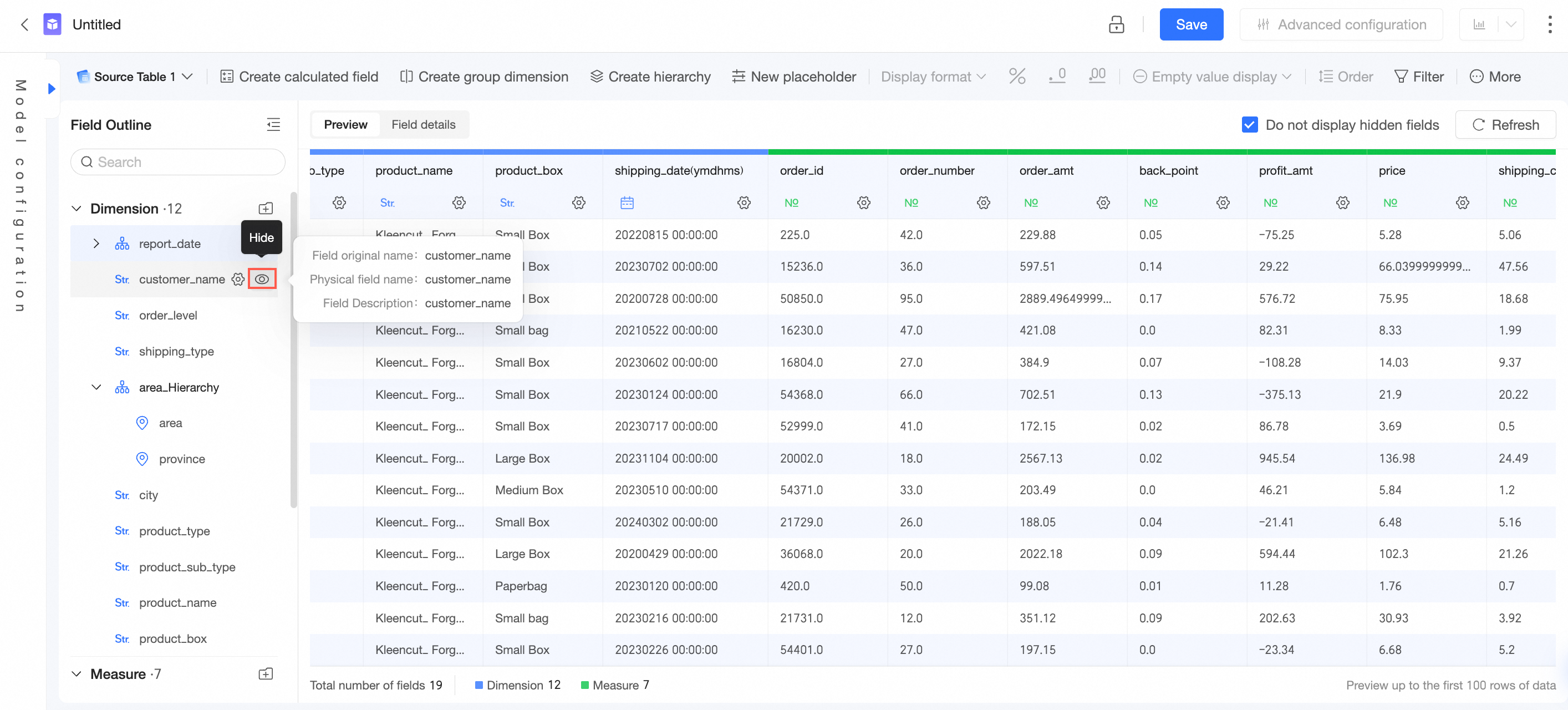
Hidden fields do not appear in analysis features such as dashboards or spreadsheets that use this dataset. To show a hidden field, click its  icon in the field list. icon in the field list. 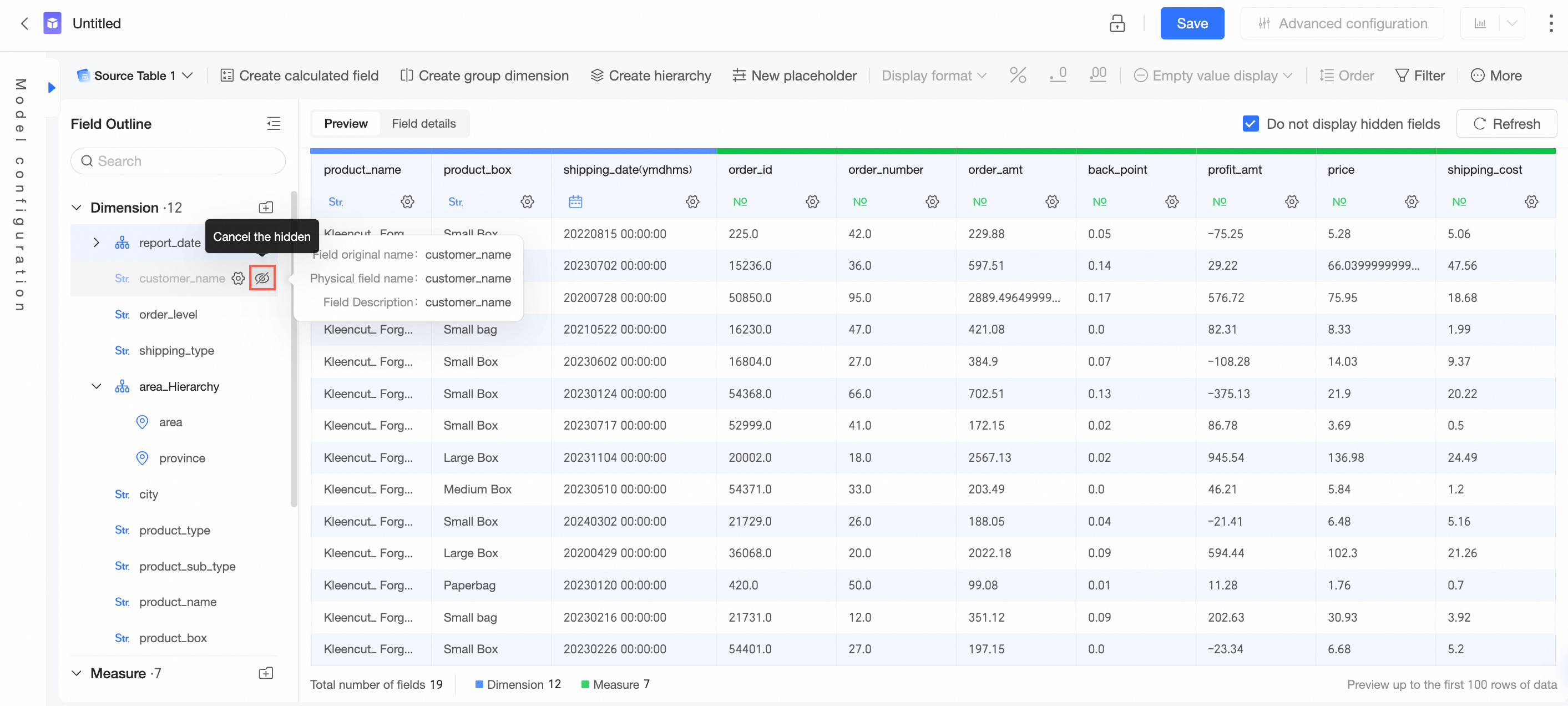
You can choose whether to display hidden fields on the dataset editing page: By default, this option is selected, and hidden fields are not shown in the data preview. If you clear the checkbox, hidden fields are displayed in the data preview interface. 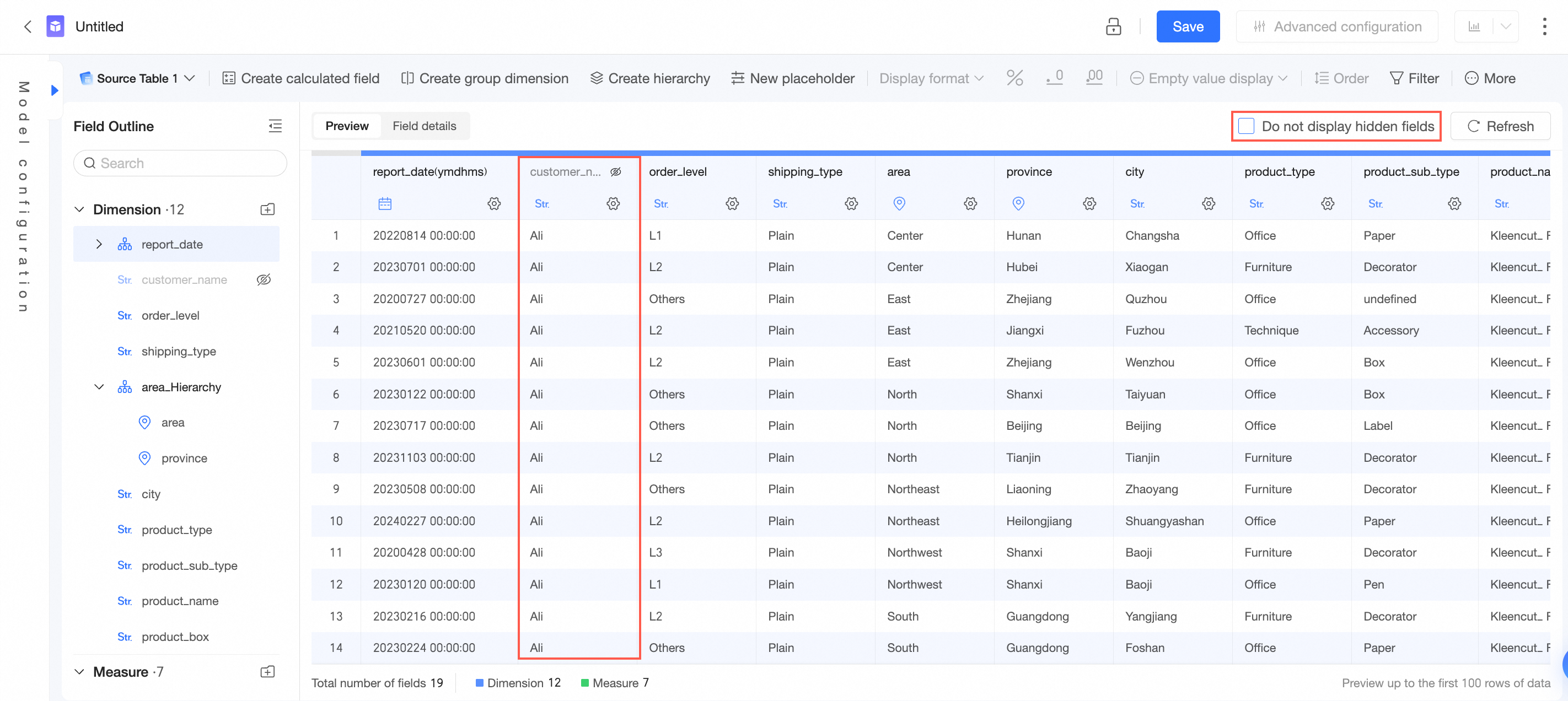
|
Drag to reorder selected fields | You can drag one or more fields to reorder them or move them into another folder. 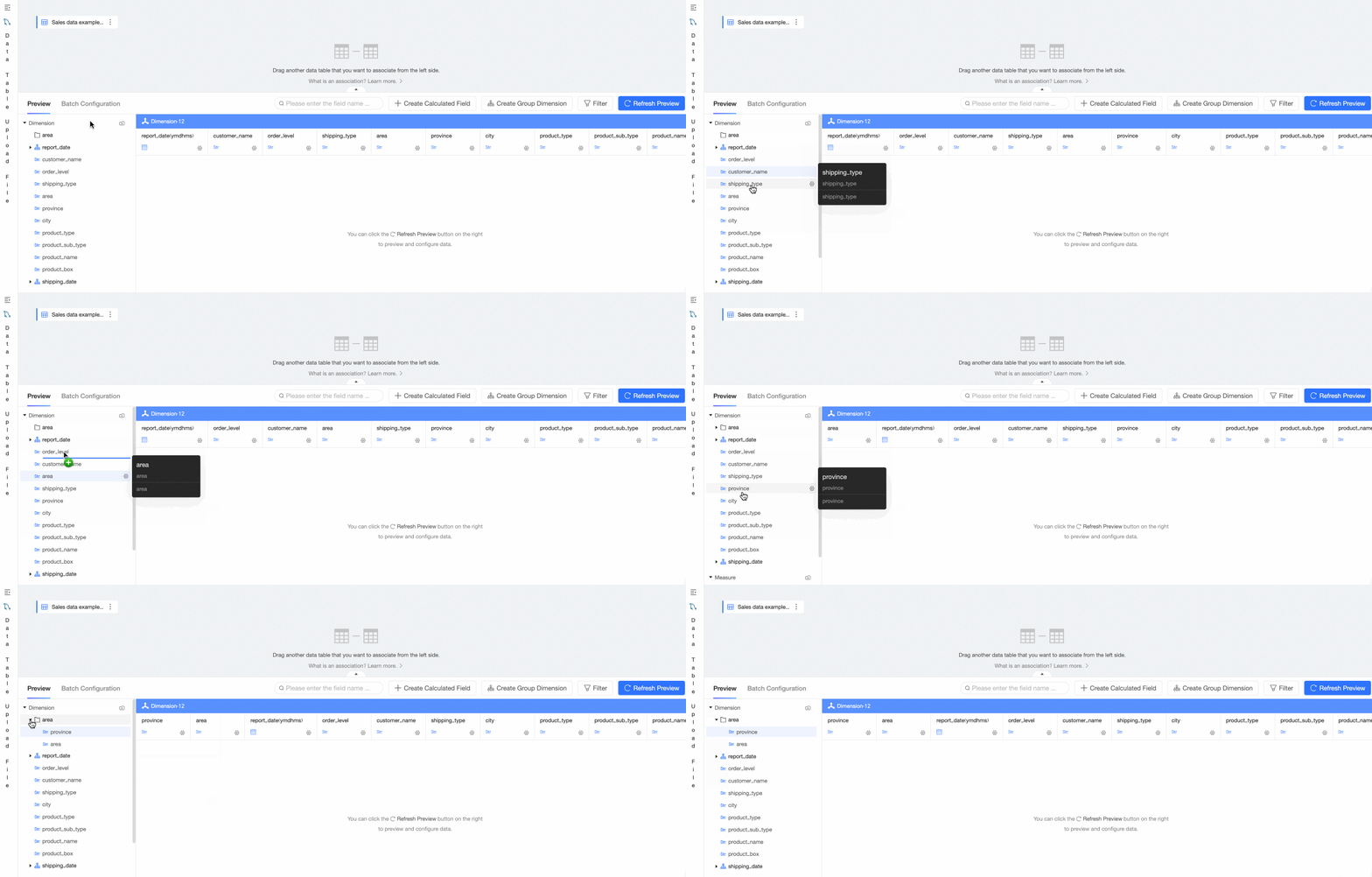
Note When selecting multiple fields, you cannot select a hierarchy, including date hierarchies. When selecting multiple fields, you cannot select fields that are part of a date hierarchy (they cannot be dragged individually).
|