When you need a metric that does not exist as a column in your data tables, create a calculated field to derive it from existing data using functions and operators.
Prerequisites
You have created a dataset. For more information, see Create a dataset.
Supported calculation types
Quick BI supports the following calculation types in calculated fields:
-
Aggregation — summarize values across rows. For example, to count unique customers: COUNT(DISTINCT [Customer_Name])
-
Arithmetic operations — combine numeric fields using +, -, ×, and ÷. For example, to calculate the average transaction value per customer: [Order_Amount] / [Customer_Count]
-
String splitting and concatenation — merge or extract text fields. For example, to combine a province and city: CONCAT([Province], [City])
-
Complex grouping — classify records based on multiple conditions. For example, to classify customers as 'VIP': CASE WHEN [Order_Amount]>1000 AND [Order_Count]>5 THEN 'VIP' ELSE 'Standard' END
Create a calculated field
-
On the data processing page, click Create Calculated Field.

Alternatively, in the field pane or data preview area, hover over a field, click the
 icon, and select Create > Create Calculated Field.
-
In the Create Calculated Field dialog box, configure the following parameters and click OK.
Enter a field name.
-
(Optional) Enter a Field Description.

-
Click Insert Function and Insert Field to build the field expression. Quick BI provides two categories of functions:
-
Built-in functions: Quick BI's own functions that work consistently across different database types.
For more information, see Built-in functions.
-
Database functions: Native functions of the underlying database. Available functions depend on your data source. For example:
-
MySQL data source:

-
Exploration space (ClickHouse):

-
-
-
Write the expression. Keep the following in mind:
Type [ in the expression editor to open a list of available measure fields.
-
Click a quick calculation operator to insert it directly into the expression.

Click the
 icon to clear the expression.
For common expression examples, see Use cases.
-
Click OK.

A newly created calculated field can be referenced inside another calculated field, which lets you build nested expressions for complex metrics.
For example: Profit_Amount = Order_Amount - Cost_Amount; Profit_Margin = Profit_Amount / Order_Amount.
Use cases
-
Aggregate functions
Sum: SUM([Field])
Count: COUNT([Field])
Count distinct: COUNT(DISTINCT [Field])
Average: AVG([Field])
Aggregate functions roll up data automatically based on the dimensions in the dashboard.
-
Arithmetic operations
Supports addition, subtraction, multiplication, and division.
Example — average order value per customer from an order details table: SUM([Order_Amount]) / COUNT(DISTINCT [Customer_Name])
-
Complex grouping
Use Group Dimension for simple single-field grouping. To group by combined conditions across multiple fields, use CASE WHEN. For example:
CASE
WHEN [Order_Amount]>5000 AND [Order_Count]>40 THEN 'VVIP'
WHEN [Order_Amount]>1000 AND [Order_Count]>5 THEN 'VIP'
ELSE 'Standard' END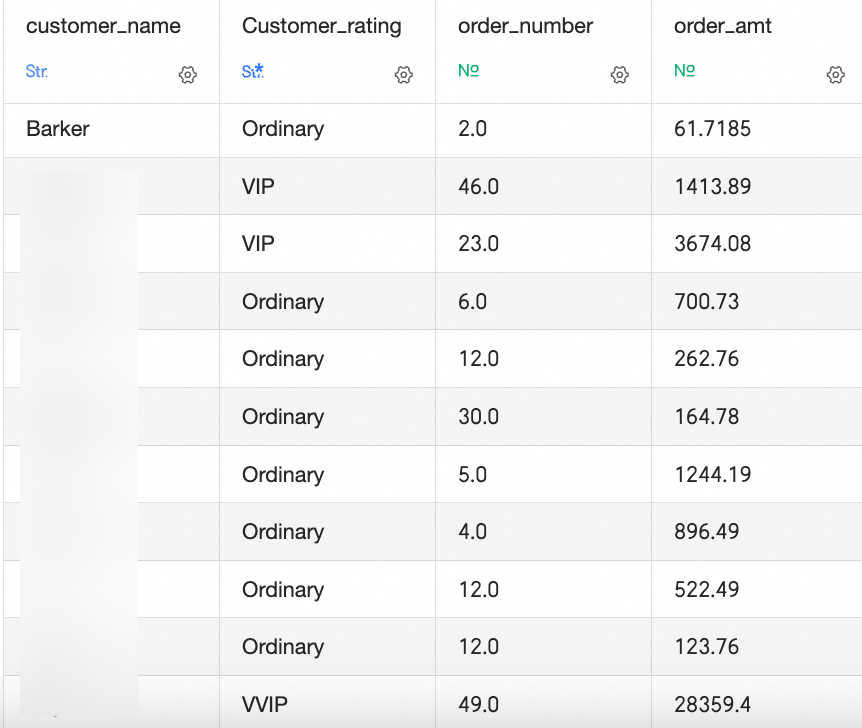
-
String concatenation
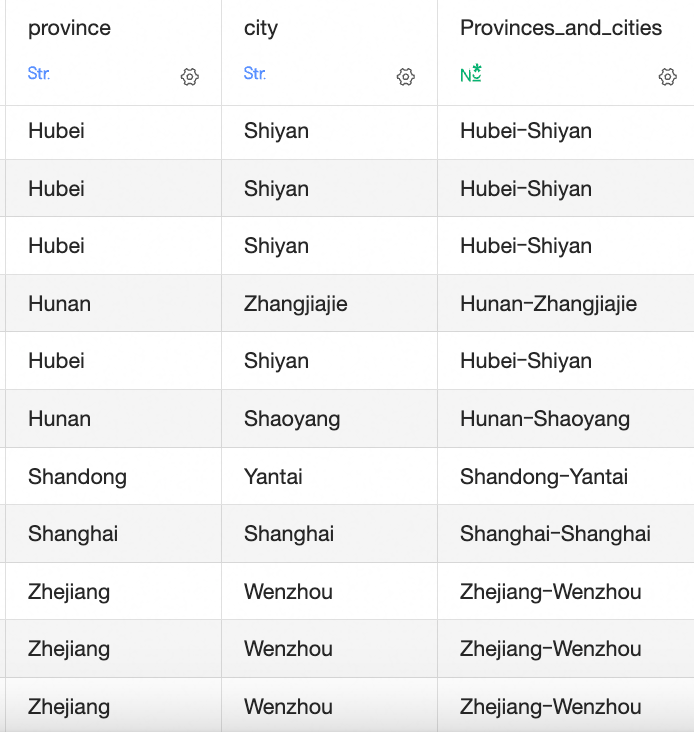
If your data table has separate
ProvinceandCityfields, merge them into a single field using CONCAT.CONCAT(a, b, c, d): Lists the fields to merge, separated by commas. Include a delimiter in single quotes to add it between values.
Example: CONCAT([Province],'-', [City])
-
String manipulation
Use string functions to extract or search within text fields. Available functions depend on your database. The examples below use MySQL functions.
-
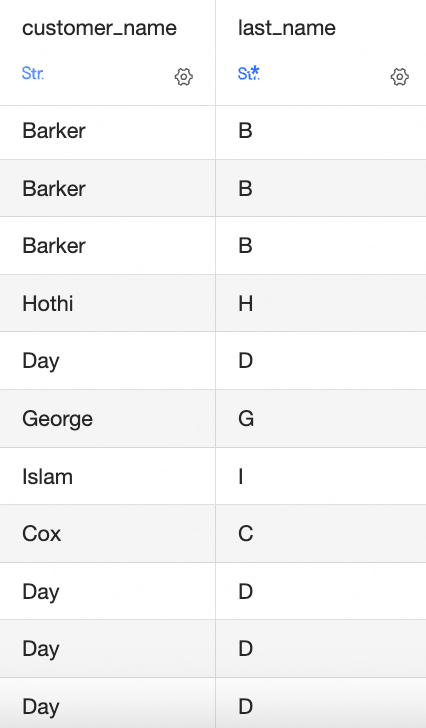
Substring extraction:
SUBSTRING([Customer_Name],1,1): Extracts one character from
Customer_Name, starting at position 1.SUBSTRING([Field], start_position, length)
-
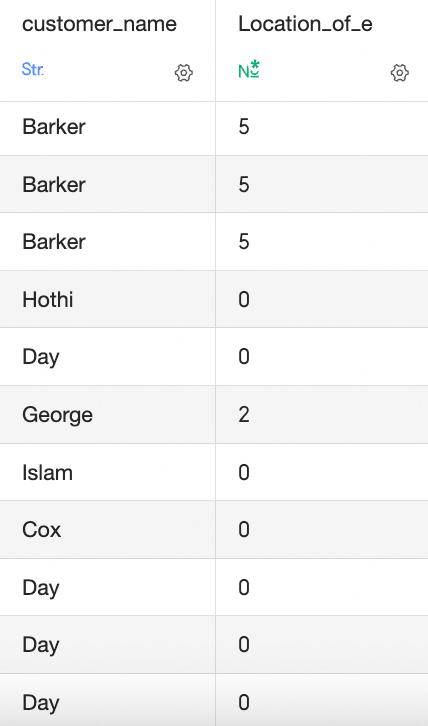
Find the position of a substring:
INSTR([Customer Name],'East'): Searches [Customer Name] for 'East'. Returns the position if found, or 0 if not.
-
-
Date and time functions
Quick BI automatically breaks down date and time fields into multiple granularity levels and supports custom display formats, covering many common date and time scenarios.
For database-specific date functions, search for
DATEin the function list.Date functions vary by database. The examples below use MySQL functions.
Current date: CURRENT_DATE
Days since hire: DATEDIFF(CURRENT_DATE, [Hire_Date]), returns the number of days between the hire date and today.
Expiration date: ADDDATE([Payment_Date], 365), returns the date that is 365 days after the payment date.
-
Level of detail (LOD) calculations
Use a Level of Detail (LOD) expression to calculate at a different granularity than the current view, without changing the visualization's dimensions. For example:
-
Total sales per region:
lod_fixed{[Region]:SUM([Order_Amount])}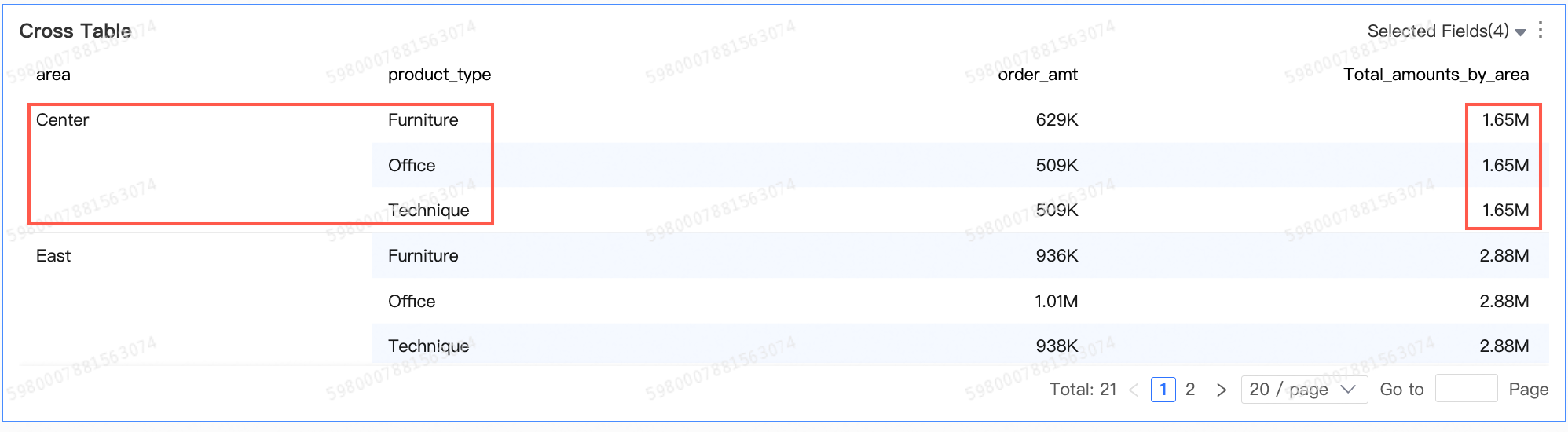
-
Customer repeat purchase behavior:
lod_fixed{[User_ID]:count(distinct([Order_ID]))}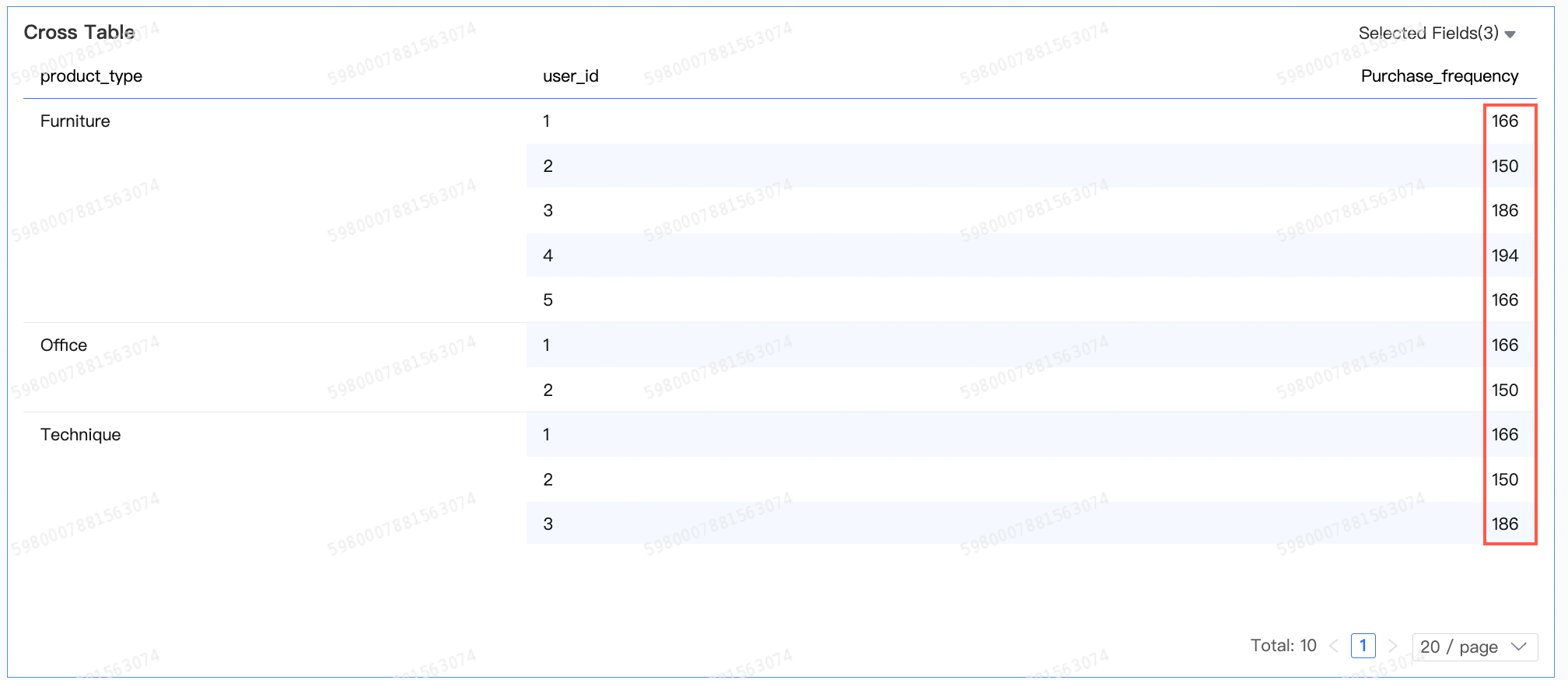
For more information, see Analysis functions (LOD functions).
-