Create a Dataphin data source to connect Quick BI to Dataphin for data querying and analysis.
Prerequisites
-
You have created a Dataphin data source.
-
You have bound the Dataphin data source to an application.
Procedure
Log on to the Quick BI console.
-
To add a data source:
-
Navigate to the create data source page by using an entry for creating data sources.
-
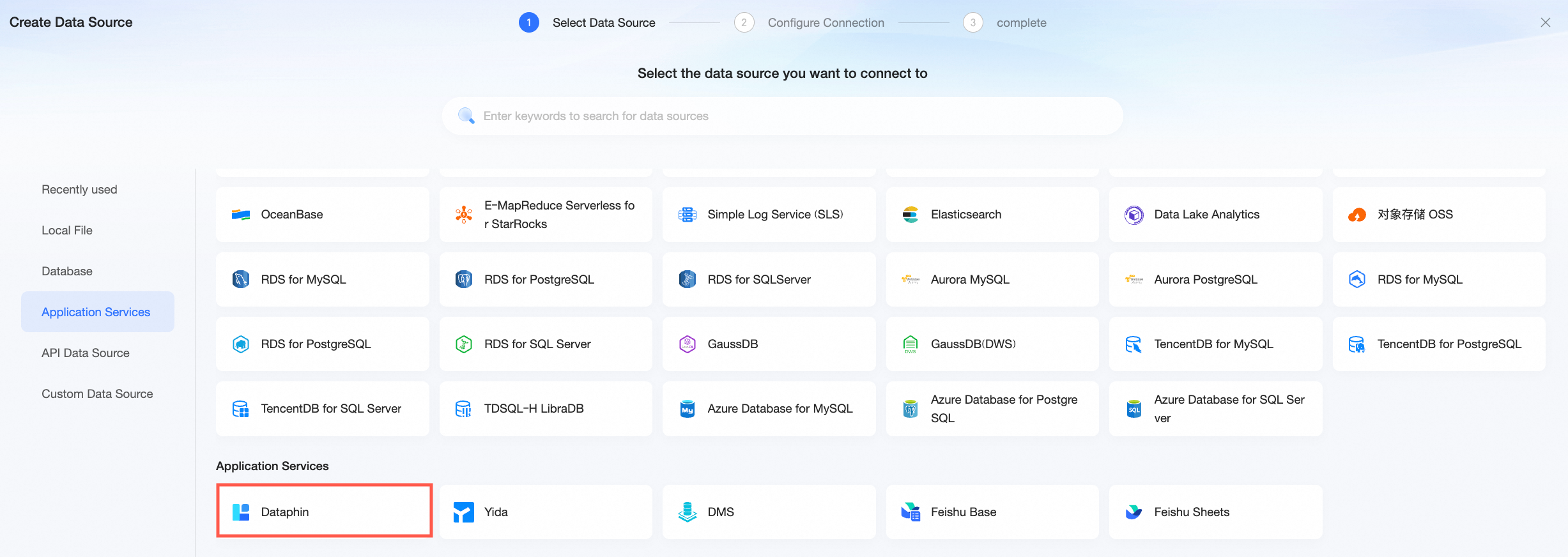
Select the Dataphin data source.
-
-
In the Configure Connection dialog box, set the following parameters.
You can use a JDBC connection or a Dataphin service data source.
-
If you select JDBC connection as the connection method, configure the following parameters.
Note-
Dataphin provides a setting to disable full table scans. If this setting is enabled and no partition filter is applied, queries fail. To resolve this issue, add a filter condition to the partition field, or disable the Forbid full table scan setting on the Platform Management > Coding Standards page in the Dataphin console.
-
For more information about how to connect to Dataphin by using a JDBC connection, see Connect to Dataphin by using a JDBC connection.
Parameter
Description
Display name
The display name of the data source in the data source list.
Enter a descriptive name. The name cannot contain special characters or leading or trailing spaces.
Connection method
JDBC connection.
Dataphin domain name
The JDBC URL of the Dataphin data source. To obtain the URL, log on to the Dataphin console, go to the data source page, and find the
public_URLin the JDBC URL column. Example:xxxxxxxxxxxxxxxxxxxxx.alicloudapi.comPort
The port number for the Dataphin data source.
Project name/Database
The default scope for queries. Enter the English name of a Dataphin project, the English name of a data block, or a data source code based on your business requirements:
-
To use Dataphin physical tables, enter the Dataphin project name.
-
To use Dataphin logical tables, enter the Dataphin data block name. The name must be prefixed with
LD_. -
To use tables from a data source managed by Dataphin, enter the data source code that is configured in Dataphin. The code must be prefixed with
ds_.
After you specify this scope, you can still use tables from other projects, data blocks, or data sources as datasets by creating an SQL dataset. When you create the dataset, you must specify the prefix for the project, data block, or data source.
Schema
The name of the target schema. This parameter is optional.
-
If you use a Dataphin physical table or logical table, you do not need to specify this parameter.
-
If the data source type is a data source table that does not support schemas, such as MySQL, you do not need to specify this parameter.
-
If the data source type is a data source table that supports schemas, such as Oracle, this parameter is optional. If you specify a schema, data from that schema is queried. If you do not specify a schema, data from the default schema of the database is queried.
Execution project
The project used to execute query SQL statements. The project and its bound compute engine must have read permissions on the queried table. This parameter:
-
Is optional if the query scope is a Dataphin project. If you leave this parameter empty, the project specified as the default query scope is used as the SQL execution project.
-
Is required if the query scope is a Dataphin data block.
-
Is not required if the query scope is a Dataphin data source.
Tenant ID
The ID of the tenant to query.
AccessKey type
Select a platform-level or personal user AccessKey for the connection.
AccessKey ID
-
If you select Dataphin Platform for the AccessKey type parameter, enter the platform's AccessKey ID. You can contact the Dataphin O&M team to obtain this ID.
-
If you select Personal User for the AccessKey type parameter, enter your personal AccessKey ID. You can find this ID on the Personal Center > AccessKey page.
AccessKey Secret
The AccessKey secret for the AccessKey ID.
Proxied user
Required when using a platform AccessKey. The proxied user for establishing the connection and accessing Dataphin.
Account type
When using a platform AccessKey, you must specify the account type. Valid values:
USER_ID(the unique ID within Dataphin),account_name(the Dataphin username), andSOURCE_USER_ID(the user ID from the source system).Engine type
Supported engines are MaxCompute, Hive, MySQL, Oracle, AnalyticDB PostgreSQL, Apache Doris, and StarRocks.
SSL
If the target data source has SSL configured, select this check box to enable SSL-encrypted connections.
VPC data source
Select the VPC data source check box and configure the following parameters.
Note-
You can connect Quick BI to a standalone deployment of Dataphin through a VPC only if the gateway is an Alibaba Cloud gateway.
-
If you select the VPC data source check box, you must set the Database Address parameter to a Server Load Balancer (SLB) address.
-
Purchaser AccessId: The AccessKey ID of the account that owns the Server Load Balancer (SLB) instance. This account must have read permissions on the instance. You can log on to the RAM console to obtain the AccessKey ID. For more information, see View the AccessKey information of a RAM user.
-
Purchaser AccessKey: The AccessKey secret for the AccessKey ID. You can log on to the RAM console to obtain the AccessKey secret. For more information, see View the AccessKey information of a RAM user.
-
Instance ID: The instance ID of the Server Load Balancer (SLB) instance. Log on to the Server Load Balancer console and obtain the instance ID from the instance list.
-
Region: The region where the instance is located. To obtain the region, log on to the Server Load Balancer console and check the upper-left corner of the Instance Management page.
Initial SQL
SQL statements to run immediately after a connection is established.
Only
SETstatements are allowed. Separate multiple statements with semicolons (;). -
-
If you select Dataphin service data source as the connection method, configure the following parameters.
Parameter
Description
Display name
The display name of the data source in the data source list.
Enter a descriptive name. The name cannot contain special characters or leading or trailing spaces.
Connection method
Dataphin service data source.
When you select this option, you must first manually create a data source in Dataphin and configure an AppKey and an AppSecret.
Database address
The JDBC URL of the Dataphin data source. If you use a VPC data source, enter the Server Load Balancer (SLB) address.
To obtain the URL, log on to the Dataphin console, go to the data source page, and find the
public_URLin the JDBC URL column. Example:xxxxxxxxxxxxxxxxxxxxx.alicloudapi.com.Data source name
The custom name of the data source in Dataphin.
To obtain the name, log on to the Dataphin console and go to the Data Service Overview > Dataphin Data Source Service page to find the Data Source Name.
Schema
Optional. The name of the target schema.
-
For logical tables, this is the schema of the logical table. This corresponds to a business block in Dataphin.
-
For physical tables, this is the schema of the physical table. This corresponds to a project in Dataphin.
AppKey
The AppKey of the application in the Dataphin data source.
To obtain the AppKey, log on to the Dataphin console and go to the Platform Management > Application Management page to find the AppKey.
AppSecret
The AppSecret of the application in the Dataphin data source.
To obtain the AppSecret, log on to the Dataphin console and go to the Platform Management > Application Management page to find the AppSecret.
Engine type
MaxCompute and Hive are supported.
VPC data source
Select this check box to configure a VPC data source.
NoteYou can connect Quick BI to a standalone Dataphin deployment via a VPC only if the gateway is an Alibaba Cloud gateway. If you select this option, you must set Database Address to the Server Load Balancer (SLB) address and configure the following parameters.
Creator AccessId
Log on to the RAM console to obtain the AccessKey ID. For more information, see View the AccessKey information of a RAM user.
Creator AccessKey
Log on to the RAM console to obtain the AccessKey Secret. For more information, see View the AccessKey information of a RAM user.
API Gateway group ID
-
Navigate to the API Gateway console.
-
Click Group Management on the details page of an open API group to obtain the group ID.
Region
Follow the preceding instructions to go to the API Gateway console and obtain the region from the group details page for open APIs.
Important-
When you connect to Dataphin on the public cloud, you can only connect over the internet.
-
When you connect to a standalone deployment of Dataphin:
-
If the Dataphin gateway is a private gateway (including Lingyang), you can only connect over the internet.
-
If the Dataphin gateway is an Alibaba Cloud gateway, you can connect over the internet or a VPC.
-
-
-
-
Click Test Connection to verify the connection.

-
After a successful connection test, click OK to create the data source.
Next steps
After the data source is created, create datasets and start analyzing data.
-
To add data tables or custom SQL queries from your Dataphin data source to Quick BI, see Create a dataset.
-
To add charts and analyze data, see Create a dashboard and Overview of chart types.
-
To drill down into data for in-depth analysis, see Step 3: Configure and display drill-down data.