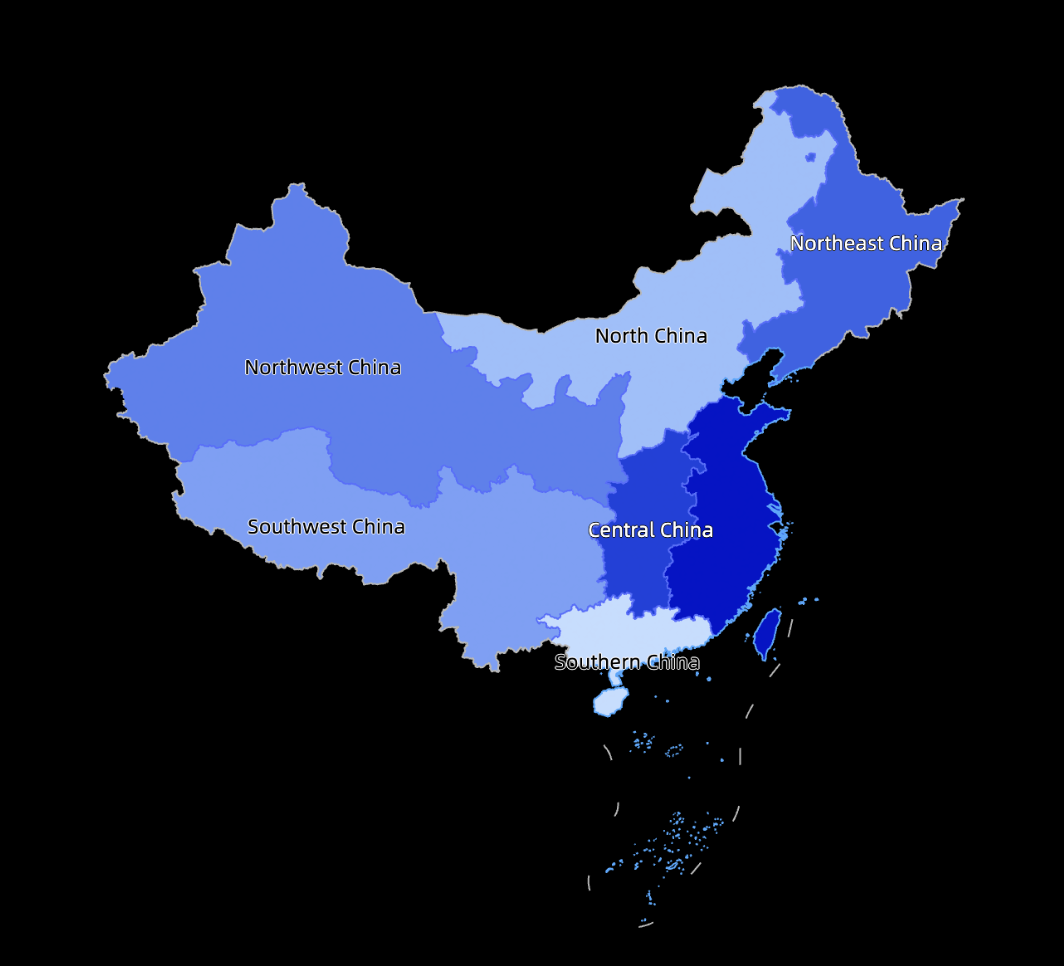
A colored map uses color shading to show the size and distribution of data. This topic describes how to add data to and configure the style of a colored map.
Prerequisites
You have created a data visualization screen. For more information, see Create a Data Visualization Screen.
Example
Configure chart fields
In the Charts section of the component library, find Filled Map and drag it onto the canvas.

Click Select a Dataset and add data as shown in the following figure. The chart is then updated.

You can also perform the following operations on the data:
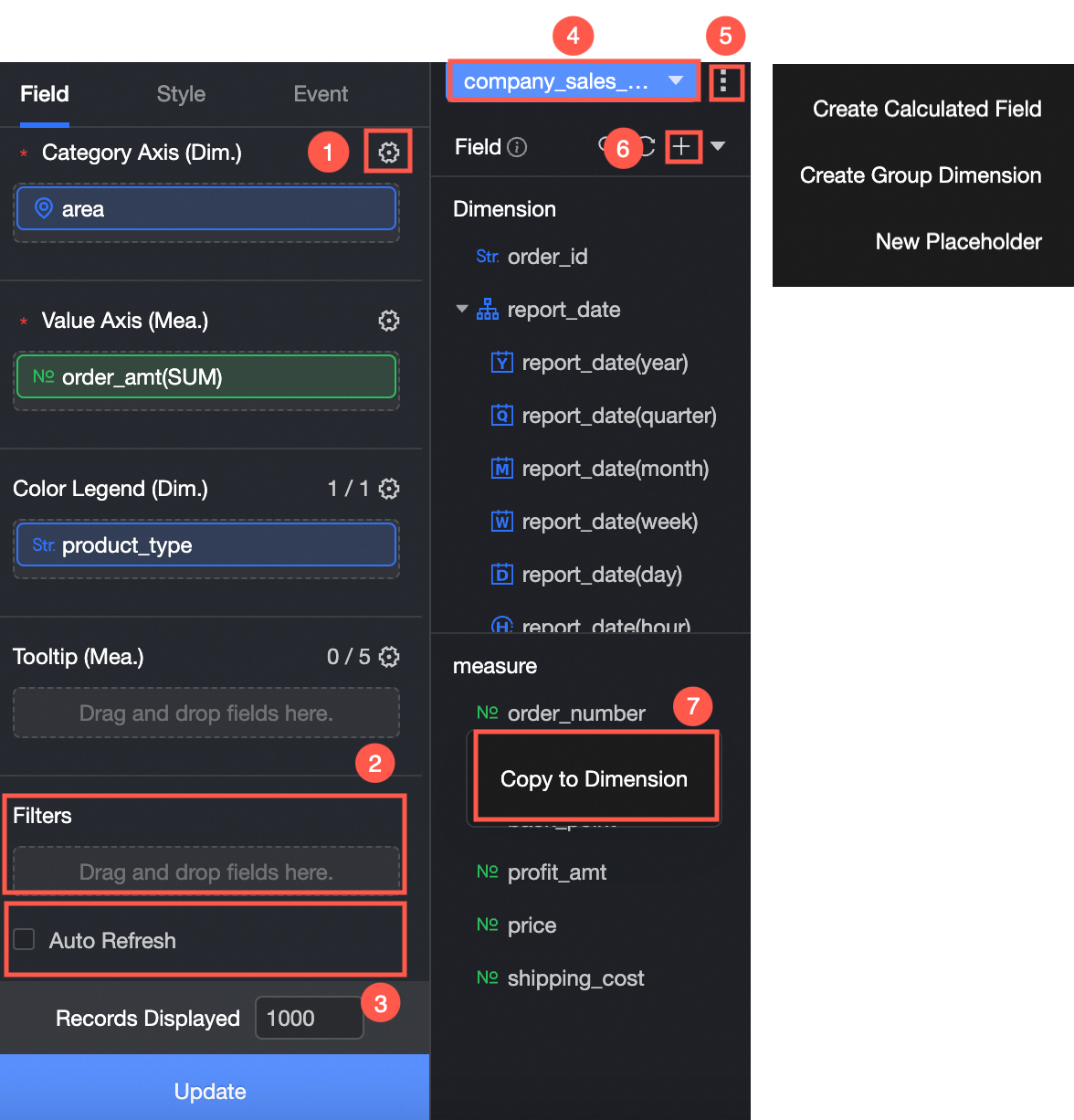
Batch configure field formats (①). For more information, see Batch configure field styles.
Set field filters (②). For more information, see Filter data.
Enable auto-refresh for data (③). For more information, see Periodically refresh data.
Switch datasets (④). For more information, see Switch datasets.
Edit the dataset (⑤). For more information, see Edit a dataset.
Process data (⑥). For more information, see Create a calculated field, Create a grouped dimension, and Create a placeholder.
Copy a field (⑦). For more information, see Copy a field and convert it to a dimension.
Configure the chart style
Geographic Area
In the configuration section, you can configure the following settings for the widget:
For Display Range, select Auto or Custom.
NoteThe Auto option automatically adjusts the range based on the data. The Custom option lets you manually set the range. In interactive analysis scenarios, the range is always automatically adjusted based on the data.
The custom display range currently supports continents and countries worldwide, along with regions, provinces, and cities in China.

You can also select Manual Adjustment. If you enable this option, the current centroid and scaling values are automatically generated. You can also modify them manually.

For Outline and Fill, you can configure the background color of areas and the color of outlines.
NoteOutlines cannot be displayed for some regions.

For Display Basemap, you can select from multiple Amap basemap styles.
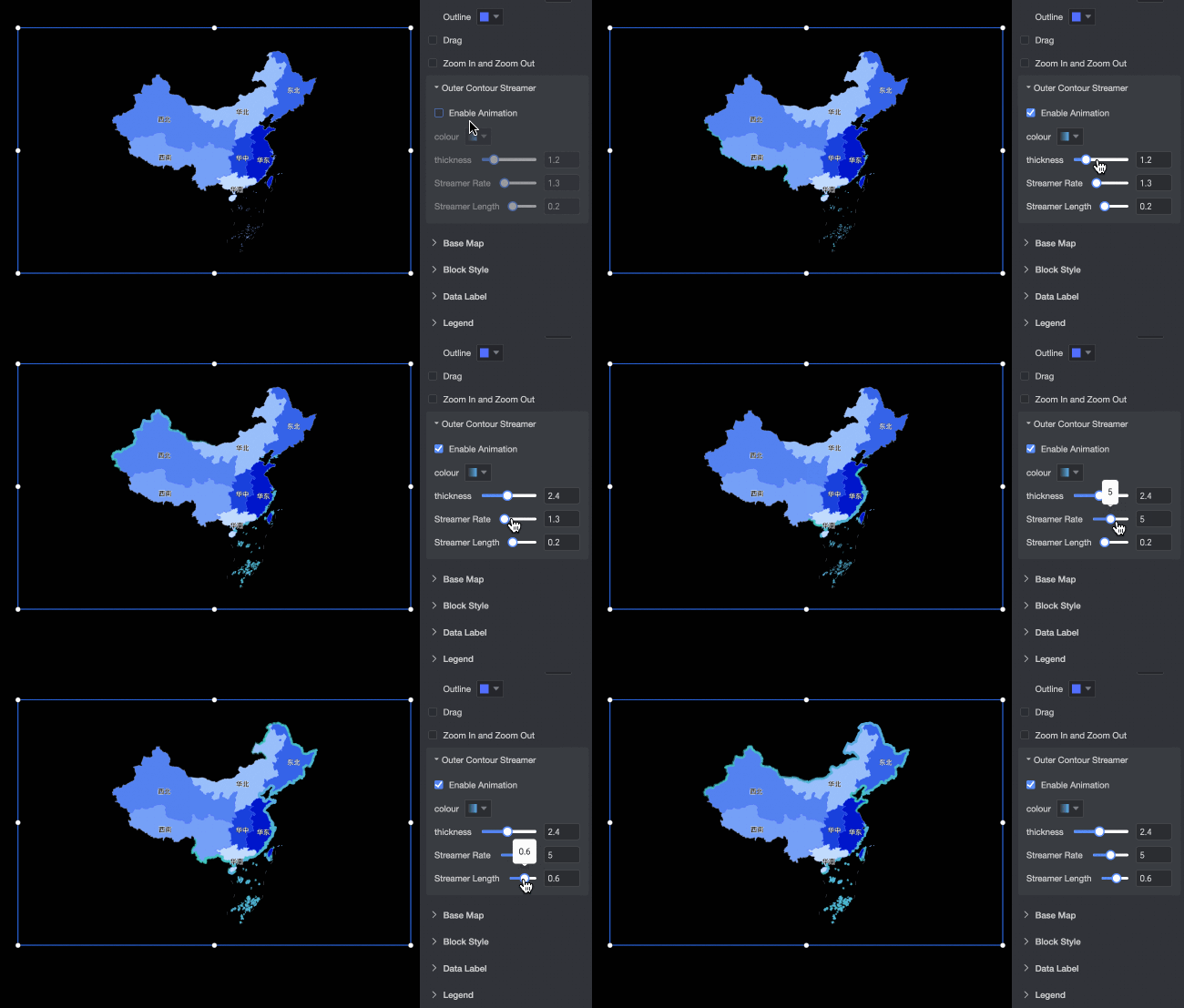
For Outer Outline Flow, you can enable or disable this feature. If you enable it, you can set the Flow Color (Solid/Gradient), Thickness, Speed, and Length.
Area Style
In the configuration section, you can configure the following settings for the widget:
For Color Scale Configuration, you can set the Theme Color and adjust the Transparency.
For Data Mapping Range, you can select Continuous Range, Equal Interval, or Custom Range.

If you select Custom Range, you can set the Interval Basis to Absolute Value or Percentage.

Data Labels
In the configuration section, you can configure the following settings for the widget:
Show Data Labels:
If you create a map in Area Name mode, you can display both the Area Name and the Measure.
If you create a map in Latitude and Longitude mode, you can display both the Latitude and Longitude and the Measure. If you configure Location Label/Dimension, you can also display the Location Label.
Label Display Mode: Select Smart Display or Full Display. Smart Display is suitable for maps with many place names.
Text Style: Configure the text style for the Area Name, Latitude and Longitude, and Measure data labels.

Legend
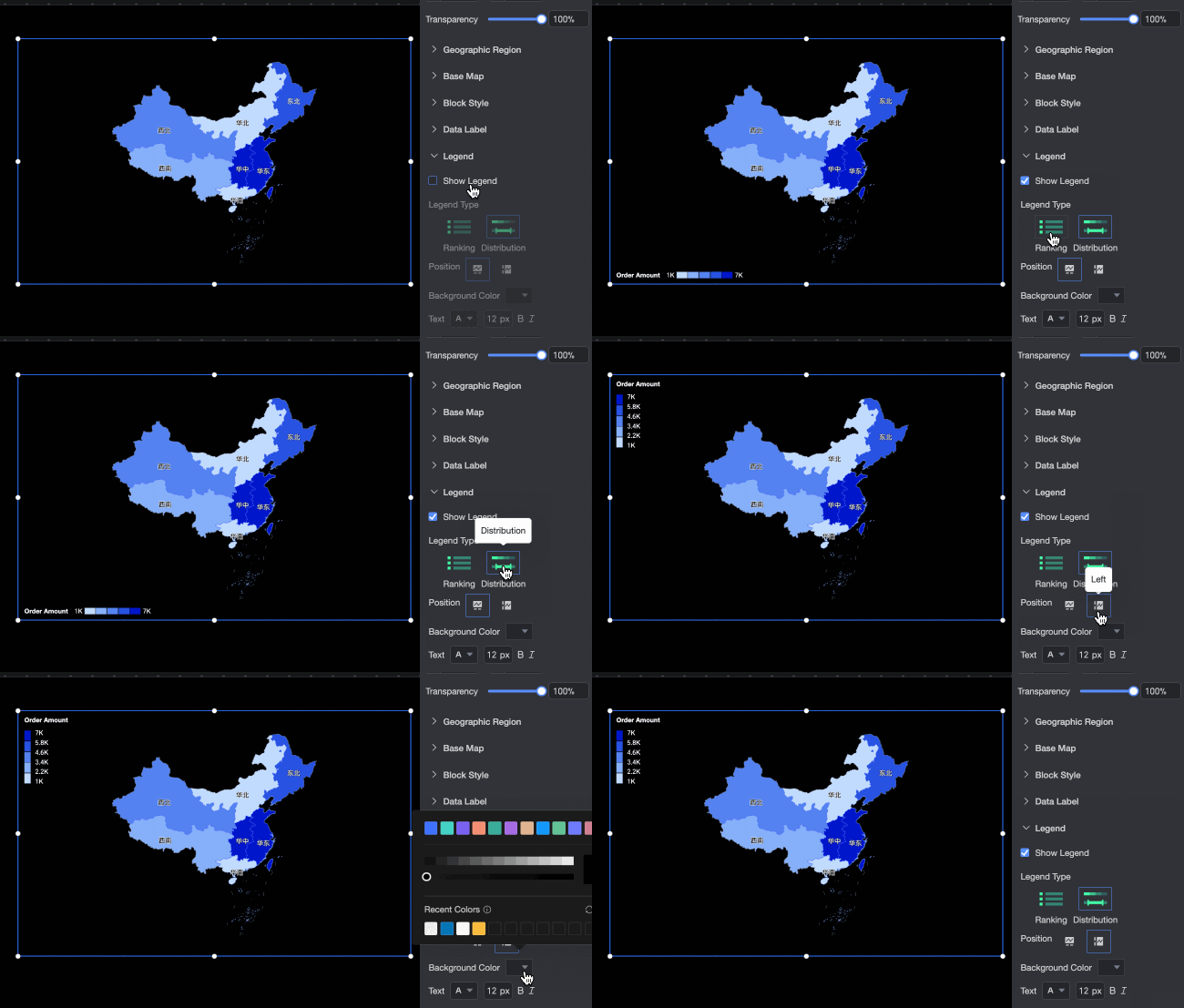
In the legend settings, you can select Show Legend and configure the legend's Position, Background Color, and Text Style.
Tooltip
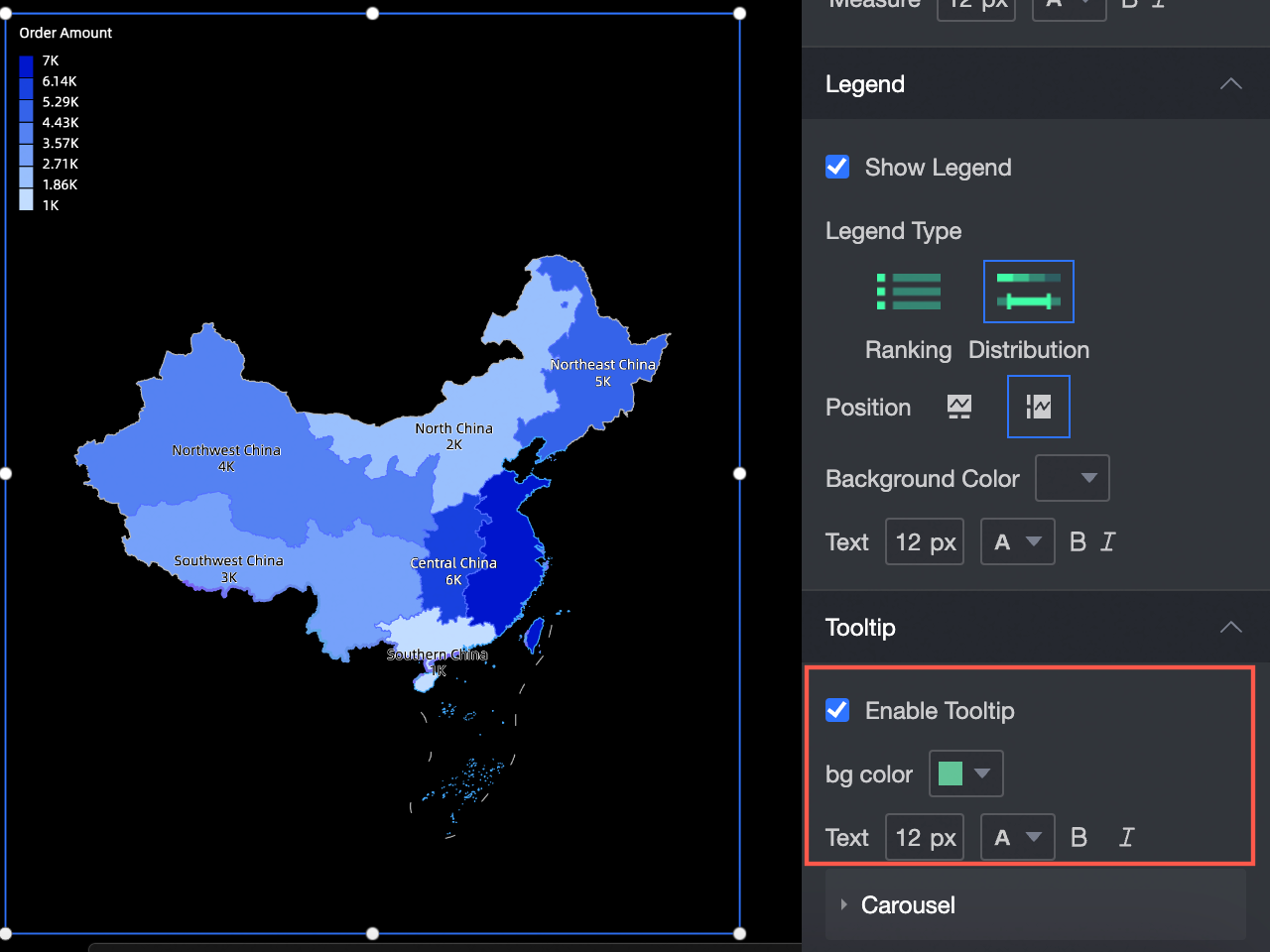
In the tooltip settings, you can select Enable Tooltip and configure the Background Color, Text, and Carousel.
Enable Tooltip is selected by default. The tooltip appears when you hover over an area.
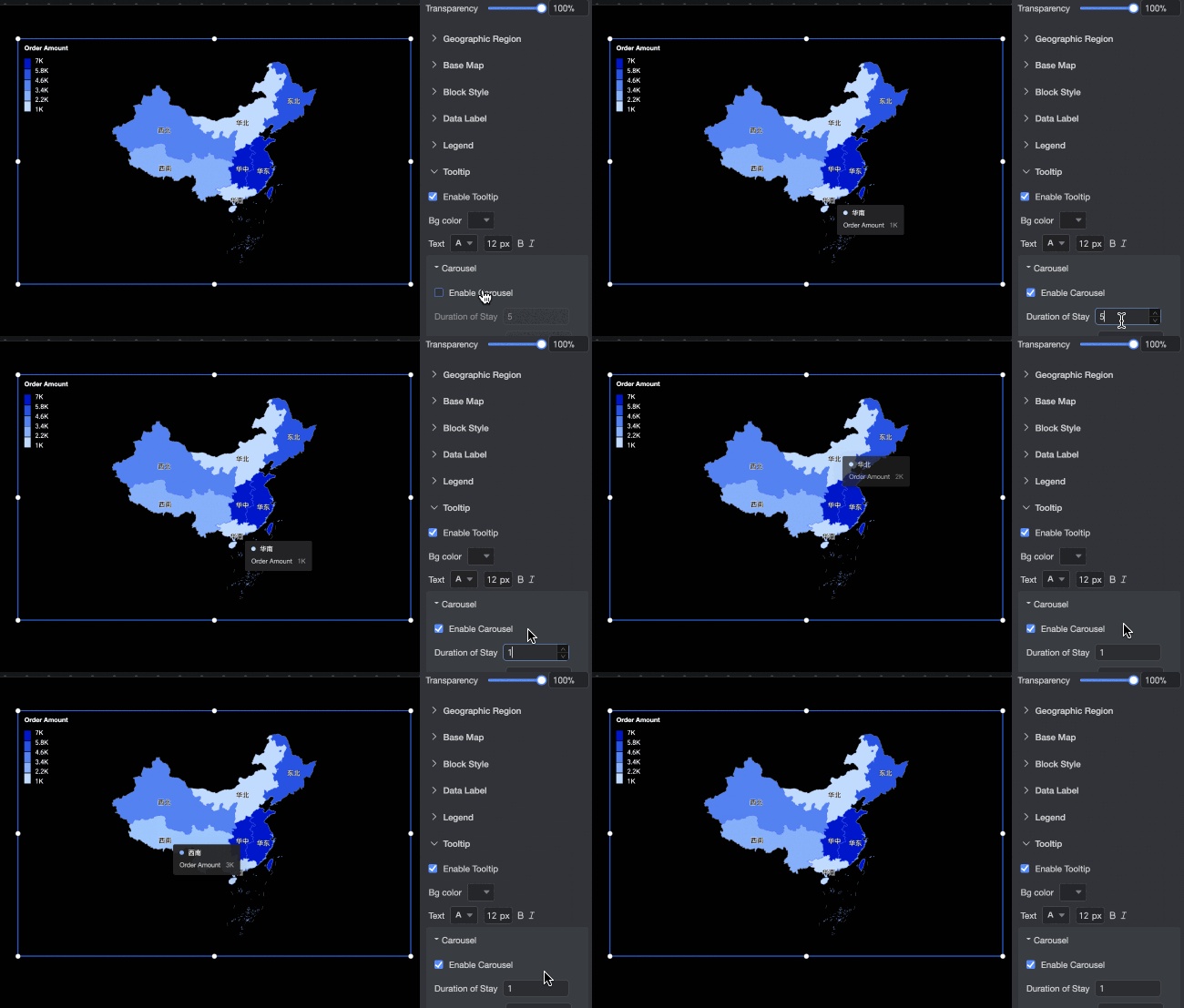
You can enable Auto Carousel. After you enable this feature, tooltips are automatically displayed in a carousel. You can set the Duration and Interval for the carousel.
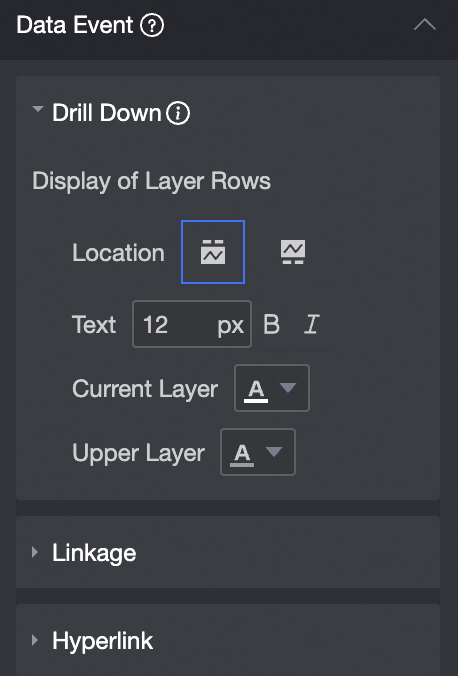
Configure chart events
Configuration Item | Name | Configuration | Description |
Data Event | Drill Down |
| To analyze a dimension at different levels, you can configure drill-down for a dimension field. When you click the field, the level changes, which changes the analysis granularity. For more information, see Drill-down settings. |
Linkage | If the data you need to analyze is in different charts, you can use chart linkage to associate multiple charts for data analysis. For more information, see Linkage settings. | ||
Hyperlink | If the data you need to analyze is in multiple data visualization screens or dashboards, you can use hyperlinks to associate multiple reports for data analysis. Hyperlinks include parameter-based hyperlinks and external links. For more information, see Drill Down, Linkage, and Hyperlink. | ||
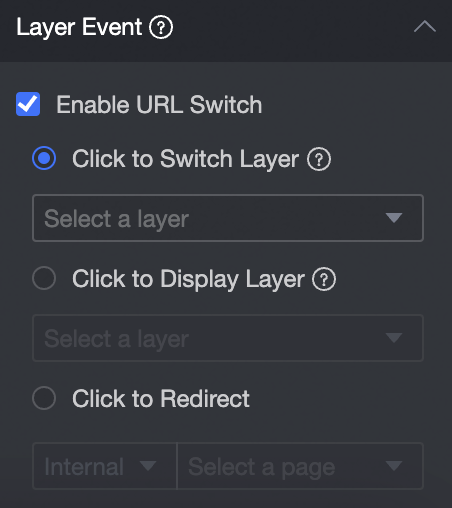
Layer Event | Enable Link Redirection |
| For layer events, you can select Enable Link Redirection, Click to Pop Up Layer, or Click to Go to Page. For more information, see Configure click events. |