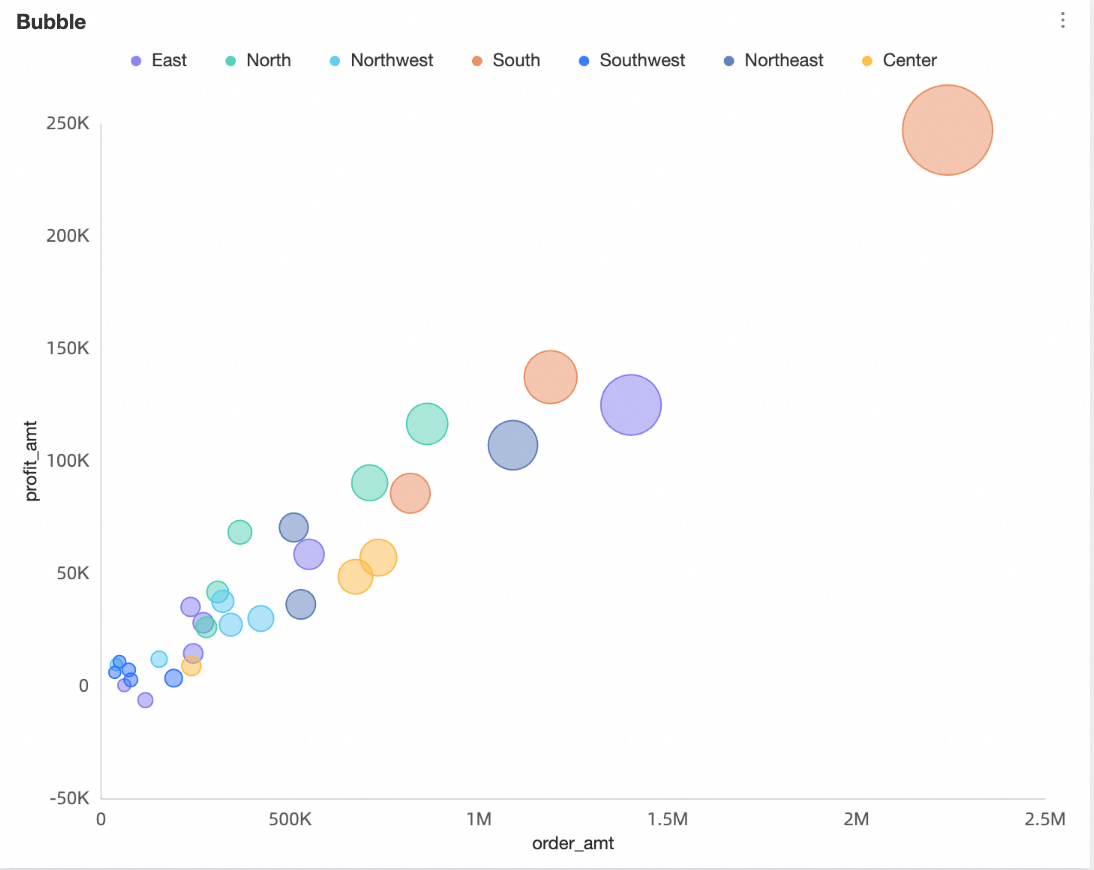
A bubble chart displays relationships between up to six variables, using size for comparison. You can add data to a bubble chart and configure its style.
Prerequisites
A dashboard is created. For more information, see Create a dashboard.
Overview
-
Scenarios
Two sets of data generate multiple coordinate points. You can observe the distribution of these points to determine whether a correlation exists between variables or to summarize the distribution pattern.
Purpose: A bubble chart provides the following key information:
-
Whether a quantitative correlation exists between variables.
-
Whether the correlation is linear or curved.
-
Whether outliers exist. An outlier is a point that deviates from most points. You can analyze outliers to determine whether they significantly impact the population during modeling analysis.
-
-
Benefits
-
Computing capability: The conversion rate is computed automatically.
-
Data visualization: A bubble chart can be displayed dynamically based on the data timeline.
-
-
Example
Limitations
A bubble chart is configured with the following fields: Y-axis / measure, X-axis / dimension or measure, Category / dimension, Color / dimension or measure, Size / measure, and playback timeline / time dimension.
-
The Y-axis requires one measure.
-
The X-axis requires one dimension or one measure.
-
The category requires one dimension.
-
Color requires a dimension or a measure. The field can be the same as the one used for the X-axis, Y-axis, or category.
-
Size requires one measure. The field can be the same as the one used for the Y-axis.
If the X-axis uses a measure field, the same field can also be used for Size.
-
The playback timeline requires a dimension. You can add only one dimension, and it must contain date information.
NoteYou can enable the playback timeline only when both the X-axis and Y-axis use measure fields.
Configure Chart Data
-
On the Data tab, select dimensions and measures based on your business requirements.
-
In the Measures list, find "Profit Amount" and double-click or drag it to the Y-axis / measure area.
-
In the Measures list, find "Order Amount" and double-click or drag it to the X-axis / dimension or measure and Size / measure areas.
-
In the Dimensions list, find "Province" and double-click or drag it to the Category / dimension area.
-
In the Dimensions list, find "Region" and double-click or drag it to the Color / dimension or measure area.
-
(Optional) To assign a different shape to each dimension value, drag a field to the Shape / dimension area. You can then customize the bubble shape for each dimension value in the Style pane. For this example, drag the Product Type field to assign a unique shape for each product type.
NoteThis option is available only when a field is present in the Category / dimension area.
-
-
Click Update. The chart updates automatically.

Configure the Style of a Bubble Chart
For information about general chart style settings, see Configure the chart title area.
You can use the search box at the top of the configuration pane to find a specific option. You can also click the  icon to Expand/Collapse all categories.
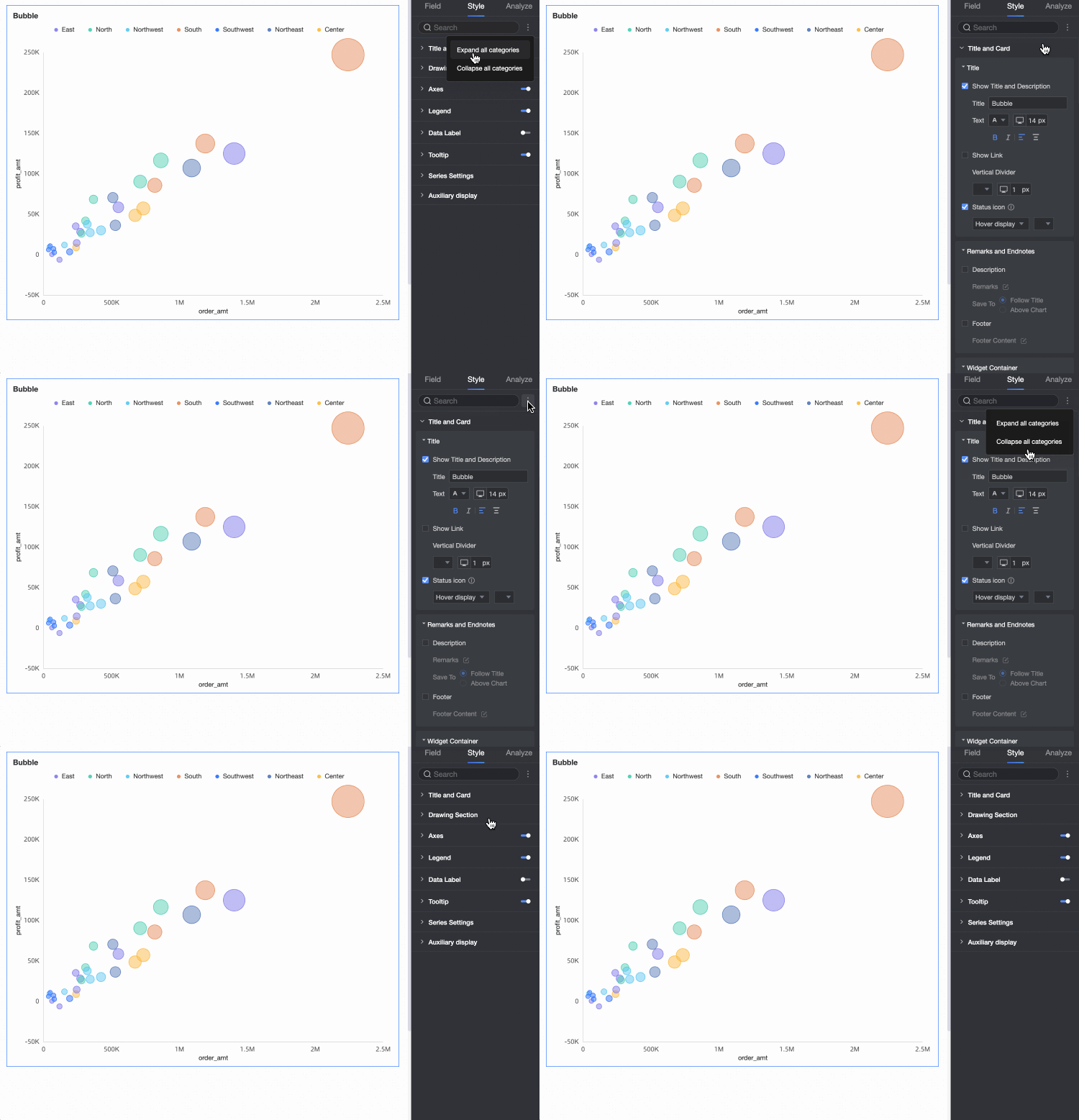
Chart Area
In the Chart area section, you can configure the color scheme and bubble size, and enable the four-quadrant feature. The available options vary depending on the field configurations.
-
If a field is configured in the Shape / dimension area, the following options are available.

Parameter
Description
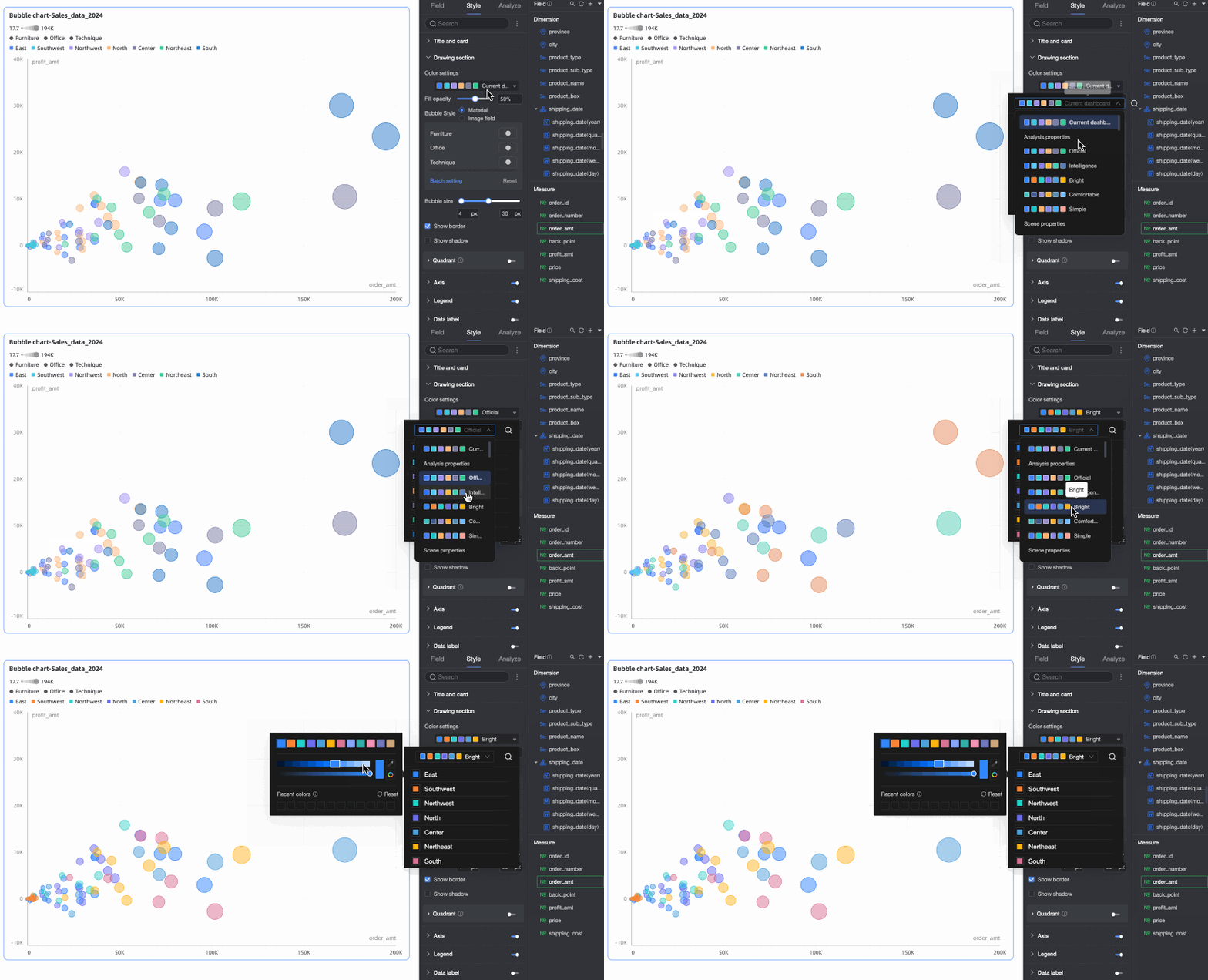
Color settings
Sets the color scheme for the bubbles. You can choose from built-in system themes and customize the color for individual dimension values.
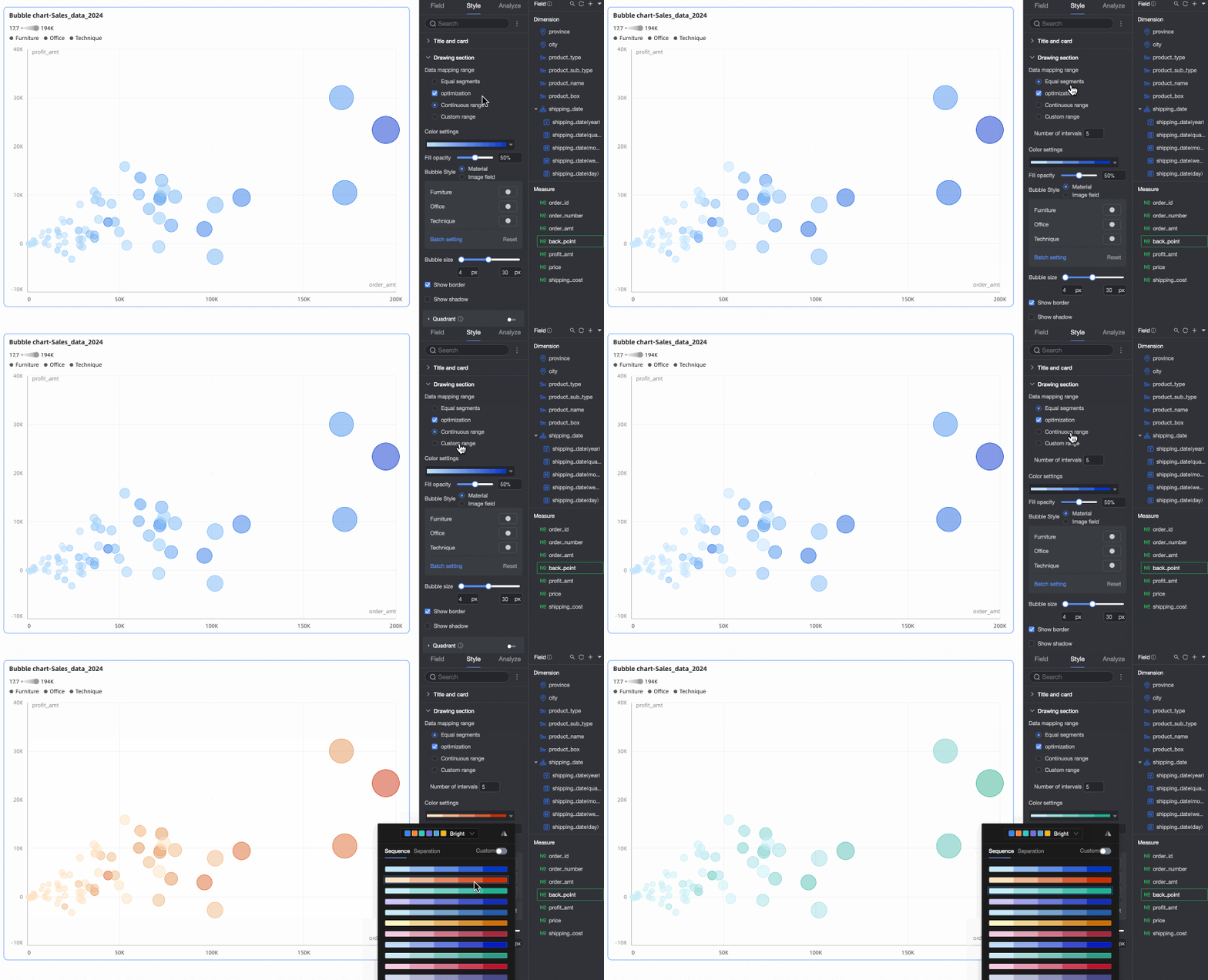
If the Color / dimension or measure area contains a measure field, you must configure the data mapping segments for the measure.
Fill opacity
Sets the transparency of the bubbles.
Bubble style
Sets the bubble shape style. You can use assets or an image field.
-
Asset: Assign a different shape to each dimension value. You can select from built-in assets or upload a custom image.

-
Image field: Selects an image from an image field in the dataset to use as a fill. You can use the Image field only when the dataset contains an image field and the field is of the image type (
 ).
).
When you upload a custom image or use an image field, you can also set the shape and display mode of the image.

Bubble size
Sets the size of the bubbles.
Show border
Specifies whether to show a border around the bubbles.
Show shadow
Specifies whether to show a shadow for the bubbles.
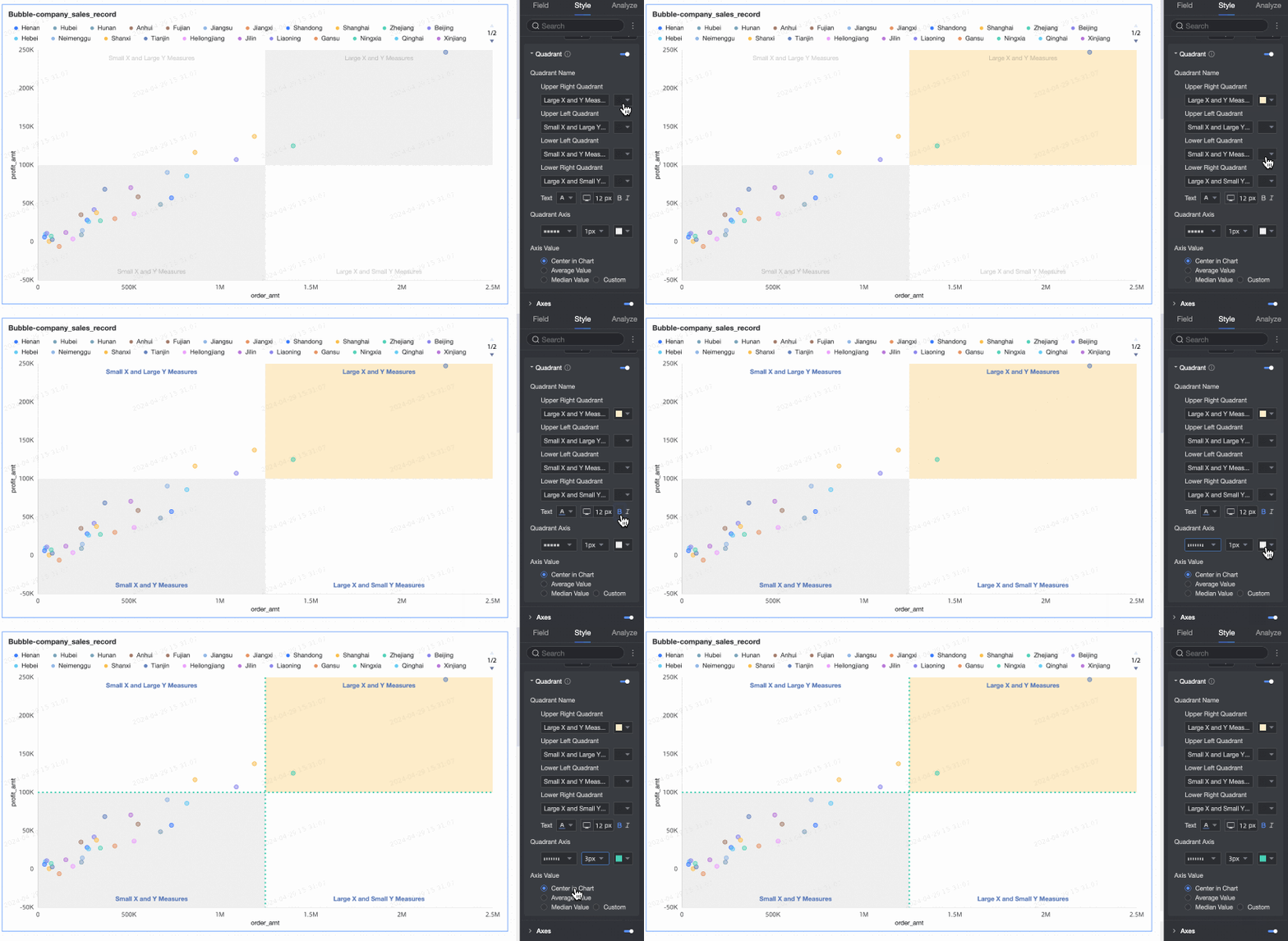
Four-quadrant
You can enable the four-quadrant feature when both the X-axis and Y-axis use measure fields.
-
-
If no field is configured in the Shape / dimension area, the following options are available.

Parameter
Description
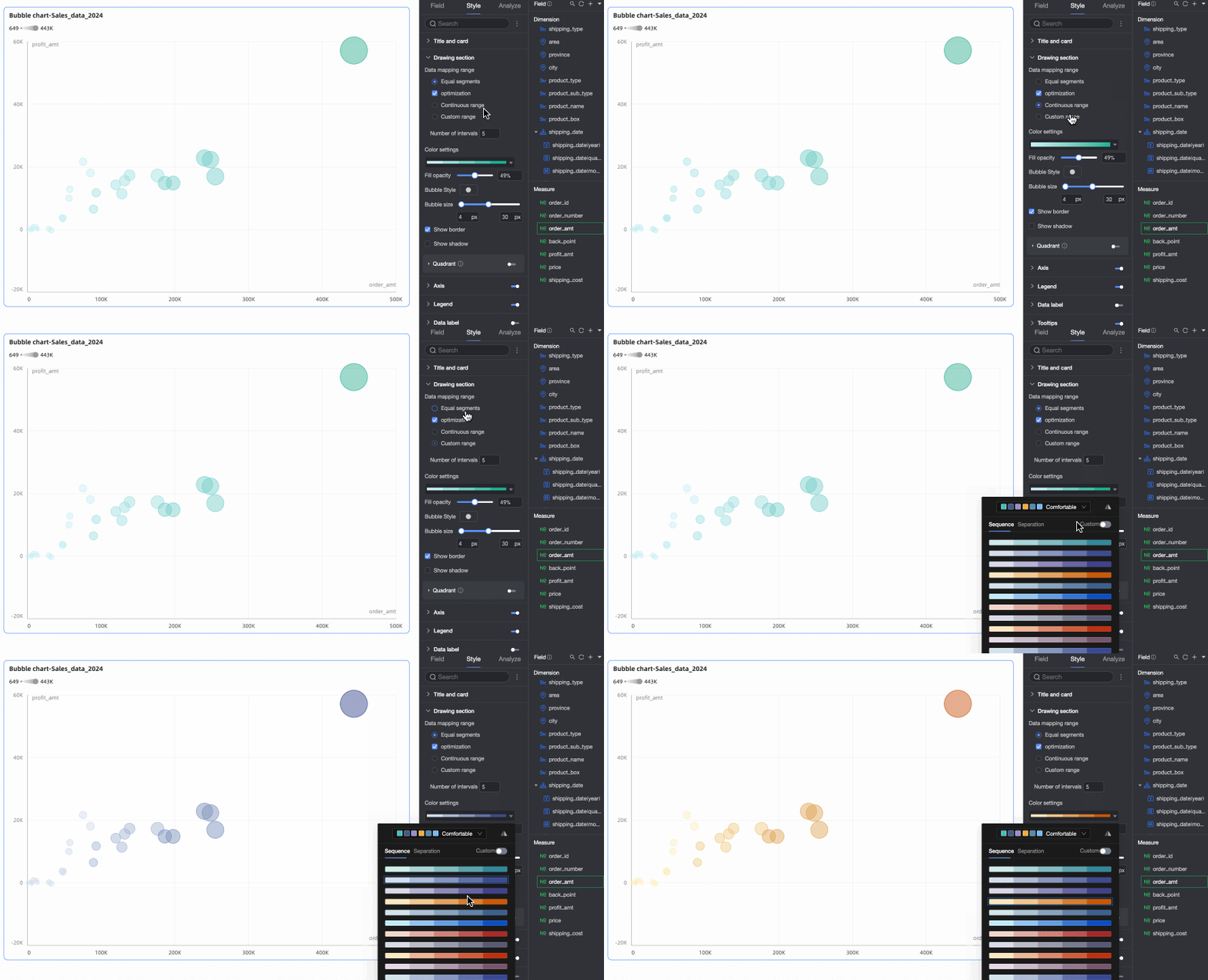
Color settings
Sets the color scheme for the bubbles. You can choose from built-in system themes and customize the color for individual dimension values.

If the Color / dimension or measure area contains a measure field, you must configure the data mapping segments for the measure.
Fill opacity
Sets the transparency of the bubbles.
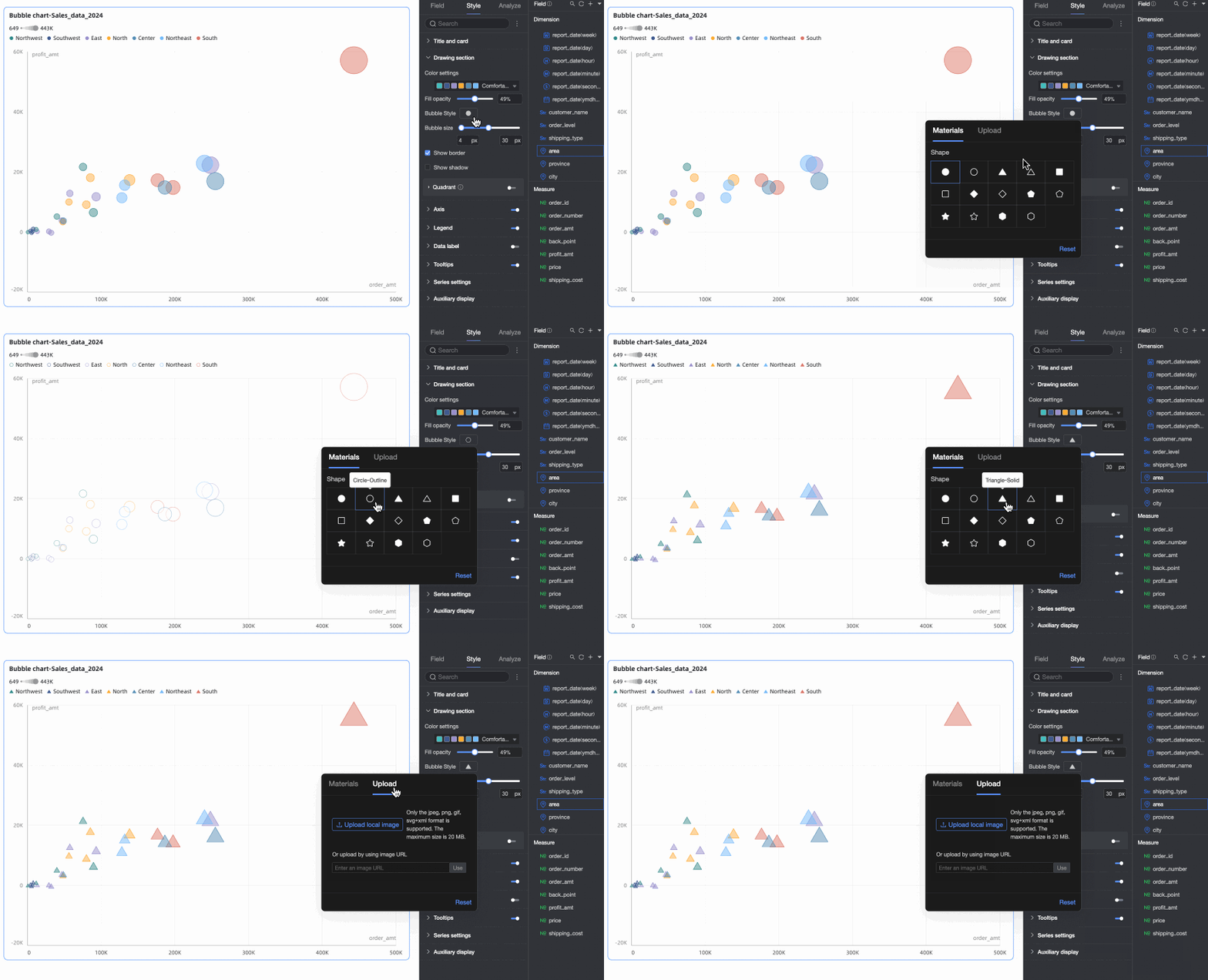
Bubble style
Sets a uniform shape for all bubbles. You can select a built-in icon or upload a custom image.
Bubble size
Sets the size of the bubbles.
Show border
Specifies whether to show a border around the bubbles.
Show shadow
Specifies whether to show a shadow for the bubbles.
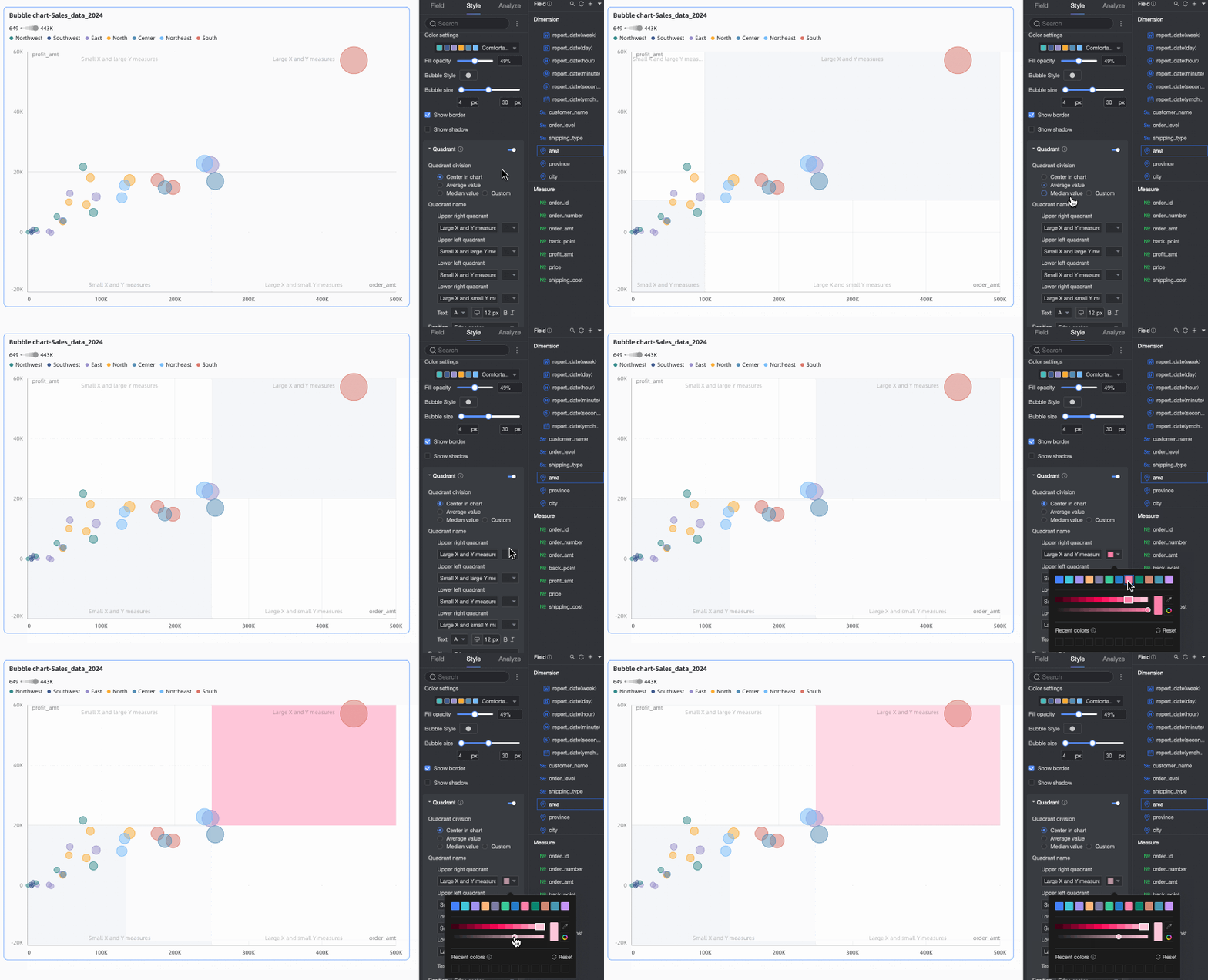
Four-quadrant
You can enable the four-quadrant feature when both the X-axis and Y-axis use measure fields.
Axes
In the Axes section, configure the axis styles.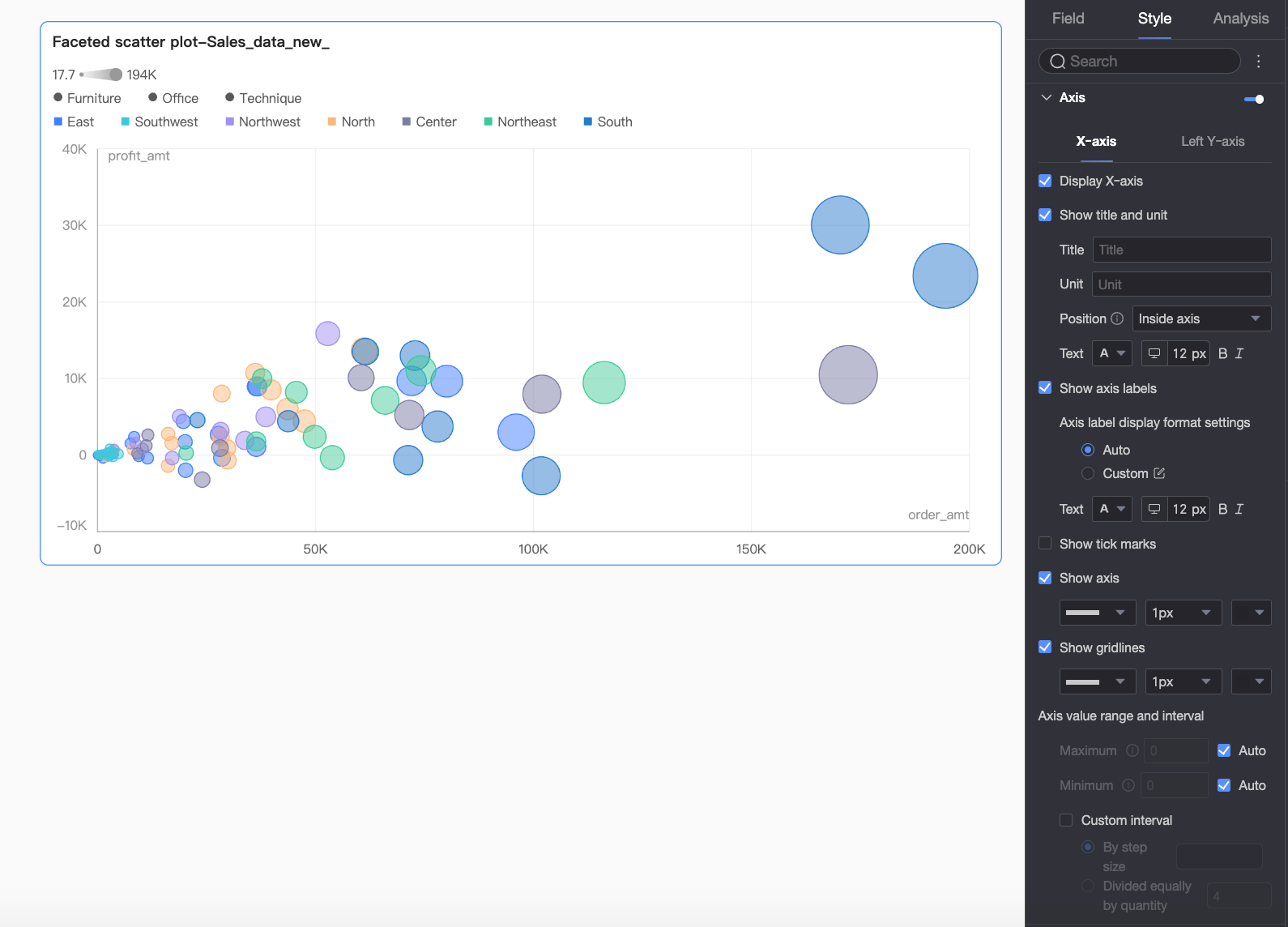
|
Name |
Parameter |
Description |
|
X-axis |
Show X-axis |
Specifies whether to show the X-axis. |
|
Show title and unit |
Specifies whether to show the axis title and unit on the X-axis. You can also configure their name, position, and text style. |
|
|
Show axis labels |
Specifies whether to show labels on the X-axis. If enabled, the following settings are available:
|
|
|
Show tick marks |
Specifies whether to show tick marks on the X-axis. |
|
|
Show axis line |
Specifies whether to show the axis line. You can also configure its type, width, and color. |
|
|
Show gridlines |
Specifies whether to show gridlines for the X-axis. You can also configure their type, width, and color. |
|
|
Axis range and interval |
|
|
|
Left Y-axis |
Show left Y-axis |
Specifies whether to show the left Y-axis. |
|
Show title and unit |
Specifies whether to show the axis title and unit on the left Y-axis. You can also configure their name, position, and text style. |
|
|
Show axis labels |
Specifies whether to show labels on the left Y-axis. If enabled, you can set the axis label display format and text style. The display format can be set to Auto or Custom.
|
|
|
Show tick marks |
Specifies whether to show tick marks on the axis. |
|
|
Show axis line |
Specifies whether to show the axis line. You can also configure its type, width, and color. |
|
|
Show gridlines |
Specifies whether to show gridlines for the axis. You can also configure their type, width, and color. |
|
|
Axis range and interval |
|
 icon to open the Data Display Format Settings dialog box and configure the format. For more information about the options, see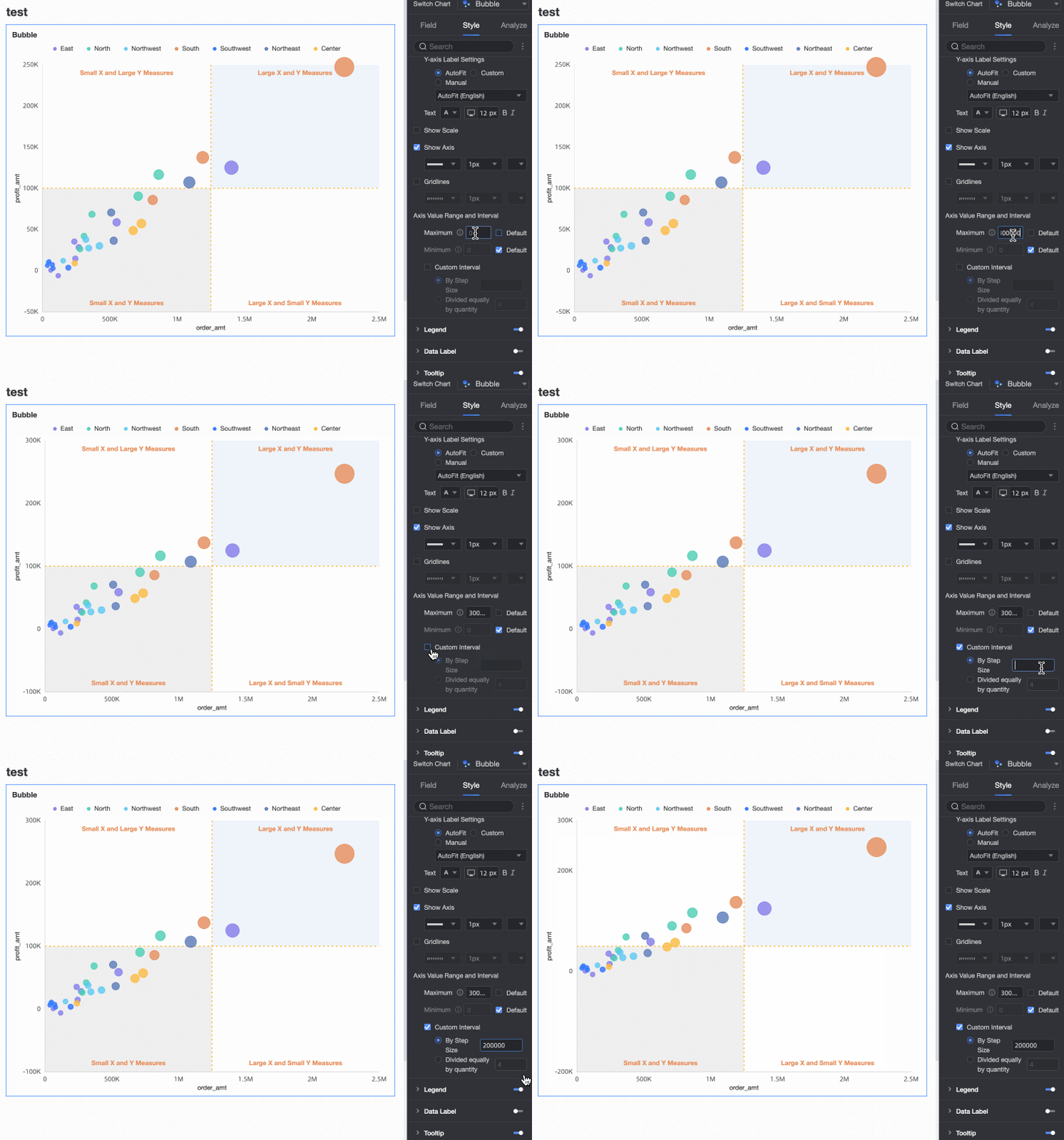
Legend
In the Legend section, click the  icon to enable the chart legend and configure its style.
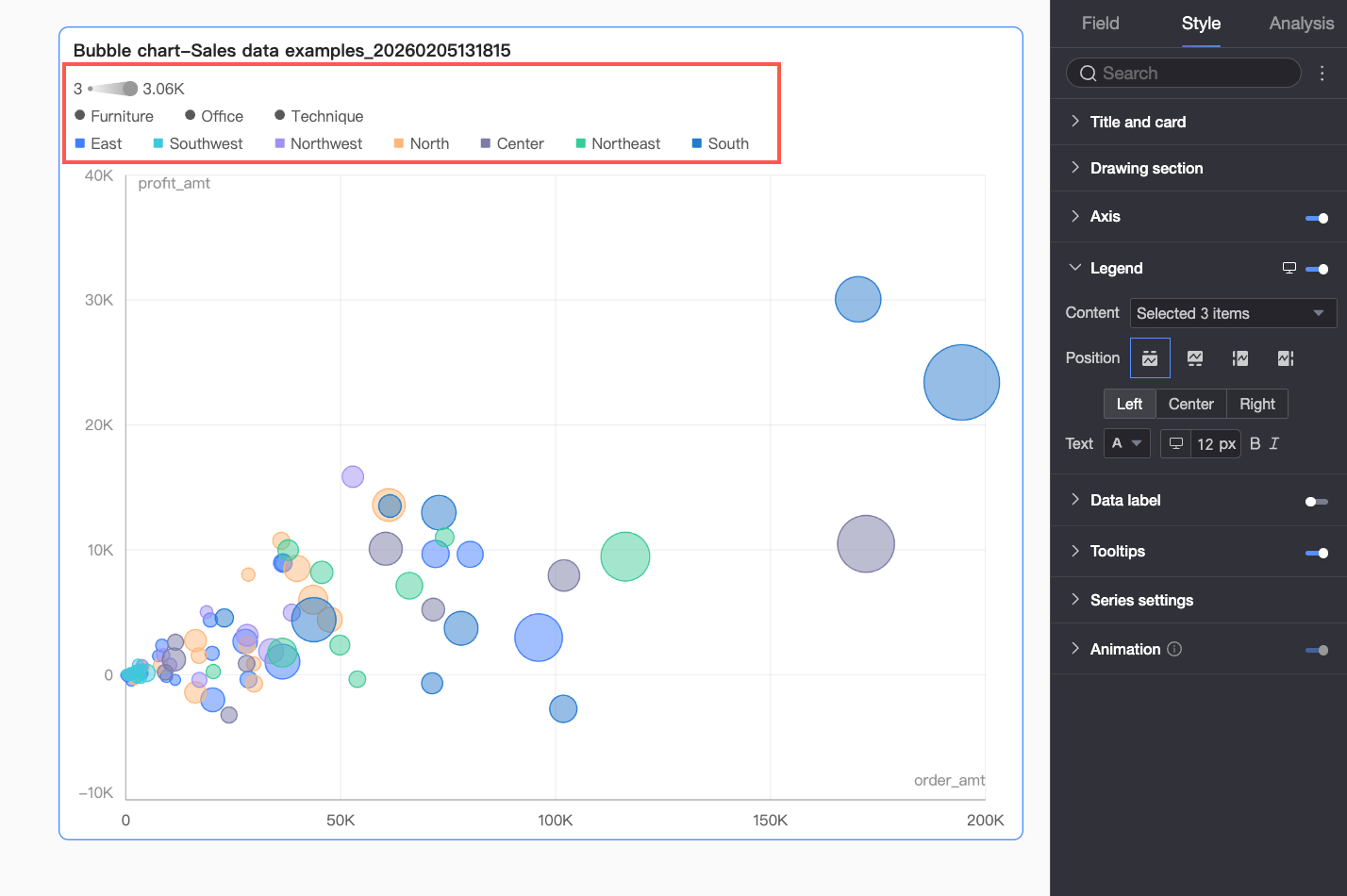
|
Parameter |
Description |
|
Content |
Click the Content dropdown list to see the dimension fields currently configured in the Category, Color, and Shape areas. You can select or deselect fields to control which legend items are displayed. |
|
Position |
Sets the display position and alignment of the legend.
Note
If a field is configured for the playback timeline, the legend can only be positioned at the Top. |
|
Text |
Sets the text style of the legend, including font color, size, weight, and style (italic). |
|
Mobile legend |
PC and mobile legend settings are independent. Switch to the mobile editing view by using the PC/Mobile toggle ( |
 ) at the top of the dashboard edit page. You can then configure the content, position, and text style for the mobile legend.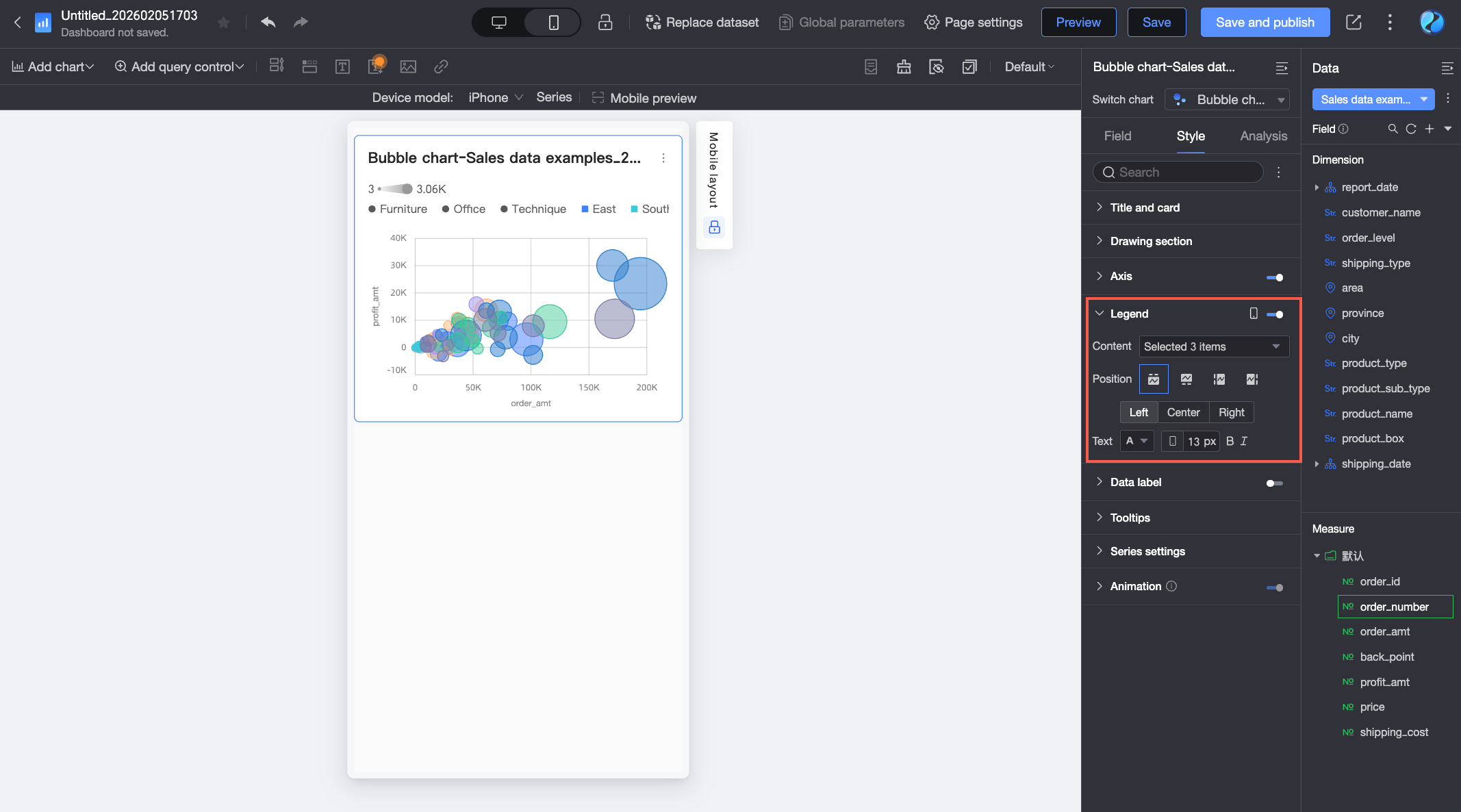
Data Labels
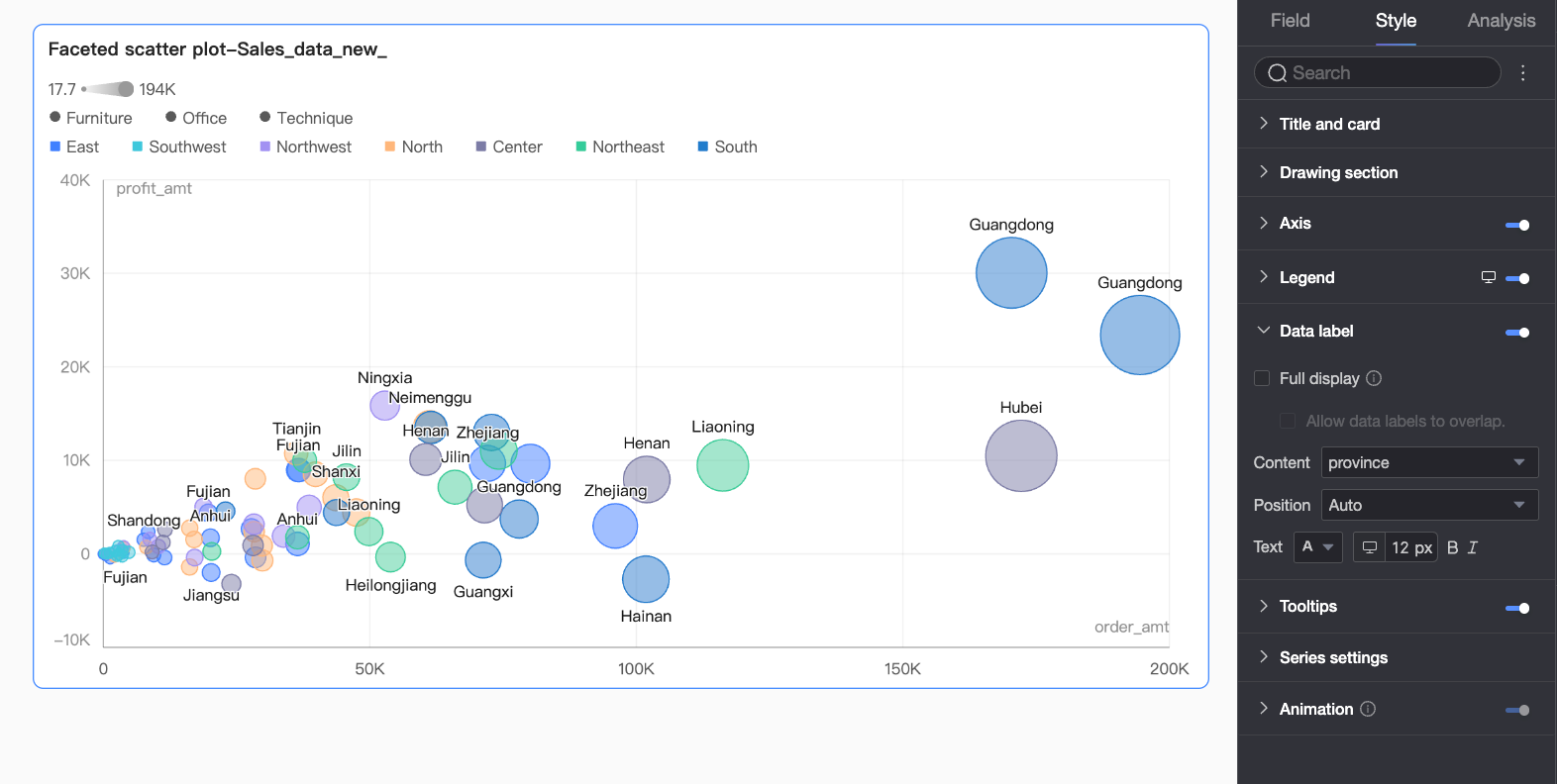
In the Data labels section, set the visibility, position, and style of data labels.
|
Parameter |
Description |
|
Display all |
When enabled, the system adjusts label positions to prevent overlap. If there are too many labels, some may not be displayed. You can also choose to Allow data labels to overlap. |
|
Content |
Sets the content to be displayed in the labels. |
|
Position |
Sets the position of the data labels. Note
The Position cannot be adjusted if a field is added to the playback timeline / time dimension area. |
|
Text |
Sets the text style of the labels. |
Tooltip
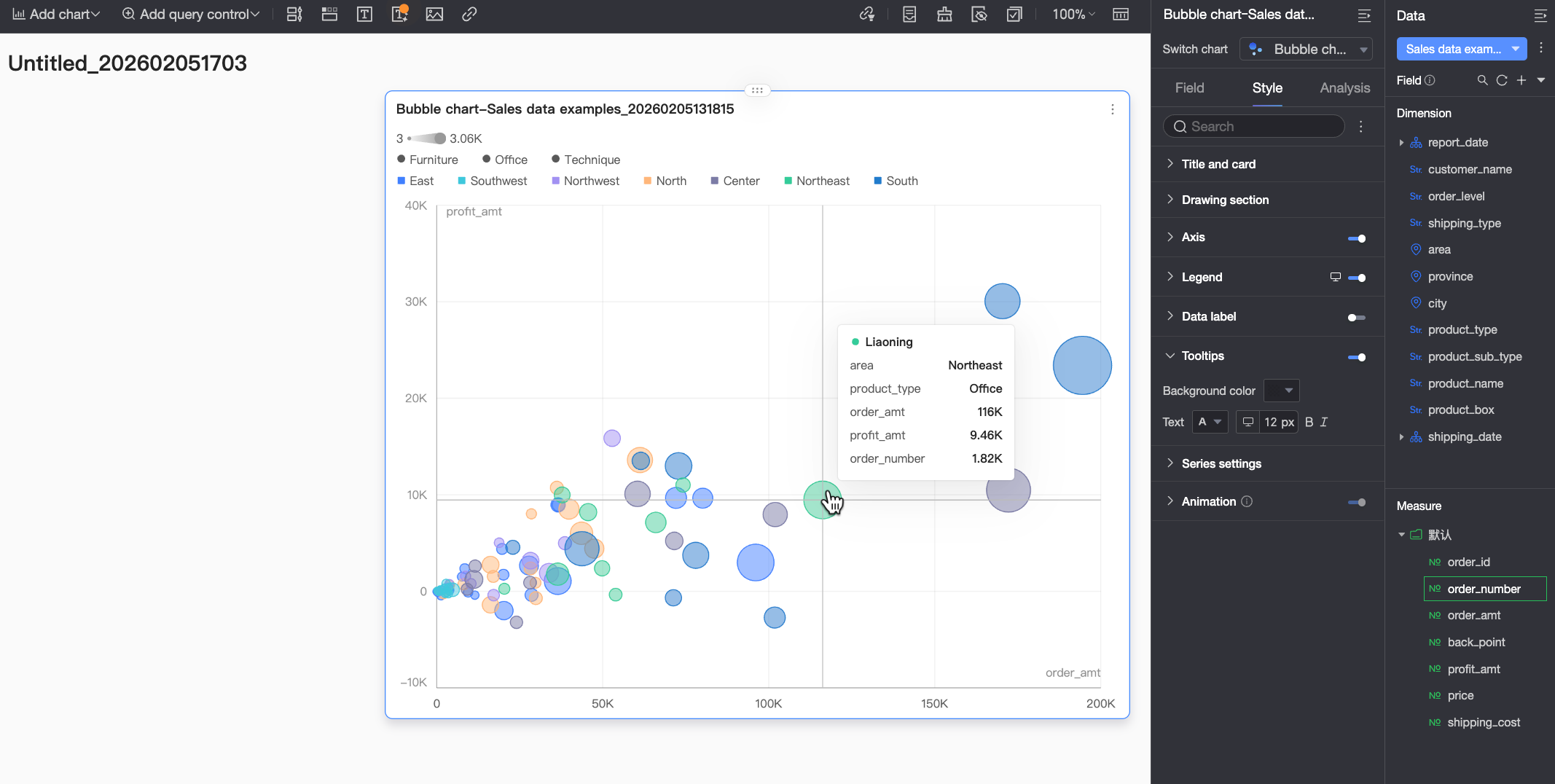
In the Tooltip section, configure whether to show tooltip content and set its style.
|
Parameter |
Description |
|
Background color |
Sets the background fill color of the tooltip. |
|
Text |
Sets the text style within the tooltip, including font color, size, weight, and style (italic). |
|
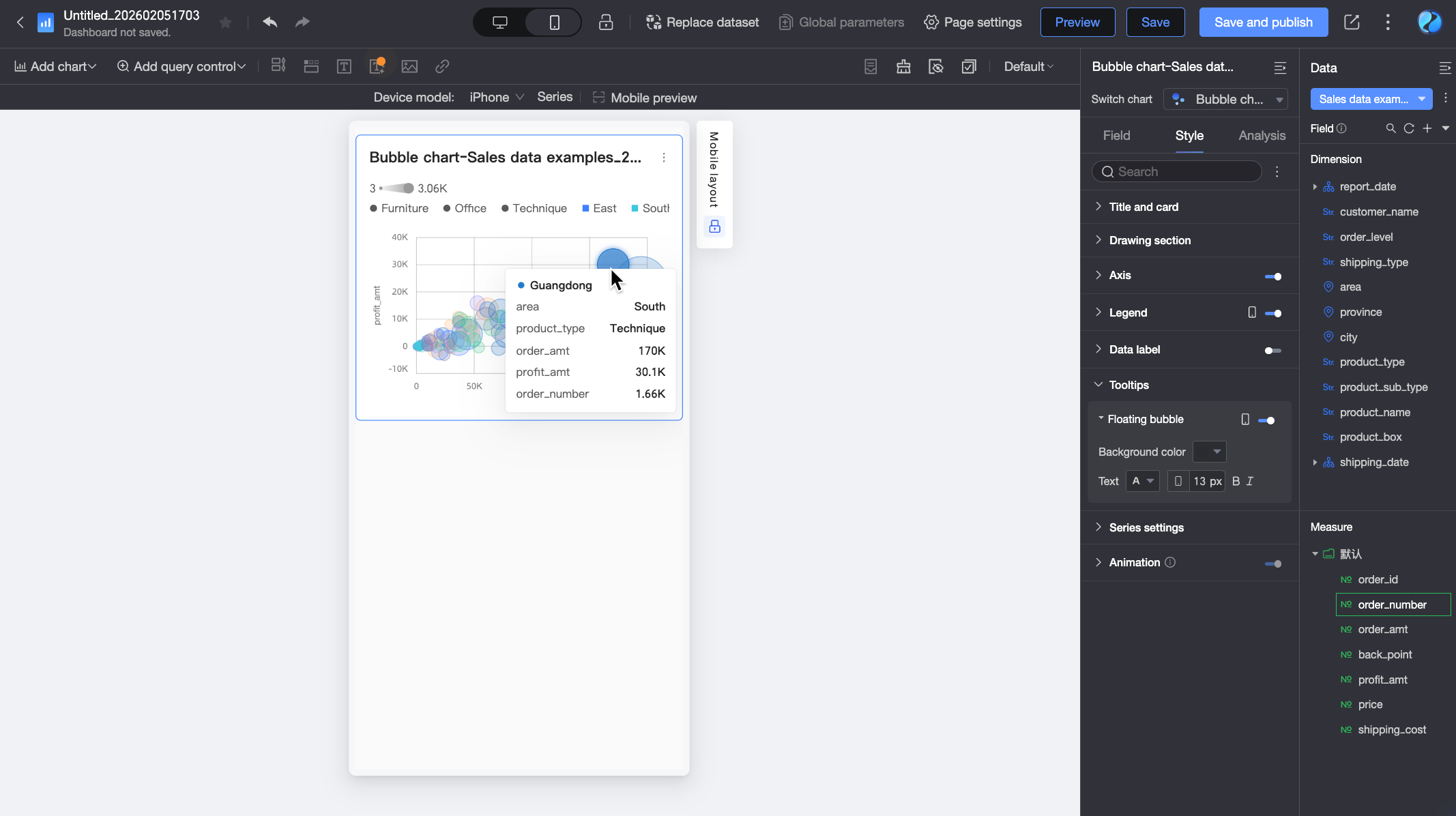
Mobile tooltip |
Tooltip visibility settings for PC and mobile views are independent. Switch to the mobile editing view by using the PC/Mobile toggle ( |
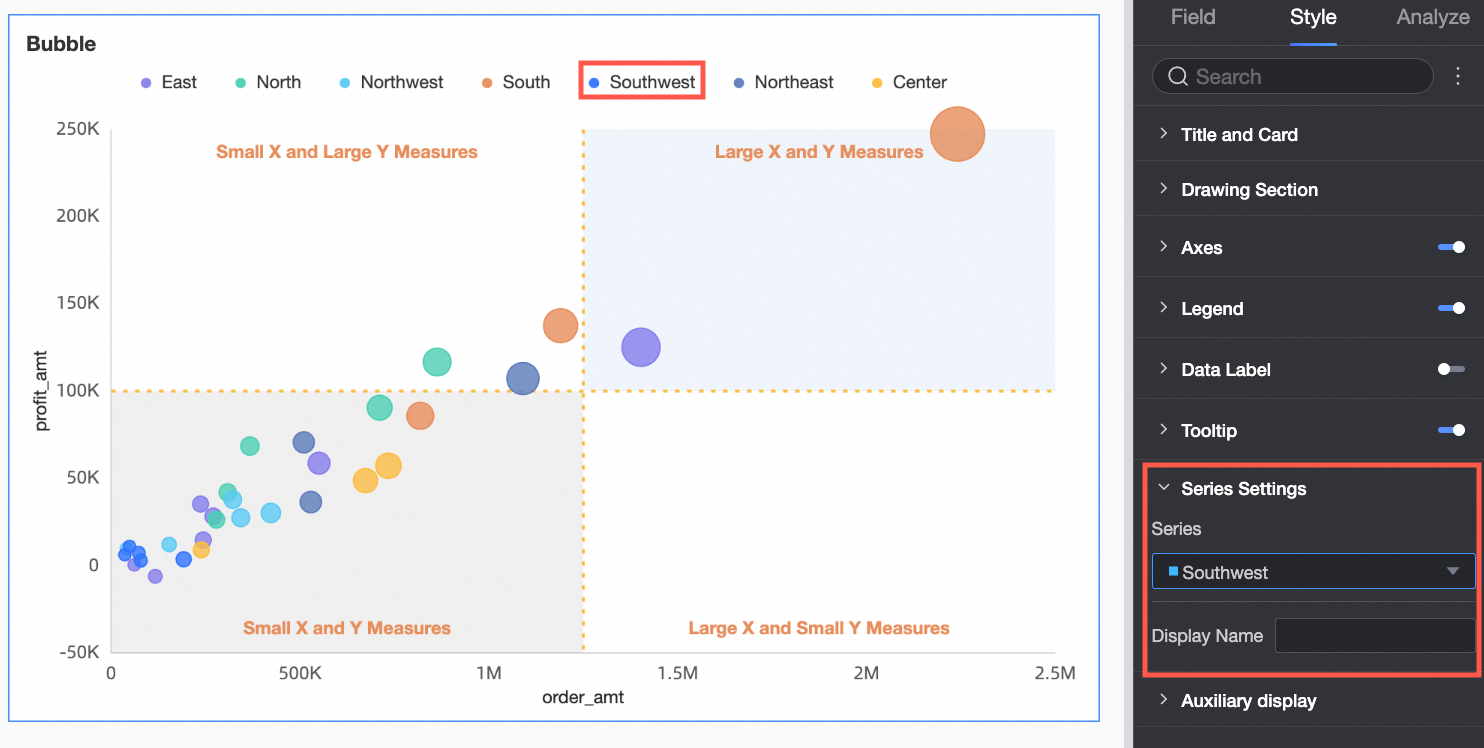
Series Settings
In the Series settings section, configure the series style.
Auxiliary Display
In the Auxiliary display section, configure the playback timeline:
-
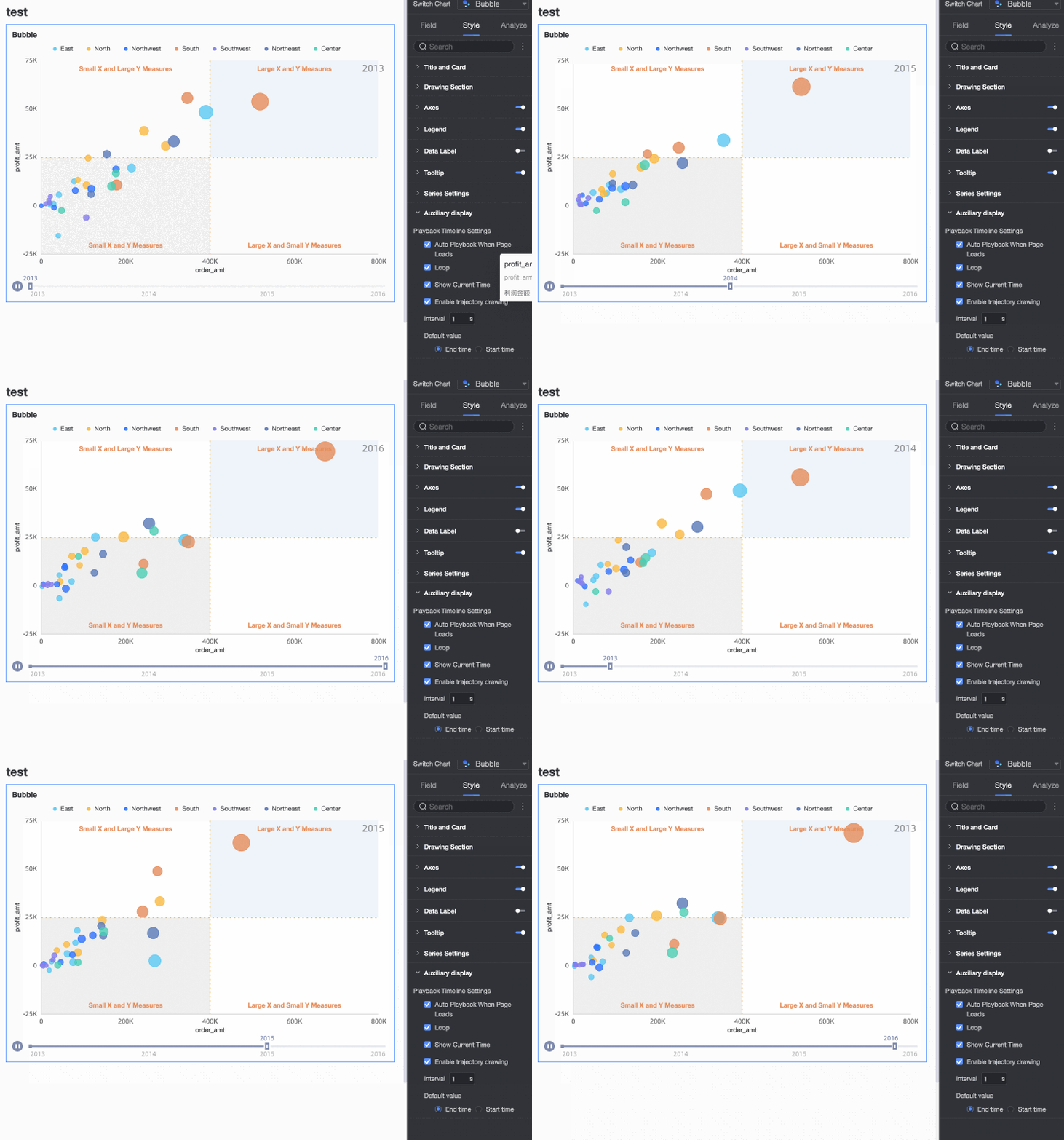
Select Auto Playback When Page Loads to automatically play the chart animation once when the report loads.
-
Select Loop to play the chart animation repeatedly.
-
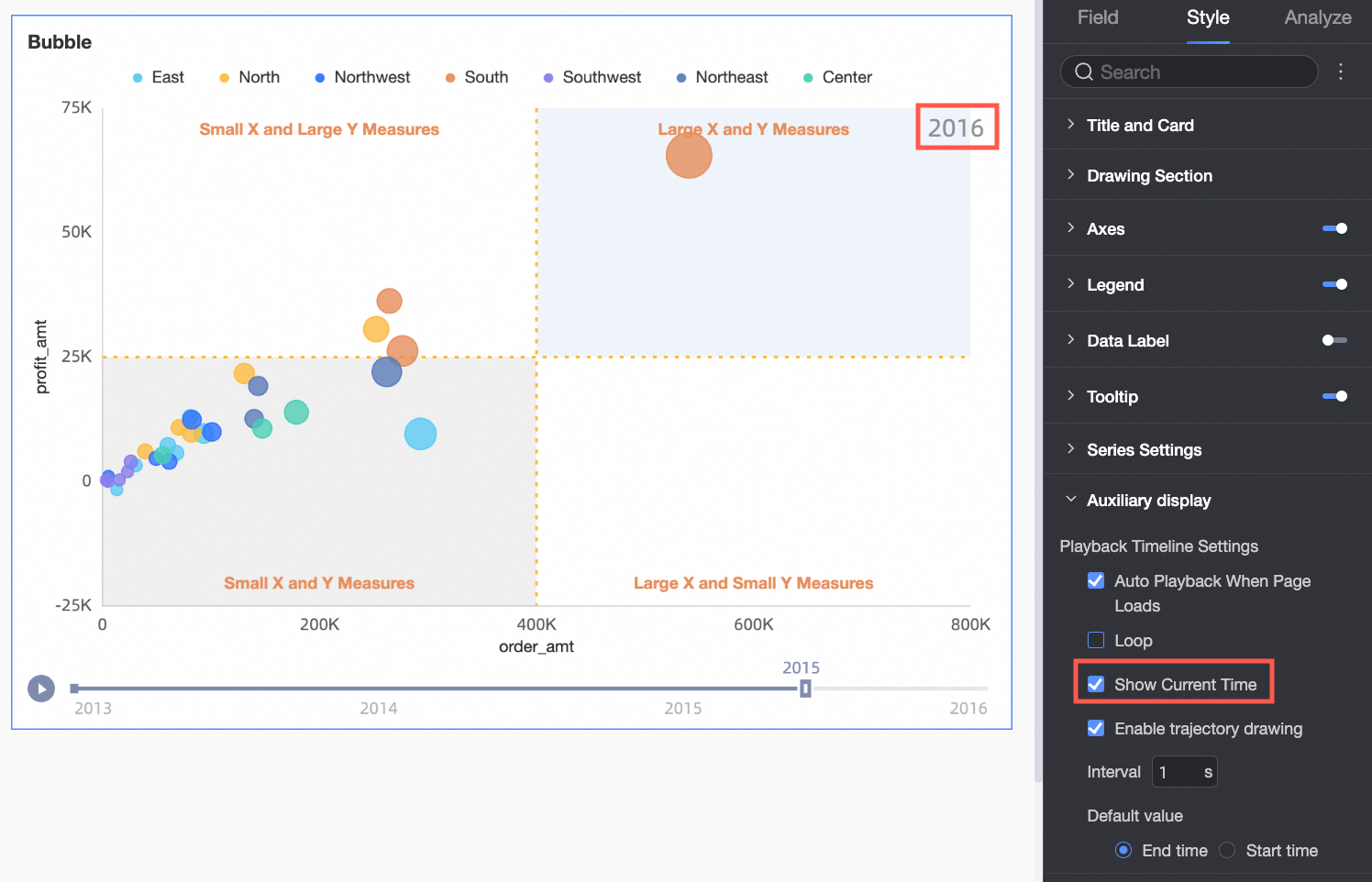
Select Show Current Time Value to display the corresponding time value during the animation.
-
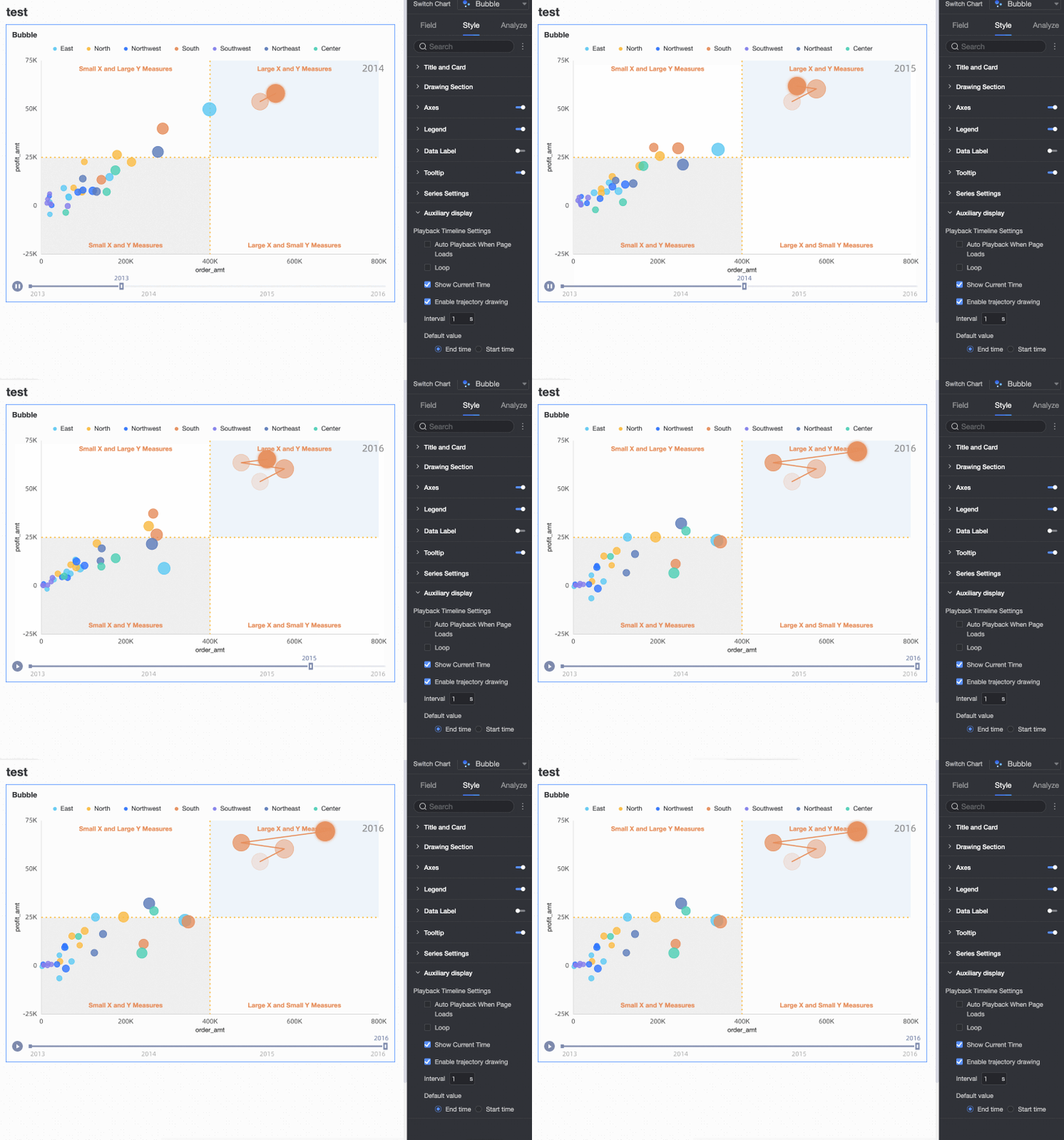
Select Enable Trajectory Drawing to trace a clicked bubble's trajectory along the playback timeline.
Configure Chart Analysis
|
Feature |
Name |
Description |
|
Interactive analysis |
Filter interaction |
Use the filter interaction feature to link and analyze data across multiple charts. For more information, see Filter interaction. |
|
Hyperlink |
Use hyperlinks to connect and analyze data across multiple dashboards. For more information, see Hyperlink. |
|
|
Analytical tools |
Reference line |
A reference line is an auxiliary line that shows the difference between a measure value and a reference value. The reference value can be a fixed value or a calculated value such as the average, maximum, minimum, or median. For more information, see Metric analysis. |
|
Trendline |
A trendline displays the overall trend of the selected data. Quick BI provides the following trendline types: Intelligent, Linear, Logarithmic, Exponential, Polynomial, and Power. For more information, see Metric analysis. Note
Trendlines are supported only when the playback timeline is not used. |
|
|
Annotation |
- |
If data in a chart is abnormal or requires extra attention, you can mark it with background colors, icons, comments, or data points. For more information, see Label. Note
Labels are supported only when the playback timeline is not used. |
What to do next
-
You can share the dashboards that you created. For more information, see Share a dashboard.
-
If you need a complex navigation menu for thematic analysis, you can integrate your dashboards into a BI portal. For more information, see Create a BI portal for PC.