You can add dashboard components, Q Chat Data results, and Q Insights results to Q Reports. You can add this content while editing a report or directly from dashboards, Q Insights, or Q Chat Data. This feature prevents you from having to regenerate content, which makes data analysis more efficient. This topic describes how to add existing content to Q Reports.
Prerequisites
You have edit permissions for the Q Report to which you want to add content.
You have the required permissions for related modules:
To add a dashboard chart to a Q Report, you need preview permissions for that dashboard.
To add a Q Chat Data result to a Q Report, you need Q Chat Data permissions.
To add a dashboard Q Insights result to a Q Report, you need dashboard Q Insights permissions.
Limits
A report supports a maximum of 20 dashboard chart components.
You cannot add metric decomposition trees, metric relationship graphs, or custom components.
Add Dashboard Charts
You can add dashboard charts to a Q Report from the dashboard preview page.
You cannot add metric decomposition trees, metric relationship graphs, or custom components.
Add a Single Chart
On the dashboard management page, click the Preview (
 ) icon or the View in New Window (
 ) icon next to the desired dashboard to open the dashboard preview page.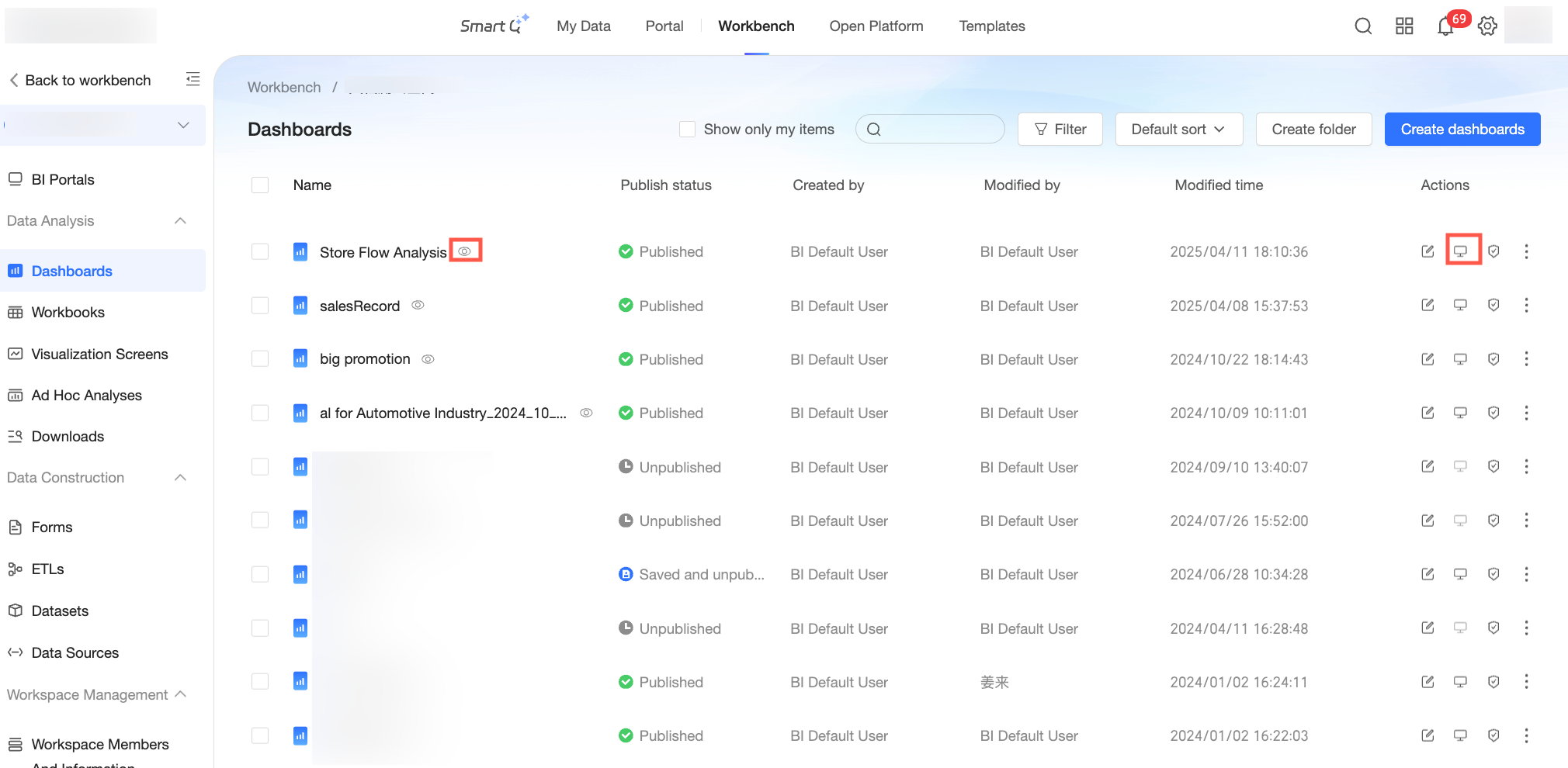
On the dashboard preview page, click the
 icon in the top-right corner of the desired chart and select Add to Q Report.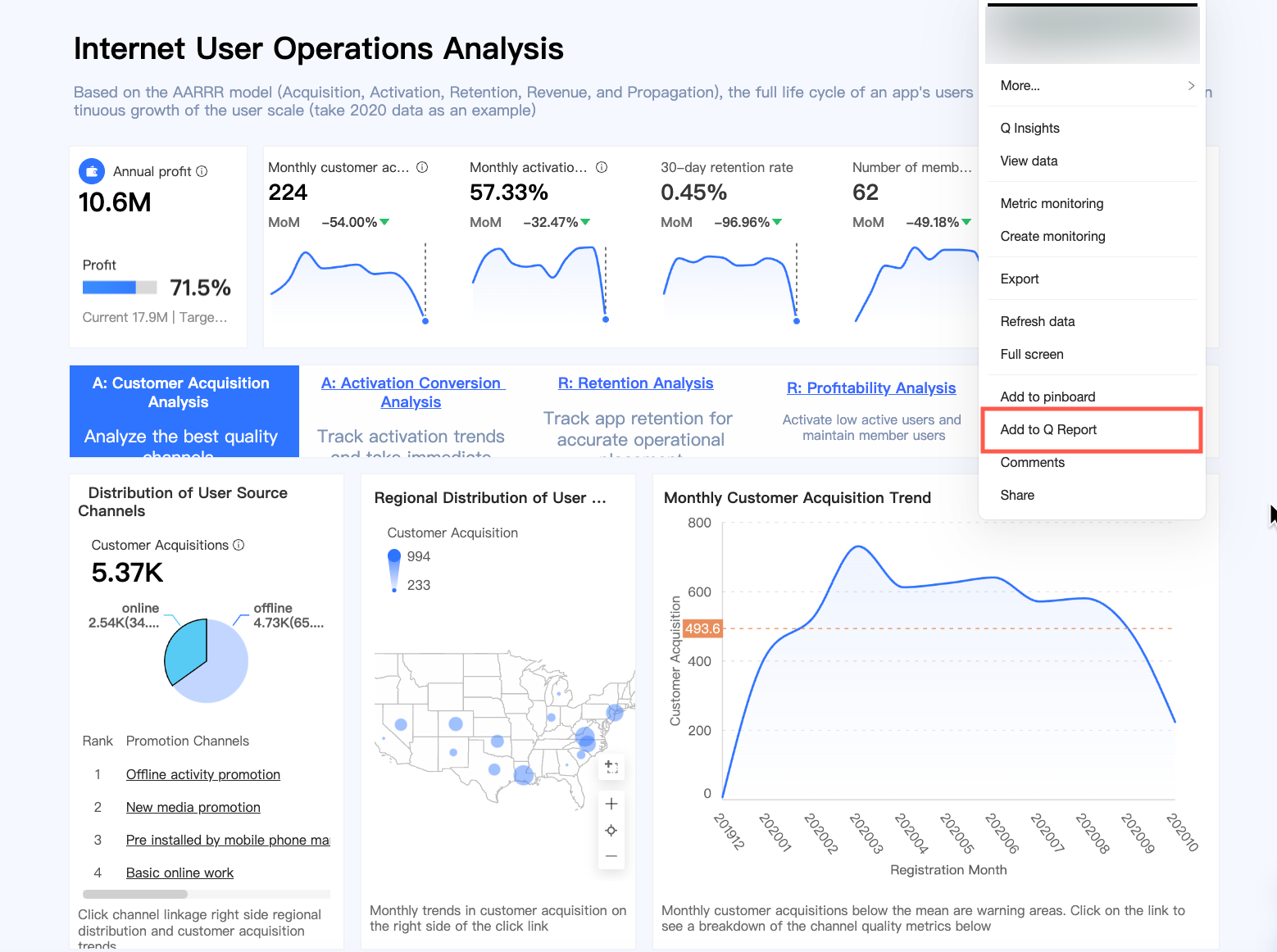
You can add cards by manually selecting filter values.
For example, to add a detail table with the status “Unprocessed” to your report, use the query control to filter the data. Click Query, then click the
icon in the top-right corner of the desired chart and select Add to Q Report. NoteWhen you update data, time-based and non-time-based filters behave differently:
Because you usually want the latest time-based data when updating, time-based filters clear any manually selected values. If a default value is set for the time filter, it reverts to that default value.
Non-time-based filters remain unchanged during data updates. Changes to the default values of the filters on the original chart do not affect them.
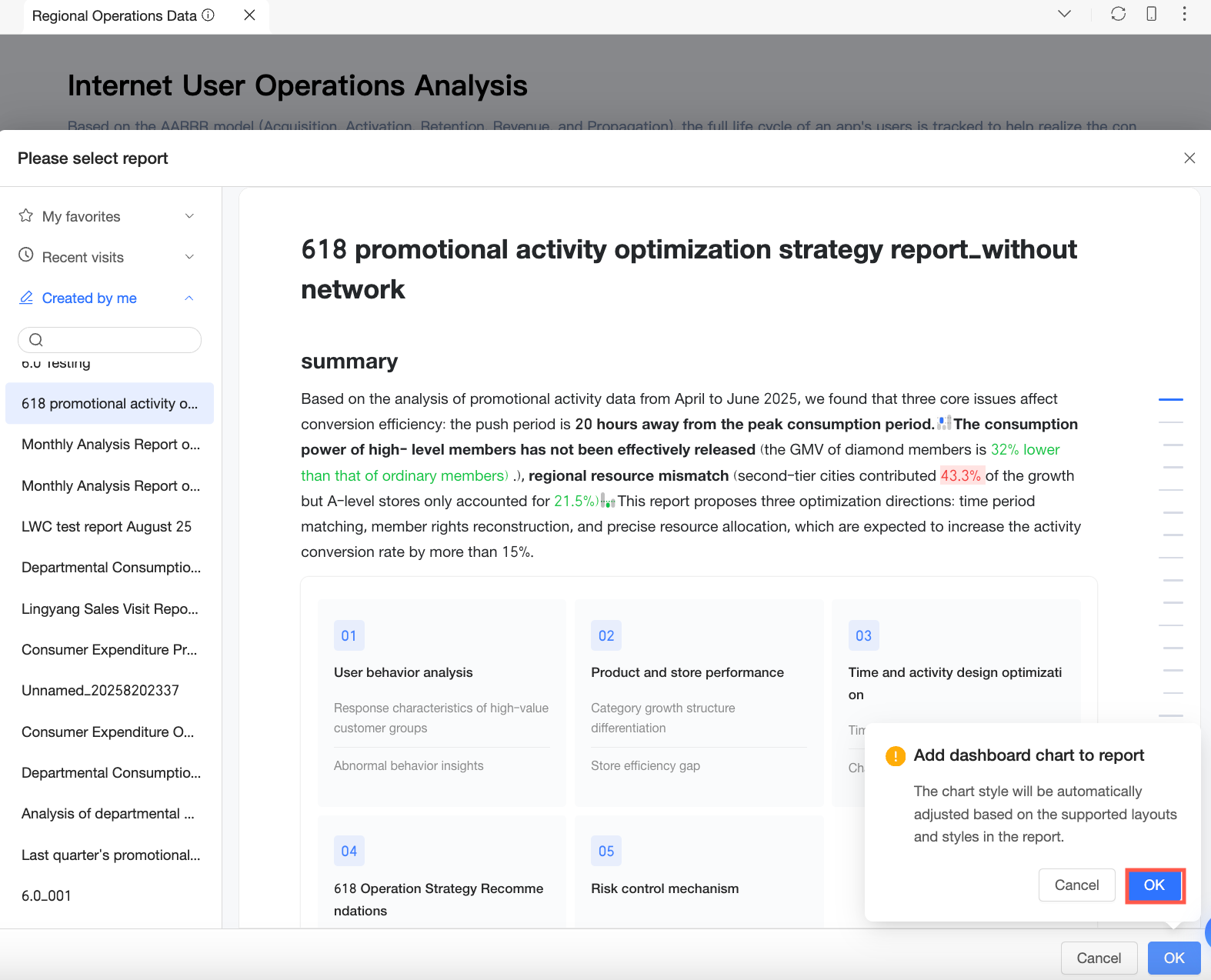
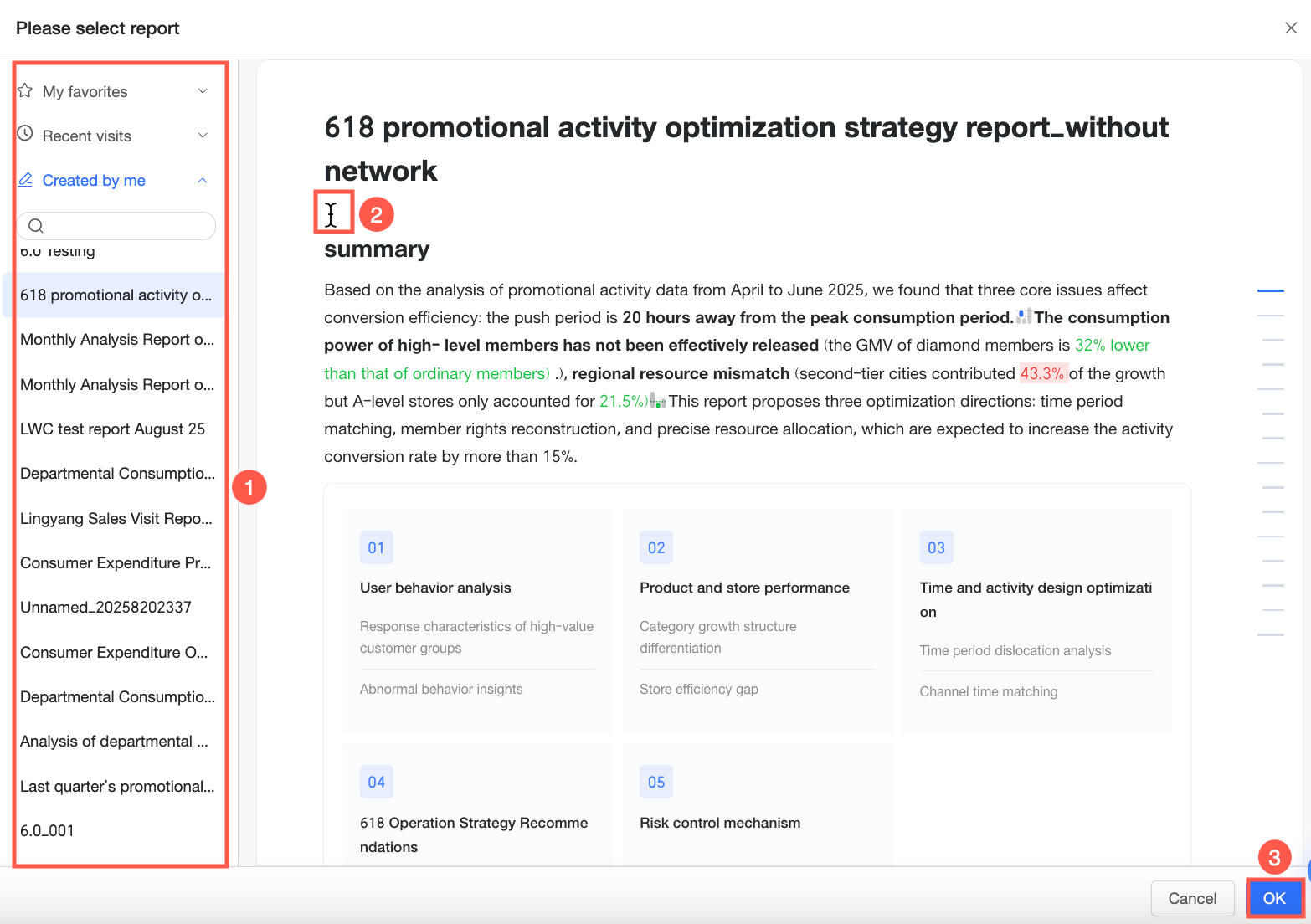
Select a report.
You can choose from My Favorites, Recently Accessed, or Created by Me.
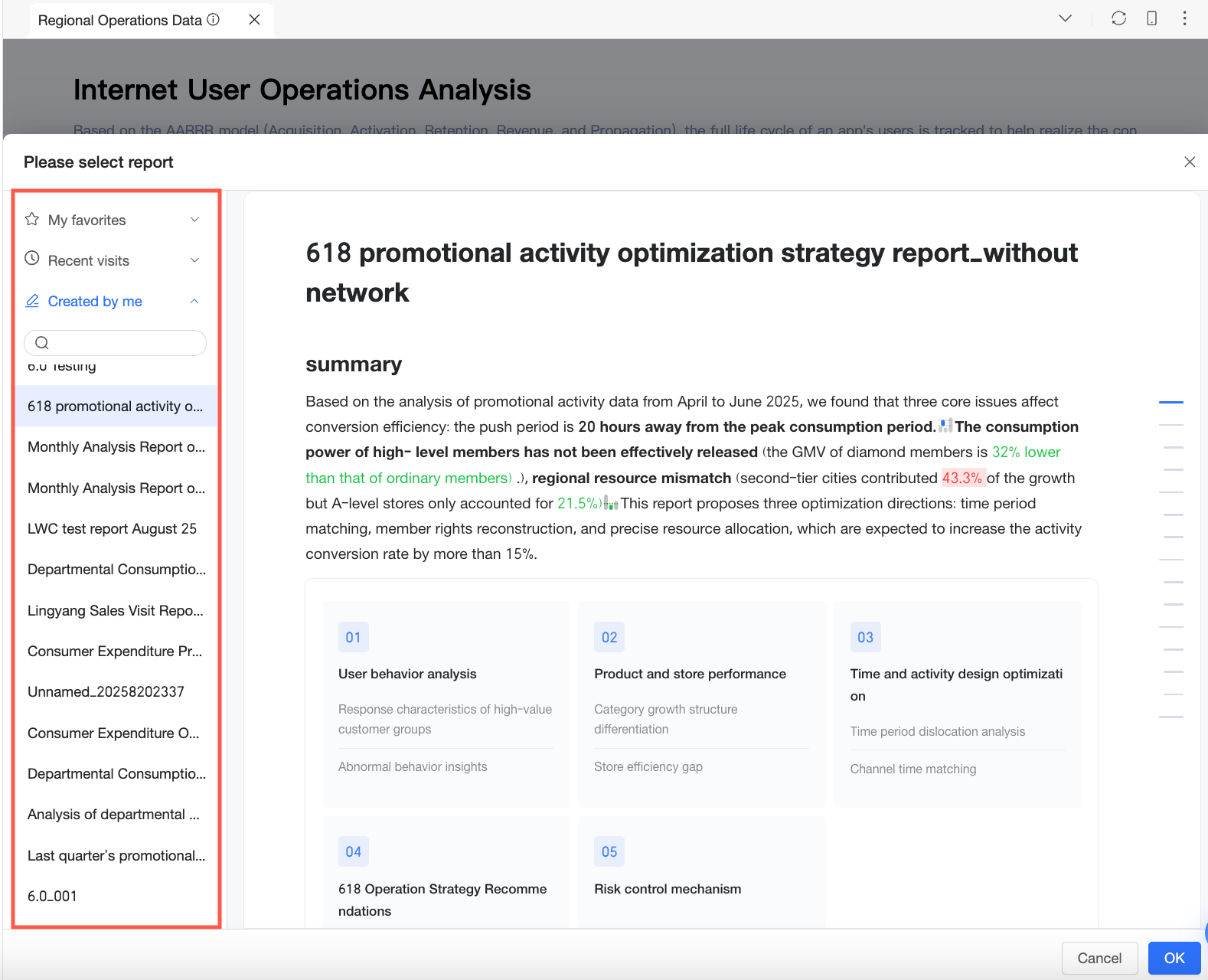
You can also use the search function to quickly locate the desired report.
After selecting a report, use your cursor to specify where to insert the chart component.
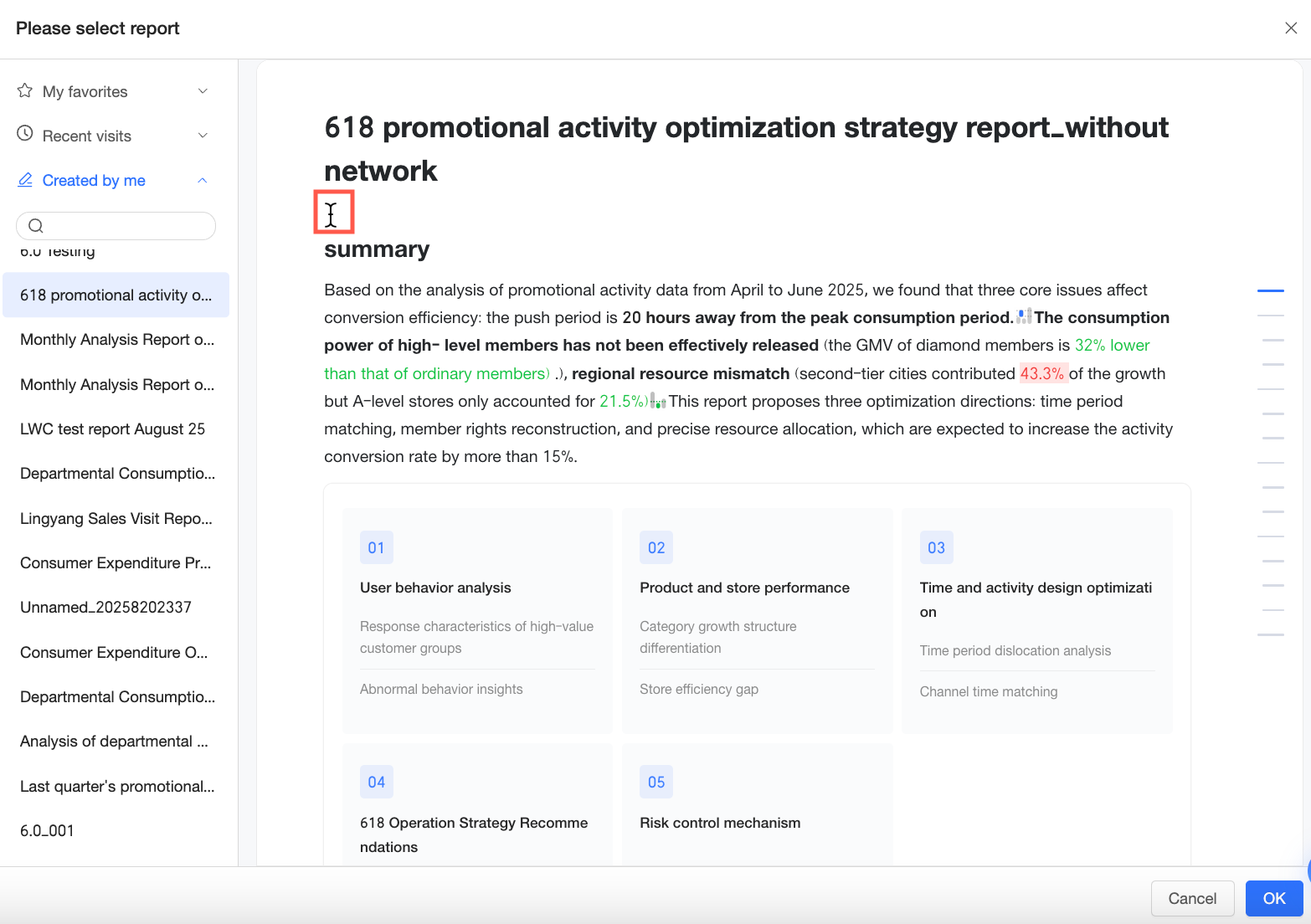
Click OK, and then click OK again in the confirmation dialog box.
NoteAfter you add a chart, its content updates automatically from the source dashboard. You can also manually detach it inside the report. After detaching, updates from the source dashboard no longer affect the chart in the report.
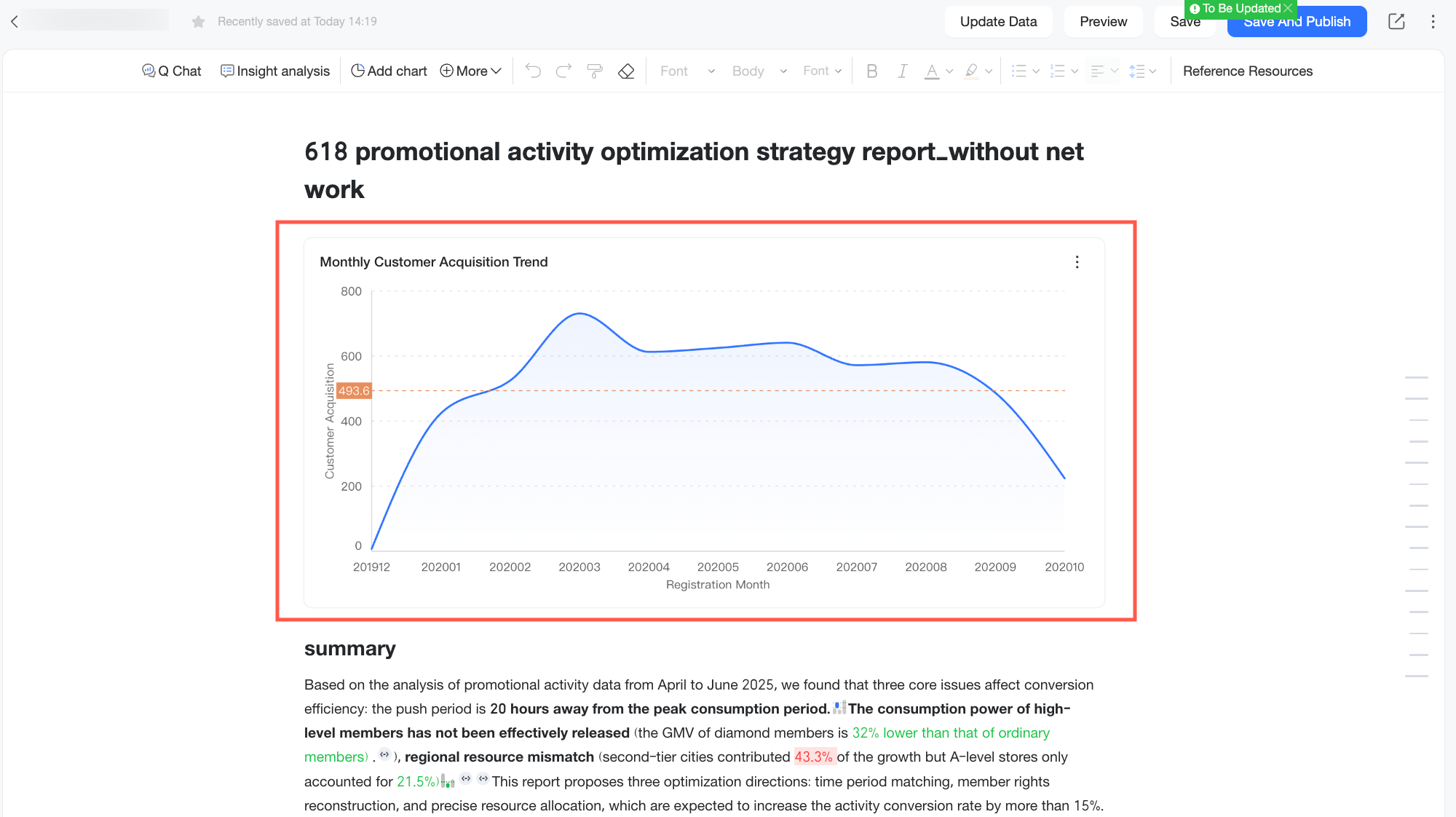
After the chart is added, you can view it in the Q Report.
Add Multiple Dashboard Charts
On the dashboard management page, click the Preview (
) icon or the View in New Window () icon next to the desired dashboard to open the dashboard preview page.On the dashboard preview page, click Report to open the bulk chart selection interface.
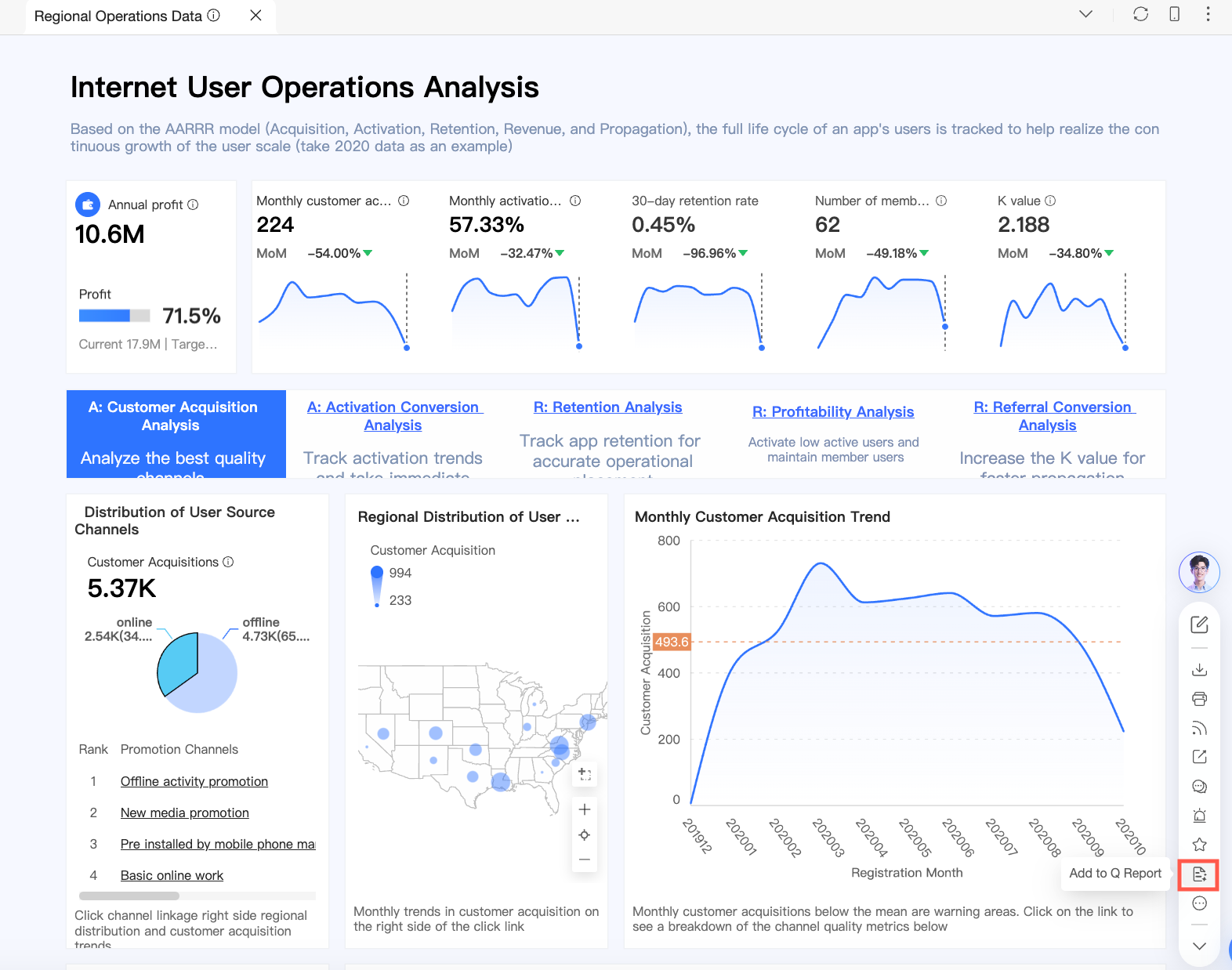
Select the charts that you want to add.
NoteA report supports a maximum of 20 dashboard chart components. For example, if your report already has 19 dashboard chart components, adding two more causes the following error message to appear:

You can delete some charts before adding more.
You cannot add the same chart from a dashboard more than once. Repeated attempts cause the following error message to appear:

You must detach the dynamic reference before you can try again.
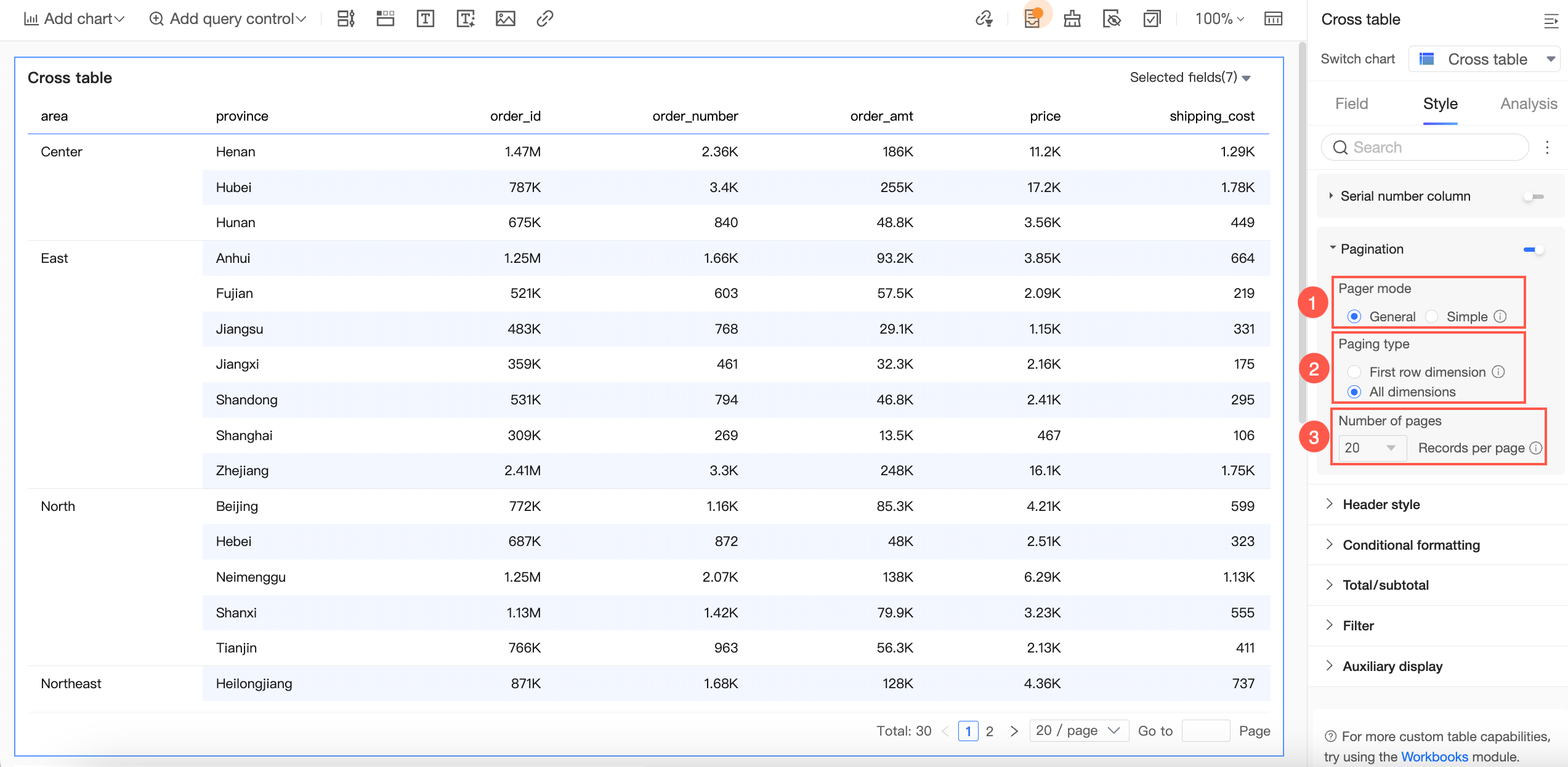
When the pager feature is used in cross tables and detail tables, after the chart is added to the report, the pager's mode is set to Regular (①) by default, the pagination type is set to All Dimensions (②), and the pagination quantity is determined by the actual configured quantity (③). A maximum of 10,000 rows of data are displayed.
When you select charts, if the selected chart components form a complete block layout, the system preserves their tiling style when they are inserted into the report. If the selected chart components do not form a block layout, they are inserted as individual charts.
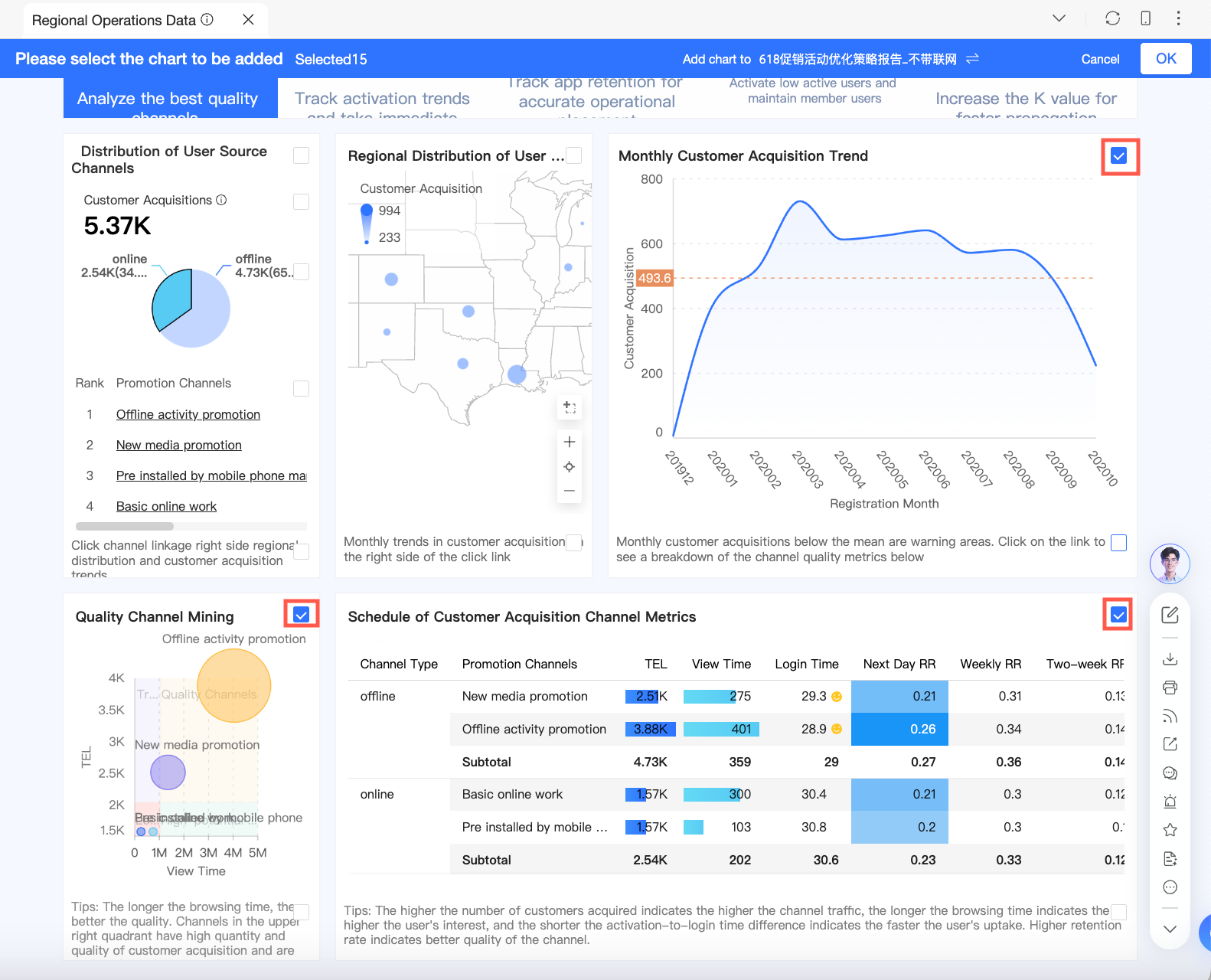
Select a Q Report, use your cursor to specify the insertion position, and then click OK.
Click the
 icon to switch the target report.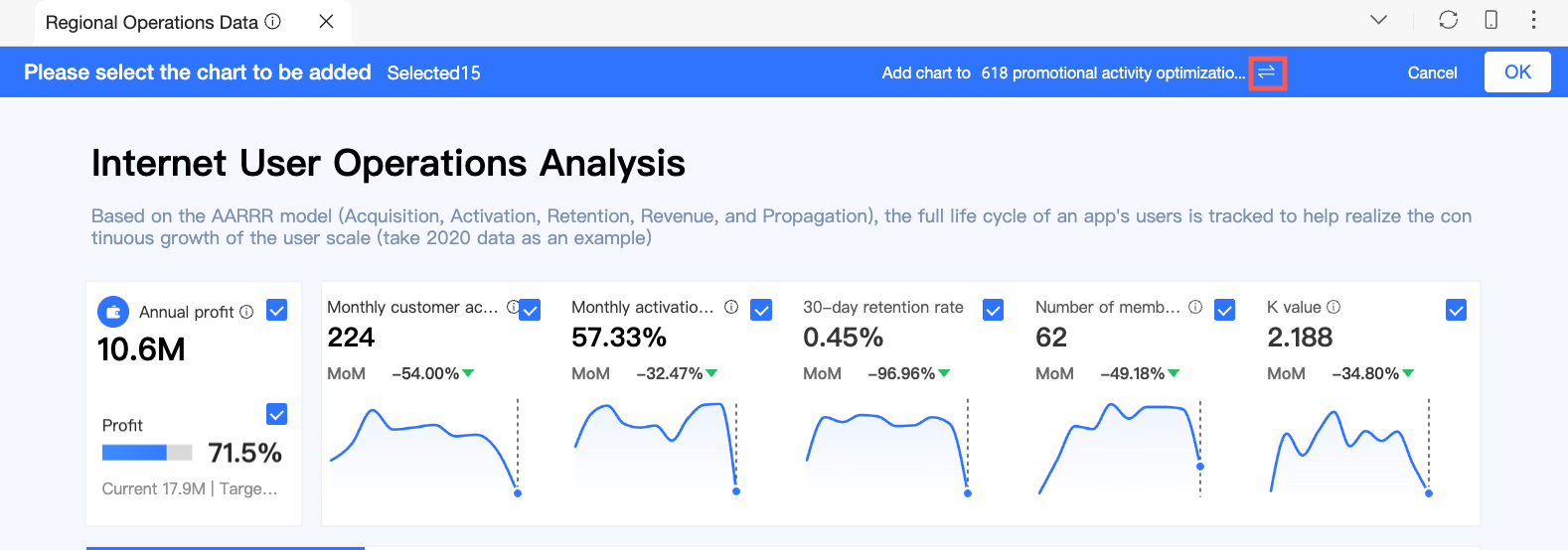
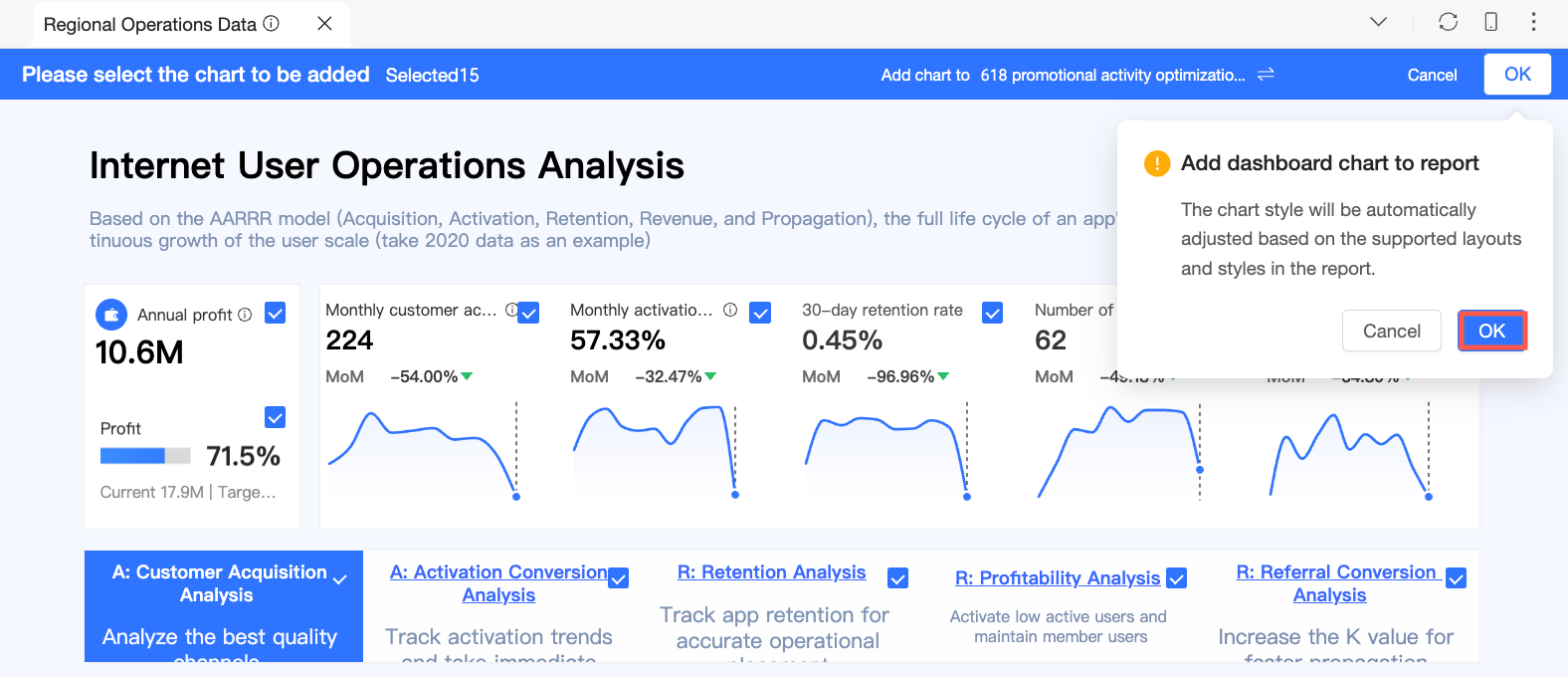
In the add interface, click OK, and then click OK again in the confirmation dialog box.
NoteAfter you add charts, their content updates automatically from the source dashboard. You can also manually detach them inside the report. After detaching, updates from the source dashboard no longer affect the charts in the report.
After the charts are added, you can view them in the Q Report.
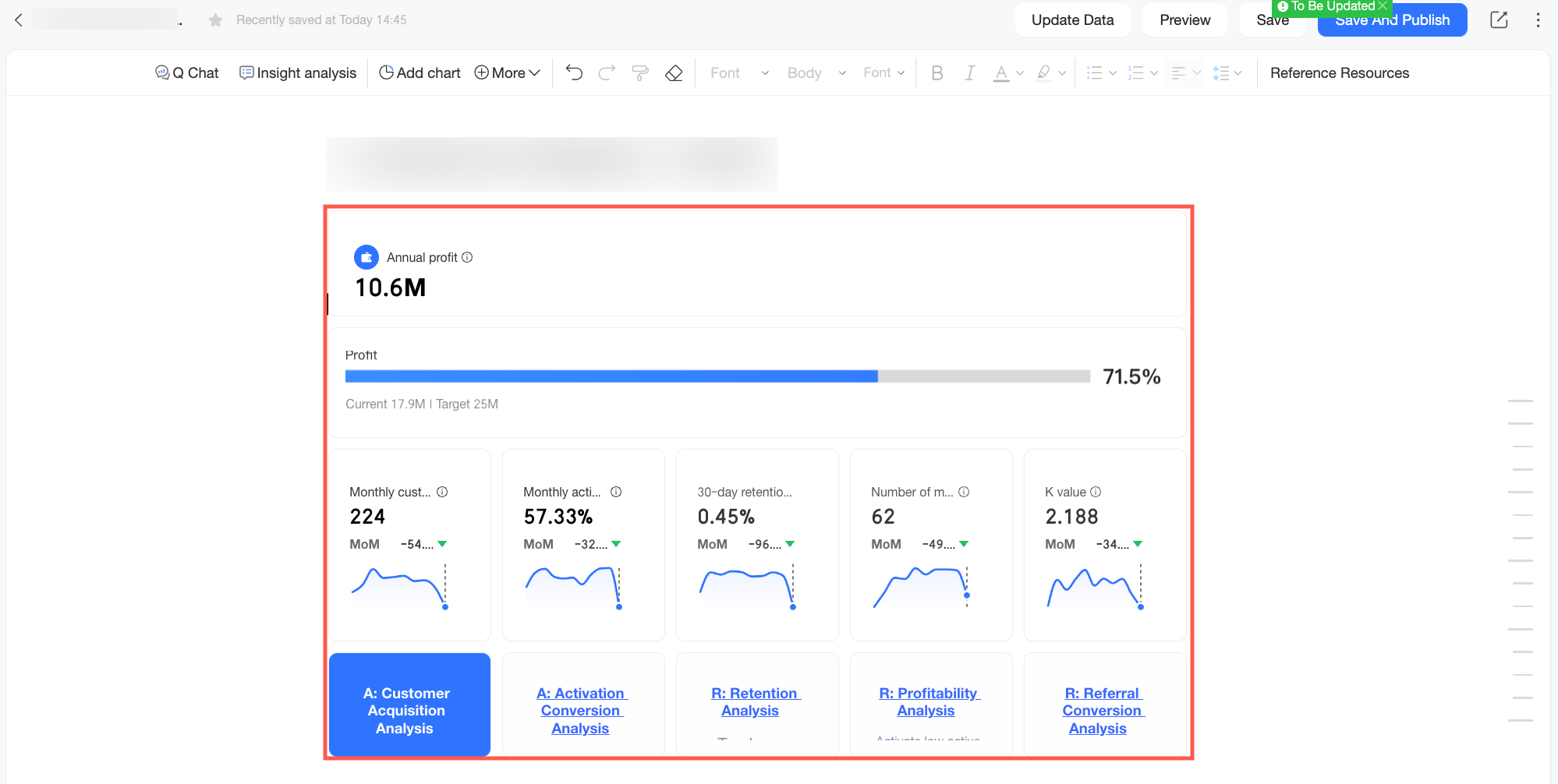
Add Q Insights Results
On the Dashboard Q Insights page, you can add Q Insights results to a Q Report.
In the dashboard Q Insights results, click Add to Q Report.
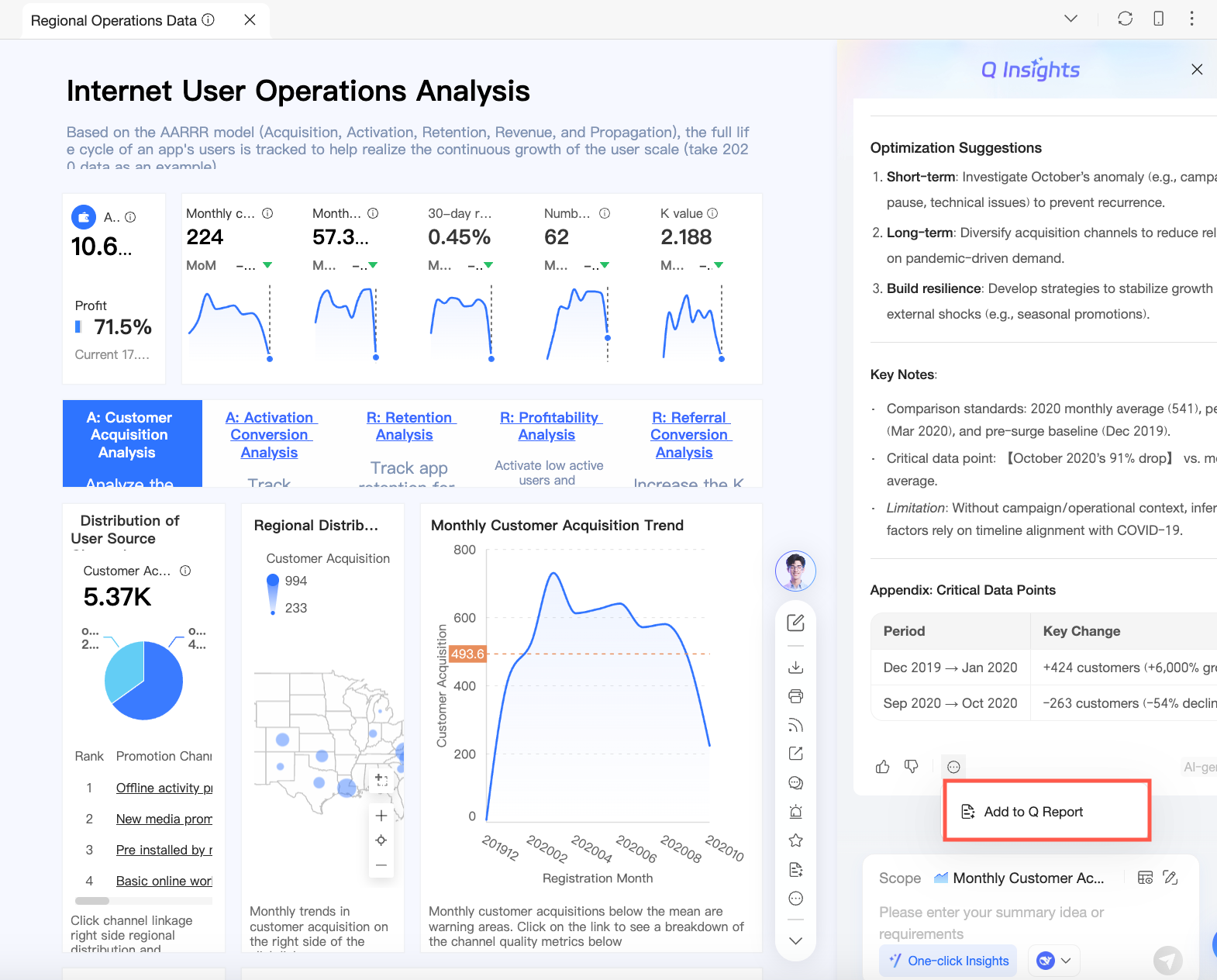
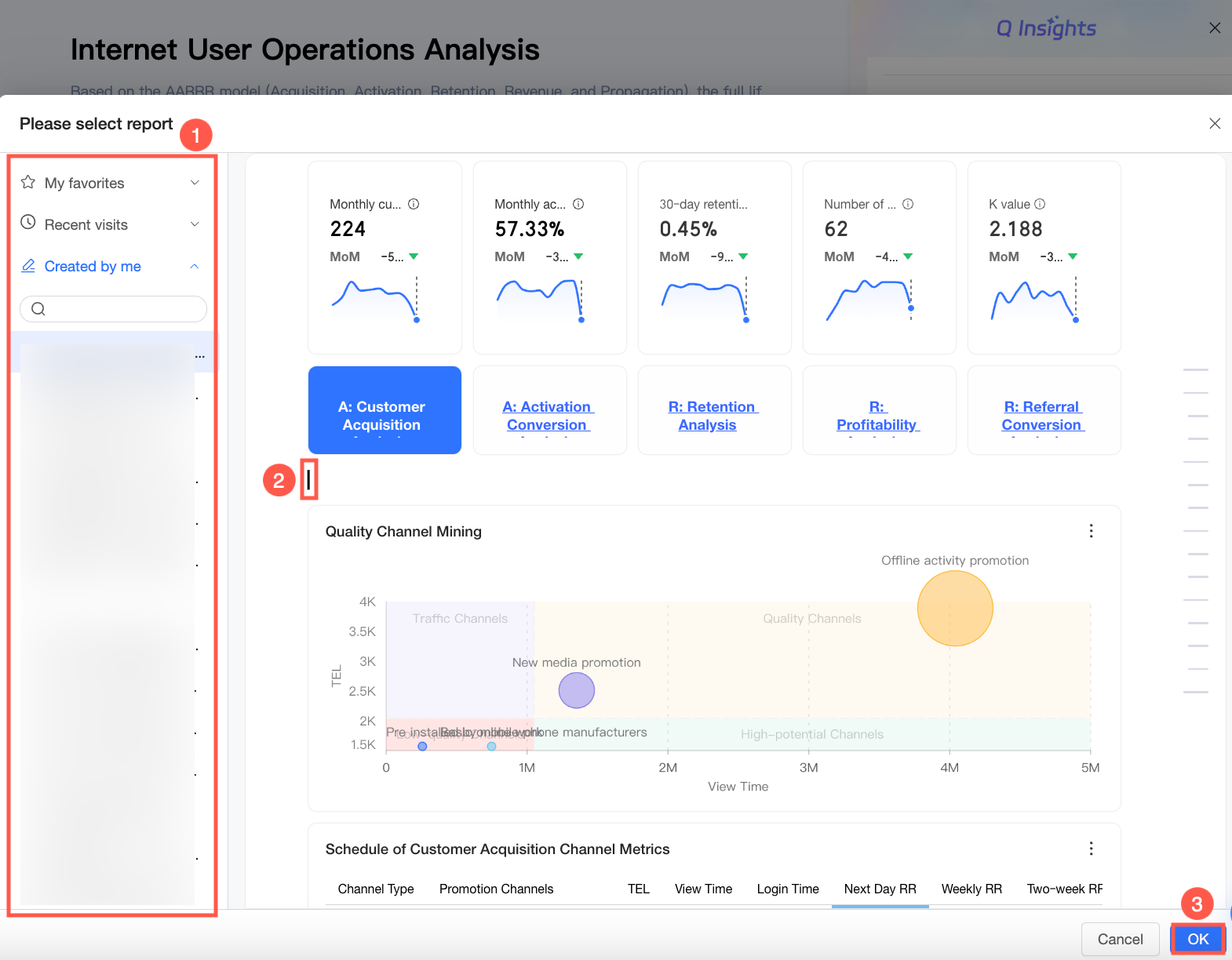
Select a report, use your cursor to specify the insertion position, and then click OK.
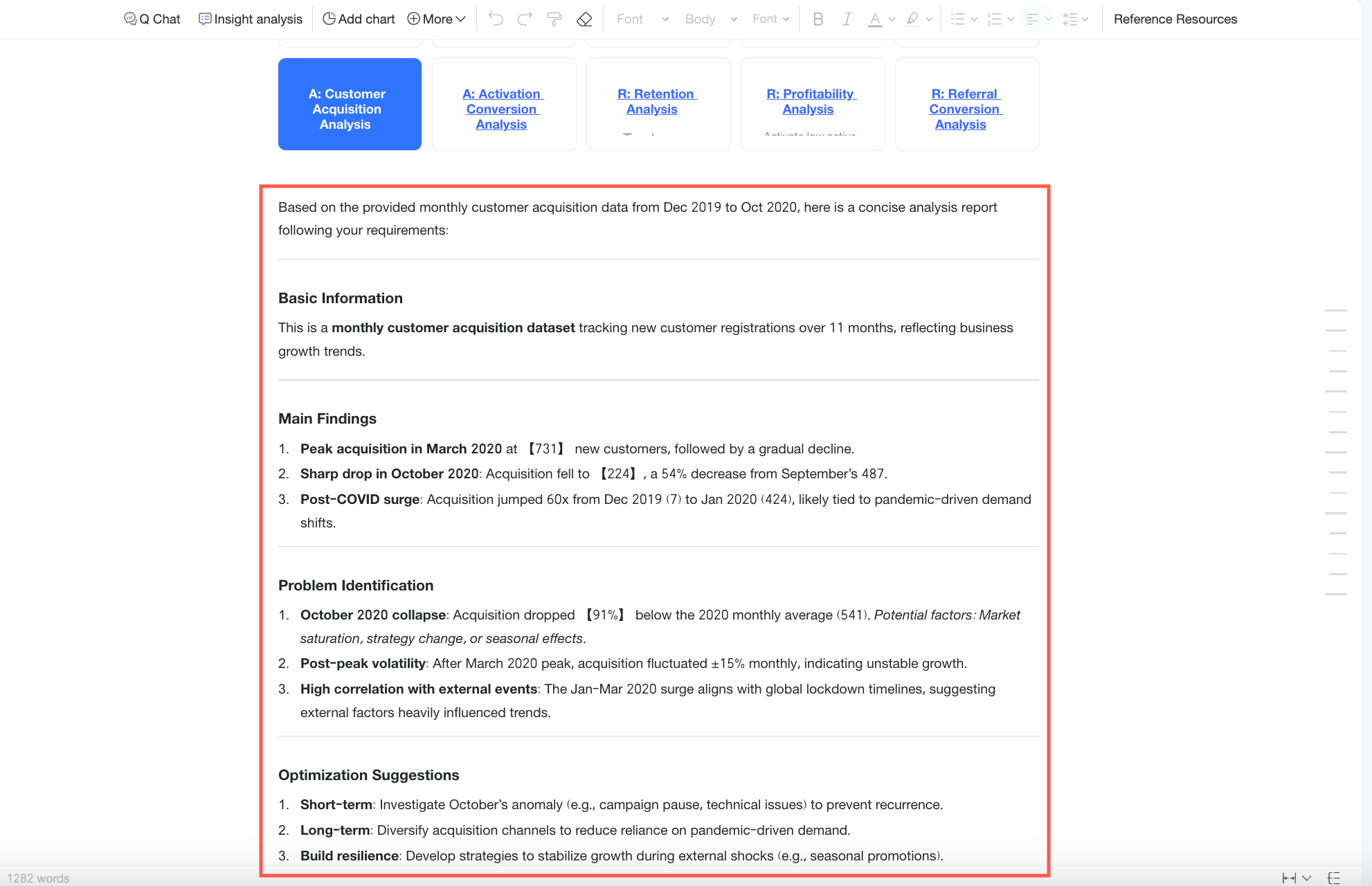
After the results are added, you can view them in the Q Report.
Add Q Chat Data Results
On the Q Chat page, you can add results from Q Chat Data to a Q Report.
In the ask data results, click the
 icon and select Add to Q Report.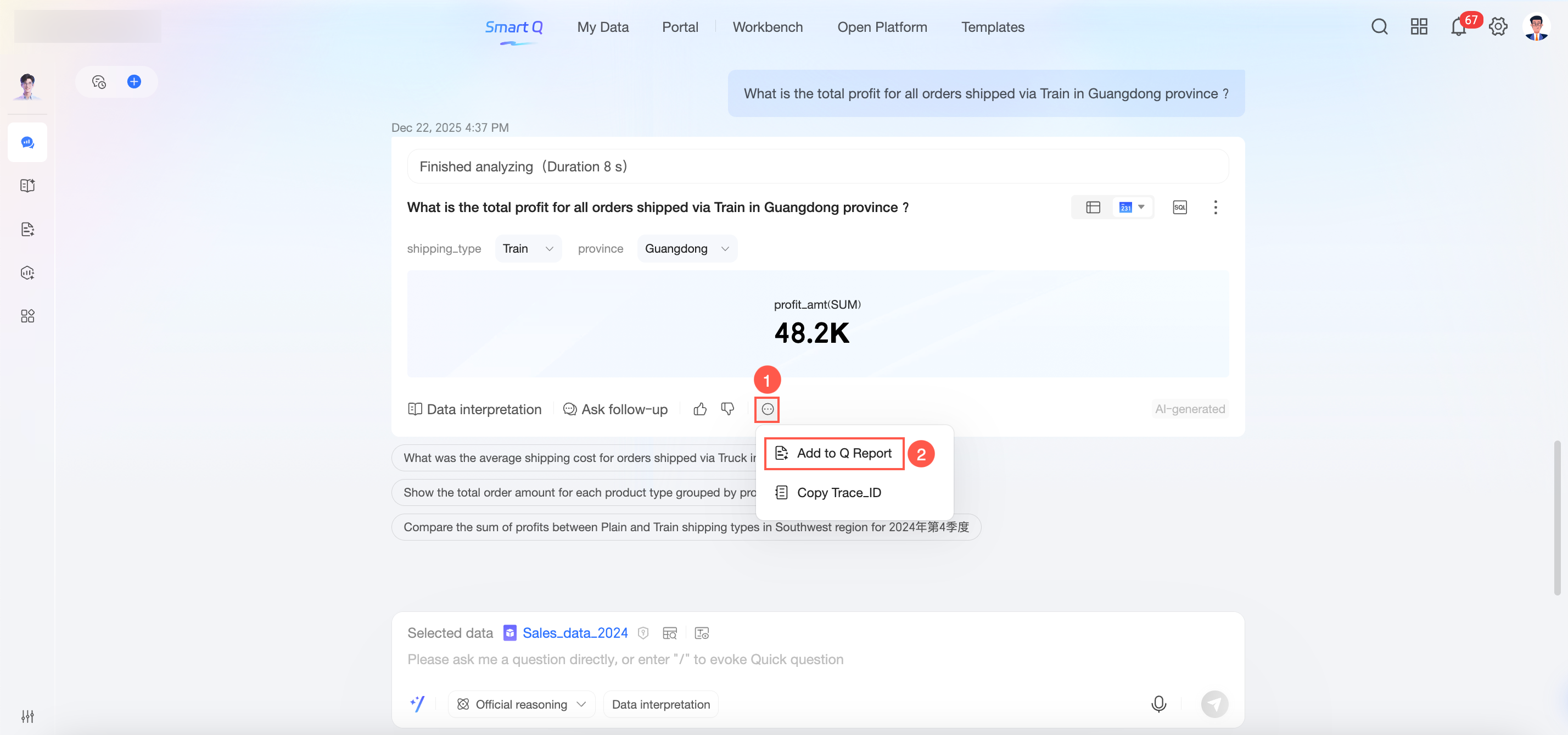
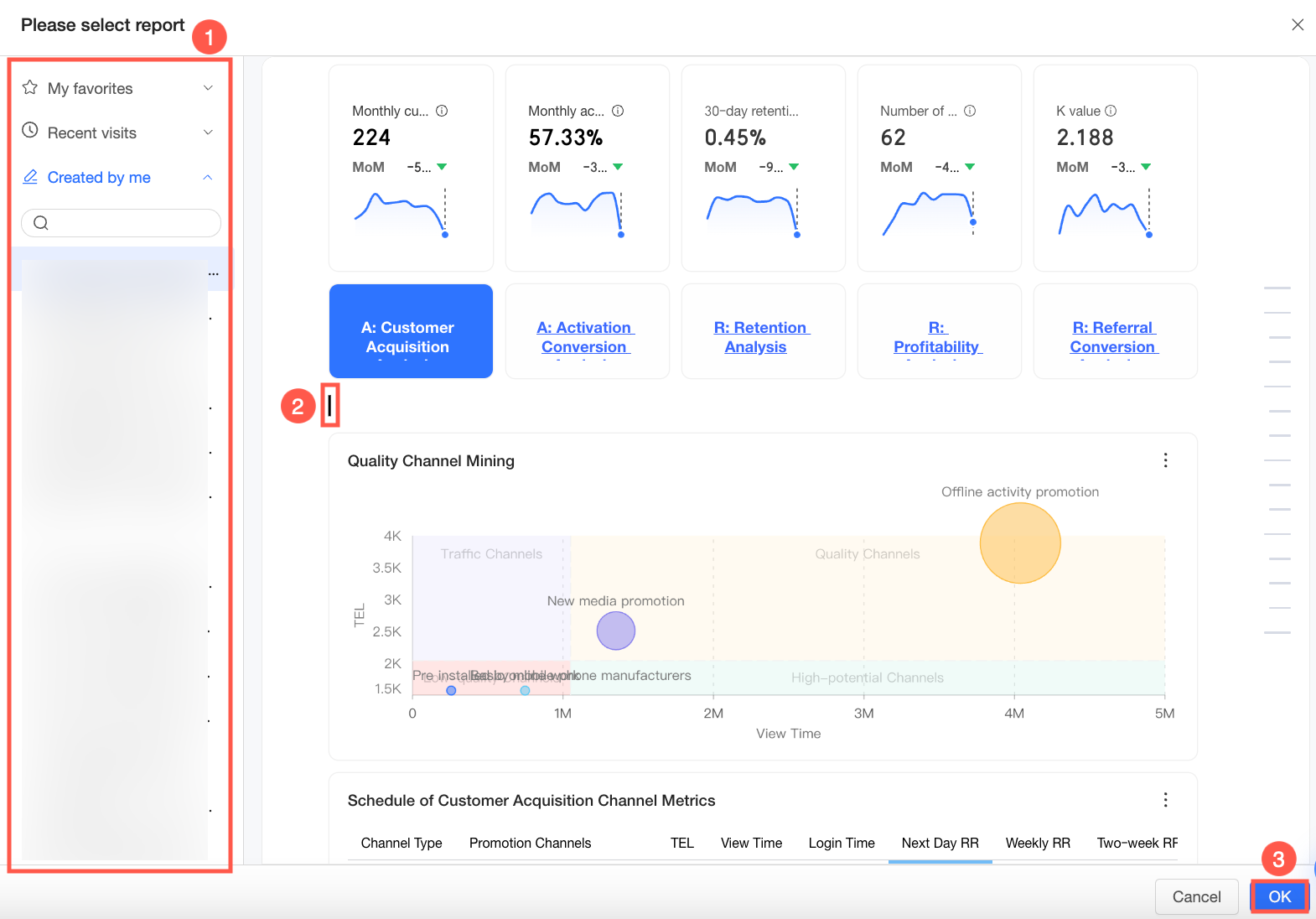
Select a report and click OK.
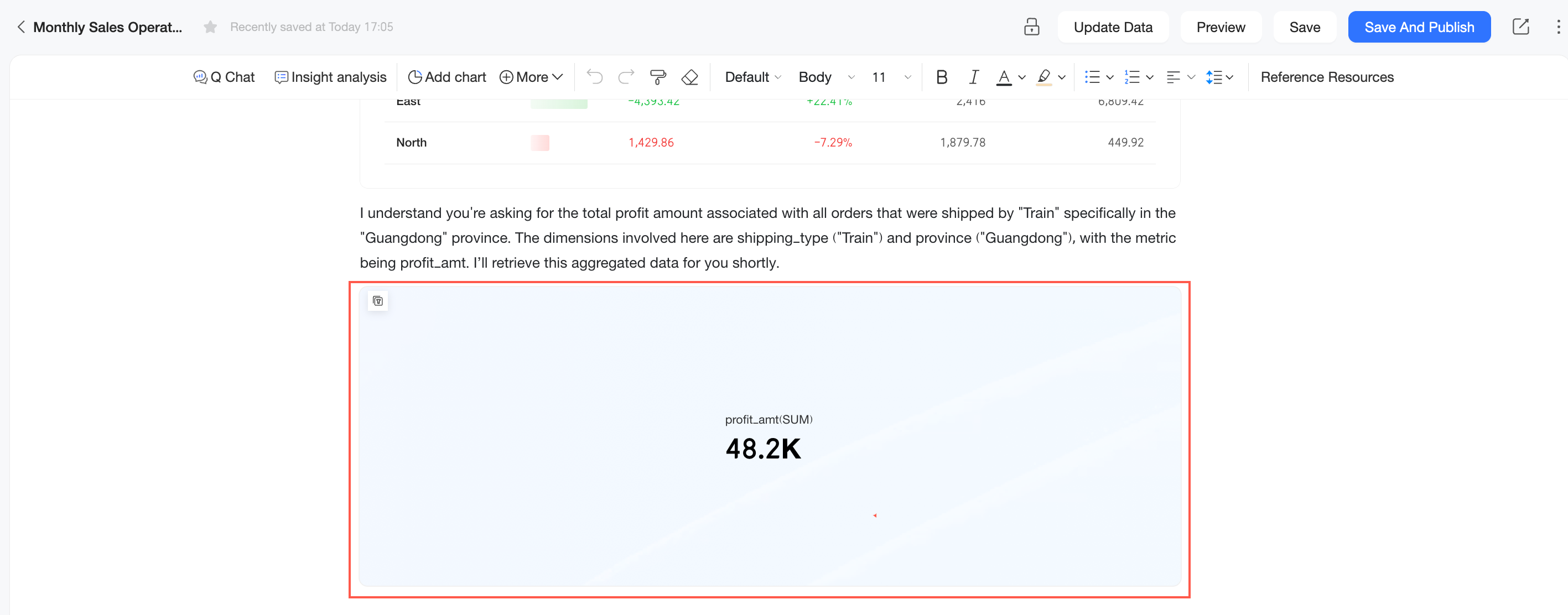
After the results are added, you can view them in the Q Report.
Add Key Driver Analysis
On the dataset Metric Insights page and the Q Chat Data page, you can add key driver analysis content to a Q Report.
You can insert the generated Key Driver Analysis content into a Xiao Q report on the following page, as needed.
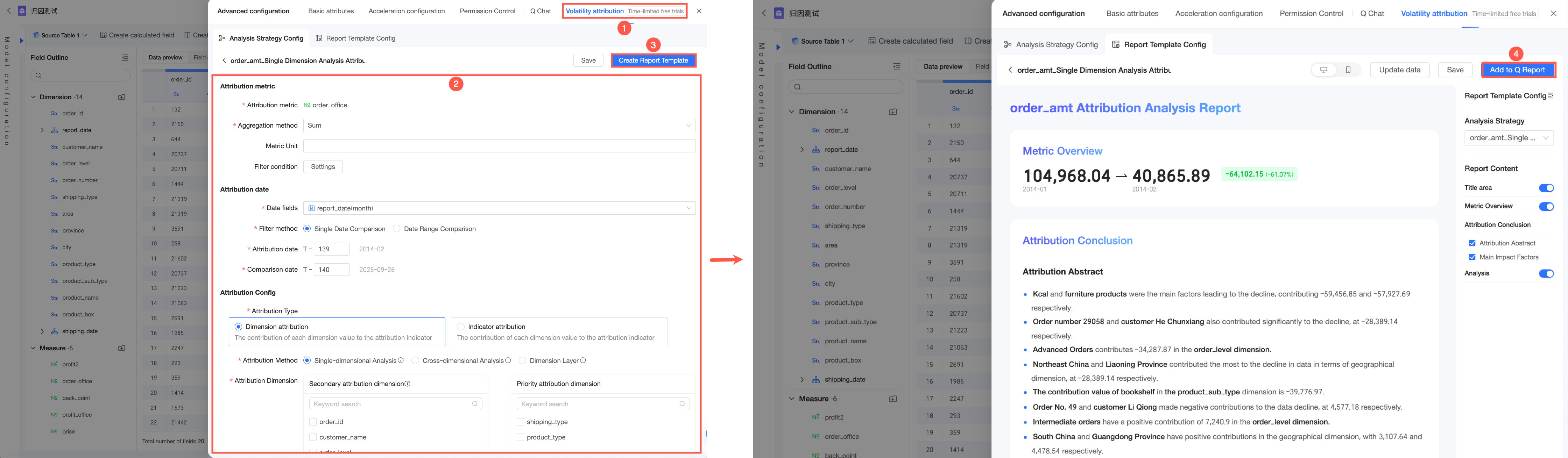
Volatility Attribution Page: In the dataset editor, go to Advanced Configuration > Volatility Attribution. Configure your attribution analysis approach. Create an attribution analysis template based on that approach. After the template is generated, click Add to Q Report in the top-right corner. For more information about configuring volatility attribution analysis approaches, see Metric Insights.
Q Chat Data Page: On the Q Chat Data page, select the desired dataset. Enter an analysis instruction in the instruction box and run it. After the key driver analysis content is generated, click Add to Q Report at the bottom of the page. For more information about generating key driver analysis content using Q Chat Data, see Start Ask Data.
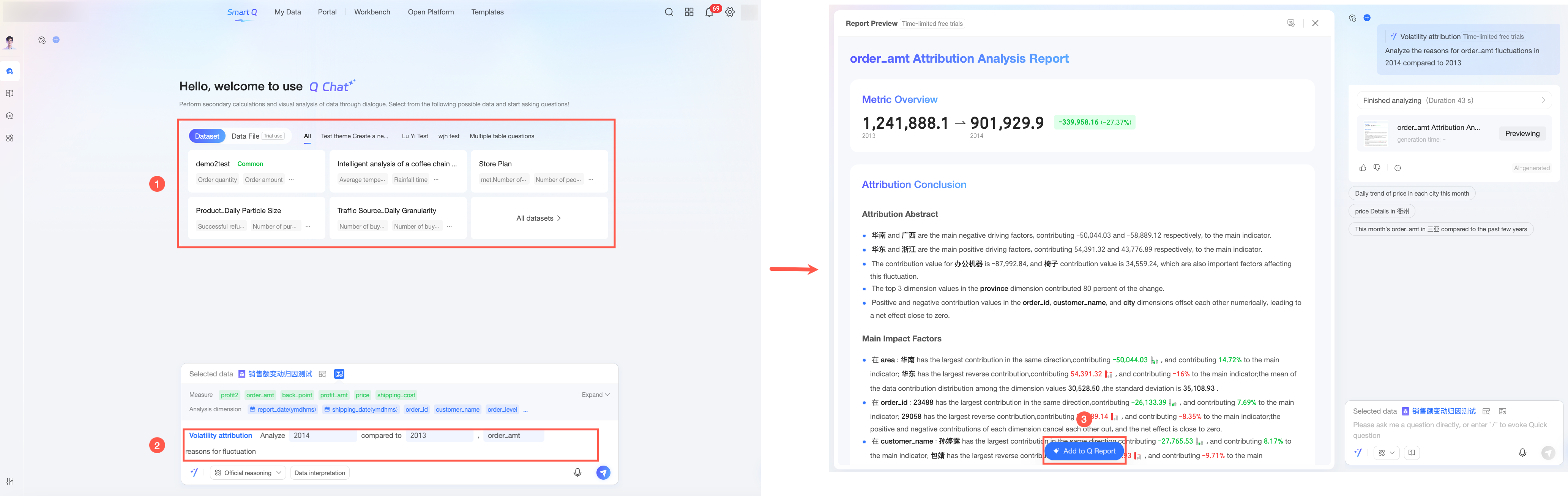
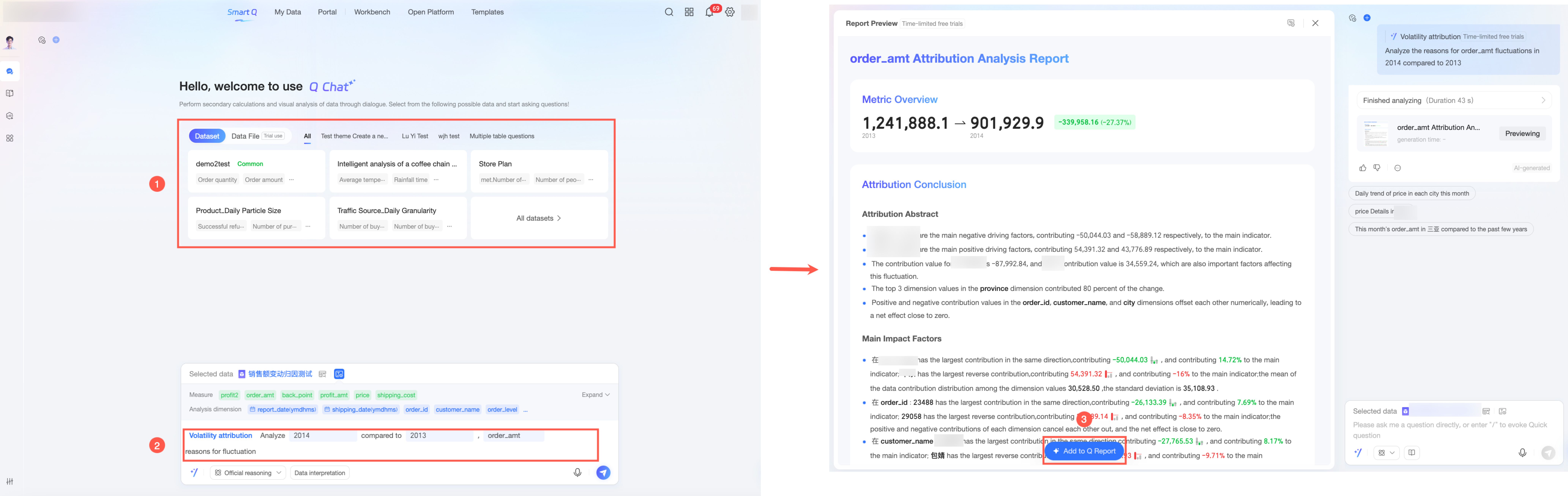
Chart Interface from Ask Data Results: In a chart returned by Q Chat Data, click the icon and select Volatility Attribution. After the key driver analysis content is generated, click Add to Q Report at the bottom of the page. For more information about generating key driver analysis content from ask data result charts, see Conversing with Q Chat.
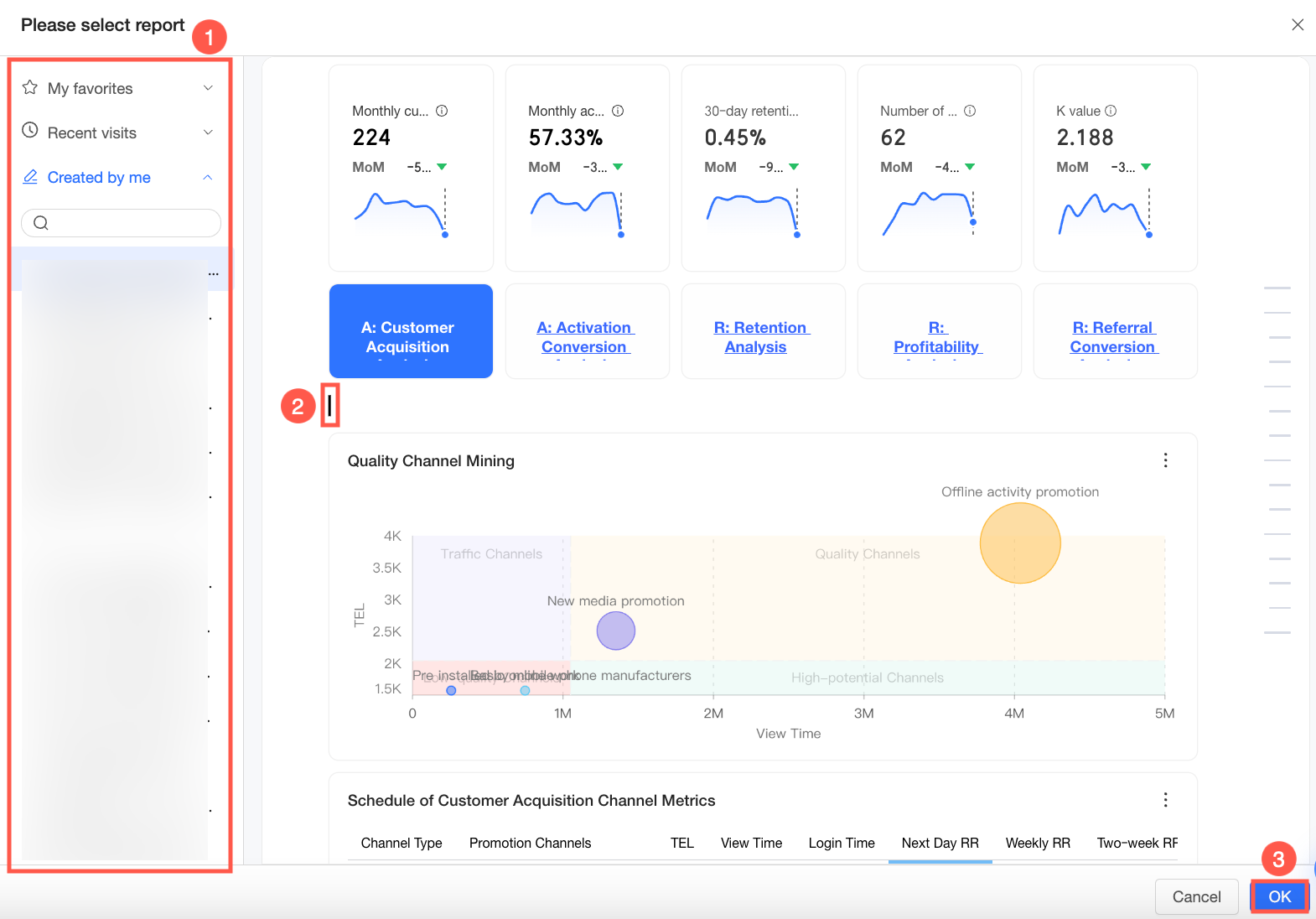
Select the Q Report where you want to add the key driver analysis content. Move your cursor to the desired insertion position in the report and click Add.
After the content is added, you can view it in the Q Report.
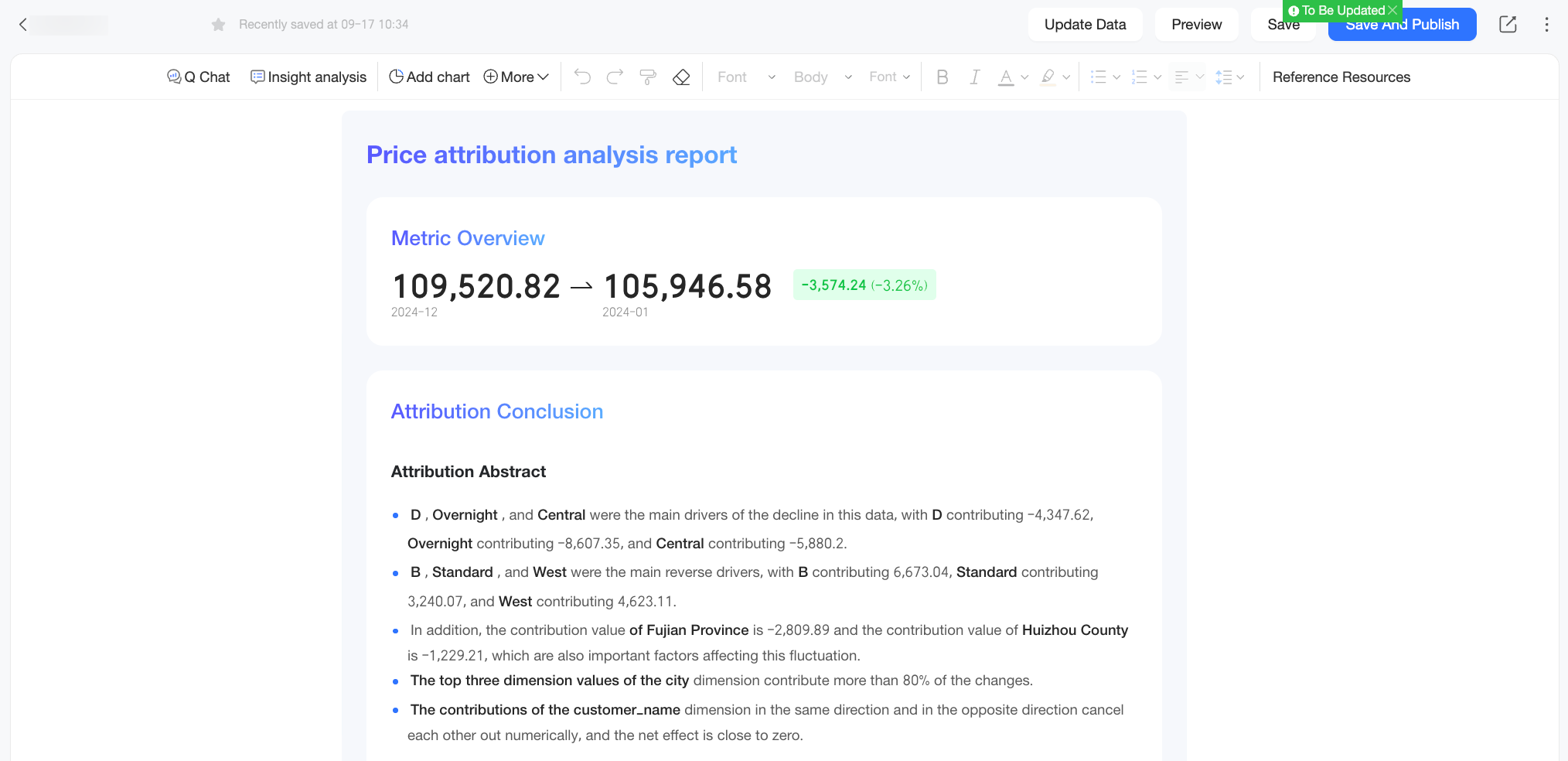
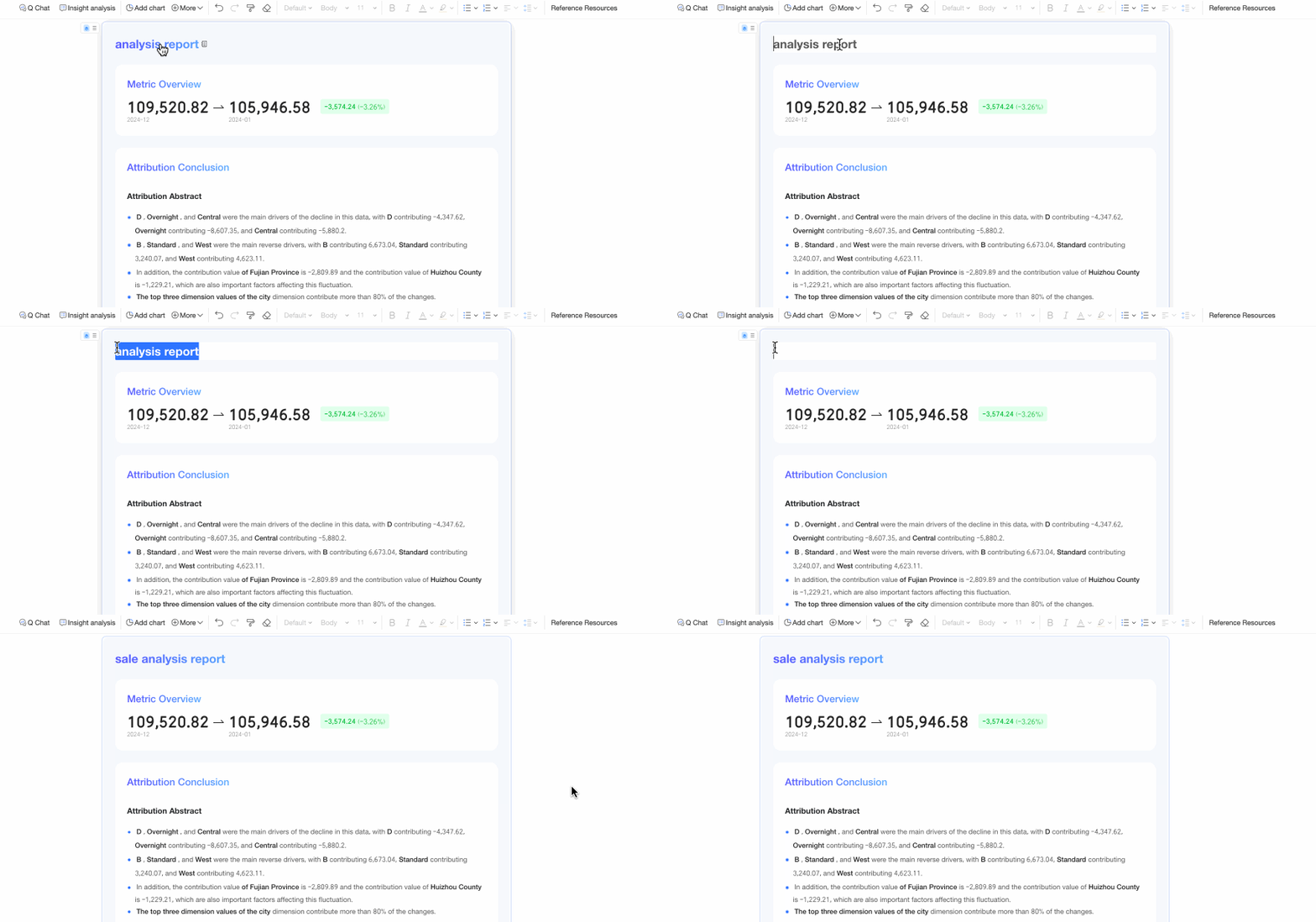
You can double-click the title area of the key driver analysis content to rename it. All other areas are read-only and cannot be edited.
You can optionally set whether the key driver analysis content updates with the report. This setting is enabled by default.
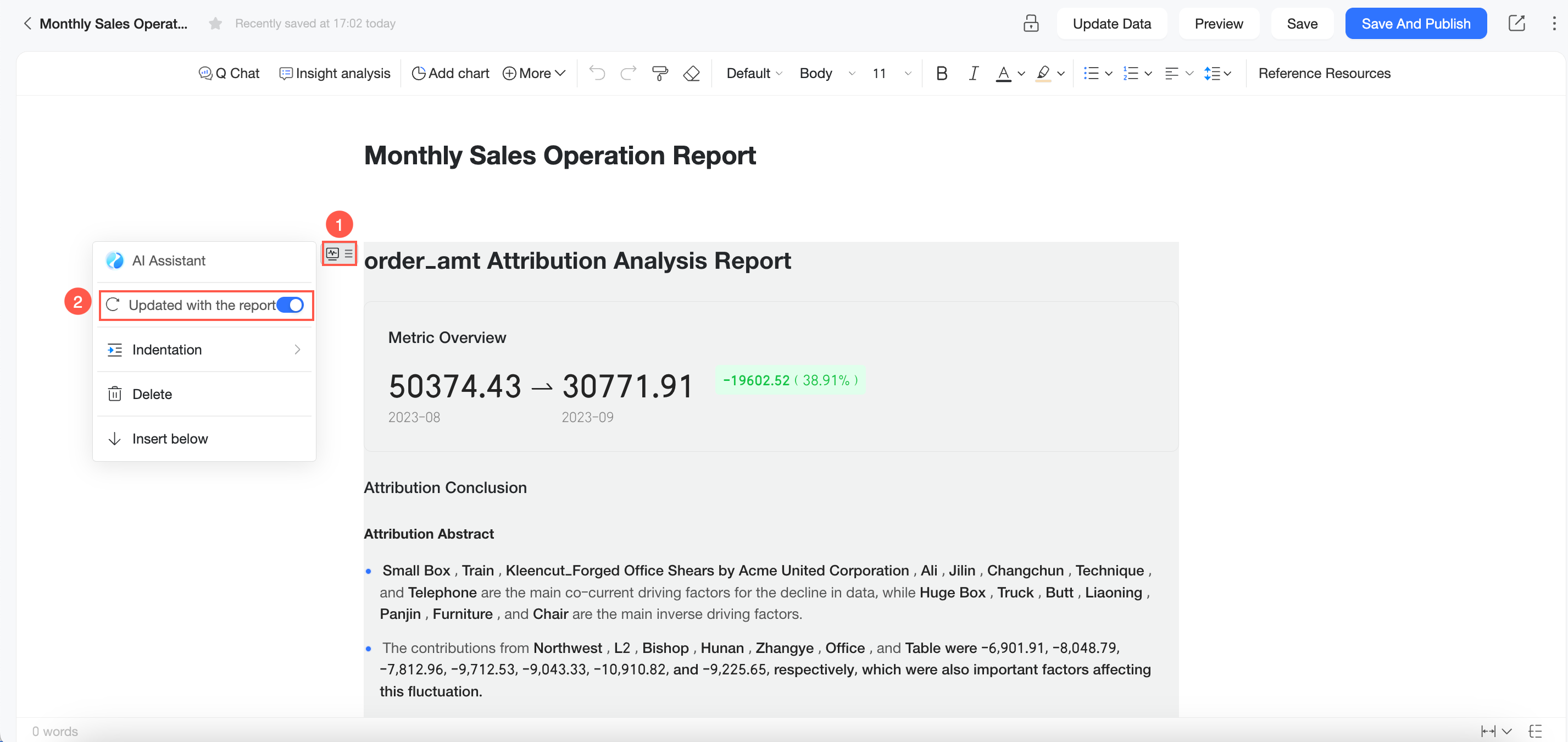
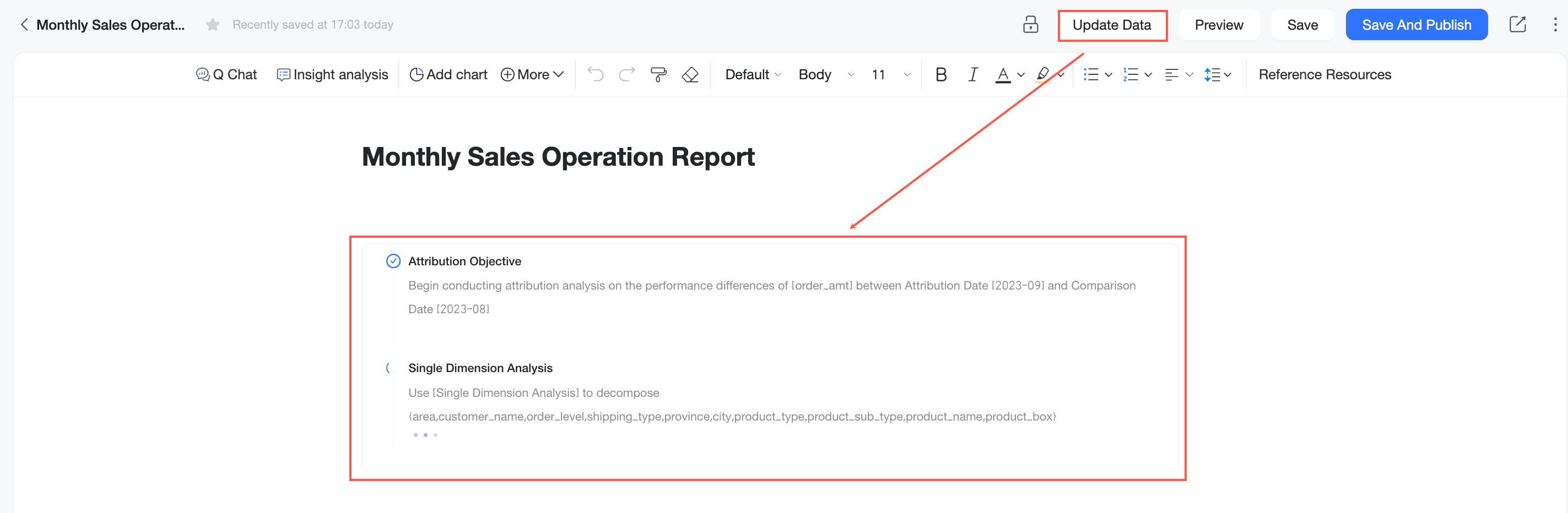
If you want the key driver analysis content to update with the report, enable the Update with Report toggle. When you update data in the Q Report, new key driver analysis content is automatically generated based on the dataset’s attribution configuration.
If you want to fix the attribution analysis content, you can disable the Update with Report toggle. In this case, the content is displayed based on the date it was generated and does not change when you update data in the Q Report.
(Optional) Key driver analysis content generated from dataset settings or Q Chat Data is typically static after it is added to a report. However, in some business scenarios, you may need to dynamically adjust the attribution perspective based on different time ranges, business dimensions, or other conditions to view updated analysis results in real time. For example, you may want to use different time parameters, such as January 2025 or February 2025, to view sales attribution analysis for those specific periods.
To do this, you can configure global parameters for the report. This lets you pass external dynamic business parameters to the key driver analysis component, which then regenerates the analysis results based on those parameters. For more information about the configuration, see Global Parameters.
