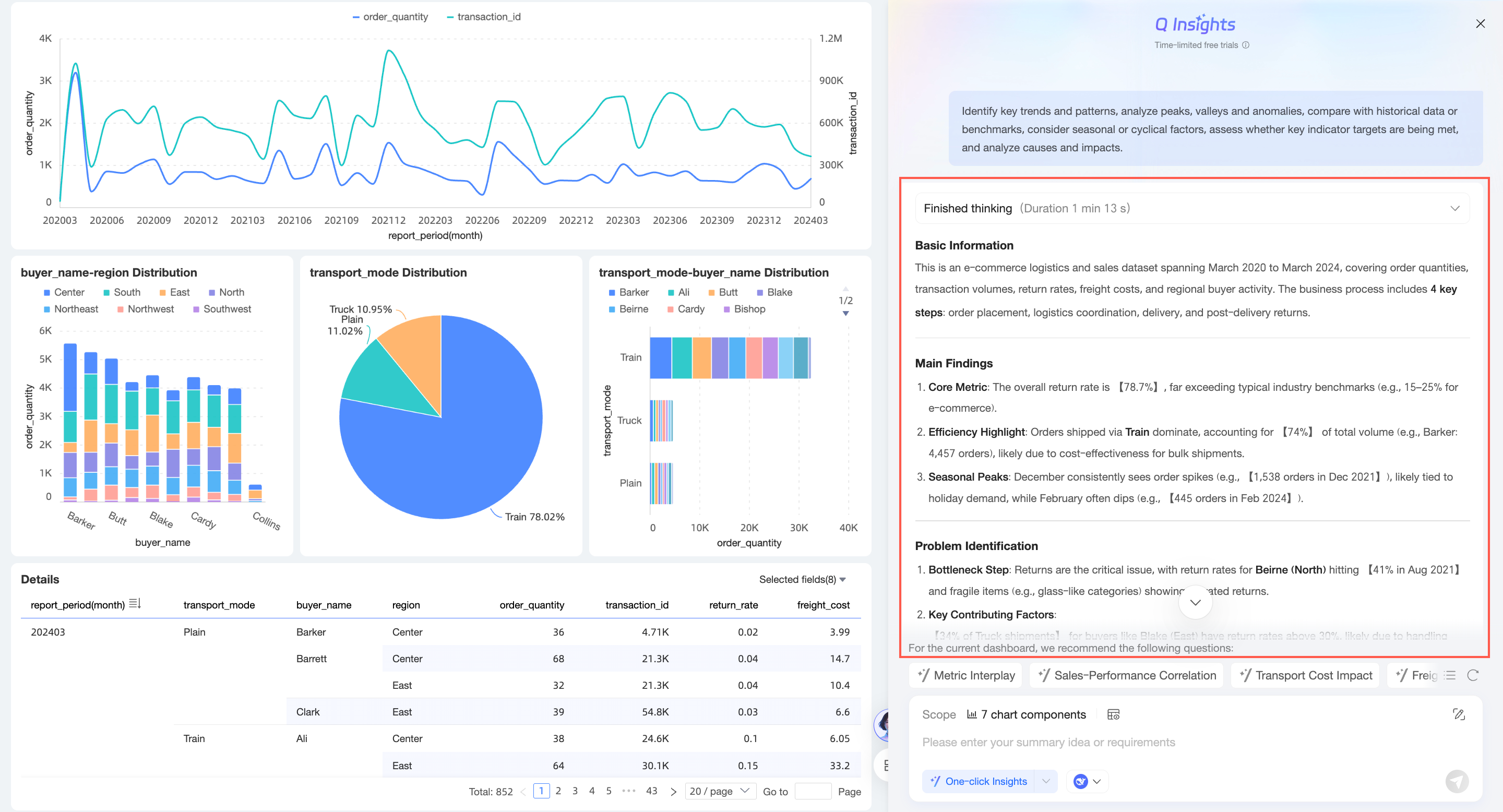
Quick BI offers the Q Insights feature for dashboards. This feature intelligently parses report data, analyzes business trends, and generates key insight reports with a single click to improve decision-making efficiency. This topic describes how to use Dashboard Q Insights.
Dashboard Q Insights is a value-added module. You can use this feature only after you purchase Smart Q · Q Insights. A limited-time free trial is currently available.
This feature is currently available only in the China (Hong Kong), Malaysia, and Singapore sites. Support for other sites will be available soon.
Scenarios
Dashboards are a core scenario for Q Insights. When combined with the capabilities of a Large Language Model (LLM), Q Insights helps you interpret the information in your dashboards to gain deeper insights.
For example, if you are a data analyst in a sales department and need to analyze this year's sales data, you can use the one-click Smart Interpretation feature. If you also need to gain deeper insights into specific metrics, you can use Q Insights for a more detailed interpretation of multiple charts. For more information, see Scenario examples.
Limits
The dashboard data volume must be within the limits of the context length of the model. Keep the report data volume within 80% of the LLM's context length. For example, if the Qwen-max model has a context length of 32K, the report data should not exceed 25,000 characters.
Dashboard Q Insights is supported only in the Premium Edition and Professional Edition. It is not supported in the Personal Edition. Q Insights is also not supported for embedded or shared dashboards.
Prerequisites
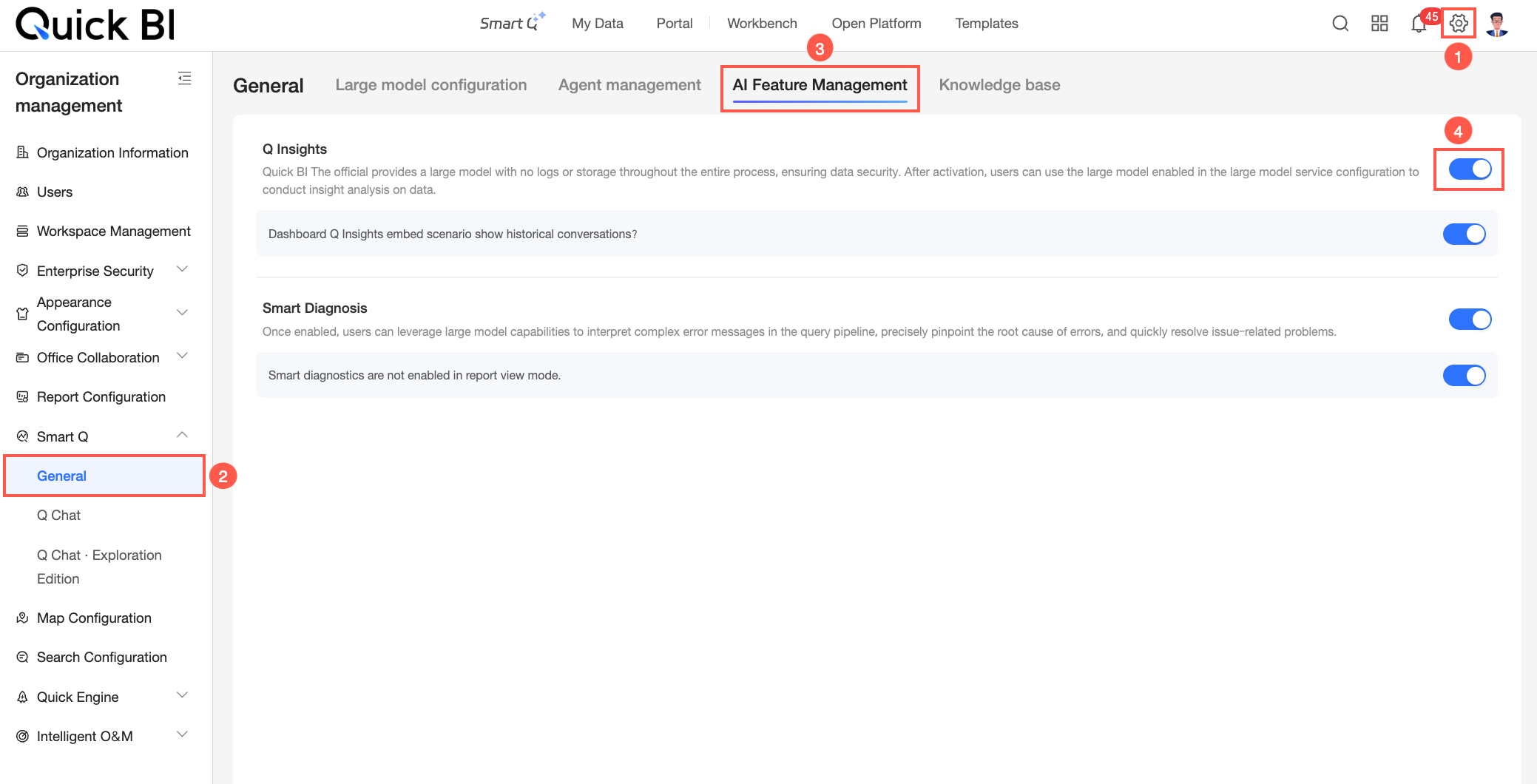
Feature entry points
On the dashboard preview page, you can click the  icon to open the Q Insights page. You can access this page in the following ways:
Q Insights is not supported on dashboard preview pages that are shared using public links.
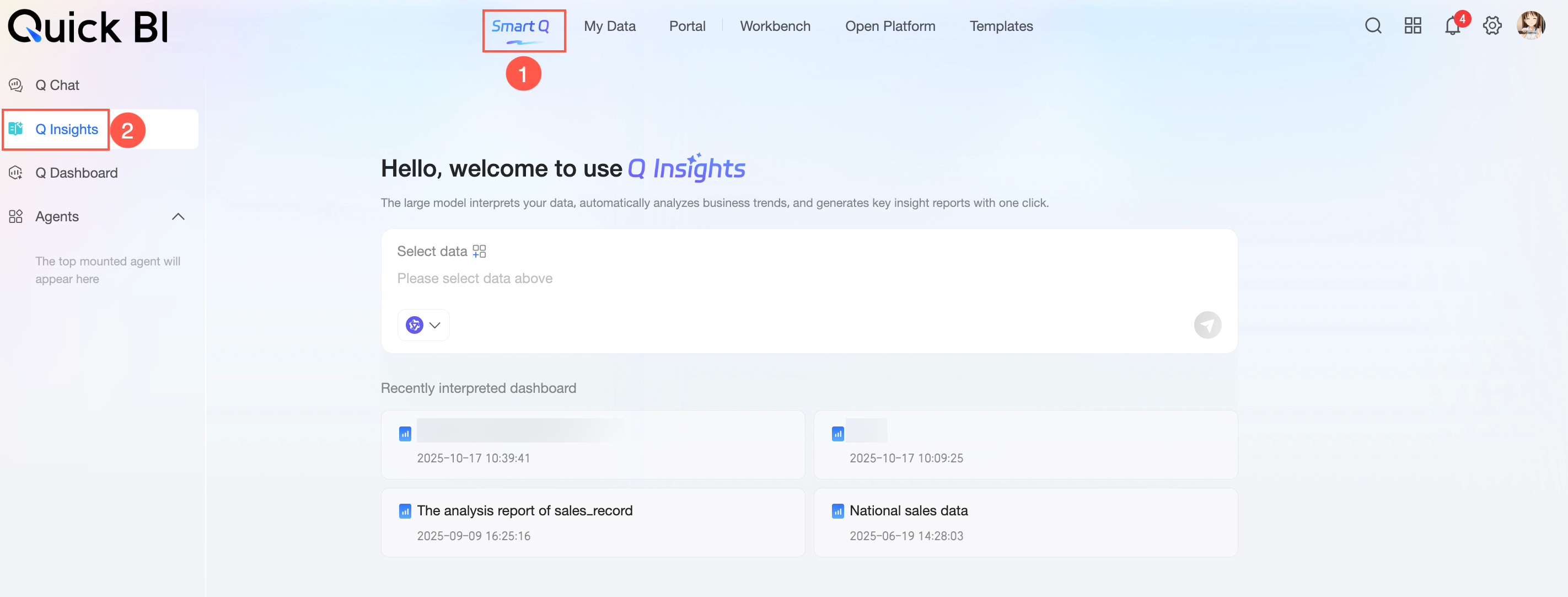
Entry point one: Use Q Insights on the Intelligent Q homepage
On the Intelligent Q homepage, select Q Insights from the navigation pane on the left.
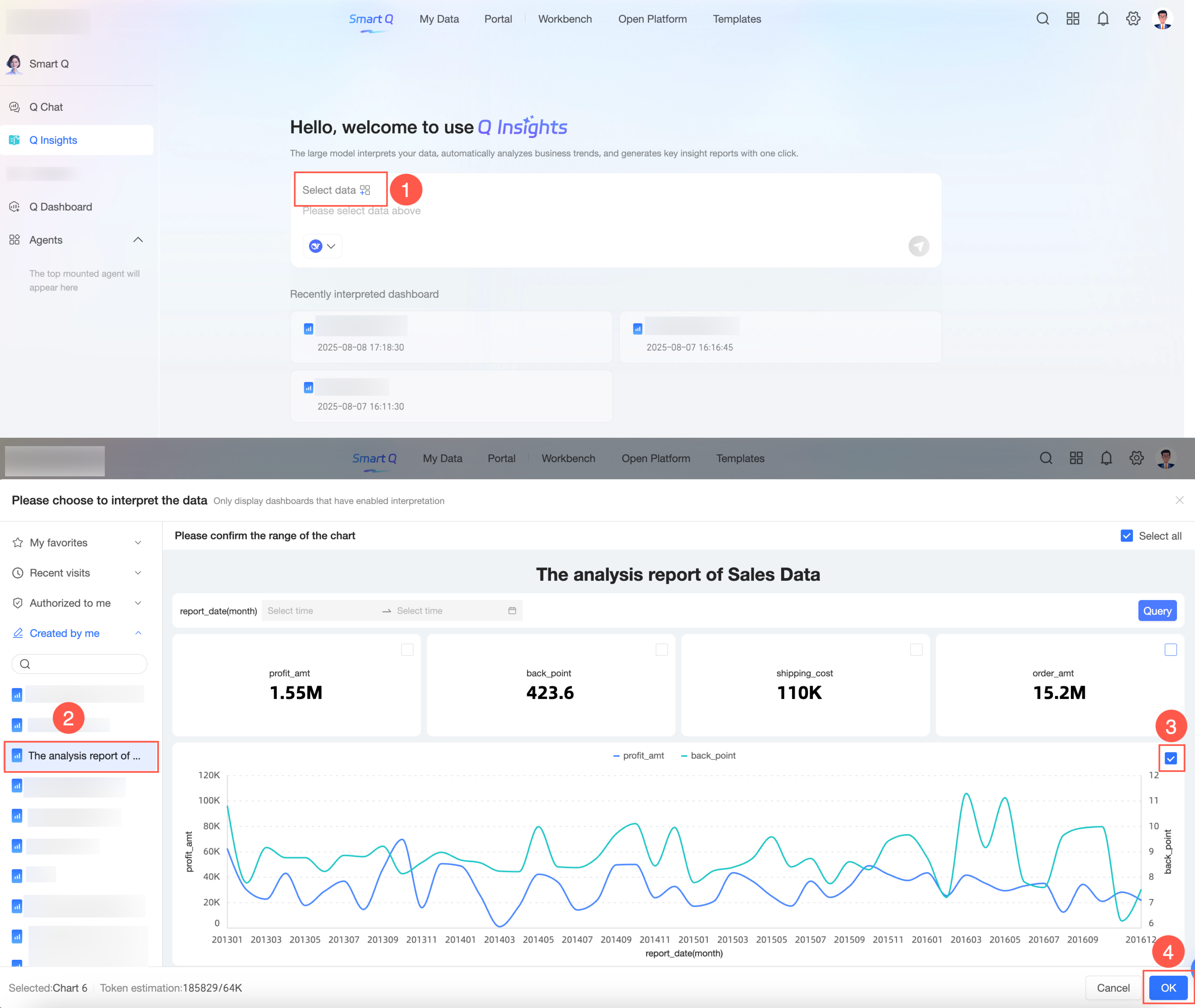
Select the dashboard components that you want to interpret and click OK.
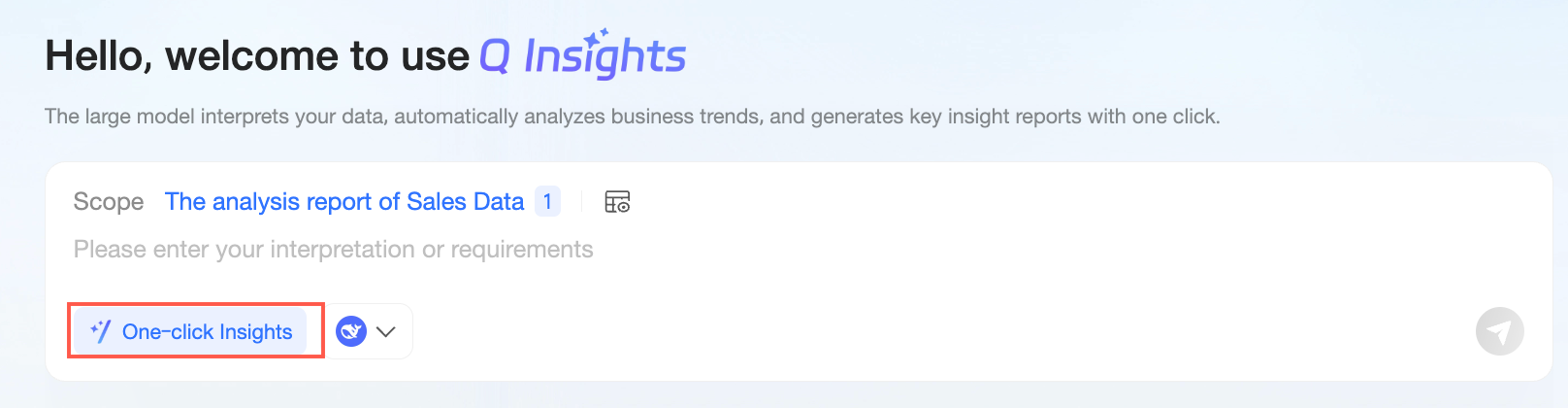
Enter an analysis approach or click One-click Interpretation.
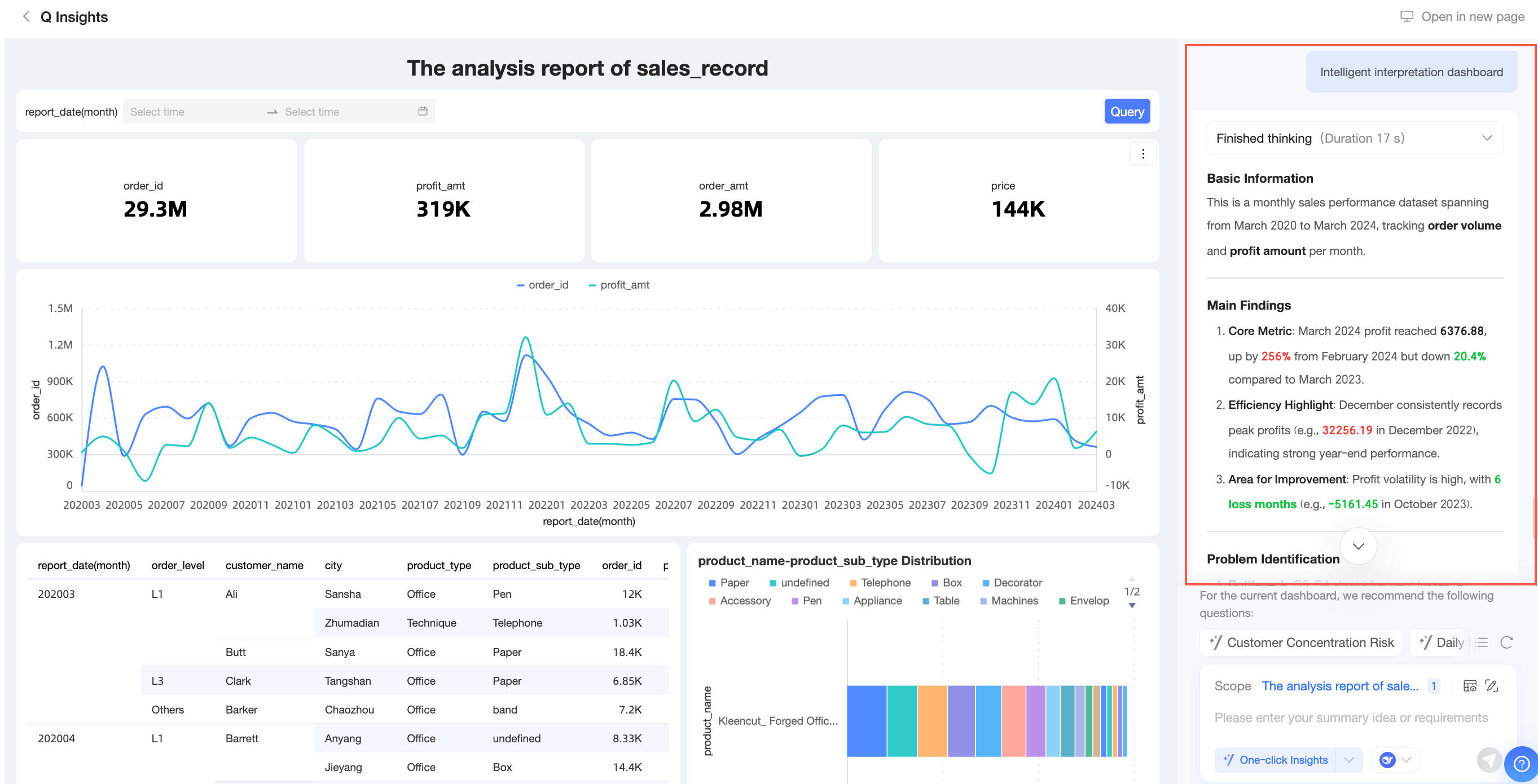
The system displays the interpretation results.
 Note
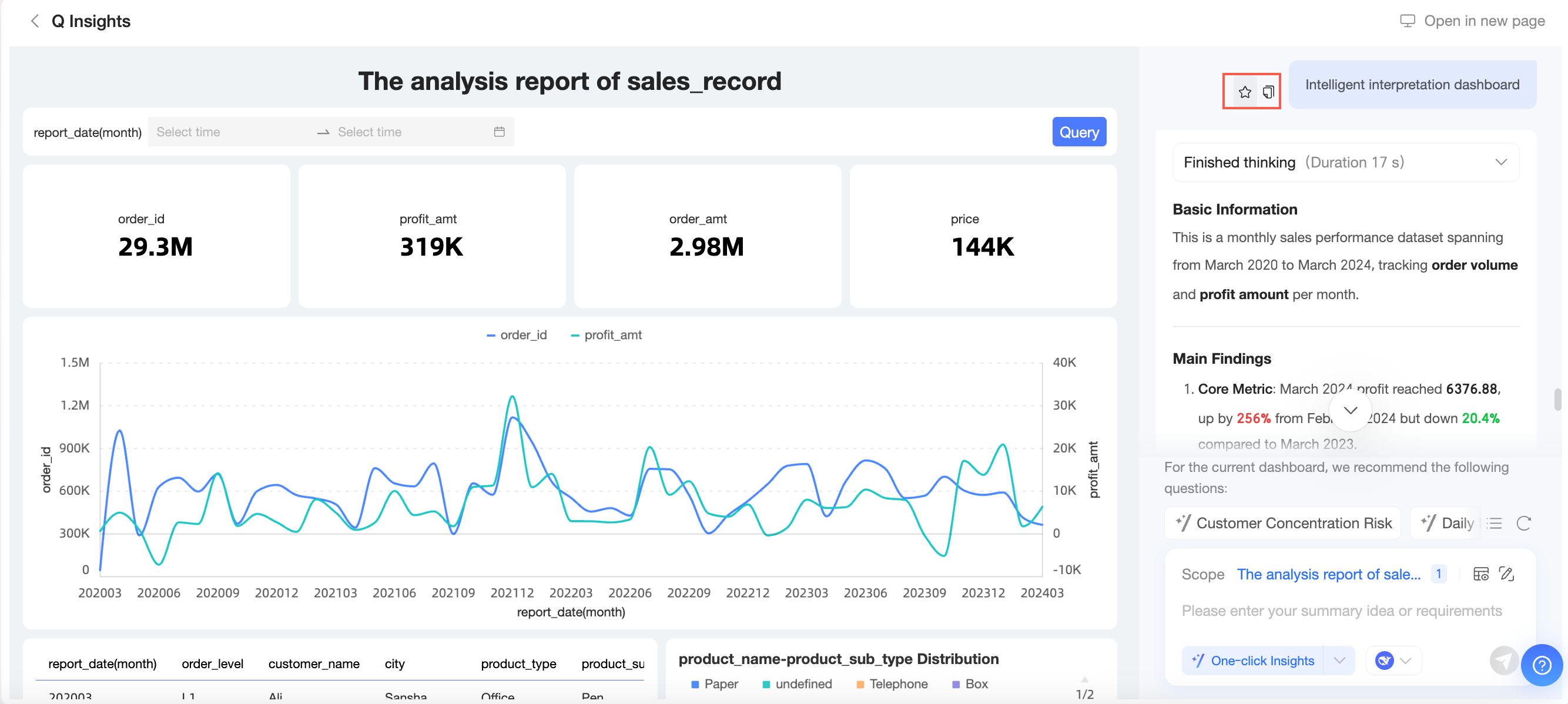
NoteThe system automatically generates Recommended Questions for the current dashboard. You can click a recommended question to ask it directly. For more information, see Recommended questions.

To reuse a question, you can add it to your favorites or copy it. For more information, see Add questions to favorites and copy questions.
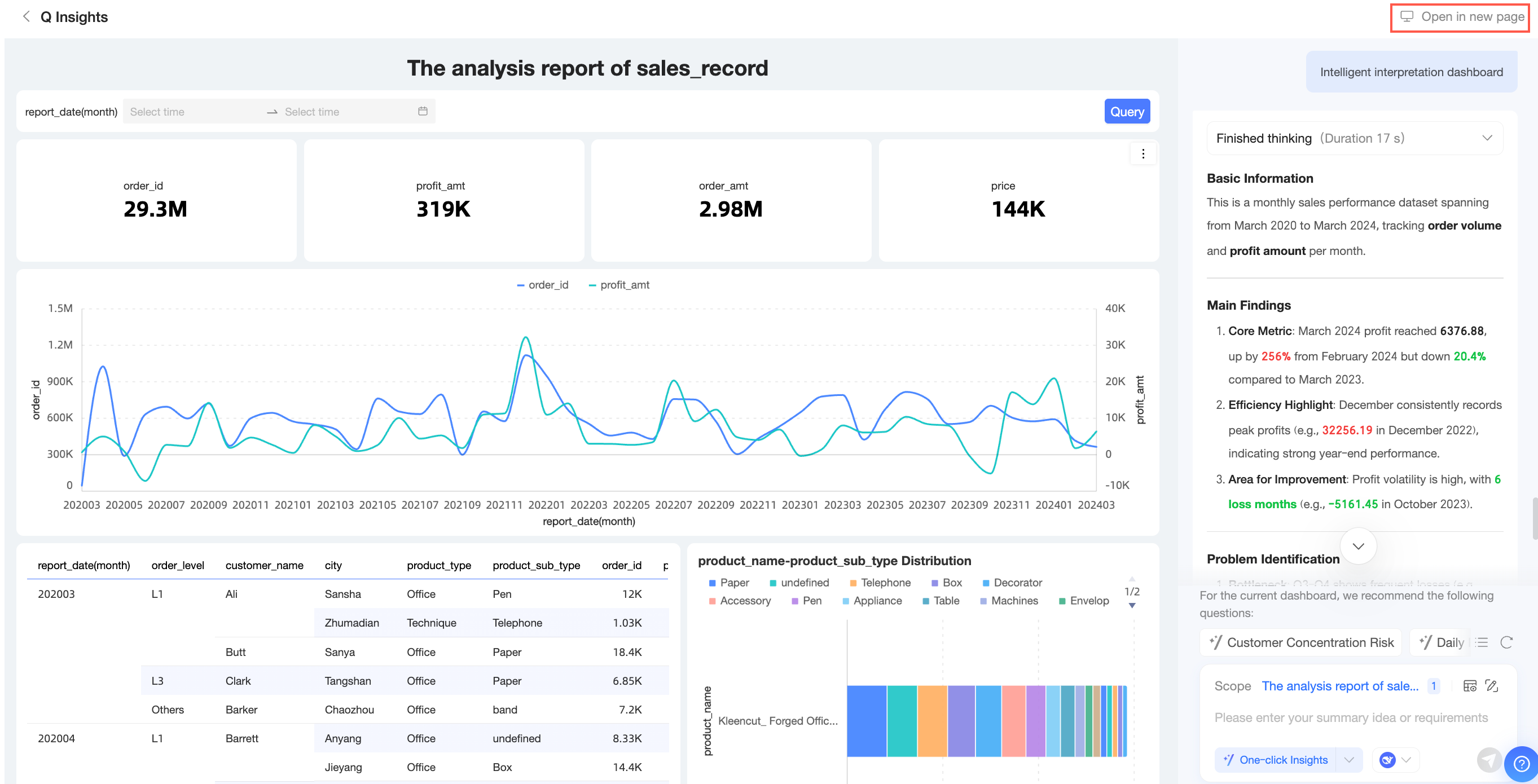
To open the Q Insights page from the dashboard preview, click Open in new window in the upper-right corner.
Entry point two: Use Q Insights on the dashboard preview page
Go to the Dashboards management page. To open the dashboard preview page, click the
 icon next to the name of the target dashboard or the
  icon in the Actions column.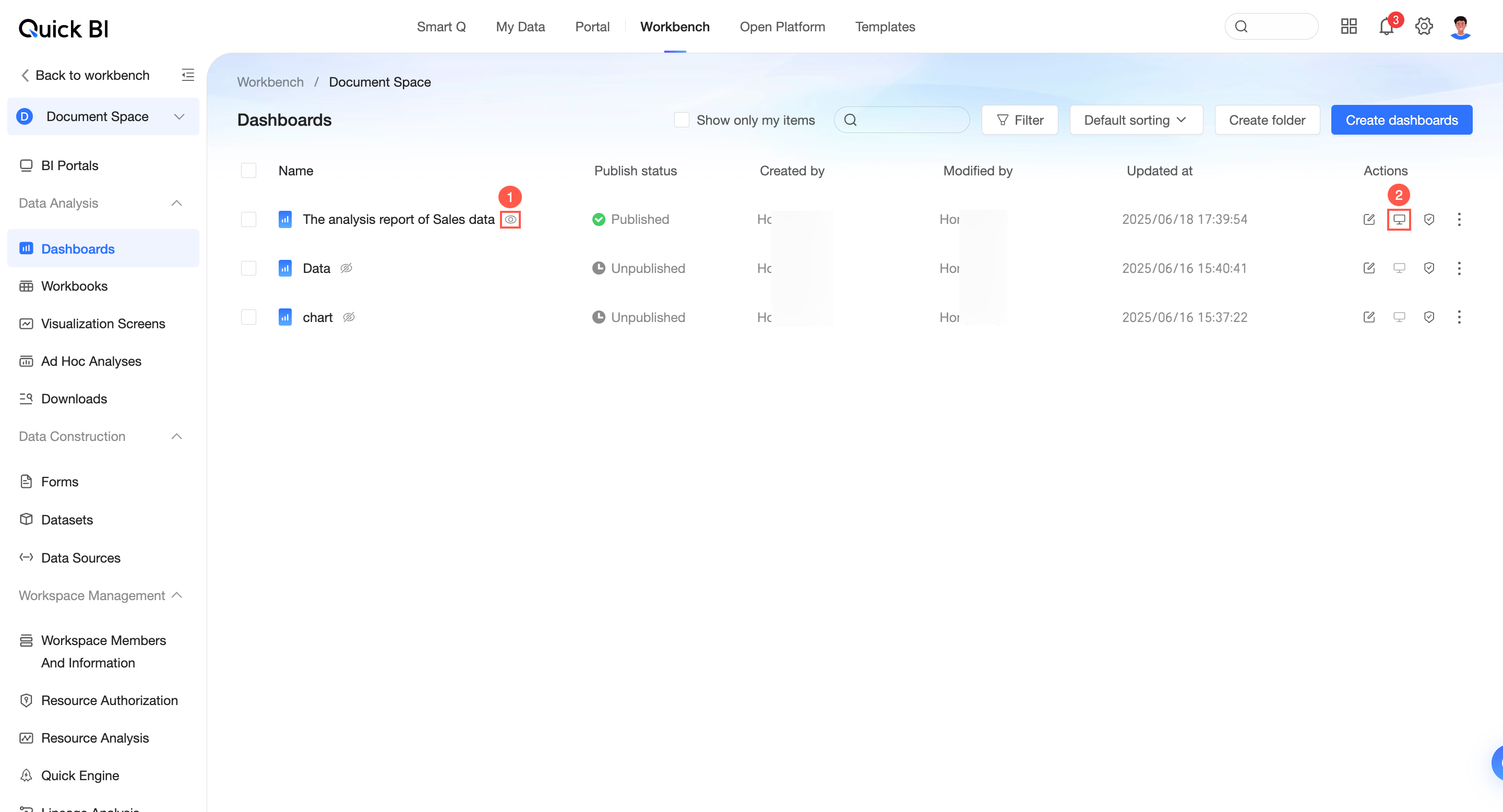
On the dashboard preview page, click the
 icon to open the Q Insights page.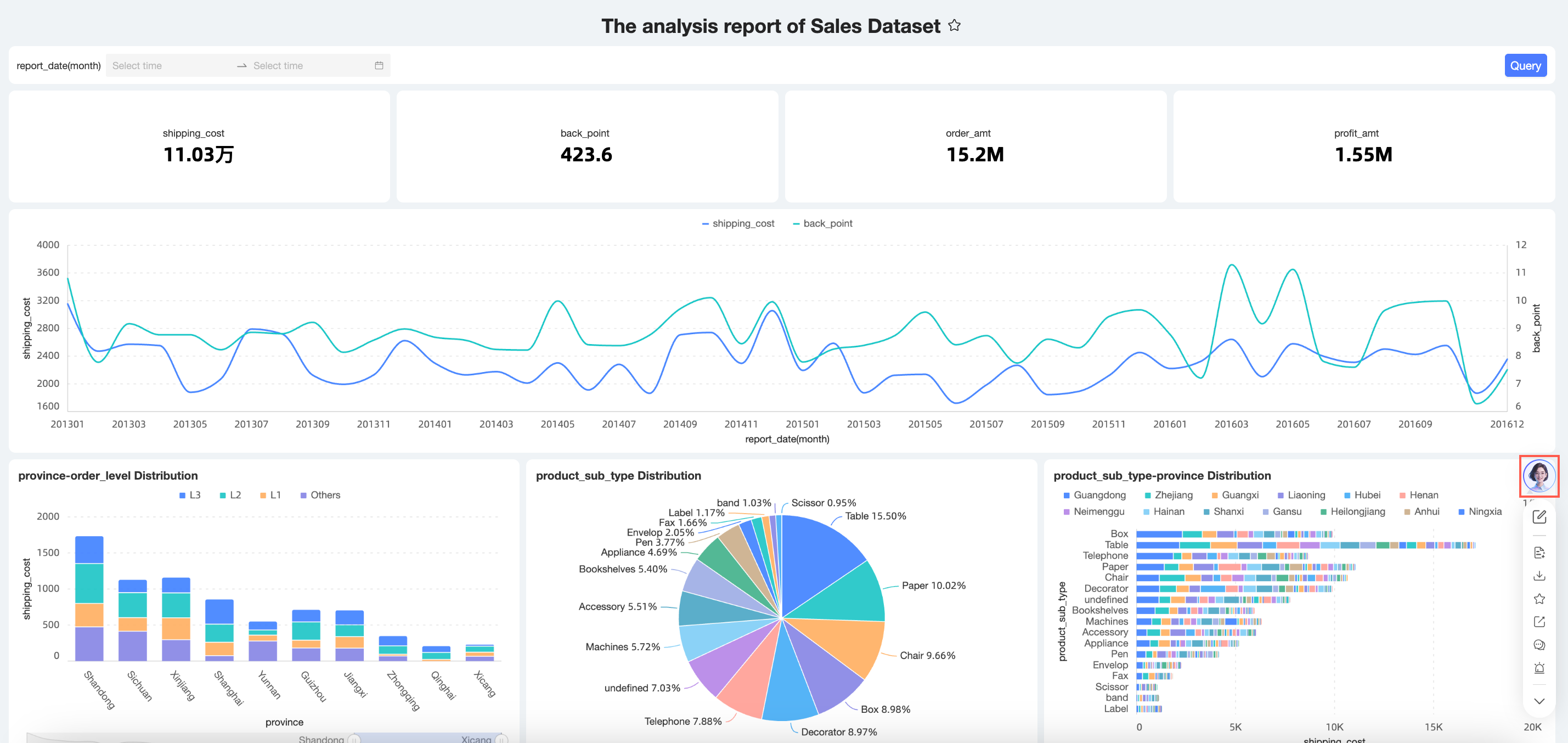
To interpret the data of a single chart, hover over the chart, click the
 icon in the upper-right corner, and select Q Insights.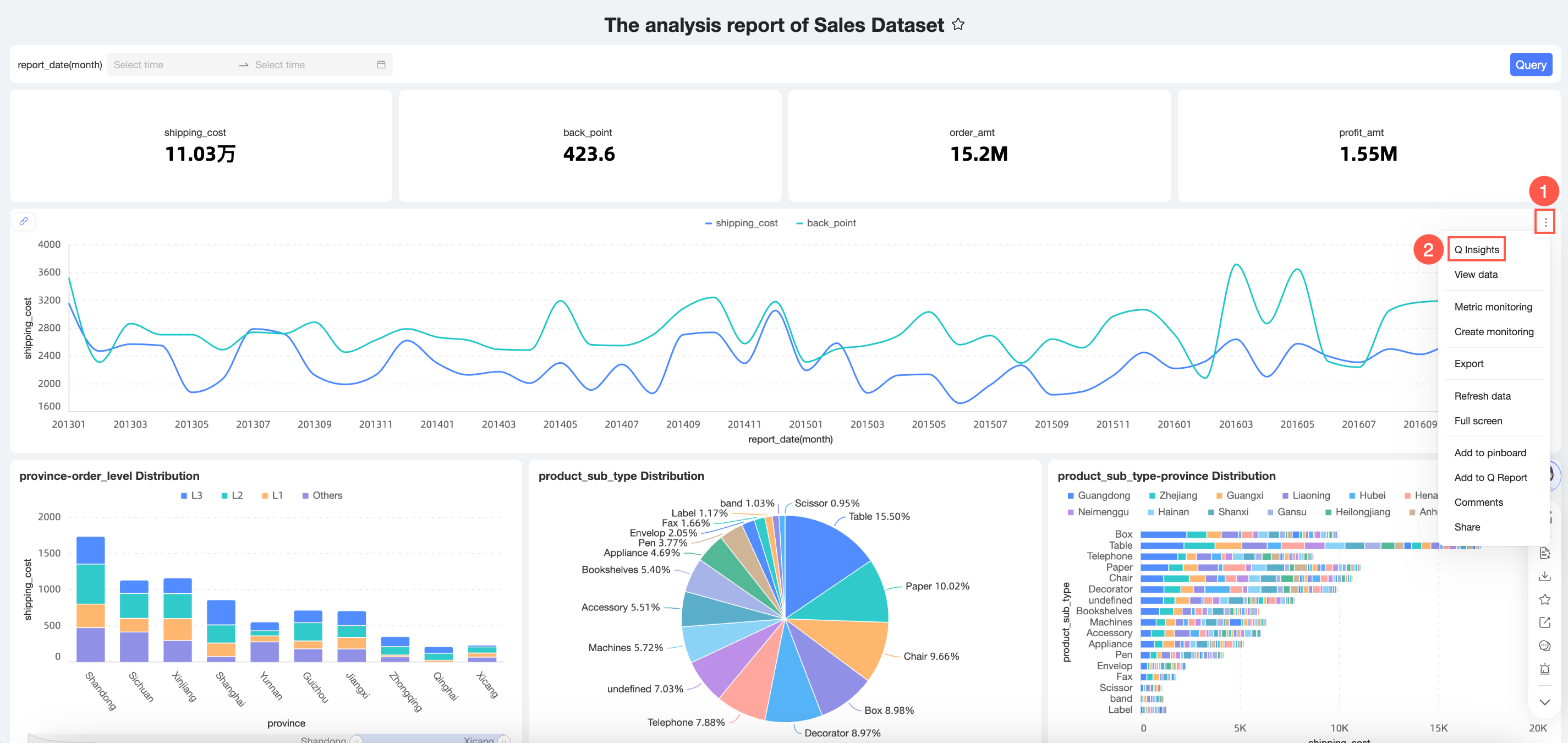
The following sections use Entry point two as an example.
Recommended questions
The system automatically generates recommended questions for the current dashboard. You can click a recommended question to ask it directly.
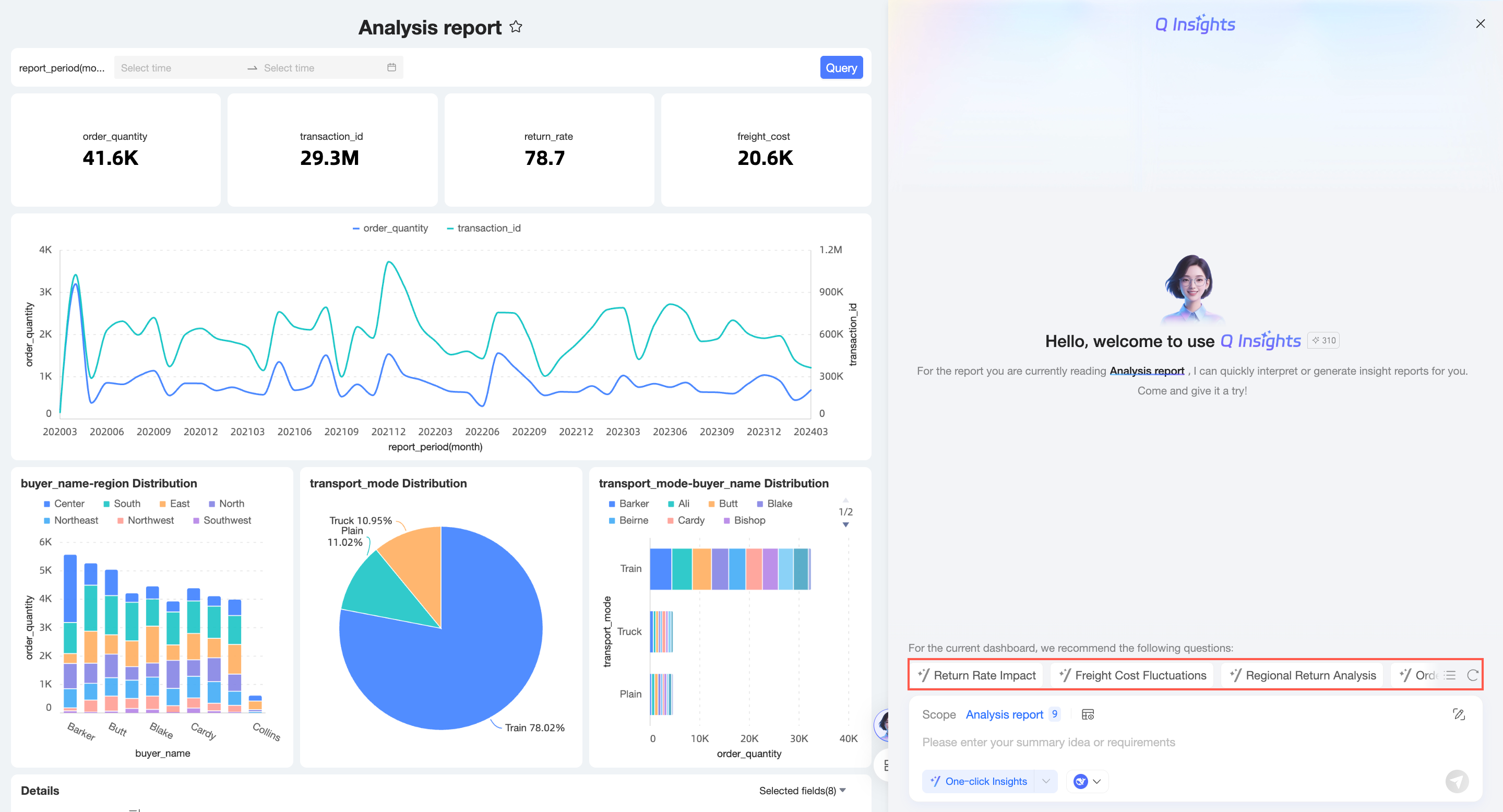 Click the
  icon to generate a new set of recommended questions.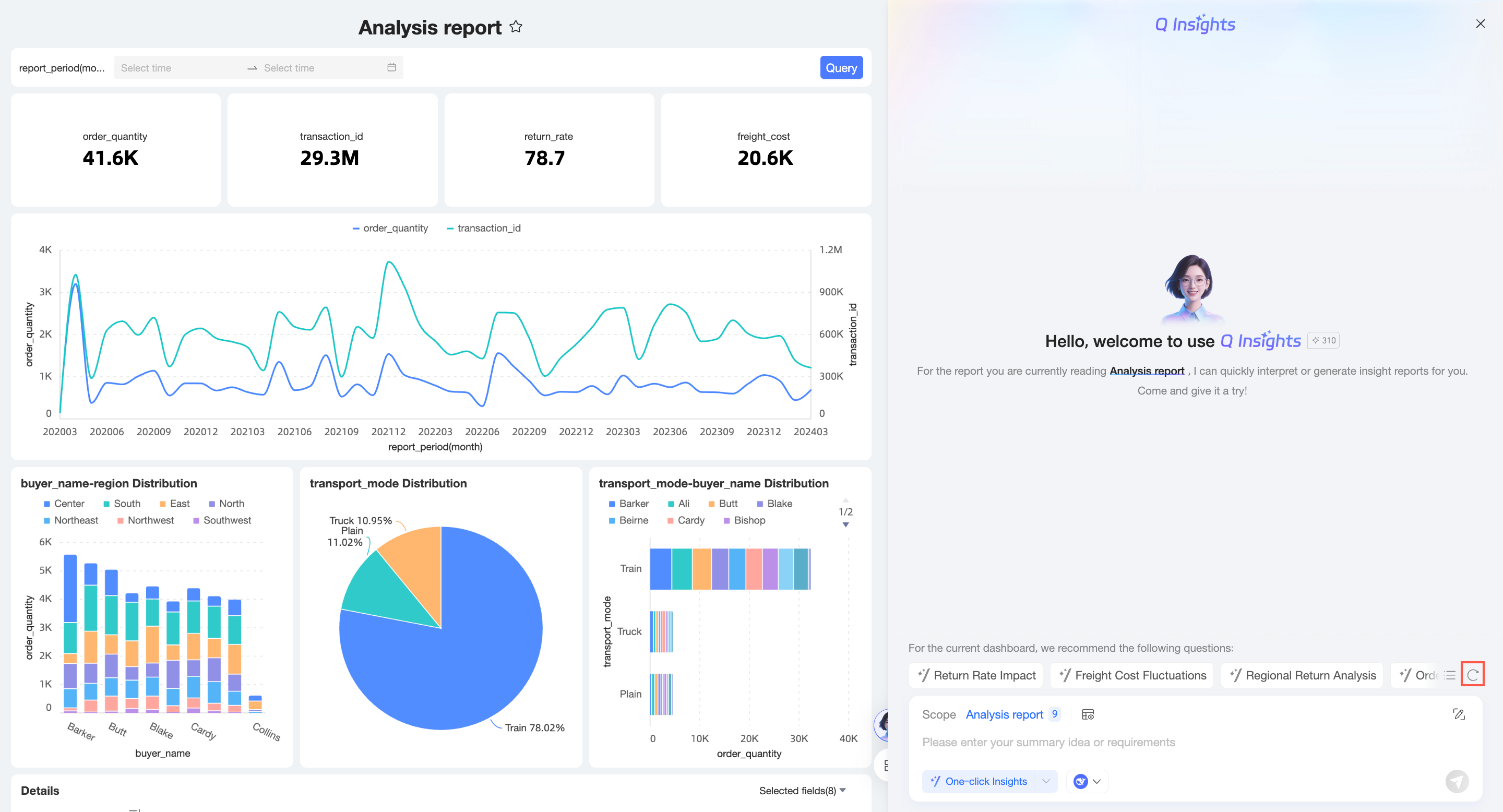
You can also click the
 icon in the lower-left corner for Quick Questions.
 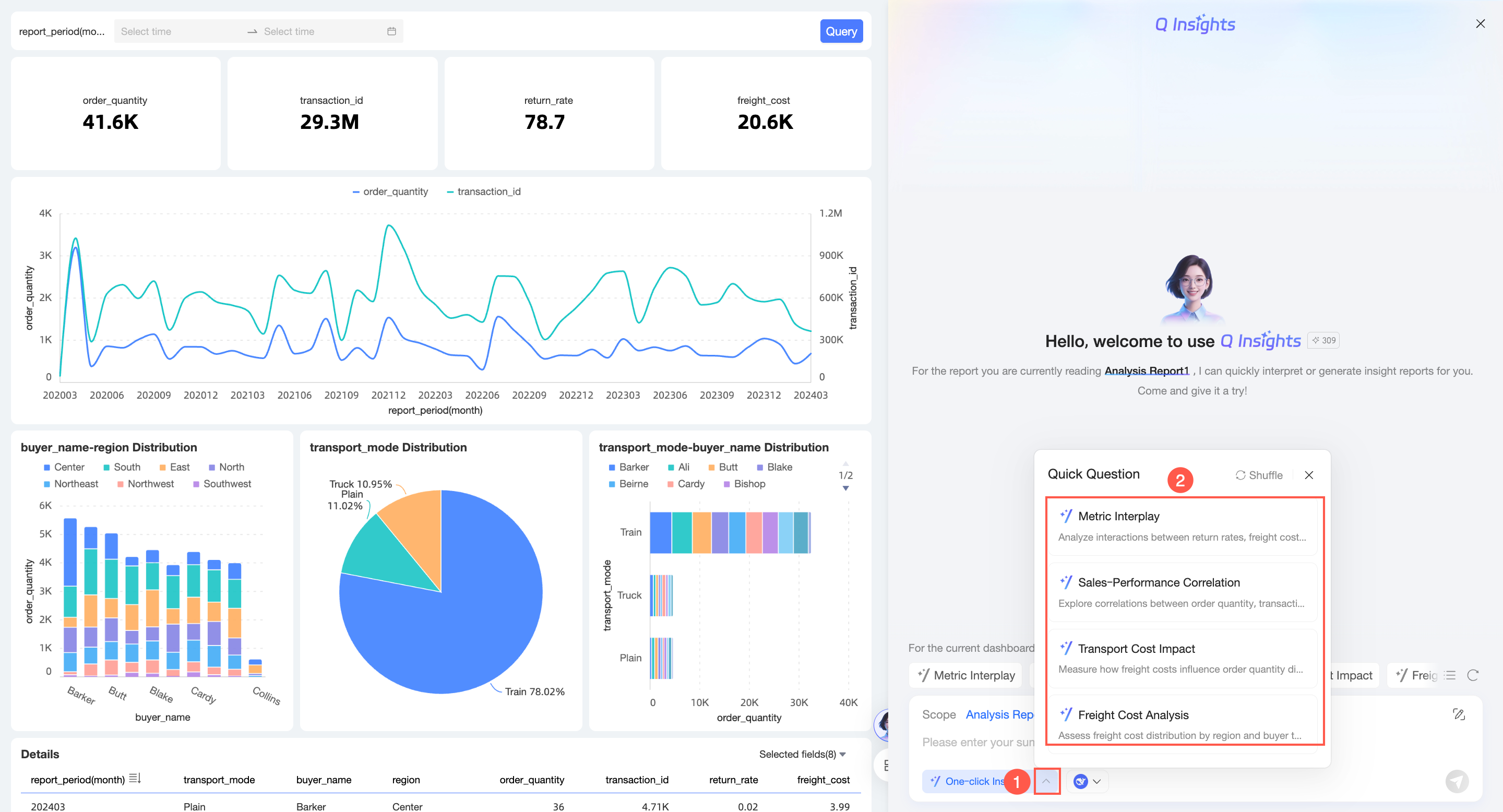 Click the Change icon to generate a new recommended question.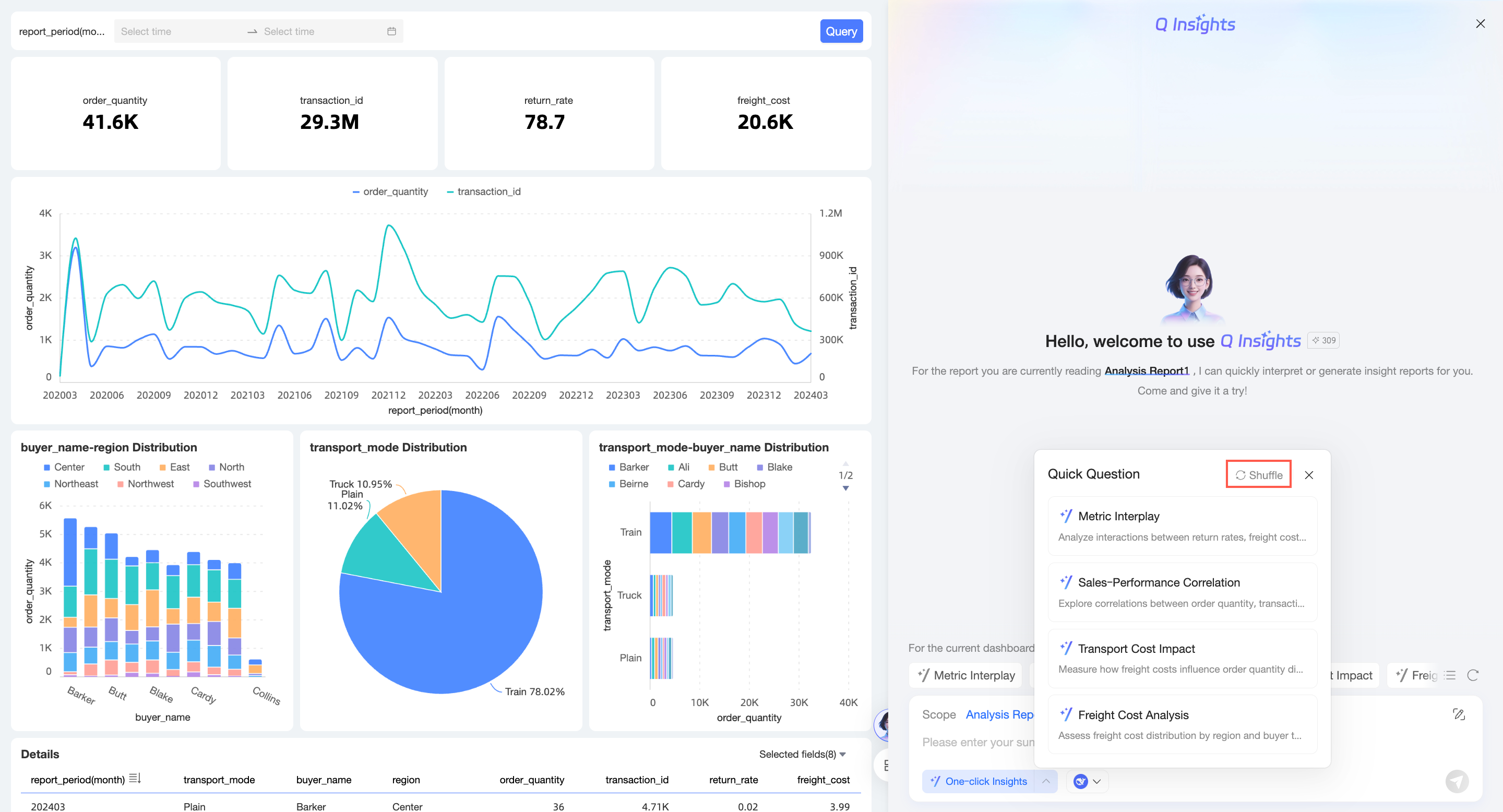
Select interpretation scope
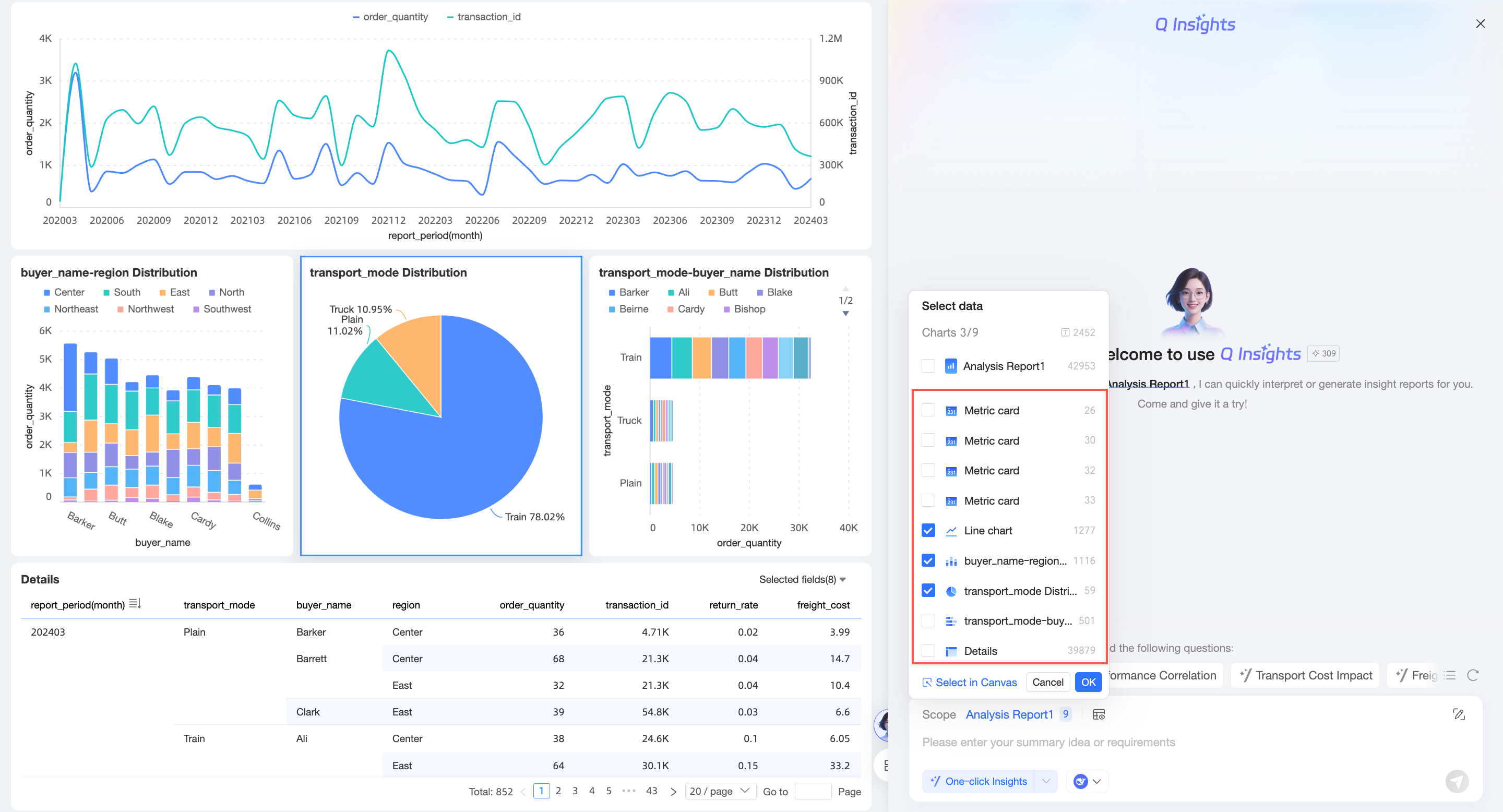
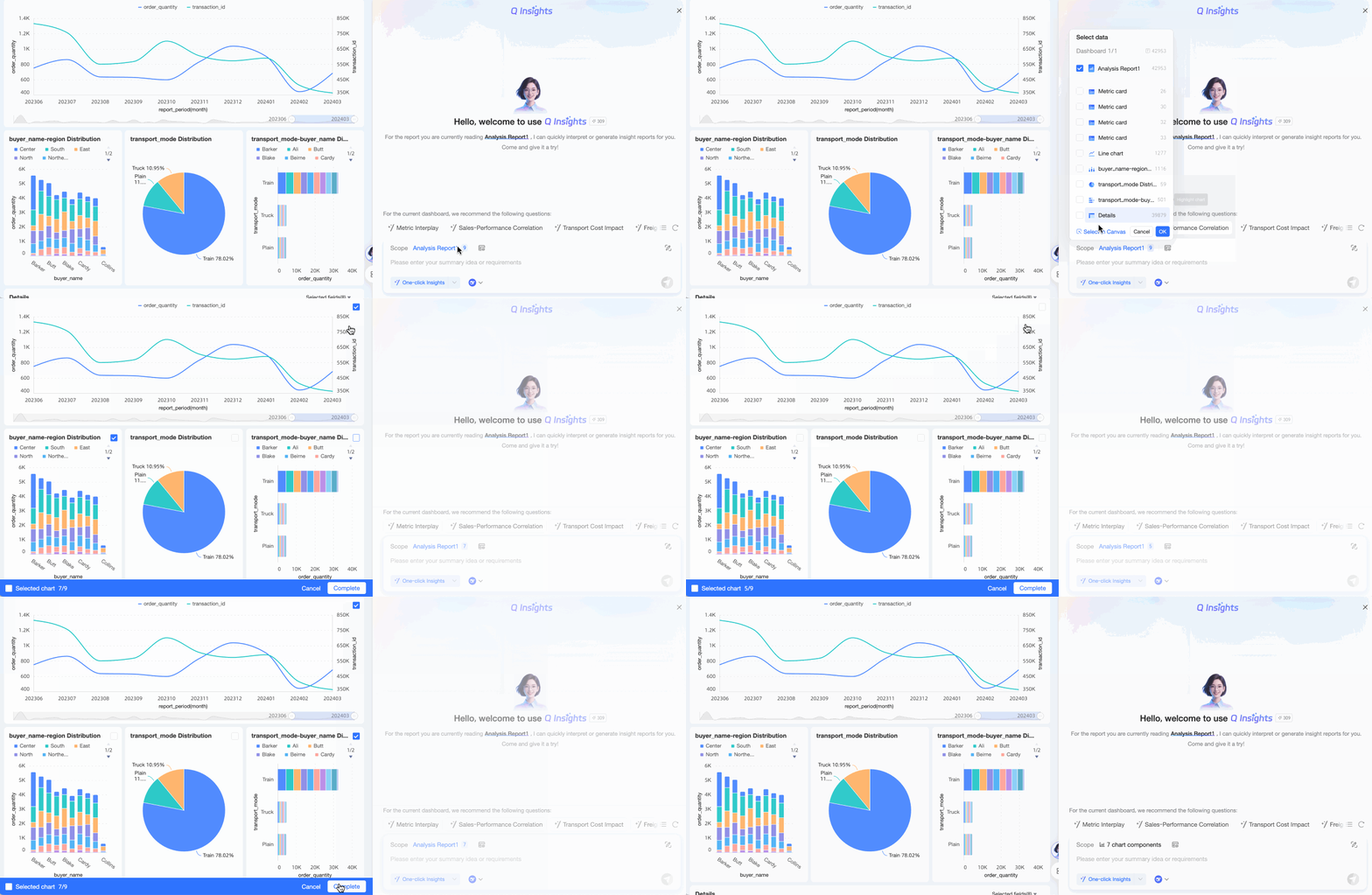
On the Q Insights page, the system selects the entire dashboard for interpretation by default. You can switch the scope as shown in the figure.
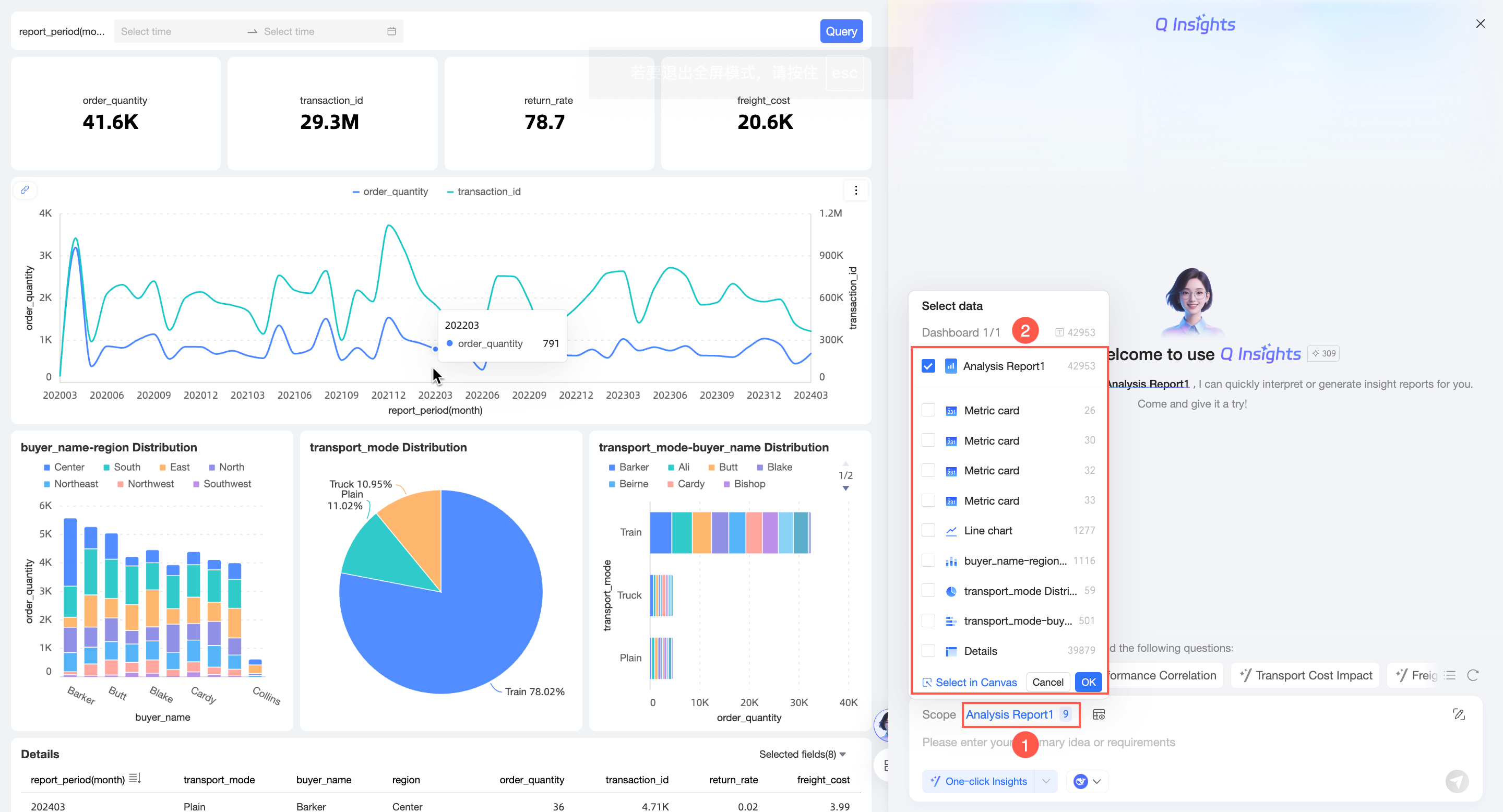
Select the checkboxes of multiple charts and click OK.
Select multiple charts on the canvas and click Done.
Preview interpretation data
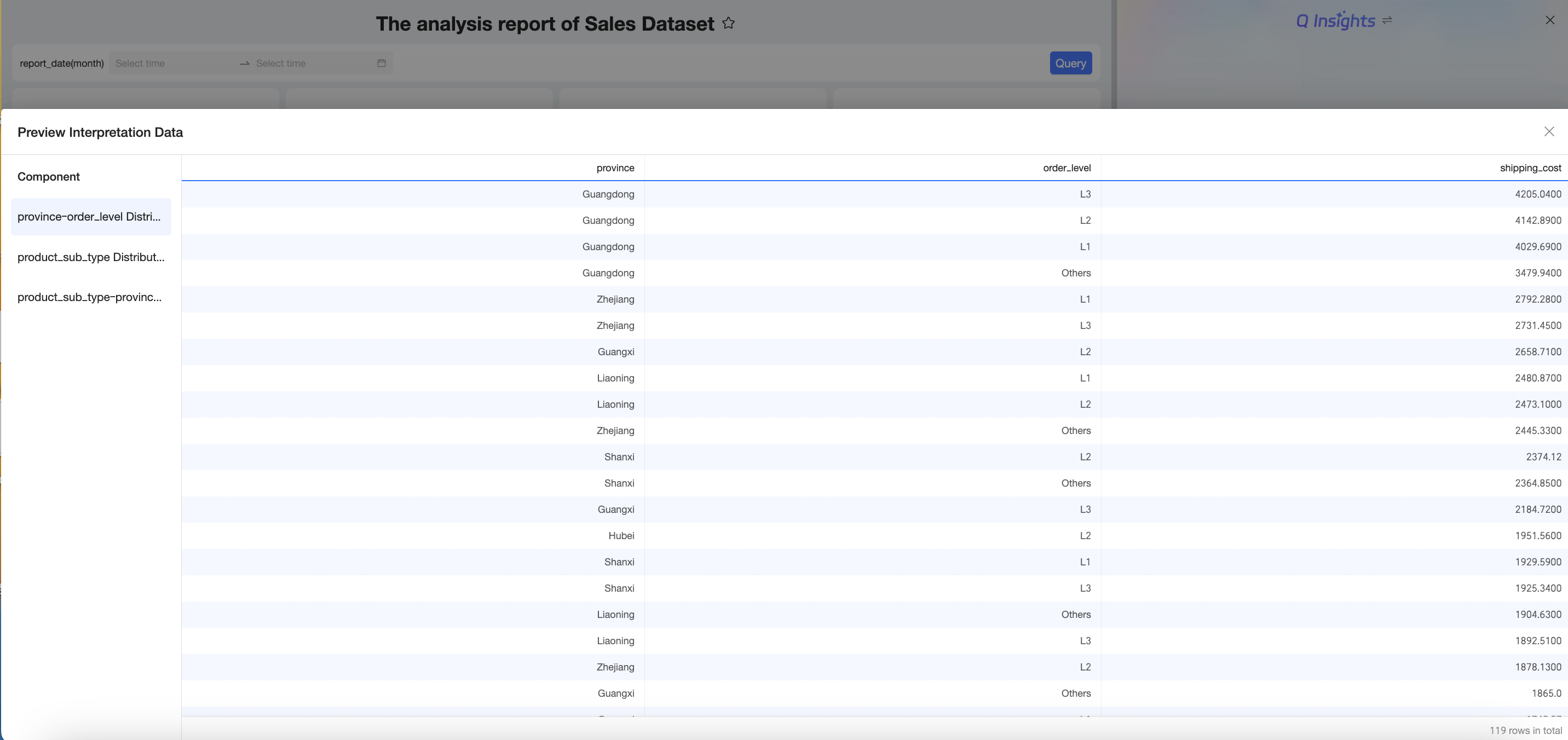
After selecting the interpretation scope, click Preview Interpretation Data. 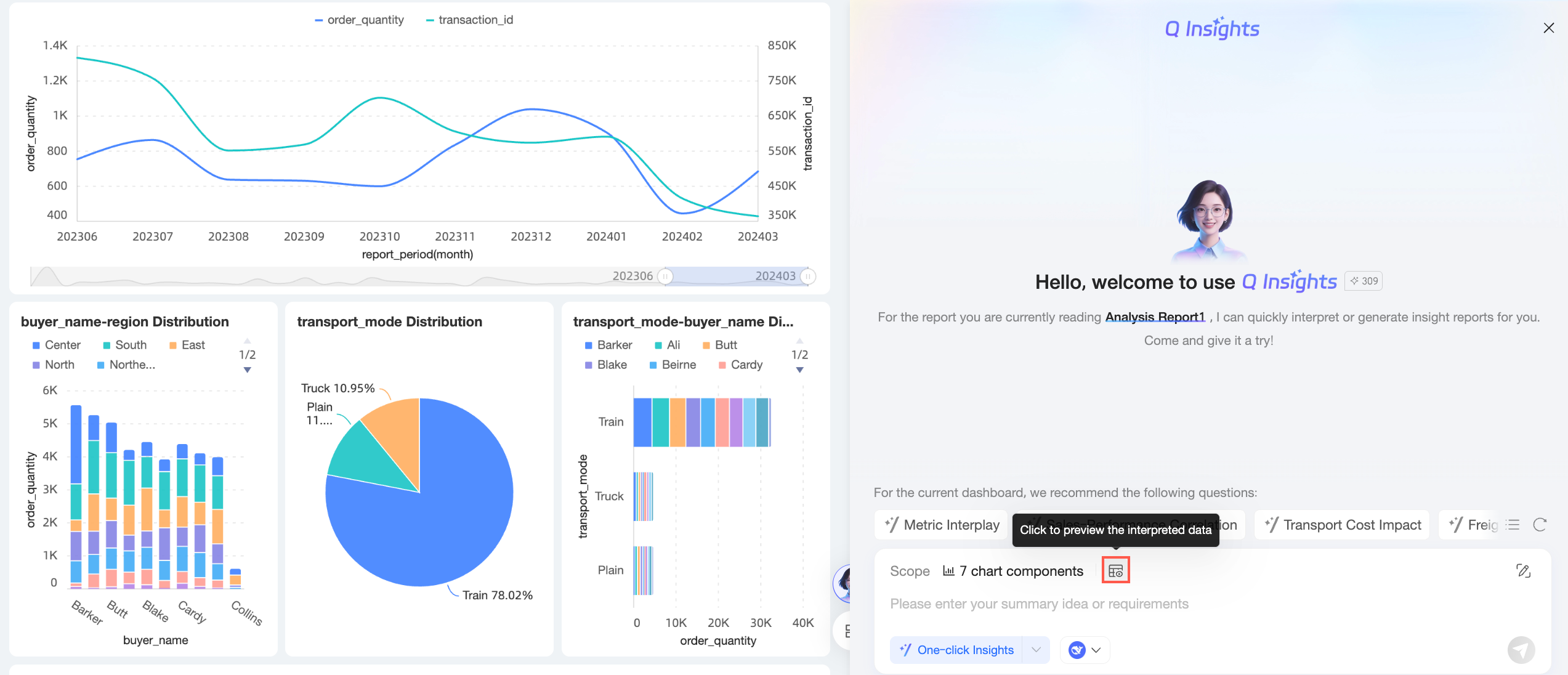
The preview is as follows:
Select model
Select a built-in LLM or a custom LLM.
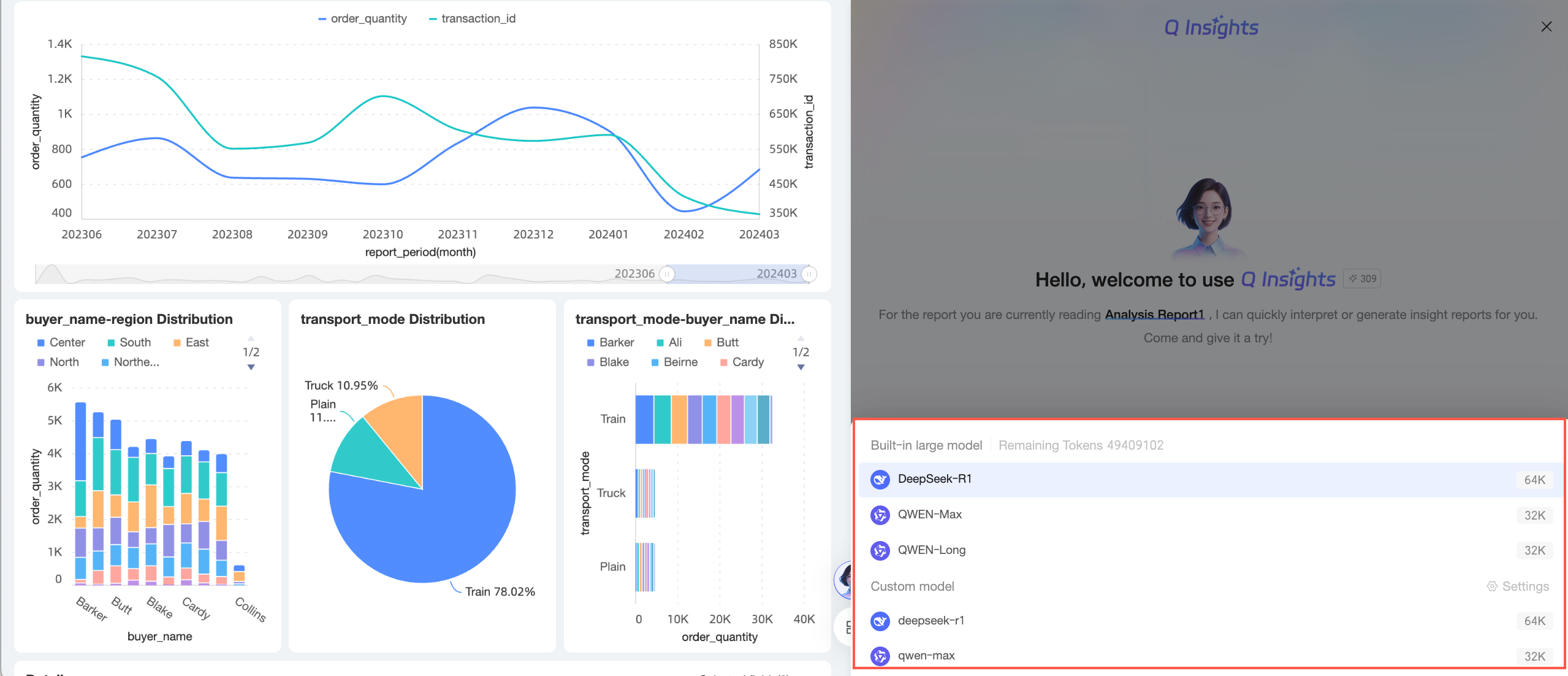
Enable enterprise knowledge base search
After you enable enterprise knowledge base search, select the knowledge bases to associate. 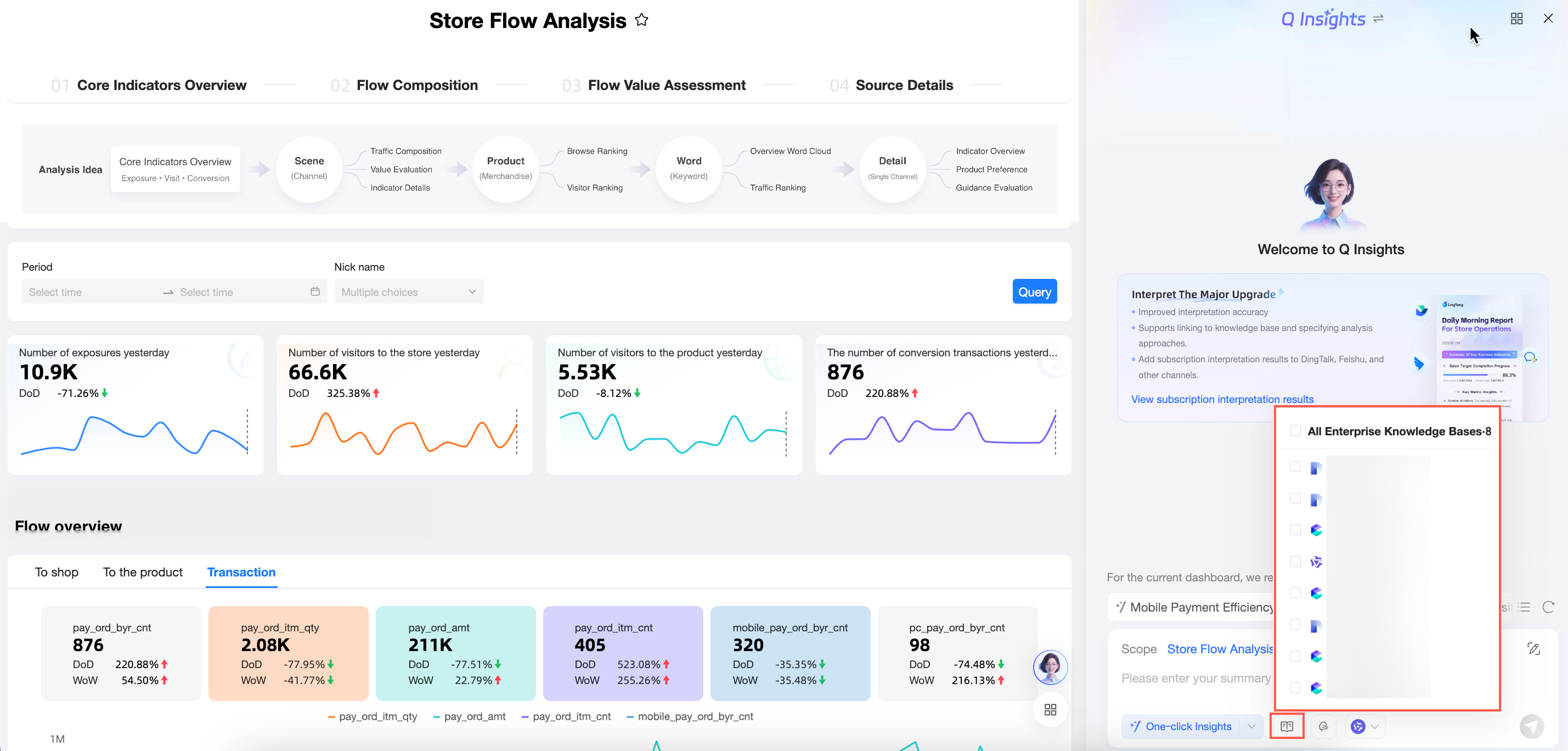
When enterprise knowledge base search is enabled, the LLM can use the relevant business information from the associated knowledge bases to generate reports that better align with your company's business context and management logic.
You can select a knowledge base here only if an organization administrator has configured and enabled it in Tenant Management. For more information about how to configure knowledge bases, see knowledge base management.
Specify analysis approach
After you enable Specify analysis approach, select an analysis approach from Enterprise Knowledge or Personal Knowledge.
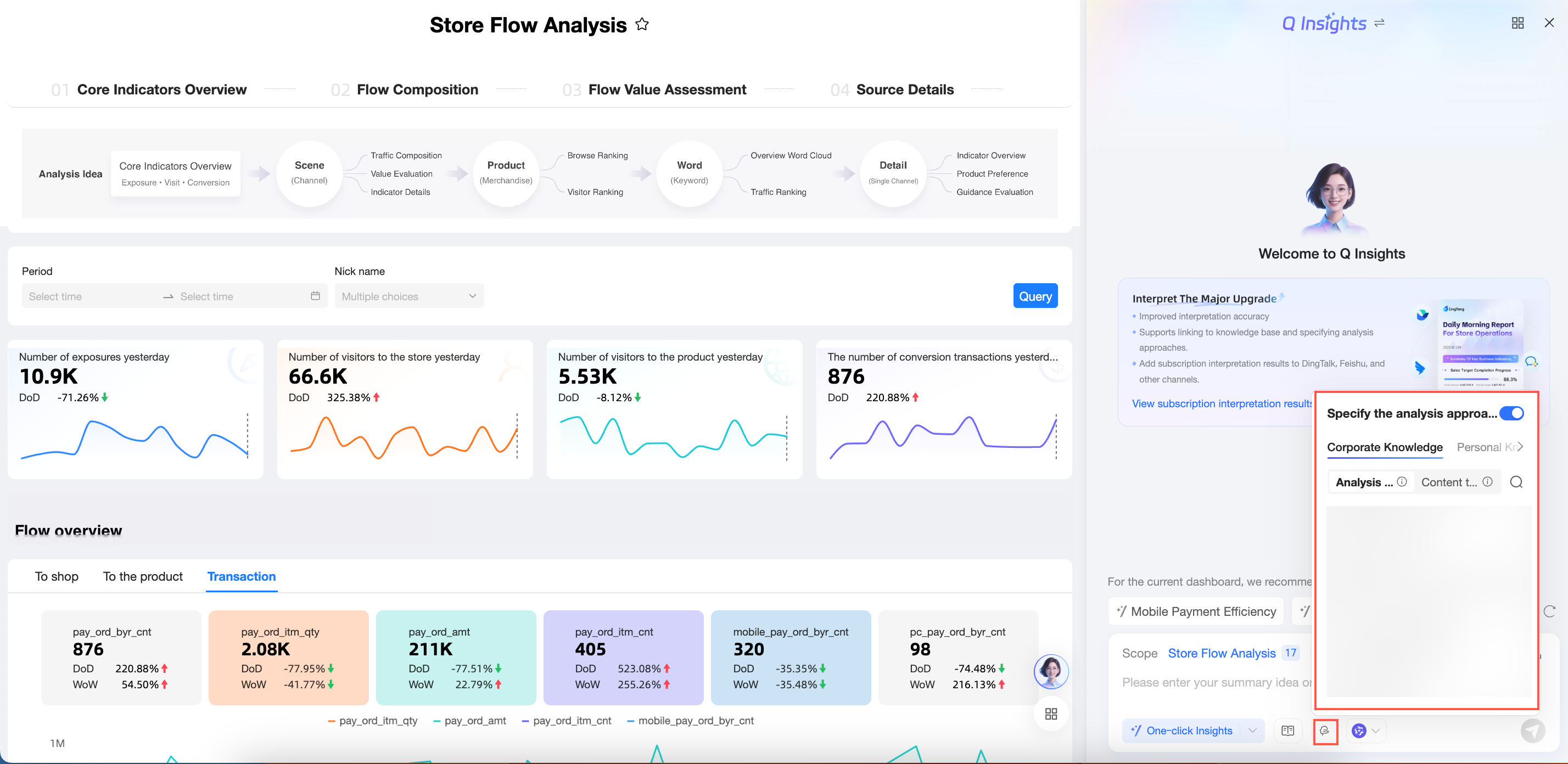
The Enterprise Knowledge tab displays general knowledge content that is centrally configured and maintained within the current organization. This standardizes the data analysis methods and content structure across the company, ensuring that reports generated by different members meet organizational standards.
Here, you can select an Analysis Approach or a Content Template.
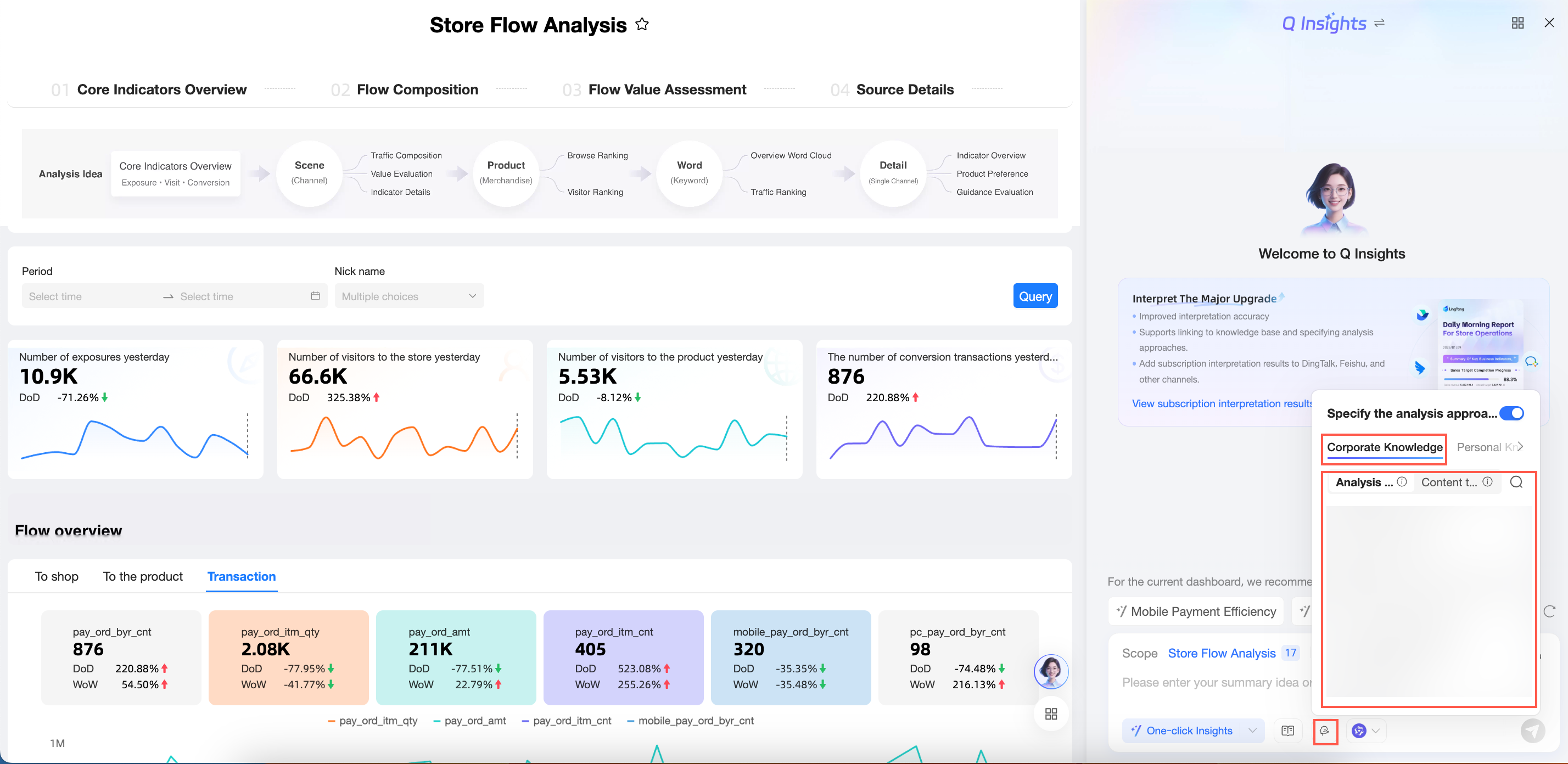
Analysis Approach: Specifies only the analysis approach. By configuring an analysis approach, you can guide the system to generate report content that better aligns with your company's analysis logic. This avoids generic analysis results that are disconnected from your actual business.
The LLM will then generate the display structure of the report content. If you have specific requirements for the presentation layer, switch to the Content Template tab. You can select a content template, or define the content display structure using a prompt or by uploading an attachment.
Content Template: Specifies both the analysis approach and the display output structure. By setting a content template, you can pre-configure the system with your company's standard report framework. This also ensures that the analysis logic in the report better meets your expectations.
Click the
 icon next to an analysis approach or content template to preview its details in the Specify analysis approach dialog box.
 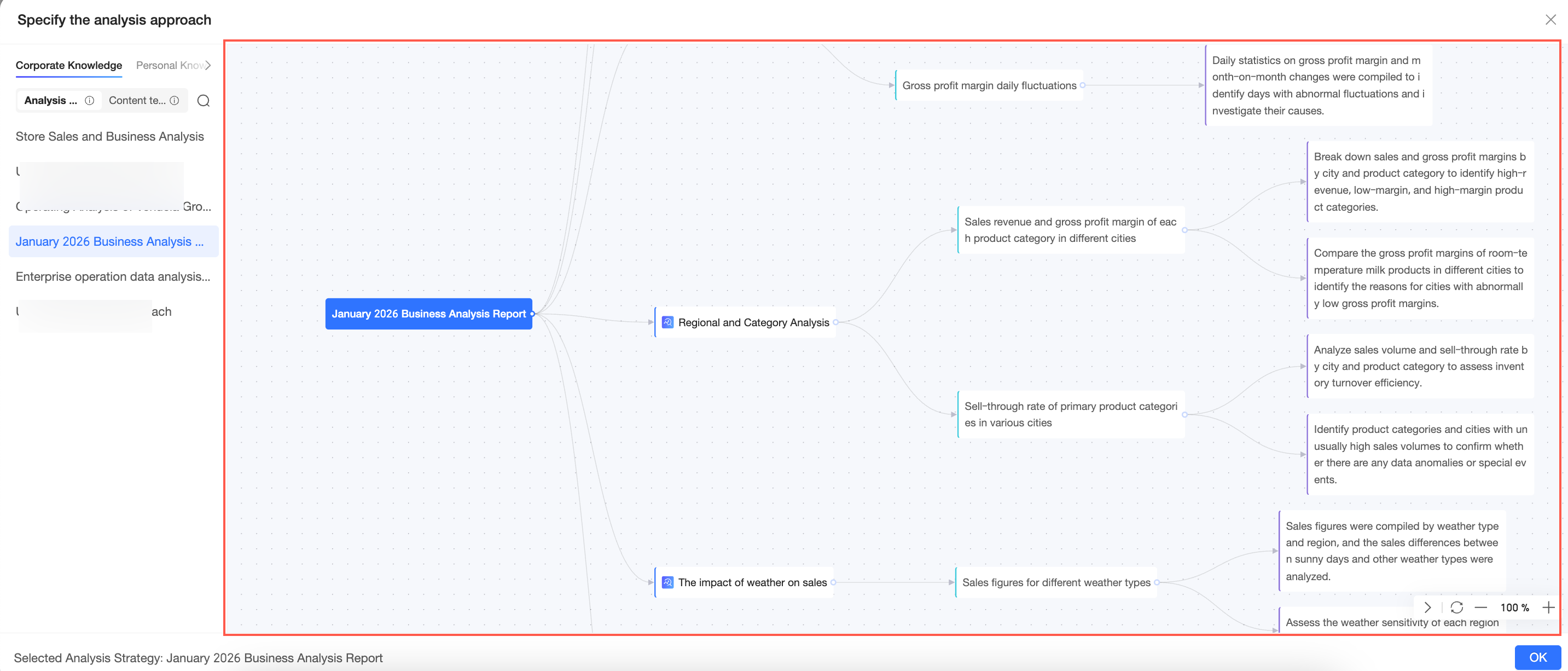 Note
NoteWhen Specify analysis approach is disabled, the LLM automatically plans the analysis approach based on your prompt.
You can select an analysis approach or content template here only if an organization administrator has configured and enabled it in Tenant Management. For more information about how to configure them, see knowledge base management.
The Personal Knowledge tab displays private knowledge uploaded by the current account. You can upload your personal knowledge, based on your business role and experience, as local files. Apply this knowledge when generating reports to make the generated Q Insights content more relevant to your individual work needs and perspective.
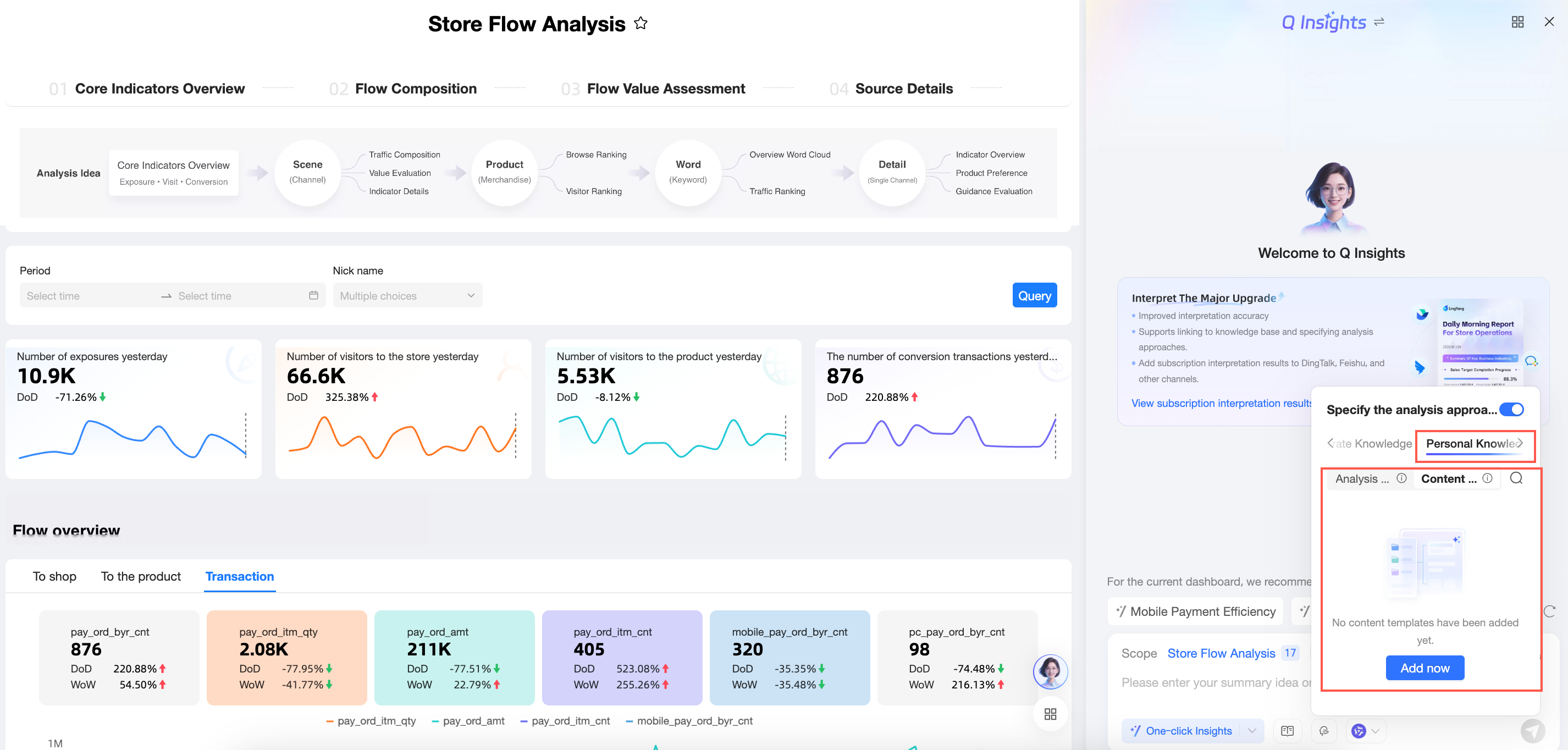
The procedure is as follows:
Click Add new personal knowledge. In the Add Knowledge Document dialog box, click or drag the knowledge file to area ① to upload it.
NoteOnly .doc and .pdf files are supported. The file size must be within 10 MB.
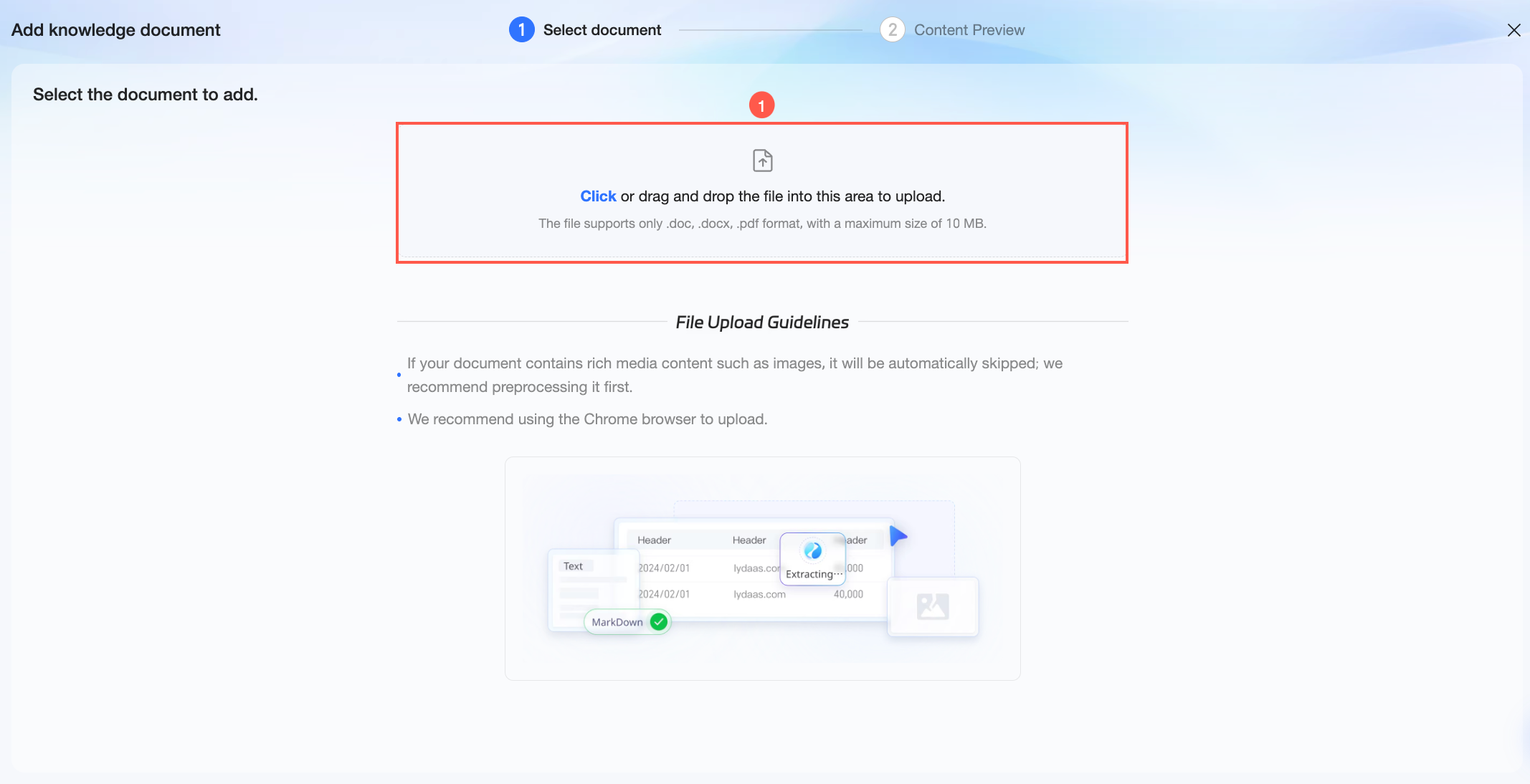
After the upload, the Content Preview step begins. On the Document Parsing tab, you can view the source document information and perform related operations.
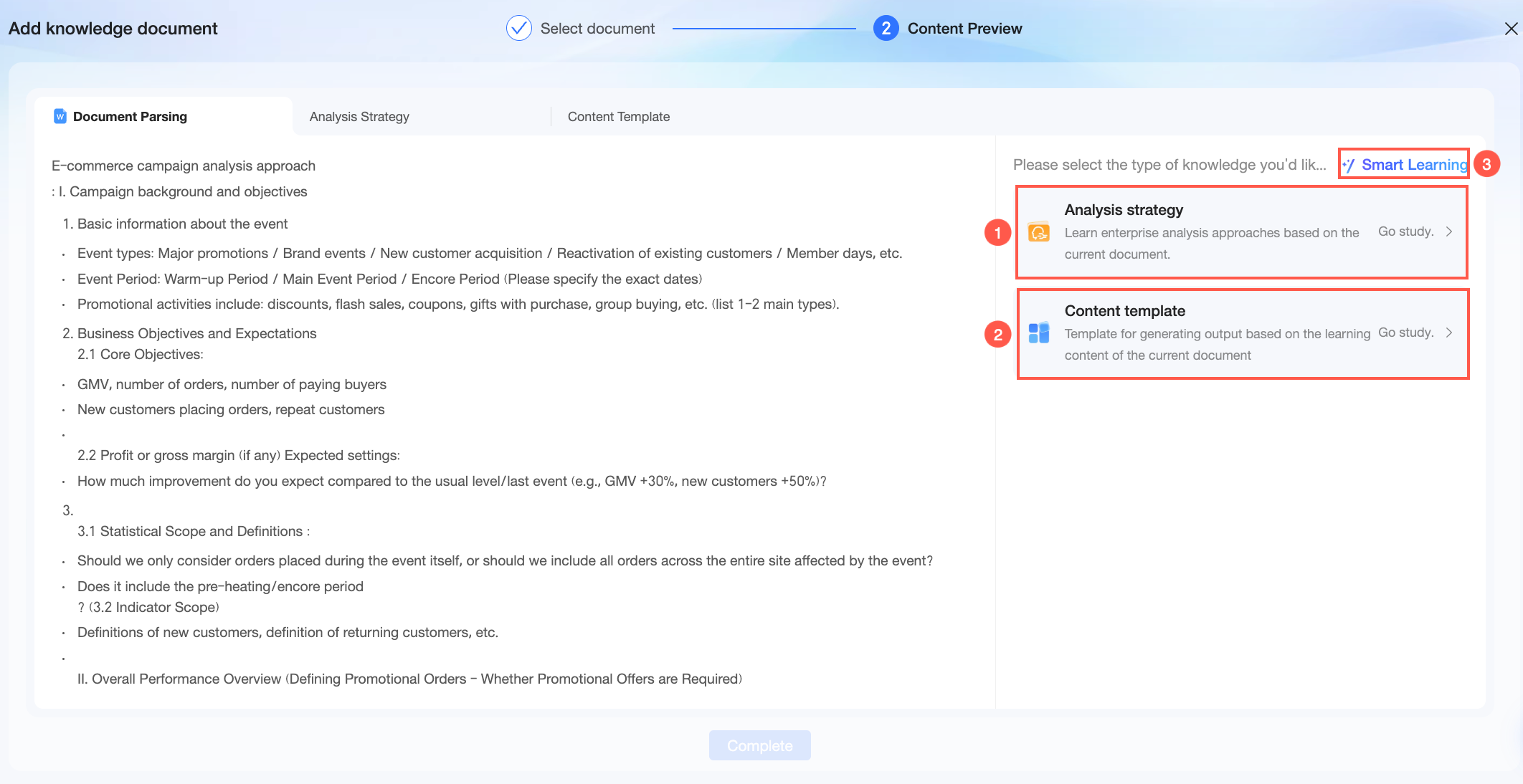
① Click Start Learning on the analysis approach card. The system will learn the analysis approach from the current document. After the learning process is complete, you can view the details on the Analysis Approach tab.
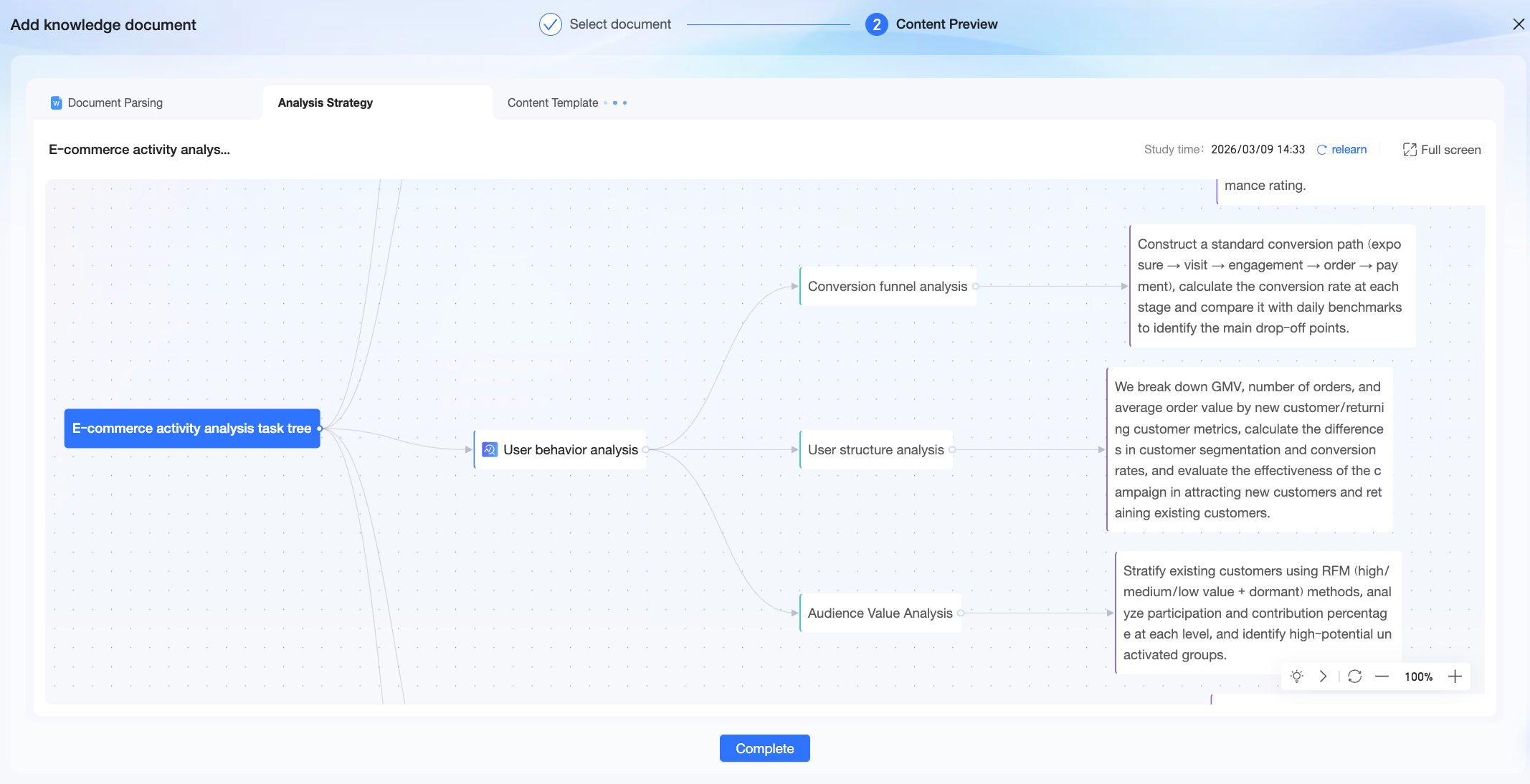 The analysis approach parsed by the system is displayed here as a mind map. You can double-click the analysis approach name or node content to edit its text. You can also add or delete a node by clicking the
  icon or using the DELETE key.
② Click Start Learning on the content template card. The system will learn the content output template from the current document. After the learning process is complete, you can view the details on the Content Template tab.
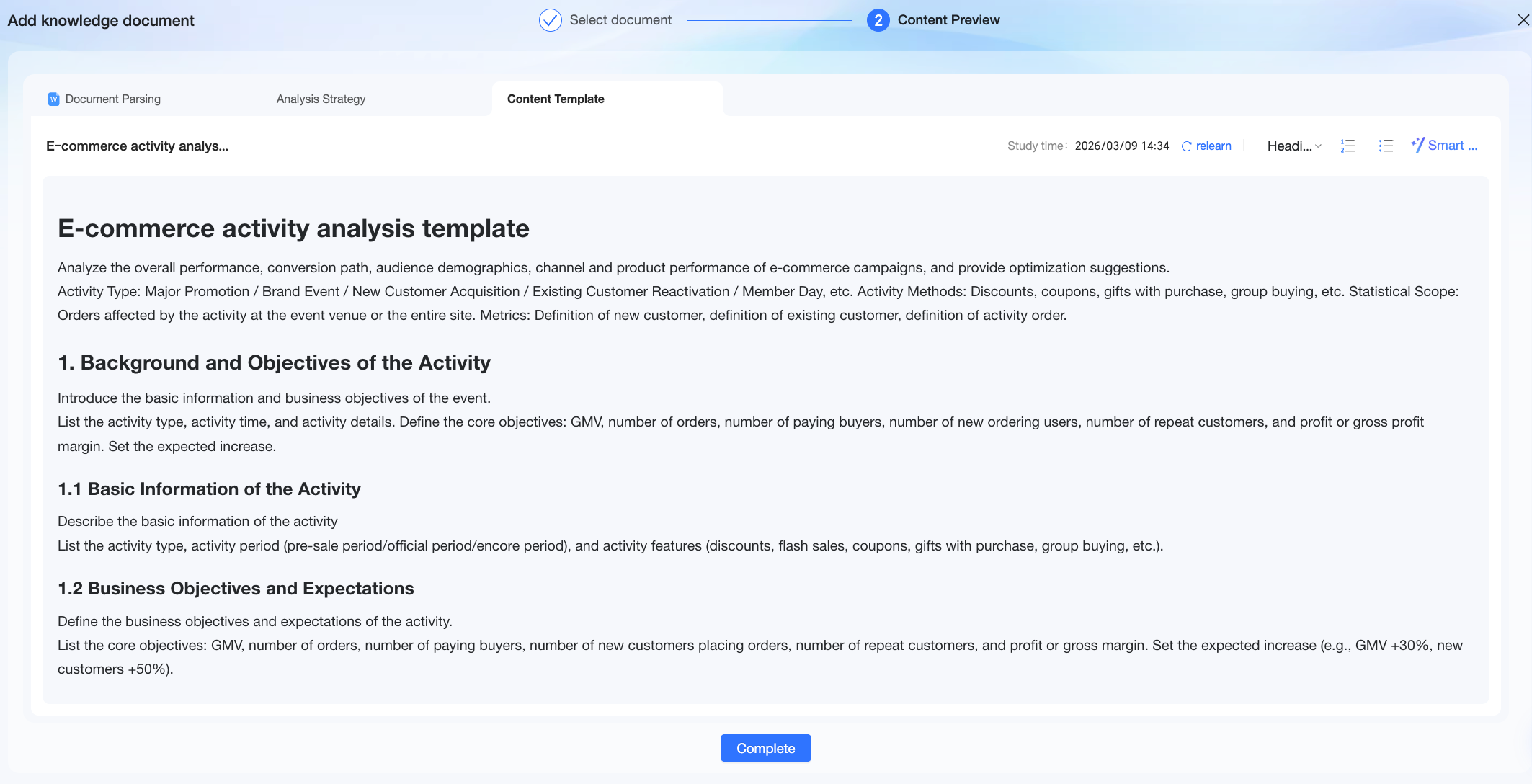 The content template parsed by the system is displayed here as a document. You can edit the text, adjust the format, or use AI to help you optimize and polish the content.
③ Click Smart Learning. Quick BI will automatically learn from the document content and extract the corresponding type of knowledge.
Click Done. After the knowledge is added, you can see it in the personal knowledge list. You can:
Select a piece of knowledge to apply it during report generation.
Click the
 icon and enter a keyword from the knowledge name in the search box to quickly find it.
Click the
 icon to delete knowledge content that is no longer needed.
Click the
icon to preview the knowledge content details in the Specify analysis approach dialog box.
NotePersonal knowledge can only be used by the person who uploaded it. It is not visible to other members of the organization and is not synchronized to the enterprise knowledge base under Tenant Management.
When a report creator grants editing permissions for a report generated from personal knowledge to another user, the authorized user can update the data and regenerate the report. However, when performing operations such as one-click report generation outside the report, the authorized user cannot use the creator's personal knowledge.
One-click Interpretation
Click One-click Interpretation to quickly interpret the dashboard data. 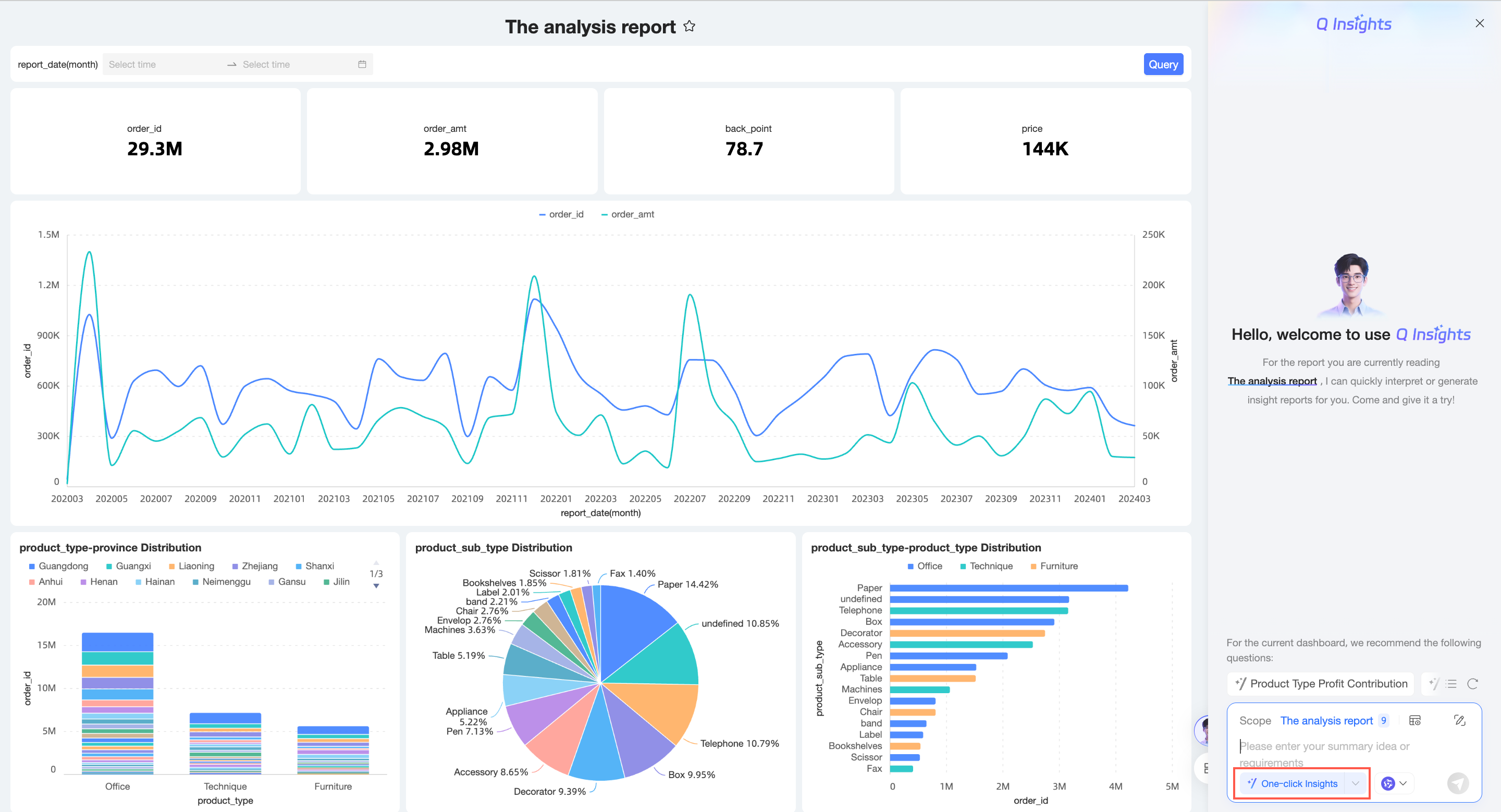
If a preset prompt is configured, the system performs the interpretation according to the preset prompt.
Enter interpretation approach
Simple input
Enter your summary approach or requirements. Click the  icon in the lower-right corner or press Enter. The system displays the data analysis results.
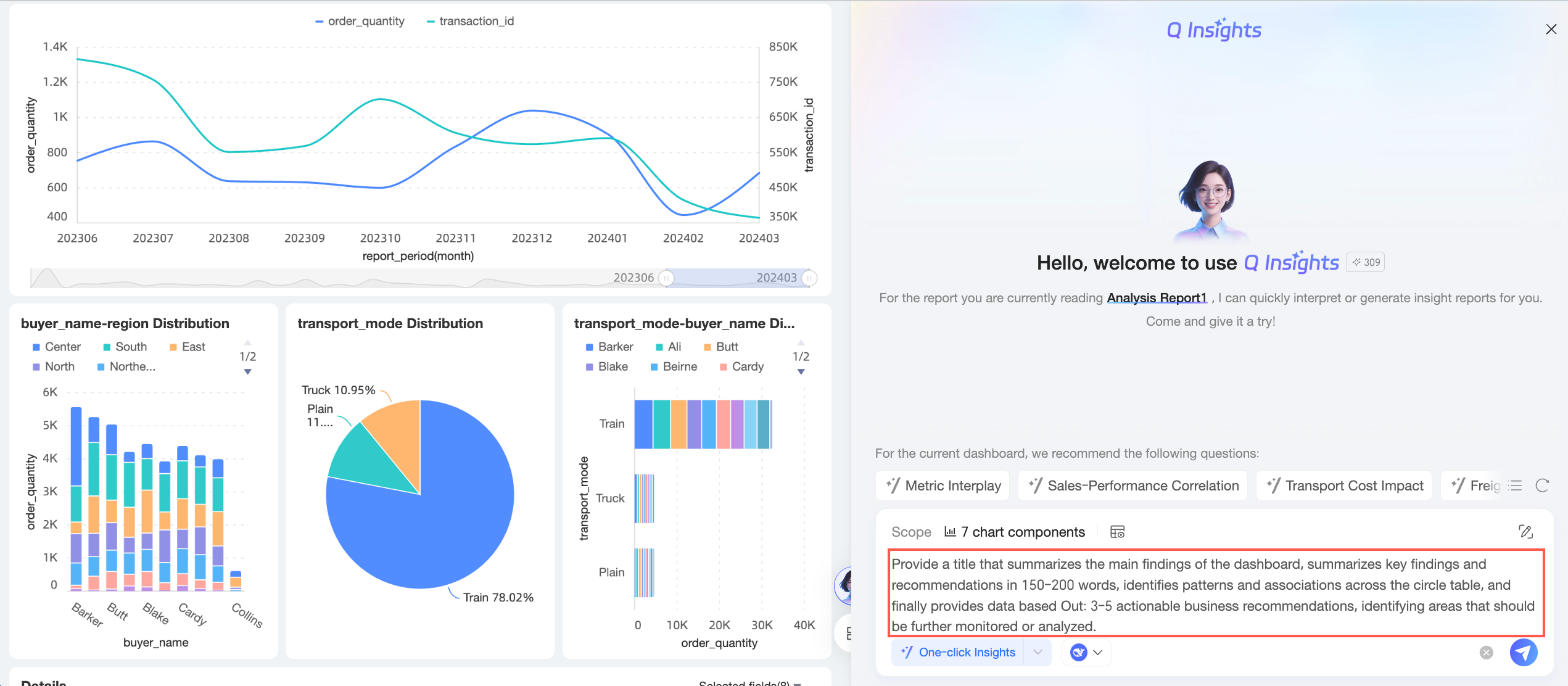
Composite interpretation approach
Click the
 icon on the right side of the dialog box to configure the Composite interpretation approach.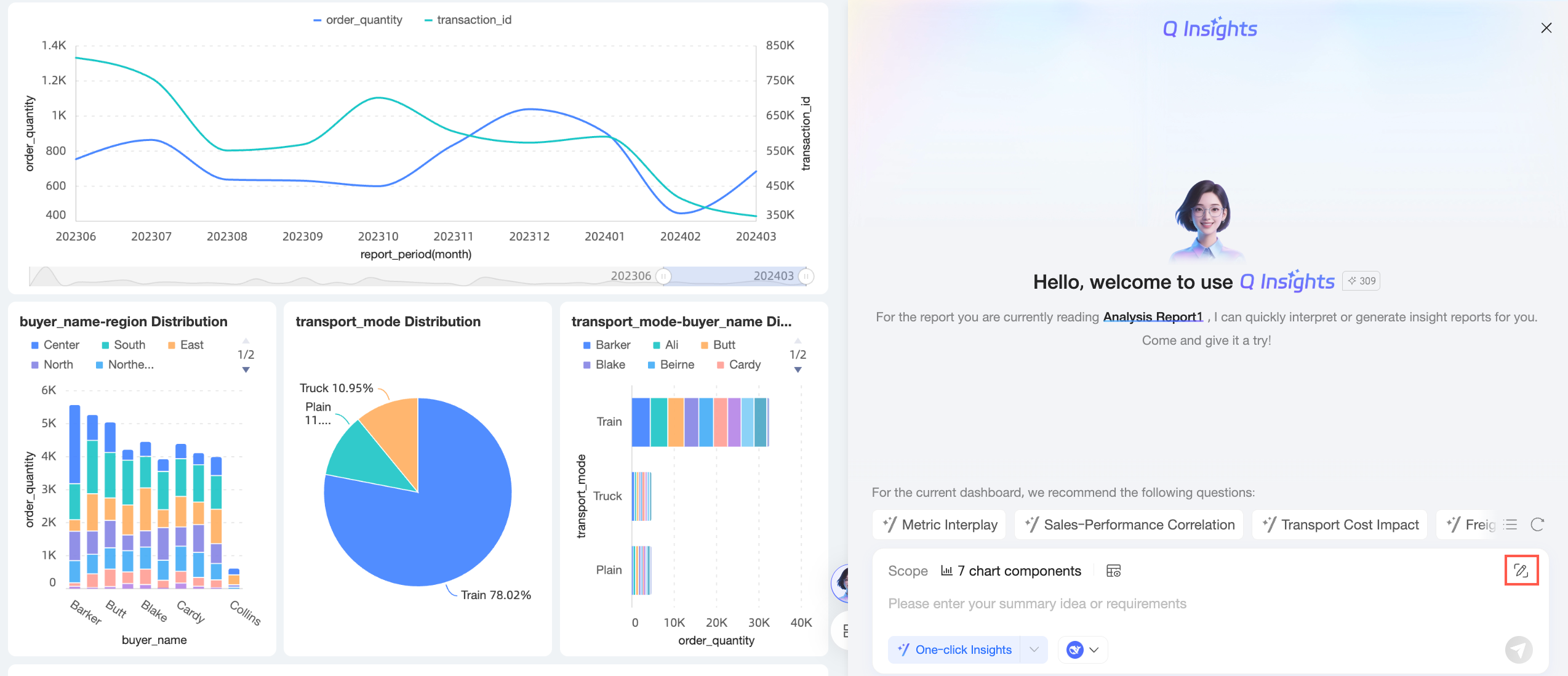
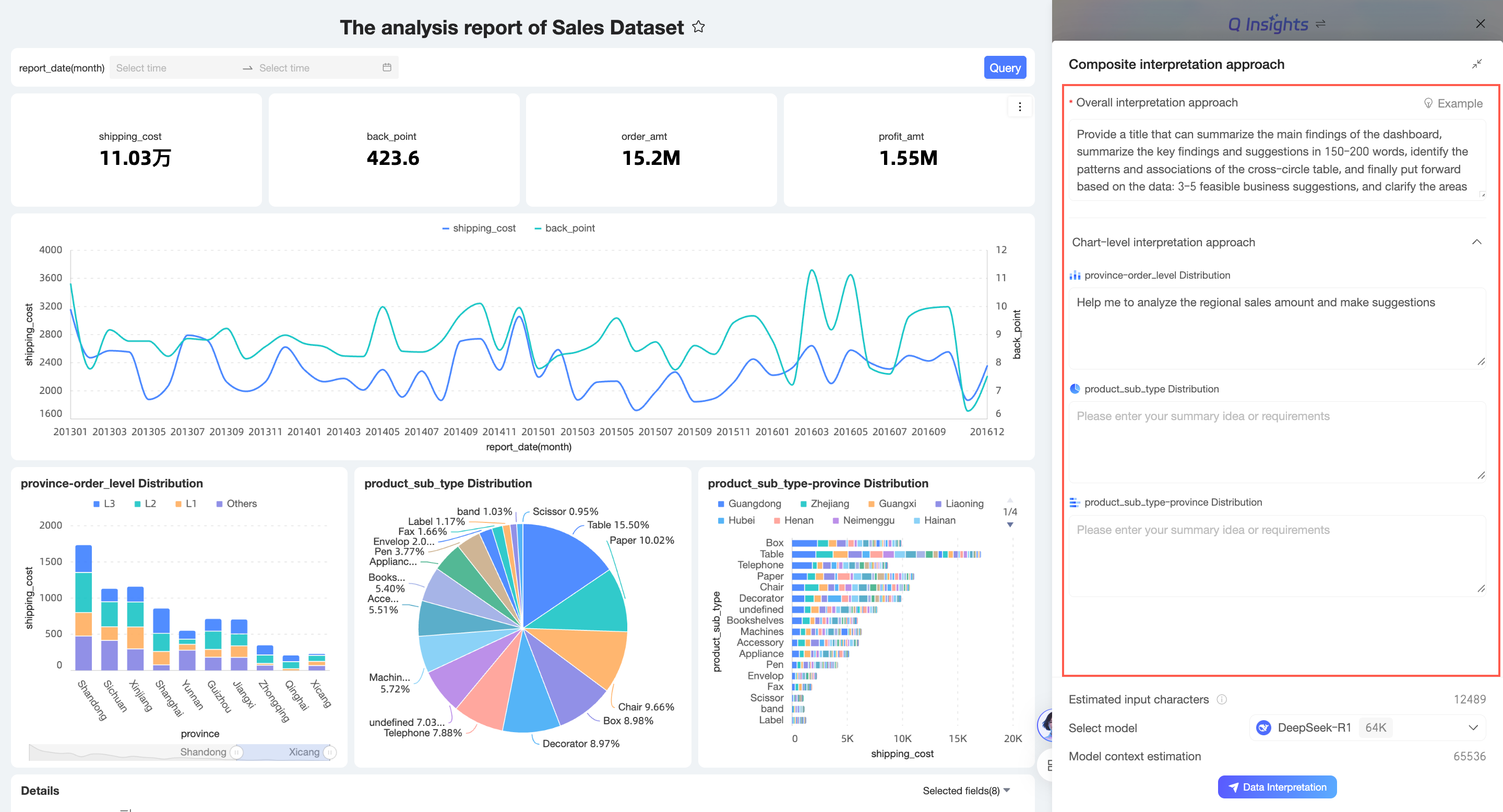
On the Composite interpretation approach configuration page, configure the following items.

Configuration item
Description
Dashboard preset interpretation approach
After you configure a preset prompt, the Dashboard preset interpretation approach is enabled by default. When enabled, this approach is added. If you do not need to use the preset approach, you can disable it.
This configuration item is not displayed if no preset prompt is configured.
Overall interpretation approach
You can refer to the Example to enter the overall interpretation approach for the dashboard.
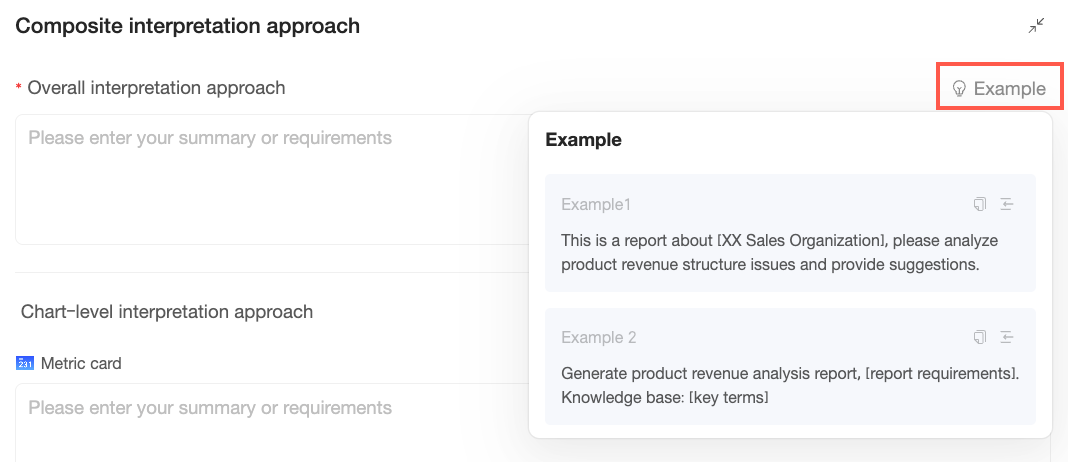
You can copy (①) or insert (②) the example interpretation approach.
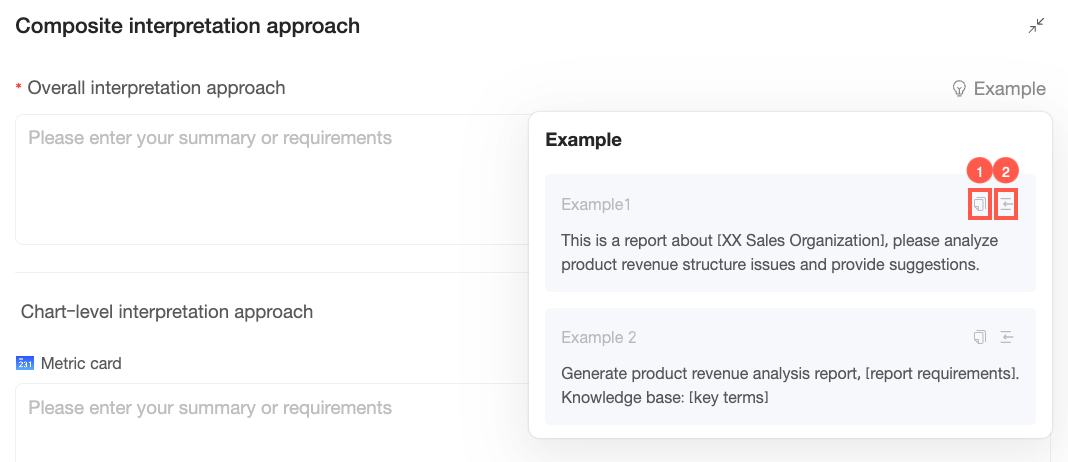
Chart-level interpretation approach
The interpretation approach set individually for each chart on the dashboard.
Estimated input characters
Displays the character counts for the interpretation scope, overall interpretation approach, chart-level interpretation approach, and preset interpretation approach, along with their total.
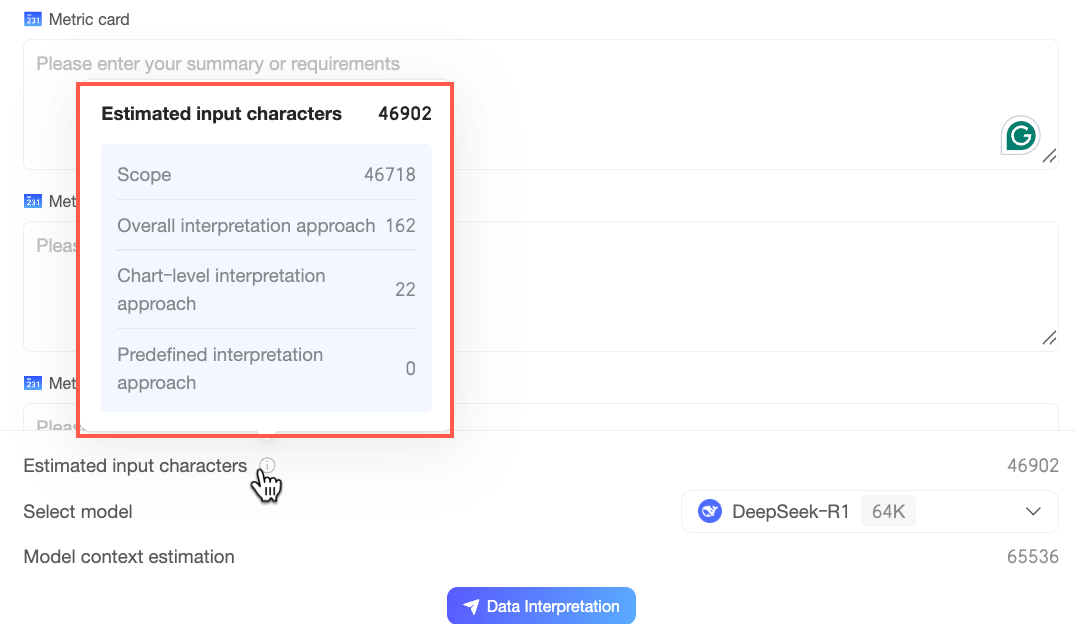
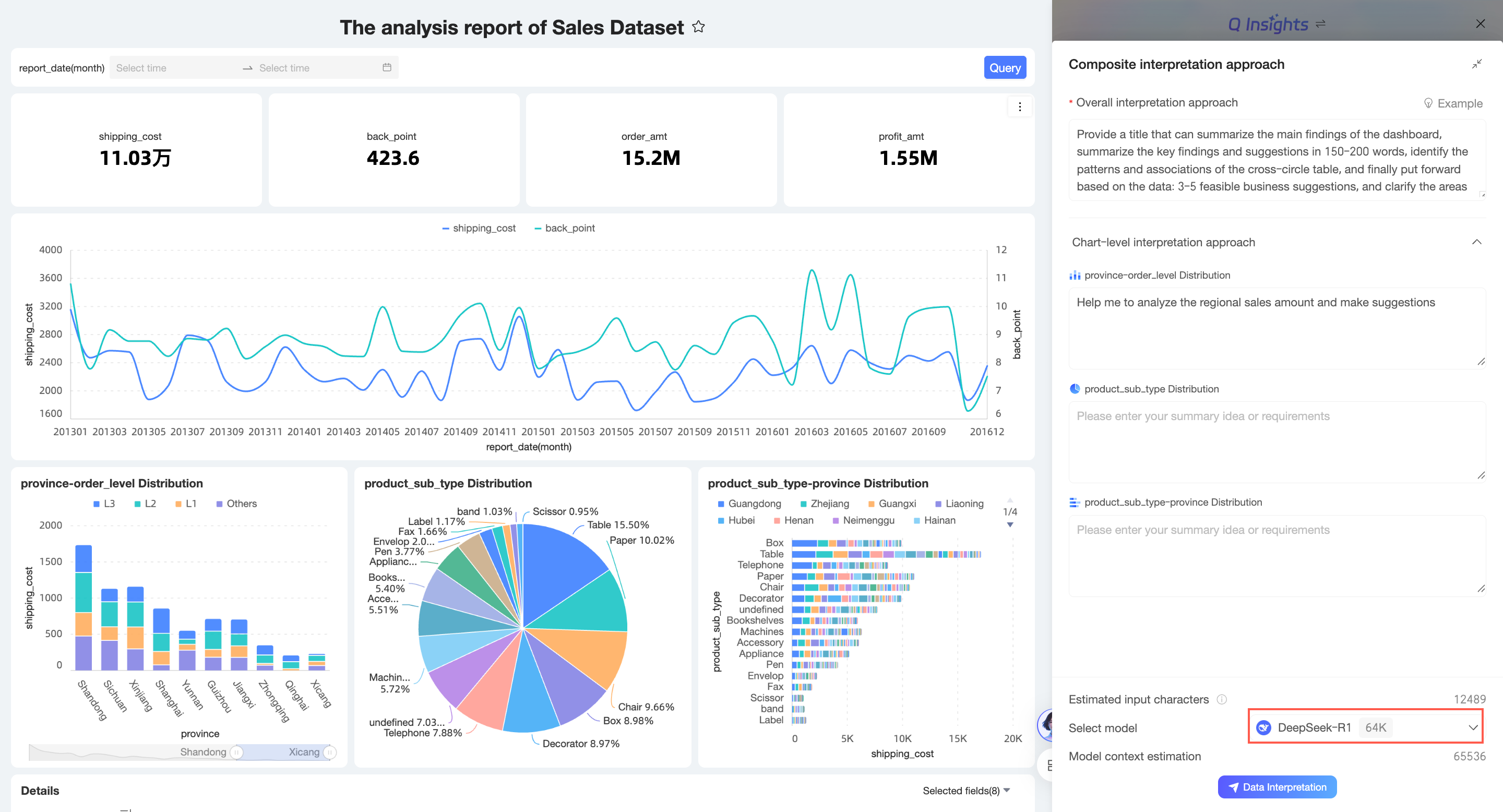
Select model
You can select a built-in LLM or a custom LLM.
Estimated model context
Estimated number of characters for the model context.
NoteIf the estimated input characters exceed the model's context length, the interpretation may fail. You can select a model with a longer context or choose to continue the interpretation.
Get analysis results
The analysis results for Recommended questions, Simple input interpretation approach, and Composite interpretation approach are different. For more information, see Scenario examples.
This section uses recommended questions as an example.
Select one of the recommended questions.
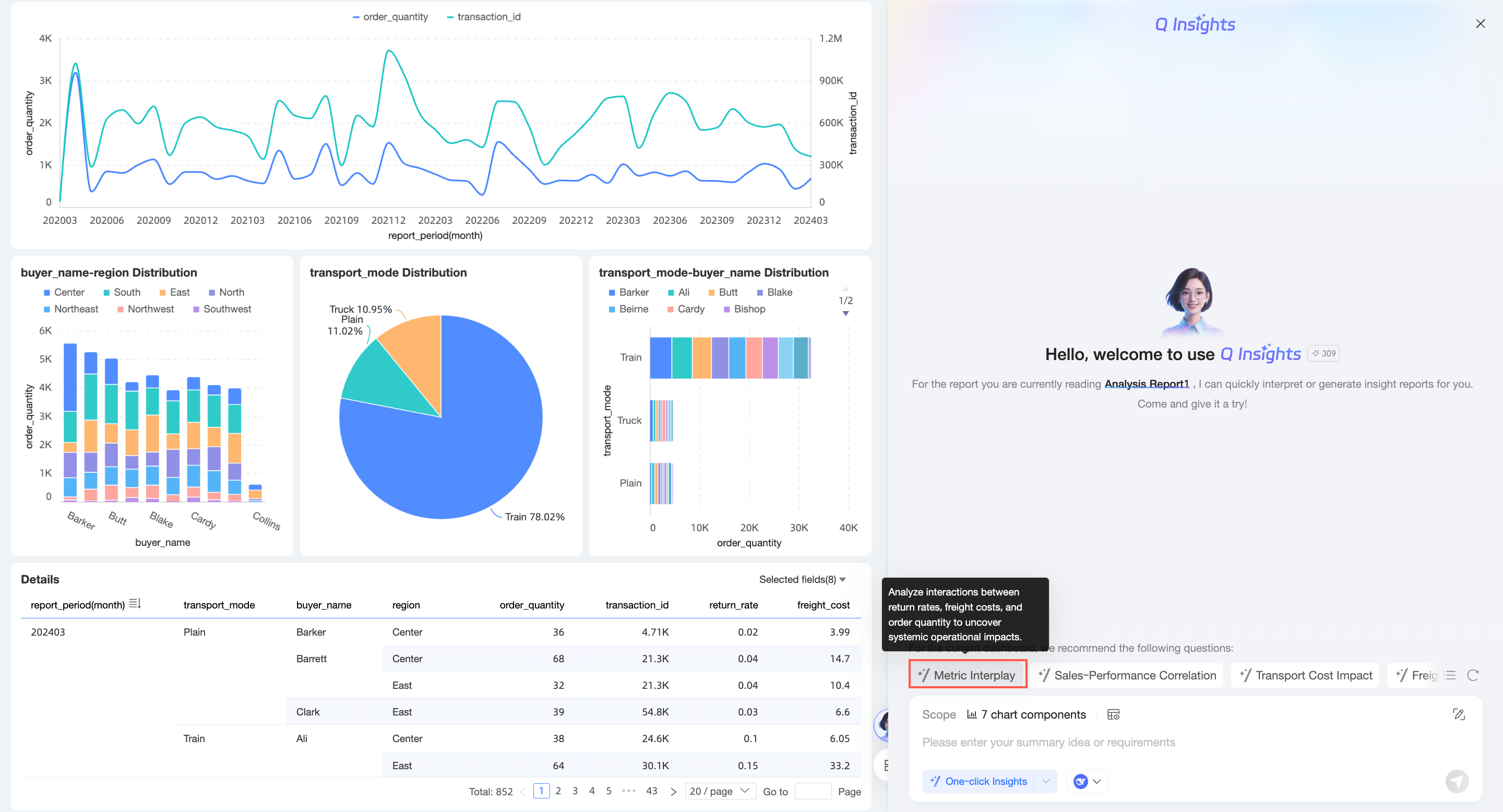
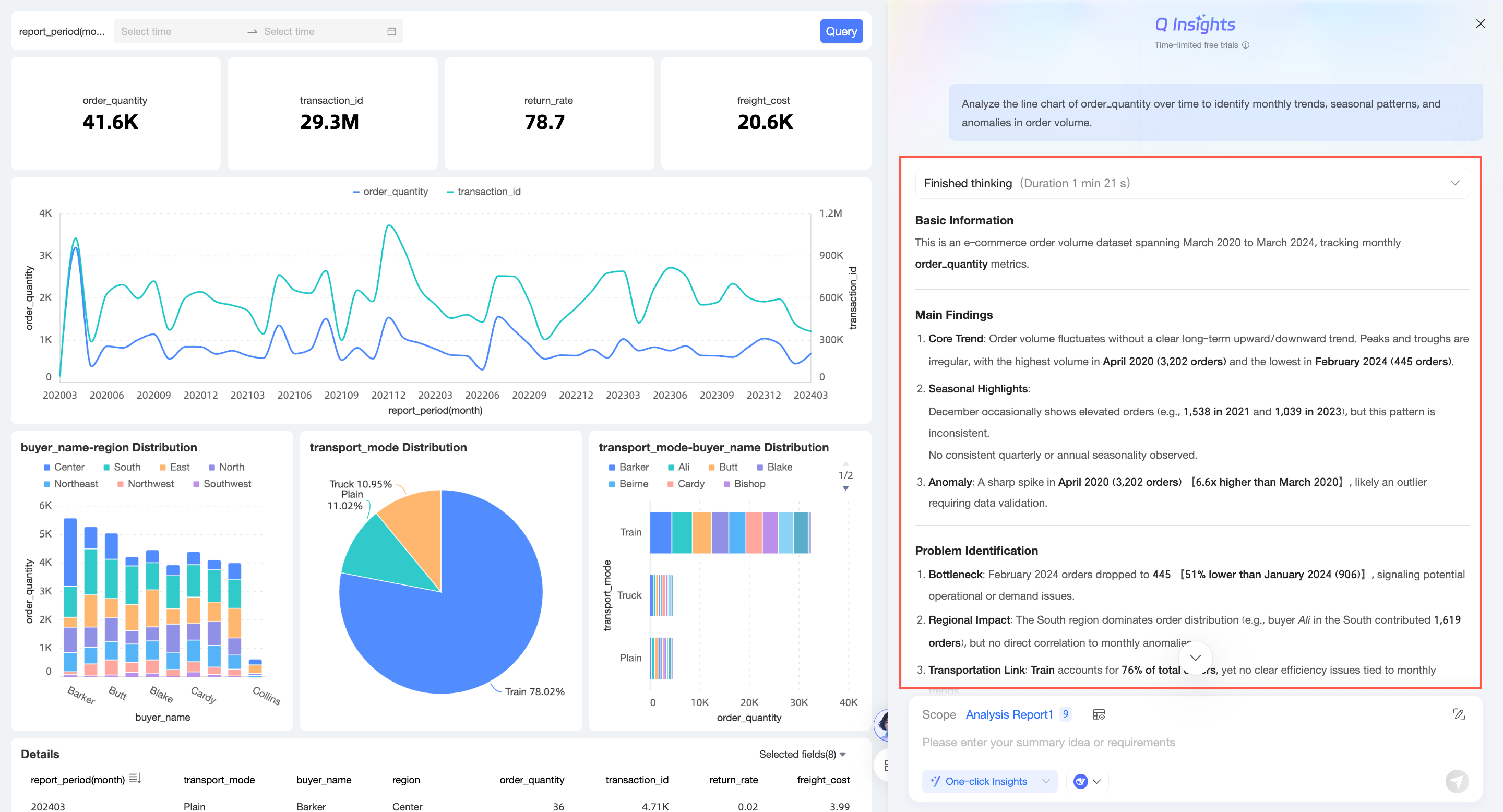
Click the question. The system displays the analysis results.
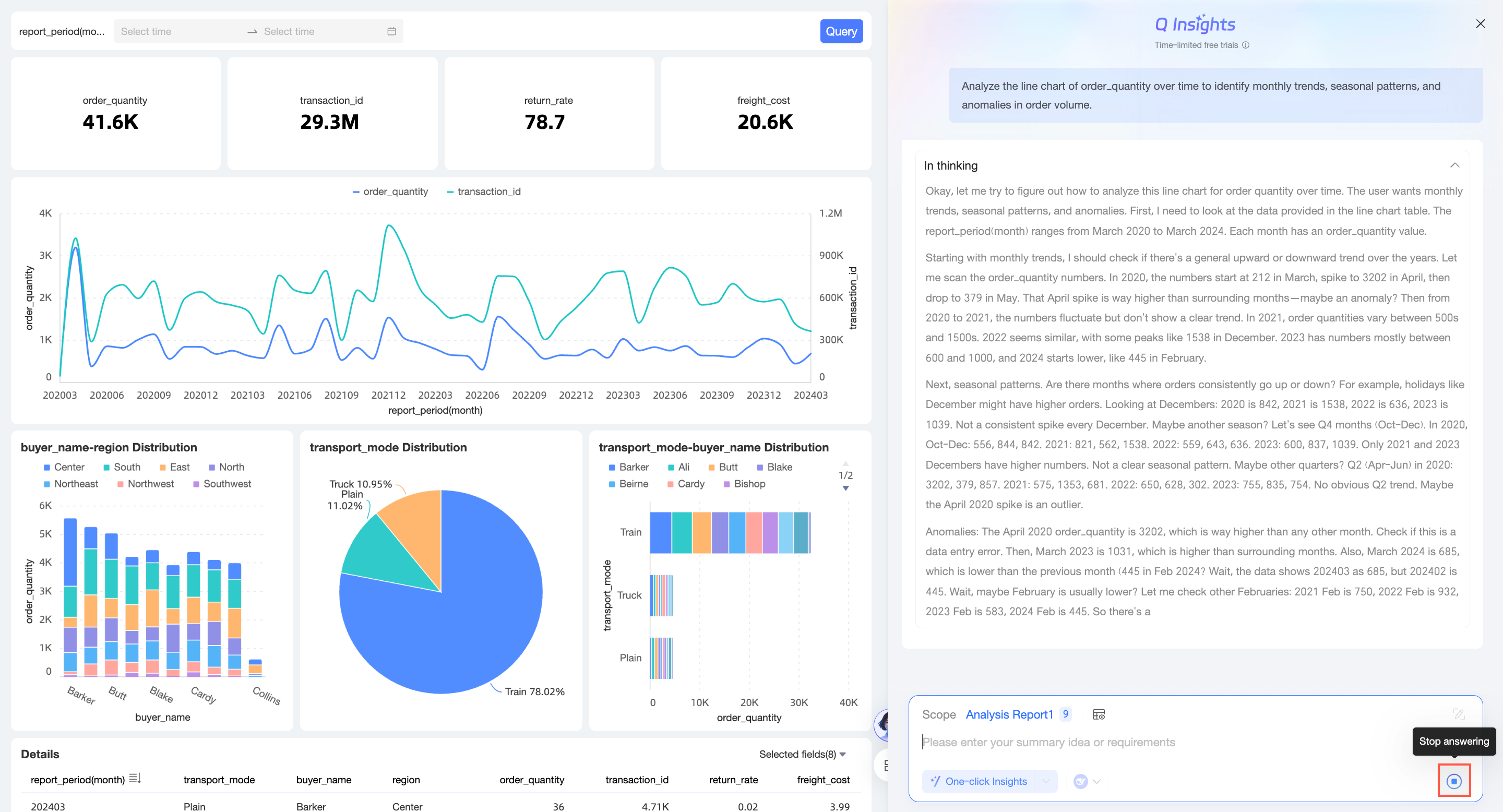
You can click Stop generating while the results are being generated.
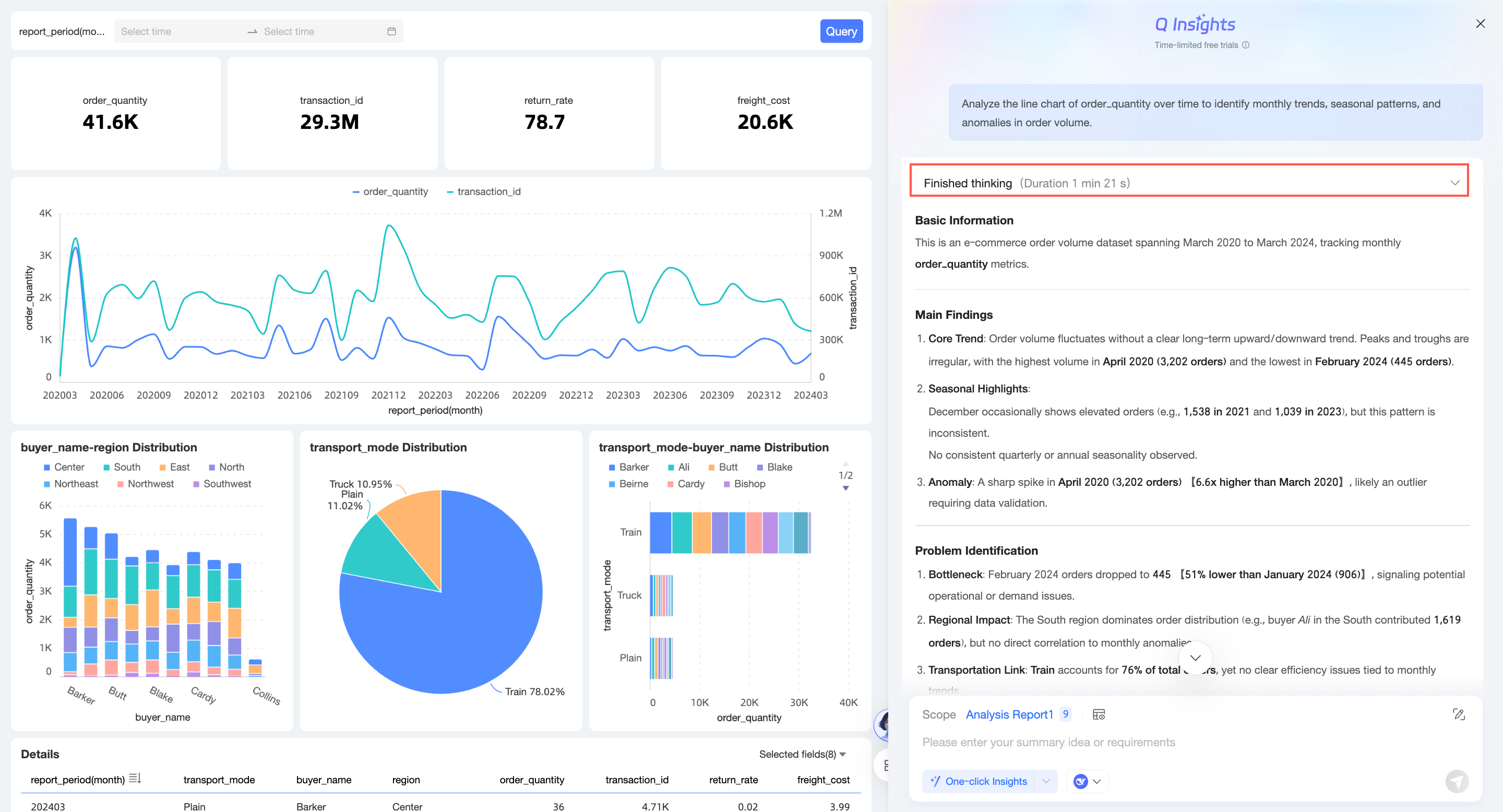
After the analysis process is complete, the process view automatically collapses. You can expand it manually.
Add questions to favorites and copy questions
Add question to favorites
NoteYou can add a maximum of 10 questions to your favorites.
Click the
 icon to the left of the question to add the interpretation approach to favorites.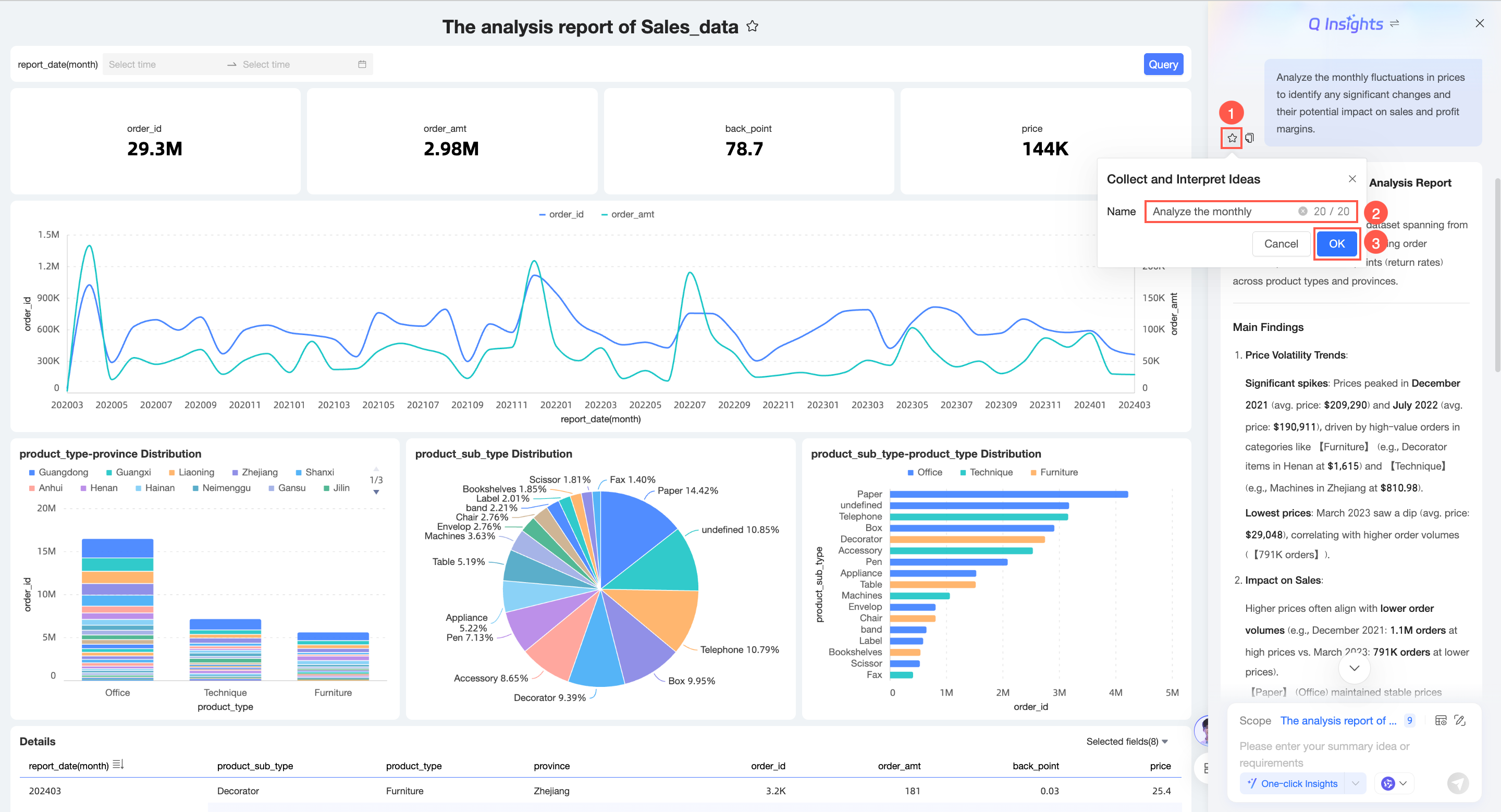
After adding it to favorites, you can use it in Quick Questions.
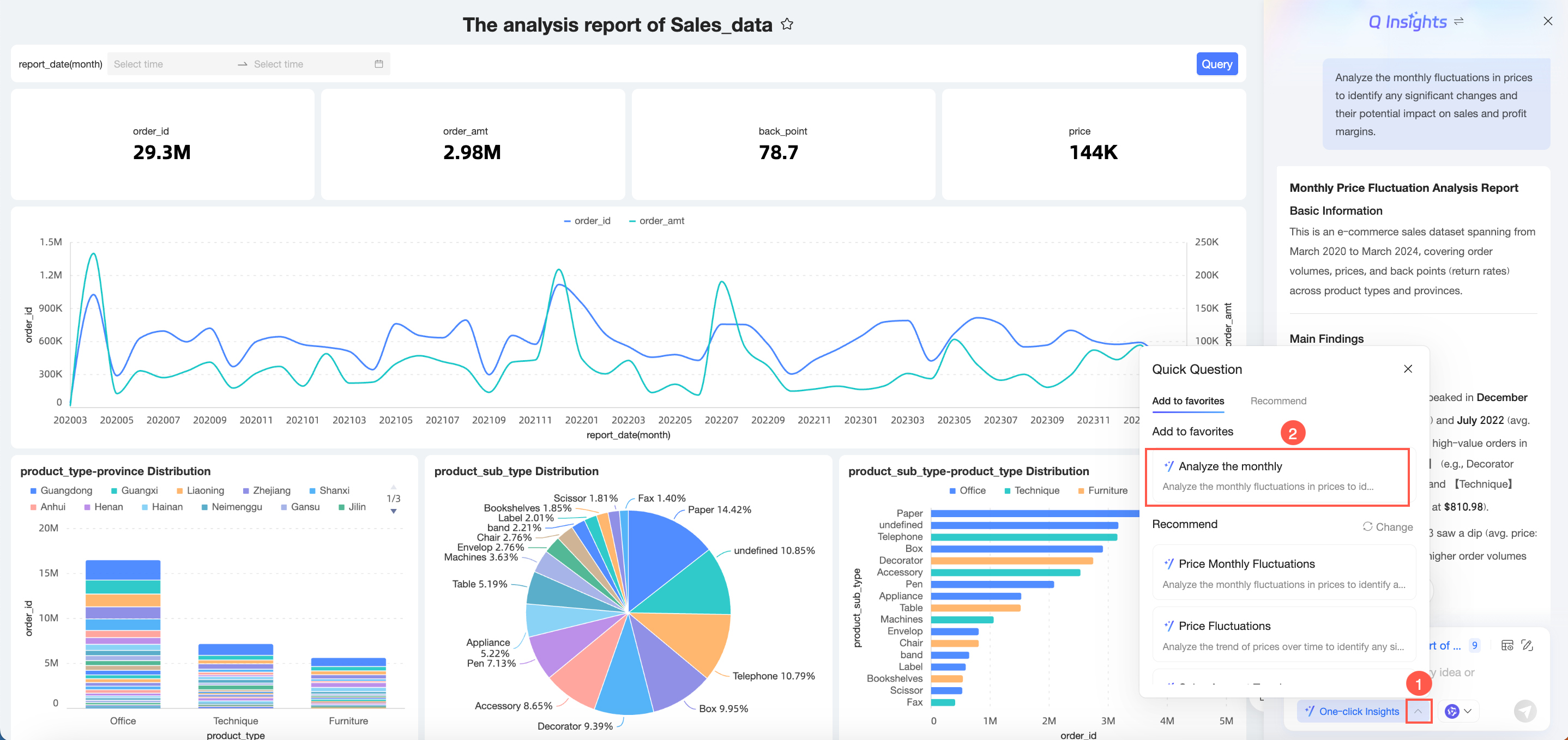
Click the
 icon again to remove it from favorites.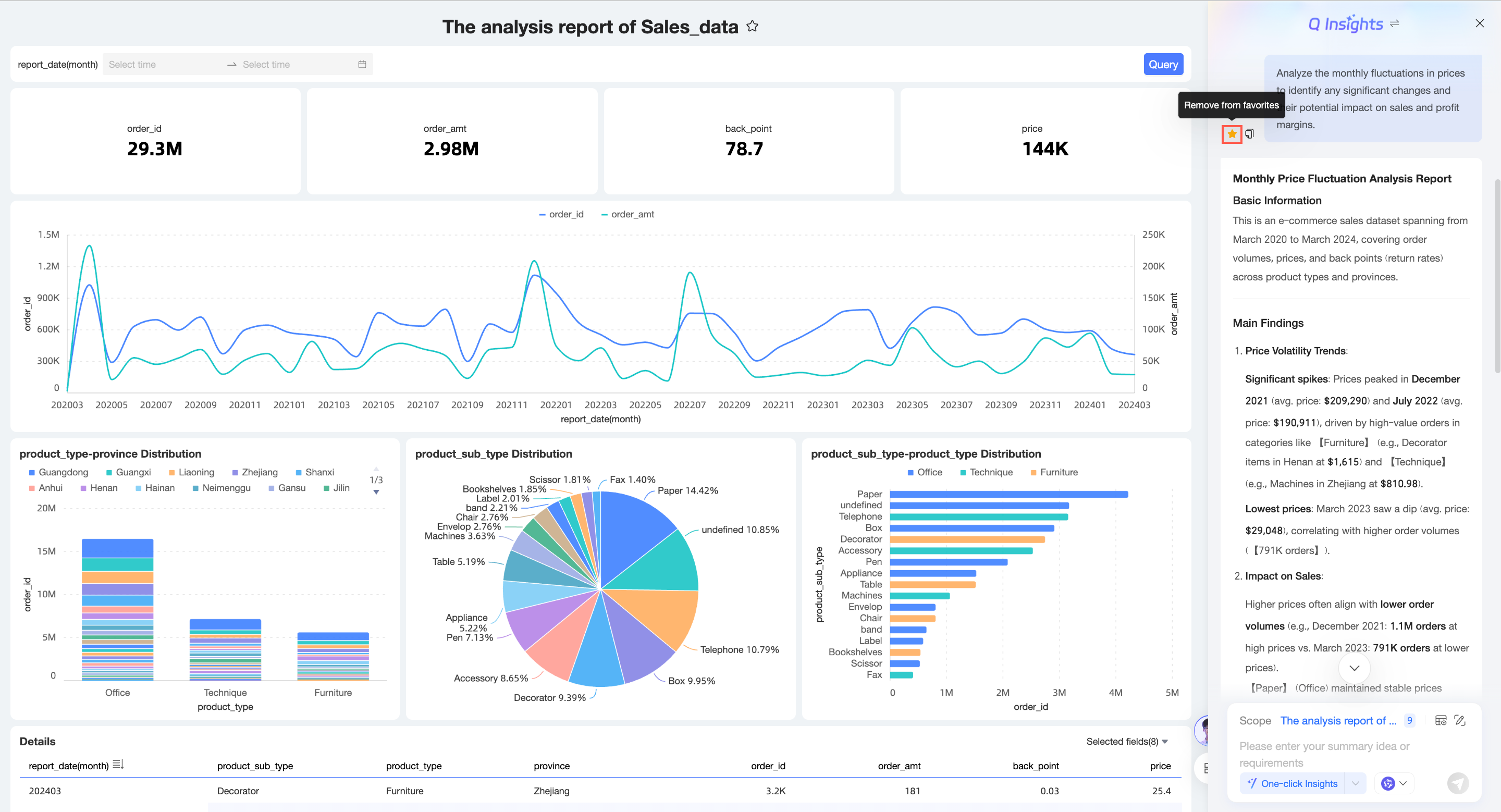
Copy question
Click the
 icon to the left of the question to copy the question.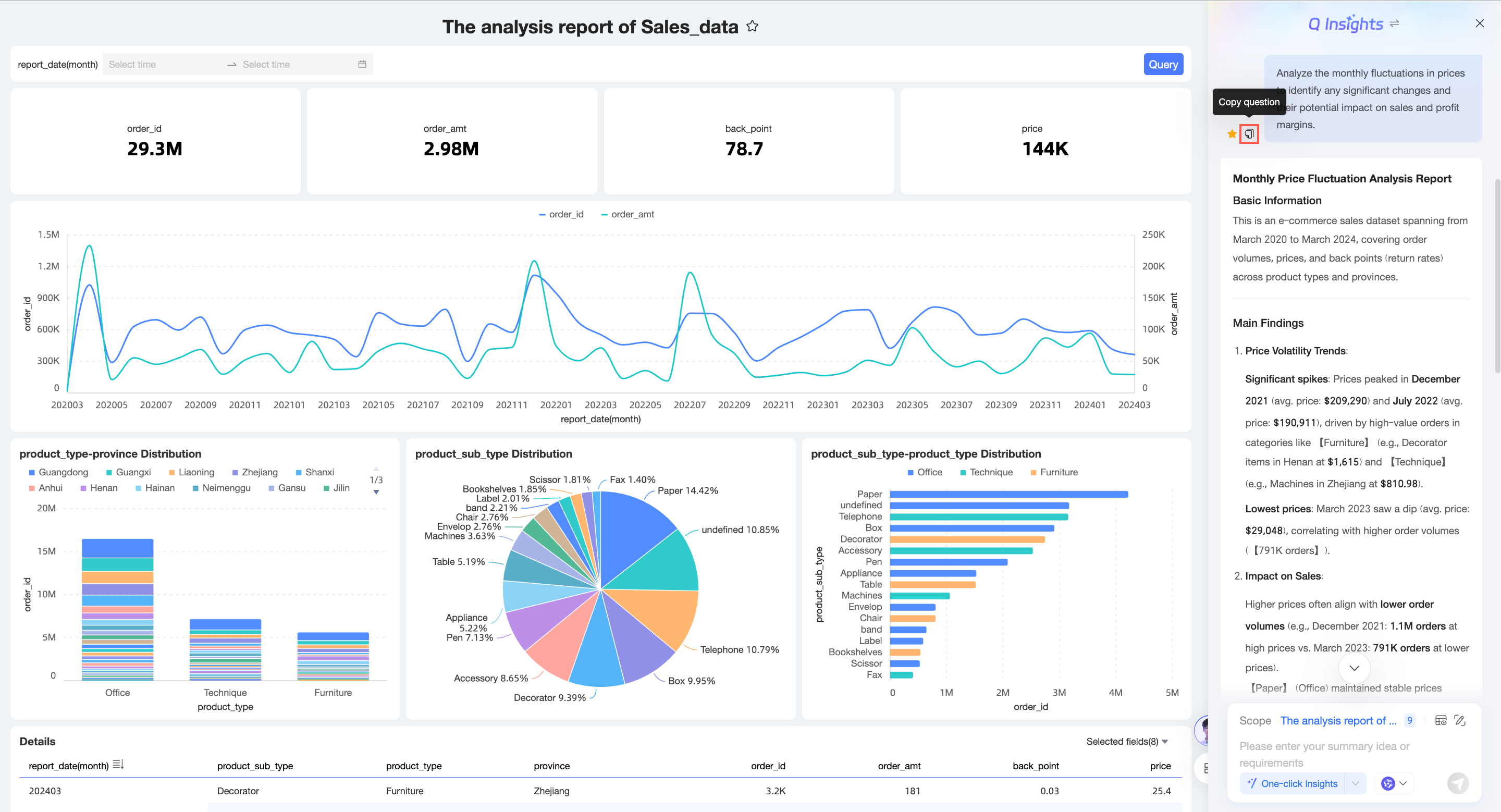
Q Insights page adaptive layout
On the Dashboard Q Insights page, you can manually drag to change the width, and the page layout will adjust adaptively.
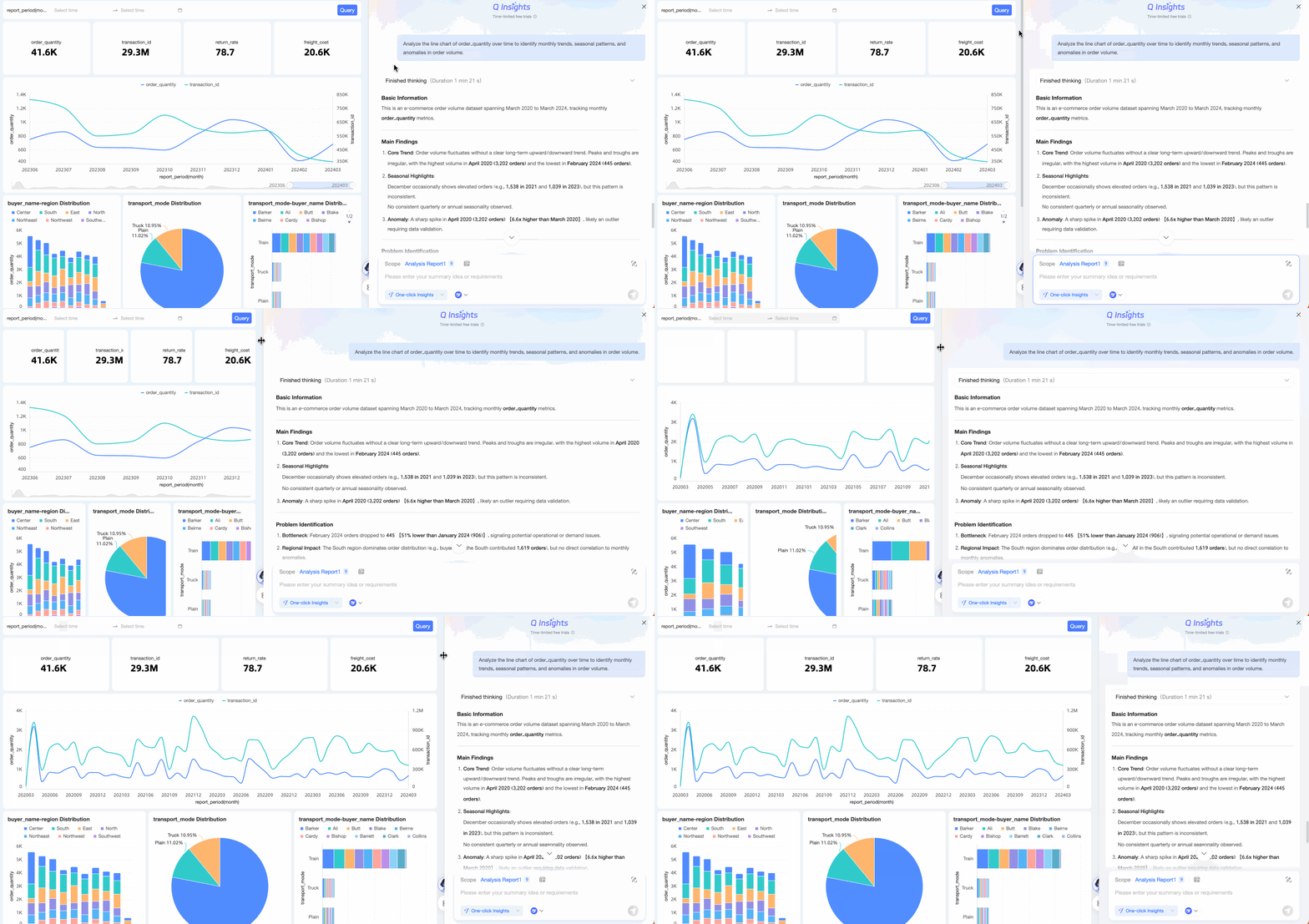
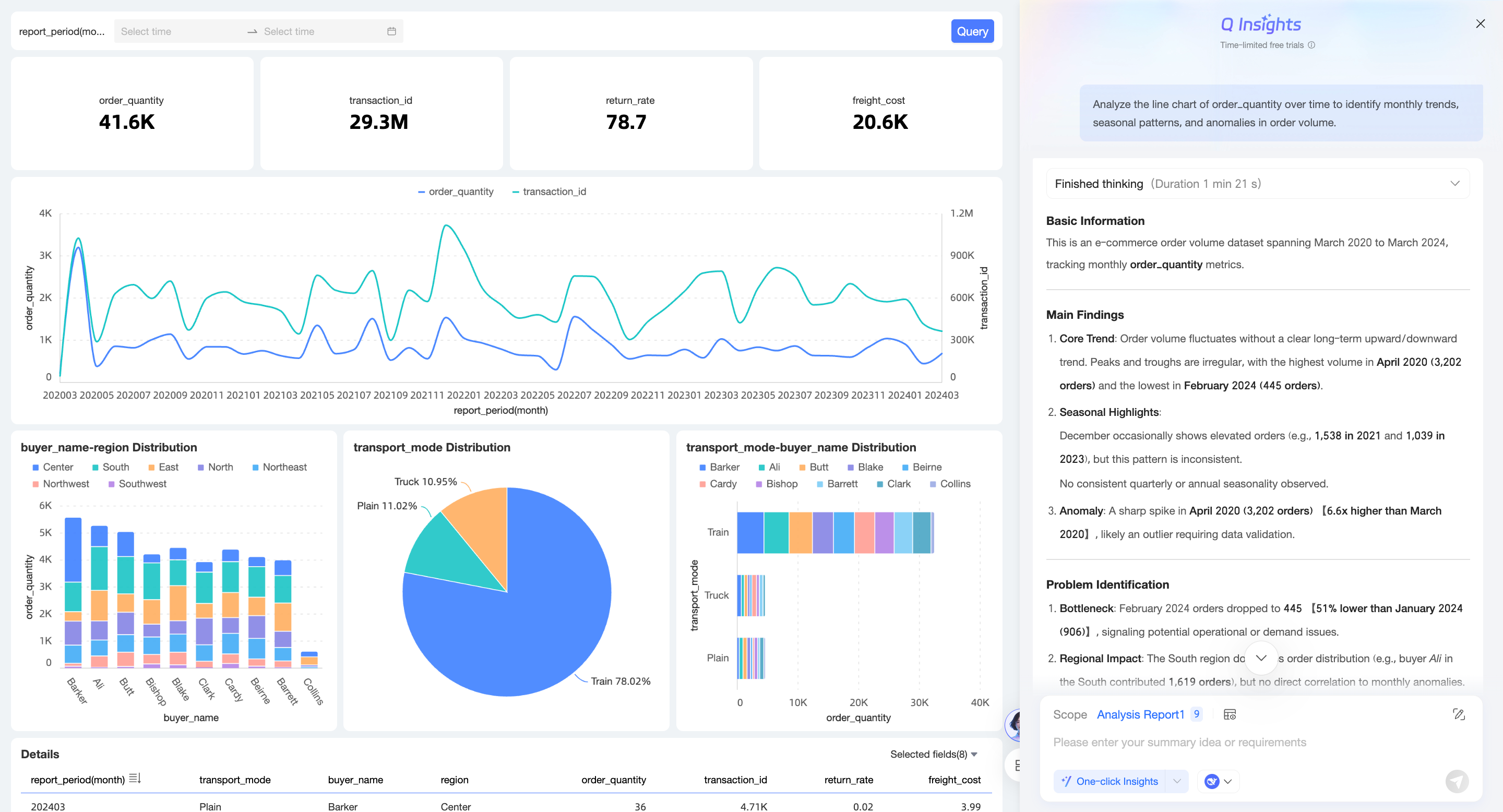
When the width of the interpretation page is less than the threshold, the page is displayed as follows:
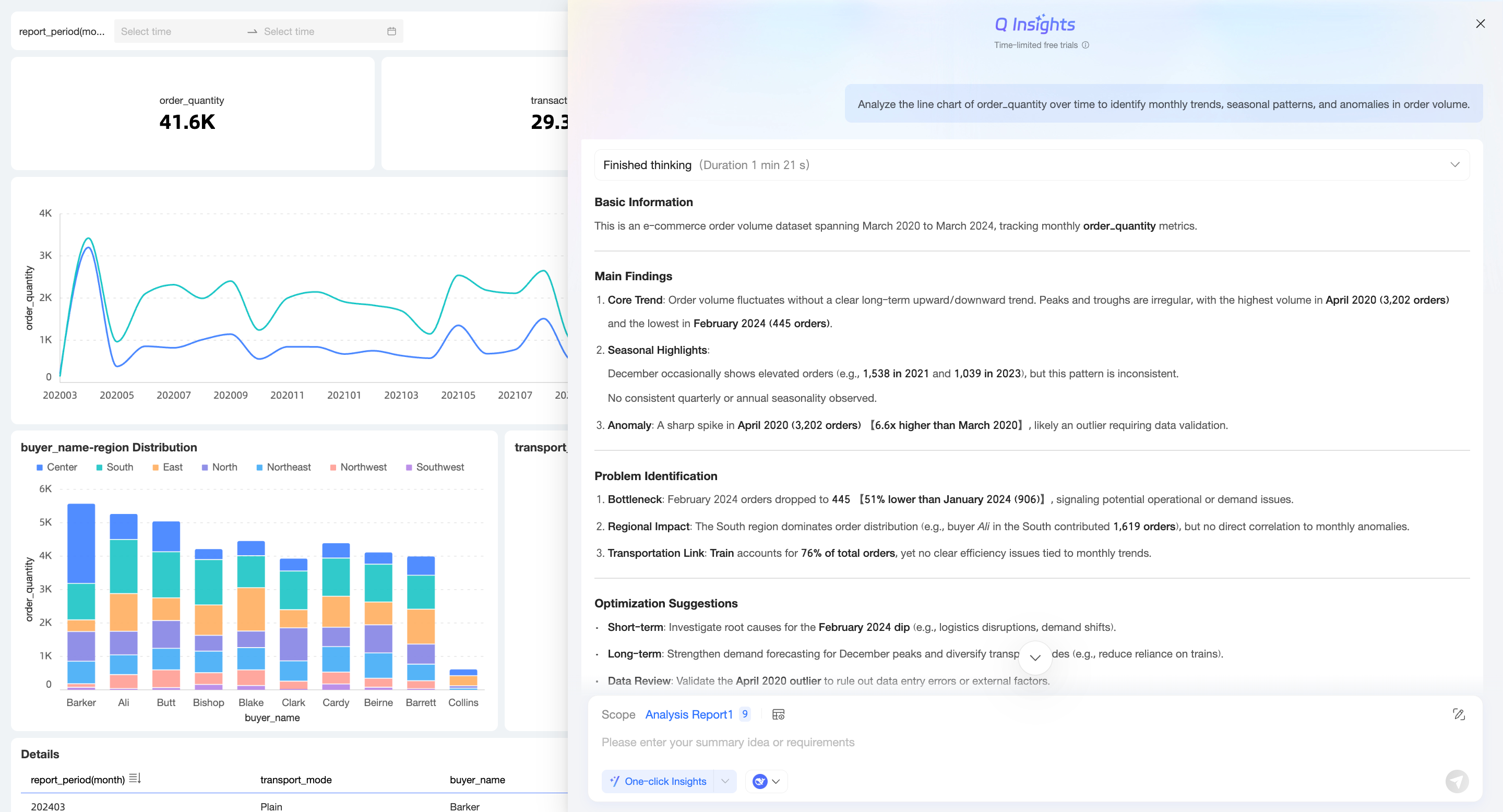
When the width of the interpretation page exceeds the threshold, the page overlays the report and is displayed as follows:
 Note
NoteThe maximum width of the interpretation page is 90%.
Scenario examples
Dashboard-level Q Insights
Suppose you are a data analyst in a company's sales department and you need to perform an overall analysis of this year's sales data. You can use Recommended Questions for a one-click Q Insights interpretation.
Select a model. In this example, the built-in DeepSeek-R1-0528 LLM is selected.
Select one of the recommended questions.
The system returns the analysis results.
Simple input question
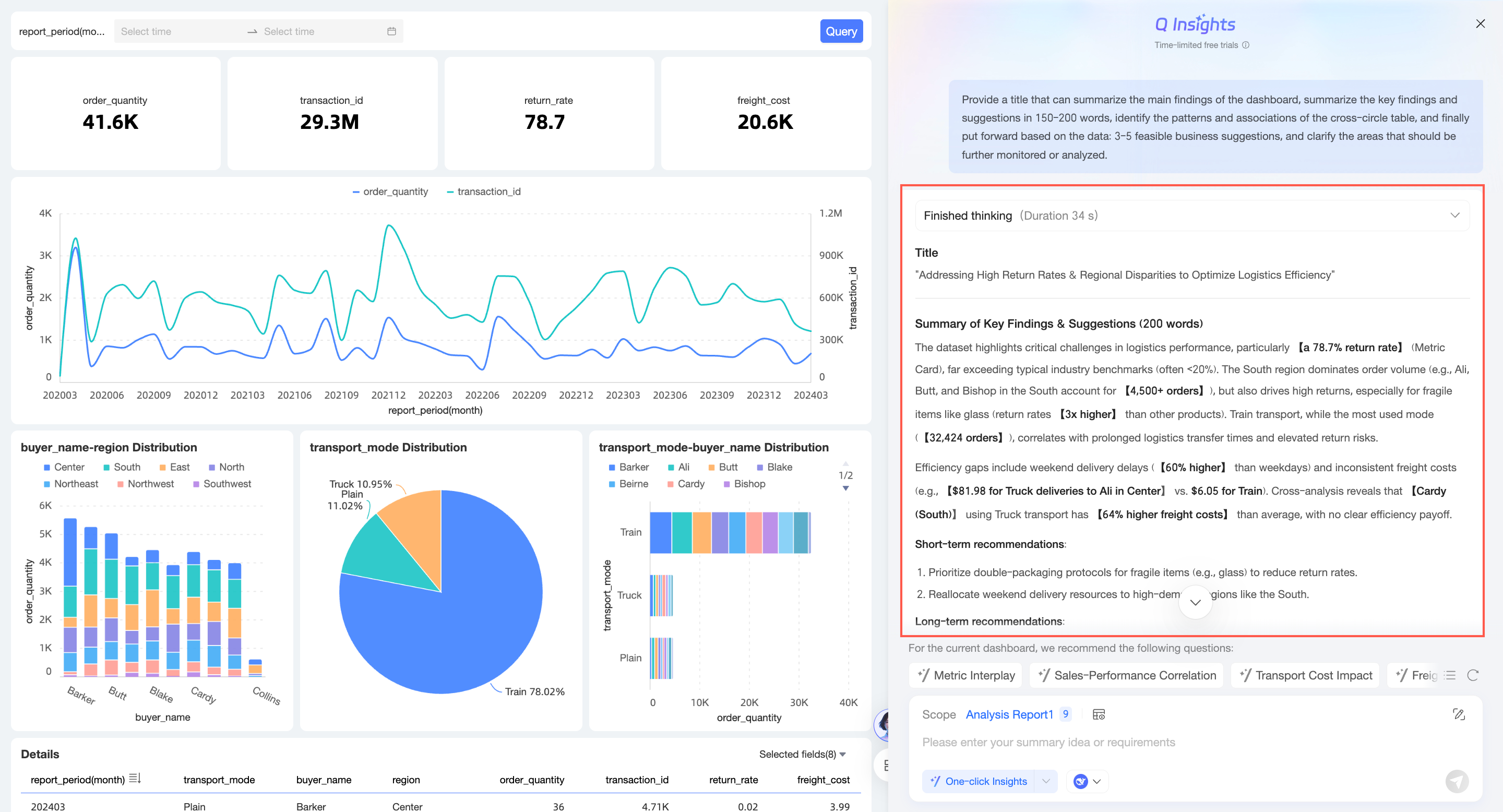
Suppose you are a data analyst in a company's sales department. You need to analyze the data displayed on the dashboard to answer several key questions from your manager. In this case, you can enter a specific summary approach or requirements in the dialog box to obtain Q Insights for the dashboard or multiple key charts.
Select a model. In this example, the built-in DeepSeek-R1-0528 LLM is selected.
Enter the question.
Click the
icon in the lower-right corner or press Enter.View the data analysis results.
Composite interpretation approach
Suppose you are a data analyst in a company's sales department. In addition to a comprehensive analysis of this year's sales data, you also need to gain deeper insights into various metrics. In this case, you can use Q Insights for a more detailed interpretation of multiple charts.
Select a model. In this example, the built-in DeepSeek-R1-0528 LLM is selected.
Select the scope for Q Insights and click OK.
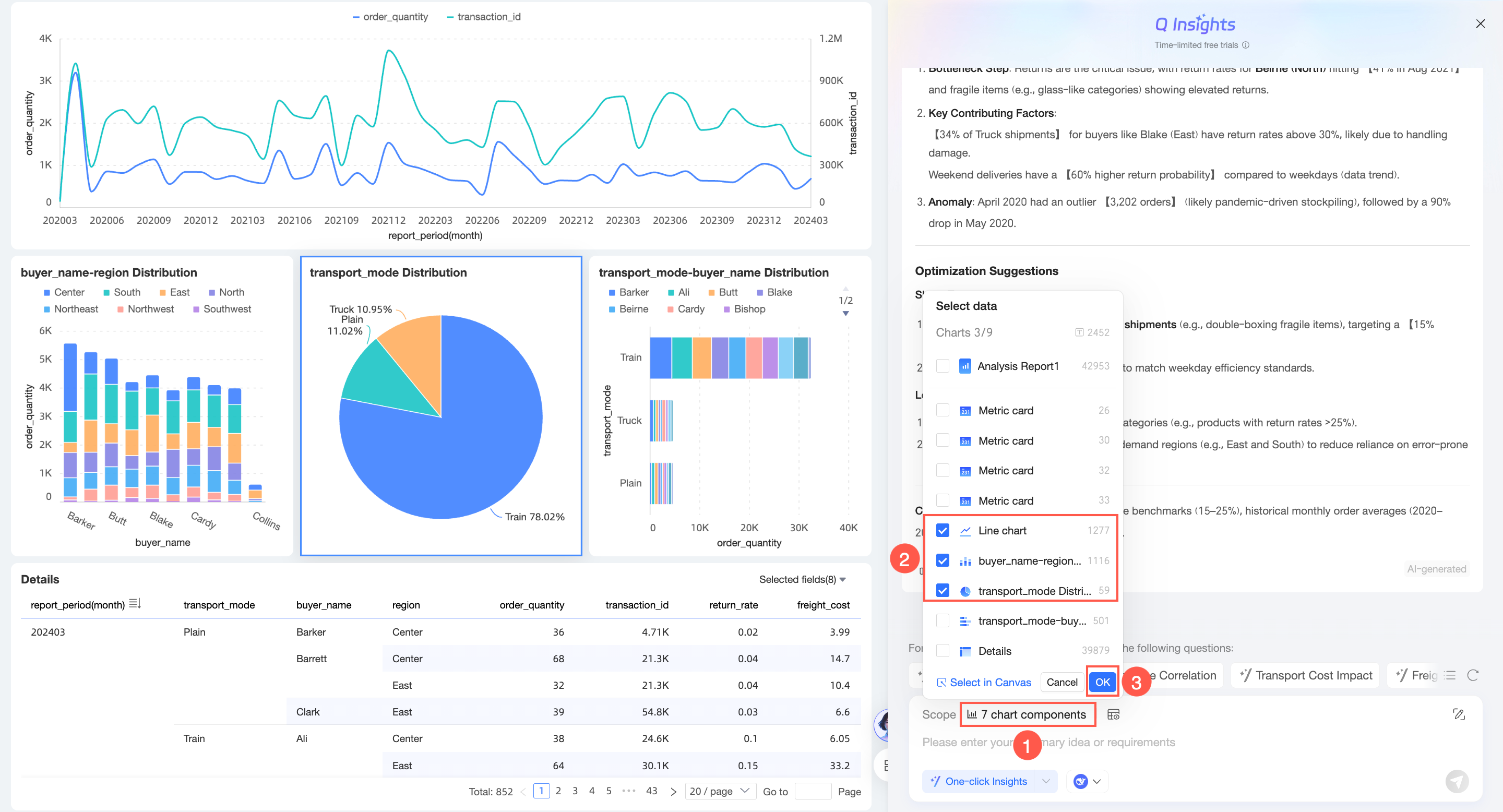
Click the
icon to configure the Composite interpretation approach.
On the Composite interpretation approach configuration page, configure the interpretation approach.
Select a model (Optional).
To change the model you selected in step 1, you can switch it here.
Click Data Interpretation at the bottom.
View the data analysis results.
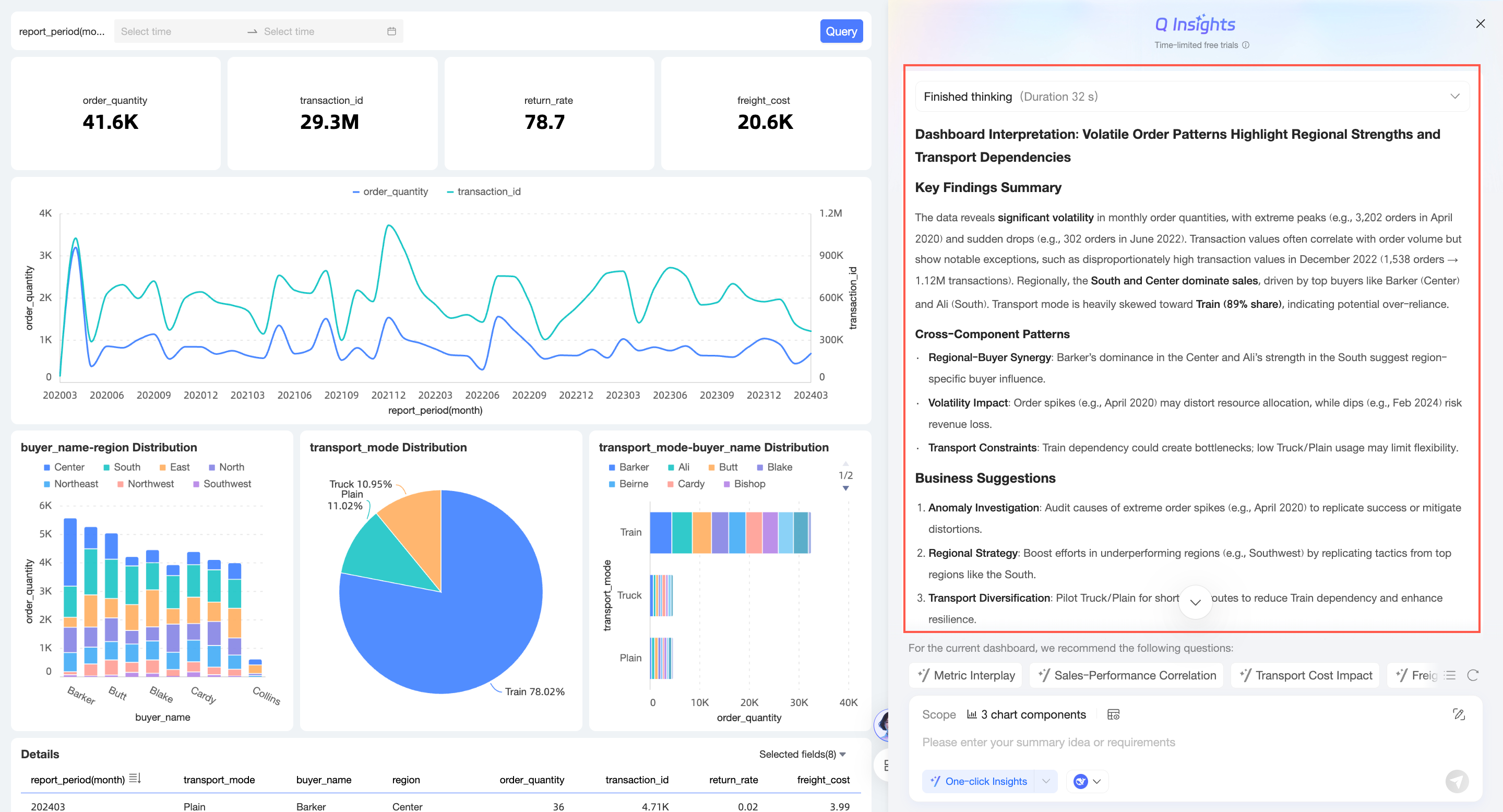
Single-chart Q Insights
Suppose you are a data analyst in a company's sales department. You notice that the data in a particular chart is abnormal or requires in-depth analysis. You can directly select that chart for Q Insights.
Hover over the target chart, click the
icon in the upper-right corner, and select Q Insights.The Q Insights page opens.
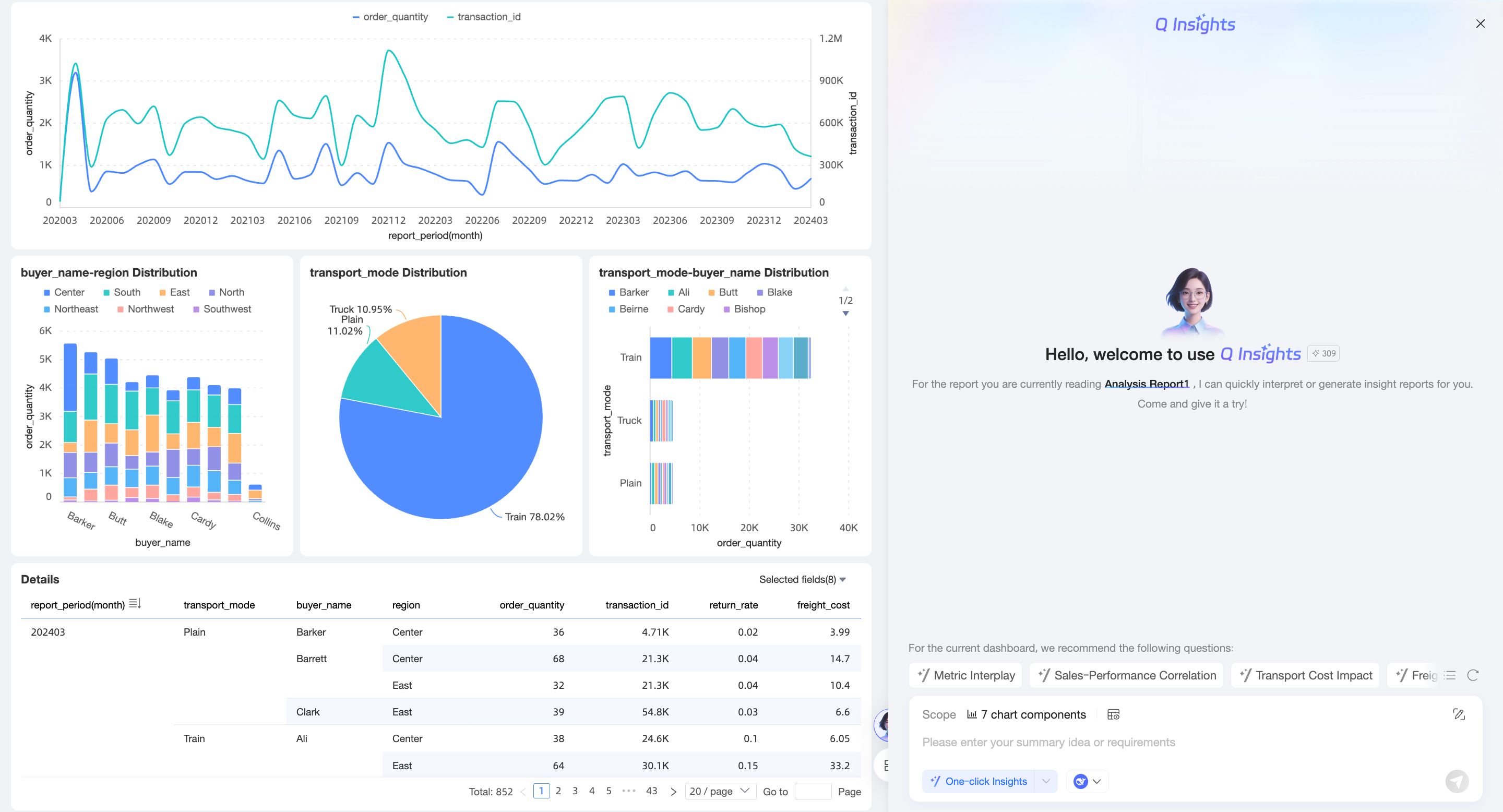
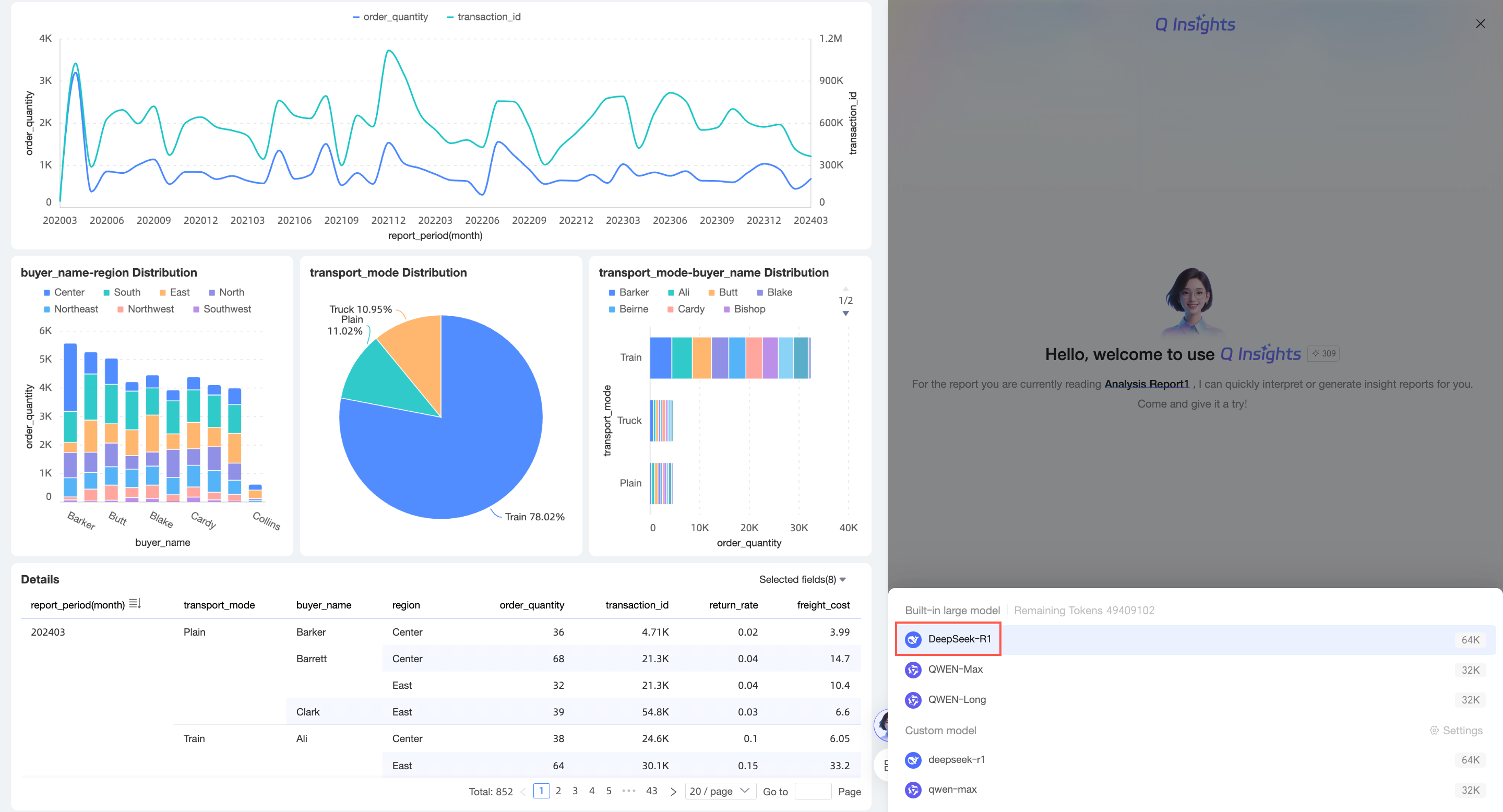
Select a model. In this example, the built-in DeepSeek-R1 LLM is selected.
Enter an interpretation approach and click the
icon in the lower-right corner or press Enter.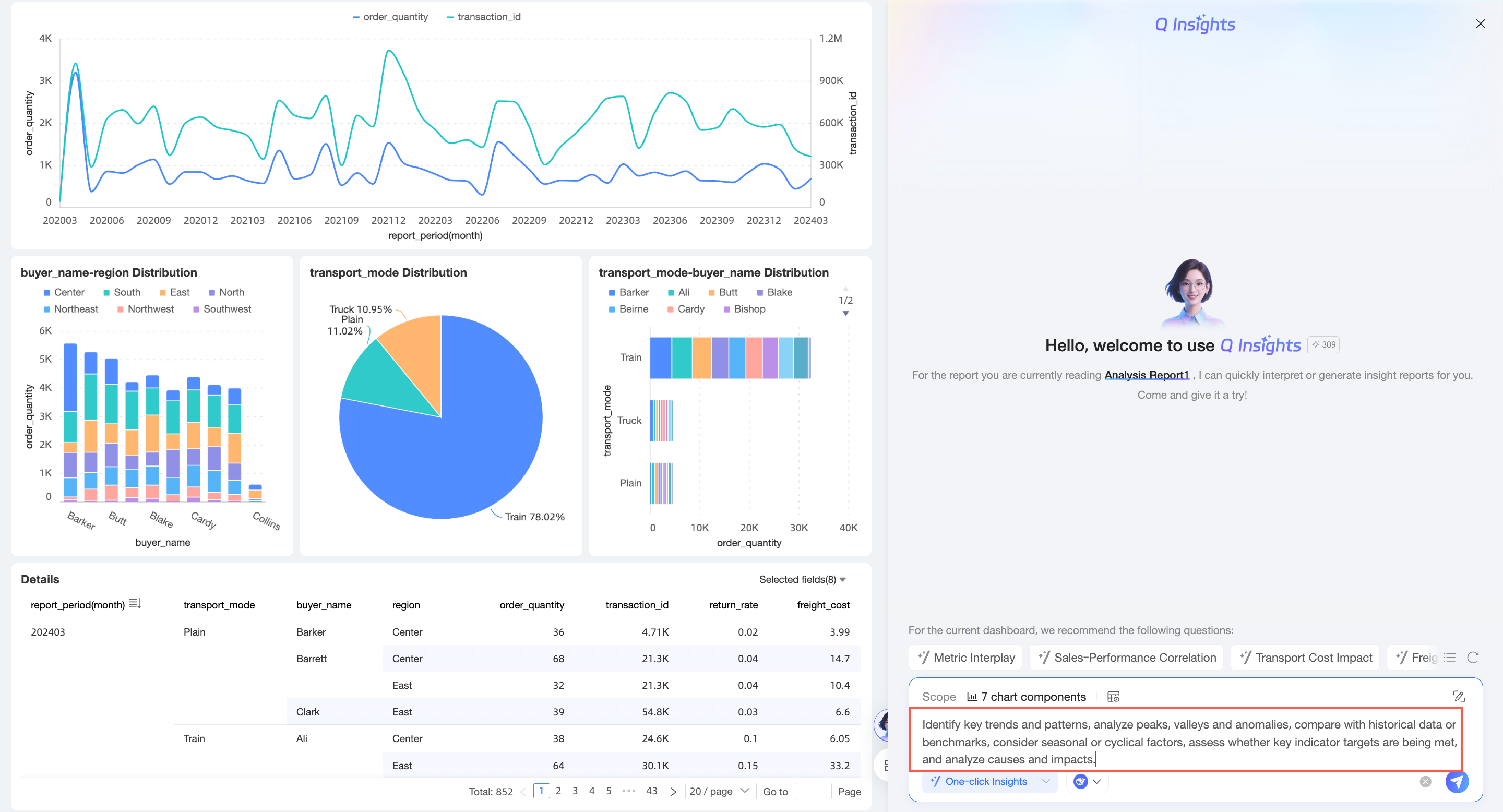
View the data analysis results.