Add an Alibaba Cloud RDS for PostgreSQL database as a data source in Quick BI to analyze data and create visualizations. Quick BI supports connections through both public networks and Alibaba Cloud VPC.
Prerequisites
You have created an RDS PostgreSQL database.
Background Information
You can add an Alibaba Cloud PostgreSQL database as a cloud data source in Quick BI for data analysis.
To avoid connection failures, add the Quick BI IP addresses to your data source whitelist. For more information, see how to set a whitelist.
Limits
-
Only space administrators and developer accounts have permission to add data sources.
-
The service supports PostgreSQL version 8.2 and later.
Procedure
-
Log on to the Quick BI console.
-
To add a data source, follow these steps:
-
Navigate to the data source creation page via the data source creation entry.
-
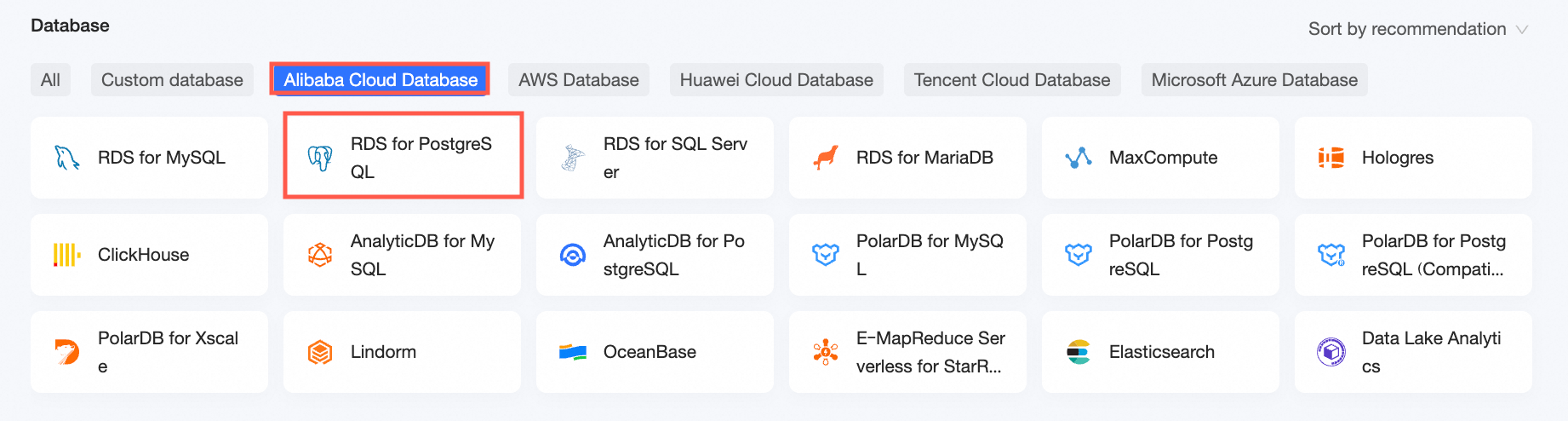
On the Alibaba Cloud Database tab, select RDS PostgreSQL data source.
-
-
In the Configure Connection dialog box, configure the connection settings according to your business needs.

Name
Description
Display Name
The display name of the data source, shown in the data source list.
The name cannot contain special characters or start or end with spaces.
Database Address and Port
The external address and port of the PostgreSQL database. For a VPC data source, enter the internal address and port instead.
Log on to the RDS Management Console, and in the Basic Information section, click to view connection details and obtain the database address. Example: rm-xxxxxxxxxxxxxxxxxx.pg.rds.aliyuncs.com.
If the external address is not displayed on your interface, click Request External Address to obtain the address and port. For more information, see View or Modify Connection Address and Port.
Database
The database name specified when you created the PostgreSQL database.
Log on to the RDS Management Console, and in Database Management, obtain the Database Name.
Schema
The schema of the PostgreSQL database.
Username and Password
The username and password used to connect to the PostgreSQL database.
VPC Data Source
When using the Alibaba Cloud VPC network, select VPC Data Source and configure the following parameters:
-
Purchaser AccessId and Purchaser AccessKey: The AccessKey ID and AccessKey Secret with management permissions for the target PostgreSQL database. Ensure that the account has Read permissions for the target instance. If Write permissions are also granted, the system will automatically add the whitelist. Otherwise, you need to add it manually. For more information, see Create a Custom Policy.
Log on to the RAM Console to obtain the AccessKey ID and AccessKey Secret. For more information, see View RAM User AccessKey Information.
-
Instance ID and Region: The instance ID and region of the PostgreSQL database.
Log on to the RDS Management Console, and obtain the instance ID in the Basic Information section.
NoteWhen selecting VPC Data Source, the database address and port must be the internal address and port.
SSL
If SSL is configured on the target data source, enable this option to encrypt the connection.
Initialize SQL
SQL statements executed after each connection to the data source. Only SET statements are allowed, separated by semicolons.
Enable File Upload
Enable this option to allow file uploads to the data source.
-
-
Click Connection Test to verify the data source connectivity.

-
Once the test is successful, click OK to finalize the addition of the data source.
What to do next
After adding the data source, you can create datasets and analyze data.
-
To import data tables or custom SQL from the PostgreSQL database into Quick BI, see Create and manage datasets.
-
To create visualization charts, see Create a dashboard and Visualization chart overview.
-
To configure drill-down analysis, see Drill settings and display.