You can add a user-created Vertica database as a data source in Quick BI Professional and Quick BI Advanced workspaces.
Prerequisites
Your network connectivity meets the following requirements:
If you connect Quick BI to your Vertica database over the internet, you must add the Quick BI IP addresses to the database whitelist. For more information, see Security groups.
If you connect Quick BI to your Vertica database over an internal network, use one of the following methods:
If your Vertica database is deployed on an Alibaba Cloud ECS instance, you can connect to it through a VPC.
You can also set up a bastion host and use an SSH tunnel to connect to your database.
You have deployed a user-created Vertica database.
You have the username and password for your Vertica database.
Limitations
Quick BI supports Vertica Analytic Database v9.2.0-7 and v24.1.0-0.
Procedure
Log on to the Quick BI console.
Add the data source.
Go to the page for adding a data source. For more information, see Add a data source.
On the User-created Data Source tab, click the Vertica icon.

On the Add Vertica Data Source page, configure the following parameters.
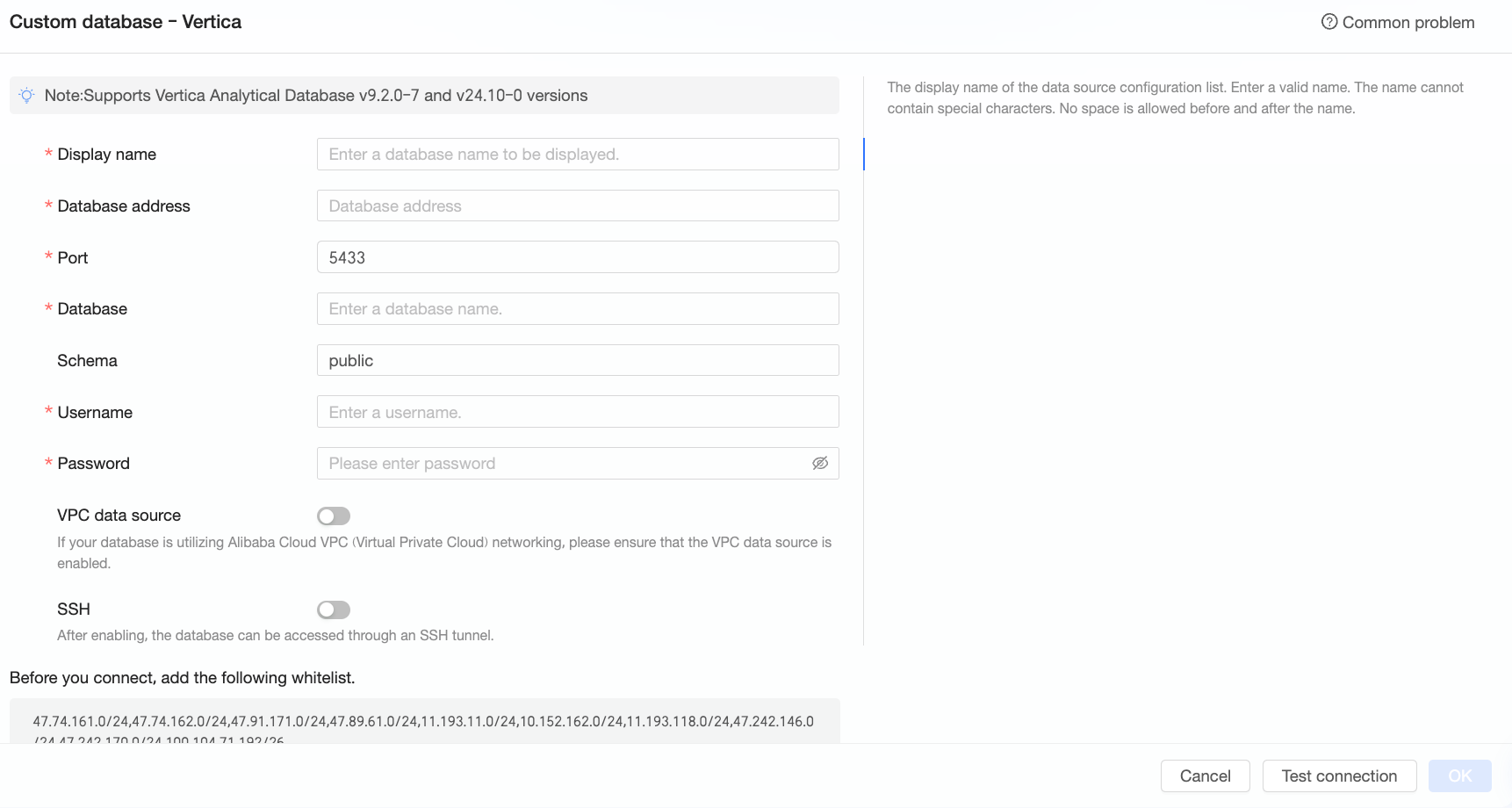
Parameter
Description
Display Name
The display name of the data source in the data source list.
The name must not contain special characters or leading or trailing spaces.
Database address
The IP address or domain name of the Vertica database.
Port
The port number for connecting to the database. Default: 5433.
Database
The name of the database to connect to.
Schema
The schema to connect to. Default: public.
Username
The username for accessing the database.
NoteEnsure that this user has the
create,insert,update, anddeletepermissions on the database tables.Password
The password for the specified username.
VPC data source
Select this option if your data source resides in a VPC. If you select VPC Data Source, configure these parameters:
Purchaser AccessId: The AccessKey ID of the account that purchased the instance.
For more information, see Create an AccessKey.
NoteEnsure that the AccessKey ID has
Readpermissions for the target instance. If the AccessKey ID also has theWritepermissions for the relevant security group, Quick BI automatically adds its IP addresses to the whitelist. Otherwise, you must add them manually. For more information, see Create a custom policy.Purchaser AccessKey: The AccessKey secret of the account that purchased the instance.
For more information, see Create an AccessKey.
Instance ID: The ID of the purchased instance. You can obtain the instance ID from the Instances page of the ECS console.
For more information, see View instance information.
Region: The region where the instance is located.
For more information, see View instance information.
SSH
Select this option to connect to the data source through an SSH tunnel. If you select SSH, configure these parameters:
SSH host: The hostname or IP address of the SSH host.
SSH username: The username for the SSH connection.
SSH password: The password for the SSH username.
SSH port: The port number for the SSH connection. Default: 22.
NoteOnly Quick BI Professional supports connecting to a user-created data source through an SSH tunnel.
Click Test Connection to verify the connection.

If the connection test is successful, click OK.
Next Steps
After you add the data source, you can create a dataset and start analyzing your data.
Add tables from your Vertica database or use custom SQL to create a dataset in Quick BI. For more information, see Create and manage a dataset.
Create charts on a dashboard to visualize and analyze your data. For more information, see Create a dashboard and Overview of chart types.
Drill down into your data for in-depth analysis. For more information, see Step 3: Configure and display drill-down reports.