Create an Azure Database for PostgreSQL data source in Quick BI to connect to and analyze your cloud-hosted PostgreSQL data.
Prerequisites
-
An existing Azure Database for PostgreSQL instance.
-
The username and password for your Azure Database for PostgreSQL instance.
Limitations
This data source supports PostgreSQL 8.2 and later.
Procedure
-
Add IP addresses to the allowlist.
Add the Quick BI IP addresses to the allowlist for your Azure Database for PostgreSQL instance. For details, see Firewall rules in Azure Database for PostgreSQL - Flexible Server.
-
Verify the data source connection and create the data source.
-
Log in to the Quick BI console.
-
Add a data source.
-
Navigate to the data source creation page from an entry point for creating a data source.
-
On the Azure tab, select Azure Database for PostgreSQL.

-
-
-
In the Configure Connection dialog box, configure the following parameters.
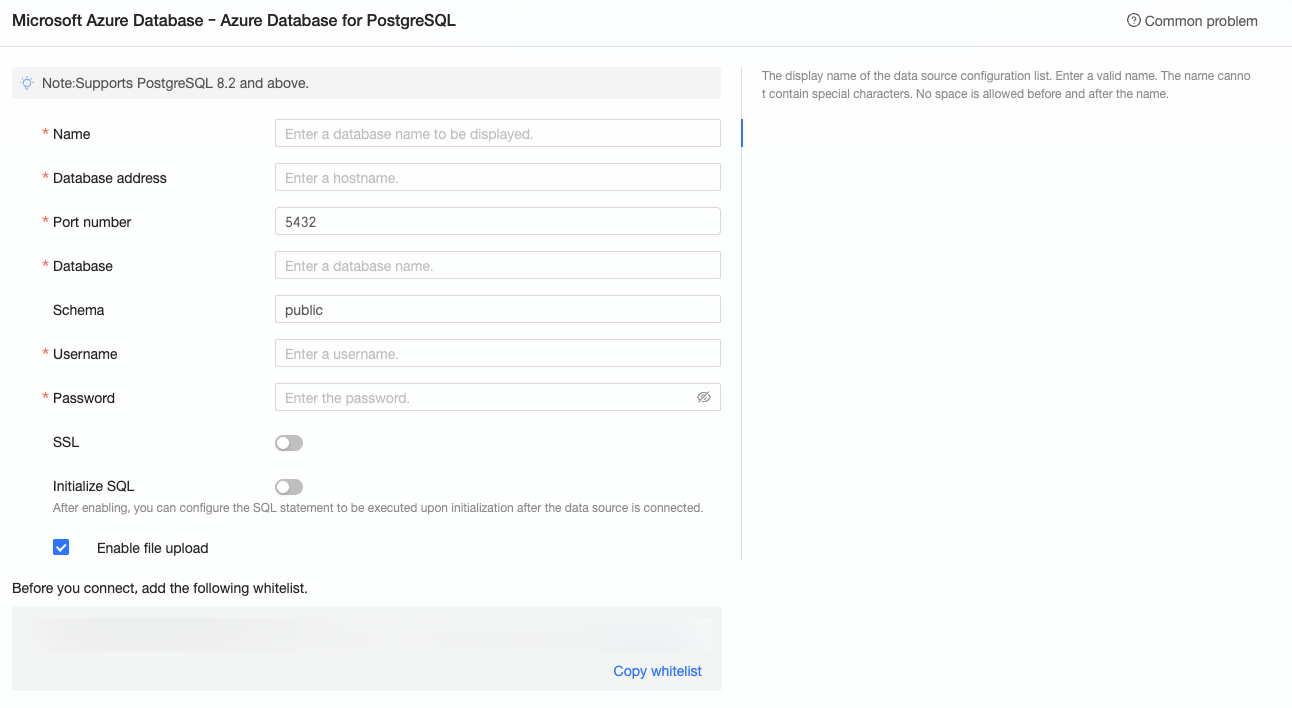
Parameter
Description
Display name
The display name of the data source in the console.
The name cannot contain special characters or leading or trailing spaces.
Database address and port
The public endpoint and port of your PostgreSQL instance, available in the Azure portal.
Database
The name of the database to connect to.
Schema
The name of the schema in your PostgreSQL database.
Username and password
The credentials used to log in to the PostgreSQL database.
SSL
Enables SSL encryption for data in transit. Select this option if your data source requires SSL.
Initialize SQL
Specifies SQL statements that run automatically when a connection is established.
Only
SETstatements are allowed. Use a semicolon (;) to separate multiple statements.Enable file upload
Allows users to upload files to this data source.
-
Click Test Connection.

-
If the connection test is successful, click OK to add the data source.
Next steps
After you create the data source, create a dataset and start analyzing your data.
-
To add tables or custom SQL queries from your PostgreSQL database to Quick BI, see Create a dataset.
-
To add charts and analyze data, see Create a dashboard and Overview of chart types.
-
To analyze data using the drill-down feature, see Step 3: Configure and view drill-down data.