Configure a statistics table structure to import user operation statistics for audience filtering.
A statistics table records user operation statistics. You can use this data for Audience Flitering.
Prerequisites
-
The statistics table is stored in your configured MaxCompute data source. For data format requirements, see Statistics Table Data Requirements.
-
All user ID types in your statistics table are included in the ID Type List of this workspace.
-
If the user ID field is AES-encrypted, enter the decryption key in Organization System Configuration before pushing or using the data.
Procedure
-
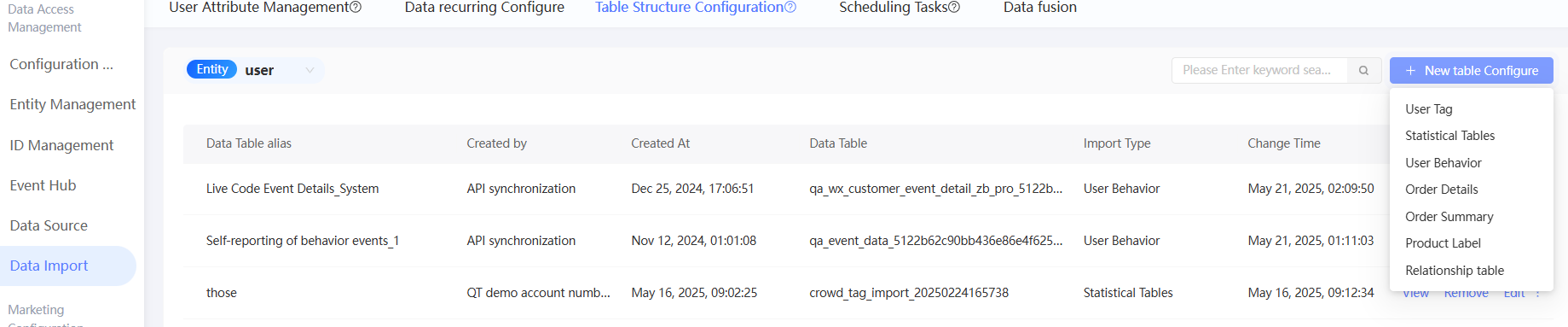
Choose Workspace> Configuration Management > Data Import > Data Import > Table Structure Configuration.
-
In the upper-right corner, choose Create Table Configuration > Statistics Table. The Create Statistics Table page appears.
-
Select the computing source and data table that you want to import.
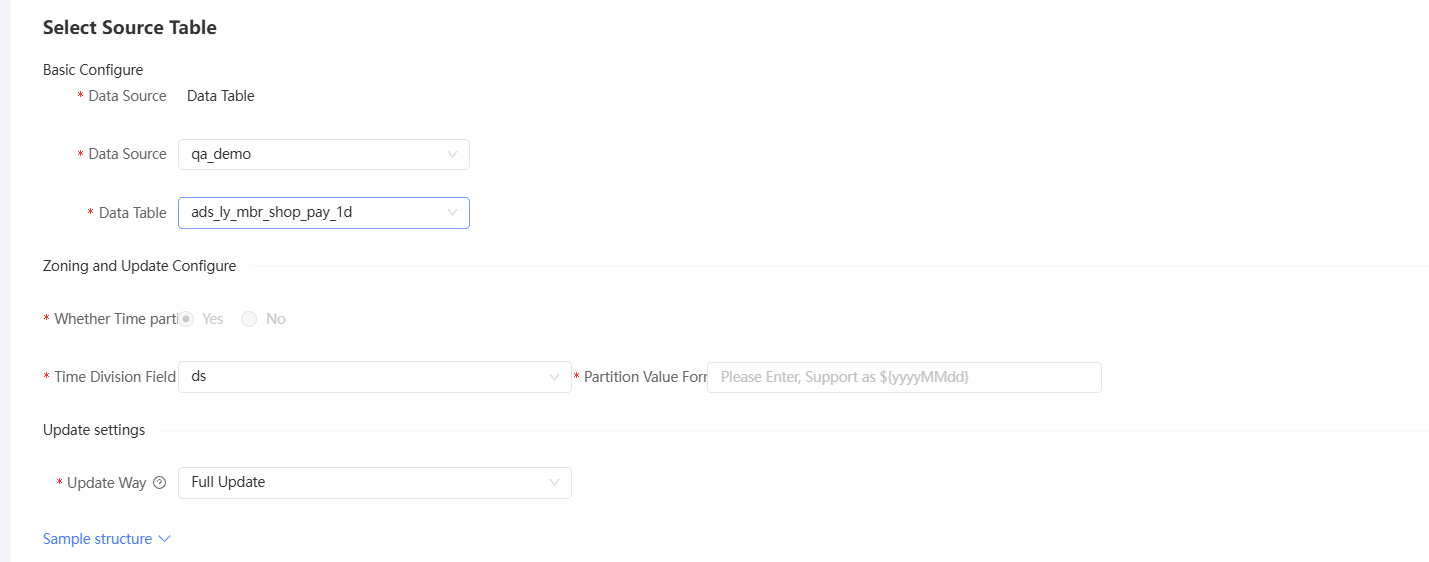
You can select either a table or a view as the data table.
-
If you select Table, the system automatically detects whether the table contains time partitions.
-
If the table contains time partitions, select the Time Partition field and enter the format of the partition value. The following figure shows the supported formats.

Also, choose how you want to update:
-
Incremental update: preserves historical data before each update and stores new data in a new partition. You must select whether to pull historical data for the first scheduling.
-
Full update: clears all historical data before each update. No partitioning is used.
-
-
If the table does not contain time partitions, full update is used by default.
-
-
If you select a view, manually specify whether it includes time partitions. The remaining configuration is the same as for tables.
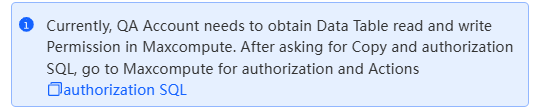
If the current account does not have read permission on the selected table, an error message appears as shown in the following figure. Grant read permissions on the data table to the Quick Audience account in the MaxCompute project. Click Authorize SQL to obtain the authorization statement. After authorization is complete, click Update to continue the configuration.
-
-
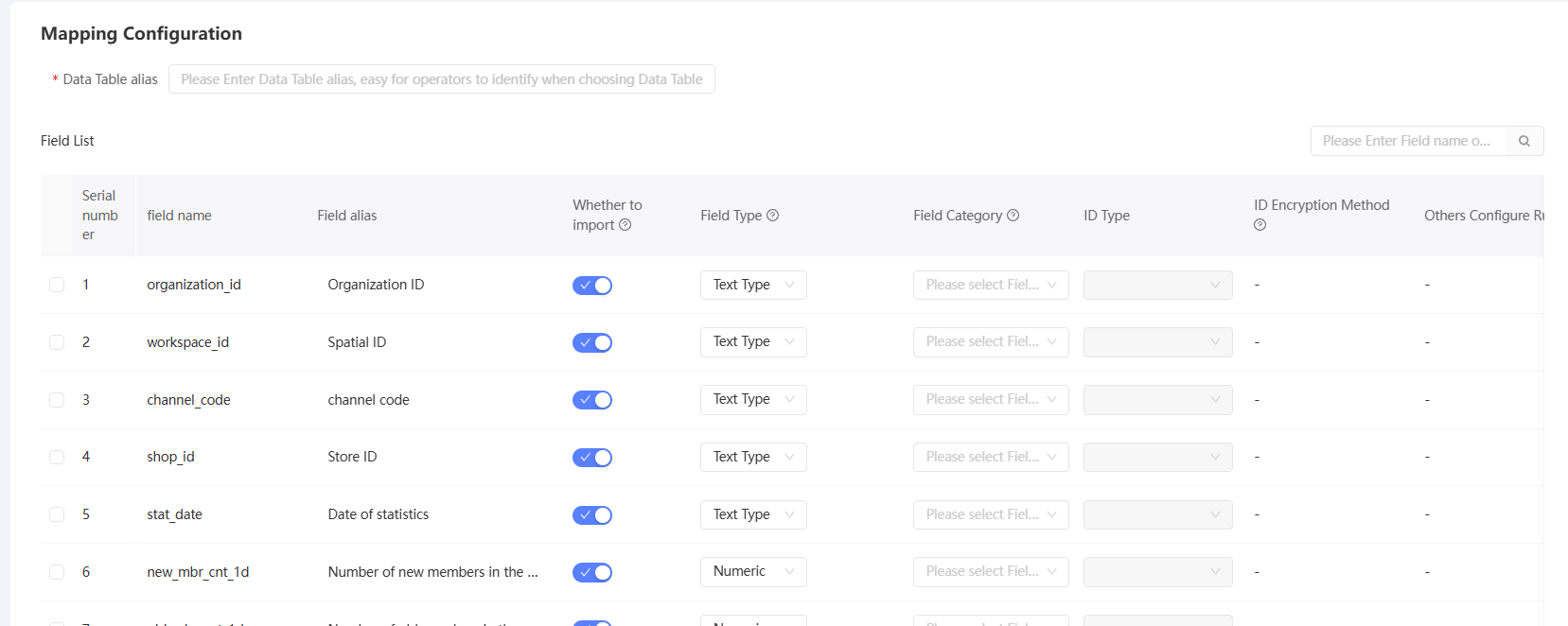
Enter an alias for the data table.
NoteThe alias appears as the metric source on the Crowd Filter page.
-
Turn off the Import switch for fields that do not need to be imported. Disabled fields are excluded from all applications but can be re-enabled later when editing the table.
-
Set the field alias, field type, and field classification for the fields to be imported. Set the ID type and ID encryption method for the ID field.
-
Click Complete.
If you set Update Method to Full Update, you are prompted to select whether to pull historical data for the first scheduling when you save the configuration.
-
If you select Yes, all historical partition data will be pulled and saved when you import data for the first time.
-
If you select No, only the latest partition data is pulled when the data is imported for the first time.
-
After you configure the table structure, configure a scheduling task to import data. For more information, see Scheduling Task. To manage table structures, see Table Structure Configuration Management.