Filter audiences from an imported Statistics Table based on specified metric and dimension requirements.
Procedure
-
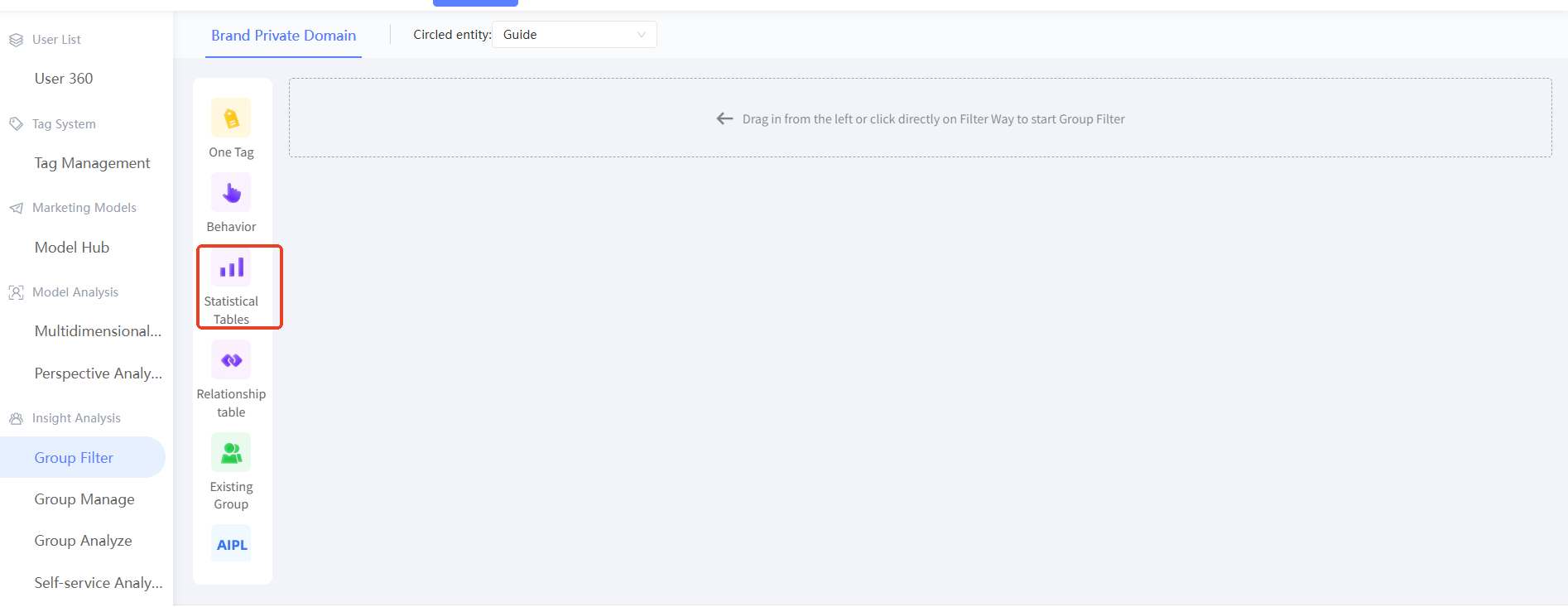
In the left-side navigation pane, choose Workspace> User Insights > Audience Insights > Audience Filtering.
-
In the left-side navigation pane, click Statistics Table, or drag a Statistics Table from the left side to the right side. A filter card is added on the right side.
-
Select an indicator source, that is, select a statistical table.

-
If the statistical table contains a statistical time field, set the statistical time. The behavior time can be quickly selected for the last 3 days or the last 7 days, or you can specify a custom time range.
NoteWhen the audience is updated, relative time ranges (last N days) are recalculated based on the update date, and the audience is re-filtered accordingly. If an exact time range is specified, the result remains unchanged after the update unless the underlying statistics change.
-
Set Metric Conditions. Select a metric and specify the value requirements for it.
NoteFor the same ID, the metric condition is met if the summed value of the metric meets the specified requirements. If statistical time and filter conditions are set, only data that satisfies both is aggregated.
-
(Optional) Set filter conditions. Select a dimension and specify the value requirements for it.
NoteIf you set filter conditions for multiple dimensions, all dimension requirements must be met simultaneously.
-
Click + Condition to add a filter condition.
-
Click Delete in the Actions column to remove a filter condition.
-
-
After you configure the filtering conditions, enter the audience name and description, select the save directory, and associate sub-activities (for more information, see Marketing Campaign Documentation). Specify whether to make the audience public. Click Estimate to preview the audience size, then click Generate Audience to save the result.
