Sync backup is a cloud storage feature for real-time, bidirectional synchronization between your local data and the cloud. It ensures data consistency across multiple devices for seamless collaboration and access.
To use the sync backup feature, follow these steps:
-
Log on to the Cloud Drive for Enterprises (CDE) PC client, version 1.4.0 or later. To get the latest version, see Client Download.
-
Ensure the history version feature is enabled.
-
Provide your enterprise code and contact us to enable the sync backup feature.
-
After the sync backup feature is enabled, if its entry does not appear in the user interface, log on again.
-
This is a value-added service. The feature is free during the public preview period. We will notify you in advance if this service becomes a paid feature.
Features
-
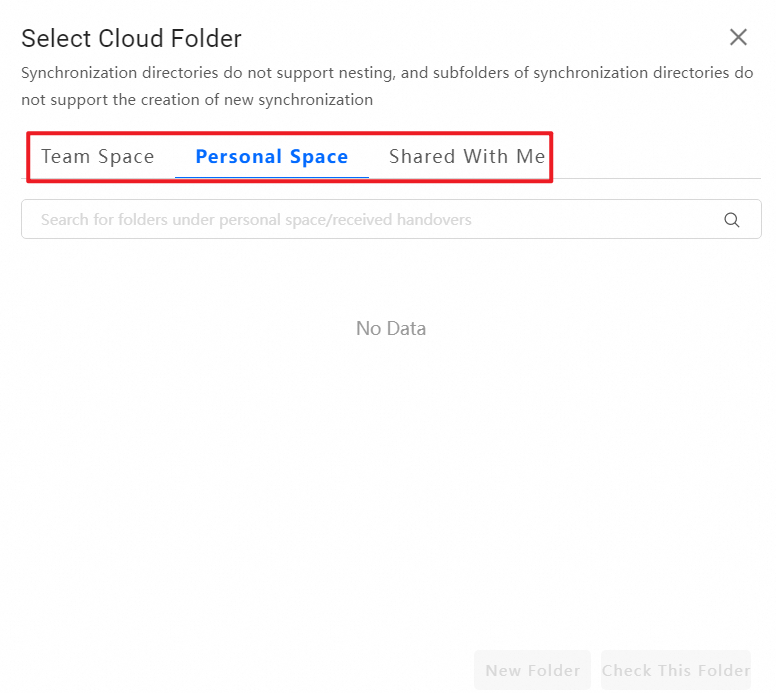
Cloud-to-local data sync: Enables real-time bidirectional synchronization or one-way upload for folders between your local device and the team space, personal space, or received shares in your cloud drive.
-
Multi-device sync: Keeps files synchronized across multiple devices and the cloud. Changes are updated in real time, so you can access the latest version of your files from any device.
-
Efficient automatic backup: The sync client automatically backs up specified files based on your settings to protect your data.
Enable sync backup
-
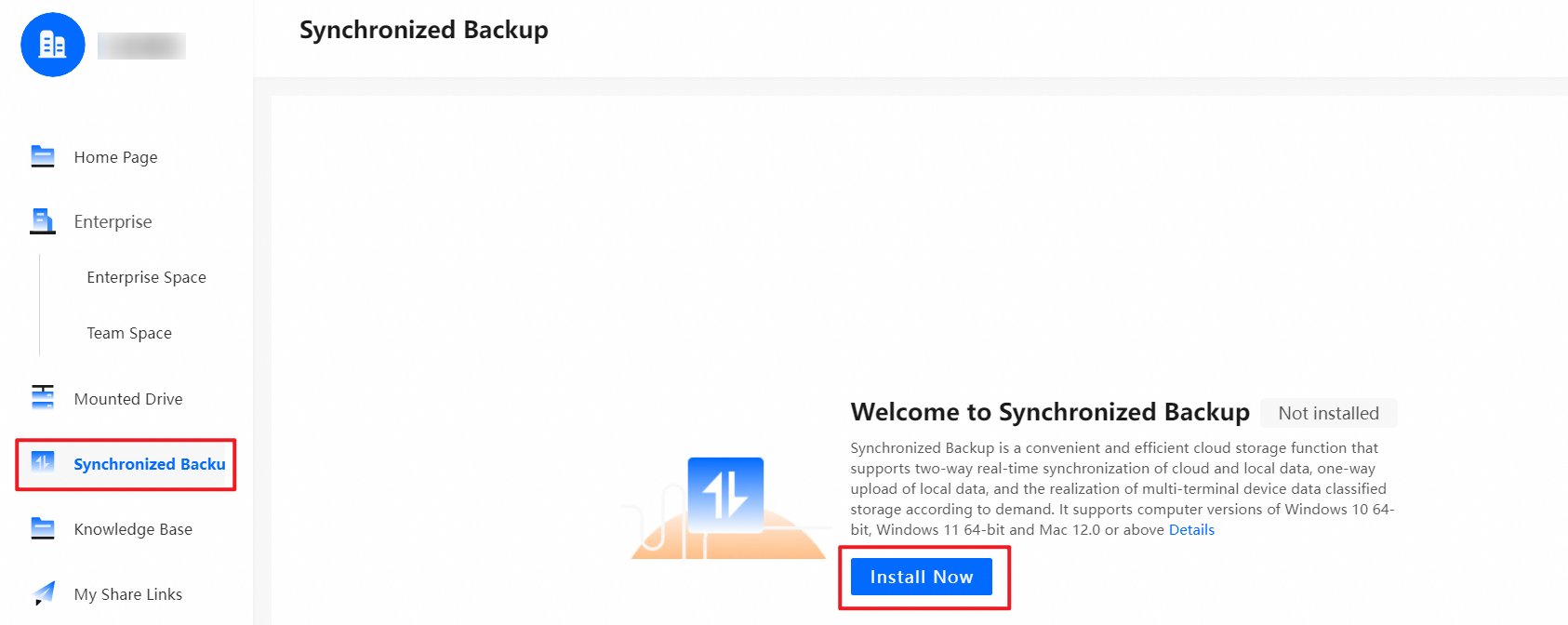
When you use the sync client for the first time, follow the on-screen instructions to install it. After installation, you can create a sync backup.
Create a sync backup
Bidirectional synchronization and one-way upload
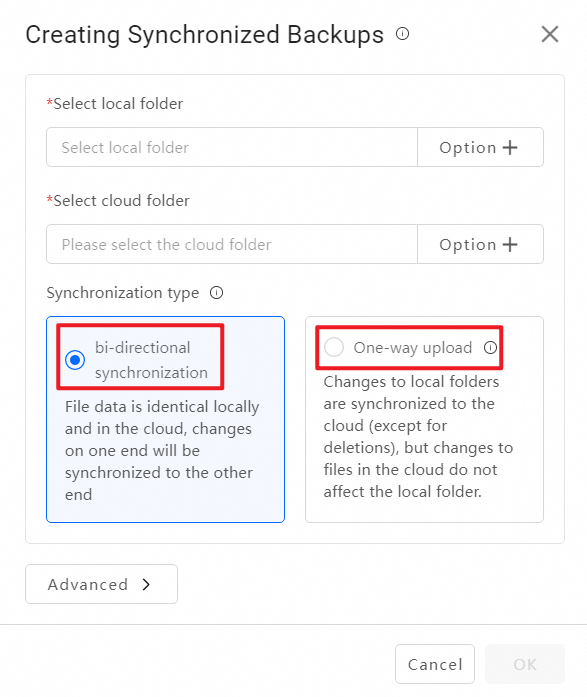
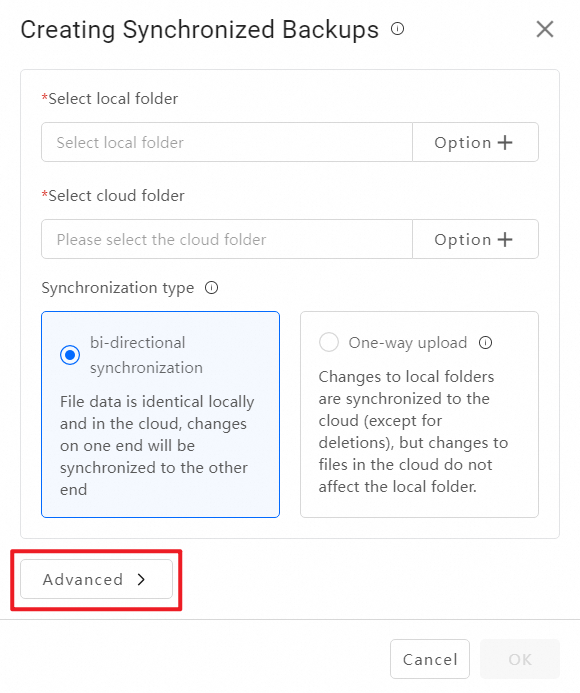
You can perform bidirectional synchronization or one-way upload for folders in Team space, personal space, and received shares.
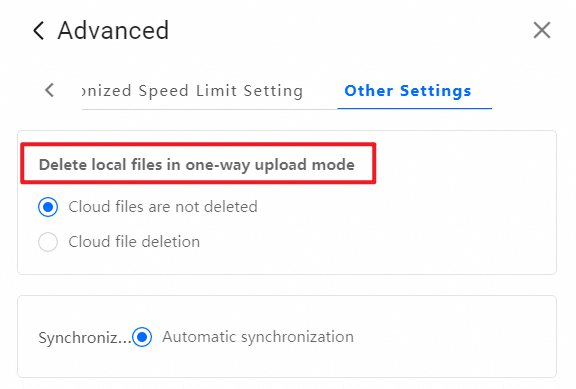
Advanced settings
Bidirectional synchronization
-
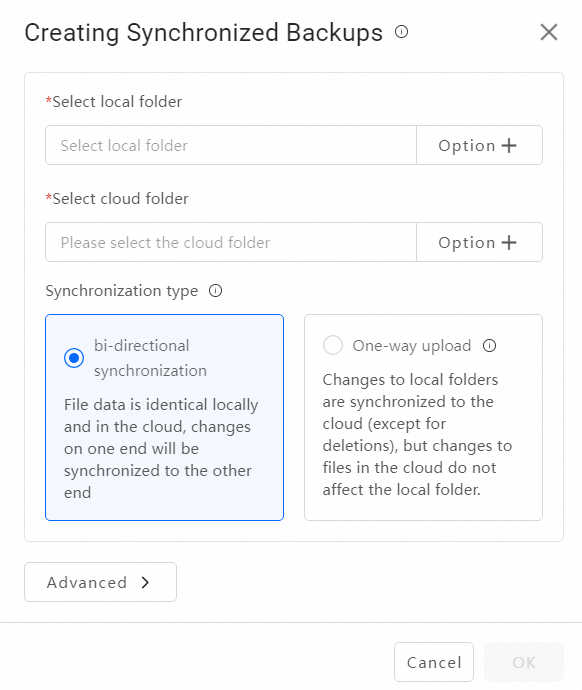
Changes in one location are synchronized to the other.
One-way upload
-
Changes to the local folder are synchronized to the cloud (except for deletions), but changes in the cloud do not affect local files.
-
You can configure the deletion rule in .
Sync backup rules
Bidirectional synchronization
-
In bidirectional synchronization mode, the local and cloud directories remain identical. File operations in one location are mirrored in the other. However, the deletion behavior differs:
-
If you delete a file locally, the corresponding file in the cloud is moved to the recycle bin.
-
If you delete a file in the cloud, the local file is moved to the recycle bin on Windows. On macOS, the file is deleted permanently, as moving it to the trash is not currently supported.
-
One-way upload
-
In one-way upload mode, the client backs up the local directory to the cloud. File operations in the cloud do not affect local files. This mode is primarily used for backup.
-
The following table describes the cloud behavior when you perform file operations locally.
Local file operation
Cloud behavior
Create file
Creates a file
Delete a file or move it to the recycle bin
No action by default.
(If you enable the deletion setting, the cloud file is moved to the recycle bin.)
Move file
Moves a file.
(Due to operating system limitations, moving a file may sometimes result in a copy operation where the original file is not deleted. A similar issue can occur when renaming a file.)
Rename file
Renames a file
Modify file content
Creates a new version
Copy file
Creates a new file
-
The following table describes the local behavior when you perform file operations in the cloud.
Cloud file operation
Local behavior
Create file
No action
Delete a file or move it to the recycle bin
-
If the file was originally uploaded from the local device: The local device re-uploads the original file to the cloud.
(To delete a locally backed-up file from the cloud, you must first enable the deletion setting and then delete the corresponding local file. The cloud file will then be moved to the recycle bin automatically.)
-
If the file was not uploaded from the local device: No action.
Move file
Rename file
Modify file content
No action.
(If a locally backed-up file is modified in the cloud, the previously backed-up version is stored as a history version. However, due to version limits and automatic merge policies, this history version may be purged. You should configure appropriate version policies or avoid editing backed-up files directly in the cloud.)
Copy file
No action
-
-
Permissions
If you encounter any issues with permission management, see Permission Overview.
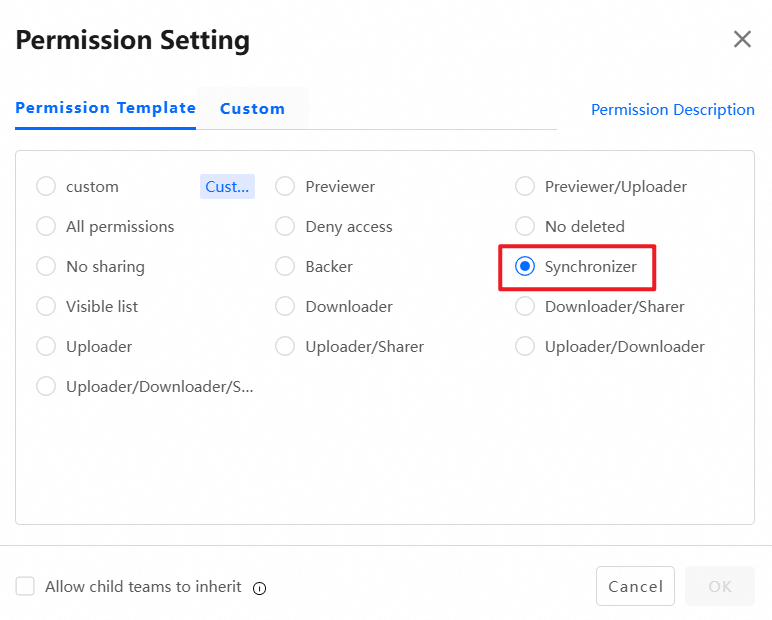
Synchronizer permission
-
Users with the Synchronizer permission can perform bidirectional synchronization or one-way upload for folders in team space and received shares.
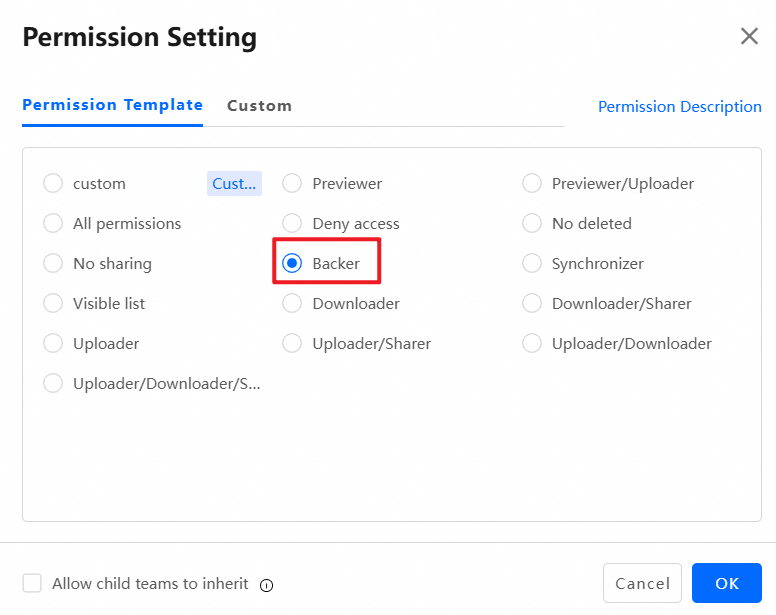
Backer permission
-
Users with the Backer permission can perform one-way upload for folders in team space and received shares.
Users without synchronizer or backer permissions
-
Users without Backer or Synchronizer permissions can synchronize or upload folders only in their personal space and received transfers.
User interface
Sync backup
-
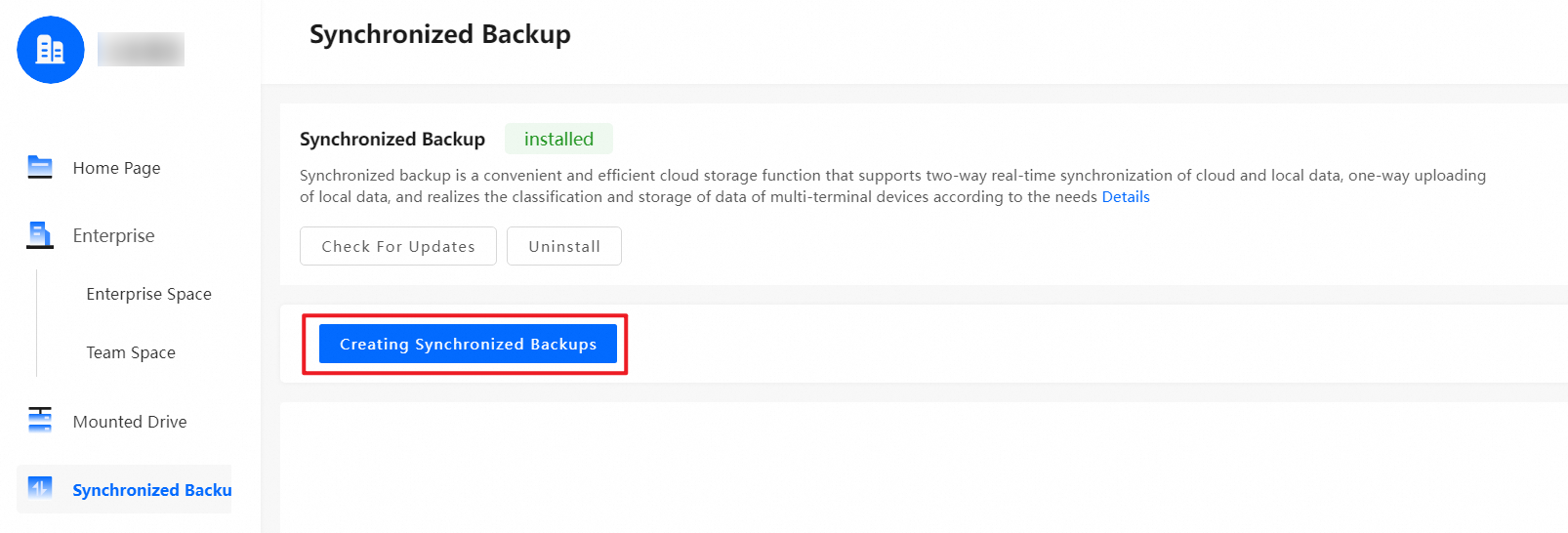
On the sync backup page, click Create sync backup to start the configuration.
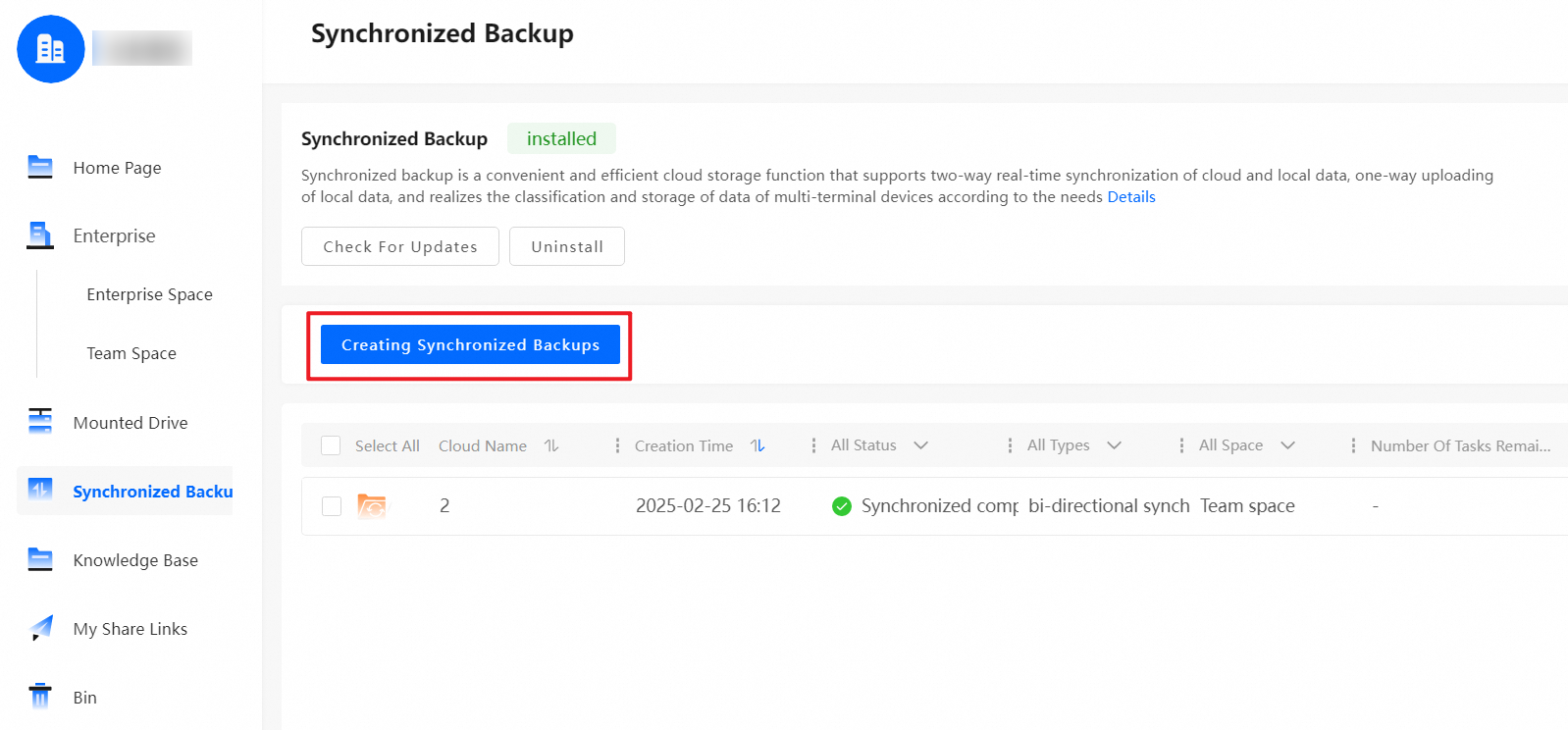
Create sync backup
-
In the Create sync backup dialog box, fill in the required fields: Select local disk/folder and Select cloud folder. Select a Sync Type (the default is "bidirectional synchronization").
-
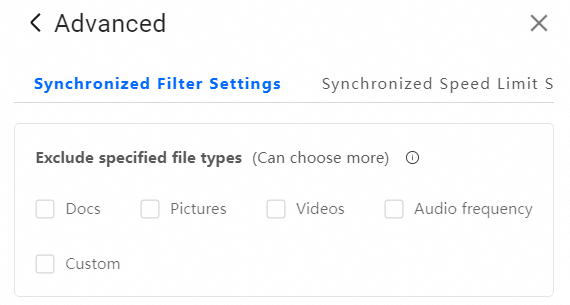
In the advanced settings dialog box, you can configure sync filtering, sync rate limits, the handling of local file deletion in one-way upload mode, and whether to enable automatic synchronization.
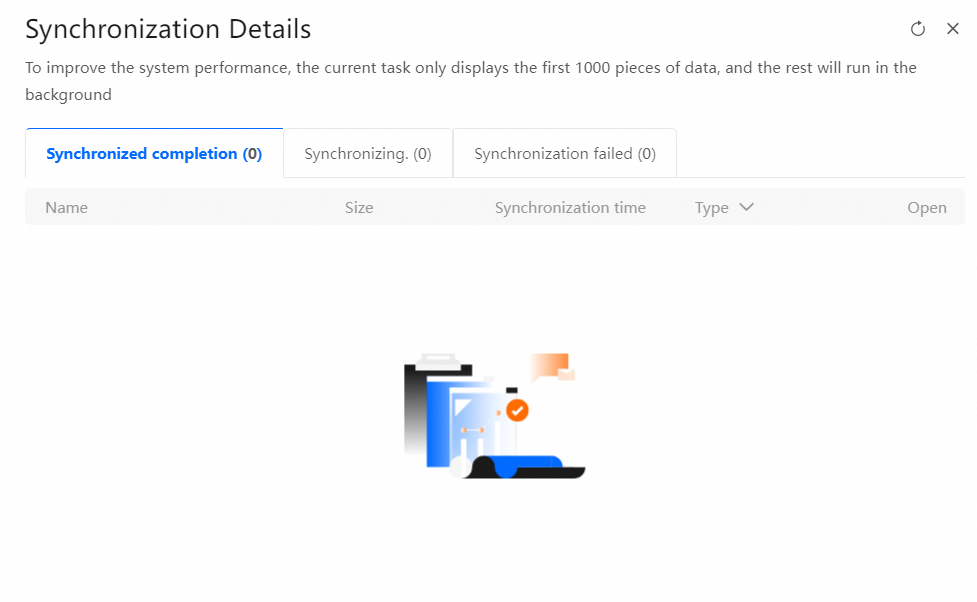
Sync details
-
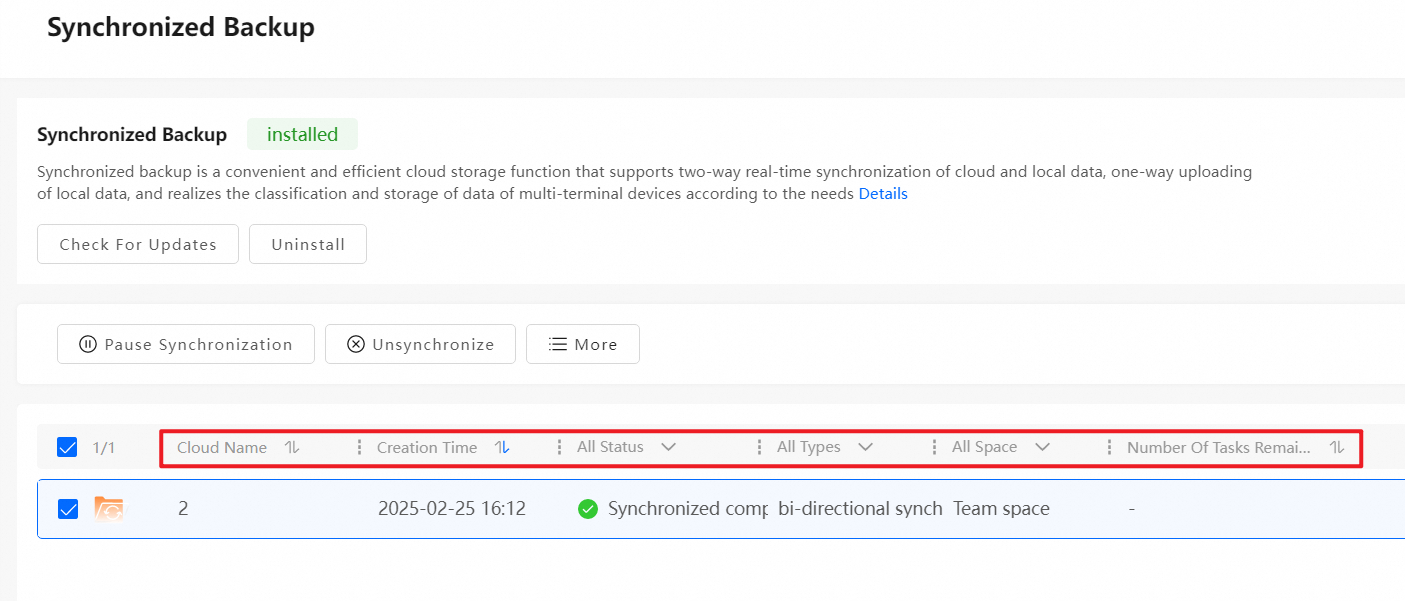
Sync details show statuses such as "sync completed", "syncing", and "sync error".
-
You can sort sync tasks by "Cloud Name" or "Creation Time".
-
You can filter sync tasks by "Sync Status", "Sync Type", or "Sync Space".
-
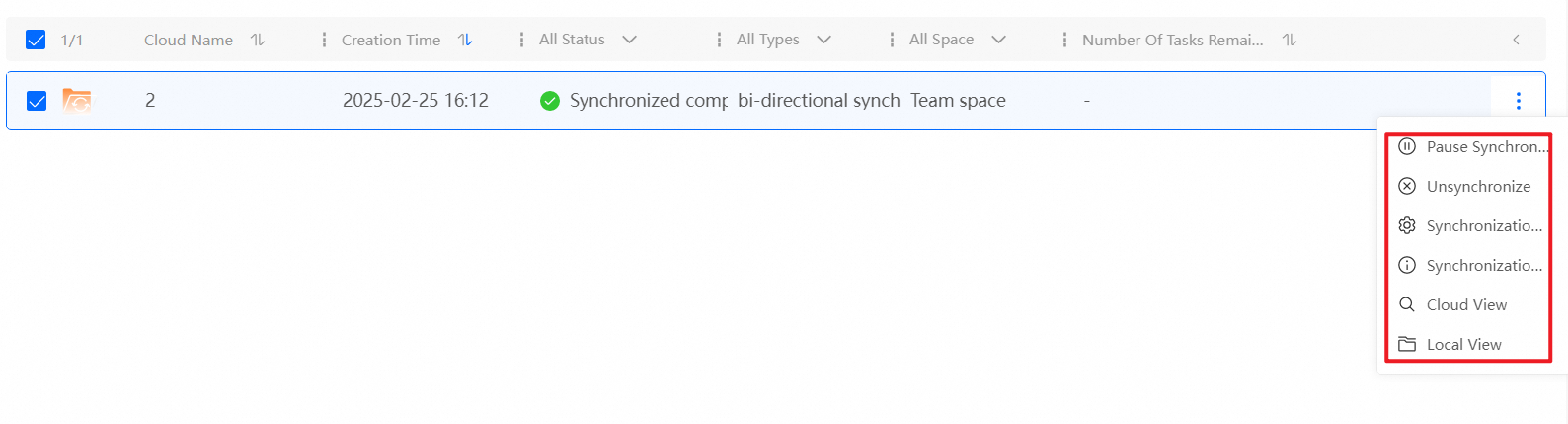
Task management options include pausing or canceling a sync task, changing its settings, viewing its details, and locating the synchronized files locally or in the cloud.
Usage notes
-
The sync backup feature consumes storage space on both your local device and in the cloud. Ensure you have sufficient storage in both locations for file synchronization and storage.
-
To ensure timely synchronization of local files to the cloud, keep the client running in the background and maintain a stable network connection.
-
When you create a sync backup, if files or folders with the same name exist in the same path in both the local and cloud locations, the system automatically handles them as follows:
-
If files exist in both locations, the client uploads the local file as a new version and saves the original cloud file as a history version.
-
If one location contains a file and the other contains a folder of the same name, the system automatically renames one of them.
-
Limitations
|
Supported OS and versions |
|
|
Supported file systems |
|
|
Disallowed sync directories |
|
|
Sync directory limit |
You can create up to 10 sync directories on a single device. |
|
Synced file limit |
A single device can synchronize up to 1,000,000 files. |
|
File path length limit |
On Windows, files with a full path length exceeding 260 characters are not supported due to the default system limit. |