This document explains the PDS permission model and helps solve common permission-related issues.
-
To manage authorization, enable the sharing/authorization feature.
-
By default, a super administrator or drive administrator has full management and operational permissions for all team drives in the enterprise.
-
By default, a team administrator has management and operational permissions for the team drives they manage.
-
By default, a regular user only has the previewer permission for their teams' team drives.
User roles and permissions
PDS supports four user roles: super administrator, drive administrator, team administrator, and regular user. The first three are administrator roles with different levels of permissions. This section describes the permissions for each role.
Super administrator
-
A super administrator has full permissions over all resources in the drive, including enterprises, teams, users, spaces, and files. They can create users, modify user roles, create teams and spaces, grant permissions on a team space, and upload or download files in a team space.
-
Each drive can have only one super administrator, configured in the PDS console.
In the Management Console, you can view a list of all users, including their names, employee IDs, and roles. A super administrator can manage user roles and permissions from this interface.
For privacy reasons, a super administrator cannot access files in a user's personal space by default. If you require this access, please contact us.
Drive administrator
-
A drive administrator has nearly the same permissions as a super administrator. However, they cannot perform certain high-risk operations, such as changing another user's role to drive administrator or viewing files in a user's personal space.
-
A super administrator can grant the drive administrator role. In the Management Console > Team management, select the target user and click change role.
Team administrator
-
A team administrator manages a team's resources. They can add users to or remove users from a team, set user space quotas, and view team audit logs. A team administrator also has full permissions for all files in the team space, including authorizing folders, and performing upload, download, preview, delete, edit, and recycle bin operations. The management scope of a team administrator includes not only their own team but also all its sub-teams. For example, if Department A has sub-departments B and C, the administrator of Department A can manage users and the team space for both B and C.
-
A super administrator can grant the team administrator role. In the Management Console > Team management, select the target team. Then, in the user list on the right, select the target user and click change role.
Regular user
By default, a regular user has operational permissions only for their personal space, including authorizing folders and performing upload, download, preview, delete, edit, and recycle bin operations. To perform operations in a team space, a regular user must be granted the required permissions.
Permission concepts
Permission diagram
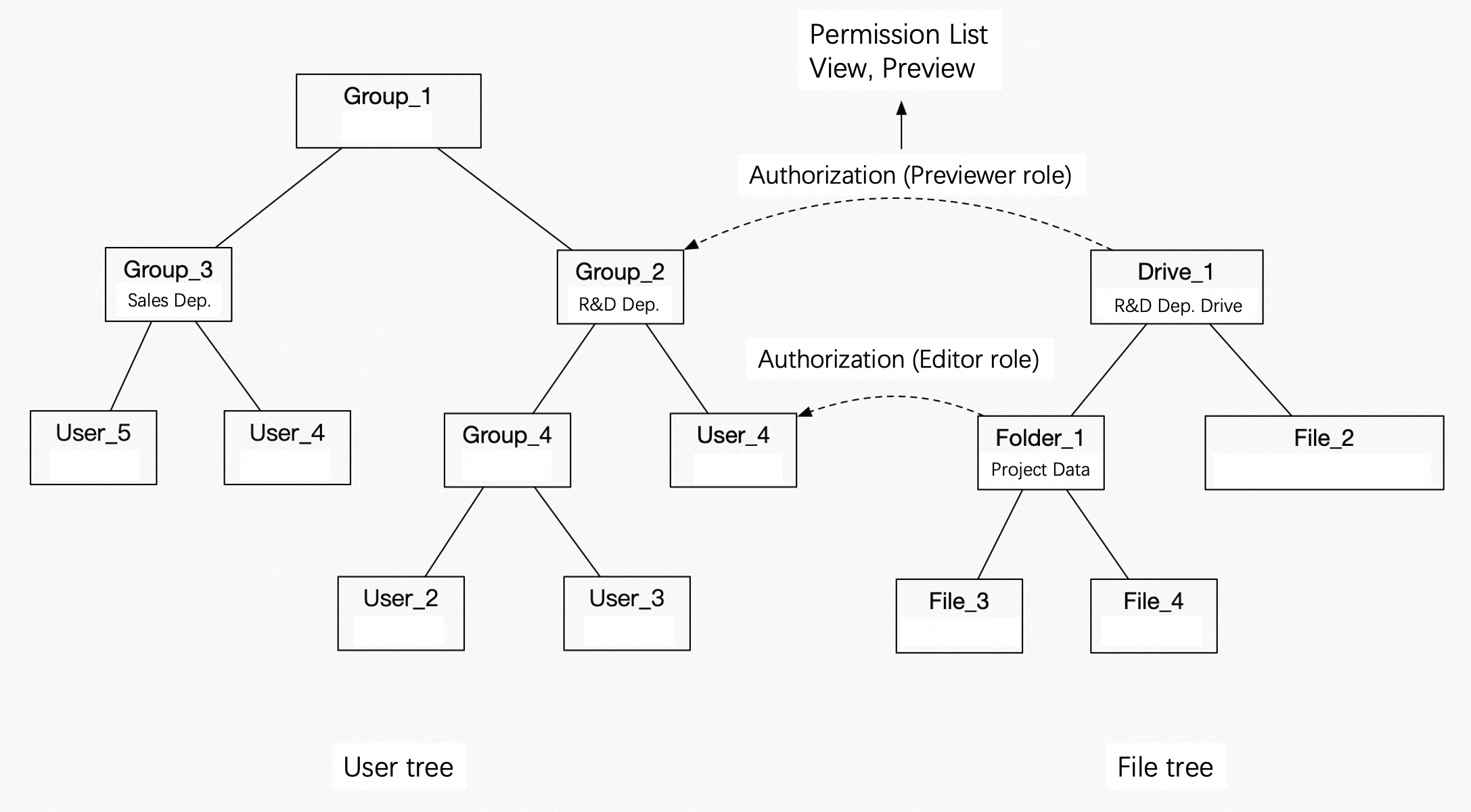
Key concepts
-
A user tree is a hierarchical structure that represents the relationships between users and teams. A user can be a member of multiple teams, but a team can have only one parent team.
-
A file tree is a hierarchical structure that represents the relationships between files and folders.
-
Folder authorization is the process of granting a user or a team access to a folder. Currently, you can only grant permissions on folders, not on individual files.
-
All folder authorizations are granted by assigning roles that grant specific permissions. The system provides several default roles.
-
Team permission inheritance determines whether users in sub-teams inherit permissions granted to a parent team. For example, if the "R&D team drive" is authorized for the "R&D" team, but inheritance is disabled, only "User 4" (a direct member of the "R&D" team) can use this permission. "User 2" and "User 3" would not inherit the permission.
-
File permission inheritance means that if a folder in the file tree is authorized, all files and subfolders within it automatically inherit that permission.
-
Permission override occurs when a user has multiple permissions for a resource. The permission granted closer to the user in the hierarchy takes precedence. For example, a user has both
previewer(from a parent team's authorization) andeditor(from a direct authorization) permissions for the "Project Data" folder. When the user accesses the folder, theeditorpermission applies because it is closer to the user. A special case exists when a user belongs to multiple teams with different permissions for the same resource. In this situation, the user's effective permissions are the union of all permissions granted through those teams.
Permissions and roles
-
PDS provides 11 granular permissions (
visible list,preview,upload,download,share link,move,copy,rename,delete,update, andcreate) and 15 default system roles. System roles are predefined combinations of these permissions.Each role is composed of a different combination of permissions, with capabilities increasing from lower to higher levels. For example, the previewer role includes the
visible listandpreviewpermissions. The downloader role adds thedownloadpermission to thepreviewerpermissions. The uploader role includes thevisible list,preview,upload, andcreatepermissions. The full permissions role includes all 11 permissions. -
The individual permissions are described as follows.
Preview: Lets you preview images, documents, and videos online in the authorized space or directory. This permission requires the visible list permission.
Visible list: Lets you see the list of folders and files in an authorized space or directory, but grants no other permissions.
Create: Lets you create files in the authorized space or directory. This permission requires the visible list permission.
Upload: Lets you upload files to the authorized space or directory. This permission requires the visible list and create permissions.
Download: Lets you download files from the authorized space or directory to a local device. This permission requires the visible list and preview permissions.
Share link: Lets you share folders and files in the authorized space or directory with other users or teams. This permission requires the visible list and preview permissions.
Delete: Lets you delete folders and files in the authorized space or directory. This permission requires the visible list permission.
Move: Lets you move folders and files from the authorized directory to another space or directory. This permission requires the visible list and delete permissions.
Copy: Lets you copy folders and files from the authorized directory to another space or directory. This permission requires the visible list permission.
Rename: Lets you rename folders and files in the authorized space or directory. This permission requires the visible list permission.
Update: Lets you edit, update, or restore versions of files in the authorized space or directory. This permission requires the visible list and preview permissions.
Synchronizer: Lets you perform two-way synchronization or one-way upload for folders in a team space and in Received Shares.
Backer: Lets you perform one-way upload for folders in a team space and in Received Shares.
The download, share link, and update permissions require the preview permission. This design ensures that users can view the content of a file before performing an operation on it.
Spaces
Enterprise space
When you purchase the Enterprise Edition, PDS automatically creates a root team with the same name as your enterprise and a corresponding enterprise space. By default, all users in the enterprise have preview permission for files in the enterprise space. Only a super administrator or drive administrator has additional permissions, such as authorization, upload, download, preview, delete, edit, and viewing the recycle bin.
The Developer Edition does not include a default enterprise space. You can create teams and spaces manually.
By default, all users have preview permission for files in the enterprise space. We recommend storing only files that all users can view, such as employee handbooks and public announcements. Store department-internal files, such as project data, in a team space for fine-grained permission management.
After logging in to the enterprise drive, select enterprise space from the left-side navigation pane. The Upload and New buttons at the top of the page are used for file management.
Team space
Teams are typically created to match your enterprise's organizational structure. A team space is used to store files for different departments. A team administrator can grant permissions for folders within the team space to different teams or users as needed. A super administrator or drive administrator can create a team space.
-
In the Management Console, click Team management, select a team, and then click New sub team.
-
In the New sub team dialog box, you can assign a Space size or set Space default permissions for the team.
-
After the
team spaceis created, the system automatically assigns thepreviewerrole for that space to the corresponding team. This means all team members can preview files in theteam spaceby default. An administrator can modify or delete this default permission, or add other permissions. -
In addition to the default system permissions, an administrator can set other permissions for a
team spaceas needed. For example, to allow User A from another team to preview files in thisteam space, you can select User A in the permission settings and assign thepreviewerpermission. The process for authorizing other teams is similar. You can grant permissions on the entireteam spaceor at the folder level. To grant folder-level permissions, log in as an administrator, go to theteam space, select the folder you want to authorize, and follow the same steps. -
Authorization rules
-
When you grant permissions on a folder in a
team space, the file path is preserved. For example, team space A contains the file/B/C/D/1.jpg. If you grant User 1 only thepreviewerpermission for folder D, User 1 will seeteam spaceA underTeam Space. Opening team space A shows folder B, opening B shows C, and opening C shows D. User 1 has only thepreviewerpermission for folder D. For folders B and C, User 1 has only thevisible listpermission and cannot see any other items in those folders. User 1 can preview all files and folders within folder D.
-
-
Inheritance rules
-
When granting permissions to a team, you can choose whether its sub-teams inherit the permissions. If you disable inheritance, only direct members of the team receive the permission.
-
Currently, you cannot block permissions inherited from a parent folder. To restrict access, you must grant new, more restrictive permissions directly on the subfolder.
In the Auth Management dialog, on the permission template tab, you can select a preset role, such as full permissions, and use the Allow sub-teams to inherit option to control whether the permission is passed down to sub-teams.
-
Personal space
A personal space is primarily for storing a user's personal files. By default, only the user has access to this space; even a super administrator cannot view it. The authorization process for a personal space is similar to that of a team space. Authorized users can view folders shared from another user's personal space in the Received Shares section.
Custom permissions
Set custom permissions
In addition to using default roles, PDS allows you to set granular permissions during authorization, enabling you to customize access by selecting the specific permissions you want to grant.
In the Auth Management dialog box, select the Custom tab to select individual permission items you want to grant, such as visible list, preview, upload, and download.
Add a permission template
-
An administrator cannot delete a
permission templatethat is currently in use. If you try to delete a permission template that is in use, the deletion will fail with a message indicating that the template is in use. -
You can create a maximum of 50 permission templates.
-
In the Management Console > Enterprise Settings > permission template, you can add a new custom permission template.
-
After a custom permission template is set, you can use it from the permission templates on the authorization management page.
Delete files
Delete authorized files in a team space
-
A
drive administrator,team administrator, orsuper administratorcan directly delete files in ateam space. Deleted files can be viewed in and recovered from therecycle bin. -
If a
regular useris granted thedeletepermission, they can directly delete the corresponding files or folders. However, the deleted items do not appear in the regular user'srecycle bin. Only adrive administrator,team administrator, orsuper administratorcan view them in therecycle bin.
Delete shared files
-
Even if a user is granted
full permissionson a shared folder, certain operations on the top-level directory are filtered out, including co-administrator, Favorite, delete, move, and rename. This means the top-level directory of a share cannot be deleted directly. -
You can delete files or folders inside a shared folder. Deleted items appear in the sharer's
recycle binand can be recovered. They do not appear in the recipient'srecycle bin.