This topic describes how to create and manage teams and team drives. You can perform these operations only within your assigned permissions.
Super administrators and disk administrators can create and manage teams and team drives at all levels.
Team administrators can manage only top-level teams and team drives, and can create and manage sub-teams and sub-team drives.
Teams
Create a team
In the section, select the enterprise name and click New Sub-team.

Add team users
Select the target team. Click Add User to add existing enterprise members to the team. You can also click New User or Import User to create and add new members.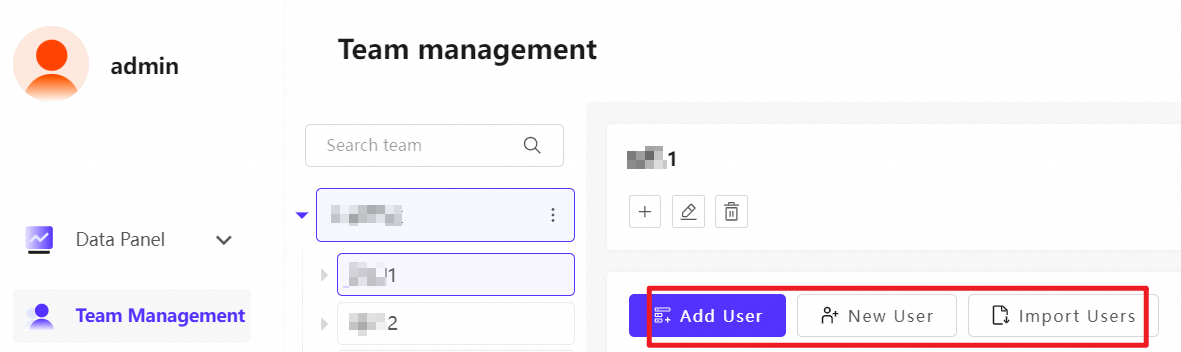
Modify team permissions
Select the target team to modify its information.
Team Space
Create a Team Space
When you create or manage a team drive, the allocated space cannot exceed the remaining available space.
In the section, create a New Sub-team and set the Space Size to generate a team drive.
Manage Team Space
In the section, select a team to view its Space Details. You can also click Modify Space to change the default access permissions or space size, Delete Space, or Disable Space.
Team Space
File transfer
After the team drive is created, click Return to User Interface in the upper-right corner. Go to the Team Drive to upload, download, or create files, and to set user access permissions.


Set space size and permissions
The sharing and authorization feature is enabled. For more information, see Enable sharing and authorization settings.
Method 1
In the section, select a team and click Modify Team Information to adjust the Team Drive Size or Permissions. Note: The allocated space cannot exceed the remaining available space.
Method 2
If you did not allocate space when you created the team, go to the page. Click Modify Space to adjust the Size or Permissions. Note: The team drive size cannot exceed the remaining available space.

FAQ
How to change a team or team drive name
In the section, select the target team and click Modify Team Information. You can then change the team or team drive name, team drive size, or default permissions for the drive.
Cannot delete a team
 If you see the error message "Deletion failed: Team [xxx] still has sub-members or other resources" when you try to delete a team, it means the team still contains members or associated resources. You must remove all members and resources before you can delete the team. Follow these steps to resolve the issue:
Clear data from the team drive
In the upper-right corner of the management console, click Return to User Interface to go to the team drive.
Delete all files and folders from the team drive.
Permanently delete content from the recycle bin
In the navigation pane on the left, click Recycle Bin.
Find the data related to the team and click Permanently Delete. Make sure the recycle bin is empty.
Remove all team members
In the upper-right corner, click Management Console.
Go to Team Management, select the team, and remove all its members.
Delete the corresponding team workspace.
Go to .
Find and delete the team drive associated with the team.
Retry deleting the team
Make sure you have completed all the previous steps.
Go back to the Team Management page and try deleting the team again.
Note: You must remove all resources, including data, members, and the cloud disk, before the system lets you delete the team. Check each item carefully to make sure nothing is missed.