The knowledge base in Drive and Photo Service uses the Qwen large language model (LLM) to provide automatic file classification, conversational search, conversational reading, and Q&A across your enterprise files.
Prerequisites
Before you begin, ensure that you have:
A super administrator or drive administrator role
A Drive and Photo Service instance in the China (Beijing) or Singapore region
This feature is available only in the China (Beijing) and Singapore regions.
Enable the knowledge base
Log on to CDE and go to the admin console.
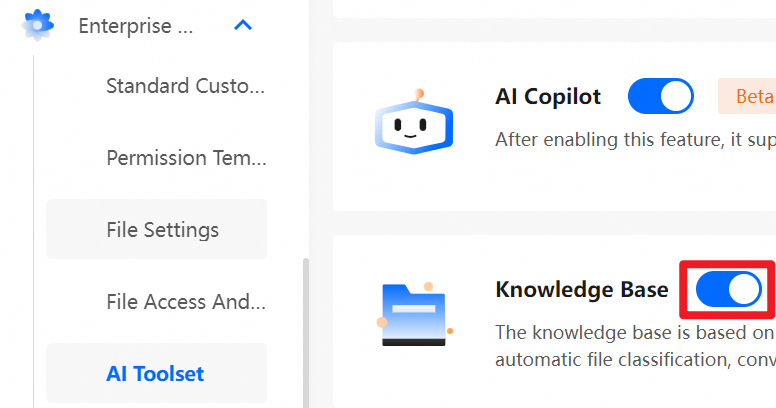
In the navigation pane, choose Enterprise Settings > AI Toolkit.
On the AI Toolkit page, turn on the Knowledge Base switch.
Create a knowledge base
In the navigation pane, choose Knowledge Base, and then click Create First Knowledge Base.

-
Configure the following settings:

Setting
Description
Knowledge Base Name
Enter a custom name and select an icon. The name cannot exceed 128 characters.
Knowledge base description
Enter a description of what this knowledge base covers. A clear, specific description helps the AI route classification and retrieval more accurately. The description cannot exceed 1,024 characters.
Select associated files for the knowledge base
Select the scope of files to associate with the knowledge base.
Specify the associated file type
Select or customize file types to include. Currently, only documents and images are supported.
Team
Select a team to restrict access to team members. The default permission is Knowledge Base Viewer. You can modify team members and permissions later.
Default permissions for team members
Set the default permission level: Viewer or Manager.
Manage permissions
On the homepage of the target knowledge base, click Authorization Management.
-
Set knowledge base permissions for a team or user.
Permission
Description
Knowledge Base Viewer
All users in the specified team, or the specified user, can view the knowledge base.
Knowledge Base Manager
All users in the specified team, or the specified user, can manage the knowledge base.

Edit a knowledge base
On the homepage of the target knowledge base, click Edit Knowledge Base.
Modify the knowledge base settings as needed, then save.

Delete a knowledge base
Deleting a knowledge base is permanent and cannot be undone. The source files stored in the drive are not affected.
On the homepage of the target knowledge base, click Delete Knowledge Base.

Create a knowledge classification
Knowledge classifications group related files within a knowledge base using AI-powered keyword matching.
On the homepage of the target knowledge base, click Add Sub-knowledge Classification. If no classification exists yet, click Create First Knowledge Classification.
-
Enter the Subject Keywords and Knowledge Classification Name, and then click Create.
Subject Keywords: Enter keywords separated by commas, or enter a natural language phrase. The system uses this input to intelligently group related files into the knowledge base.
Knowledge Classification Name: Enter a name that reflects the knowledge base content.
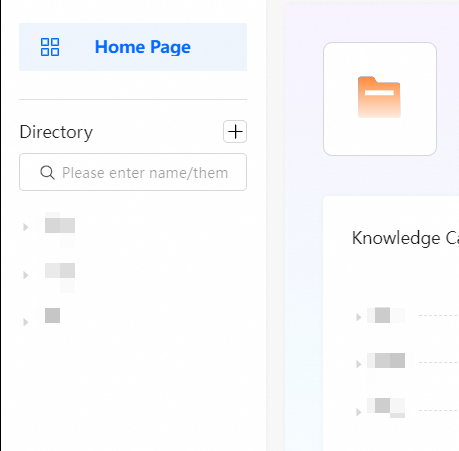
Click a knowledge classification on the left to view its files.

Manage knowledge classifications
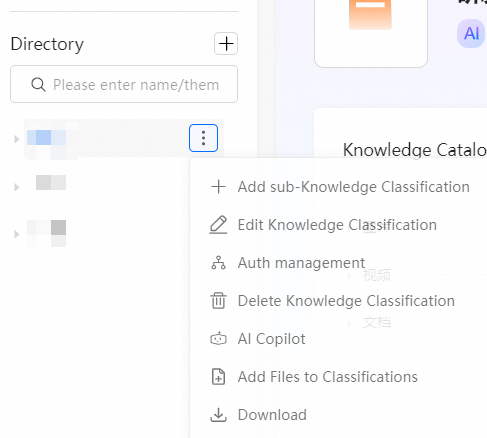
The following operations are available for knowledge classifications:
|
Operation |
Description |
|
Add Sub-knowledge Classification |
Create sub-classifications to refine the knowledge structure. |
|
Edit knowledge classification |
Modify the name or keywords of a classification. |
|
Authorization Management |
Set access or management permissions for different users. |
|
Delete knowledge classification |
Remove classifications that are no longer needed. Use this operation with caution. |
|
AI Assistant |
Use intelligent search to locate and retrieve information. |
|
Add files to classification |
Add files to a specified knowledge classification. |
|
Download |
Export files or content within a classification for backup or sharing. |
Keyword guidelines
To improve classification and retrieval accuracy, follow these guidelines when setting Subject Keywords.
Image keywords
The knowledge base uses AI image recognition to extract objective entities from images and uses them as keywords for classification, retrieval, and management.
Supported keyword types:
Natural landscapes: glaciers, forests, mountains, rivers
Living things: pets (cats, dogs), plants, wild animals
Man-made objects: buildings, vehicles, electronics, tools
Unsupported keyword types:
Abstract or descriptive words: Subjective adjectives or long descriptions, such as "beautiful", "spectacular", or "ancient history"
Non-visual concepts: Abstract semantics that cannot be mapped to image content, such as "environmental protection concept", "teamwork spirit", or "future trends"
Plain text: Text within images and image filenames
Document keywords
The knowledge base uses semantic matching to calculate relevance between document content and a main topic, enabling intelligent classification, retrieval, and management.
Keyword length
Use phrases of 5 to 20 characters to express a clear, single subject.
Examples: Machine learning model optimization, Supply chain management solution, Product requirements document (PRD)
Keyword combination
Each group can contain multiple related keywords separated by a comma (,).
Example: Employee onboarding and offboarding management, Performance appraisal system, Compensation and bonus management
Keywords to avoid
Overly short or generic words — Avoid: "AI", "report", "tech-related stuff", "some business processes". Better alternatives: "AI model training", "quarterly summary report", "deep learning image segmentation", "marketing promotion plan"
Long natural language descriptions — Avoid: "Management systems and operational specifications regarding the company's daily accounting, expense reimbursement processes, budget preparation and execution, fund payment approvals, and financial risk control." Better alternative (extract core ideas): "Daily accounting processes and standards, Expense reimbursement processes and policies, Annual budget preparation and execution management, Fund payment approval process, Financial risk control and internal control system."
See also
Knowledge base: Browse and interact with knowledge base files.
Enable AI Assistant: Enable the AI Assistant for your enterprise.