Deploy a chatbot combining real-time web search with RAG knowledge retrieval using LangStudio and DeepSeek.
Prerequisites
This template combines web search for real-time data with RAG retrieval from domain-specific knowledge bases.
-
Register at the SerpApi website and obtain an API key (free tier: 100 searches/month).
-
Select a vector database:
-
Faiss: For testing, no setup required
-
Milvus: For production with larger datasets. Create a Milvus instance first
-
-
Upload the RAG knowledge base corpus to OSS.
Deploy models (optional)
Skip this step if you already have OpenAI API-compatible model services.
Go to QuickStart > Model Gallery and deploy models for these scenarios:
Use instruction fine-tuned models only. Base models cannot follow instructions to answer questions.
-
Select large-language-model for Scenarios. In this example, DeepSeek-R1 is used. For more information, see Deploy DeepSeek-V3 and DeepSeek-R1 models.

-
Select embedding for Scenarios. In this example, bge-m3 embedding model is used.

Create connections
Create LLM service connection
-
Go to LangStudio and select a workspace.
-
On the Connection > Model Service tab, click New Connection.
-
Create a General LLM Model Service connection.
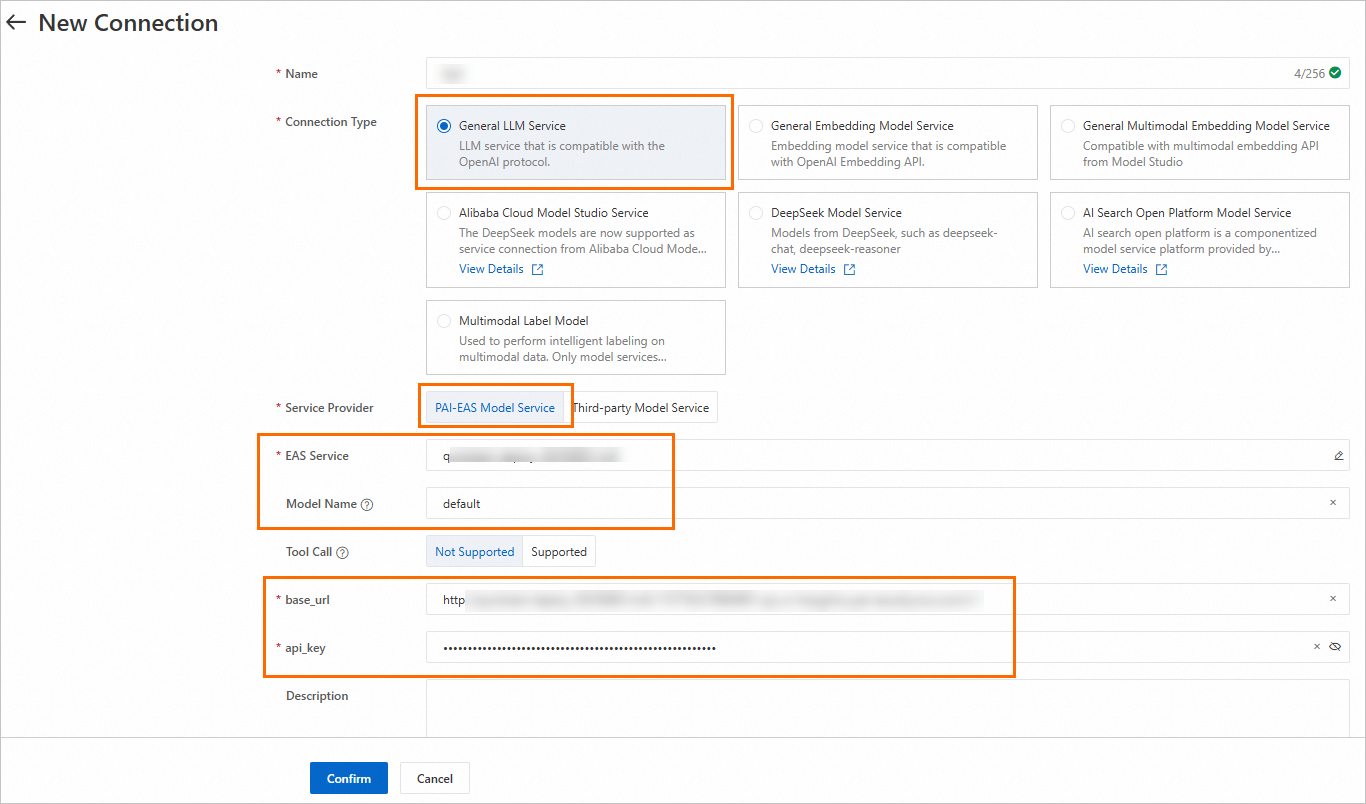
Key parameters:
|
Parameter |
Description |
|
Service Provider |
|
|
Model Name |
View the model details page in Model Gallery for instructions. See Model service. |
Create embedding model service connection
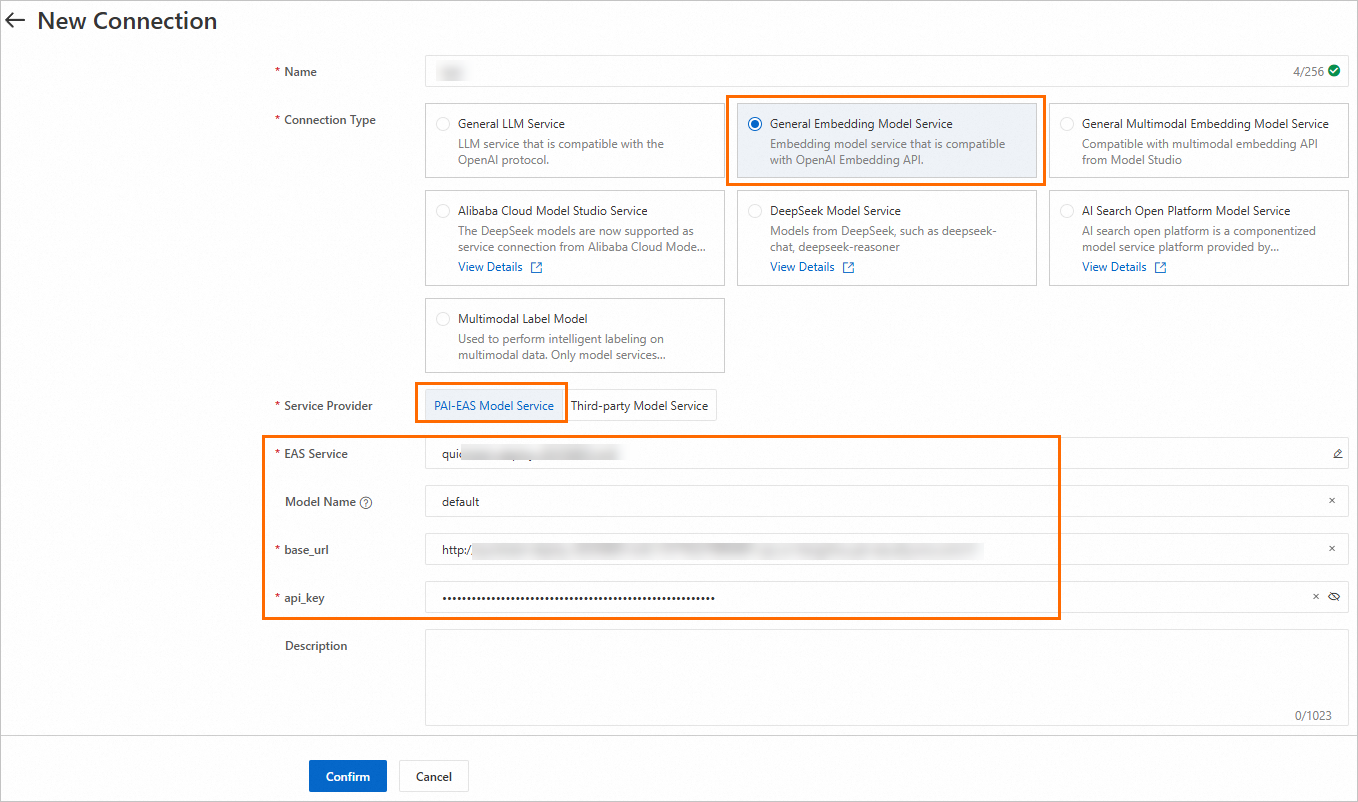
Follow the same steps as above and select General Embedding Model Service type.
Create SerpApi connection
-
On the Connection > Custom Connection tab, click New Connection.
-
Configure the api_key obtained in Prerequisites.

Create knowledge base index
Create a knowledge base index to parse, chunk, and vectorize the corpus into a vector database. For complete configuration details, see Manage knowledge base indexes.
|
Parameter |
Description |
|
Basic configuration |
|
|
Data Source OSS Path |
OSS path of the RAG corpus uploaded in Prerequisites. |
|
Output OSS Path |
Path for storing intermediate results and index files. Important
When using FAISS, configure this to a directory in the OSS bucket of the current workspace default storage path. Custom roles require AliyunOSSFullAccess permission. See Cloud resource access authorization. |
|
Embedding model and database |
|
|
Embedding Type |
Select General Embedding Model. |
|
Embedding Connection |
Select the connection created earlier. |
|
Vector Database Type |
Select FAISS (used in this example). |
Create and run application flow
-
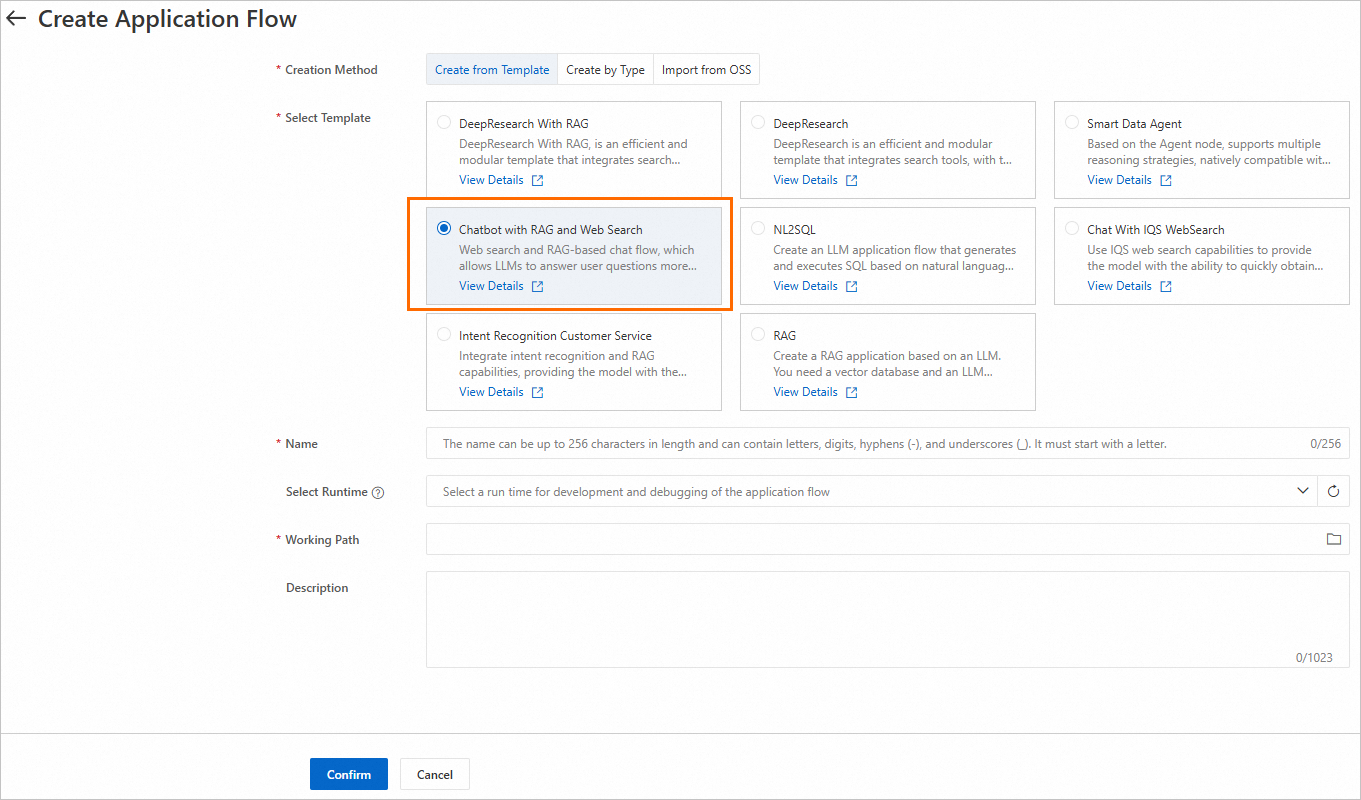
On the LangStudio Application Flow tab, click Create Application Flow. Select the Chatbot with RAG and Web Search template.
-
Click Select Runtime in the upper-right corner and select an existing runtime. If no runtime exists, click Create Runtime on the Runtime tab.

Note: Start the runtime before parsing Python nodes or viewing additional tools.
VPC configuration: When using Milvus, configure the same VPC as the Milvus instance, or ensure VPC interconnection. When using FAISS, no VPC configuration is required.
-
Configure key nodes:

-
Knowledge Retrieval:
-
Index Name: Select the index created earlier
-
Top K: Number of matching results to return
-
-
Serp Search:
-
SerpApi Connection: Select the connection created earlier
-
Engine: Supports Bing, Google, Baidu, Yahoo, etc. See the SerpApi website for details
-
-
LLM:
-
Model Configuration: Select the connection created earlier
-
Chat History: Whether to use chat history as input
-
For more information about each node, see Node components.
-
-
Click Run in the upper-right corner to execute the application flow. For common issues, see LangStudio FAQ.

-
Click View Logs below the generated answer to view trace details or topology.

Deploy application flow
On the application flow development page, click Deploy in the upper-right corner to deploy as an EAS service. Key parameters:
-
Resource Information > Instances: For testing, set to 1. For production, configure multiple instances to avoid single points of failure.
-
VPC: SerpApi requires internet access. Configure a VPC with internet access capability. See Service internet access. When using Milvus, ensure VPC connectivity with the Milvus instance.
For more deployment details, see Deploy and call application flows.
Call the service
After deployment, test the service on the Online Debugging tab of the EAS service details page.
The Key in the request body must match the "Chat Input" field in the application flow's Start Node. The default field is question.

For more calling methods (such as API calls), see Call the service.