Create and configure knowledge bases to provide private data sources for LangStudio application flows. Knowledge bases read documents from OSS, chunk and vectorize the data, and store the index in a vector database for retrieval-augmented generation (RAG).
How it works
LangStudio knowledge bases transform OSS files into a format retrievable by LLMs through three steps:
-
Data reading and chunking: Reads source files from OSS and splits them into processable units.
-
Unstructured documents are parsed and split into smaller, semantically complete text blocks (chunks).
-
Structured data is chunked by row.
-
Images are processed as a whole without being chunked.
-
-
Vectorization: Calls an embedding model to convert each chunk or image into a numerical vector representing its semantic meaning.
-
Storage and indexing: Stores vector data in a vector database and creates an index for retrieval.
Get started
This section describes how to create a Document-type knowledge base and use it in an application flow.
-
Create a knowledge base. Navigate to LangStudio and select a workspace. On the Knowledge Base tab, click Create Knowledge Base. Configure these parameters and click OK.
Parameter
Description
Basic Configuration
Name
Enter a custom name for the knowledge base, such as
test_kg.Data Source OSS Path
Location where source files are stored. For example:
oss://examplebucket.oss-cn-hangzhou-internal.aliyuncs.com/test/original/.Output OSS Path
Stores intermediate results and index information from document parsing. Final output depends on the selected vector database type. For example:
oss://examplebucket.oss-cn-hangzhou-internal.aliyuncs.com/test/output/.ImportantIf the Instance RAM Role for the runtime is the PAI default role, set this parameter to a directory within the current workspace default storage path's OSS Bucket.
Type
Select Document.
Embedding Model and Database
Embedding Type
Select Alibaba Cloud Model Studio Service (create a connection first, see Connection Configuration), then select the connection and model.
Vector Database Type
Select FAISS for quick testing.
-
Upload files.
-
On the Knowledge Base tab, click the knowledge base. On the Overview page, switch to the Documents tab. This tab displays documents from the configured OSS data source.
-
Add or update files using the Upload button, or upload files directly to the OSS data source. For example, upload rag_test_doc.txt through the page. For supported file formats, see Knowledge Base Types.

-
-
Update the index. After uploading files, click Update Index in the upper-right corner. In the dialog box, configure computing resources and network. When the task succeeds, file status changes to Indexed. Click a file to preview its chunks. For image knowledge bases, the system returns image lists.
NoteFor document chunks stored in Milvus, set their status to Enabled or Disabled individually. Disabled chunks are not retrieved during searches.

-
Run a retrieval test. After updating the index, switch to the Recall Test tab. Enter a query and tune retrieval parameters to test performance.

-
Use the knowledge base in an application flow. After testing, retrieve information from the knowledge base in an application flow. In the knowledge base node, enable query rewriting and result reranking features and view the rewritten query in the execution trace.

The result is a
List[Dict]. EachDicthascontentandscorekeys, representing the retrieved chunk and its similarity score with the query.[ { "score": 0.8057173490524292, "content": "Due to the uncertainty caused by the pandemic, XX Bank proactively increased provisions for impairment losses on loans, advances, and non-credit assets based on economic trends and forecasts for China or the Chinese mainland. The bank also increased the write-off and disposal of non-performing assets to improve the provision coverage ratio. In 2020, the net profit reached 28.928 billion CNY, a year-on-year increase of 2.6%, and profitability gradually improved.\n(CNY in millions) 2020 2019 Change (%)\nOperating Results and Profitability\nOperating Income 153,542 137,958 11.3\nOperating Profit Before Impairment Losses 107,327 95,816 12.0\nNet Profit 28,928 28,195 2.6\nCost-to-Income Ratio(1)(%) 29.11 29.61 down 0.50 percentage points\nAverage Return on Total Assets (%) 0.69 0.77 down 0.08 percentage points\nWeighted Average Return on Equity (%) 9.58 11.30 down 1.72 percentage points\nNet Interest Margin(2)(%) 2.53 2.62 down 0.09 percentage points\nNote: (1) Cost-to-Income Ratio = Business and management fees / Operating income.", "id": "49f04c4cb1d48cbad130647bd0d75f***1cf07c4aeb7a5d9a1f3bda950a6b86e", "metadata": { "page_label": "40", "file_name": "2021-02-04_XX_Insurance_Group_Co_Ltd_XX_China_XX_2020_Annual_Report.pdf", "file_path": "oss://my-bucket-name/datasets/chatglm-fintech/2021-02-04__XX_Insurance_Group_Co_Ltd__601318__China_XX__2020_Annual_Report.pdf", "file_type": "application/pdf", "file_size": 7982999, "creation_date": "2024-10-10", "last_modified_date": "2024-10-10" } }, { "score": 0.7708036303520203, "content": "7.2 billion CNY, a year-on-year increase of 5.2%.\n2020\n(CNY in millions) Life and Health Insurance Business, Property and Casualty Insurance Business, Banking Business, Trust Business, Securities Business, Other Asset Management Business, Technology Business, Other Business and Consolidation Elimination, Group Consolidated\nNet profit attributable to shareholders of the parent company 95,018 16,083 16,766 2,476 2,959 5,737 7,936 (3,876) 143,099\nMinority interest 1,054 76 12,162 3 143 974 1,567 281 16,260\nNet profit (A) 96,072 16,159 28,928 2,479 3,102 6,711 9,503 (3,595) 159,359\nItems excluded:\n Short-term investment fluctuation(1)(B) 10,308 – – – – – – – 10,308\n Impact of discount rate change (C) (7,902) – – – – – – – (7,902)\n One-time significant items and others excluded by management as not part of daily operating income and expenditure (D) – – – – – – 1,282 – 1,282\nOperating profit (E=A-B-C-D) 93,666 16,159 28,928 2,479 3,102 6,711 8,221 (3,595) 155,670\nOperating profit attributable to shareholders of the parent company 92,672 16,", "id": "8066c16048bd722d030a85ee8b1***36d5f31624b28f1c0c15943855c5ae5c9f", "metadata": { "page_label": "19", "file_name": "2021-02-04_XX_Insurance_Group_Co_Ltd_XXX_China_XX_2020_Annual_Report.pdf", "file_path": "oss://my-bucket-name/datasets/chatglm-fintech/2021-02-04__XX_Insurance_Group_Co_Ltd__601318__China_XX__2020_Annual_Report.pdf", "file_type": "application/pdf", "file_size": 7982999, "creation_date": "2024-10-10", "last_modified_date": "2024-10-10" } } ]
Detailed features
Knowledge base type
Knowledge bases are categorized into three types: Document, Structured data, and Image. Select the type matching your files.
-
Documents: Supports
.html,.htm,.pdf,.txt,.docx,.md, and.pptx. -
Structured data: Supports
.jsonl,.csv,.xlsx, and.xls. -
Images: Supports
.jpg,.jpeg,.png, and.bmp.
Special configurations:
-
For Document-type knowledge bases, configure Chunk Configuration. These fields are required. For guidance on setting chunking parameters, see Chunking parameter tuning.
-
Chunk Size: Maximum number of characters per text chunk. Default: 1024 characters.
-
Chunk Overlap: Number of overlapping characters between adjacent chunks to ensure contextual continuity. Default: 200 characters.
-
-
For Structured data-type knowledge bases, configure Field Settings. Upload a file (such as animal.csv) or add fields manually to specify which data fields participate in indexing and retrieval.
Choose a vector database
-
Production environments: Use Milvus or Elasticsearch, which support large-scale vector data processing.
-
Test environment: Use FAISS, which requires no additional database. Knowledge base files and generated index files are stored in the Output OSS Path. FAISS is suitable for functional testing or small datasets, but performance may degrade with large data volumes.
NoteImage-type knowledge bases do not support FAISS.
Index update strategy
|
Update method |
Description |
Notes |
|
Manual update |
Manually click Update Index in the console. Suitable for scenarios where files change infrequently. |
Each update processes files in the data source, either fully or incrementally. |
|
Automatic update |
After enabling automatic updates in the console, the system automatically creates an event rule in EventBridge to forward OSS file change messages, which trigger indexing tasks. |
Important
Message fees are incurred during automatic updates.
|
|
Timed update |
Configure a recurring task in DataWorks to update the index at a specified frequency (for example, daily). |
This feature depends on DataWorks. DataWorks recurring tasks typically take effect on a T+1 basis, meaning a configuration made today runs for the first time tomorrow. |
Configuration methods:
Manual update
After uploading files, click Update Index in the upper-right corner. The system submits a PAI workflow task to preprocess, chunk, vectorize files from the OSS data source, and build the index. Task parameters:
|
Parameter |
Description |
|
Compute resource |
Computing resources required to run workflow node tasks. Use public resources, or use Lingjun resources and general computing resources through resource quotas.
|
|
VPC configuration |
If accessing the vector database or Embedding service via internal network, ensure the selected VPC is the same as or can communicate with the VPCs of those services. |
|
Embedding configuration |
|
Automatic update
-
Go to the EventBridge console and activate EventBridge.
-
Configure automatic index updates. Go to the knowledge base details page. On the Overview tab, in the Automatic File Indexing section in the lower-right corner, click Modify.
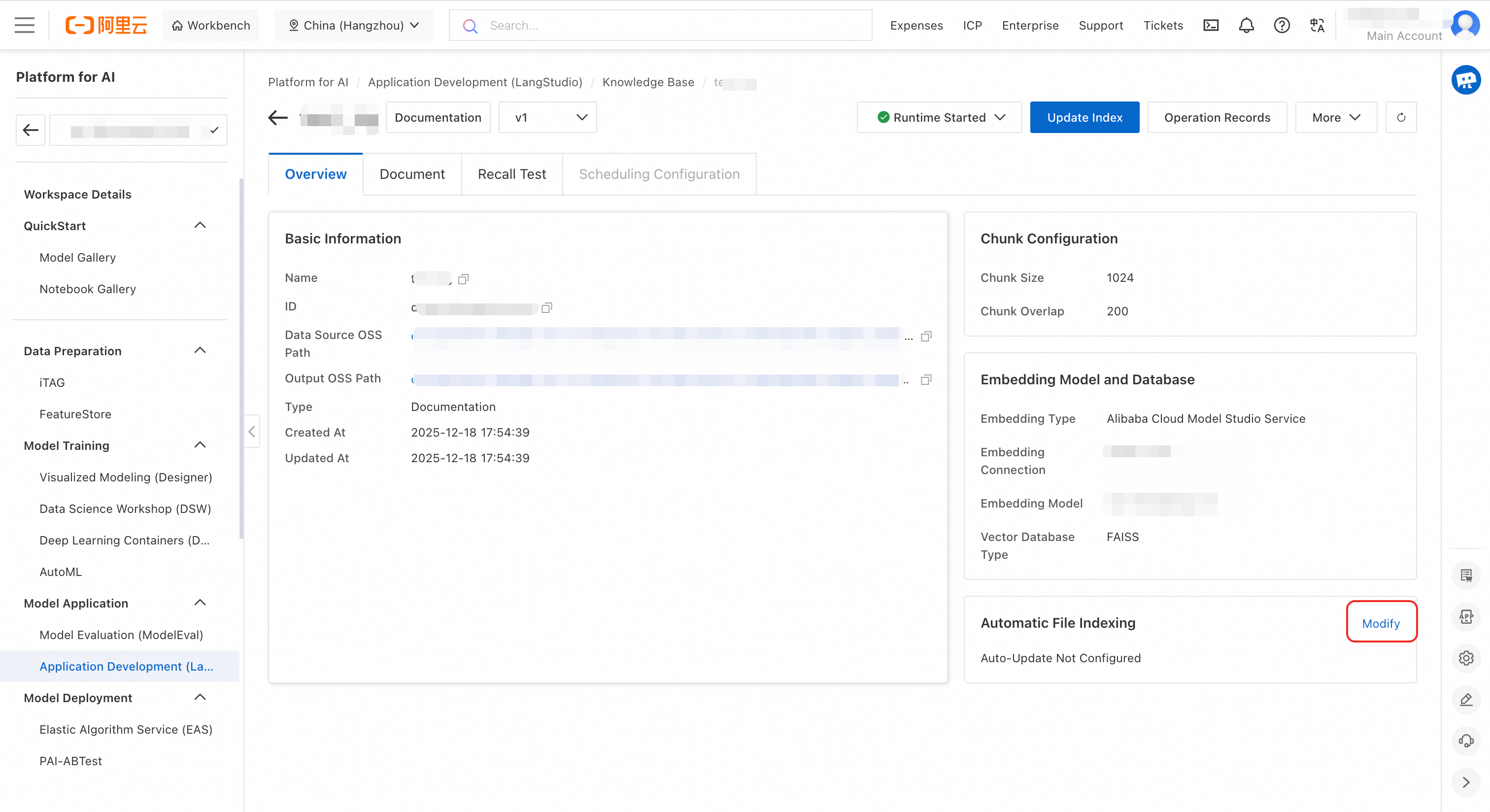
-
Configure computing resources and VPC, then click OK. After this, file changes automatically trigger indexing tasks without manual intervention.
ImportantComputing resources configured here are only used when files are updated. No resource fees are incurred if files do not change.
-
Make changes to OSS files.
-
After configuring automatic file updates, there is a delay of a few minutes before rules take effect. Wait at least 3 minutes before operating on files.
-
To delete a file using the OSS API, specify a version to trigger the change event.
-
To delete a file in the console, select the file and click Permanently Delete at the bottom.
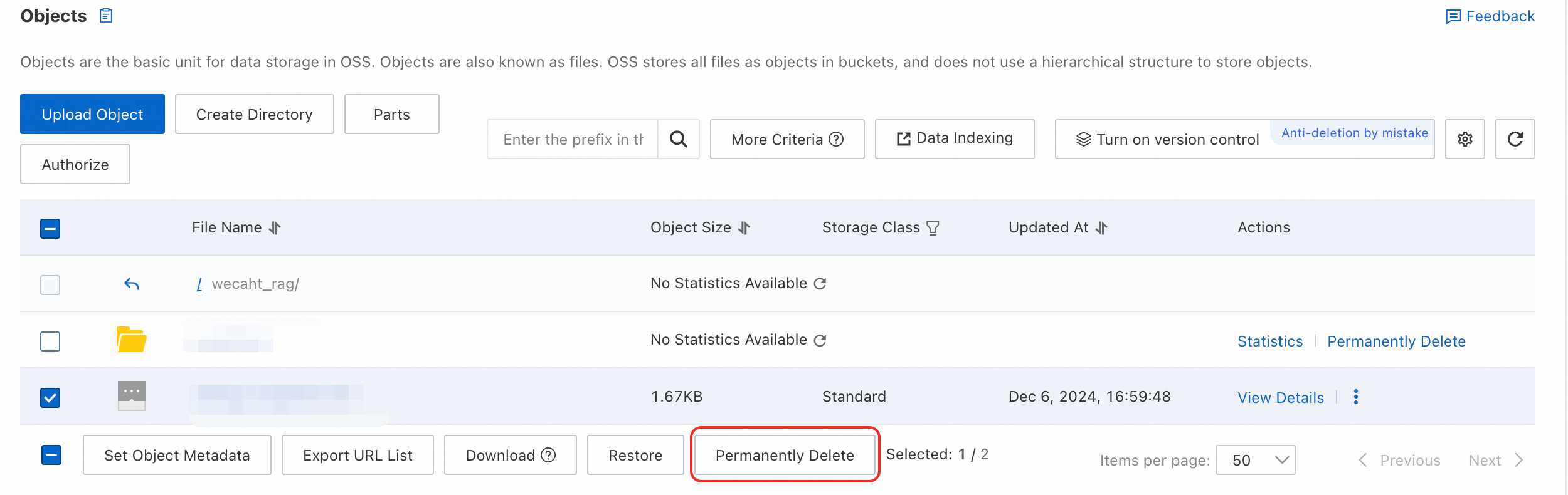
-
-
View indexing tasks. After a file changes, wait about 3 minutes. The automatically triggered index-building task appears in the operation records list.
Timed update
The scheduled update feature relies on DataWorks. Ensure you have activated this service. If not activated, see Purchase.
On the knowledge base details page, click in the upper-right corner, complete the configurations, and submit.

-
View scheduling configurations and recurring tasks
After submitting the form, the system automatically creates a workflow for the scheduled knowledge base update in DataWorks DataStudio and publishes it as a recurring task in DataWorks Operation Center. Recurring tasks currently take effect on a T+1 basis. DataWorks recurring tasks update the knowledge base at the configured time. View the scheduling configuration and recurring tasks on the knowledge base scheduling configuration page.

-
Scheduled configuration parameter descriptions:
-
Scheduling cycle: How often the node runs in production (the number of cycle instances generated and when they run).
-
Scheduled time: The specific time the node runs.
-
Timeout definition: Duration after which a running node fails and exits.
-
Effective date: Time range during which the node runs on its automatic schedule. Outside this range, the node is no longer scheduled automatically.
-
Scheduling resource group: Used for DataWorks scheduled updates. If you have not yet created a DataWorks resource group, click Create Now in the dropdown list to go to the creation page. After creation, bind the resource group to the current workspace.

For more information about scheduling parameters, see Time property configuration description.
-
View the dataset
After an index update task succeeds, the system automatically registers the Output OSS Path as a dataset. View it in AI Asset Management - Datasets. This dataset, which has the same name as the knowledge base, records the output information from index building.

Configure the runtime
Select a runtime to perform operations such as previewing document chunks and running retrieval tests. These operations require access to the vector database and the Embedding service.
Note the following runtime settings:
-
If accessing the vector database or Embedding service via internal network address, ensure the runtime VPC is the same as or can communicate with theirs.
-
If selecting a custom role for Instance RAM Role, grant that role OSS access permissions (we recommend granting the
AliyunOSSFullAccesspermission). For details, see Granting permissions to a RAM role.
If the runtime version is outdated (earlier than 2.1.4), it may not appear in the dropdown list. Create a new runtime.
Manage multiple versions
Version cloning lets you publish a tested and validated knowledge base (for example, v1) as a new official version and isolate development and production environments.
After cloning a version, switch between and manage different versions by using the dropdown next to the type on the knowledge base details page. Select the desired version in the knowledge base node of an application flow.

Cloning a version is similar to updating an index; it submits a workflow task. View the task in operation records.

Configure retrieval parameters
-
Top K: Maximum number of relevant text chunks to retrieve from the knowledge base. Value range: 1 to 100.
-
Score threshold: Similarity score threshold (0 to 1). Only chunks with scores above this threshold are returned. Higher values require higher similarity between text and query.
-
Retrieval Pattern: Default is Dense (vector) retrieval. To use Hybrid retrieval (vector + keyword), the vector database must be Milvus 2.4.x or later, or Elasticsearch. For guidance on choosing a retrieval mode, see Select a retrieval mode.
-
Metadata filter condition: Filters the search scope using metadata to improve accuracy. For more information, see Use metadata.
-
Query rewrite: Uses an LLM to optimize a user's vague, colloquial, or context-dependent query, making it clearer, more complete, and more intentional to improve retrieval accuracy. For usage scenarios, see Query rewrite.
-
Result Reranking: Uses a reranking model to reorder initial retrieval results, placing the most relevant results at the top. For usage scenarios, see Result Reranking.
NoteResult reranking requires a reranking model. Supported model service connection types: Model Studio, AI Search Open Platform Model Service, and General Reranker Model Service.
Optimize retrieval performance
Tune chunking parameters
Guiding principles
-
Model context limit: Ensure chunk size does not exceed the Embedding model token limit to avoid information truncation.
-
Information integrity: Chunks should be large enough to contain complete semantic meaning but small enough to avoid including noise that could reduce the precision of similarity calculations. If the text is organized into paragraphs, consider chunking by paragraph instead of splitting text arbitrarily.
-
Maintain continuity: Set an appropriate overlap size (10%-20% of the chunk size is recommended) to prevent context loss when key information is split across chunk boundaries.
-
Avoid repetitive interference: Too much overlap can introduce redundant information and affect retrieval efficiency. Balance information integrity and redundancy.
Debugging suggestions
-
Iterative optimization: Start with an initial value (such as chunk size of 300 and overlap of 50) and iterate based on retrieval and Q&A results to find optimal settings for your data.
-
Natural language boundaries: If your text has a clear structure (for example, divided by chapters or paragraphs), consider splitting it along its natural boundaries to preserve semantic integrity.
Quick optimization guide
|
Issue |
Optimization suggestion |
|
Retrieval results are irrelevant |
Increase the chunk size, decrease the chunk overlap. |
|
Result context is not coherent |
Increase the chunk overlap. |
|
Cannot find a suitable match (low recall) |
Moderately increase the chunk size. |
|
High compute or storage costs |
Decrease the chunk size, decrease the chunk overlap. |
The following table provides recommended chunk and overlap sizes for different types of text based on past experience:
|
Text type |
Recommended chunk size (chunk_size) |
Recommended overlap size (chunk_overlap) |
|
Short text (FAQ, summary) |
100 to 300 |
20 to 50 |
|
Regular text (news, blog) |
300 to 600 |
50 to 100 |
|
Technical documents (API, paper) |
600 to 1024 |
100 to 200 |
|
Long documents (legal, book) |
1024 to 2048 |
200 to 400 |
Choose a retrieval mode: Balance semantics and keywords
The retrieval mode determines how the system matches a query to knowledge base content. Each mode has strengths suited to different scenarios.
-
Dense (vector) retrieval: Excels at understanding semantics. Converts both query and documents into vectors and determines semantic relevance by calculating vector similarity.
-
Sparse (keyword) retrieval: Excels at exact matching. Based on traditional term frequency models (like BM25), calculates relevance based on keyword frequency and position in a document.
-
Hybrid retrieval: Combines the best of both. Merges vector search and keyword search results and re-ranks them using algorithms like Reciprocal Rank Fusion (RRF) or weighted fusion.
|
Retrieval mode |
Pros and cons |
Scenarios |
|
Dense (vector) retrieval |
|
|
|
Sparse (keyword) retrieval |
|
|
|
Hybrid retrieval |
|
|
Use metadata to filter retrieval
Value of metadata filtering
-
Precise retrieval, less noise: Metadata can serve as a filter during retrieval. Filtering with metadata lets you exclude irrelevant documents and prevents the generation model from receiving unrelated content. For example, when a user asks "Find science fiction novels written by Liu Cixin," the system can use metadata conditions
author=Liu Cixinandcategory=science fictionto directly locate the most relevant documents. -
Improved user experience
-
Personalized recommendations: Use metadata to provide personalized recommendations based on a user's historical preferences (such as preference for "sci-fi" documents).
-
Improved interpretability: Including a document's metadata (such as author, source, date) in results helps users judge its credibility and relevance.
-
Supports multilingual or multimodal expansion: Metadata like "language" or "media type" simplifies managing knowledge bases with multiple languages or mixed media such as text and images.
-
How to use
Feature limitations:
-
Runtime image version: Must be 2.1.8 or later.
-
Vector database: Only Milvus and Elasticsearch are supported.
-
Knowledge base type: Supports documents or structured data. Images are not supported.
-
Configure metadata variables. For knowledge bases using Milvus, find the Metadata section on the Overview tab. Click Edit to configure variables (for example, a variable named
author). Do not use reserved fields.
-
Tag documents. Go to the document chunk details page, click Edit Metadata, and add the metadata variable and its value (for example,
author=Alex). On the Overview page, view the metadata usage and value count.
-
Test the filtering effect. On the Recall Test tab, add a metadata filter condition and run a test.

Note: The documents retrieved in the image were tagged in step 2.
-
Use in an application flow. Configure the metadata filter condition in the knowledge base node.

Query rewriting and result reranking: optimize the retrieval chain
Query rewrite
Uses an LLM to rewrite a user's vague, colloquial, or context-dependent query into a clearer, more complete, and standalone question, improving retrieval accuracy.
-
Recommended scenarios:
-
The user's query is vague or incomplete (e.g., "When was he born?" without context).
-
In a multi-turn conversation, the query depends on context (e.g., "What did he do after that?").
-
The retriever or LLM performs poorly and does not accurately understand the query.
-
Using a traditional inverted index retrieval method (like BM25) instead of semantic retrieval.
-
-
Not recommended for:
-
The user's query is already very clear and specific.
-
The LLM performs very well and has strong understanding of the query.
-
The system requires low latency and cannot afford additional delay from rewriting.
-
Result reranking
Reorders initial results returned by the retriever to prioritize the most relevant documents, improving ranking quality.
-
Recommended scenarios:
-
The initial retriever provides unstable results (such as from BM25 or DPR).
-
Ranking of retrieval results is critical (such as requiring high Top-1 accuracy in search or Q&A systems).
-
-
Not recommended for:
-
The system has limited resources and cannot afford additional inference overhead.
-
The initial retriever performance is already strong enough, and reranking provides limited improvement.
-
Response time is critical, such as in real-time search scenarios.
-
FAQ
How do I troubleshoot index update or version cloning task failures?
When an index update or version cloning task fails, follow these steps:
-
View operation records: On the knowledge base details page, find the failed task in the Operation Records and click View Task.

-
Check task logs: The system redirects you to the PAI workflow page. Check the logs of the failed node.

For example, the workflow task for updating the index of a Document-type knowledge base includes the following three nodes. Except for the read-oss-file node, each node creates a PAI-DLC task. You can also view DLC task details through the Job URL in the logs.
-
read-oss-file: Reads OSS files.
-
rag-parse-chunk: Responsible for document preprocessing and chunking.
-
rag-sync-index: Responsible for embedding text chunks and synchronizing them to the vector database.
-
Why do system files (like requirements.txt) appear in the knowledge base?
Cause: The knowledge base indexes all files in the configured OSS Input OSS Path. If you set the path to a project root directory, system files such as requirements.txt, .DS_Store, .git/, __pycache__/, or *.pyc files may be unintentionally indexed.
Solution:
-
Create a dedicated directory (for example,
knowledge-base-docs/) in OSS containing only the files you want to index. -
Update the knowledge base Input OSS Path to point to this directory.
-
Common files to exclude:
requirements.txt,.DS_Store,.git/,__pycache__/,*.pyc,*.log.
How do I remove incorrectly indexed files from the knowledge base?
If a file has already been indexed and you want to remove it from retrieval results:
-
Delete from OSS: Remove the file using one of these methods:
-
Console: Select the file and click Permanently Delete.
-
API: Specify a version parameter to trigger the change event.
-
-
Wait for automatic re-indexing: If you have configured Automatic Update (see Automatic update):
-
Wait at least 3 minutes for the rule to take effect.
-
Check the Operation Records tab to verify the re-indexing task completed.
-
-
Manual update (if auto-update not configured): Click Update Index in the upper-right corner to trigger a full re-index.
-
Verify removal: Check the Documents tab to confirm the file status changed from Indexed to removed.
Index records may take a few minutes to fully propagate to the vector database. If the file still affects retrieval after re-indexing, try triggering another manual index update.