Implement complex job logic
To periodically schedule MaxCompute jobs in DataWorks, you can use general-purpose nodes, such as the zero load node, branch and merge nodes, and the loop node. Combine these nodes with other MaxCompute nodes to implement more complex business logic. This topic provides an overview of common general-purpose nodes and their typical use cases.
Implement loop or traversal logic
DataWorks provides two types of loop nodes: the for-each node and the do-while node. If your job requires loop logic, use these general-purpose nodes.
-
for-each node: This node handles looping and requires an assignment node as an upstream node. The for-each node then iterates over the output from the assignment node.
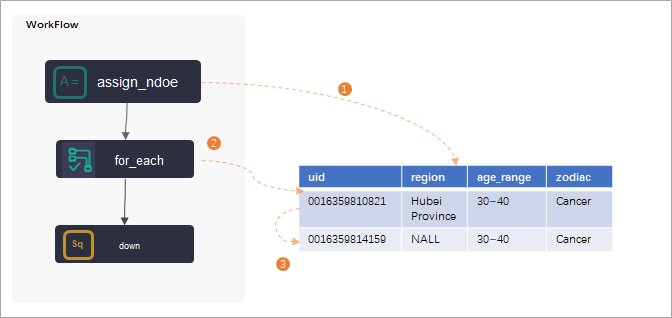 Note
NoteFor details on the for-each node, see Logic of for-each nodes.
-
do-while node: Arrange the workflow within a do-while node to fit your business requirements. Place the logic that needs to be repeated inside the node, and use its internal
endnode to define the exit condition. A do-while node can be used alone or with an assignment node to iterate over the results passed from the assignment node.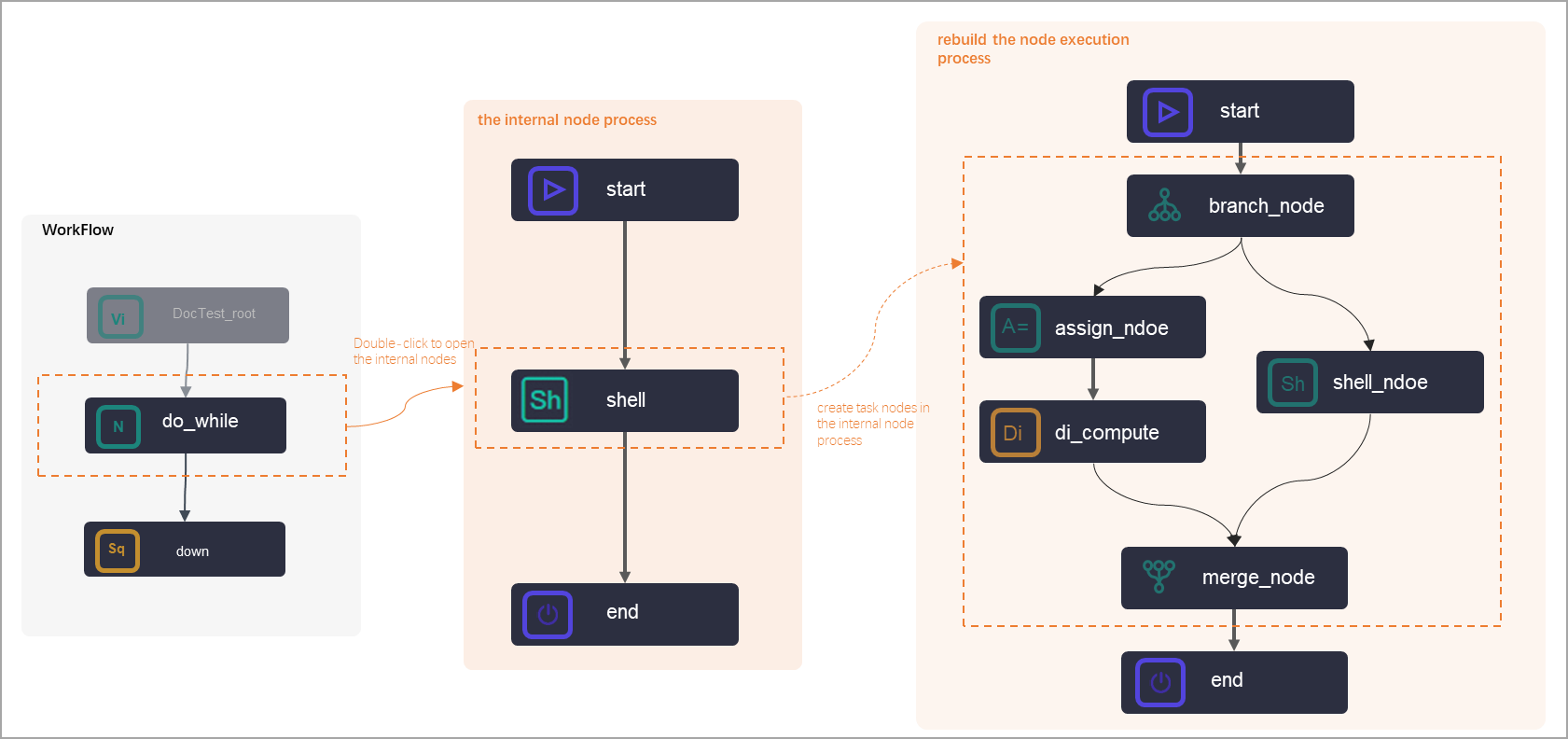 For details on the do-while node, see Logic of do-while nodes.Note
ODPS SQL nodes for MaxCompute do not directly support loop or traversal logic. You can use the general-purpose nodes to implement this logic. Alternatively, you can use a PyODPS node to write custom code to implement this logic.
Pass parameters between nodes
DataWorks offers several ways to pass parameters between nodes, such as using an assignment node or a parameter node. To assign a value to a variable for the entire workflow, use a workflow parameter.
-
assignment node: An assignment node passes the result of an upstream node to a downstream node. In a workflow, an assignment node has a default output parameter named
outputswith the value${outputs}. The system provides the actual value at runtime. A downstream node (e.g., a Shell node) references the output of the upstream assignment node through its input parameters. For example, python_inputs references theoutputsof a Python assignment node, shell_inputs references theoutputsof a Shell assignment node, and sql_inputs references theoutputsof an SQL assignment node. This enables parameter passing between nodes.NoteFor details, see Configure an assignment node.
-
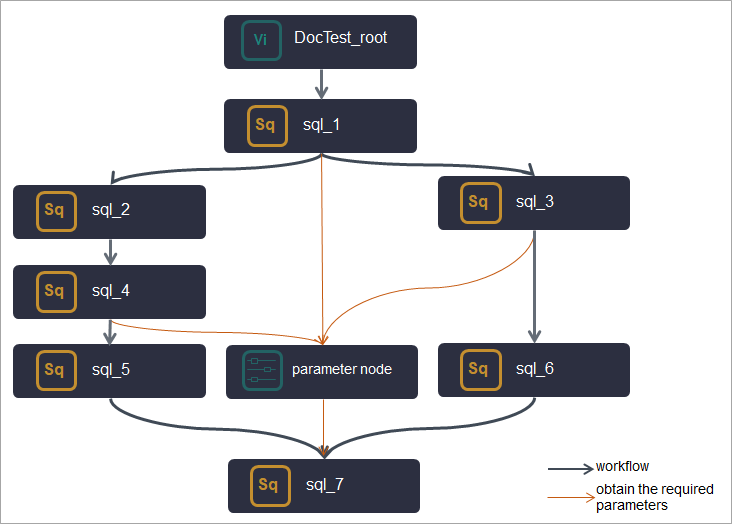
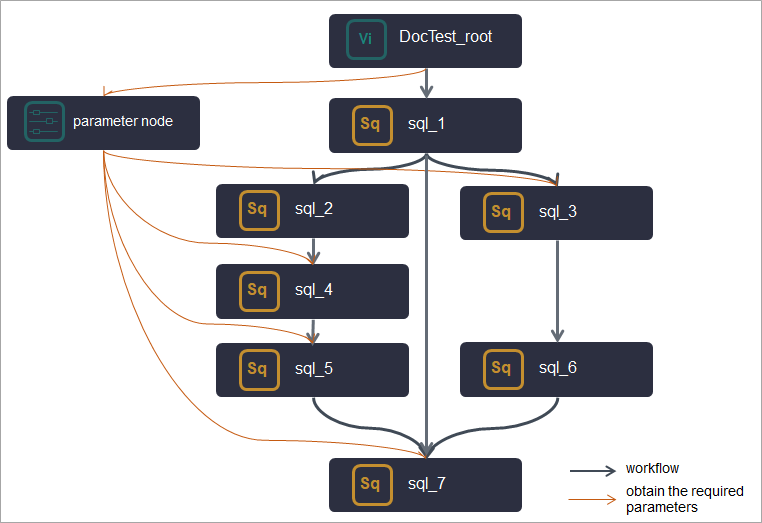
parameter node: A parameter node is a virtual node; it does not run computing tasks or generate data. It is used for parameter passing and management.
Parameter passing
Parameter management
Use a parameter node when a downstream node needs output parameters from multiple upstream nodes at different levels. Add all the required parameters to the parameter node. The downstream node can then be connected as a descendant of the parameter node to get all the necessary parameters.
Use a parameter node when downstream nodes need to use specific constant or variable parameters. Add all the parameters to the parameter node. Downstream nodes that need these parameters can be connected as descendants of the parameter node to access them. This centralizes the management of all parameters used in the workflow.
 Note
NoteFor details, see Create a parameter node.
-
workflow parameter: To assign or override a variable's value for an entire workflow, use the workflow parameter feature. For usage instructions, see Use workflow parameters.
Manage workflows with zero load nodes
In DataWorks, use zero load nodes to control nodes within a workflow when running MaxCompute jobs. For example, you can use them to manage workflows with complex dependencies.
If your business has multiple workflows, use a zero load node as a dedicated start node for each workflow. These nodes run no tasks; they clarify dataflow paths and simplify inter-workflow management.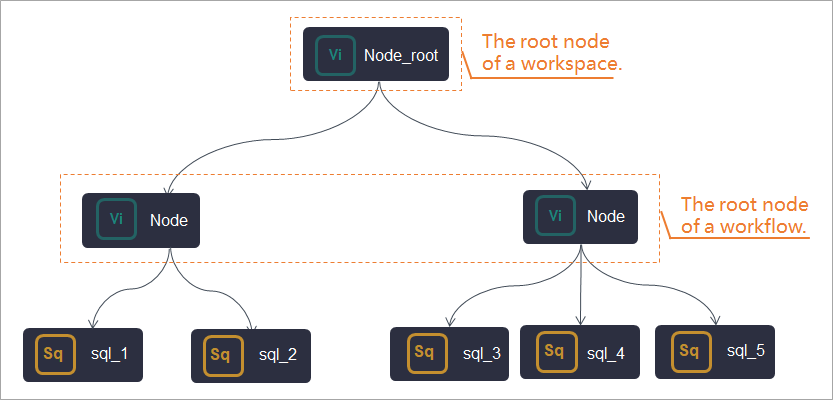
For details about the zero load node, see zero load node.