Deploy LoongCollector in DaemonSet mode and create a collection configuration in the SLS console to centralize Kubernetes container log collection and enable structured processing for efficient querying and analysis.
Requirements
Runtime environment
Supports Container Service for Kubernetes (ACK) (managed and dedicated editions) and self-managed Kubernetes clusters.
Kubernetes 1.10.0 or later that supports
Mount propagation: HostToContainer.Container runtime (Docker and Containerd only)
Docker:
Requires access to docker.sock.
Standard output collection supports only the JSON log driver.
Supports only the overlay and overlay2 storage drivers. To use other types of storage drivers, manually mount the log directory.
Containerd: Requires access to containerd.sock.
Resource requirements: LoongCollector (Logtail) runs with the system-cluster-critical high-priority class. Deploying it on a resource-constrained cluster may evict existing Pods.
CPU: Reserve at least 0.1 core.
Memory: Reserve at least 150 MB for the collection component and at least 100 MB for the controller component.
Actual usage depends on the collection rate, the number of monitored directories and files, and send congestion. Keep resource usage below 80% of the specified limits.
Permission requirements: To deploy, the Alibaba Cloud account or RAM user must have the
AliyunLogFullAccesspermission.To create custom policies with fine-grained permissions, copy the permissions from the AliyunCSManagedLogRolePolicy system policy and grant them to the target RAM user or role.
Collection configuration
Install LoongCollector: Deploy LoongCollector in DaemonSet mode. This ensures that a collection container runs on each node in the cluster to collect logs from all containers on that node.
For the Sidecar pattern, use Collect text logs from Kubernetes pods (Sidecar pattern).
Create a Logstore: A Logstore stores collected logs.
Create and configure log collection rules
Global and input configuration: Define the name of the collection configuration and specify the source and scope of log collection.
Log processing and structuring: Configure processing rules based on the log format.
Multiline logs: Handle log entries that span multiple lines, such as Java exception stacks or Python tracebacks, by defining a first-line regular expression to identify the start of each entry.
Structured parsing: Configure parsing plugins, such as regular expressions, delimiters, or NGINX mode, to extract raw strings into structured key-value pairs, enabling efficient querying and analysis.
Log filtering: Configure collection blacklists and content filtering rules to filter out unwanted log data. This helps reduce redundant data transmission and storage.
Log categorization: Configure log topics and tags to distinguish logs from different services, containers, or path sources.
Query and analysis configuration: Full-text indexing is enabled by default for keyword searches. For precise queries and analysis of structured fields, enable field indexes to improve search efficiency.
Verification and troubleshooting: After you complete the configuration, verify that logs are collected successfully. If you encounter issues such as data collection failure, heartbeat failure, or parsing errors, see Troubleshooting FAQ.
Step 1: Install LoongCollector
LoongCollector is the next-generation log collection agent by Simple Log Service and the successor to Logtail. LoongCollector and Logtail cannot coexist. To install Logtail, see Install, run, upgrade, and uninstall Logtail.
Install LoongCollector using one of the methods below. For parameter details, see Installation and configuration. If LoongCollector or Logtail is already installed, skip to Step 2: Create a logstore.
Changing the host time while LoongCollector (Logtail) is running can cause duplicate collection or data loss.
ACK cluster
Install LoongCollector in the Container Service for Kubernetes console. By default, logs are sent to a Simple Log Service Project within the current Alibaba Cloud account.
-
Log on to the ACK console. In the left navigation pane, click Clusters.
Click the name of the target cluster.
In the left-side navigation pane, click Add-ons.
On the Logs and Monitoring tab, find LoongCollector, and click Install.
NoteWhen you create a cluster, you can select Enable Log Service on the Component Configurations page. You can select Create Project or Select Project. When you install LoongCollector for an existing cluster, the installation dialog box supports specifying a Project name by using the
projectNameparameter. If left empty, the default valuek8s-log-{cluster_id}is used.After the installation is complete, Simple Log Service automatically creates the following resources in the current account. You can view them in the Simple Log Service console.
Resource type
Resource name
Description
Project
k8s-log-${cluster_id}Isolates logs from different services.
For flexible log management, Create a Project.
Machine group
k8s-group-${cluster_id}A collection of log collection nodes. Kubernetes node IP addresses change dynamically as the cluster scales in or out, so identifying a machine group by IP address can cause heartbeat failures. Therefore, machine groups in Kubernetes scenarios use a custom identifier. For more information, see Guide to associating machine groups with collection configurations.
ImportantThe LoongCollector component does not create a logstore named config-operation-log. If this logstore already exists, LoongCollector does not write logs to it.
Self-managed cluster
Connect to the Kubernetes cluster and run the appropriate command for your region:
China regions
wget https://aliyun-observability-release-cn-shanghai.oss-cn-shanghai.aliyuncs.com/loongcollector/k8s-custom-pkg/3.0.12/loongcollector-custom-k8s-package.tgz; tar xvf loongcollector-custom-k8s-package.tgz; chmod 744 ./loongcollector-custom-k8s-package/k8s-custom-install.shRegions outside China
wget https://aliyun-observability-release-ap-southeast-1.oss-ap-southeast-1.aliyuncs.com/loongcollector/k8s-custom-pkg/3.0.12/loongcollector-custom-k8s-package.tgz; tar xvf loongcollector-custom-k8s-package.tgz; chmod 744 ./loongcollector-custom-k8s-package/k8s-custom-install.shGo to the
loongcollector-custom-k8s-packagedirectory and modify the./loongcollector/values.yamlconfiguration file.# ===================== Required Information ===================== # The name of the Project to which logs from this cluster are sent. Example: k8s-log-custom-sd89ehdq projectName: "" # The region where the Project is located. Example: cn-shanghai region: "" # The UID of the Alibaba Cloud account that owns the Project. Enclose the UID in quotation marks (""). Example: "123456789" aliUid: "" # The network type. Valid values: Internet and Intranet. Default value: Internet. net: Internet # The AccessKey ID and AccessKey secret of the Alibaba Cloud account or RAM user. The account or RAM user must have the AliyunLogFullAccess system policy permission. accessKeyID: "" accessKeySecret: "" # A custom cluster ID. The ID can contain only uppercase letters, lowercase letters, digits, and hyphens (-). clusterID: ""In the
loongcollector-custom-k8s-packagedirectory, run the following command to install LoongCollector and its dependencies:bash k8s-custom-install.sh installAfter the installation is complete, verify that the components are running.
If a pod fails to start, verify the configurations in the values.yaml file and ensure the required images have been pulled.
# Check the pod status
kubectl get po -n kube-system | grep loongcollector-ds
Simple Log Service also automatically creates the following resources. You can view them in the Simple Log Service console.
Resource type
Resource name
Description
Project
The value of
projectNamethat you specified in the values.yaml fileIsolates logs from different services.
For flexible log management, Create a Project.
Machine group
k8s-group-${cluster_id}A collection of log collection nodes. Kubernetes node IP addresses change dynamically as the cluster scales in or out, so identifying a machine group by IP address can cause heartbeat failures. Therefore, machine groups in Kubernetes scenarios use a custom identifier. For more information, see Guide to associating machine groups with collection configurations.
ImportantThe LoongCollector component does not create a logstore named config-operation-log. If this logstore already exists, LoongCollector does not write logs to it.
Step 2: Create a logstore
A logstore is the basic storage unit for logs in SLS.
Log in to the Simple Log Service console and click the name of the target project.
In the left-side navigation pane, select
 , click +, and create a logstore:
Logstore Name: Enter a name that is unique within the project. This name cannot be changed after creation.
Logstore Type: Select Standard or Query based on the feature comparison.
Billing Mode:
Pay-by-feature (Cannot Be Changed): You are billed independently for each resource, such as storage, index, and read/write operations. This mode is suitable for small-scale use cases or when feature usage is uncertain.
Pay-by-ingested-data: You are billed only for the volume of raw data that you write. This mode provides 30 days of free storage and free features, such as data transformation and delivery. This mode is suitable for business use cases where the storage period is close to 30 days or the data processing pipeline is complex.
Data Retention Period: The number of days to retain logs. The value can be from 1 to 3,650. A value of 3,650 indicates permanent retention. The default value is 30 days.
Keep the default values for the other settings and click OK. Manage a logstore.
Step 3: Configure a log collection rule
Define which logs to collect, how to parse them, and how to filter content, then apply the configuration to a machine group.
On the
 Logstore page, click the
  icon before the name of the target Logstore to expand it.
Click the
 icon next to Import Data. In the Quick Data Import dialog box, select a template based on the log source and click Integrate Now:
For container standard output, select K8s-Standard Output-New.
Two templates, new and old, are available for collecting container standard output. We recommend using the new version. For a comparison of the versions, see Appendix: Comparison of new and old container standard output versions.
For cluster text logs, select Kubernetes-File.
In the Machine Group Configurations section, complete the configuration and click Next:
Scenario: Select Docker Containers.
Deployment method: Select ACK DaemonSet or Self-managed Cluster in DaemonSet Mode.
From the Source Machine Group list, move the system-created machine group
k8s-group-${cluster_id}to the Applied Machine Group list.
On the Logtail Configuration page, configure the following settings, and then click Next.
1. Global and input configuration
In this step, define the name, log source, and scope for your collection configuration.
Container standard output
Global Configurations
Configuration Name: Enter a custom name for the collection configuration. The name must be unique within the Project and cannot be modified after creation. Naming conventions:
Can contain only lowercase letters, digits, hyphens (-), and underscores (_).
Must start and end with a lowercase letter or a digit.
Input configuration
Turn on the Stdout and Stderr and/or Standard Error toggles. Both are enabled by default.
ImportantWe recommend against enabling both standard output and standard error simultaneously, as this can cause out-of-order log collection.
Cluster text logs
Global Configurations:
Configuration Name: Enter a custom name for the collection configuration. The name must be unique within the Project and cannot be modified after creation. Naming conventions:
Can contain only lowercase letters, digits, hyphens (-), and underscores (_).
Must start and end with a lowercase letter or a digit.
Input Configurations:
File Path Type:
Path in Container: Collect log files from within a container.
Host Path: Collect logs from local services on the host machine.
File Path: The absolute path for log collection.
Linux: Must start with a forward slash (/), such as
/data/mylogs/**/*.log. This path indicates all files ending with .log in the/data/mylogsdirectory and its subdirectories.Windows: Must start with a drive letter, such as
C:\Program Files\Intel\**\*.log.
Maximum Directory Monitoring Depth: The maximum directory depth that the
**wildcard in the File Path can match. The default is 0 (current directory only), and the valid range is 0 to 1,000.We recommend setting this to 0 and configuring the path to the directory containing the log files.
2. Log processing and structuring
Configure processing rules to convert raw logs into structured, searchable data. Add a log sample before configuring rules.
On the Logtail Configuration page, in the Processor Configurations area, click Add Sample Log and enter the log content you want to collect. The system uses the sample to identify the log format and help generate regular expressions and parsing rules, which simplifies the configuration process.
Use case 1: Process multiline logs
Logs such as Java stack traces and JSON objects often span multiple lines. By default, these are split into incomplete records. Enable multiline mode and configure a first-line regex to merge consecutive lines into complete records.
Example:
Unprocessed raw log | In default mode, each line is treated as a separate log, breaking up the stack trace and losing context. | With multiline mode enabled, a first-line regular expression identifies a complete log, preserving its semantic structure. |
|
|
|


Procedure: On the Logtail Configuration page, in the Processor Configurations area, enable Multi-line Mode.
Type: Select Custom or Multi-line JSON.
Custom: If the raw log format is not fixed, you must configure a Regex to Match First Line to identify the starting line of each log entry.
Regex to Match First Line: You can generate this automatically or enter it manually. The expression must match an entire line of data. For the example above, the matching regex is
\[\d+-\d+-\w+:\d+:\d+,\d+]\s\[\w+]\s.*.Auto-generate: Click Auto-generate Regular Expression. In the Log Sample text box, select the log content to extract and click Generate Regex.
Manual input: Click Manually Enter Regular Expression. After entering the expression, click Validate.
Multi-line JSON: Select this option when raw logs are in standard JSON format. LoongCollector automatically handles line breaks within single JSON entries.
Processing Method If Splitting Fails:
Discard: If a text segment does not match the first-line regular expression, it is discarded.
Retain Single Line: Unmatched text is split and retained according to the original single-line mode.
Use case 2: Structure logs
When raw logs are unstructured text (e.g., Nginx access logs), direct querying is inefficient. LoongCollector provides parsing plugins that convert raw logs into structured key-value pairs for analysis, monitoring, and alerting.
Example:
Unprocessed raw log | Log after structured parsing |
| |
Procedure: In the Processor Configurations area of the Logtail Configuration page:
Add a parsing plugin: Click Add Processor and configure a regex, delimiter, or JSON parsing plugin based on your log format. For this NGINX example, select .
NGINX Log Configuration: copy the entire
log_formatdefinition from your Nginx server's configuration file (nginx.conf) and paste it into this text box.Example:
log_format main '$remote_addr - $remote_user [$time_local] "$request" ''$request_time $request_length ''$status $body_bytes_sent "$http_referer" ''"$http_user_agent"';ImportantThe format definition here must exactly match the format that generates the logs on the server; otherwise, parsing will fail.
Common parameters: The following parameters are common to multiple data parsing plugins and function in the same way.
Original field: Specifies the source field to parse. Defaults to
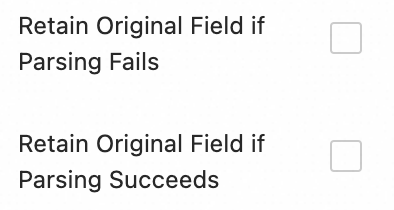
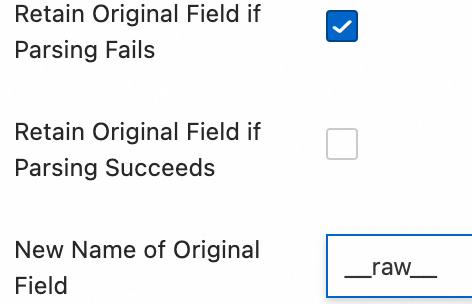
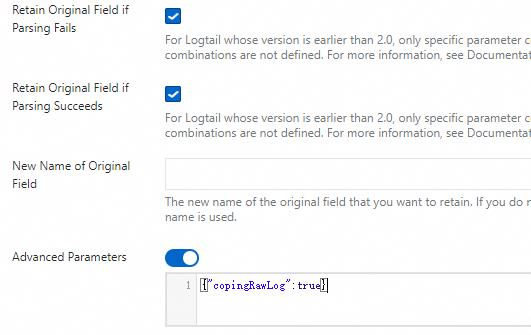
content, which is the entire collected log entry.Keep original field on failure: Recommended. If a log fails to parse (e.g., due to a format mismatch), this option retains the original log content in the specified original field.
Keep original field on success: When selected, the original log content is retained even after successful parsing.
3. Log filtering
Collecting low-value or irrelevant logs, such as those at the DEBUG or INFO level, wastes storage, increases costs, impairs query performance, and can introduce security risks. Implement fine-grained filtering policies for efficient and secure log collection.
Content filtering
Filter logs based on field content, such as collecting only logs where the level is WARNING or ERROR.
Example:
Unprocessed raw logs | Collect only |
| |
Procedure: In the Processor Configurations area of the Logtail Configuration page:
Click Add Processor and select .
Field Name: The log field to filter on.
Field Value: The regular expression for filtering. Only full-text matching is supported; partial keyword matching is not.
Collection blacklist
Use a blacklist to exclude specified directories or files, preventing the upload of irrelevant or sensitive logs.
Procedure: On the Logtail Configuration page, navigate to the area, enable Collection Blacklist, and click Add.
Supports exact and wildcard matching for directories and filenames. The only supported wildcards are the asterisk (*) and question mark (?).
File Path Blacklist: The file paths to ignore. Examples:
/home/admin/private*.log: Ignores all files in the/home/admin/directory that start with "private" and end with ".log"./home/admin/private*/*_inner.log: Ignores files ending with "_inner.log" located in subdirectories that start with "private" under the/home/admin/directory.
File Blacklist: The filenames to ignore during collection. Example:
app_inner.log: Ignores all files namedapp_inner.log.
Directory Blacklist: The directory path cannot end with a forward slash (/). Examples:
/home/admin/dir1/: The directory blacklist will not take effect./home/admin/dir*: Ignores all files within subdirectories of/home/admin/that start with "dir"./home/admin/*/dir: Ignores all files in any second-level subdirectory named "dir" under/home/admin/. For example, files in/home/admin/a/dirare ignored, but files in/home/admin/a/b/dirare collected.
Container filtering
Set collection conditions based on container metadata—such as environment variables, Pod labels, Namespaces, and container names—to precisely control which containers' logs are collected.
Procedure: In the Input Configurations area of the Logtail Configuration page, enable Container Filtering and click Add.
Multiple conditions are combined with a logical "AND". All regular expression matching is based on Go's RE2 engine, which has limitations compared to engines like PCRE. Ensure your expressions comply with the Appendix: Regular Expression Usage Limits (Container Filtering).
Environment Variable Blacklist/Whitelist: Filter containers based on their environment variables.
K8s Pod Label Blacklist/Whitelist: Filter Pods based on their labels.
K8s Pod Name Regex Match: Collect logs from Pods whose names match the specified regular expression.
K8s Namespace Regex Match: Selects containers for collection based on the Namespace name.
K8s Container Name Regex Match: Collect logs from containers whose names match the specified regular expression.
Container Label Blacklist/Whitelist: Collect logs from containers with matching labels. This is intended for Docker scenarios and not recommended for K8s scenarios.
4. Log categorization
In scenarios where multiple applications share a log format, distinguishing the source is difficult. Configure log topics and tags to enable automated context association and logical categorization.
Log topics
When multiple applications or instances share a log format but have different paths (e.g., /apps/app-A/run.log and /apps/app-B/run.log), distinguishing the source is difficult. To solve this, you can generate a log topic based on the machine group, a custom name, or file path extraction to differentiate logs from various business or path sources.
Procedure: Navigate to and select a topic generation method from the following three options:
Machine group topic: When a collection configuration is applied to multiple machine groups, LoongCollector automatically uses the machine group name as the value of the
__topic__field. This is suitable for scenarios where logs are categorized by host cluster.Custom: The format is
customized://<custom_topic_name>, for example,customized://app-login. This is suitable for static topic scenarios with fixed business identifiers.File path extraction: Extracts key information from the full path of the log file to dynamically mark the log source. This is suitable when multiple users or applications share the same log filename but have different paths.
When multiple users or services write logs to different top-level directories with identical sub-paths and filenames, the source cannot be distinguished by filename alone. For example:
/data/logs
├── userA
│   └── serviceA
│       └── service.log
├── userB
│   └── serviceA
│       └── service.log
└── userC
    └── serviceA
        └── service.log
In this case, you can configure file path extraction and use a regular expression to extract key information from the full path. The matched result is then uploaded to the Logstore as the log topic.
Extraction rule: Regex capturing groups
When you configure a regular expression, the system automatically determines the output field format based on the number and naming of capturing groups, as follows:
In the regular expression for a file path, forward slashes (/) must be escaped.
Capturing group type
Use case
Generated field
Regex example
Example path
Generated field
Single capturing group (one
(.*?))A single dimension is needed to distinguish sources (e.g., username, environment).
Generates a
__topic__field.\/logs\/(.*?)\/app\.log/logs/userA/app.log__topic__:userAMultiple unnamed capturing groups (multiple
(.*?))Multiple dimensions are needed but without semantic labels.
Generates Tag fields formatted as
__tag__:__topic_{i}__:value, where{i}is the capturing group index.\/logs\/(.*?)\/(.*?)\/app\.log/logs/userA/svcA/app.log__tag__:__topic_1__:userA;__tag__:__topic_2__:svcAMultiple named capturing groups (using
(?P<name>.*?))Multiple dimensions are needed with clear, semantic field names for easier querying and analysis.
Generates Tag fields formatted as
__tag__:{name}:value.\/logs\/(?P<user>.*?)\/(?P<service>.*?)\/app\.log/logs/userA/svcA/app.log__tag__:user:userA;__tag__:service:svcA
Log tagging
Enable the log tag enrichment feature to extract key information from container environment variables or Kubernetes Pod labels and attach it as Tags for fine-grained log grouping.
Procedure: On the Logtail Configuration page, in the Input Configurations area, enable Log Tag Enrichment and click Add.
Environment Variables: Configure an environment variable name and a Tag key. The environment variable's value will be stored as the Tag's value.
Environment variable name: The name of the environment variable to extract.
Tag key: The key for the new Tag.
Pod Labels: Configure a Pod label key and a Tag key. The Pod label's value will be stored as the Tag's value.
Pod label key: The key of the Kubernetes Pod label to extract.
Tag key: The key for the new Tag.
5. Output configuration
By default, all logs are sent to the current Logstore with lz4 compression. To distribute logs from the same source to different Logstores, follow the steps below.
Multi-destination dynamic distribution
Multi-destination dynamic distribution is available only for LoongCollector 3.0.0 and later. This feature is not supported by Logtail.
You can configure a maximum of five output destinations.
After you configure multiple output destinations, this collection configuration will no longer appear in the current Logstore's list of collection configurations. To view, modify, or delete the configuration, see How do I manage multi-destination distribution configurations?.
Procedure: On the Logtail Configuration page, in the Output Configurations area:
Click
 to expand the output configuration.
Click Add Output Targets and complete the following configuration:
Logstores: Select the target Logstore.
Compression Method: Supports lz4 and zstd.
Route Settings: Route logs based on Tag fields. Logs matching the routing configuration are sent to the target Logstore. If this is left empty, all collected logs are sent to the target Logstore.
Tag Name: The Tag key used for routing. Enter the key directly (e.g.,
__path__) without the__tag__:prefix. Tag fields fall into two categories:Tags are explained in Manage LoongCollector Collection Tags.
Agent-related: Generated by the collection agent and are independent of any plugins. Examples include
__hostname__and__user_defined_id__.Input plugin-related: Provided and enriched by input plugins. Examples include
__path__from file collection and_pod_name_or_container_name_from K8s collection.
Tag Value: Logs whose Tag value matches this setting are sent to the target Logstore.
Discard this tag?: If enabled, this Tag field will not be included in the uploaded logs.
Step 4: Query and analysis
After you configure log processing and plugins, click Next to proceed to the Query and Analysis Configurations page:
By default, the system enables the full-text index, which lets you search raw log content by keyword.
To query data by specific fields, click Automatic Index Generation after the Preview Data loads. Log Service generates a field index based on the first log entry in the preview data.
After completing the configuration, click Next to finalize the collection process.
Step 5: Validate and troubleshoot
After you create and apply a collection configuration to a machine group, the system automatically deploys it and starts collecting incremental logs.
View collected logs
Confirm that the log file has new content: LoongCollector only collects incremental logs. Run
tail -f /path/to/your/log/fileand trigger business operations to ensure that new logs are being written.Search for logs: Go to the Search & Analyze page of the target Logstore. Click Search & Analyze. The default time range is the last 15 minutes. Check whether new logs are ingested. Each collected container text log includes the following fields by default:
Parameter
Description
__tag__:__hostname__The name of the container host.
__tag__:__path__The path of the log file within the container.
__tag__:_container_ip_The IP address of the container.
__tag__:_image_name_The name of the image used by the container.
__tag__:_pod_name_The name of the Pod.
__tag__:_namespace_The namespace of the Pod.
__tag__:_pod_uid_The unique identifier (UID) of the Pod.
Query the historical nodes of a Pod
If a Pod has drifted or restarted, you can query the Kubernetes event logs of your ACK cluster in Simple Log Service to find the nodes on which the Pod previously ran.
Log on to the Simple Log Service console and locate the
k8s-log-{cluster_id}project in the project list.Click the k8s-event LogStore to go to the query and analysis page.
In the search box, enter a query statement that filters by Pod name, for example,
pod_name: my-pod, and then click Search & Analyze.In the returned results, check the value of the
hostnamefield. This value is the hostname of the node on which the Pod ran.
In the k8s-event LogStore, the field names are pod_name and hostname, without the __tag__: prefix. The __tag__: prefix format applies to container stdout and text log collection, not to Kubernetes event logs.
Troubleshoot common issues
Machine group heartbeat failure
Check the user identifier: If your server is not an ECS instance, or if the ECS instance and the Project belong to different Alibaba Cloud accounts, ensure the correct user identifier exists in the specified directory.
On Linux, run the
cd /etc/ilogtail/users/ && touch <uid>command to create a user identifier file.Windows: Go to the
C:\LogtailData\users\directory and create an empty file named<uid>.
The user identifier is configured correctly if the specified path contains a file whose name is the Alibaba Cloud account ID of the current Project.
Check the machine group identifier: If you use a custom identifier for a machine group, check if the
user_defined_idfile exists in the specified directory. If the file exists, check if its content matches the custom identifier configured for the machine group.Linux:
# Configure the custom identifier. If the directory does not exist, create it manually.
echo "user-defined-1" > /etc/ilogtail/user_defined_id
Windows: In the
C:\LogtailDatadirectory, create a file nameduser_defined_idand write the custom identifier to the file. (If the directory does not exist, create it manually.)
If the user identifier and machine group identifier are configured correctly, refer to Troubleshooting LoongCollector (Logtail) machine groups for further troubleshooting.
Log collection errors or format errors
This issue typically occurs when your network connection and basic configuration are correct, but the log content does not match the parsing rules. To diagnose the problem, view the specific error message:
On the Logtail Configuration page, click the name of the LoongCollector (Logtail) configuration that has collection errors. On the Log Collection Error tab, click Select Time Range to set the query time.
In the section, view the alert type of the error log and refer to Common error types for data collection to find the corresponding solution.
Next steps
Data visualization: Use visualization dashboards to monitor key metric trends.
Data anomaly alerting: Set up alert policies to detect data anomalies in real time.
Troubleshooting container log collection
Verify that new logs are being generated in the target log file. Logtail does not collect data until new logs appear.
FAQ
Manage multi-destination distribution configurations
Since multi-destination distribution configurations apply to multiple logstores, manage them from the Project-level management page:
Log on to the Simple Log Service console and click the name of the target Project.
On the Project page, in the left-side navigation pane, click
 .Note
.NoteThis page manages all collection configurations within the Project, including configurations for logstores that were accidentally deleted.
Send ACK logs to a cross-account Project
You can send container logs to a Simple Log Service (SLS) Project in another Alibaba Cloud account by manually installing the LoongCollector (Logtail) component in the ACK cluster and configuring it with the target account's Alibaba Cloud account ID or access credential (AccessKey).
Scenario description: If you need to collect log data into another account's SLS Project for organizational, permission, or monitoring purposes, manually install LoongCollector (Logtail) to enable cross-account collection.
Procedure: Follow these steps to manually install LoongCollector. For information about how to install Logtail, see Install and configure Logtail.
Connect to the Kubernetes cluster and run the appropriate command for your region:
China regions
wget https://aliyun-observability-release-cn-shanghai.oss-cn-shanghai.aliyuncs.com/loongcollector/k8s-custom-pkg/3.0.12/loongcollector-custom-k8s-package.tgz; tar xvf loongcollector-custom-k8s-package.tgz; chmod 744 ./loongcollector-custom-k8s-package/k8s-custom-install.shRegions outside China
wget https://aliyun-observability-release-ap-southeast-1.oss-ap-southeast-1.aliyuncs.com/loongcollector/k8s-custom-pkg/3.0.12/loongcollector-custom-k8s-package.tgz; tar xvf loongcollector-custom-k8s-package.tgz; chmod 744 ./loongcollector-custom-k8s-package/k8s-custom-install.shGo to the
loongcollector-custom-k8s-packagedirectory and modify the./loongcollector/values.yamlconfiguration file.# ===================== Required Information ===================== # The name of the Project to which logs from this cluster are sent. Example: k8s-log-custom-sd89ehdq projectName: "" # The region where the Project is located. Example: cn-shanghai region: "" # The UID of the Alibaba Cloud account that owns the Project. Enclose the UID in quotation marks (""). Example: "123456789" aliUid: "" # The network type. Valid values: Internet and Intranet. Default value: Internet. net: Internet # The AccessKey ID and AccessKey secret of the Alibaba Cloud account or RAM user. The account or RAM user must have the AliyunLogFullAccess system policy permission. accessKeyID: "" accessKeySecret: "" # A custom cluster ID. The ID can contain only uppercase letters, lowercase letters, digits, and hyphens (-). clusterID: ""In the
loongcollector-custom-k8s-packagedirectory, run the following command to install LoongCollector and its dependencies:bash k8s-custom-install.sh installAfter the installation is complete, verify that the components are running.
If a pod fails to start, verify the configurations in the values.yaml file and ensure the required images have been pulled.
# Check the pod status
kubectl get po -n kube-system | grep loongcollector-ds
Simple Log Service also automatically creates the following resources. You can view them in the Simple Log Service console.
Resource type
Resource name
Description
Project
The value of
projectNamethat you specified in the values.yaml fileIsolates logs from different services.
For flexible log management, Create a Project.
Machine group
k8s-group-${cluster_id}A collection of log collection nodes. Kubernetes node IP addresses change dynamically as the cluster scales in or out, so identifying a machine group by IP address can cause heartbeat failures. Therefore, machine groups in Kubernetes scenarios use a custom identifier. For more information, see Guide to associating machine groups with collection configurations.
ImportantThe LoongCollector component does not create a logstore named config-operation-log. If this logstore already exists, LoongCollector does not write logs to it.
Use multiple configurations for the same source
By default, to prevent data duplication, Simple Log Service (SLS) allows only one collection configuration to collect logs from each source:
A text log file can match only one Logtail collection configuration.
A container's standard output (stdout):
If you use the new version of the standard output template, stdout can be collected by only one standard output collection configuration by default.
If you use the old version of the standard output template, no extra configuration is required, and multiple collections are supported by default.
Log on to the Simple Log Service console and go to the target Project.
In the left-side navigation pane, choose
Logstores and find the target logstore.Click the
icon next to its name to expand the logstore.Click Logtail Configuration. In the list of configurations, find the target Logtail configuration and click Manage Logtail Configuration in the Actions column.
On the Logtail configuration page, click Edit and scroll to the Input Configurations section:
To collect text file logs, enable Allow File to Be Collected for Multiple Times.
To collect container standard output, enable Allow Collection by Different Logtail Configurations.
Dependency error when uninstalling loongcollector
Problem: When you try to uninstall the loongcollector (logtail-ds) component in Container Service for Kubernetes (ACK), you receive an error that the component's dependencies are not met.
Dependencies of addons are not met: terway-eniip depends on logtail-ds(>0.0) whose version is v3.x.x.x-aliyun or will be v3.x.x.x-aliyun.
Cause: The terway-eniip network plugin has log collection enabled, which creates a dependency on the loongcollector (logtail-ds) component. Therefore, ACK does not allow you to uninstall loongcollector (logtail-ds) until you remove this dependency.
Solution: Follow these steps to remove the dependency and then uninstall the component:
Log on to the ACK console.
In the cluster list, click the name of the target cluster to go to its details page.
In the left-side navigation pane, click Add-ons.
In the list of add-ons, search for the
terway-eniipcomponent and click .In the dialog box that appears, click OK.
After the configuration takes effect, try to uninstall the loongcollector (logtail-ds) component again.
Delayed or truncated last log entry
Cause: Log truncation typically occurs when a log file is missing a final line feed, or when a multiline log entry, such as an exception stack, has not been fully written. Because the collector cannot determine if the log entry is complete, the last log entry may be split or delayed. How this is handled depends on your LoongCollector (Logtail) version:
Versions earlier than 1.8:
If the last line of a log lacks a line feed (carriage return), or if a multiline log block is incomplete, the collector waits for the next write operation to trigger an output. This can significantly delay the last log entry until a new log is written.Version 1.8 and later:
These versions introduce a timeout flush mechanism to prevent logs from getting stuck. When an incomplete log line is detected, the system starts a timer. After the timeout period expires, the current content is automatically submitted to ensure the log is eventually collected.Default timeout: 60 seconds (ensures data integrity in most scenarios)
You can adjust this value based on your requirements. However, we recommend that you do not set it to 0, as this may cause log truncation or partial data loss.
Solution:
You can extend the waiting time to ensure that a complete log entry is written before it is collected:
Log on to the Simple Log Service console and go to the target Project.
In the left-side navigation pane, choose
 Logstores and find the target logstore.
Click the
 icon next to its name to expand the logstore.
Click Logtail Configuration. In the list of configurations, find the target Logtail configuration and click Manage Logtail Configuration in the Actions column.
On the Logtail configuration page, click Edit.
Go to and add the following JSON configuration to customize the timeout period.
{
  "FlushTimeoutSecs": 1
}
Default value: Determined by the
default_reader_flush_timeoutstartup parameter, which is typically a few seconds.Unit: Seconds.
Recommended value: ≥ 1 second. We recommend that you do not set it to 0, as this may cause log truncation or partial data loss.
After you complete the configuration, click OK.
LoongCollector network failover and recovery
If LoongCollector (Logtail) detects an internal network connectivity issue, such as a failure or timeout, it automatically switches to the public network. This failover mechanism ensures reliable log collection and prevents backlogs or data loss.
LoongCollector: Automatically switches back to the internal network after the network recovers.
Logtail: Does not automatically switch back. You must restart it to restore internal network communication.
Appendix: Native processors
On the Logtail Configuration page, in the Processor Configurations area, you can add processing plug-ins to structure raw logs. To add a processing plug-in to an existing collection configuration, you can follow these steps:
In the navigation pane on the left, choose
 Logstores and find the destination Logstore.
Click
 to the left of its name to expand the Logstore.
Click Logtail Configuration. In the configuration list, find the destination Logtail configuration and click Manage Logtail Configuration in the Actions column.
On the Logtail configuration page, click Edit.
This section introduces only commonly used processing plug-ins that cover common log processing scenarios. For more features, see Extension processing plug-ins.
Rules for combining plug-ins (applies to LoongCollector / Logtail 2.0 and later):
Native and extension processing plug-ins can be used independently or in combination as needed.
We recommend that you use native processing plug-ins first, because they offer better performance and higher stability.
When native features cannot meet business requirements, you can add extension processing plug-ins after the configured native ones to perform supplementary processing.
Order constraint:
All plug-ins are executed sequentially in the order they are configured, which forms a processing chain. Note: All native processing plug-ins must precede any extension processing plug-ins. After you add any extension processing plug-in, you cannot add more native processing plug-ins.
Regular expression parsing
This processor uses a regular expression to parse logs into key-value pairs. You can then query and analyze each extracted field independently.
Example:
Raw log | Parsed result |
| |
Steps: On the Logtail Configuration page, in the Processor Configurations area, click Add Processor, and select :
Regular Expression: Matches log entries. You can either generate one automatically or enter it manually.
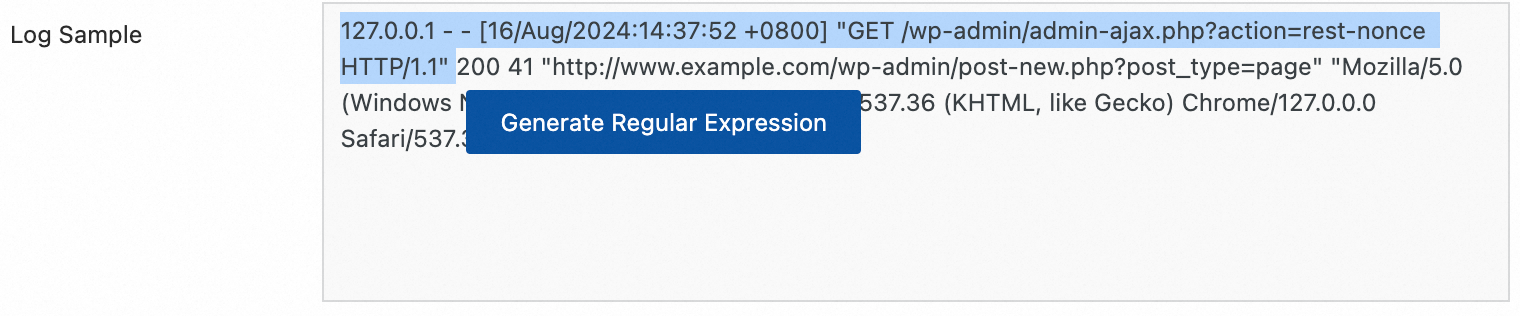
To generate a regular expression automatically:
Click Generate Regular Expression.
In the Log Sample box, highlight the content to extract.
Click Generate.
Manually enter a regular expression based on your log format.
After configuring the expression, click Validate to test if it correctly parses your log sample.
Extracted Field: Assign a name (key) to the extracted content (value).
For information about other parameters, see the description of common configuration parameters in Scenario 2: Structured logs.
Delimiter parsing
This processor uses a delimiter to parse logs into key-value pairs. You can use single or multi-character delimiters.
Example:
Raw log | Using a specified character |
| |
Procedure: On the Logtail Configuration page, in the Processor Configurations area, click Add Processor, and select :
Delimiter: The character that separates fields in the log.
Example: For a CSV file, select Custom and enter a comma (,).
Quote: The character used to enclose a field value. This is necessary if a field value might contain the delimiter, as it prevents incorrect splitting.
Extracted Field: Assign a field name (Key) for each column in sequential order. The field names must adhere to the following rules:
Can contain only letters, digits, and underscores (_).
Must start with a letter or an underscore (_).
Maximum length: 128 bytes.
For information about other parameters, see the description of common configuration parameters in Scenario 2: Structured logs.
Standard JSON parsing
This processor parses a log entry that is a JSON object into key-value pairs.
Example:
Raw log | Parsed result |
| |
Procedure: On the Logtail Configuration page, in the Processor Configurations section, click Add Processor, and select :
Original Field: The default value is
content. This field stores the raw log content to be parsed.For information about other parameters, see the description of common configuration parameters in Scenario 2: Structured logs.
Nested JSON parsing
This processor expands a nested JSON object into key-value pairs. You control the expansion with the JSON expansion depth setting.
Example:
Raw log | Result (depth: 0) | Result (depth: 1) |
| | |
Procedure: On the Logtail Configuration page, in the Processor Configurations section, click Add Processor, and select :
Original Field: The name of the original field to expand, such as
content.JSON Expansion Depth: The number of levels to expand within the JSON object.
0expands all levels (default),1expands only the top level, and so on.Character to Concatenate Expanded Keys: The character used to join keys from nested objects. Defaults to an underscore (
_).Name Prefix of Expanded Keys: A prefix to add to the name of each expanded key.
Expand Array: Enable this option to expand an array into indexed key-value pairs.
For example,
{"k":["a","b"]}expands to{"k[0]":"a","k[1]":"b"}.To rename an expanded field (e.g., from
prefix_s_key_k1tonew_field_name), add a Rename Fields processor after this one.For information about other parameters, see the description of common configuration parameters in Scenario 2: Structured logs.
JSON array parsing
Use the json_extract function to extract a JSON object from a JSON array.
Example:
Raw log | Parsed result |
| |
Procedure: On the Logtail Configuration page, in the Processor Configurations section, set the Processing Method to SPL. Then, configure the SPL statement to use the json_extract function to extract JSON objects from the JSON array.
Example: From the log field content, extract elements from a JSON array and store the results respectively in the new fields json1 and json2.
* | extend json1 = json_extract(content, '$[0]'), json2 = json_extract(content, '$[1]')Apache log parsing
This processor parses Apache access logs into key-value pairs based on your Apache LogFormat directive.
Example:
Raw log | Apache Common Log Format |
| |
Procedure: On the Logtail Configuration page, in the Processor Configurations section, click Add Processor, and select :
Log Format: combined
APACHE LogFormat Configuration: The system automatically populates this field based on the selected Log Format.
ImportantVerify that the auto-populated content is identical to the LogFormat directive defined in your server's Apache configuration file, which is typically located at
/etc/apache2/apache2.conf.For other parameters, see the description of common configuration parameters in Scenario 2: Structured Log.
Data masking
Mask sensitive data in your logs.
Example:
Raw log | Masked result |
| |
Procedure: On the Logtail Configuration page, in the Processor Configurations section, click Add Processor, and select :
Original Field: The source field containing the content to be masked.
Data Masking Method:
const: Replaces sensitive content with a specified string.
md5: Replaces sensitive content with its MD5 hash value.
Replacement String: The string to use for masking. This is required when the Data Masking Method is set to const.
Content Expression that Precedes Replaced Content: A regular expression in RE2 syntax to locate the content immediately before the sensitive data.
Content Expression to Match Replaced Content: A regular expression in RE2 syntax to match the sensitive data that you want to replace.
Time parsing
Parses the time field in the log and sets the parsed result as the log's __time__ field.
Example:
Raw log | Parsed result |
|
|
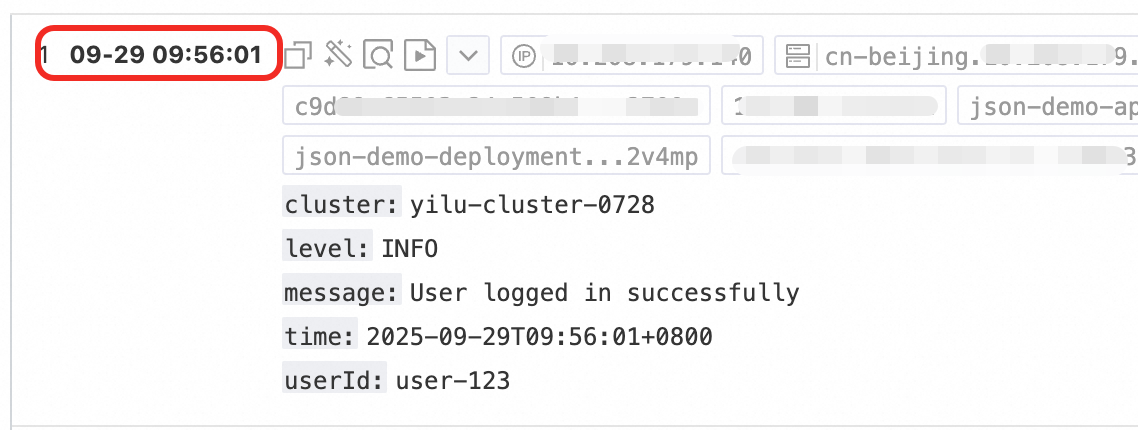
Procedure: On the Logtail Configuration page, in the Processor Configurations section, click Add Processor, and select :
Original Field: The source field that contains the time string to parse.
Time Format: The time format that corresponds to the time string in your logs.
Time Zone: The time zone of the log's time field. If unspecified, it defaults to the time zone of the machine running LoongCollector (Logtail).
Appendix: Regular expression limitations (container filtering)
Regular expressions for container filtering use the Go RE2 engine. Compared to other engines like PCRE, the RE2 engine has several syntax limitations. Keep the following in mind when writing regular expressions:
1. Named group syntax differences
Go uses the (?P<name>...) syntax to define a named group and does not support the (?<name>...) syntax from PCRE.
Correct:
(?P<year>\d{4})Incorrect:
(?<year>\d{4})
2. Unsupported regular expression features
The RE2 engine does not support the following common but complex regular expression features. Avoid using them:
Assertions:
(?=...),(?!...),(?<=...), and(?<!...)Conditional expressions:
(?(condition)true|false)Recursive matching:
(?R)and(?0)Subprogram references:
(?&name)and(?P>name)Atomic groups:
(?>...)
3. Recommendations
Use a tool such as Regex101 to debug your regular expressions. To ensure compatibility, select the Golang (RE2) mode for validation. If you use any unsupported syntax, the plugin will fail to parse or match the expression.
Appendix: Container standard output version comparison
To improve storage efficiency and collection consistency, the log metadata format for container standard output has been upgraded. The new format consolidates metadata under the __tag__ field, which optimizes storage and standardizes the format.
Core advantages of the new standard output
Significantly improved performance
Refactored in C++, the new version delivers a 180% to 300% performance improvement over the previous Go implementation.
It supports data processing with native plugins and multi-threading parallel processing, which fully utilizes system resources.
It supports flexible combinations of native plugins and Go plugins to meet the needs of complex scenarios.
Stronger reliability
It supports a rotation queue for standard output logs and unifies the log collection mechanism with the file collection mechanism, which provides high reliability when standard output logs rotate rapidly.
Lower resource consumption
CPU usage is reduced by 20% to 25%.
Memory usage is reduced by 20% to 25%.
Enhanced O&M consistency
Unified parameter configuration: The configuration parameters of the new standard output collection plugin are consistent with those of the file collection plugin.
Unified metadata management: The naming of container metadata fields and the tag storage location are unified with the file collection scenario, so the consumer side maintains only one set of processing logic.
Feature comparison of the new and old versions
Feature | Old version | New version |
Storage method | Metadata is embedded in the log content as regular fields. | Metadata is consolidated under the |
Storage efficiency | Each log entry carries a complete copy of the metadata, which consumes more storage space. | Multiple log entries in the same context can reuse the metadata, which saves storage costs. |
Format consistency | The format is inconsistent with the container file collection format. | Field naming and storage structure are fully aligned with container file collection, which provides a unified experience. |
Query access method | You can query metadata directly by field name, such as | You must access the corresponding key-value pair through |
Container metadata field mapping
Old field name | New field name |
|
|
|
|
|
|
|
|
|
|
|
|
In the new version, all metadata fields are stored in the tag section of the log in the __tag__:<key> format instead of being embedded in the log content.
Impact of the new version on users
Consumer-side adaptation: Because the storage location changes from the content to the tag, you must adjust your log consumption logic accordingly. For example, you must access the fields through
__tag__when you run a query.SQL compatibility: Query SQL is already automatically compatible with both versions, so you do not need to modify your query statements to process logs from either version.
More information
Global parameters
Input parameters
Processor parameters
Parameter | Description |
Log sample | A sample of the log you want to collect. Use a log sample from your actual use case. The sample helps you configure processing parameters more easily. You can add multiple samples. The total length cannot exceed 1,500 characters. |
Multi-line mode |
|
Processing mode | Processors, which includes the Native Processor and the Extended Processor. For more information about processors, see Use native and extended processors. Important For processor usage limitations, refer to the console prompts.
|