This topic describes how to troubleshoot machine group heartbeat issues on a server.
Machine group installation examples
Installation method | Scenarios |
The server is an ECS instance, and the instance and project are in the same region under the same Alibaba Cloud account. | |
The server is an ECS instance under the same Alibaba Cloud account as the project, but they are in different regions. | |
The server is an ECS instance, and the instance and project are in the same region but belong to different Alibaba Cloud accounts. | |
|
Troubleshooting checklist
Step 1: Verify that Logtail is running: Check if the Logtail process is active on the server.
Step 2: Verify that the machine group IP address matches the IP address that Logtail obtains: A mismatched IP address between the machine group and the Logtail app_info.json file can cause heartbeat failures.
Step 3: Check whether the Logtail startup parameters are correct: Check whether the Project region configured in the
ilogtail_config.jsonfile is correct.Step 4: Check network connectivity: Ensure the server can connect to the project endpoints.
Step 5: Verify the system time on the Logtail server: If the system time is significantly different from the actual time, correct it.
Step 6: Verify the user identifier for cross-account collection: This step is required if the server is not an ECS instance or if the instance and project belong to different Alibaba Cloud accounts.
Step 7: Verify the custom identifier for a custom identifier-based machine group: If you use a custom identifier-based machine group, ensure that the custom identifier is configured on the server.
Step 8: Restart Logtail: After making changes, restart Logtail to apply them.
Next steps
View Logtail collection errors: If the heartbeat status is OK but logs are still not collected, check Logtail error messages to continue troubleshooting.
Step 1: Verify Logtail status
Linux
Log on to the server where Logtail is installed.
Run the following command.
ps -ef | grep ilogtailIf the output includes two entries similar to the following, Logtail is running correctly. These entries represent the Logtail daemon and worker processes.
UID PID PPID C STIME TTY TIME CMD ... root 12 1 0 Nov10 ? 00:00:00 /usr/local/ilogtail/ilogtail root 14 12 0 Nov10 ? 03:07:43 /usr/local/ilogtail/ilogtail ...ImportantIf the output shows three or more Logtail processes, multiple Logtail instances are running on the server. This can cause duplicate log collection. Check if this is the intended behavior.
If the output does not show any running Logtail processes:
Logtail is installed but not running. For more information, see Start and stop Logtail (Linux).
Logtail is not installed. For more information, see Install Logtail (Linux).
ImportantWhen installing Logtail, select a supported operating system and choose the correct installation parameters for your Simple Log Service project's region and network type. For more information about network types, see Logtail network types, startup parameters, and configuration files.
Windows
Log on to the server where Logtail is installed.
Open the Run window and enter
services.msc.Check the status of the LogtailDaemon service (for Logtail 1.0.0.0 and later) or the LogtailWorker service (for Logtail 0.x.x.x versions).
If the service is not running:
Logtail is installed but not running. For more information, see Manually start and stop Logtail (Windows).
Logtail is not installed. For more information, see Install Logtail (Windows).
ImportantWhen installing Logtail, select a supported operating system and choose the correct installation parameters for your Simple Log Service project's region and network type. For more information about network types, see Logtail network types, startup parameters, and configuration files.
Step 2: Verify the IP address match
Logtail obtains the IP address of a Linux server in the following ways:
If you have not configured hostname binding, Logtail uses the IP address of the first network interface controller (NIC) on the server.
If you want to customize the IP address, you can set
working_ipin theilogtail_config.jsonfile in Step 3. After you set this parameter, theipfield in theapp_info.jsonfile will automatically be updated to the value of theworking_ipfield. For more information about working_ip, see Set startup parameters.If you set a hostname binding in the
/etc/hostsfile, Logtail obtains the IP address corresponding to the bound hostname.
Obtain the value of the
ipfield from the app_info.json file.The following table lists the default paths to this file on different operating systems.
Operating system
Logtail
app_info.json path
Linux
Logtail (64-bit)
/usr/local/ilogtail/app_info.json
Windows (64-bit)
Logtail (64-bit)
C:\Program Files\Alibaba\Logtail\app_info.json
Logtail (32-bit)
C:\Program Files (x86)\Alibaba\Logtail\app_info.json
Windows (32-bit)
Logtail (32-bit)
C:\Program Files\Alibaba\Logtail\app_info.json
Logtail records the collected IP address in the
ipfield of the app_info.json file.{ "UUID" : "", "hostname" : "iZ8vbdlzf******azuhZ", "instance_id" : "E9633380-***********-00163E1AA597_172.16.2.200_166****11", "ip" : "172.**.**.200", "logtail_version" : "1.3.1", "os" : "Linux; 4.19.91-26.1.al7.x86_64; #1 SMP Tue Jul 26 17:52:28 CST 2022; x86_64", "update_time" : "2022-12-27 05:38:33" }Verify that the machine group uses the IP address that Logtail obtains.
Simple Log Service provides two types of machine groups: IP address-based machine groups and custom identifier-based machine groups. For more information, see Machine groups.
IP address-based machine group: Check if the IP Address list contains the IP address that you obtained in the previous step.
If the IP address is not included, first confirm the server's correct IP address. If the address in the IP Address list is incorrect, update it in the machine group settings. If the IP address obtained by Logtail in the previous step is wrong, modify the working_ip parameter as described in Set Logtail startup parameters and restart Logtail. After making the correction, monitor the machine's heartbeat. If the status becomes normal, the issue is resolved.
Custom identifier-based machine group: In the Machine Group Status list, check for the IP address you obtained in the previous step. If the Heartbeat status is OK, the issue is resolved.
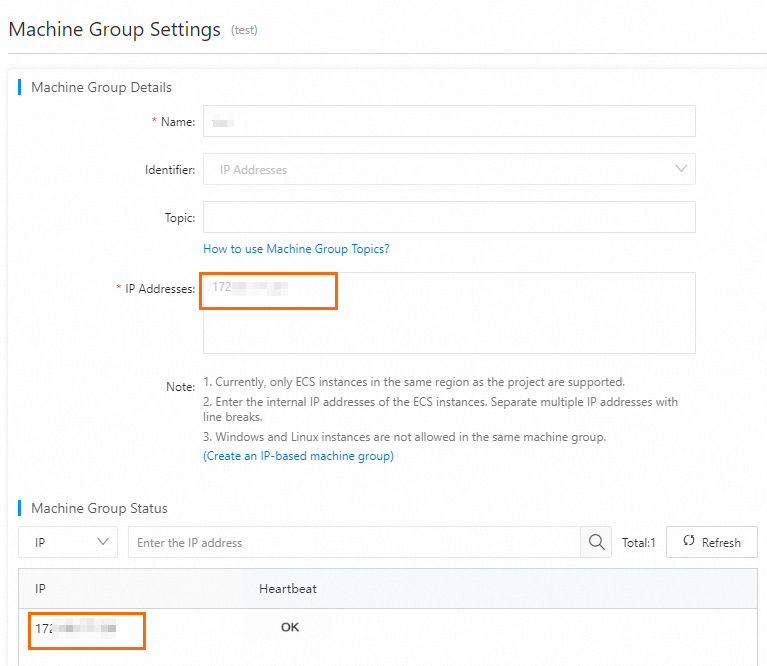
Step 3: Verify startup parameters
The ilogtail_config.json file contains the startup parameters for Logtail.
Log on to the server where Logtail is installed.
Find the ilogtail_config.json file.
The following table lists the default paths to this file on different operating systems.
Operating system
Logtail
ilogtail_config.json path
Linux
Logtail (64-bit)
/usr/local/ilogtail/ilogtail_config.json
Windows (64-bit)
Logtail (64-bit)
C:\Program Files\Alibaba\Logtail\ilogtail_config.json
Logtail (32-bit)
C:\Program Files (x86)\Alibaba\Logtail\ilogtail_config.json
Windows (32-bit)
Logtail (32-bit)
C:\Program Files\Alibaba\Logtail\ilogtail_config.json
Open the ilogtail_config.json file and check if the configuration parameters are correct.
{
  "config_server_address" : "http://logtail.<config_region>.log.aliyuncs.com",
  "data_server_list" :
  [
    {
      "cluster" : "<project_region>",
      "endpoint" : "<endpoint>"
    }
  ],
  ...
}
If the startup parameters in the ilogtail_config.json file match the following descriptions, they are correct.
If the startup parameters are incorrect, modify the ilogtail_config.json file based on the following table and then restart Logtail. For more information, see Restart Logtail.
For information about project regions, see Supported regions.
Scenario
Network type
<config_region>
<endpoint>
The server is an ECS instance, and it is in the same region as the project.
Alibaba Cloud internal network
<project_region>-intranet
<project_region>-intranet.log.aliyuncs.com
Other scenarios
Internet
<project_region>
<project_region>.log.aliyuncs.com
transfer acceleration
log-global.aliyuncs.com
LoongCollector: cross-region collection
When the region of the ECS instance differs from the region of the Simple Log Service project (for example, the ECS instance is in the US (Virginia) region and the project is in the US (Silicon Valley) region), LoongCollector also requires a correctly configured endpoint:
Open the LoongCollector configuration file
/usr/local/ilogtail/ilogtail_config.json(the same path as Logtail).Make sure that
config_server_addressanddata_server_list[].endpointpoint to the endpoint of the region where the destination project resides, for example,us-west-1.log.aliyuncs.comorus-west-1-intranet.log.aliyuncs.com.After you modify the configuration, run
sudo /etc/init.d/loongcollectord restartto restart LoongCollector for the changes to take effect.If logs still fail to be uploaded after the modification, uninstall LoongCollector and reinstall it with the correct region endpoint.
Keywords: LoongCollector, cross-region, endpoint configuration.
Step 4: Check network connectivity
For successful data uploads, the Logtail server must be able to connect to the following addresses.
If you use an internal network, you need to add -intranet after <endpoint>.
The address specified by the
config_server_addressfield in theilogtail_config.jsonfile and its HTTPS version.http://<project-name>.<endpoint>.You can find the project name and region as shown in the following figure.

<endpoint>is the address specified by thedata_server_list.endpointparameter in theilogtail_config.jsonfile.
http://ali-<project-region>-sls-admin.<endpoint>, where<endpoint>is the address specified by thedata_server_list.endpointfield in theilogtail_config.jsonfile.
Follow these steps to check and resolve network issues:
Linux
Log on to the server where Logtail is installed.
Run the
curlcommand to connect to the preceding addresses in sequence.curl http://<project_name>.cn-hangzhou-intranet.log.aliyuncs.comIf all responses are similar to the following example, the network connection is working correctly.
{"Error":{"Code":"OLSInvalidMethod","Message":"The script name is invalid : /","RequestId":"5D****09"}}If the network connection fails, check for issues such as blocked ports (80 and 443), incorrect DNS settings, or misconfigured security groups.
Windows
Log on to the server where Logtail is installed.
Run the
telnetcommand to try to connect to the preceding addresses one by one.telnet <project_name>.cn-hangzhou-intranet.log.aliyuncs.com 80 # If you use HTTPS, the port is 443.If all responses are similar to the following example, the network connection is working correctly.
Trying 100*0*7*5...
Connected to xxx.
Escape character is '^]'.
If the network connection fails, check for issues such as blocked ports (80 and 443), incorrect DNS settings, or misconfigured security groups.
Step 5: Verify the system time
Linux
Log on to the server where Logtail is installed.
Run the
datecommand to view the system time.Wed Dec 28 06:59:26 UTC 2022If the system time deviates significantly from the actual time, take one of the following actions.
Adjust the system time to the correct time.
If you cannot modify the system time, modify the Logtail startup parameters by adding the configuration item
"enable_log_time_auto_adjust": trueto the ilogtail_config.json file. After you modify the file, restart Logtail. For more information, see Restart Logtail. For the path of the ilogtail_config.json file, see Step 3: Check whether the Logtail startup parameters are correct.
Windows
Log on to the server where Logtail is installed.
Check the time in the taskbar at the bottom-right of the desktop.
Adjust the system time to the correct time.
If you cannot change the system time, modify the Logtail startup parameters. Add the "enable_log_time_auto_adjust": true configuration to the ilogtail_config.json file. After the modification, you must restart Logtail. For more information, see Restart Logtail. For the path to the ilogtail_config.json file, see Step 3: Verify startup parameters.
Step 6: Verify the user identifier
This step is required if the server is not an ECS instance or if the ECS instance and project belong to different Alibaba Cloud accounts.
The user identifier must be the Alibaba Cloud account ID (root account ID). For more information, see Configure a user identifier.
Check for the user identifier file in its specified directory to verify its configuration. This file grants the project's account permission to access the server.
The paths to the user identifier file are:
Linux: /etc/ilogtail/users/
Windows: C:\LogtailData\users\
If a user identifier file does not exist in the specified path or is misconfigured, follow these steps to resolve the issue:
For Linux systems: Run the
cd /etc/ilogtail/users/ && touch <uid>command to create a user identifier file. In this command,<uid>is the Alibaba Cloud account ID to which the project belongs.On Windows, go to the
C:\LogtailData\users\directory and create an empty file named<uid>, where<uid>is the Alibaba Cloud account ID of the project.
If a file named after the project's Alibaba Cloud account ID exists in the specified path, the user identifier is correctly configured.
Step 7: Verify the custom identifier
If you use a custom identifier-based machine group, you can check the user_defined_id file in the specified directory to determine if a custom identifier is configured on the server.
If the result is empty, you need to check whether the
user_defined_idfile exists or whether a user-defined identifier is configured in the file.NoteThe paths to the user_defined_id file are:
Linux: /etc/ilogtail/user_defined_id
Windows: C:\LogtailData\user_defined_id
If the user_defined_id file does not exist, create it and enter the custom identifier for the machine group. For more information, see Configure a custom identifier.
If the user_defined_id file exists but does not contain the correct custom identifier, add the custom identifier for the machine group to the file. For more information, see Configure a custom identifier.
If the user_defined_id file already contains the custom identifier that you set for the machine group, the configuration is correct.
LoongCollector
If you use LoongCollector (the next-generation data collector that replaces Logtail), note the following differences:
The custom ID file path is the same as Logtail and varies by operating system:
/etc/ilogtail/user_defined_idon Linux andC:\LogtailData\user_defined_idon Windows. It is not/etc/loongtail/user_defined_id. If a file exists at the incorrect/etc/loongtail/user_defined_idpath, delete it, create theuser_defined_idfile at the correct path on the operating system where LoongCollector runs, and make sure the file permission is644(chmod 644 /etc/ilogtail/user_defined_id).The service restart command for LoongCollector is different from Logtail:
Linux:
sudo /etc/init.d/loongcollectord restartDo not use
sudo /etc/init.d/ilogtaild restart. That command applies only to Logtail.
Keywords: LoongCollector, user_defined_id path, permission 644.
Step 8: Restart Logtail
After completing these changes, you must restart Logtail.
Linux
Log on to the server where Logtail is installed.
Run the following command.
sudo /etc/init.d/ilogtaild restart
Windows
Log on to the server where Logtail is installed.
Open the Run window and enter
services.msc.Restart the LogtailDaemon service (for Logtail 1.0.0.0 and later) or the LogtailWorker service (for Logtail 0.x.x.x versions).
FAQ
Why does the message "No machines are found in the selected machine group" appear when I add a Logtail collection configuration?
Check the following items in order:
Make sure that the data collector (Logtail or LoongCollector) is installed and running properly on the destination ECS instance.
Make sure that the ECS instance is added to the selected machine group (IP-based machine group or custom identifier-based machine group) by IP address or custom ID, and that the heartbeat of a machine group is OK.
Make sure that the Logtail or LoongCollector collection configuration is correctly applied to the machine group.
If the heartbeat of a machine group is FAIL, troubleshoot the issue by following Steps 1 to 8 in this topic.
If no machine group is configured, create a machine group or modify an existing one in the Simple Log Service console, and add the destination ECS instance to the machine group.
This FAQ entry also applies to similar questions such as "No machine configurations are found", "The destination machine cannot be selected", and "The message still indicates that no configurations are found after I add an instance".
Do I need to stop the Logtail agent or delete Simple Log Service configurations when an ECS instance is temporarily removed from the backend of an ALB instance?
To stop log collection and upload, run
/etc/init.d/ilogtaild stopon the ECS instance. You do not need to delete the IP address configuration or machine group configuration of the ECS instance in the Simple Log Service console.After the ECS instance is added back to the ALB backend, run
/etc/init.d/ilogtaild startto resume log collection. No reconfiguration is required.
If you use LoongCollector, replace ilogtaild with loongcollectord in the preceding commands.
What do I do if the Logtail collection configuration reports the "use default value instead module input_file" error?
This error usually occurs when a Kubernetes container log collection configuration is incorrectly applied in a non-container environment, such as a standalone ECS instance.
To fix this issue:
Delete the current Kubernetes-type collection configuration in the Simple Log Service console.
Create a new collection configuration of the Self-managed Server - Text Log type.
Specify the correct log file path and bind the configuration to the destination machine group.
Run
sudo /etc/init.d/ilogtaild restarton the ECS instance to restart Logtail.
If you use LoongCollector, replace the restart command with sudo /etc/init.d/loongcollectord restart.
Do I need to delete and recreate a machine group after a configuration error, such as using public IP addresses by mistake?
No, you do not need to delete and recreate the machine group.
If the heartbeat is abnormal because Logtail is not installed or the IP address configuration is incorrect, go to the machine group page in the Simple Log Service console of the Alibaba Cloud console, find the machine group, and click Install Logtail to automatically install the client over the internal network. Prerequisites:
The Cloud Assistant agent is installed on the ECS instance.
The current Alibaba Cloud account has the required permissions.
After the installation completes, wait about 2 minutes. The heartbeat status of the machine group recovers to OK. Reinstallation is required only when the installation method or network type is incorrectly selected.
How do I troubleshoot the issue where Logtail configurations fail in the test environment but work properly in the production environment under the same account and cluster?
Check the following items in order:
Check the heartbeat of a machine group in the test environment. If the status is FAIL, wait 2 minutes and refresh the page. If the status is still FAIL, troubleshoot the issue by following Steps 1 to 8 in this topic.
Make sure that the Project and LogStore names specified in the LoongCollector or Logtail configuration of the test environment are correctly spelled and that the LogStore exists in the destination region.
Make sure that the current RAM role or RAM user has write permissions on the destination LogStore, for example, the
log:PostLogStoreLogspermission.Make sure that the custom ID used in the test environment matches the custom ID of the machine group that is bound to the collection configuration.