Parse, extract, and standardize log timestamps using native or extension time-processing plugins.
Example of plugin effect
Comparison of raw log data in SLS with and without the time parsing plugin (native).
Raw log | Without plugin | Time parsing plugin (native) |
Second-precision timestamp: | Content: "{"level":"INFO","timestamp":"2025-09-29T09:56:01+0800","cluster":"yilu-cluster-0728","message":"User logged in successfully","userId":"user-123"}" |
|
Millisecond-precision timestamp: | Content: "{"time":"2026-01-05T11:58:40,647Z", "filename":"out_data.py","levelname": "INFO", "threadName":"MainThread"}" |
|
Nanosecond-precision timestamp: | Content: "{"time": "2026-01-05T11:40:22,298837465Z07:00","filename":"out_data.py","levelname":"INFO","threadName": "MainThread"}" |
|
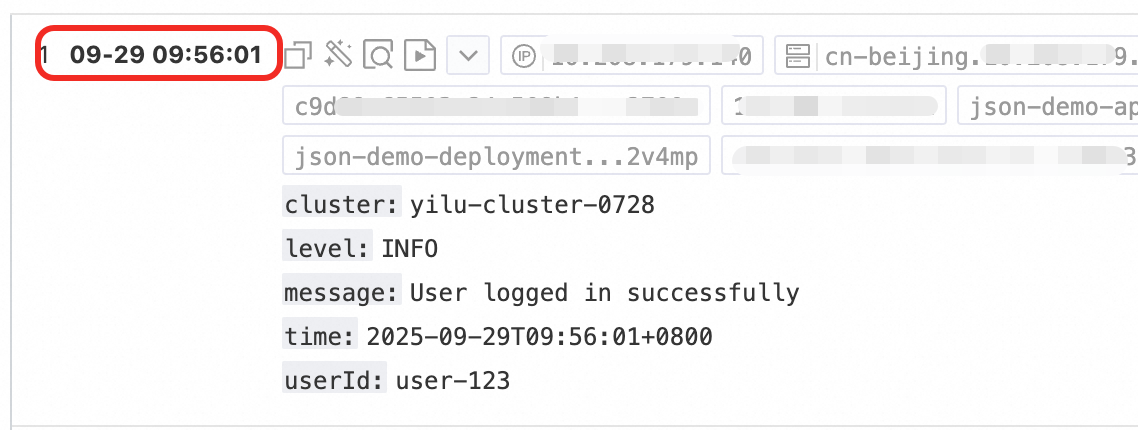
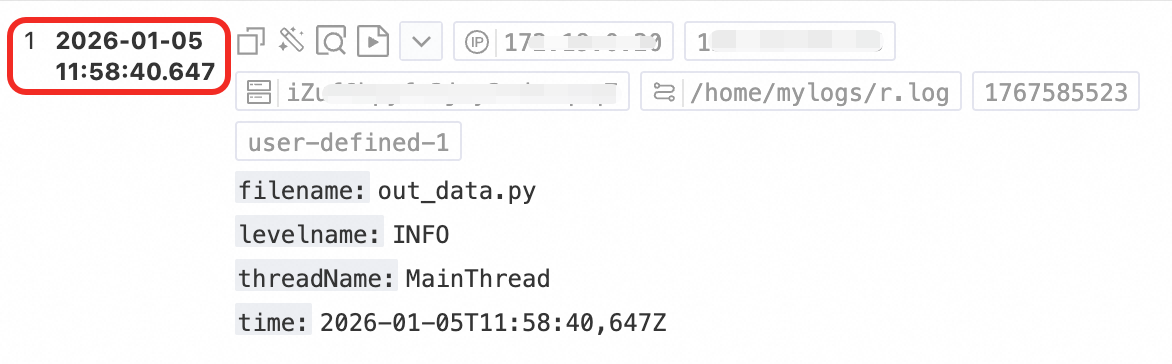
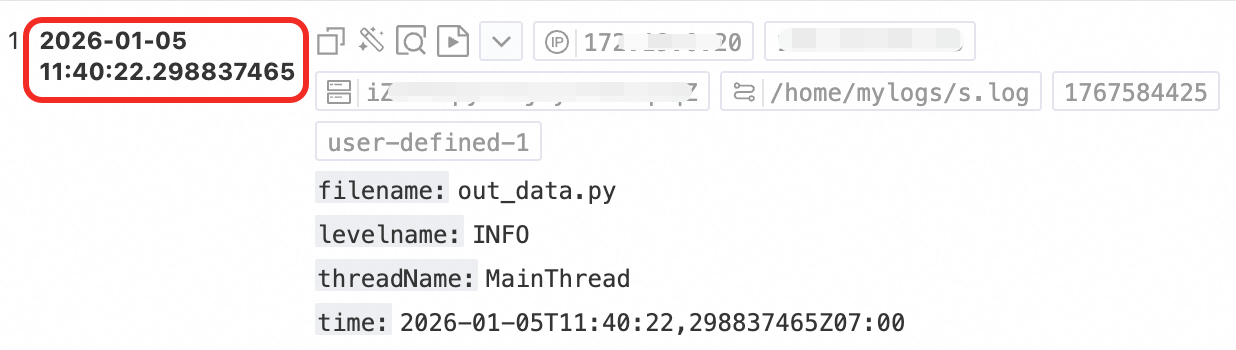
Time processing plugins
SLS provides the following time-processing plugins.
Name | Type | Description |
time parsing | native | Parses and standardizes the time field in logs. |
extract log time | extension | Parses the raw time field and sets it as the log timestamp. |
Entry point
To use a Logtail plugin for log processing, add it when you create or modify a Logtail configuration. For more information, see Overview.
Differences between native and extension plugins
Native plugins: Implemented in C++ for higher performance.
Extension plugins: Implemented in Go for a richer, more flexible ecosystem. Use extension plugins when native plugins cannot handle your log format.
Performance limits of extension plugins
Extension plugins consume more resources (primarily CPU). Adjust LoongCollector parameters in configuration management if needed.
If raw data exceeds 5 MB/s, avoid complex plugin combinations. Use a simple extension plugin and offload further processing to Data Transformation.
Log collection limits
Extension plugins process text logs in line mode. This means that file-level metadata, such as
__tag__:__path__and__topic__, is stored in each log entry.Adding an extension plugin affects tag-related features:
Context query and LiveTail become unavailable unless you add an aggregators configuration.
The
__topic__field is renamed to__log_topic__. When you add the aggregators configuration, the log contains both the__topic__and__log_topic__fields. If you do not need the__log_topic__field, you can use the drop field plugin to delete it.Fields such as
__tag__:__path__lose their native field index. You must create an index for them.
Time parsing plugin (native)
Parses the time field in a log and assigns the result to the __time__ field.
Configuration
Parameter | Description |
Original Field | The field containing the log content to parse. Default: content. Note When using the regex parsing plugin, set the source field to time and include time as an extracted field in your regex configuration. |
Time Format | The format of the timestamp in the log. For example, if the timestamp is 10/Sep/2023:12:36:49, the corresponding time format is %d/%b/%Y:%H:%M:%S. |
Time Zone | The time zone of the timestamp in the log. If left empty, the plugin uses the time zone of the machine where Logtail is running. |
By default, Simple Log Service processes timestamps with second precision. You only need to configure the time format down to the second and can omit smaller units like milliseconds or microseconds. To retain millisecond, microsecond, or nanosecond precision, enable nanosecond precision as shown below. Log collection that supports nanosecond timestamps.
Raw log | Time parsing plugin configuration | Time format |
| In the Processing Plugin configuration dialog, set Processing Plugin Type to Time Parsing, set Source Field to | %Y-%m-%dT%H:%M:%S,%f |
To enable nanosecond precision:
On the Logtail configuration page, navigate to , enable Advanced Parameters, and enter:
{
  "EnableTimestampNanosecond": true
}
Also enable EnableTimestampNanosecond when using extension plugins to parse timestamps with nanosecond or millisecond precision.
Log time extractor plugin
Use processor_gotime or processor_strptime to parse the time field in raw logs.
To preserve sub-second precision, see Log collection that supports nanosecond timestamps.
Go time format (processor_gotime)
Strptime time format (processor_strptime)
Log time formats
For processor_gotime time formats, see Constants in the Go time package. The processor_parse_timestamp_native native plugin and processor_strptime extension plugin support the formats listed below.
On a Linux server, Logtail supports all time formats provided by the strftime function.
Format | Description | Example |
%a | Abbreviated weekday name. | Fri |
%A | Full weekday name. | Friday |
%b | Abbreviated month name. | Jan |
%B | Full month name. | January |
%d | Day of the month as a zero-padded decimal number (01-31). | 07, 31 |
%f | Fractional seconds, such as milliseconds, microseconds, or nanoseconds. | 123 |
%h | Abbreviated month name. Same as %b. | Jan |
%H | Hour (24-hour clock) as a zero-padded decimal number (00-23). | 22 |
%I | Hour (12-hour clock) as a zero-padded decimal number (01-12). | 11 |
%m | Month as a zero-padded decimal number (01-12). | 08 |
%M | Minute as a zero-padded decimal number (00-59). | 59 |
%n | A line feed. | line feed |
%p | Either AM or PM. | AM, PM |
%r | Time in 12-hour format. Same as %I:%M:%S %p. | 11:59:59 AM |
%R | Hour and minute in 24-hour format. Same as %H:%M. | 23:59 |
%S | Second as a zero-padded decimal number (00-59). | 59 |
%t | A tab character. | None |
%y | Year without century as a zero-padded decimal number (00-99). | 04, 98 |
%Y | Year with century as a decimal number. | 2004, 1998 |
%C | Century as a decimal number (00-99). | 16 |
%e | Day of the month as a space-padded decimal number (1-31). | 7, 31 |
%j | Day of the year as a zero-padded decimal number (001-366). | 365 |
%u | Weekday as a decimal number, where Monday is 1 (1-7). | 2 |
%U | Week number of the year, with Sunday as the first day of the week (00-53). | 23 |
%V | ISO 8601 week number of the year, with Monday as the first day of the week (01-53). Week 1 is the first week of the year that contains at least four days. | 24 |
%w | Weekday as a decimal number, where Sunday is 0 (0-6). | 5 |
%W | Week number of the year, with Monday as the first day of the week (00-53). | 23 |
%c | Locale-specific date and time representation. | Tue Nov 20 14:12:58 2020 |
%x | Locale-specific date representation. | Tue Nov 20 2020 |
%X | Locale-specific time representation. | 11:59:59 |
%s | Unix timestamp. | 1476187251 |
Examples
Common time standards and their corresponding expressions:
Example | Expression | Standard |
2017-12-11 15:05:07 | %Y-%m-%d %H:%M:%S | Custom |
[2017-12-11 15:05:07.012] | [%Y-%m-%d %H:%M:%S.%f] | Custom |
2017-12-11 15:05:07.123 | %Y-%m-%d %H:%M:%S.%f | Custom |
02 Jan 06 15:04 MST | %d %b %y %H:%M %Z | RFC822 |
02 Jan 06 15:04 -0700 | %d %b %y %H:%M %z | RFC822Z |
Monday, 02-Jan-06 15:04:05 MST | %A, %d-%b-%y %H:%M:%S %Z | RFC850 |
Mon, 02 Jan 2006 15:04:05 MST | %a, %d %b %Y %H:%M:%S %Z | RFC1123 |
2006-01-02T15:04:05Z07:00 | %Y-%m-%dT%H:%M:%S%z | RFC3339 |
2006-01-02T15:04:05.999999999Z07:00 | %Y-%m-%dT%H:%M:%S.%f%z | RFC3339Nano |
1637843406 | %s | Custom |
1637843406123 | %s | Custom (Simple Log Service truncates timestamps to second-level precision) |
Related documents
Logtail pipeline configuration API:
Console-based plugin configuration:
Collect container logs from a cluster using Kubernetes CRDs (standard output/file)